The following notes were taken from my audio recording and chat log of the Content Creation User Group (CCUG) meeting held on Thursday, April 30th 2020 at 13:00 SLT. These meetings are chaired by Vir Linden, and agenda notes, meeting SLurl, etc, are are available on the Content Creation User Group wiki page.
Unfortunately, my recording software crashed some 2/3rds of the way through the meeting (and I was afk, so didn’t spot it), so I missed recording around the last 15-20 minutes of the discussions.
Jelly Dolls / Avatar Rendering
As noted in my week #16 CCUG summary, Vir has been looking at the jelly doll rendering code, which is not well optimised (e.g. it still draws rigged attachments) and it handles some operations inconsistently (e.g.setting an avatar to never render is actually more processing expensive that simply leaving it jelly dolled).
One of the things Vir has been experimenting with is displaying Jelly Dolls as monochrome system avatars sans rigged mesh and attachments.
An issue with this approach is that non-human avatars use animations to reposition bones and joints, when can result in the system avatar looking very weird, even in monochrome. Vir has therefore been focused on finding a way to pause the animations when a non-human avatar is jelly dolled, and just running something like one or two of the default animations from the system locomotion graph.
In brief
BUG-228564 -Feature Request: New object property “Intangible”
This is possibly a duplicate request (those listed on the Jira are for different functionality, so not true duplicated), requesting an option to make certain in-world objects “invisible” to the viewer’s ray casting, so they they do not react to mouse clicks, but the objects beyond can.
Such a capability would be useful where semi-transparent objects are used to imitate sun beams or fog or rain, etc., otherwise block the ability to click on objects (e.g. seats, etc.), they surround / are in front of. However, such a change would require both viewer-side and back-end changes so, even if the Jira isn’t a duplicate of an existing request and is something LL accept, it is unlikely to be worked on until after the cloud uplift work has been completely, simply because it will require the introduction of a new object property on the simulator side / back end.
Education / Awareness
Much of the meeting was a general discussion on how to better inform / educate creators and users on the benefits of optimised content, and exactly what can impact things like perceived SL performance.
The major crux of this discussion came down to providing better documentation / information that both creators and users could be pointed to (e.g. more detailed information on mesh creation, including topics such as LOD generation, tri counts, use of maps, etc. for the former; clearly-worded instructions and benefits of using tools like ARC, etc., in the viewer to improve performance, etc., for the latter).
It was pointed out that LL have limited resources for the production of comprehensive best practices, and that perhaps the best sources for these might be creators themselves.
As the SL wiki is currently closed to general editing, those who have a specific desire to edit wiki pages / build articles can request access by sending an e-mail outlining who they are and why they want access to: letmein-at-lindenlab.com.
Speedlight, the browser based / Android Second Life client, continues to be developed and updated, with new or improved capabilities being added almost weekly. The following is a round-up of some of the more recent updates, and well as some I’ve not previously mentioned, including the Gold-only Mass IM tool.
Transfer Gold Status between Avatars
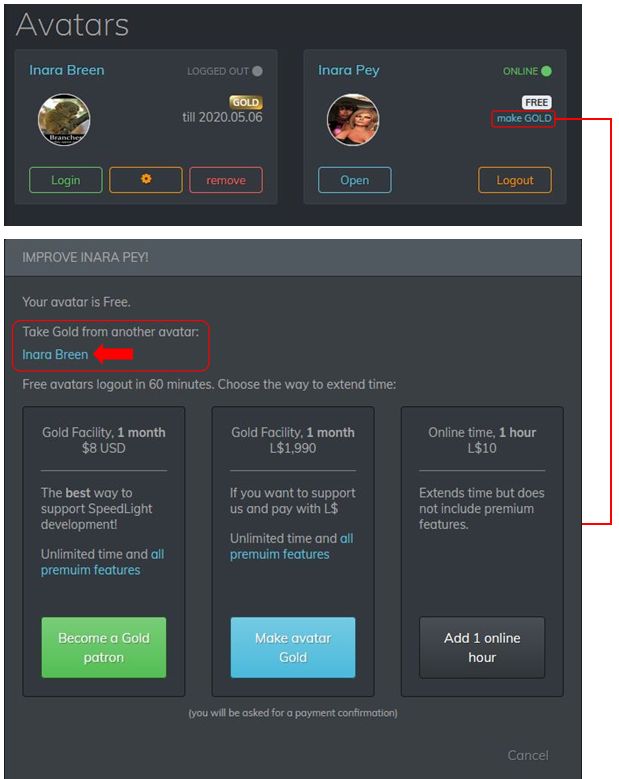
If you have two or more avatar accounts connected to your Speedlight account, one of which is Gold status, you can now transfer that status between your avatar accounts. Handy if you find you suddenly need a second account to briefly have the advantages of Gold, but not sufficiently long enough to justify an additional subscription or for becoming a Speedlight Patreon member.
To move your Gold status between avatar accounts:
Log-in to Second Life via your Speedlight account and then log-in to Second Life with the account that is not Gold.
Click / tap on the Make Gold option on the right of your avatar box.
The Gold upgrade screen is displayed. This now includes the name(s) of any Gold avatar accounts you already have under the title Take Gold From Another Avatar.
Click on the avatar name from which you want to transfer Gold status.
The Gold status will be removed from that account and conferred on the account you are using. Note that no confirmation is given, but the current logged-in account will list itself as being Gold.
Swapping Gold status between accounts
Word View
Rendering Updates
April 22nd, 2020 saw a series of updates to the rendering system generating the 3D world view. These include:
In-world objects are now load quickly in low quality, then get a higher quality when you look at them.
The distance fogging can be turned off if preferred.
The draw distance can be adjusted.
Linden Water level is correctly displayed.
Multiple performance improvements / fixes.
Updated scene information panel that can be toggled on / off.
UI touch joystick now allows walking and rotating.
Gold only: seated avatar mannequins are now rendered.
Overall 3D UI is more compact.
Updated Scene Information Panel
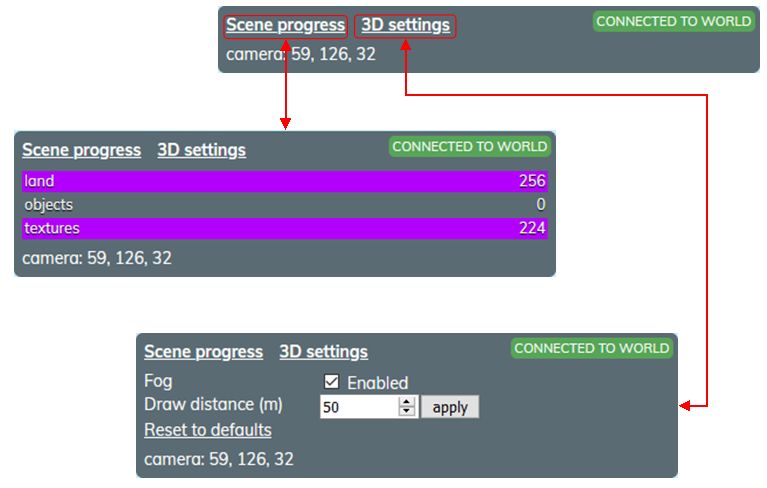
The world view information tab has been updated, and comprises four core elements:
The Scene Progress display link (generally open by default). When open, displays the land, object and texture load data.
The 3D Settings display. When open allows you to:
Toggle the distance fogging on/ off.
Increase / decrease your draw distance (default 50m).
Your connection status:
Green – you are connected to the region simulator.
Red – you are not connected to the simulator and will need to relog.
The current region coordinates of your camera.
The Scene Information panel and options
Notes on this panel:
It can be expanded / reduced by clicking on one or other of the scene process or 3D settings links.
One click will toggle from one to the other.
Clicking on the same link twice will either expand / close it or close / expand it, depending on its initial state.
Be careful with setting the draw distance too high; this could place additional data transfer load on your connection to the rendering server.
Accessing Avatar Profiles in World View
An option I’ve not previously covered in discussing the 3D world view is the ability to view another avatar’s Profile directly in the world view.
Click / tap on the avatar.
The avatar’s Profile opens on the right edge of the world view.
The Profile buttons will function as follows:
The Send IM and Notecard buttons will switch you to the IM window in the client.
The Pay L$ will switch you to the L$ and transactions window in the client.
Offer Teleport and Offer Friendship will open an invitation in the world view.
Another avatar’s profile can be displayed in the world view by clicking on the required avatar mannequin
Send Note Cards via IM
Introduced on April 16th, Speedlight’s Note Cards from IM allows you to:
Send a note card directly from an IM session.
Reply to a received note card in an open IM session with a *new* note card.
Sending a Notecard Using IM
Open an IM session with the person to whom you want to send a note card.
Note that you can already be chatting with them, and simply wish to send additional information.
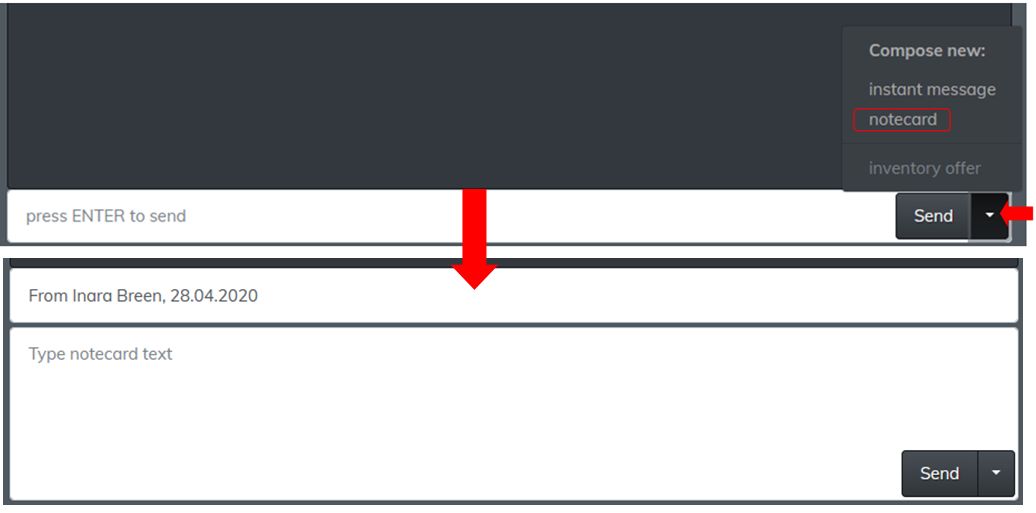
Click / tap on the down arrow to the right of the Send button at the bottom of the IM display to open a list of options.
Click / tap on notecard.
The text input area will expand to display:
The note card title field, which will default to “From [avatar name] [time stamp].
The body text area.
Change the title as required, and use the text entry field to write the contents of the note card.
Click / tap Send to deliver.
The send a note card from IM capability
Reading the Replying to Note Cards via IM
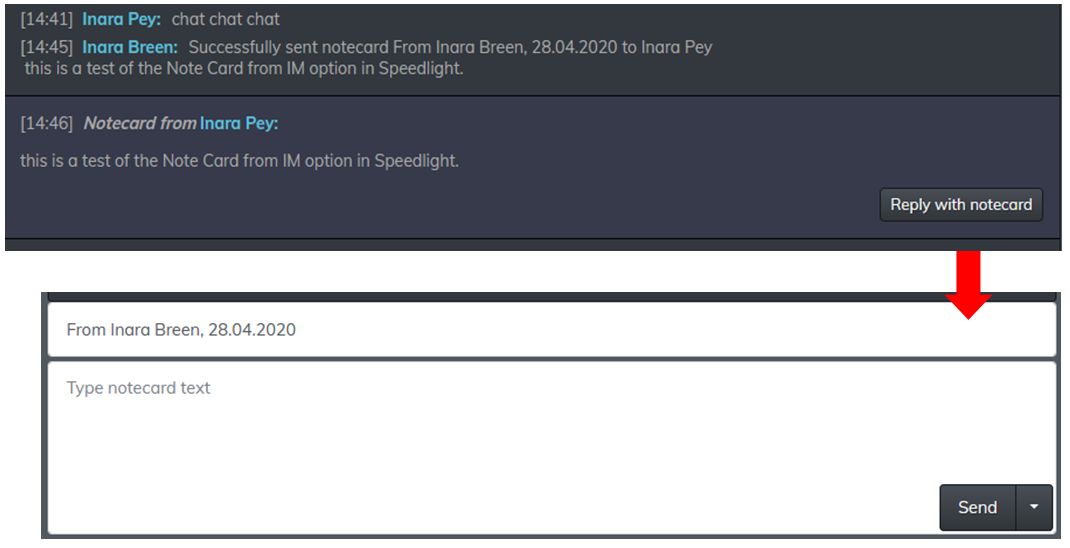
Should you receive a note Card via an open IM session, the text of the IM will be displayed in the main IM window, as shown below. A button displayed at the end of the note card text that allows you to reply using a fresh note card..
Receiving the text of a note card in IM, and replying using a note card
Again, the note card fields at the bottom of the IM window should be filled out as requires, and the Send button used to send it.
Gold Only: Mass IM Tool
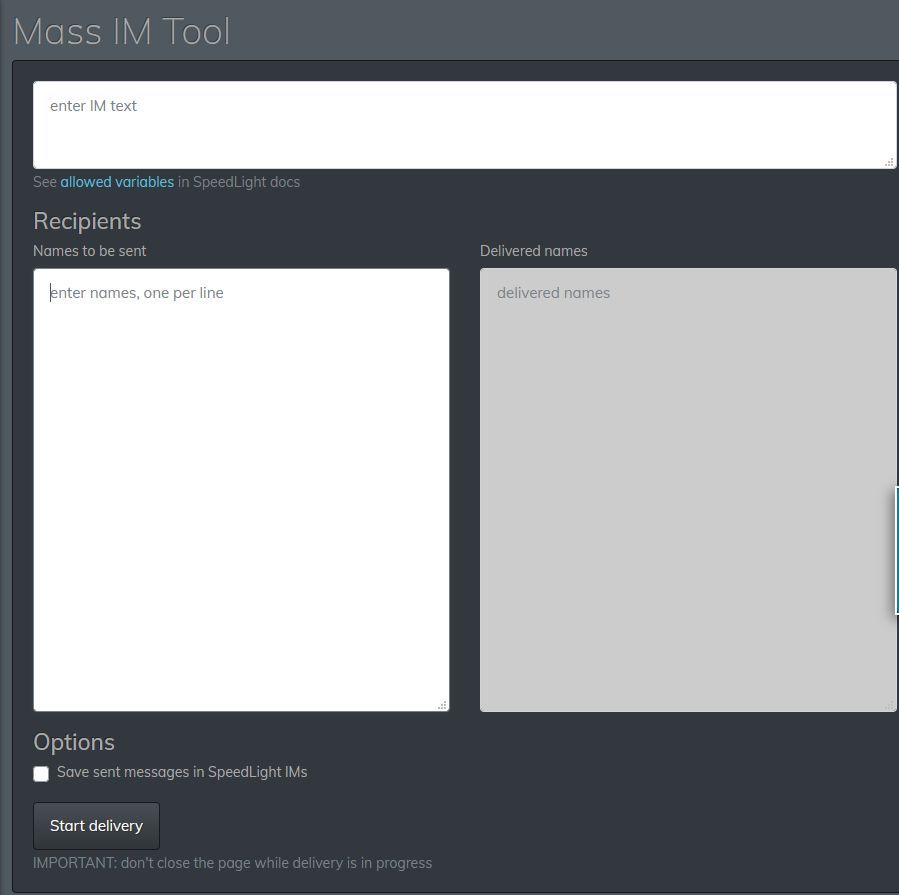
This is not a new feature to Speedlight, but this is the first opportunity I’ve had to review it. In short, it does exactly what the title implies: allows you to send a single IM to multiple recipients.
Accessed via the IM option in the left side menu, Its use is self explanatory as well:
Enter the message in the top field.
Add a list of intended recipients in the lower left field, one name per line (this must be avatar names, not group names).
If required, check / tap the Save Sent Messages to Speedlight IMs to save a copy of the message to your IM logs.
Click /tap the Start Delivery button.
As the IM is delivered to each name on the list, a confirmation of delivery is displayed in the lower right text field.
You’ll also receive a notification on the status of each delivery.
The Speelight Mass IM option (Gold only)
Observations
The ability to transfer a Gold membership between avatar accounts is an excellent move for those who may occasionally need to have an alt access the more advanced world view available to Gold accounts, or to remain on-line without hourly re-logs. Similarly, the notecard updates in the IM options makes Speedlight even more flexible as a communications tool.
The world view rendering performance improvements should also be a welcome update for Gold members (I didn’t notice and particular increase for free accounts, but that might have simply been my connection). I did find the the problem of the avatar not stopping walking once in motion, as reported in my April 8th Speedlight update, to still be present; while I’ve heard two other users say they’ve had the same problem as well, I’ve no idea how widespread it might be.
That issue aside, Speedlight – while still very much in an beta stage of development – continues to progress. Watching the Discord server channels for the client, I’ve been impressed with the degree of communications from the team responsible for Speedlight, and their willingness to engage with users.
On Tuesday, April 28th, the majority of the grid was updated to server maintenance release 540213, previously deployed to an RC cluster and comprising simulator updates related to Premium benefits.
A single RC update is due on Wednesday, April 29th. No version number as available at the time of writing, but Rider Linden indicated it contains no functionality changes, but is an update to the simulator build tools.
SL Viewer
On Monday, April 27th, 2020, the Zirbenz RC viewer updated to version 6.4.1.540593.
At the time of writing, the remaining RC viewers have yet to be merged up to the EEP release, and there have been no project viewer updates, leaving the remaining official viewer pipelines as follows:
Release channel cohorts:
Camera Presets RC viewer, version 6.3.9.538729 March 25.
Love Me Render RC viewer, version 6.3.9.538760, March 25.
Project viewers:
Copy / Paste viewer, version 6.3.5.533365, December 9, 2019.
Project Muscadine (Animesh follow-on) project viewer, version 6.4.0.532999, November 22, 2019.
Legacy Profiles viewer, version 6.3.2.530836, September 17, 2019. Covers the re-integration of Viewer Profiles.
360 Snapshot project viewer, version 6.2.4.529111, July 16, 2019.
In Brief
The fix for the issue off-line inventory losses from objects (see: BUG-227179 “All offline inventory offers from scripted objects are STILL lost”) is still awaiting deployment.
Simon Linden is stepping back from running the SUG meetings to focus more on the cloud uplift work. He’ll still be attending, but Rider is taking the reins.
Logos representative only and should not be seen as an endorsement / preference / recommendation
Updates for the week ending Sunday, April 26th
This summary is generally published every Monday, and is a list of SL viewer / client releases (official and TPV) made during the previous week. When reading it, please note:
It is based on my Current Viewer Releases Page, a list of all Second Life viewers and clients that are in popular use (and of which I am aware), and which are recognised as adhering to the TPV Policy. This page includes comprehensive links to download pages, blog notes, release notes, etc., as well as links to any / all reviews of specific viewers / clients made within this blog.
By its nature, this summary presented here will always be in arrears, please refer to the Current Viewer Release Page for more up-to-date information.
Note that for purposes of length, TPV test viewers, preview / beta viewers / nightly builds are generally not recorded in these summaries.
Official LL Viewers
Current Release version version 6.4.0.540188, dated April 15th, promoted April 20th. Formerly the EEP RC viewer – NEW.
There was no deployment to the majority of the grid on Tuesday, April 21st, leaving in on server maintenance update 539684.
On Wednesday, April 22nd, three RC deployment should take place:
540213 – simulator updates related to Premium benefits.
540369 – containing updates to fixes for the just released name changes after it was discovered the feature could, in a couple of places still call you by your former name for up to a week (“oops!”, as the Lab put it), and assorted internal changes.
A further deployment 540032 first deployed on April 15th, containing updates related to the cloud uplift.
SL Viewer
On Monday, April 20th, 2020, the EEP RC viewer, version 6.4.0.540188 and dated April 15th, was promoted to the de facto release viewer. See:
At the time of writing, the remaining RC viewers have yet to be merged up to the EEP release, and there have been no project viewer updates, leaving the remaining official viewer pipelines as follows:
Release channel cohorts:
Camera Presets RC viewer, version 6.3.9.538729 March 25.
Love Me Render RC viewer, version 6.3.9.538760, March 25.
Zirbenz Maintenance RC viewer, version 6.3.9.538719, issued March 19.
Project viewers:
Copy / Paste viewer, version 6.3.5.533365, December 9, 2019.
Project Muscadine (Animesh follow-on) project viewer, version 6.4.0.532999, November 22, 2019.
Legacy Profiles viewer, version 6.3.2.530836, September 17, 2019. Covers the re-integration of Viewer Profiles.
360 Snapshot project viewer, version 6.2.4.529111, July 16, 2019.
In Brief
A question was raised over the potential for EEP to cause “lag” (with up to 4 altitude layers for EEP sky settings plus the use of parcel environment options, there is concern loading and reloading the required textures could impact travellers. In response to the concern, Simon Linden said:
Compared to the cost and payload of stopping your AV on one region, sending the data to the next and adding you into that part of the world, the EEP data change is pretty small. Your viewer might have a little more work to get textures and set up the sky and lighting, but I don’t think those will be significant.
Rider, Ptolemy and Euclid Linden, the three major movers behind EEP will be on the Friday, April 24th edition of Lab Gab.
The Environment Enhancement Project (EEP) is a set of environmental enhancements designed to replace windlight XML settings to control the water and sky environments seen in Second Life, and provides a wide range of additional / new capabilities for region holders, parcel holders and general users. It represents a fundamental shift in how environment settings are used and applied.
In brief EEP:
Uses environment objects that you can keep in your inventory and / or share with others.
Provides parcel-level control of environments.
Allows up to four different, independently controlled sky layers.
Allows the Sun, Moon and Cloud textures to be replaced with custom textures uploaded to the viewer.
Provides an extended day cycle of up to 168 hours (thus allowing a 7-day, 24-hour day / night cycle to be defined, for example).
Allows users to override region / parcel settings as seen within their own viewer, by either attaching EEP settings to their avatar or through the Personal Lighting floater.
Provides new LSL functions to allow scripts to interact with parcel environments.
EEP allows you to have a little fun, if you wish. Credit: Bellimora
Many have already gained familiarity with EEP whilst it has been in development, using both the original project viewer and iterations of the release candidate viewer. However, given it is such a fundamental shift in how environment settings are created and used, I have attempted to break things down into more easily digestible pieces through the use of this EEP primer, and a more comprehensive EEP tutorial.
This primer is designed to provide an overview of the basic EEP capabilities and options from the point-of user of someone wishing to use them.
The EEP Tutorial is intended to provide a comprehensive breakdown of EEP capabilities, including how to create new EEP sky, water and day settings for personal use or which can be given or sold to others.
You can use either this primer or the tutorial to better understand EEP (the information here is also presented in the tutorial, which also explores the various floaters and options in greater depth).
For official information on EEP, please refer to the Environment Enhancement Project SL wiki page.
EEP Basic Concepts and Terminology
In brief EEP:
Uses environment objects that you can keep in your inventory and / or share with others – including selling (subject to the SL permissions system) via in-world stores and on the Marketplace.
Provides parcel-level control of environments.
Allows up to four different, independently controlled sky layers.
Allows custom textures for the Sun, Moon and clouds.
Provides an extended day cycle of up to 168 hours (thus allowing a 7-day, 24-hour day / night cycle to be defined, for example).
Means that as environments settings are simulator-side, and so by default are automatically seen by anyone using any EEP enabled viewer on entering the region / estate / parcel.
Still allows the use of “personal” settings seen only be the use applying them, for the purposes of photography, machinima, etc.
Terminology
EEP uses some key terminology that should be understood.
Settings: used to define the environment you see. There are three settings types:
Sky: define the atmosphere and lighting for a day (or night); the movement, density, etc., of the clouds; and the appearance of the Sun and / or the Moon (which remain in a fixed point in the sky).
Water: define the appearance of Linden Water (prim or mesh animated water is not affected): water colour and reflection; wave movement; amount of light refraction, etc.
Day Cycles: collections of Sky and Water settings that are combined to present a dynamically changing environment over a user-defined time period representative of a “day” (by default this is set to the legacy Second Life day / night cycle of 4 hours, but can be extended out to represent physical world time periods of up to one week).
Note that Sky and Water settings are referred to as Fixed Environments.
EEP assets: physical “containers” for storing EEP settings. These are inventory items that by default, are stored in the new Settings folder in your inventory (see below), they are split into three types:
Sky – Sky settings. Icon: a blue sky with clouds.
Water – Water settings. Icon: a water droplet.
Day Cycle – for Day Cycles. Icon: a split Sun / Moon.
EEP assets (permissions allowing) can be exchanged, given away, and / or sold through a store or via the Marketplace.
Note that EEP settings are:
Created or edited using their corresponding EEP asset (e.g. to create Sky settings, you use the Sky asset type).
New EEP assets can be created directly from inventory, just like any other system inventory asset type (notecard, clothing item, gesture, script, body part).
Creating / editing EEP assets and settings is covered in depth in my EEP tutorial.
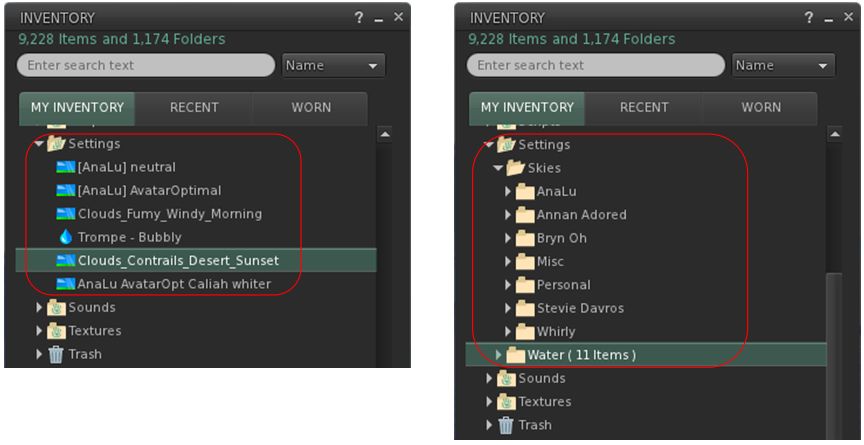
By default stored within a new system folder in inventory – the Settings folder. This folder may be hidden until such time as an EEP asset is created.
By default, EEP assets are stored and created in the Settings folder in your inventory (l). If you want, you can manually sub-divide your settings into suitable folders for easier tracking (r)
EEP Permissions
There are a few notes on permissions associated with EEP settings / assets.
Copy/no-copy: EEP settings assets may never be marked no-copy. A person who owns a setting object may always make a copy of it in their inventory.
Transfer/no-transfer: the no-transfer permission is persistent. If you import any no-transfer day or water setting into a day cycle, that day cycle will also become no-transfer. Once saved, this change cannot be undone.
Modify/no-modify: these permissions behave as normal.
EEP Library Assets
EEP includes a collection of Sky, Water and Day Cycles, together with a set of textures that can be used for clouds and / or to replace the Sun and Moon, etc.
These are located in Inventory (CTRL-I) → Library → Environments.
They can be used in one of two ways:
Unmodified, directly from Library → Environments.
By copying them to your inventory (e.g. to your own Settings folder, if it is visible through the creation of an EEP asset; if not, any other folder can be used), where they will become modifiable, allowing you to adjust them / use them to create your own settings.
See my EEP Tutorial for editing / modifying EEP assets and settings.
Differences to Windlight
Some of the key differences between EEP and windlight are:
EEP settings are stored in inventory assets, not as XML files saved to your computer.
Because they are server-side, EEP settings are by default seen by any viewer affected by the. This can mean:
Parcel owners using a specific set of environment settings no longer have to request visitors manually switch to them.
Settings are no longer dependent on visitors to a parcel with a custom environment having the precise windlight XML file stored on their computer.
EEP setting do not require any external storage (e.g. Dropbox) in order to be shared with other users, if they are to be given away.





 Inara Pey: Living in a Modemworld