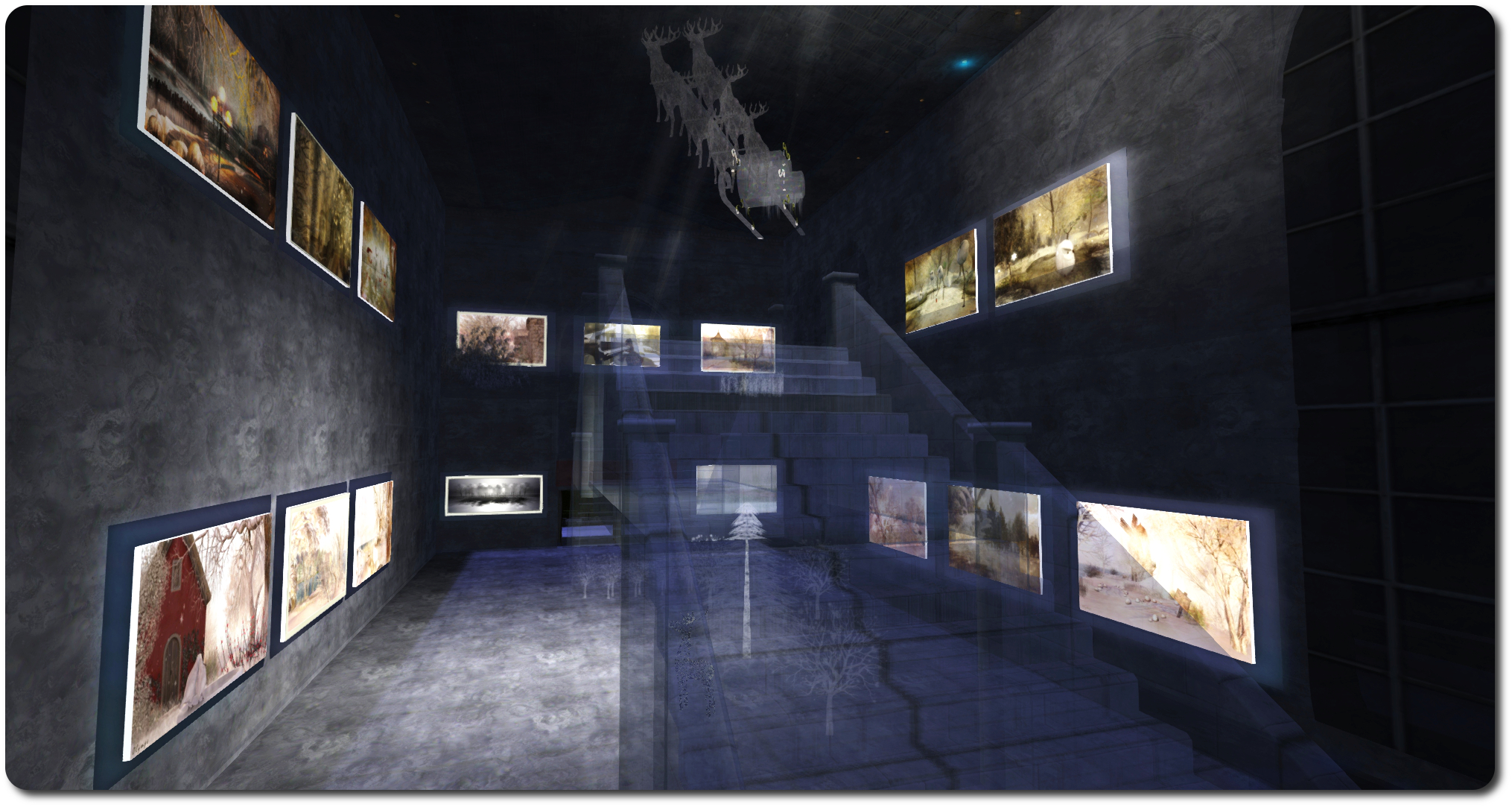
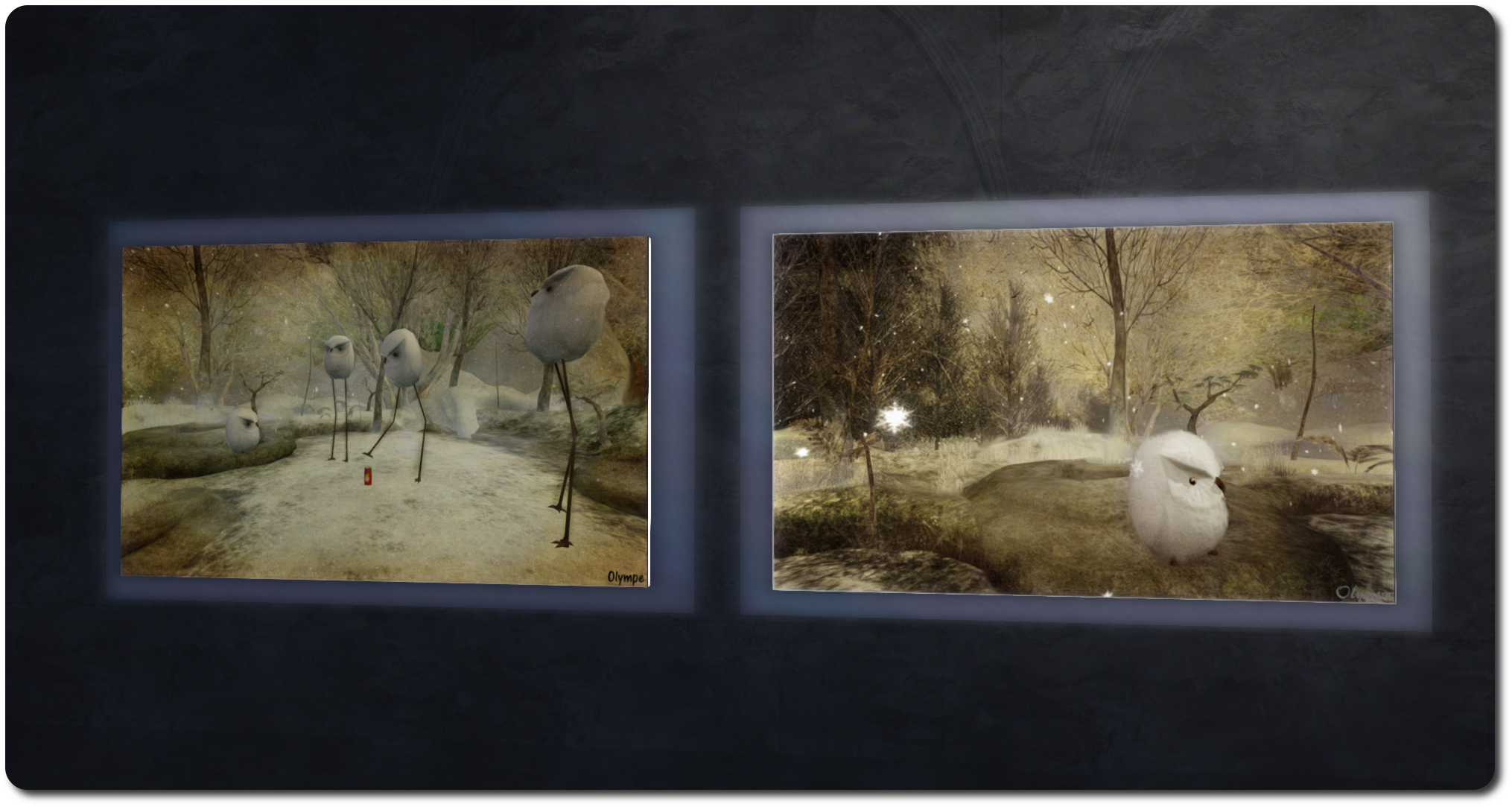
Running through until January 2015 at the Paris Metro Art Gallery is an exhibition of SL landscapes by Olympes Rhodes, featuring a collection of pictures captured from around Second Life which reflect the theme of winter in one way or another.
Some twenty-one pictures are on display, arranged on two levels within the gallery space, which has been transformed into something of an ice palace for the exhibition; the floor and walls covered in panelling covered in a ice-like effect and which are semi-transparent, so the world outside can just bee seen through the gallery’s actual windows, while the mezzanine floor of the upper level and the grand staircase leading up to it have a ghostly, translucent finish to them suggestive of them having been cut from ice.
“My job was to create an environment in the gallery that supports the works,” curator Quan Lavender says of the interior design, “And fits to the wonderful Winter scene with ice pond in front of the building.” I’d say she’s succeeded, the interior fittings rounded-off with a series of ice carvings and other accessories Quan found at the Xmas Expo, and which fit the theme perfectly.
Not all of the pictures on display may appear to be winter scenes; they don’t all have snow and frost featured within them, for example. But the theme is there to be found in each and every one, even if the presentation is subtle – such as with the pictures taken at Chouchou, which suggest feelings of winter and ice through the backdrop of the Memento Mori cathedral. In another, a little group of penguins standing on the beach provide the necessary connection.
All of the pieces have their own beauty and delicacy about them, and each one offers a unique interpretation of some very famous regions in Second Life. Their names are not given, which encourages the visitor to spend time examining each picture in greater detail to see if the location can be identified. Or at least, that was the case with this visitor!
When visiting, and if you are so minded, don’t forget that gallery owner Rose (rfb Morpork) has created a gown to match the theme of the exhibition, which can be obtained from the gift giver outside the gallery.
Firestorm on SL Go from OnLive: almost 60 fps in my home region on a Asus PC EEE 1201N notebook with all the bells and whistles active
Important note: The SL Go service is to be shut down on April 30th, 2015. For more information, please read this report.
Onlive, the provider of the SL Go, and the Firestorm team recently announced the addition of the Firestorm viewer to the SL Go service. I covered the news with a quick overview, and you can also read both the official press release from OnLive and the Firestorm’s team’s announcement to catch-up, if you need to.
Given SL Go has, until this announcement, only been available with a flavour of the official SL viewer, there may be some Firestorm users who haven’t really thought about SL Go or given it a look. As such, I’d thought I’d offer a little more of a detailed look.
The Preamble
Just as a quick reminder, SL Go is a third-party service which can be used to access Second Life. Rather than using a locally-installed viewer, everything is run on OnLive’s servers and then streamed directly to the user’s chosen device (PC, Mac, tablet, HDTV via OnLive’s own game console).
SL Go has been available with a version of the SL viewer since March 2014 for all of the above. The Firestorm update now extends the service to include the Firestorm viewer, initially only to people running low-end PCs and Macs, although Android and iPad flavours should be available in the future.
The service does require a subscription (to cover OnLive’s costs), which amounts to US$9.95 (UK £6.95) per month for unlimited access – and this includes accessing Second Life from your Android Tablet or iPad as well, should you also wish to give it a try (you will need to install the OnLive app on your tablet and, as noted above, you will only be able to run the SL viewer on it for the time being).
A free 7-day trial period is provided for anyone wishing to try the service without obligation, and there is no minimum term once the trial period has ended, so you can cancel your subscription at any time. Once you have signed-up, and to use Firestorm, you’ll need to download the OnLive PC or Mac client.
However, and important point to remember is that SL Go isn’t intended as a replacement for the standard viewer offerings (SL or TPV). If you have a good computer / laptop and can run the viewer to your satisfaction already, then SL Go likely isn’t for you. But, if you are using an old system and are finding SL a struggle, then SL Go may well offer a means for you to increase your enjoyment with the platform until such time as you can update your hardware.
Running Firestorm via SL Go
Running Firestorm via SL Go is a matter of:
Launching the OnLive client
Then, if you have an OnLive account (rather than just an SL Go account) – clicking My Games at the top of the client window, then selecting SL Go from the left side of the client
Selecting Firestorm from the SL Go service screen (see below)
Allowing the viewer to load.
SL Go users accessing the service via PC or Mac now have a choice of viewer: the SL Viewer (SLV, as OnLive refer to it) or Firestorm
A point of note here is that the OnLive client runs in a fixed 1280×720 resolution, and presents the viewer in fullscreen mode only. This means that the client is “stretched” or “shrunk” to fit other screen resolutions, and as a result there can be a loss of image quality.
This can be compensated for to some extent by switching the OnLive client to “Windowed” mode (ALT-ENTER for Windows, CMD-F for Mac), and then resizing the window by pointing down into the lower right corner of the window, holding the left mouse button and dragging to the desired size (note that the cursor will not change to a grab handle or anything, so getting it can be a case of trial and error). The window will retain a 16:9 ratio when being resized in this way, but should hopefully offer some degree of improvement; in the case of my own Asus PC EEE 1201N notebook (1366 x 768 native resolution), it did make things clearer for me.
With the OnLive client running in “Windowed” mode, you can point to and click on the lower right corner of the client window (no grab handles will be displayed) and resize as required – the window will retain a 16:9 ratio
Once you’re logged-in to Firestorm, you should find it pretty much as you’d expect to see it on logging-in first the first time following a clean local install. As when running the viewer locally, you can set the buttons you require within the toolbar areas, adjust the font size, tweak Preferences, etc. You’ll find you have almost everything you’d expect to find in Firestorm had you downloaded and installed it: windlight options, Phototools, radar, quick preferences, Firestorm’s conversations / chat UI, RLV/a and so on.
There are, however a few things apparently “missing”, which are purely down to the fact that the viewer is being run on an OnLive server and streamed to you. Those who have used SL Go before will be familiar with some of this, but again, for completeness here’s a breakdown of what you’ll likely note as “not being there”:
The Develop menu, access to debug settings through the Advanced menu, the ability to upload any content (mesh, sounds, animations, images), the ability to use local textures, or to save snapshots to disk – these are all limitations common to both Firestorm and the SL viewer on SL Go
There is currently no support within SL Go for 3D mouse devices such as the Space Navigator
You cannot save or restore your Firestorm settings; any “local” pickers Firestorm uses will not work; there is no option to set crash reporting to the Firestorm team.
Firestorm currently doesn’t have the crash reporting tab or backup tab in Preferences, among other disabled elements
The Cornfield: the Lab’s Experience Keys demonstrator (game play area uses a much darker and more atmospheric windlight)
On Wednesday, December 17th, the Lab issued a release candidate version of the Experience Keys viewer. Alongside the promotion comes a new blog post promoting the availability of the viewer and the Experience Keys / Tools beta programme.
For those not previously aware of Experience Keys, the blog post provides some explanation:
Experience Keys are a powerful feature that allows creators to build more seamless and immersive experiences in Second Life. Without this feature, you need to grant individual permissions to every single scripted object included in an inworld experience, and that can mean a lot of dialog boxes interrupting the fun! Experience Keys make it possible for creators to build experiences that ask your permission just once. In other words, you can opt-in to the entire experience, rather than having to grant individual permissions to every single scripted object included in it.
I provided an overview of Experiences, Experience Keys and the the viewer-side updates when the Experience Keys viewer first appeared as a project viewer. While there have been some updates since then, the core of that article should still be valid where the viewer is concerned, and finding actual Experiences is now a lot easier given they are now listed in the Destination Guide. You can also try-out the Lab’s own Experience Tools activity, the Cornfield via the LR Portal Park1 (and it looks like another one might be opening soon!).
As to the viewer, this essentially gives you all the tools you need in order to track and manage those activities you opt to participate in or those you opt to turn down – again, the key thing with Experiences is that you retain overall control; if you don’t want to participate in something, you can decide not to opt-in. So, for example, is a region has an Experience associated with it, but you’d rather just explore, you can decide not to join the Experience when prompted, but do so at a later time. There’s also a Search option (with its own Maturity setting) that allows you to locate Experiences from within the viewer.
The Experience Keys RC viewer provides you with the tools you need to manage the Experiences you decide to participate in, or decide not to join. (the Allowed / Blocked tabs, above right), while the Search tab makes it easy to locate in-world Experiences (click for full-size)
As well as the tools for those wishing to find and participate in Experiences in SL, the viewer also includes tools and options which allow those wanting to build their own experiences – but you’ll need to refer to my preview article for more information on that.
You can, of course, still participate in those Experiences which are already available in-world with any viewer – you just won’t get the same richness of information and options that the Experience Keys RC viewer provides.
You can use a “regular” viewer to join Experiences in-world, but you don’t get the same richness of information and options as presented by the Experience Keys RC viewer. Information displayed by the latter is shown above left, compared to a “non-Experience Keys” updated viewer on the right. While the “non” viewer still gives you basic information on the Experience you might be about to enter, the RC viewer provides a lot more – including a link you can use to display additional information on the Experience, which may additionally help you decide if you want to join in or not
Also, when you leave a region in which an experience is running, you needn’t worry about anything untoward happening to you – all permissions, etc., associated with the Experience are revoked when you leave.
As the official blog post notes, Experience Keys are, from a creation standpoint, still in beta, but the signs are the first set of capabilities will be rolled out in the very near future, hopefully not too long after the Christmas / New Year break. After that, and depending on uptake / feedback, etc., it is likely the system will be enhanced and extended.
One thing to note with Experience Keys and Tools, is that while the emphasis is primarily on game-base activities, they offer a lot of potential in other areas as well – guided tours, store demos, and more. All of which will potentially make the capability a very flexible addition to Second Life.
There will be more to come on Experience Keys and Tools, but in the meantime, and like the official blog, I’ll leave you with Torley’s explanatory video.
On Tuesday, December 16th, the Lab issued a brief statement on the matter of missing inventory which has been affecting some SL users since Wednesday, December 10th.
News on problems first arose via a forum post as people started noticing animations from Akeyo and Vista (among others) being replaced by “IP replacement” placeholders – which usual indicate removal as a result of a DMCA action. Some of those affected additionally indicated that they had also received an e-mail on the matter from the Lab – although others apparently did not.
How widespread the issue actually has been, is hard to judge; the forum thread itself involves a relatively few people, although this is obviously no accurate barometer of the overall impact and certainly not any form of mitigation for those who had been affected. Matters were further confused as a result of some support tickets raised on the matter being responded to as being a “resident to resident” issue, and therefore outside of LL’s remit.
By Sunday, December 14th, a number of SL users were pressing both the Lab (through their official community account) and Ebbe Altberg for comment, prompting him to reply:
Ebbe Altberg’s Tweets on the issue
Quite what went wrong isn’t clear, other than it apparently being a possible fault within an internal process. Even so, it appears to have caused a few headaches for the Lab in terms of sorting out. On Tuesday, December 16th, Ebbe further Tweeted:
Only this turned out to be a little premature, as a blog post was subsequently issued indicating that the Lab was still working to fix the matter:
Due to a recent internal error, some Residents may have noticed a few items were recently replaced within their inventories. We are working to reverse the process and hope to have the original items restored quickly.
If you believe that your items were affected, please keep an eye on your inventory – you should see the original items restored soon.
In addition to restoring the original items as quickly as possible, we are also taking steps to resolve the issue that caused the error so that we can avoid repeating it in the future. We apologize for the inconvenience and thank you for your patience.
As this article is being written, some people are still indicating that they have yet to see inventory items reinstated. An important point to not here is that if you have been impacted by the situation, do not delete the “IP replacement” placeholders in your inventory; if you do, you may adversely affect the return of your items by the Lab.
Per my comment above, precisely what went wrong is unclear. However, mistakes can and do happen, and generally without malice aforethought. But that said, given there was something of a serious mistake made, one in part exacerbated by a degree of confusion in communications from the Lab (vis e-mails sent to those affected and support tickets being closed), one hopes that the lessons learned in both correcting the matter and as a result of reviewing how the problem first arose will be taken to heart.
A little late this week – holiday preparations and being a little under the weather are to blame.
Server Deployments Week 51
On Tuesday, December 16th, the Main (SLS) channel was updated with the server maintenance package deployed to the three RC channels in week #50. This update comprises:
A fix for BUG-7595 “Allowed & Blocked experiences persist with parcel owner change after purchase or abandoning”
A fix for (non-public) BUG-7036 “Experience based scripts in attached child prims reference their operation by region position instead of root position like non-experience based scripts”
A fix for (non-public) BUG-7048 “llGetExperienceDetails() returns 4 for state and “operation not permitted” for state message while over mainland parcels that have the experience allowed”
A fix for BUG-6757 “Different error code returned for an Experience that is not permitted to run on a parcel / region OR a user clicked No on the permission request dialog”
Additional internal Experience Key fixes
To find experiences with all unicode names you have to leave the search field blank and page through all results.
This deployment marks the last planner server deployment for 2014. There will be no deployments to the RC channels on Wednesday, December 17th, and no further planned deployments until January 2015.
SL Viewer
The new build tool chain for Windows is moving close to being implemented. Commenting at the open-source Developers meeting on Monday, December 15th, Oz Linden said:
We’re very close to having the new tools builds working on Windows… once we’ve done that, I’m going to merge them to the Snowstorm repository as well and all open source contributions will be on that base.
This means that self-compilers will have to update their tools, and work with the new autobuild process. As Microsoft recently issued Visual Studio Community 2013, which allows developers to create non-commercial applications for free, it is hoped that over time, many (or all) of the differences between the open source build configurations and the Linden versions can be eliminated, other than when using the proprietary packages.
Other Items
Windlight Assets
We all love windlight settings – so much so that since the arrival of windlight and wiki instructions on how to create our own windlights, it is fair to say that many hundreds of windlight settings have been created and circulated, and many of them have been incorporated into viewers (I actually keep a folder of my favourite windlights I use to replace the “default” offerings in the viewers I routinely use, and add new ones to it that I find and like or tinker with as I go along).
Now it looks like there may be some movement on the subject of windlight and environmental assets from the Lab. “I’m hoping that doing a new round of development on environment settings will get to the top of the list before too long,” Oz Linden said, during a general discussion on windlights during the Open-source developer’s meeting. If the work is taken up, it could led to the introduction of windlight assets which could help make things like ll-supported parcel windlight settings a lot easier.
My previous travelogue featured TreMeldazis’ Salt Water, which at the time I mentioned was one of three regions in his care, the others being Isle of Grace, which is restricted access and appears to be Tre’s home, and Sounds of Silence, a homestead region designed by Sunshine Zhangsun, which is open to the public.
Given the regions do go together somewhat, you can see one for the shores of the others and cross between Salt Water and Sounds of Silence, I thought it only fair that I also write about the latter as well.
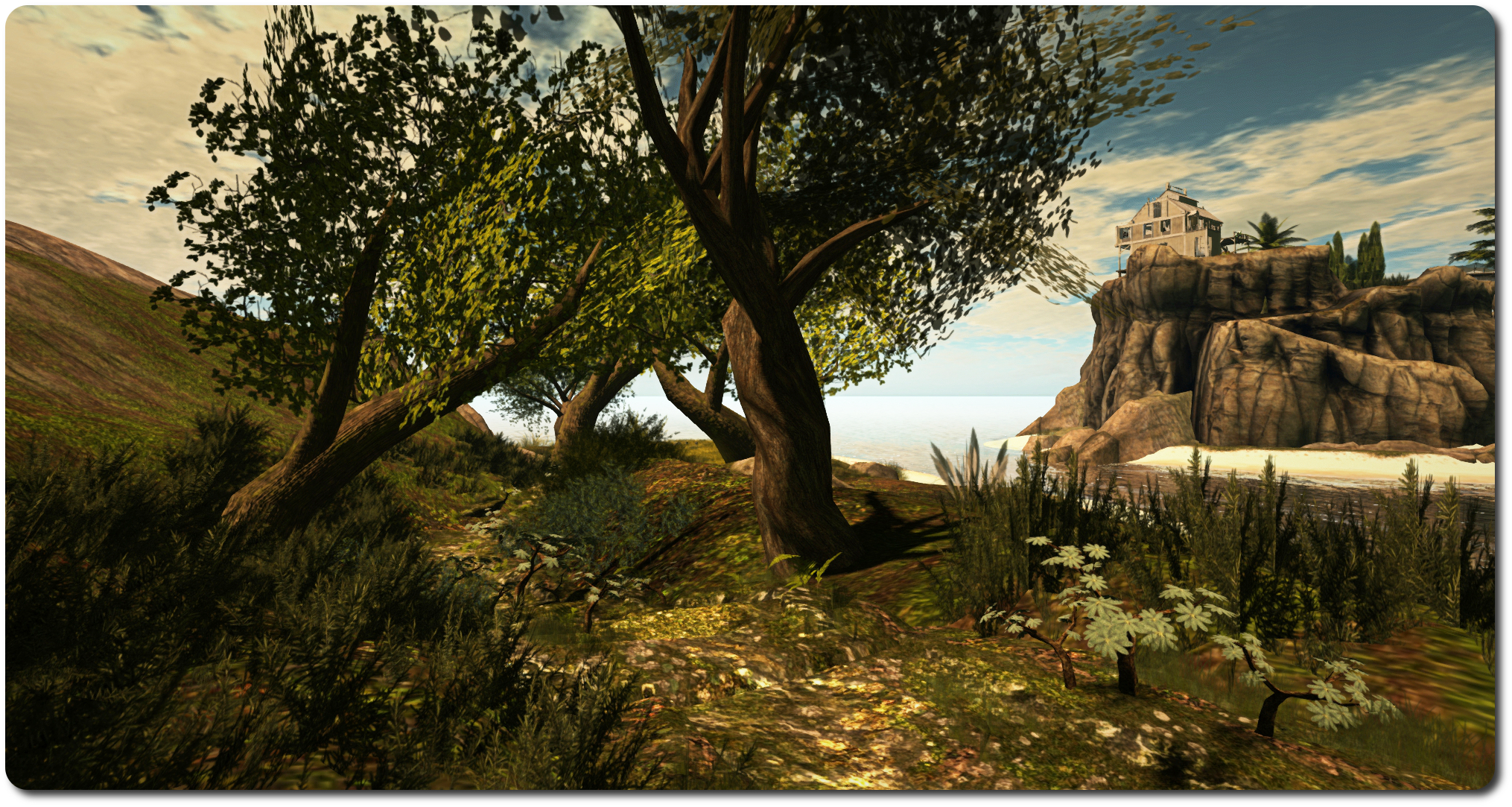
Sunshine has called the region With Love In Her Heart, and it lies to the east of Salt Water, separated from it by a narrow channel of sea water. Rated Moderate, the region shares much in common, terrain-wise with Salt Water: beaches form much of the coastline, with low-ling grasslands just inland in places, while rocky hills make up the rest of the landscape.
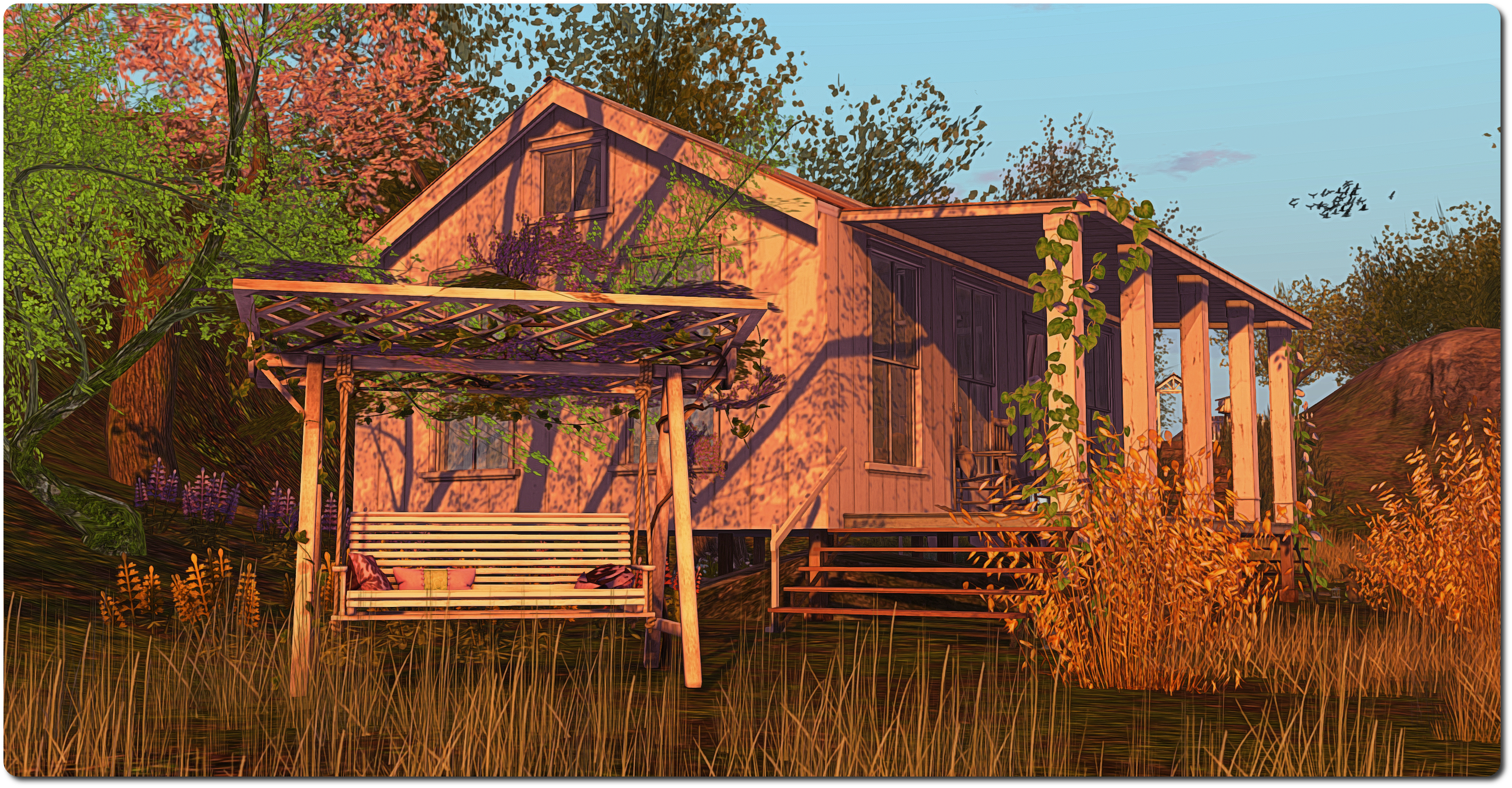
However, move inland, and things have an altogether more pastoral theme. Goats wander the hillsides, sheep and cattle graze on the higher grasslands and horse roam the lower grassy reaches closer to the sea. There is a farm here, which – possibly due to the influence of the documentaries I’ve been watching of late – put me in mind of the Australian outback. The two houses are open to visitors and furnished, one having the appearance of a family home, the other a working studio.
Up the hill from these, lying in a shallow grass bowl with bare-topped hills surrounding it, sits a barn with cattle and sheep roaming nearby. The feeling of homestead is enhanced here by the small burial plot sitting in the shadow of a tall tree.
From the barn, one can wander on over the hills to the east to to the beach, or turn more southwards and follow one of two paths which cut through the hills. The first of these leads back to the arrival point; so if you teleported into the region, it might be the route you followed to reach the barn and livestock. The second path leads down to a circular cove nestled between the hills and rocky cliffs, where two secluded stretches of sand can be found facing one another across the calm waters, linked by a path over the rocks to one side of the cove.
Here you’ll find places to sit, both on the sands and on the water, offering spots for quiet contemplation or a little time with a close friend / loved one. Explore the island, and you’ll find other such places and little social spots – towels spread on the beach here, a little boat sitting just off the coast there, a small camp and fire pit towards one headland, a makeshift tent of blankets and cushions looking out to the north, and so on.
All told, With Love In Her Heart offers something of a tranquil setting; the landscape sits easy on the eye, there are places to wander and to sit, and like Salt Water, plenty of opportunities for photography (rezzing is open, but do remember to pick things up after!). As I mentioned with Salt Water, taken together, both regions are worth a joint visit.


 Inara Pey: Living in a Modemworld