Space Sunday: the flight of SN8 and a round-up

Starship prototype SN8 drops horizontally towards the ground after a flight to 12.5 km altitude, its stability maintained by the fore-and-aft wing flaps. Credit: SpaceX

On Wednesday, December 9th, SpaceX Starship prototype SN8 finally took to the skies in what was to be a very mixed ascent to around 12.5 km altitude and return to Earth.

The much anticipated flight of the prototype vehicle, weighing approximately 672 tonnes with its partial fuel load, was far more successful than SpaceX had anticipated, even if the vehicle was lost in what SpaceX euphemistically calls a “rapid unplanned disassembly” or RUD.

The first attempt at a launch of the 50m tall vehicle was made on Tuesday, December 8th; but this was scrubbed after a pre-flight engine issue caused an automatic shut-down on all three Raptor motors. The second launch attempt, in the morning of Wednesday, December 9th, was aborted just 2 minutes and 6 seconds before engine ignition when a light aircraft strayed into the no-fly zone around the SpaceX facilities in Boca Chica, Texas.
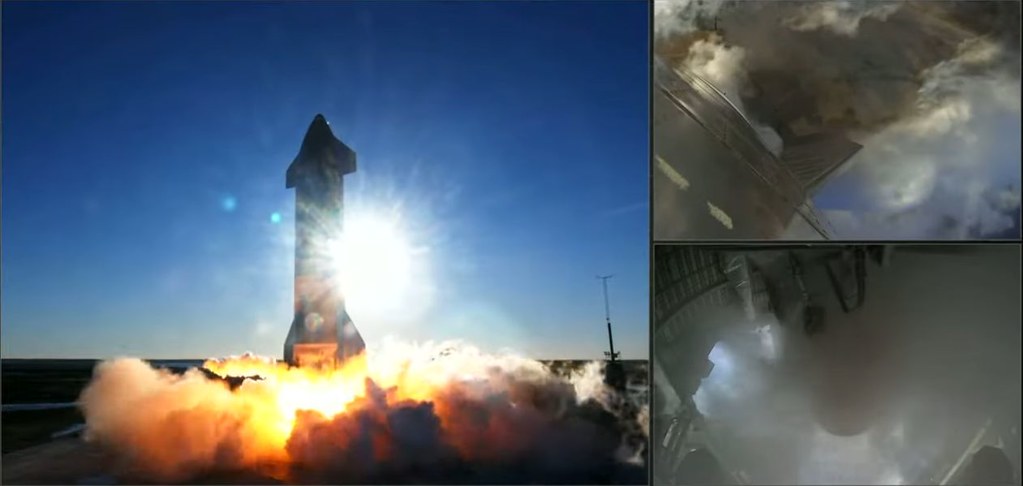
The moment of ignition caught by ground cameras (l) and camera on the hull of the vehicle (top r), and in the engine bay (bottom r). Credit: SpaceX

However, at 16:00 CST (22:00 GMT) that day, the countdown resumed, and at 16:45:26 p.m. CST (22:45:56 GMT), the three Raptor engines on the vehicle ignited and ran up to around 80% thrust, lifting prototype SN8 into the air.

The entire flight was live streamed by SpaceX, with the initial ascent proceeding as anticipated. At 1 minute and 40 seconds into the flight, one of the Raptor engines shut down and gimballed itself away from the remaining two operating motors. 94 second later, a second of the Raptors did the same. At the time, some pundits commenting on the flight speculated the shut-down indicated something was amiss.

The first of the Raptor engines shuts down – a planned part of the flight – as SN8 burns through its partial fuel load, so as to reduce its thrust-to-weight ratio. SpaceX

In actual fact, both engine shut-downs were planned. As the vehicle was flying with around 1/2 its normal fuel load, and getting lighter at the rate of 2.2 tonnes every second, the engines were shut down to reduce SN8’s thrust-to-weight ratio, naturally reducing its rate of ascent.

Even so, SN8 continued upwards under the thrust of the one remaining Raptor – Number 42, the latest and most modern Raptor engine evolution, with the vehicle’s reaction control system (RCS) firing thrusters around its hull in order to stay upright, until it reached a point where it was effectively hovering.
The moment of tip-over: SN8’s Raptor 42, assisted by the vehicle’s RCS thrusters, starts to tip the vehicle over into an horizontal orientation. Credit: SpaceX

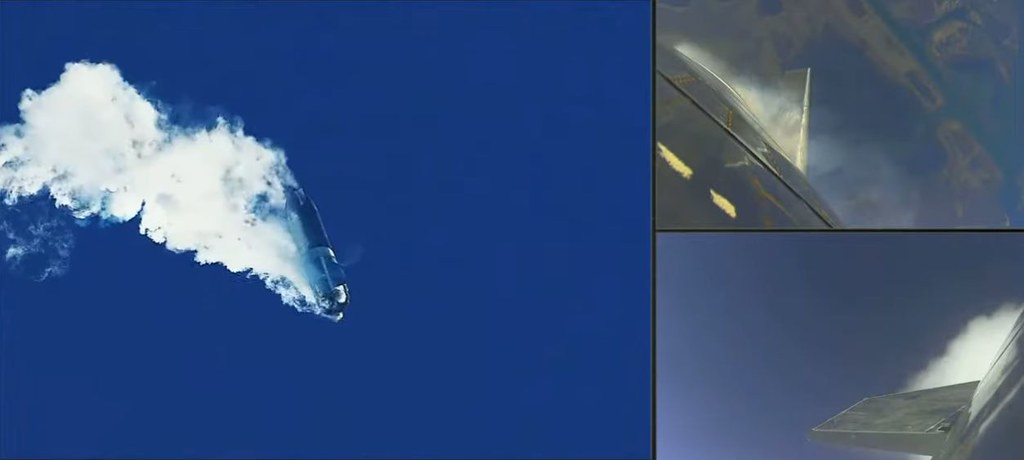
What happened next was one of the two most incredible sights witnessed in the testing of a space vehicle: as SN8 started to drop vertically backwards, Raptor 42 gimballed to direct its thrust at an angle, working with the RCS system to tip the entire vehicle over until it was falling more-or-less horizontally. At this point, the fore and aft flaps came into their own, working in tandem to hold the vehicle steady, much like a skydiver uses their arms and legs to maintain stability.

This skydive / bellyflop (as some unkindly refer to it) is how a Starship will make a return from orbit. Dropping into the atmosphere with the fore and aft flaps folded back against the hull to minimise their exposure to the fictional heat of atmospheric  entry, an operational starship will be protected by heat shield tiles along its underside, after which the flaps fold out, acting as air brakes to slow the vehicle’s velocity as well as keeping it stable.
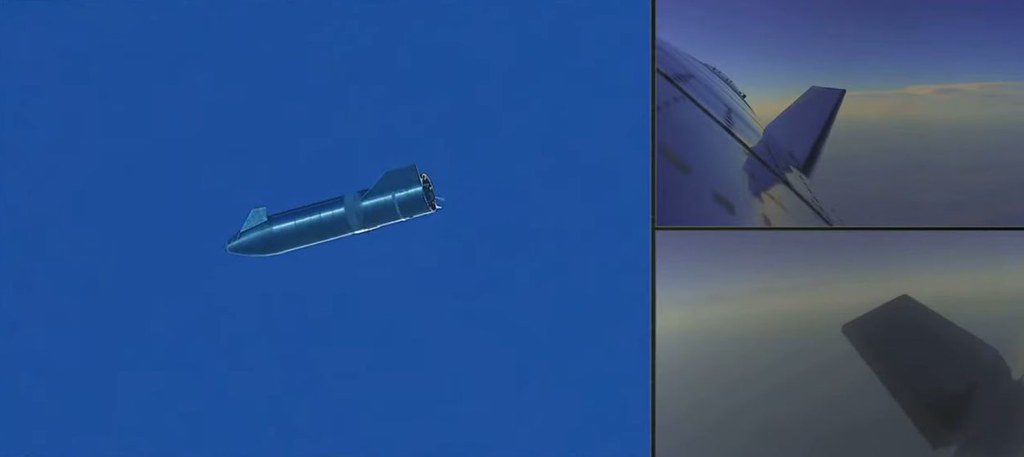
SN8 in its skydive mode (l) with exterior cameras (r) showing the forward (top) and aft (bottom) flaps in action. Credit: SpaceX

Dropping back through the atmosphere for almost two minutes, SN8 then completed the second most incredible sight seen in the testing of a spacecraft when, six minutes after launch, two of the Raptor motors re-ignited, using fuel from two small “header” tanks. These, coupled with the vehicle’s RCS tipped SN8 back to an upright position just 200 metres above ground.

The idea had been for the vehicle to then descend tail-first over the landing pad, deploy its landing feet and touch-down. However, it was at this point things went wrong. With just tens of metres to go, one of the two operating engines shut down. For several seconds, the remaining engine fought to maintain vehicle stability, its exhaust plume turning bright green. Seconds later, its landing legs having failed to deploy, SN8 slammed into the landing pad and exploded in the RUD SpaceX thought might occur at some point in the flight.
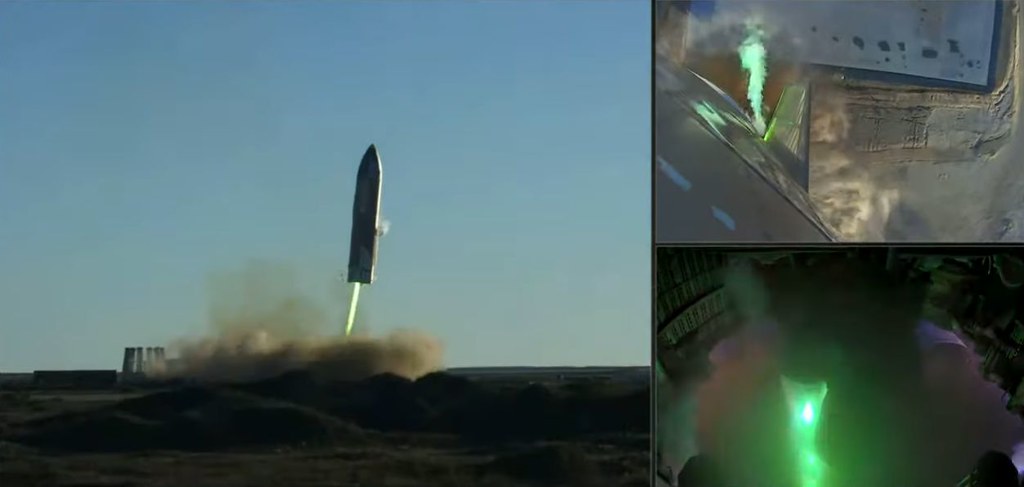
The unusual green exhaust plume of the single remaining Raptor motor is clearly visible as SN8 almost overshoots the landing pad, and the failed deployment of the landing legs is visible in the image of vehicle. Three second later, the vehicle hit the landing pad and exploded. Credit: SpaceX

Initial analysis of data from the flight suggests that the header tanks suffered a pressurisation issue that prevented them pushing sufficient fuel into the two Raptor engines, causing one to shut down completely. The green plume from the second motor is thought to be one of two things: either that a) as the motor was so starved of fuel, it started consuming itself, material inside its turbopumps turning the exhaust green; or that b) as one engine shut-down unexpectedly, the second started gimballing wildly to try an maintain the vehicle’s orientation, and in doing so, smashed its engine bell into the other motor, exposing its copper cooling circuits, which caught fire and turned the exhaust plume green.

Continue reading “Space Sunday: the flight of SN8 and a round-up”
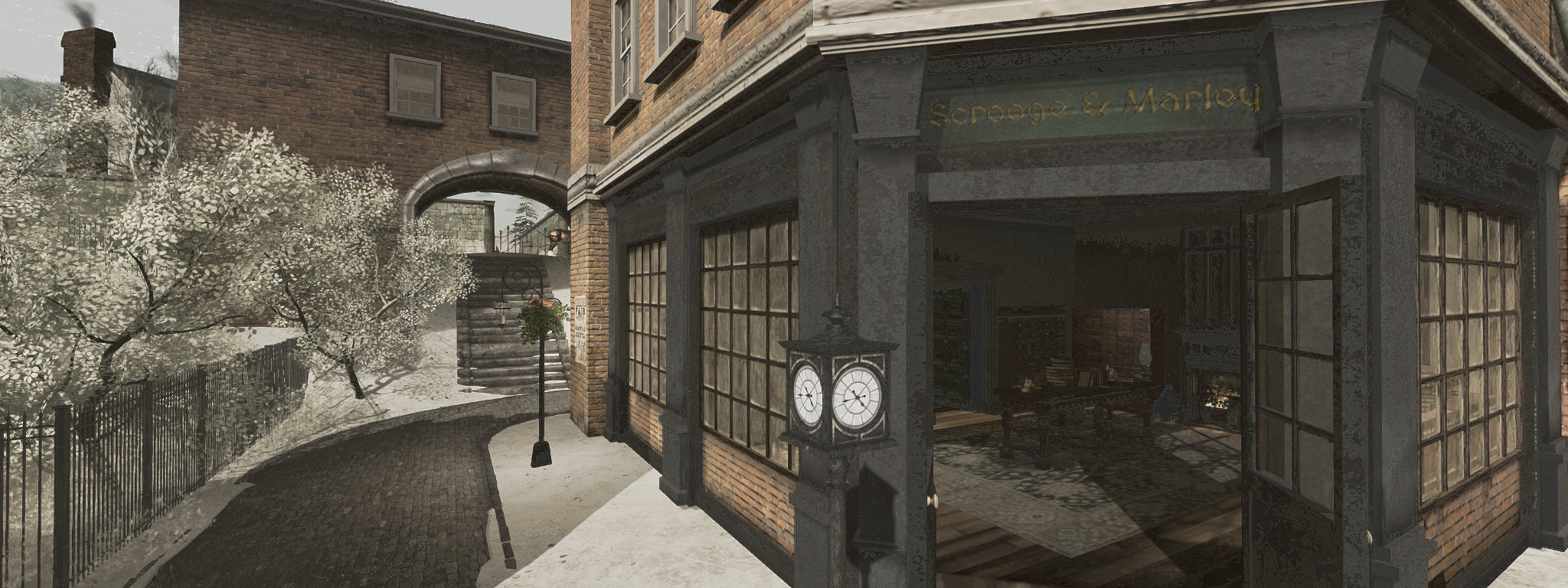
The Dickens Project 2020: Carol Week in Second Life

The Dickens Project 2020

This week sees events at The Dickens Project 2020 with Seanchai Library (read more about this year’s edition of the project here) reach the famous Carol Week, where Monday through Friday the entire tale of A Christmas Carol is told over successive days at times suitable for most audiences. And there’s a lot more going on throughout the week as well!

Remember to check the full calendar of events at the project.

Sunday, December 13th, 13:00: The Ghost Flights of Christmas

In this unique adaptation by Luke Flywalker, the SL Hawks Aerobatic Team tell the story of Alexander Scrooge (descendant of the legendary Ebenezer) and his journey to regain his joy and love of life through the intercession of his deceased partner, Bill Farley, and thanks to the visits of three squads of ghost pilots.

The Tarmac – Dickens Project

Carol Week, December 14th-18th

All events take place at the Dickens Square Main Landing Point unless otherwise indicated.

  • Monday, December 14th, 14:00 and 19:00 – Stave One: Marley’s Ghost.
  • Tuesday, December 15th:
    • 14:00: Stave Two: the First of Three Spirits – Dickens Square Main Landing Point.
    • 15:00: SKATING PARTY! at the Skating Pond – north of Dickens Square Main Landing Point.
    • 17:00: ISTE VEN Tour – Camden Town Square – Library Row.
    • 19:00: Dickens the First of Three Spirits – Square Main Landing Point.
  • Wednesday, December 16th, 14:00 and 19:00 – Stave Three – The Second of Three Spirits.
  • Thursday, December 17th, 14:00 and 19:00 – Staves Four & Five – The Last of the Spirits & The End of It.
  • Friday, December 18th:
    • 11:00: Sultan the Pit Pony Companion Give-Away at the Pony Ride Pavilion just North of Dickens Square.
    • 13:45: the WOOTMAS cheer of the Raglan Shire Carollers – Dickens Square Main Landing Point.
    • 14:00-16:00: Celebrating the Open Art Show with English Christmas Carols & DJ Gabrielle Riel -Dickens Square Main Landing Point.
    • 18:30: Misfit Dance & Performance Art Presents A Very Misfit ChristmasMisfit Theatre – Dickens Harbour.

Saturday, December 19th

Sunday, December 20th

  • 11:00: Wald Schridde Live – Dickens Square Main Landing Point.
  • 12:00-15:30 – THE BIG READ – all five staves of A Christmas Carol in a single sitting – Dickens Square Main Landing Point.

Snow white days at Jacob in Second Life

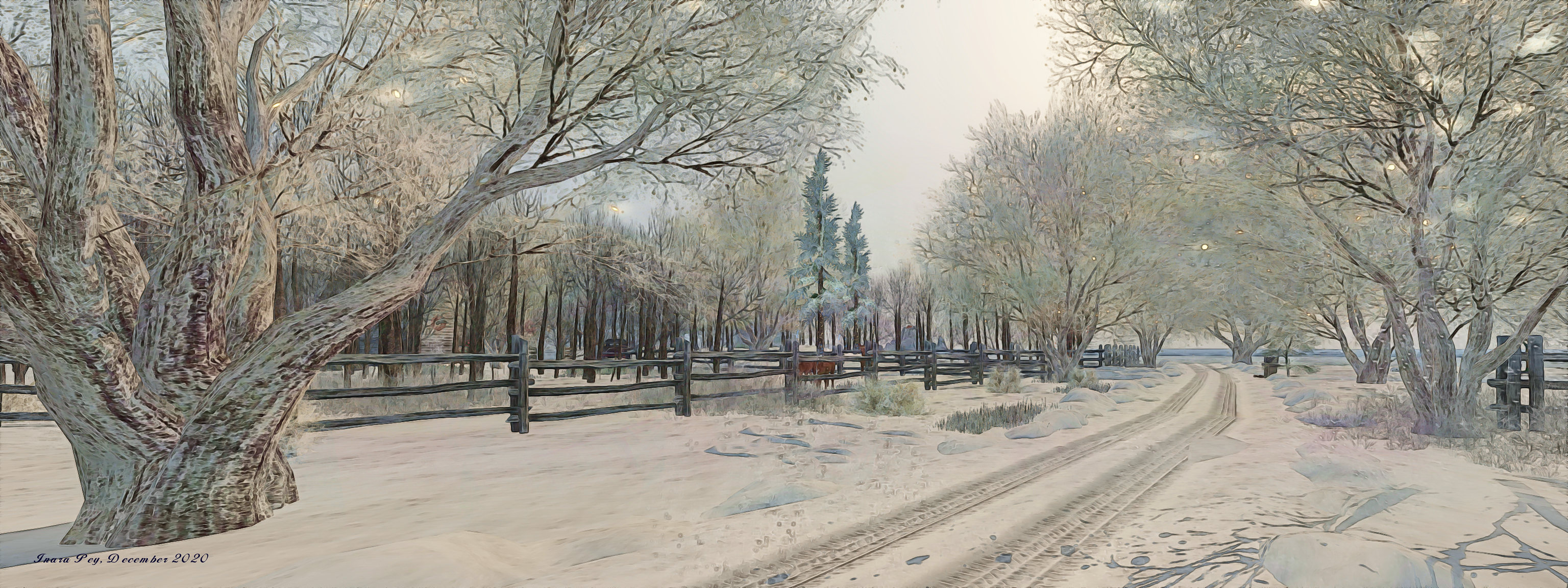
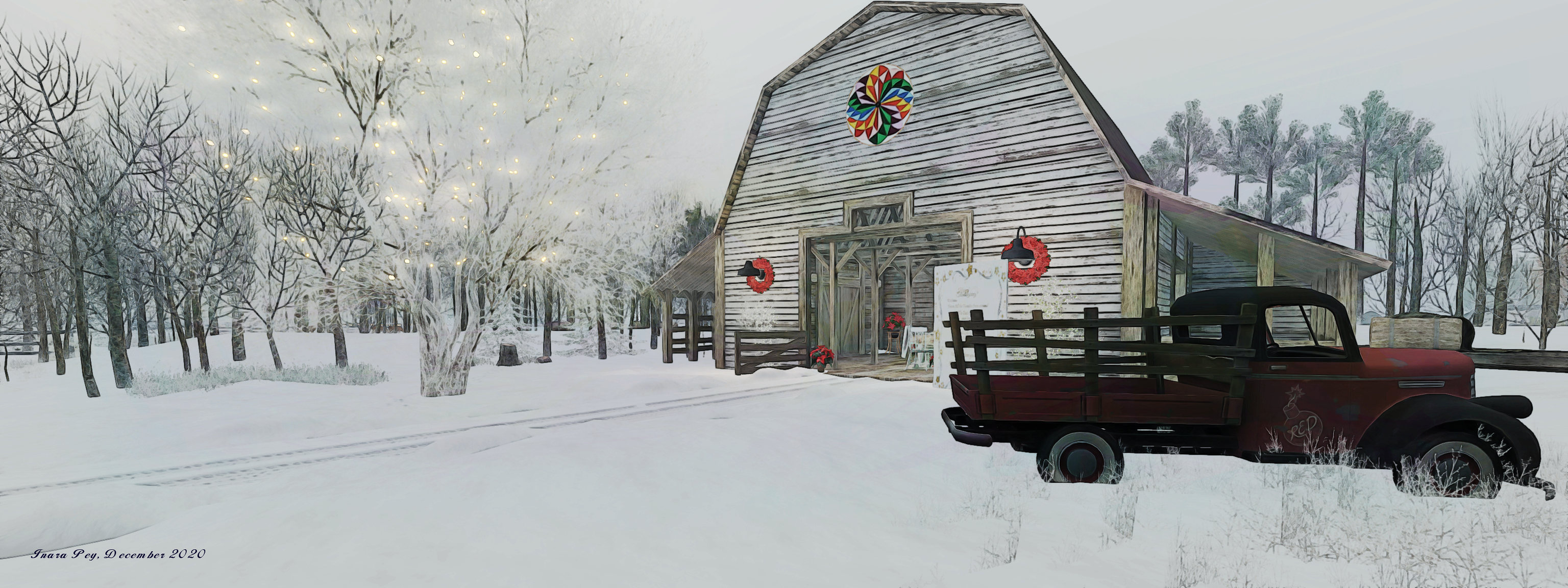
Jacob, December 2020 – click any image for full size

At the start of December, Shawn Shakespeare reminded me that it’s been a good few years since I’ve written about the End of Time estate, and suggested taking another look at Jacob, one of the regions within the estate, and which has traditionally stood a little aside from the rest of the regions there in terms of looks and presentation.

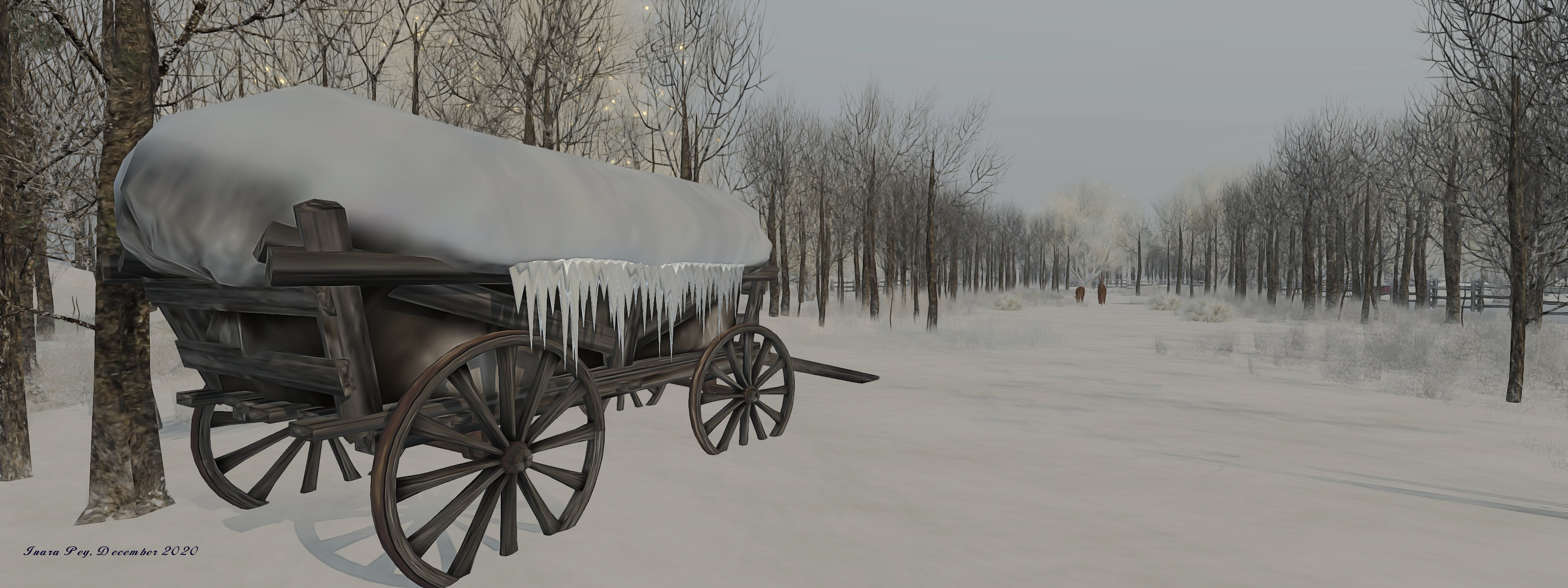
Currently, the region sits as a winter setting,  designed by Holly Texan (Dacotah Longfall) that is both simple and effective – particularly if you enjoy long, bracing walks through a snowy landscape, hearing the crunch of fresh snow beneath your feet and feeling the crispness of cold air in your sinuses. It’s a setting that is ideal for photographers and rich in subtle details.

Jacob, December 2020

The landing point is tucked into the north-west corner of the region, within sight of the some of the other regions in the estate, the water channel between them and Jacob apparently frozen. A welcome sign informs arrivals that clothing is optional – although skipping through the snow sans boots and clothes is not my idea of a fun afternoon, so was decidedly with clothes during my visit 🙂 .

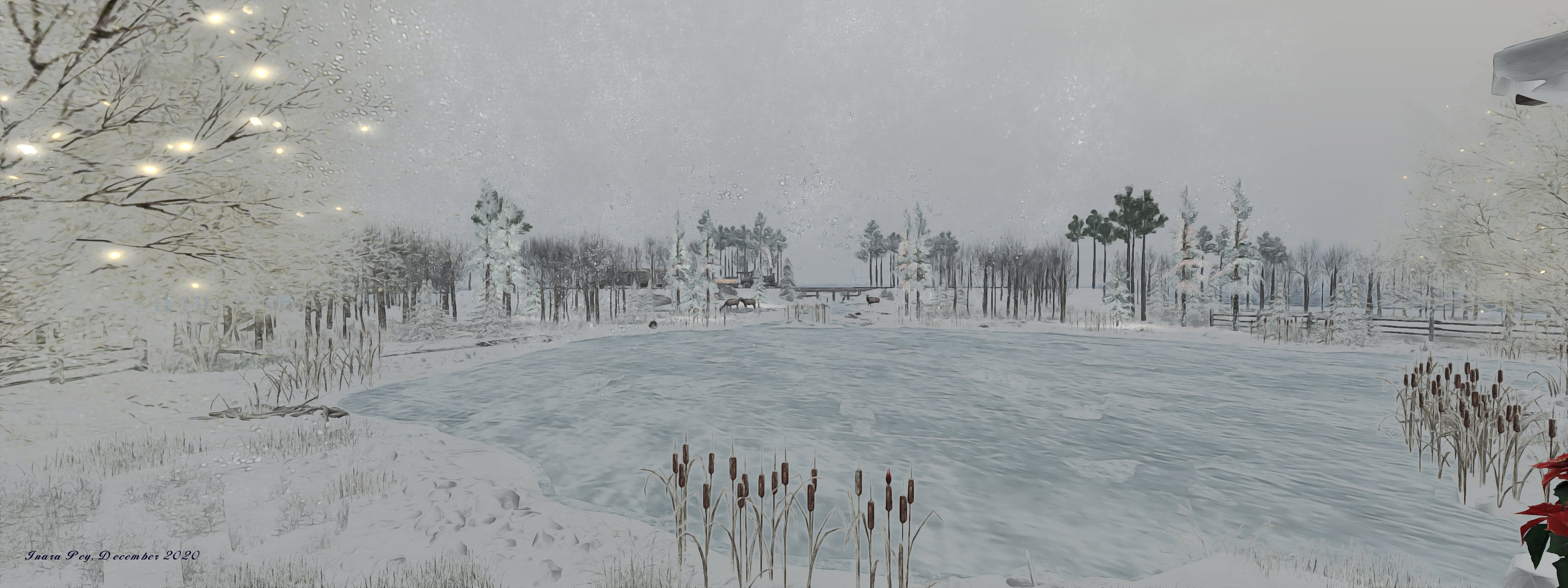
The snow leading away from the sign is rutted with tyre tracks that run between fencing that marks out individual fields on either side, before the southern side of the road opens out to an ice-covered lake. Passing over a covered bridge, the tracks point straight and true to a farmhouse on the east side of the region. A second set of tracks points northwards, perpendicular to those running across the front of the farmhouse, and lead the way to a large barn where best wishes for the US Thanksgiving holiday and the Christmas holiday season are offered to all who visit the region.

Jacob, December 2020

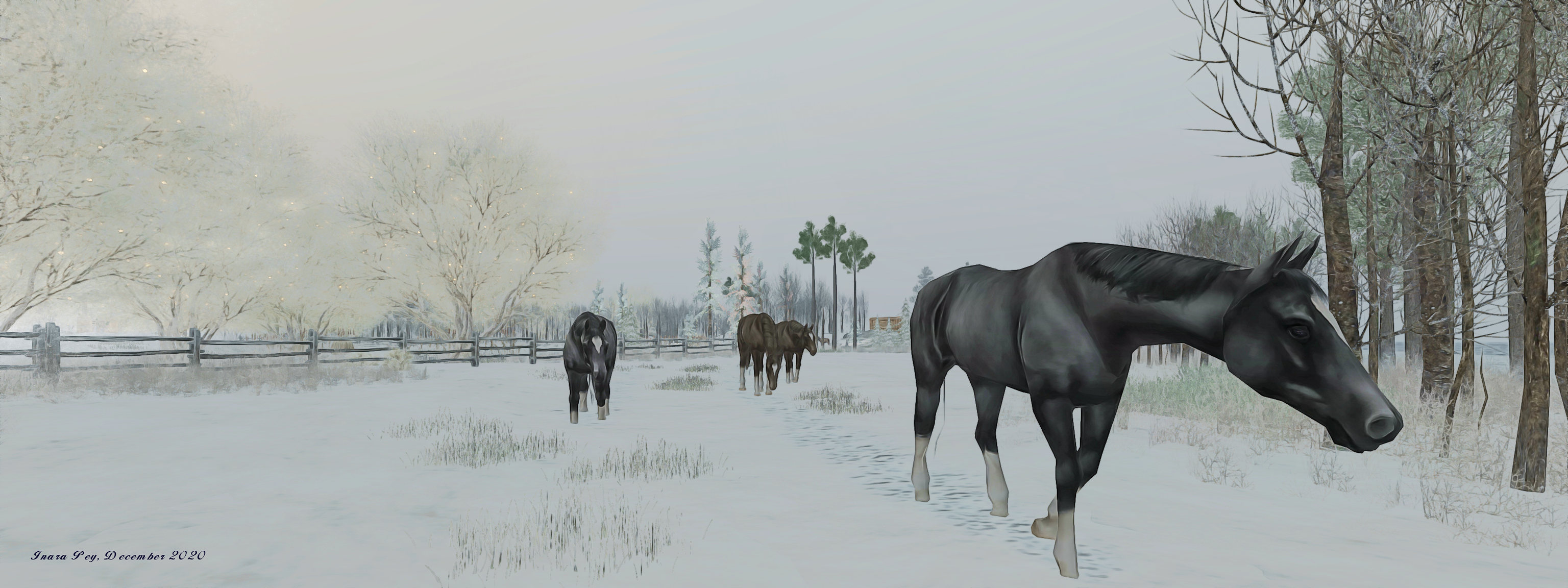
A flat landscape, the region is home to the fields mentioned above, where horses and deer wander and attempt to graze on the grass sitting under the carpet of snow. Copses of trees are scattered across the land, whilst to the south-west, an old steam locomotive is huffing its way along tracks that curve across that corner of the region.

The touches of detail can be found in the way that the deer and horses have left their own footprints in the snow – so often in winter regions, animals appear to be able to move across a landscape heavy with snow without ever seeming to break the virgin surface (although admittedly, there are elk that also appear able to do so!). Similarly, the grounds of the house show signs of human handiwork not just in the presence of snowmen, but in the footprints criss-crossing the snow, suggesting the industrious hands that have made them.

Jacob, December 2020

As a Calvin and Hobbs fan (and who among us, having read Bill Watterson’s  tales of a young boy and his stuffed tiger isn’t?), I couldn’t find the snowmen in the grounds of the farmhouse mindful of Calvin’s antics: one apparently up to his neck in “quicksand” (although he doesn’t seem unhappy about that), and the other having lost his head, which lies with a broken nose on the snowy ground. Whether or not both are intended to evoke Calvin’s approach to snowman making, I’ve no idea, but I like to think of them in that way, adding as it does a sense of fun to the setting.

For those who need them, rezzing rights can be obtained by joining the End of Time group – but if you do rez props, etc., for photography or anything else, please remember to pick things up behind you.

Jacob, December 2020

Easy on the eye and on the viewer, Jacob remains a light, engaging visit.

SLurl Details

Tresore’s Impressions in Second Life

Raging Graphix Gallery: Tresore

Now open as the end-of-year exhibit at Raging Graphix Gallery, curated by Raging Bellls, is Impressions, a selection of pieces by Tresore Prada Hawkins (Tresore).

I first became familiar with Tresore’s images through her involvement in the Phoenix Artists Collaboration, and admit to being attracted to her work, which mixes both landscape pieces and avatar studies – the latter in particular always framing a narrative or message.

Presenting some seventeen images, Impressions follows through on its title in a number of ways,all of which combine to capture and hold the observer’s attention. First, they are obviously statements of the impression Second Life has on Tresore as both an observer of the virtual world and as an artist; they allow us to see the things that have attracted her eye and caused her to create a memory of them. Secondly, they allow her to offer a story for any of the given scenes she has captured, either directly through the image itself or through the suggestive nudge of the title to a piece; so they might be said  to offer us an impression of both setting and the artist as a storyteller

Raging Graphix Gallery: Tresore

On a third level, they offer us an impression of how Tresore views the changing seasons of the year, with the selection of pieces, whether through their depth of colour or through other hints, offering us glimpses of summer, autumn (and harvest) and – most notably – winter (and the holiday season). Finally, and most importantly, there is within each an every piece, an impression of mood / emotion / feeling that reaches out to make each of us not just a witness to Tresore’s art, but also a part of the story waiting to be found within each image.

I say “most importantly”, because while many photographers are taken by a scene, finding its evocative nature as a door to them framing a narrative or to presenting a mood or feeling within a stated pose  / presentation, Tresore is one who starts with the idea of what she’d like to say, and work from there, as she explains:

I have found in SL photography a perfect outlet, as it allows to create from scratch what I want to say. I can take up to one week to create one of my pictures. I carefully research the clothing, colours I want to use, objects, scenario, pose.  I Search for the region that suits it best and the light that will create the feeling I am looking for. There is quite a great deal of love, work and time behind each of my images.

Tresore Prada on her art

Raging Graphix Gallery: Tresore

This again gives her images an added depth, further attracting our eye and mind to each piece, and adding an additional attraction to any visit to Impressions.

SLurl Details

2020 TPVD meeting week #50: summary

The Legend of Wooley Swamp, October 2020 – blog post

The following notes are taken from the TPV Developer meeting held on Friday, December 11th, 2020.

  • These meetings are generally held every other week, unless otherwise noted in any given summary.
  • The embedded video is provided to Pantera – my thanks to her for recording and providing it. Time stamps are included with the notes will open the video at the point(s) where a specific topic is discussed.
  • Note these summaries are not intended to be a full reporting on all topics discussed, but focus on those items that are more directly user-facing.

Another exceptionally brief meeting, with some user-user discussion in chat at the end (post-meeting) on Open Metaverse, so please refer to the video as well.

SL Viewer News

[1:55-4:44]

There have been no updates to the current group of official viewers in the pipelines, leaving things as:

  • Current release viewer version 6.4.11.551711, formerly Cachaça Maintenance RC viewer promoted on November 12 – No Change.
  • Release channel cohorts:
    • Dawa Maintenance RC Viewer, version 6.4.12.553053, released December 3rd.
    • Custom Key Mappings project viewer, version 6.4.12.552100, November 12.
  • Project viewers:
    • Project Jelly project viewer (Jellydoll updates), version 6.4.12.552224, December 4.
    • Simple Cache project viewer, version 6.4.11.551403, issued on November 12.
    • Legacy Profiles viewer, version 6.4.11.550519, October 26.
    • Copy / Paste viewer, version 6.3.5.533365, December 9, 2019.
    • Project Muscadine (Animesh follow-on) project viewer, version 6.4.0.532999, November 22, 2019.
    • 360 Snapshot project viewer, version 6.2.4.529111, July 16, 2019.

General Viewer Notes

  • Both the Key Mappings and Dawa Maintenance RC viewers are approaching the point where either one could be considered ready from promotion to de facto release status. However, give the low crash rate and high stability data coming from the current release viewer, is is possible that neither one of these RCs will be promoted before the new year.
  • Two more RC viewers should be appearing shortly:
    • The Simple Caching viewer that replaces the current VFS cache with a much simpler mechanism. This is currently in review for promotion as an RC viewer.
    • The current Jellydolls project viewer is also approaching the point of being promoted to RC status.
  • [7:03-7:53] There are a number of EEP issues that have been flagged as “priority”, but its not clear if these will be addressed in the next Love Me Render (LMR) RC viewer or not (due to voice break-up as Vir was discussing).
    • There is an expectation within LL that any updates to the rendering system (including what are regarded as “critical EEP fixes” by some users) will be condemned as further “breakage” in EEP.

In Brief

  • [0:48-1:54] Simulator Issues:
    • Thanksgiving Bakefail: LL believe they now have a fix for this issue, which is awaiting deployment.
    • BUG-229824: “[EEP] Cannot apply any EEP setting to ANY parcel or region:” reported on December 11th, a fix for this issues has been deployed, which should correct it. HOWEVER, any settings assets uploaded between 14:40 SLT on Thursday, December 10th and and 11:50 SLT on Friday December 11th, will not work. They will need to be deleted and replaced.
  • [5:24-6:23] The Lab is “fast closing in”on having all SL services transitioned to operating via AWS. The percentage of remaining systems to be migrated in being put at around 3%.
    • Again, please note that this is only the migration work; there will be further work to come with regards to fine tuning, performance updates, etc. For now the focus is on gathering statistics on how simulators, systems and services are all running.
  • [8:29-13:50] general discussion in chat and voice on how best to manage user  / creator expectations on what may “break” or be altered as a result of upcoming work on the viewer’s rendering system.
    • There may well be “breakages” / changes because an overhaul of the rendering system is unlikely to try to achieve a “like for like” swapping of issues between one rendering pipe and another, but to try to improve things as and where possible; as such, so “breakages” are perhaps inevitable.
    • One problem here is the number of workarounds that have been employed over the years in order to circumvent perceived / actual issues within the current rendering system, and which may not continue to work as expected as changes are made.
    • Another issue is when to try to inform users and creators – the rendering system work is liable to be long-term, and made not yield immediately changes; ergo, providing notification too early could lead to a lot of upset and concern, only for it to evaporate and the warning of changes to be forgotten, if the changes are not immediately implemented.
    • Further to this is just how to inform the majority – many users do not read official blog posts and forums (and even when news is pushed through third-party blogs, such as this one, it still only tends to reach a narrow audience). The viewer message of the day also has limited impact, simply because the official viewer is not the most widely used viewer in SL.
    • Plus, even with forewarning, the natural course of things is for people to keep using with which they are familiar right up to the point where changes are made.
    • However, once the Lab has a better idea of what subsets of rendering elements are likely to change, efforts will be made to communicate these to users in advance.
  • [13:55-16:25] Another change with the viewer is the on-going removal of code that is not longer being actively used. A  further example of this is that there are two protocols used for handling requests for logging-in to SL. One of these (XML-RPC) is almost never used nowadays, so this code may well be removed – with warning beforehand – in the future.

Firestorm 6.4.12 the EEP and more release

On Wednesday, December 9th, 2020, Firestorm issued a release version of their viewer – 6.4.12.62831. This is the formal release of Firestorm supporting the Lab’s Environment Enhancement Project (EEP); it also includes a number of other Lab-specific updates to the viewer, such as the Camera Presets capability.

Note: while there has been an EEP beta release – 6.4.5.60799 (July 2020) – this summary has been written for those who may still be running the 6.3.9.58205 release from May 2020.

Also, given limitations of my own time (coupled with an inability to run 6.3.9.58205 in direct comparison with 6.4.12.62831), this is a much briefer overview of changes for a Firestorm release in comparison to past overviews in these pages.

Table of Contents

Installation

  • There is no need to perform a clean install with this release if you do not wish to.
  • Do, however, make sure you back-up all your settings safely so you can restore them after installing 6.4.12.
  • Again, please refer to the Firestorm 6.4.12 generic release notes for additional details of all changes and updates in this release.

Register Firestorm as Default Hander

Starting with this release, towards the end of the installation process, Firestorm will display a prompt:

Do you want to register Firestorm as default handler for virtual world protocols?

A response of Yes to this prompt will set the viewer to open map SLurls for example.

Linden Lab Derived Updates Overview

Firestorm 6.4.12 brings the viewer to parity with the Lab’s 6.4.11 viewer code base. As such, it incorporates updates from Linden Lab previously included in the 6.4.5 Beta release and from the following Lab viewer releases:

  • The Chrome Embedded Framework (CEF) Update 2020, viewer 6.4.4.543157, providing better support for media playback options win the viewer, including the ability to live stream into Second Life.
  • The FMOD Studio update, viewer 6.4.3.542964, updating the viewer’s audio playback support to use FMOD Studio.
  • The Camera Presets viewer, 6.4.2.541639, – see Camera Presets, below, for more.
  • The Zirbenz Maintenance viewer, 6.4.1.540593.
  • The Environment Enhancement Project (EEP) viewer 6.4.0.540188 – see below for more.

New to the 6.4.12 Firestorm release are updates and improvements from the following Linden Lab viewers:

  • ToolsUpdate2 viewer, 6.4.6.545962, viewer build tools update to Visual Studio 2017, a more recent version of XCode and Boost.Fiber, dated August 10th, 2020.
  • Love Me Render #4 viewer, 6.4.9.549455 – rendering updates with a focus on EEP bug fixes, dated September 24th, 2020.
  • Mesh uploader viewer, 6.4.10.549686 – Linden Lab’s implementation of the uploader improvements previously found in Firestorm, with additional changes from the Lab. Dated October 14th, 2020.
  • The following Maintenance releases with assorted fixes and updates:
    • Maintenance Arrack, version 6.4.7.546539, dated August 19th, 2020.
    • Maintenance Bormotukha, 6.4.8.548890, dated September 18th, 2020.
    • Maintenance Cachaça, version 6.4.11.551711, November 6th, 2020.

Camera Presets

Camera Presets provides the ability for users to create one or more custom camera positions to define where and how the viewer camera is placed relative to your avatar, More than one set of presets can be created and saved, so that you can, for example have a camera position for general exploring, another suitable for combat games, another for building, etc., all of which can easily be accessed and used at any time via the Camera Presets drop-down.

For a general introduction to Camera Presets, please refer to: Tutorial: Viewer Camera Presets. However, when doing so, please note that the Firestorm Camera Floater is laid out differently to the official viewer, being more compact, as shown in the image below.

Camera Presets: options and floaters, as seen in Firestorm 6.4.12.
  1. Presets can quickly be selected from the Camera Presets button in the top right of the viewer, which will open a drop-down menu. By default, this drop-down will display the standard viewer camera positions of Front, Rear, and Side. Additional presets will be displayed as you create them.
  2. A button on the drop-down will open the Camera floater, if not already open. As well as controlling the camera position, this floater now contains the options for creating and saving camera presets.
  3. The most accurate way to establish new camera defaults is to use the Camera Position spinners and slider that can be accessed by clicking on the Position button in the Camera floater – again, see my Camera Presets tutorial for more on this approach.
  4. When you have created your desired preset, use the Save as Preset button to save it as a viewer setting. This opens the Save Camera Preset floater, which allows you to save the preset settings under a unique name or to overwrite an existing setting.
  5. Alternatively you can manually adjust the camera position relative to your avatar using the camera controls then click on the current settings button to open the Save Camera Preset floater and save the settings as described in (4.).
  6. You can also select any defined Camera Preset by clicking on the gear icon in the Camera floater to display a list of available presets – default and your own – and then clicking on the desired one.
  7. If you only wish to select a preset you have created, click the Use Preset button on the Camera floater to display a drop-down of available presets that excludes the viewer defaults of Front, Rear and Side. If you have not created any defaults yourself, the drop-down will be empty.

Environment Enhancement Project (EEP)

It  is unlikely that many people have not heard of the environment Enhancement Project (EEP). But in short:

  • EEP Replaces the use of Windlight .XML files to control the water and sky environments seen in Second Life.
  • Environment settings are saved within environment assets that you can keep in your inventory and / or share with and sell to others.
  • These environment settings can be applied to a region or to a parcel (subject to region permissions) and / or to your avatar (thus allowing those travelling in vehicles to maintain a consistent environment across multiple region crossings).
  • EEP allows:
    • For up to four different, independently controlled sky layers.
    • The Sun, Moon and Cloud textures to be replaced with custom textures uploaded to the viewer.
  • EEP also provides:
    • An extended day cycle of up to 168 hours, thus allowing a 7-day, 24-hour day / night cycle to be defined, for example.
    • A Personal Lighting floater that allows you to make viewer-side adjustments to the local environment for the purposes of photography.
    • New LSL functions to allow scripts to interact with parcel environments and that can be used with experiences.

EEP Resources

EEP is a large and complex overhaul of environment settings for Second Life, and there are numerous resources available for it. If you have not used EEP before, and as the Firestorm implementation is more-or-less as per the official viewer, I recommend reading some of the following:

EEP and Phototools

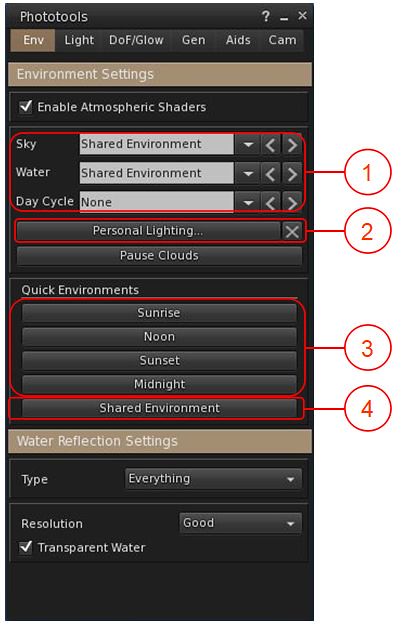
One of the popular elements within Firestorm is the Phototools floater. This has been updated to work with EEP, with the most noticeable changes being to the WL tab, now renamed Env, with the changes within it outlined in the image and notes below.

EEP and Phototools
  1. Environment drop-downs for Fixed Sky, Linden Water and Day Cycles. These display the currently-used environment settings for their respective environment types as seen in your viewer.
    • Click the down arrow for a list of all available environment asset types available to you in your inventory and via the Library → Environments folder.
    • Click on the required asset name to apply to your viewer only.
  2. Accesses the EEP Personal Lighting floater, which you can use to modify the current environment settings as seen in your viewer only.
    • The X button to the right of Personal Lighting will cancel any changes you have made to the current environment, and revert your viewer to displaying the settings for the selected asset.
  3. Quick Quick Environment buttons for setting the time of day to the SL default Sunrise, Noon, Sunset and Midnight settings.
  4. Shared Environment: presumably intended to re-apply the shared environment as set by the region / parcel holder. However, in testing, this did not appear to work.

Notes:

  • The drop-downs in (1) can also be found in the Quick Prefs panel, as can a button to open the EEP Personal Lighting panel.
  • As these options are applied to your viewer, note that the selected Day Cycle will not necessarily reflect the expected time of day – as Day Length / Offset can only be set at the parcel / region level.

Firestorm EEP Preferences

Firestorm provides two EEP-specific Preferences options. Both can be found in Preferences → Firestorm, and comprise:

  • A slider that allows you to set the interval in seconds over which manual environment changes will blend, with 0.0 being instantaneous. In previous versions of Firestorm, this was known as crossfade.
  • A checkbox to allow any personally applied EEP setting to persist between log-in sessions.
Firestorm 6.4.12 EEP Preferences

Additional EEP Notes

  • There are around 200+ EEP environment settings to be found in the Library → Environments folder. These have been provided to Linden Lab by Whirly Fizzle of the Firestorm team, and are available to all EEP-capable viewers.
  • As noted in the image above, these can be accessed via the WL tab in Phototools and via the drop-downs in Quick Prefs.
  • If you want to edit these any of the environment settings in the Environments folder, you must first copy them to a folder in your inventory (e.g. your Settings folder, or a sub-folder within it).
  • As per my tutorial, you can import the Windlight settings you have on your local drive and convert them to EEP settings – see Importing Windlight Settings as EEP Assets.

Continue reading “Firestorm 6.4.12 the EEP and more release”