Environment Enhancement Project: a primer

The Environment Enhancement Project (EEP) is a set of environmental enhancements designed to replace windlight XML settings to control the water and sky environments seen in Second Life, and provides a wide range of additional / new capabilities for region holders, parcel holders and general users. It represents a fundamental shift in how environment settings are used and applied.

In brief EEP:

  • Uses environment objects that you can keep in your inventory and / or share with others.
  • Provides parcel-level control of environments.
  • Allows up to four different, independently controlled sky layers.
  • Allows the Sun, Moon and Cloud textures to be replaced with custom textures uploaded to the viewer.
Table of Contents
  • Provides an extended day cycle of up to 168 hours (thus allowing a 7-day, 24-hour day / night cycle to be defined, for example).
  • Allows users to override region / parcel settings as seen within their own viewer, by either attaching EEP settings to their avatar or through the Personal Lighting floater.
  • Provides new LSL functions to allow scripts to interact with parcel environments.
EEP allows you to have a little fun, if you wish. Credit: Bellimora

Many have already gained familiarity with EEP whilst it has been in development, using both the original project viewer and iterations of the release candidate viewer. However, given it is such a fundamental shift in how environment settings are created and used, I have attempted to break things down into more easily digestible pieces through the use of this EEP primer, and a more comprehensive EEP tutorial.

  • This primer is designed to provide an overview of the basic EEP capabilities and options from the point-of user of someone wishing to use them.
  • The EEP Tutorial is intended to provide a comprehensive breakdown of EEP capabilities, including how to create new EEP sky, water and day settings for personal use or which can be given or sold to others.

You can use either this primer or the tutorial to better understand EEP (the information here is also presented in the tutorial, which also explores the various floaters and options in greater depth).

For official information on EEP, please refer to the Environment Enhancement Project SL wiki page.

EEP Basic Concepts and Terminology

In brief EEP:

  • Uses environment objects that you can keep in your inventory and / or share with others – including selling (subject to the SL permissions system) via in-world stores and on the Marketplace.
  • Provides parcel-level control of environments.
  • Allows up to four different, independently controlled sky layers.
  • Allows custom textures for the Sun, Moon and clouds.
  • Provides an extended day cycle of up to 168 hours (thus allowing a 7-day, 24-hour day / night cycle to be defined, for example).
  • Means that as environments settings are simulator-side, and so by default are automatically seen by anyone using any EEP enabled viewer on entering the region / estate / parcel.
  • Still allows the use of “personal” settings seen only be the use applying them, for the purposes of photography, machinima, etc.

Terminology

EEP uses some key terminology that should be understood.

  • Settings: used to define the environment you see. There are three settings types:
    • Sky: define the atmosphere and lighting for a day (or night); the movement, density, etc., of the clouds; and the appearance of the Sun and / or the Moon (which remain in a fixed point in the sky).
    • Water: define the appearance of Linden Water (prim or mesh animated water is not affected): water colour and reflection; wave movement; amount of light refraction, etc.
    • Day Cycles: collections of Sky and Water settings that are combined to present a dynamically changing environment over a user-defined time period representative of a “day” (by default this is set to the legacy Second Life day / night cycle of 4 hours, but can be extended out to represent physical world time periods of up to one week).
    • Note that Sky and Water settings are referred to as Fixed Environments.
  • EEP assets: physical “containers” for storing EEP settings. These are inventory items that by default, are stored in the new Settings folder in your inventory (see below), they are split into three types:
    • Sky – Sky settings. Icon: a blue sky with clouds.
    • Water – Water settings. Icon: a water droplet.
    • Day Cycle – for Day Cycles. Icon: a split Sun / Moon.
    • EEP assets (permissions allowing) can be exchanged, given away, and / or sold through a store or via the Marketplace.

Note that EEP settings are:

  • Created or edited using their corresponding EEP asset (e.g. to create Sky settings, you use the Sky asset type).
    • New EEP assets can be created directly from inventory, just like any other system inventory asset type (notecard, clothing item, gesture, script, body part).
    • Creating / editing EEP assets and settings is covered in depth in my EEP tutorial.
  • By default stored within a new system folder in inventory – the Settings folder. This folder may be hidden until such time as an EEP asset is created.
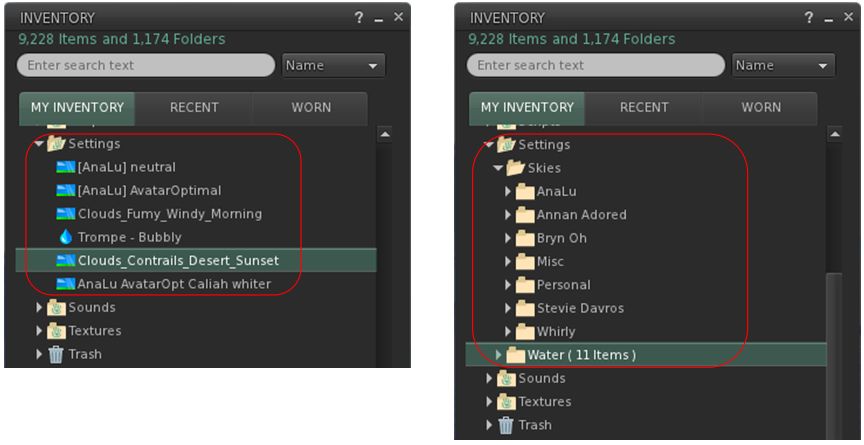
By default, EEP assets are stored and created in the Settings folder in your inventory (l). If you want, you can manually sub-divide your settings into suitable folders for easier tracking (r)

EEP Permissions

There are a few notes on permissions associated with EEP settings / assets.

  • Copy/no-copy: EEP settings assets may never be marked no-copy. A person who owns a setting object may always make a copy of it in their inventory.
  • Transfer/no-transfer: the no-transfer permission is persistent. If you import any no-transfer day or water setting into a day cycle, that day cycle will also become no-transfer. Once saved, this change cannot be undone.
  • Modify/no-modify: these permissions behave as normal.

EEP Library Assets

EEP includes a collection of Sky, Water and Day Cycles, together with a set of textures that can be used for clouds and / or to replace the Sun and Moon, etc.

  • These are located in Inventory (CTRL-I) → Library → Environments.
  • They can be used in one of two ways:
    • Unmodified, directly from Library → Environments.
    • By copying them to your inventory (e.g. to your own Settings folder, if it is visible through the creation of an EEP asset; if not, any other folder can be used), where they will become modifiable, allowing you to adjust them / use them to create your own settings.
    • See my EEP Tutorial for editing / modifying EEP assets and settings.

Differences to Windlight

Some of the key differences between EEP and windlight are:

  • EEP settings are stored in inventory assets, not as XML files saved to your computer.
  • Because they are server-side, EEP settings are by default seen by any viewer affected by the. This can mean:
    • Parcel owners using a specific set of environment settings no longer have to request visitors manually switch to them.
    • Settings are no longer dependent on visitors to a parcel with a custom environment having the precise windlight XML file stored on their computer.
  • EEP setting do not require any external storage (e.g. Dropbox) in order to be shared with other users, if they are to be given away.


Tutorial: Environment Enhancement Project (EEP)

Note: As I’ve had a number of Firestorm users directed here from the Firestorm Team’s EEP Beta release blog post who have commented directly to me about that release, please note that I am aware of it, and in fact blogged it at the time it was made available – see Firestorm 6.4.5 Beta: EEP and Camera Presets – which highlights some of the additional EEP / Phototools integration work the Firestorm team has carried out.  

EEP, the Environment Enhancement Project, is a set of environmental enhancements designed to replace windlight XML settings to control the water and sky environments seen in Second Life, and provide a wide range of additional capabilities for region holders, parcel holders and general users. It represents a fundamental shift in how environment settings are used and applied

In brief EEP:

  • Uses environment objects that you can keep in your inventory and / or share with others – including selling (subject to the SL permissions system) via in-world stores and on the Marketplace.
  • Provides parcel-level control of environments.
  • Allows up to four different, independently controlled sky layers.
  • Allows the Sun, Moon and Cloud textures to be replaced with custom textures uploaded to the viewer.
  • Provides an extended day cycle of up to 168 hours (thus allowing a 7-day, 24-hour day / night cycle to be defined, for example).
  • Allows users to override region / parcel settings as seen within their own viewer for the purposes of photography, etc.
  • Provides new LSL functions to allow scripts to interact with parcel environments.

In addition, key aspects of EEP are:

  • Estate / region / parcel settings are simulator-side, and so by default are automatically seen by anyone using any EEP enabled viewer on entering the region / estate / parcel.
  • Provision of a Personal Lighting capability that allows photographers, etc., to make rapid / temporary changes to an region / parcel’s environment visible only in their viewer.
  • Allows environments settings to be applied to your own avatar, allowing you to see the same environment (sky, clouds, Sun / Moon position, etc.) wherever you go in-world – useful for vehicle drivers travelling across multiple regions.
Table of Contents

This tutorial is designed to walk you through the essentials of EEP, including the terminology used. It is split into a number of sections:

  • Terminology and Concepts – key terminology and concepts with EEP.
  • The viewer UI elements associated with EEP.
  • An overview of creating and editing EEP assets.
  • An overview of applying EEP settings
  • Breakdowns of the floaters used to create Sky, Water and Day Cycles in EEP.
  • An overview of importing windlight XML files into the viewer and saving them as EEP settings / assets.
  • A summary of EEP LSL resources with links.

Some of these sections are self-contained, other can be used together (e.g. creating assets, using the Sky, Water and Day Cycle floaters, and applying EEP settings). To further assist referencing, major topics appear on their own page – please make sure you use either the table of contents or the page numbers at the foot of each page for ease of navigation.

Official information on EEP can be found in the EEP section of the SL wiki.

Note: at the time of writing this piece, the official Second Life viewer – version 6.4.0.540188, dated April 15th (or later) to see / use EEP capabilities. However, TPVs will be releasing version supporting EEP in due course. Check their websites, listed in the panel on the right, for updates that may not be covered in these pages.

My sincere thanks to Rider Linden, EEP maestro, for his assistance in the writing of this tutorial.

As well as bringing a range of new environment capabilities, EEP also lets you use custom textures for the Sun and Moon (and clouds). So Isla Pey can appear with Earth slowly setting, and Jupiter and one of the Galilean Moons also strangely in the sky! Note that both the size of the “sun” and “moon” textures can also be adjusted

Terminology and Concepts

EEP uses some key terminology that should be understood.

  • Settings: used to define the environment you see. There are three settings types:
    • Sky: define the atmosphere and lighting for a day (or night); the movement, density, etc., of the clouds; and the appearance of the Sun and  / or the Moon (which remain in a fixed point in the sky).
    • Water: define the appearance of Linden Water (prim or mesh animated water is not affected): water colour and reflection; wave movement; amount of light refraction, etc.
    • Day Cycles: collections of Sky and Water settings that are combined to present a dynamically changing environment over a user-defined time period representative of a “day” (by default this is set to the legacy Second Life day / night cycle of 4 hours, but can be extended out to represent physical world time periods of up to one week).
    • Note that Sky and Water settings are referred to as Fixed Environments.
  • EEP assets: physical “containers” for storing EEP settings. These are inventory items that by default, are stored in the new Settings folder in your inventory (see below), they are split into three types:
    • Sky – Sky settings. Icon: a blue sky with clouds.
    • Water – Water settings. Icon: a water droplet.
    • Day Cycle – for Day Cycles. Icon: a split Sun / Moon.
    • EEP assets (permissions allowing) can be exchanged, given away, and / or sold through a store or via the Marketplace.

Note that EEP settings are:

  • Created or edited using their corresponding EEP asset (e.g. to create Sky settings, you use the Sky asset type).
    • New EEP assets can be created directly from inventory, just like any other system inventory asset type (notecard, clothing item, gesture, script, body part).
    • Creating / editing EEP assets and settings is covered in depth in my EEP tutorial.
  • By default stored within a new system folder in inventory – the Settings folder. This folder may be hidden until such time as an EEP asset is created.
By default, EEP assets are stored and created in the Settings folder in your inventory (l). If you want, you can manually sub-divide your settings into suitable folders for easier tracking (r)

EEP Permissions

There are a few notes on permissions associated with EEP settings / assets.

  • Copy/no-copy: EEP settings assets may never be marked no-copy. A person who owns a setting object may always make a copy of it in their inventory.
  • Transfer/no-transfer: the no-transfer permission is persistent. If you import any no-transfer day or water setting into a day cycle, that day cycle will also become no-transfer. Once saved, this change can not be undone.
  • Modify/no-modify: these permissions behave as normal.

EEP Library Assets

EEP includes a collection of around 200 Sky, Water and Day Cycles, together with a set of textures that can be used for clouds and / or to replace the Sun and Moon, etc.

  • These are located in Inventory (CTRL-I) → Library → Environments.
  • They can be used in once of two ways:
    • Unmodified, directly from Library → Environments.
    • By copying them to your inventory (e.g. to your own Settings folder, if it is visible through the creation of an EEP asset; if not, any other folder can be used), where they will become modifiable, allowing you to adjust them / use them to create your own settings.
    • See my EEP Tutorial for editing / modifying EEP assets and settings.

Differences to Windlight

  • EEP settings are stored in inventory assets, not as XML files saved to your computer.
  • Because they are server-side, EEP settings are by default seen by any viewer affected by the. This can mean:
    • Parcel owners using a specific set of environment settings no longer have to request visitors manually switch to them.
    • Settings are no longer dependent on visitors to a parcel with a custom environment having the precise Windlight XML file stored on their computer.
  • EEP setting do not require any external storage (e.g. Dropbox) in order to be shared with other users, if they are to be given away.
Second Life: EEP – the Environment Enhancement Project

The Environment Enhancement Project introduces an entirely new way to create and use environment settings for the appearance of the sky, day cycles and , Linden Water, within the viewer. Among other things, EEP capabilities include the means to apply environment settings to individual parcels, allows them to the sold and bought,enable day cycles that can last up to 168 hours, and permit the use of custom Sun / Moon textures, as seen here, with settings by default automatically to all viewers they affect.

On April 20th, 2020, Linden Lab announced the official release of the Environment Enhancement Project (EEP). Originally announced in 2017 – see Second Life Windlight environment enhancements – it has taken longer than anticipated to reach a release status, but it brings with a host of new features and capabilities.

What is EEP?

For those who many have missed it, EEP provides an whole new way of creating, modifying and applying environments (sky and water settings and day cycles) in Second Life. in brief, EEP:

  • Uses environment objects that you can keep in your inventory and / or share with others – including selling (subject to the SL permissions system) via in-world stores and on the Marketplace.
  • Provides parcel-level control of environments.
  • Allows up to four different, independently controlled sky layers.
  • Allows the Sun, Moon and Cloud textures to be replaced with custom textures. uploaded to the viewer.
  • Provides an extended day cycle of up to 168 hours (thus allowing a 7-day, 24-hour day / night cycle to be defined, for example).
  • Allows users to override region / parcel settings as seen within their own viewer for the purposes of photography, etc.
  • Provides new LSL functions to allow scripts to interact with parcel environments.

Currently, to use EEP, you will require the official Second Life viewer – version 6.4.0.540188, dated April 15th (or later). However, TPVs will be releasing version supporting EEP in due course.

I’m in the processes of polishing a basic EEP Primer and an in-depth EEP tutorial, which will be published shortly. In the meantime, here’s the official video on EEP.

2020 viewer release summaries week #16

Logos representative only and should not be seen as an endorsement / preference / recommendation

Updates for the week ending Sunday, April 19th

This summary is generally published every Monday, and is a list of SL viewer / client releases (official and TPV) made during the previous week. When reading it, please note:

  • It is based on my Current Viewer Releases Page, a list of all Second Life viewers and clients that are in popular use (and of which I am aware), and which are recognised as adhering to the TPV Policy. This page includes comprehensive links to download pages, blog notes, release notes, etc., as well as links to any / all reviews of specific viewers / clients made within this blog.
  • By its nature, this summary presented here will always be in arrears, please refer to the Current Viewer Release Page for more up-to-date information.
  • Note that for purposes of length, TPV test viewers, preview / beta viewers / nightly builds are generally not recorded in these summaries.

Official LL Viewers

  • Current Release version  version 6.3.8.538264, dated March 12, promoted March 18th. Formerly the Premium RC viewer – No Change.
  • Release channel cohorts:
    • EEP RC viewer updated to version 6.4.0.540188 on April 15th.
  • Project viewers:
    • No updates.

LL Viewer Resources

Third-party Viewers

V6-style

  • No updates.

V1-style

Mobile / Other Clients

  • No updates.

Additional TPV Resources

Related Links

Magic, mysteries, music and murder in Second Life

It’s time to highlight another week of storytelling in Voice by the staff and volunteers at the Seanchai Library. As always, all times SLT, and events are held at the Library’s home unless otherwise indicated. Note that the schedule below may be subject to change during the week, please refer to the Seanchai Library website for the latest information through the week.

Monday, April 20th 19:00: The Higher Space

Gyro Muggins reads Jamil Nasir’s 1996 novella that mixes science and magic.

Bob Wilson is a lawyer with a house in the suburbs, a beautiful wife, and a predictable life. Then he agrees to represent a neighbourhood couple in what looks like an open-and-shut custody case.

But no sooner do the Wilsons take in fourteen-year-old Diana Esterbrook than Bob must ask himself some troubling questions. Is Diana a computer genius or a dangerously disturbed adolescent? Why is his house being bugged? Who is the mysterious man in black? And what about Diana’s birth mother, a convicted kidnapper just released from prison?

Wilson’s quest for answers will lead him to an enigmatic private detective, a meek professor with dreams of immortality, and finally to the secrets of a discipline called Thaumatomathematics a strange blend of magic and science where death becomes the key to beatific ecstasy.

Tuesday, April 21st:

12:00 Noon: Russell Eponym, Live in the Glen

Music, poetry, and stories in a popular weekly session at Ceiluradh Glen.

19:00: The Dancing Mice & The Giant Of Flanders by Laura E. Goodin

A young mouse, Elisabeth, prepares her mask for a coming of age dance in which the young mice hope to choose their mates. A crooked old mouse uses magic to assist her, with dire consequences. with Corwyn Allen.

Wednesday, April 22nd, 19:00: A Nun in the Closet

What do two Benedictine nuns, a secretive man-on-the-run, a Tibetan monk, three hippies, members of the Mafia and children of migrant workers have in common? Why, A Nun in the Closet, of course.

When a cloistered monastic community of nuns inherit an old house with 150 acres in up-state New York courtesy of a mysterious benefactor, they are at a loss as to what to do. Sister John and Sister Hyacinthe are therefore dispatched to give the property the once-over and report back. A simple enough assignment, except neither Sister is entirely prepared to deal with all that they find.

From hippies on the lawn to suitcase stuffed with money sitting at the bottom of a well, disguised cocaine and a wounded man who has hidden himself in a closet to avoid Mafia hitmen, not to mention strange apparitions in the night, It might have been better had Sister John and Sister Hyacinthe remained cloistered in the abbey. 

But it is amazing what two nuns can achieve armed only with their faith and boundless energy – up to and including a shocking revelation or two about ghosts, gangsters – and murder.

Join Caledonia Skytower as she reads Dorothy Gilman’s 1986 mystery.

Thursday, April 23rd

19:00: Legions in Time

Shandon Loring reads Michael Swanwick’s short story. Also in Kitely – grid.kitely.com:8002:SEANCHAI).

21:00: Seanchai Late Night

Contemporary sci-fi fantasy from such on-line sources as Escape Pod, Light Speed, and Clarkeworld magazines. With Finn Zeddmore.

A Huntsman’s art in Second Life

Kiku Art Gallery: Johannes Huntsman

Johannes Huntsman may not be a familiar name to patrons of art in Second Life when reading it here – but if I mention that he’s actually the founder of Kultivate Magazine and the Windlight Gallery, then recognition will immediately drawn, the new moniker he carries being the result of SL’s Name Changes capability.

As a Second Life resident, Johannes’ support of the arts over the years has been indefatigable, from the magazine and gallery through to supporting multiple charity events to co-founding has own fund-raising organisation, Team Diabetes of Second Life, he is a veritable powerhouse. He is also an exceptional gifted photographer and artist – a fact that can be attested to with a visit at the Kiku Gallery curated by Suzanne Logan during April / early May, for that gallery is currently hosting a stunning portfolio of pieces by Johannes that are – without any exaggeration – quite breath-taking.

Kiku Art Gallery: Johannes Huntsman

Encapsulated in what is itself a charming boutique gallery space are 15 large-format image images, with a supporting collection of 8 smaller pieces, Naturescapes is an honest tour de force for Johannes’ ever-evolving breadth of styles with his art, offering as it does pieces that appear to enfold both second Life and the physical world. As the name suggests, this is a series of images focused on nature’s beauty, with three pieces offering painted coastal views that may have started life as photographs.

The collection is mostly presented in colour, but with five monochrome pieces, two of which have a marvellous quality of having been etched. Other pieces have the clarity of pencil drawings or the gentle tones of watercolours or the richness of oil paintings. Each individual item has a natural beauty, but I confess to being particularly drawn to the studies of a puffin and a dog – with a bias towards the former, if only because like many people, I have a peculiar fascination for those little alcids.

Kiku Art Gallery: Johannes Huntsman

Whether painted directly or the result of post-processing, these are all pieces that carry a depth of life that instantly draws the observer into each one. Meanwhile, the eight smaller pieces are in fact three collections of pre-sized, pre-framed pieces that would grace any Second Life home; one contains three miniatures of the coastal sail scapes, the second the trio of flower paintings and the third an exquisite pair of monochrome photographs of birds.

A genuinely engaging exhibition, well worth visiting.

SLurl Details