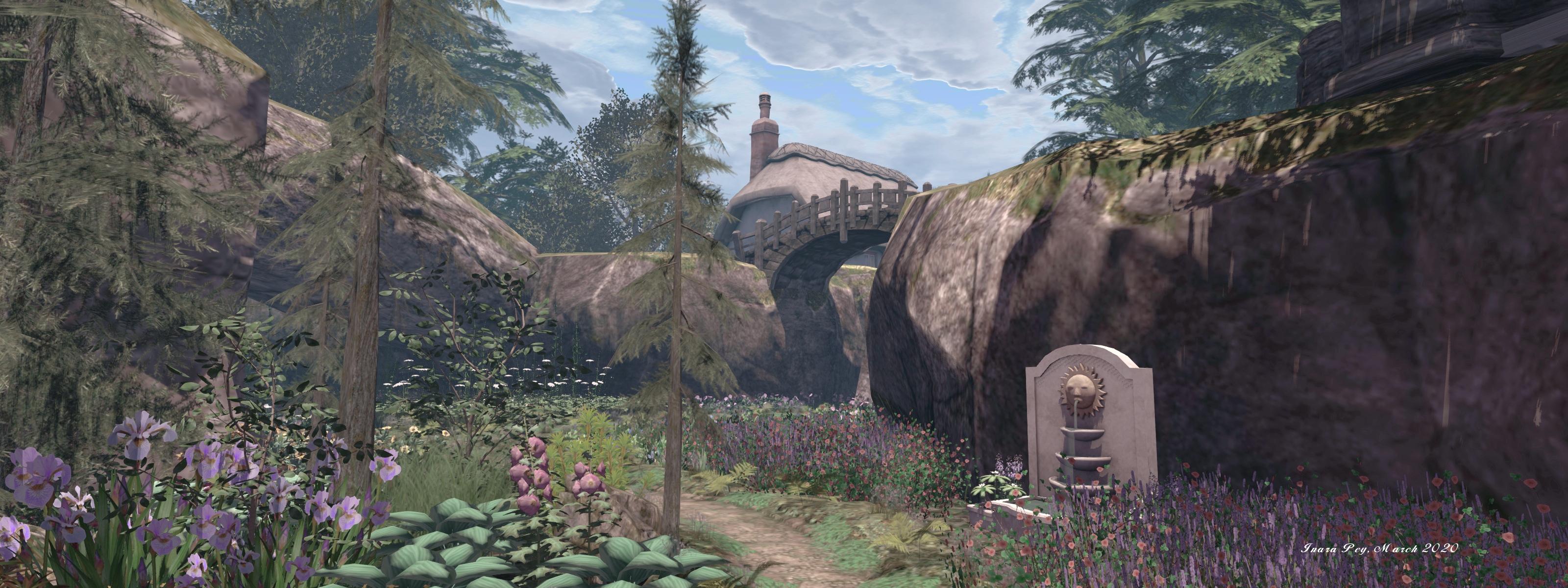
A Devil’s Bend in Second Life

Devil’s Bend National Park, April 2020 – click any image for full size

We came across Devil’s Bend National Park, a region design by Aiden Caudron and occupying a Full region using the full region land capacity bonus, after poking at the Recently Added category of the Destination Guide.

Intended to offer the look and feel of a rugged national park, the setting is an interesting mix of public and residential spaces (the former well scattered across the region so as not to interfere with exploration). Raised into a high plateau, the park is a series of dusty trails running under rich fir foliage and over deep ravines by means of wooden bridges, together with wooden board walks that wind through the ravines and cling to the sides of cliffs as they rise and fall through the park.

Devil’s Bend National Park, April 2020

The landing point sits at the visitor centre, a small lodge sitting at the side of one of the dusty roads. From here lie a choice of routes – one of which is reasonably short inasmuch as it crosses a bridge to reach two of the rental properties before coming to an end. Taking the road in the other direction is more constructive for explorers, as it winds much further through the park and offers a means to reach some of the wooden  walkways.

This is a place with a curious (in an interesting way) feel to it: open spaces, winding trails, and walks that are in keeping with the overall theme of a national park; but at the same time, the rental properties have something of a run-down feel to them; fenced gardens are overgrown, the houses faded by the sun and looking a little the worse for wear.

Devil’s Bend National Park, April 2020

Meanwhile, the north-east and northern side of the region are closed to public access – that is, the road is unexpectedly blocked by the wreck of a school bus. This appears to be less to do with matters of privacy and more with the fact that a major bridge has partially collapsed. Whether this is the result of an earthquake or rockfall – or both – is unclear; but the damage is such that it does bring the route to an abrupt end. Nevertheless, the use of the wrecked bus to block the road, together with the dilapidated state of the buildings beyond it suggest perhaps another narrative for this northern side of the region.

Follow the roads and the wooden board walks up to the summits of the park, and you may find yourself passing through at least one tunnel boring through the rock. It leads the way to a zip line that can be used for riding past a waterfall and back to the road below. Should you miss the tunnel, you can make your way to the radio mast on the highest peak – but be aware that the radio station close by is now a private home.
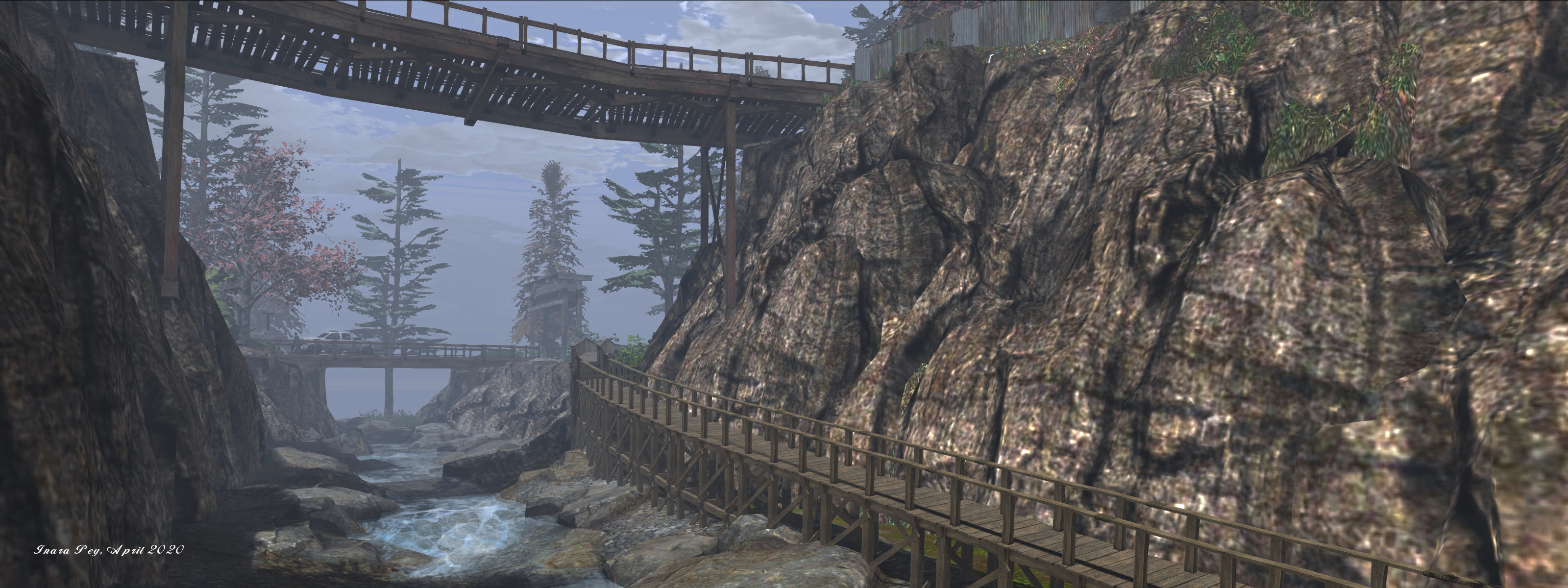
Devil’s Bend National Park, April 2020

I mention the tunnel, as tunnels are very much the secret to the park – threading through its rocky mass is a network of them, together with  chambers. Some are interconnected, others run on their own. Whilst most of the chambers do not hold a secret waiting to be found, they and the tunnels add a dimension to exploring the park that can keep visitors engaged for no small amount of time.

Rich in detail and offering numerous opportunities for exploration (and a café where visitors can rest should walking get a little too much), Devil’s Bend makes for an engaging visit. The texture load can have an impact if you’re running with all of the viewer’s bells and whistles engaged (particularly shadows), but this shouldn’t be a reason for not visiting, nor does it detract from the rugged charm of the region.
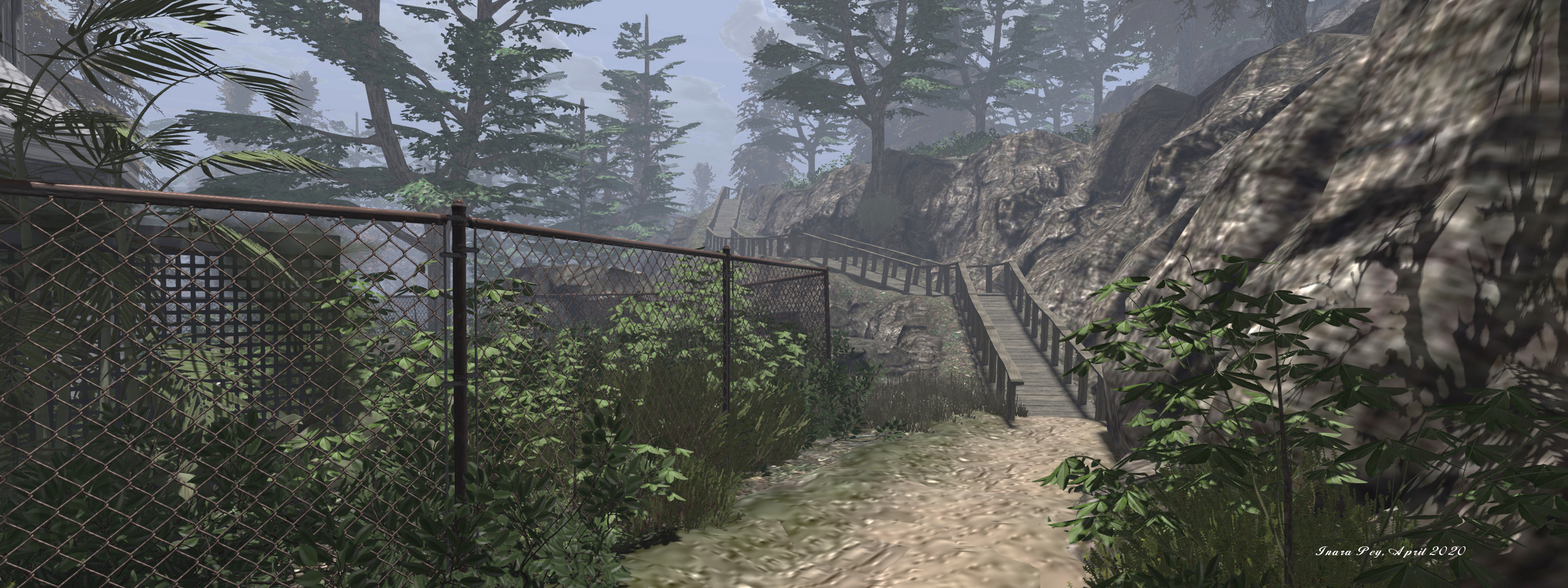
Devil’s Bend National Park, April 2020

SLurl Details

2020 Simulator User Group week #17 summary

Peacehaven, March 2020 – blog post

The following notes were taken at the Simulator User Group meeting held on Tuesday, April 14th.

Simulator Deployments

Please refer to the simulator deployment thread for updates.

  • There was no deployment to the majority of the grid on Tuesday, April 21st, leaving in on server maintenance update 539684.
  • On Wednesday, April 22nd, three RC deployment should take place:
    • 540213 – simulator updates related to Premium benefits.
    • 540369 – containing updates to fixes for the just released name changes after it was discovered the feature could, in a couple of places still call you by your former name for up to a week (“oops!”, as the Lab put it), and assorted internal changes.
    • A further deployment 540032 first deployed on April 15th, containing updates related to the cloud uplift.

SL Viewer

On Monday, April 20th, 2020, the EEP RC viewer, version 6.4.0.540188 and dated April 15th, was promoted to the de facto release viewer. See:

At the time of writing, the remaining RC viewers have yet to be merged up to the EEP release, and there have been no project viewer updates, leaving the remaining official viewer pipelines as follows:

  • Release channel cohorts:
    • Camera Presets RC viewer, version 6.3.9.538729 March 25.
    • Love Me Render RC viewer, version 6.3.9.538760, March 25.
    • Zirbenz Maintenance RC viewer, version 6.3.9.538719, issued March 19.
  • Project viewers:
    • Copy / Paste viewer, version 6.3.5.533365, December 9, 2019.
    • Project Muscadine (Animesh follow-on) project viewer, version 6.4.0.532999, November 22, 2019.
    • Legacy Profiles viewer, version 6.3.2.530836, September 17, 2019. Covers the re-integration of Viewer Profiles.
    • 360 Snapshot project viewer, version 6.2.4.529111, July 16, 2019.

In Brief

A question was raised over the potential for EEP to cause “lag” (with up to 4 altitude layers for EEP sky settings plus the use of parcel environment options, there is concern loading and reloading the required textures could impact travellers. In response to the concern, Simon Linden said:

Compared to the cost and payload of stopping your AV on one region, sending the data to the next and adding you into that part of the world, the EEP data change is pretty small. Your viewer might have a little more work to get textures and set up the sky and lighting, but I don’t think those will be significant.

Rider, Ptolemy and Euclid Linden, the three major movers behind EEP will be on the Friday, April 24th edition of Lab Gab.

Environment Enhancement Project: a primer

The Environment Enhancement Project (EEP) is a set of environmental enhancements designed to replace windlight XML settings to control the water and sky environments seen in Second Life, and provides a wide range of additional / new capabilities for region holders, parcel holders and general users. It represents a fundamental shift in how environment settings are used and applied.

In brief EEP:

  • Uses environment objects that you can keep in your inventory and / or share with others.
  • Provides parcel-level control of environments.
  • Allows up to four different, independently controlled sky layers.
  • Allows the Sun, Moon and Cloud textures to be replaced with custom textures uploaded to the viewer.
Table of Contents
  • Provides an extended day cycle of up to 168 hours (thus allowing a 7-day, 24-hour day / night cycle to be defined, for example).
  • Allows users to override region / parcel settings as seen within their own viewer, by either attaching EEP settings to their avatar or through the Personal Lighting floater.
  • Provides new LSL functions to allow scripts to interact with parcel environments.
EEP allows you to have a little fun, if you wish. Credit: Bellimora

Many have already gained familiarity with EEP whilst it has been in development, using both the original project viewer and iterations of the release candidate viewer. However, given it is such a fundamental shift in how environment settings are created and used, I have attempted to break things down into more easily digestible pieces through the use of this EEP primer, and a more comprehensive EEP tutorial.

  • This primer is designed to provide an overview of the basic EEP capabilities and options from the point-of user of someone wishing to use them.
  • The EEP Tutorial is intended to provide a comprehensive breakdown of EEP capabilities, including how to create new EEP sky, water and day settings for personal use or which can be given or sold to others.

You can use either this primer or the tutorial to better understand EEP (the information here is also presented in the tutorial, which also explores the various floaters and options in greater depth).

For official information on EEP, please refer to the Environment Enhancement Project SL wiki page.

EEP Basic Concepts and Terminology

In brief EEP:

  • Uses environment objects that you can keep in your inventory and / or share with others – including selling (subject to the SL permissions system) via in-world stores and on the Marketplace.
  • Provides parcel-level control of environments.
  • Allows up to four different, independently controlled sky layers.
  • Allows custom textures for the Sun, Moon and clouds.
  • Provides an extended day cycle of up to 168 hours (thus allowing a 7-day, 24-hour day / night cycle to be defined, for example).
  • Means that as environments settings are simulator-side, and so by default are automatically seen by anyone using any EEP enabled viewer on entering the region / estate / parcel.
  • Still allows the use of “personal” settings seen only be the use applying them, for the purposes of photography, machinima, etc.

Terminology

EEP uses some key terminology that should be understood.

  • Settings: used to define the environment you see. There are three settings types:
    • Sky: define the atmosphere and lighting for a day (or night); the movement, density, etc., of the clouds; and the appearance of the Sun and / or the Moon (which remain in a fixed point in the sky).
    • Water: define the appearance of Linden Water (prim or mesh animated water is not affected): water colour and reflection; wave movement; amount of light refraction, etc.
    • Day Cycles: collections of Sky and Water settings that are combined to present a dynamically changing environment over a user-defined time period representative of a “day” (by default this is set to the legacy Second Life day / night cycle of 4 hours, but can be extended out to represent physical world time periods of up to one week).
    • Note that Sky and Water settings are referred to as Fixed Environments.
  • EEP assets: physical “containers” for storing EEP settings. These are inventory items that by default, are stored in the new Settings folder in your inventory (see below), they are split into three types:
    • Sky – Sky settings. Icon: a blue sky with clouds.
    • Water – Water settings. Icon: a water droplet.
    • Day Cycle – for Day Cycles. Icon: a split Sun / Moon.
    • EEP assets (permissions allowing) can be exchanged, given away, and / or sold through a store or via the Marketplace.

Note that EEP settings are:

  • Created or edited using their corresponding EEP asset (e.g. to create Sky settings, you use the Sky asset type).
    • New EEP assets can be created directly from inventory, just like any other system inventory asset type (notecard, clothing item, gesture, script, body part).
    • Creating / editing EEP assets and settings is covered in depth in my EEP tutorial.
  • By default stored within a new system folder in inventory – the Settings folder. This folder may be hidden until such time as an EEP asset is created.
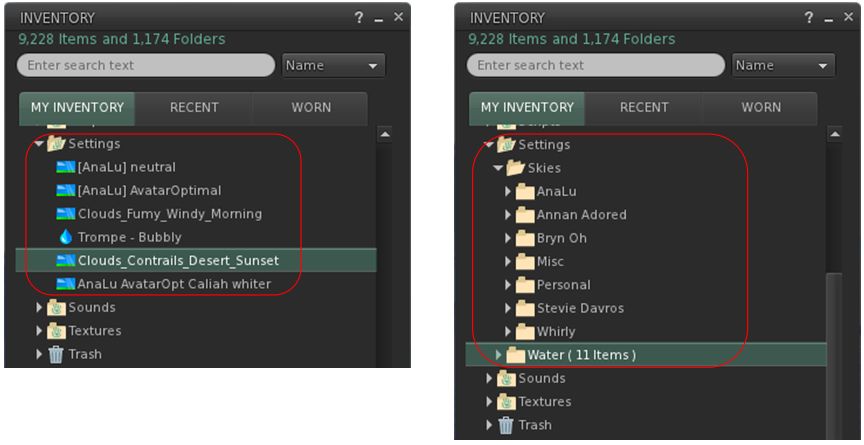
By default, EEP assets are stored and created in the Settings folder in your inventory (l). If you want, you can manually sub-divide your settings into suitable folders for easier tracking (r)

EEP Permissions

There are a few notes on permissions associated with EEP settings / assets.

  • Copy/no-copy: EEP settings assets may never be marked no-copy. A person who owns a setting object may always make a copy of it in their inventory.
  • Transfer/no-transfer: the no-transfer permission is persistent. If you import any no-transfer day or water setting into a day cycle, that day cycle will also become no-transfer. Once saved, this change cannot be undone.
  • Modify/no-modify: these permissions behave as normal.

EEP Library Assets

EEP includes a collection of Sky, Water and Day Cycles, together with a set of textures that can be used for clouds and / or to replace the Sun and Moon, etc.

  • These are located in Inventory (CTRL-I) → Library → Environments.
  • They can be used in one of two ways:
    • Unmodified, directly from Library → Environments.
    • By copying them to your inventory (e.g. to your own Settings folder, if it is visible through the creation of an EEP asset; if not, any other folder can be used), where they will become modifiable, allowing you to adjust them / use them to create your own settings.
    • See my EEP Tutorial for editing / modifying EEP assets and settings.

Differences to Windlight

Some of the key differences between EEP and windlight are:

  • EEP settings are stored in inventory assets, not as XML files saved to your computer.
  • Because they are server-side, EEP settings are by default seen by any viewer affected by the. This can mean:
    • Parcel owners using a specific set of environment settings no longer have to request visitors manually switch to them.
    • Settings are no longer dependent on visitors to a parcel with a custom environment having the precise windlight XML file stored on their computer.
  • EEP setting do not require any external storage (e.g. Dropbox) in order to be shared with other users, if they are to be given away.

Tutorial: Environment Enhancement Project (EEP)

Note: As I’ve had a number of Firestorm users directed here from the Firestorm Team’s EEP Beta release blog post who have commented directly to me about that release, please note that I am aware of it, and in fact blogged it at the time it was made available – see Firestorm 6.4.5 Beta: EEP and Camera Presets – which highlights some of the additional EEP / Phototools integration work the Firestorm team has carried out.  

EEP, the Environment Enhancement Project, is a set of environmental enhancements designed to replace windlight XML settings to control the water and sky environments seen in Second Life, and provide a wide range of additional capabilities for region holders, parcel holders and general users. It represents a fundamental shift in how environment settings are used and applied

In brief EEP:

  • Uses environment objects that you can keep in your inventory and / or share with others – including selling (subject to the SL permissions system) via in-world stores and on the Marketplace.
  • Provides parcel-level control of environments.
  • Allows up to four different, independently controlled sky layers.
  • Allows the Sun, Moon and Cloud textures to be replaced with custom textures uploaded to the viewer.
  • Provides an extended day cycle of up to 168 hours (thus allowing a 7-day, 24-hour day / night cycle to be defined, for example).
  • Allows users to override region / parcel settings as seen within their own viewer for the purposes of photography, etc.
  • Provides new LSL functions to allow scripts to interact with parcel environments.

In addition, key aspects of EEP are:

  • Estate / region / parcel settings are simulator-side, and so by default are automatically seen by anyone using any EEP enabled viewer on entering the region / estate / parcel.
  • Provision of a Personal Lighting capability that allows photographers, etc., to make rapid / temporary changes to an region / parcel’s environment visible only in their viewer.
  • Allows environments settings to be applied to your own avatar, allowing you to see the same environment (sky, clouds, Sun / Moon position, etc.) wherever you go in-world – useful for vehicle drivers travelling across multiple regions.
Table of Contents

This tutorial is designed to walk you through the essentials of EEP, including the terminology used. It is split into a number of sections:

  • Terminology and Concepts – key terminology and concepts with EEP.
  • The viewer UI elements associated with EEP.
  • An overview of creating and editing EEP assets.
  • An overview of applying EEP settings
  • Breakdowns of the floaters used to create Sky, Water and Day Cycles in EEP.
  • An overview of importing windlight XML files into the viewer and saving them as EEP settings / assets.
  • A summary of EEP LSL resources with links.

Some of these sections are self-contained, other can be used together (e.g. creating assets, using the Sky, Water and Day Cycle floaters, and applying EEP settings). To further assist referencing, major topics appear on their own page – please make sure you use either the table of contents or the page numbers at the foot of each page for ease of navigation.

Official information on EEP can be found in the EEP section of the SL wiki.

Note: at the time of writing this piece, the official Second Life viewer – version 6.4.0.540188, dated April 15th (or later) to see / use EEP capabilities. However, TPVs will be releasing version supporting EEP in due course. Check their websites, listed in the panel on the right, for updates that may not be covered in these pages.

My sincere thanks to Rider Linden, EEP maestro, for his assistance in the writing of this tutorial.

As well as bringing a range of new environment capabilities, EEP also lets you use custom textures for the Sun and Moon (and clouds). So Isla Pey can appear with Earth slowly setting, and Jupiter and one of the Galilean Moons also strangely in the sky! Note that both the size of the “sun” and “moon” textures can also be adjusted

Terminology and Concepts

EEP uses some key terminology that should be understood.

  • Settings: used to define the environment you see. There are three settings types:
    • Sky: define the atmosphere and lighting for a day (or night); the movement, density, etc., of the clouds; and the appearance of the Sun and  / or the Moon (which remain in a fixed point in the sky).
    • Water: define the appearance of Linden Water (prim or mesh animated water is not affected): water colour and reflection; wave movement; amount of light refraction, etc.
    • Day Cycles: collections of Sky and Water settings that are combined to present a dynamically changing environment over a user-defined time period representative of a “day” (by default this is set to the legacy Second Life day / night cycle of 4 hours, but can be extended out to represent physical world time periods of up to one week).
    • Note that Sky and Water settings are referred to as Fixed Environments.
  • EEP assets: physical “containers” for storing EEP settings. These are inventory items that by default, are stored in the new Settings folder in your inventory (see below), they are split into three types:
    • Sky – Sky settings. Icon: a blue sky with clouds.
    • Water – Water settings. Icon: a water droplet.
    • Day Cycle – for Day Cycles. Icon: a split Sun / Moon.
    • EEP assets (permissions allowing) can be exchanged, given away, and / or sold through a store or via the Marketplace.

Note that EEP settings are:

  • Created or edited using their corresponding EEP asset (e.g. to create Sky settings, you use the Sky asset type).
    • New EEP assets can be created directly from inventory, just like any other system inventory asset type (notecard, clothing item, gesture, script, body part).
    • Creating / editing EEP assets and settings is covered in depth in my EEP tutorial.
  • By default stored within a new system folder in inventory – the Settings folder. This folder may be hidden until such time as an EEP asset is created.
By default, EEP assets are stored and created in the Settings folder in your inventory (l). If you want, you can manually sub-divide your settings into suitable folders for easier tracking (r)

EEP Permissions

There are a few notes on permissions associated with EEP settings / assets.

  • Copy/no-copy: EEP settings assets may never be marked no-copy. A person who owns a setting object may always make a copy of it in their inventory.
  • Transfer/no-transfer: the no-transfer permission is persistent. If you import any no-transfer day or water setting into a day cycle, that day cycle will also become no-transfer. Once saved, this change can not be undone.
  • Modify/no-modify: these permissions behave as normal.

EEP Library Assets

EEP includes a collection of around 200 Sky, Water and Day Cycles, together with a set of textures that can be used for clouds and / or to replace the Sun and Moon, etc.

  • These are located in Inventory (CTRL-I) → Library → Environments.
  • They can be used in once of two ways:
    • Unmodified, directly from Library → Environments.
    • By copying them to your inventory (e.g. to your own Settings folder, if it is visible through the creation of an EEP asset; if not, any other folder can be used), where they will become modifiable, allowing you to adjust them / use them to create your own settings.
    • See my EEP Tutorial for editing / modifying EEP assets and settings.

Differences to Windlight

  • EEP settings are stored in inventory assets, not as XML files saved to your computer.
  • Because they are server-side, EEP settings are by default seen by any viewer affected by the. This can mean:
    • Parcel owners using a specific set of environment settings no longer have to request visitors manually switch to them.
    • Settings are no longer dependent on visitors to a parcel with a custom environment having the precise Windlight XML file stored on their computer.
  • EEP setting do not require any external storage (e.g. Dropbox) in order to be shared with other users, if they are to be given away.

Second Life: EEP – the Environment Enhancement Project

The Environment Enhancement Project introduces an entirely new way to create and use environment settings for the appearance of the sky, day cycles and , Linden Water, within the viewer. Among other things, EEP capabilities include the means to apply environment settings to individual parcels, allows them to the sold and bought,enable day cycles that can last up to 168 hours, and permit the use of custom Sun / Moon textures, as seen here, with settings by default automatically to all viewers they affect.

On April 20th, 2020, Linden Lab announced the official release of the Environment Enhancement Project (EEP). Originally announced in 2017 – see Second Life Windlight environment enhancements – it has taken longer than anticipated to reach a release status, but it brings with a host of new features and capabilities.

What is EEP?

For those who many have missed it, EEP provides an whole new way of creating, modifying and applying environments (sky and water settings and day cycles) in Second Life. in brief, EEP:

  • Uses environment objects that you can keep in your inventory and / or share with others – including selling (subject to the SL permissions system) via in-world stores and on the Marketplace.
  • Provides parcel-level control of environments.
  • Allows up to four different, independently controlled sky layers.
  • Allows the Sun, Moon and Cloud textures to be replaced with custom textures. uploaded to the viewer.
  • Provides an extended day cycle of up to 168 hours (thus allowing a 7-day, 24-hour day / night cycle to be defined, for example).
  • Allows users to override region / parcel settings as seen within their own viewer for the purposes of photography, etc.
  • Provides new LSL functions to allow scripts to interact with parcel environments.

Currently, to use EEP, you will require the official Second Life viewer – version 6.4.0.540188, dated April 15th (or later). However, TPVs will be releasing version supporting EEP in due course.

I’m in the processes of polishing a basic EEP Primer and an in-depth EEP tutorial, which will be published shortly. In the meantime, here’s the official video on EEP.

2020 viewer release summaries week #16

Logos representative only and should not be seen as an endorsement / preference / recommendation

Updates for the week ending Sunday, April 19th

This summary is generally published every Monday, and is a list of SL viewer / client releases (official and TPV) made during the previous week. When reading it, please note:

  • It is based on my Current Viewer Releases Page, a list of all Second Life viewers and clients that are in popular use (and of which I am aware), and which are recognised as adhering to the TPV Policy. This page includes comprehensive links to download pages, blog notes, release notes, etc., as well as links to any / all reviews of specific viewers / clients made within this blog.
  • By its nature, this summary presented here will always be in arrears, please refer to the Current Viewer Release Page for more up-to-date information.
  • Note that for purposes of length, TPV test viewers, preview / beta viewers / nightly builds are generally not recorded in these summaries.

Official LL Viewers

  • Current Release version  version 6.3.8.538264, dated March 12, promoted March 18th. Formerly the Premium RC viewer – No Change.
  • Release channel cohorts:
    • EEP RC viewer updated to version 6.4.0.540188 on April 15th.
  • Project viewers:
    • No updates.

LL Viewer Resources

Third-party Viewers

V6-style

  • No updates.

V1-style

Mobile / Other Clients

  • No updates.

Additional TPV Resources

Related Links