MetaChat – a new virtual worlds client for iOS

MetaChat is a new virtual worlds text client produced for Apple iOS and which was recently added to the third-party viewer directory for Second Life.For those VW users with iPhones who are missing Pocket Metaverse, it could be just the ticket.

The app has been in development for several months, and was first accepted into the Apple Store in August 2017, where it is available for US $2.99. Development of the client is continuing, and the current release (10.7, released on September 12th at the time of writing) includes:

  • The ability to add accounts from different grids with different start locations.
  • See your Friends list, add / remove people from the list, set permissions for fiends (see you on-line, edit your items, etc.)
  • View avatar profiles.
  • Search for an avatar by name.
  • Chat locally or via IM.
  • View group information, join Group chat and / or send Group notices.
  • List inventory and preview textures and images.
  • Teleport to landmarks and move around a mini-map.

The MetaChat website / blog makes for a fascinating read, looking as it does into the background of putting together an application like this, including jumping through Apple’s many hoops in order to get an app accepted on their store (like not being allowed to use the word “beta” with an app – which caused problems when including the SL Beta grid in the grid list). The blog also provides interesting insight into why MetaChat works the way it does with certain things.

MetaChat screen captures via the MetaChat Apple Store page: Friends list (l) and Inventory. Note the quick access buttons at the bottom of each screen

As I’m not an iPhone user, it’s a little hard for me to road test the client. However, I’ve been talking to the app’s creator, Monti Messmer, and will hopefully have a more informative piece on MetaChat, including images from the newest release, in due course.

In the meantime, here are the all-important links.

MetaChat Links

With thanks to John Brianna for the heads-up.

Lumiya 3.4 goes Bento

lumiya-logoOn Friday, January 20th Lumiya, the Android client developed by Alina Lyvette gained the latest in what has been a flurry of updates for the client, with the release of version 3.4. This sees Lumiya gain support for the Project Bento skeleton extensions and rendering of associated avatar meshes and accessories.

All of the Bento updates are under-the-hood; there are no UI changes, and no Reset Skeleton options as seen in Bento-supporting viewers. As Alina explained to me in discussing the release, Lumiya’s approach to rendering should generally result in Bento avatars and accessories rendering correctly in the 3D world view.

Medhue Simoni's Bento MEGAwolf, as worn by my alt and rendered in Lumiya's 3D view
Medhue Simoni’s Bento MEGAWolf, as worn by my alt and rendered in Lumiya’s 3D view

For the vast majority of times, this is indeed the case. You can select and wear a Bento avatar or Bento accessory such as a head and wear / unwear it without any problems.

However, as was noted during Bento’s development, when swapping between quadruped avatars, which can involve severe deformation of the avatar skeleton,  and bipedal avatars, there can be times when your avatar doesn’t always resume its proper shape in the 3D world view, resulting in the avatar appearing deformed in your view (see below, right.

deformed
Very occasionally, when swapping between avatars – say quadruped to biped, you might encounter your avatar appearing deformed in Lumiya. Simply exit and restart the 3D view

These occurrences tend to be very intermittent / rare. As with their occurrence in a viewer, they might be the result of race conditions and / or missed appearance messages.

As Lumiya does not have any Reset Skeleton options, the problem can be fixed in one of two ways:

  • Tapping the actions menu icon (top right of the screen) and selecting Stop Avatar Animations. This will generate an appearance update, and should correct the problem
  • Exiting the 3D world view, and then enabling it again. This will again force an appearance update, and correct any deformation.

Note that in testing, these kinds of deformation issues didn’t extend to other avatars changing their form within viewing range of Lumiya 3.4, and they always rendered correctly following a change. However, should other avatars appear deformed in your 3D world view, try exiting and re-started the 3D view and see if they then render correctly.

Outside of this, Bento HUDs, where supplied can be added and used in the usual manner with Lumiya – attach the HUD, then select it via the on-screen HUD button.

You should be able to use Bento mesh HUDs as you would any other HUD in Lumiya
You should be able to use Bento mesh HUDs as you would any other HUD in Lumiya, via the HUD button & selection (lower left corner of the screen

As well as the Bento update, Lumiya 3.4 includes a couple of bug fixes:

  • Avatars should no longer get stuck in the non-animated pose (“T” pose).
  • Avatars should no longer flash when loading rigged mesh attachments.

Feedback

Given the nature of things, the code may yet require further nips and tucks, but on the whole, and outside of the rare deformation issue mentioned above, I didn’t encounter significant issues  – although my selection of Bento items is admittedly narrow, and my testing could not in any way be comprehensive.  All told, another great update to SL’s most cost-effective and feature-rich mobile client / option.

Related Links

Lumiya 3.3.1: audio controls and Bluetooth headsets

lumiya-logoOn Friday, January 13th, Alina Lyvette released version 3.3.1 of the Lumiya Android client for Second Life and OpenSim.

The release builds on the 3.3 update, which added Voice capabilities to Lumiya, by providing additional audio controls for Voice together with Bluetooth headset support, which are combined in a single easy-to-use UI addition. As well as this, the release includes a number of bugfixes.

The audio controls can be displayed any time that Voice is enabled and about to be used – see my Lumiya 3.3 review for details on how to enable Voice in Lumiya.

With voice enabled, tap on the telephone handset icon as you would to launch a Voice conversation. When the microphone bar is display on your screen either in local chat or as a result of someone accepting your Voice IM request, tap anywhere on the bar except the microphone icon or the X, and the audio controls will be displayed.

Lumiya Voice audio controls

These comprise three elements:

  • And overall volume slider
  • A toggle button to activate your device’s external speaker
  • A toggle button to direct audio through your Bluetooth headset.

Bluetooth Headsets

Note that for Bluetooth connectivity to work, you will also need to update to the latest Lumiya Voice plug-in app and, obviously,have a Bluetooth headset pair with the device being used to run Lumiya. Once paired and the headset is active, Lumiya will automatically route incoming audio to the headset when you establish a voice call. Should you wish to place the incoming audio on your device’s speaker (and back), use the buttons on the Lumiya audio controls, described above.

Bug Fixes and Minor Improvements

The bug fixes and smaller improvements with this release comprise:

  • A fix for some texture uploads to fail.
  • A fix to prevent camera position being reset when exiting 3D view.
  • Region restart messages and other alerts will now display correctly.
  • Objects will be automatically rezzed under land group when possible.

Feedback

Adding Bluetooth support is an obvious step now Lumiya supports Voice, and while I was unable to test it myself (the only Bluetooth earpiece I have is a good decade old and has lain in a drawer for most of that time, and so unsurprisingly didn’t work when allowed to see light of day), the process appears simple enough.

A number of people have asked me about Lumiya and Bento. As I noted in my last Lumiya review, Alina is working on it, and probably the fairest time frame to put on it is that it will be released when it is ready 🙂 .

Related Links

2016: a look back at Second Life and more – part 2

A look back through this blog's 2016 coverage
A look back through this blog’s 2016 coverage

The end of the year is once more approaching, which is often a time of reflection as we look back over the old before pausing to await the arrival of the new. It’s become something of a tradition in these pages for me to look back over the articles and coverage of the year’s events I’ve managed to write-up, and offer a chance to revisit the ups and downs and the good and the bad the last twelve months have brought us.

To keep things digestible, I’ve broken this year’s review into two parts. This one covers July to December. You can find January to June here.

July

Holy Kai Park got a complete make-over during July and August
Holy Kai Park got a complete makeover

Linden Lab released an update to the Oculus Rift project viewer. A I subsequently reported (see the article updates), people found it suffered significant issues, and appeared to be a step backwards.  The JIRA raised for the viewer quickly grew. With a week, the Lab announced they were suspending work on Oculus Rift support in the viewer.  CTRL-ALT-Studio offered to bridge the gap, but only on an interim basis.

Caledonia presented the penultimate part of her series on promoting Second Life events, and Draxtor delved into games in Second Life, through the work of Sergio Delacruz. Meanwhile, I received an invitation to find out more about the Helping Haven Community Gateway, before beaming aboard an avatar-sized replica of the original Starship Enterprise, courtesy of Cathy Foil.

Lumiya 3.0 arrived, with a host of goodies, including a new user interface. Rock Your Rack in support of the US National Breast Cancer Foundation was announced, as was the second fund-raising season for Team Diabetes of SL, while the 5th annual Shivers Unleashed music festival took place. The big news for the month, events-wise, was that PULSE SL, in support of the victims and families of those lost in the Orlando nightclub shooting had raised a staggering L$5.5 million.

Sansar

Ed Baig from USA Today presented a video spot about project Sansar. A little later, and as I reported, he later gave a matching write-up on the platform. Latter in the month, I looked at articles on Sansar from THE and Techcrunch.

Personal

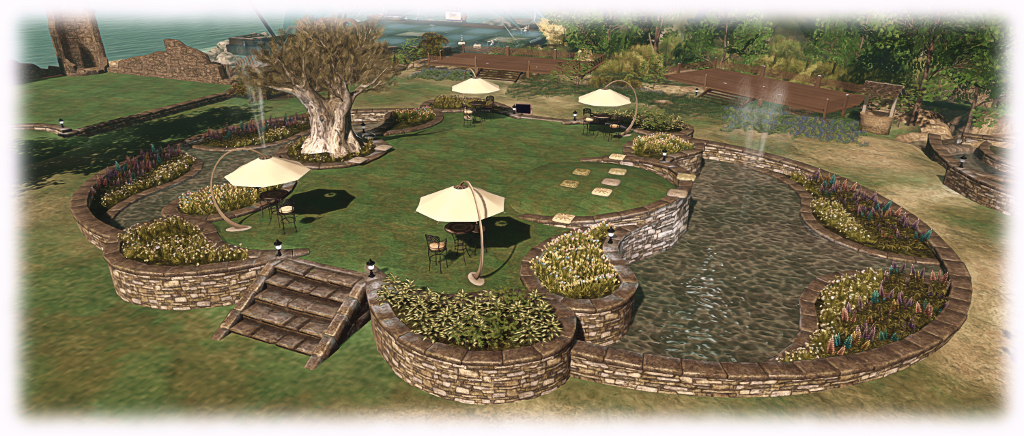
I completed a full redesign of Holly Kai Park, which included the Tiered Garden Wall product by Alex Bader, which was also put to use at home. I finally caught the stunning and award-winning animation The Tyger, by Radheya Jegatheva, son of SL’s own Jayay Zifanwe, on YouTube.

August Travels August Art Reviews
Hide and Seek in Second Life Cica’s Them in Second Life
The Rains of Castamere  in Second Life Bailywick Gallery: images by the sea in Second Life
Mystical Eclectica in Second Life Behind the Curtain in Second Life
Getting prehistoric in Second Life Kultivate summer art show in Second Life
Nouvelles Adventures in Second Life Storm Septimus: Invictus in Second Life
A pocket planetarium in Second Life I New Fractal Insanity in Second Life
West of the Rain in Second Life Wildstar Beaumont’s Sailing in Second Life
Binemust in Second Life Rain songs and cipherscapes in Second Life
Byrd Island in Second Life A visit to Cica’s Library in Second Life
A Chinese Garden in Second Life Immaculate perceptions and reflections in Second Life
 Arranmore in Second Life Peace is a Choice: expressions of art in Second Life
 Astralia in Second Life
 Visiting Crystal Gardens in Second Life

August

Windlight announced a re-branding to Kultivate, and the Lab blogged about recent SL updates and I added some additional info and links to more in-depth coverage in this blog, which included a look at the new Gaming Islands, designed to introduce users to Skill Gaming in SL.

Firestorm updated with Jelly Dolls (or Avatar Complexity to give the formal name for the capability), and I revisited Hitomi Tiponi’s work producing the Starlight UI Skins and goodies for the official viewer from the Lab. The latter announced the new Marketplace search, so long in beta, was finally live. I also picked up on Strawberry Singh’s request to highlight the issue of SL Marketplace full permissions goods scams.

Thanks to bots discovering it, the SL wiki went into lock-down for the second time in recent years, and while the Lab indicated they hoped to have things sorted “soon”, it remains locked as we reach the end of the year. More woes hit SL in August, and April Linden explained why.

Sansar

I produced the second in my Sansar Summaries, rounding-up all the news and information on the platform I’d been able to cull from the Lab, the media and other sources. August saw the Lab announce the first batch of Sansar Creator Preview invitations had been issued. However, what interested me more was the announcement indicated that “Sansar” was now officially the platform’s title – the “project” having been dropped.

July Travels July Art Reviews
A walk through Legacy Ridge in Second Life Mac Kanashimi’s Snarl in Second Life
All the fun of the fair in Second Life Inked art and bodies in Second Life
When Pink Floyd eats your sim in Second Life All_Most Real in Second Life
Bridgewood Barrow: a cosy corner of Second Life Beautiful Bizarre: art and emotions in Second Life
Exploring Hermoupolis Village in Second Life Art, women and war in Second Life
A return to Hestium in Second Life Giovanna’s Last Harbour in Second Life
Of time in Elysium City in Second Life Creative Inhalations in Second Life
A Beautiful Four Seasons in Second Life The Vordun: a new art experience in Second Life
Preiddeu Asswn: immersive education in Second Life Mandala Art in Second Life
The Magnificent Artistry of Peter Vos in Second Life
Giovanna’s Soul of Colours: a Magic Flute in Second Life
A Watercolour Wander in Second Life
Cotswold Gallery in Second Life

Continue reading “2016: a look back at Second Life and more – part 2”

Lumiya 3.3: Voice and more

lumiya-logoOn Sunday, December 18th, Alina Lyvette released Lumiya 3.3, the Second Life /  OpenSim Android client for smartphones and tablets.

The new update brings with it Voice chat via the built-in microphone on your device (or suitable Bluetooth unit connected to your device), the ability to upload images via your device, and additional VR support, including Google Daydream. The realise notes are available here.

Voice Chat

Voice chat for Lumiya 3.3 requires the download and installation of the free Voice plug-in app. Once you’ve downloaded and installed the plugin, the first step is to enable Voice:

  • Log-in via Lumiya.
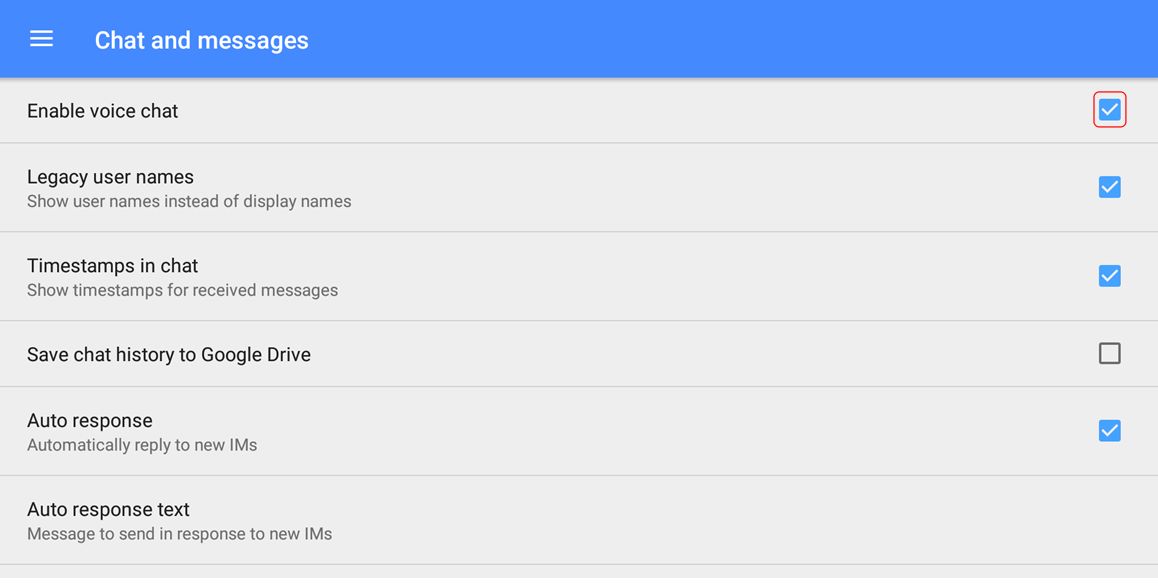
  • Tap the menu icon (top left of the screen) and then tap Settings > Chat and Messages
  • Tap Enable Voice Chat and make sure it is checked as enabled. To disable, tap the option again.
Enable Voice via Menu (top left of the Lumiya screen) > Settings > Chat and Messages > Enable Voice Chat. Tap again to uncheck and disable at any time.

With Voice chat enabled you can use voice for open chat, IM calls and via the 3D World view.

Open Chat

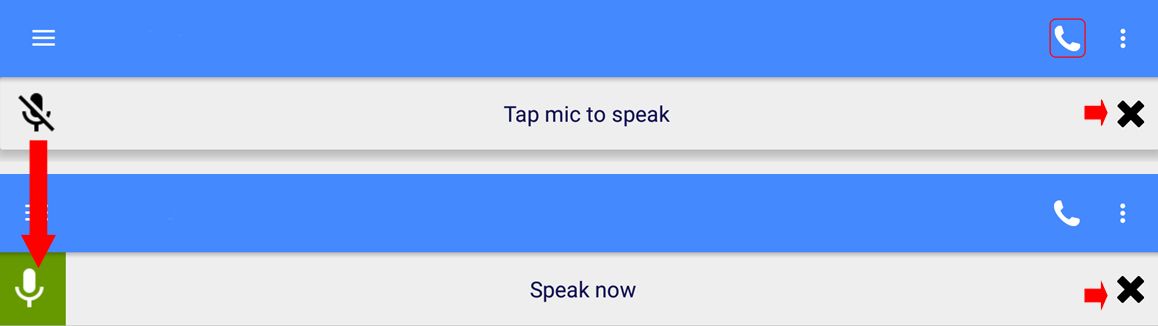
To initiate Voice chat in open chat, tap on Local Chat in Lumiya. then tap the telephone handset icon in the top right of the screen. This will enable your device’s microphone and display the open / close microphone bar. Tap the microphone icon to activate your microphone; the icon will turn green, indicating the microphone  on your device is hot, and the bar will display the instruction to Speak Now.

The open / close device microphone bar as it appears in either state on the open chat, 3D world view or IM chat screens in Lumiya

Remember to tap the bar again when you’ve finished speaking to prevent any extraneous noises around you from being picked-up and transmitted in-world. To close the current Voice chat session at any time, tap the X on the right of the chat bar (arrowed to the right, above).

IM Voice Calls

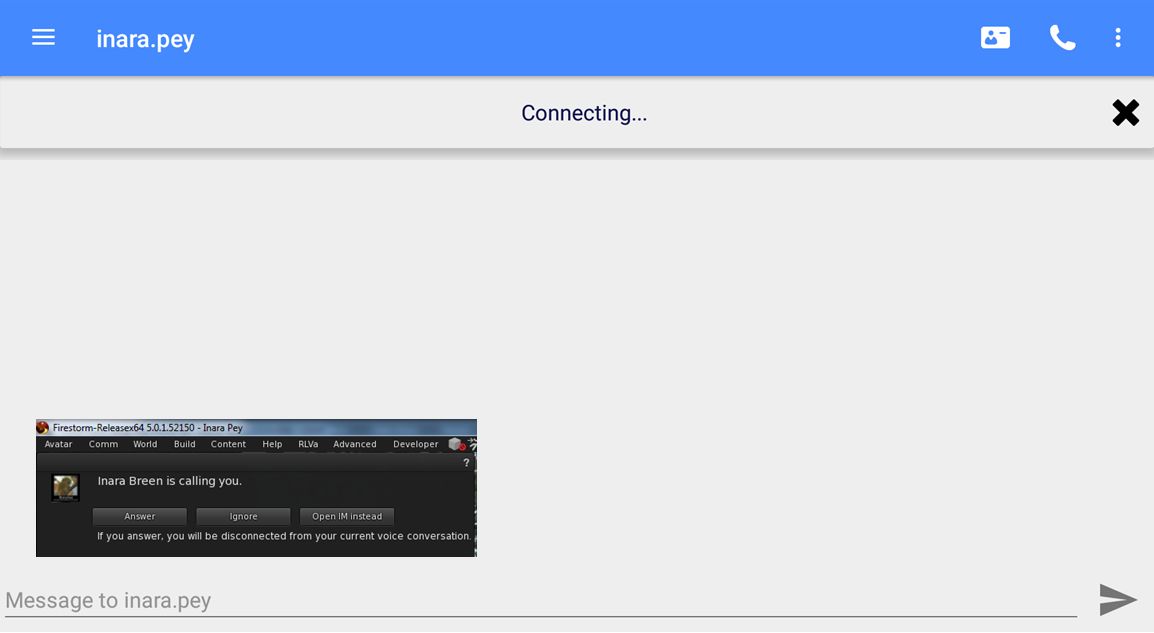
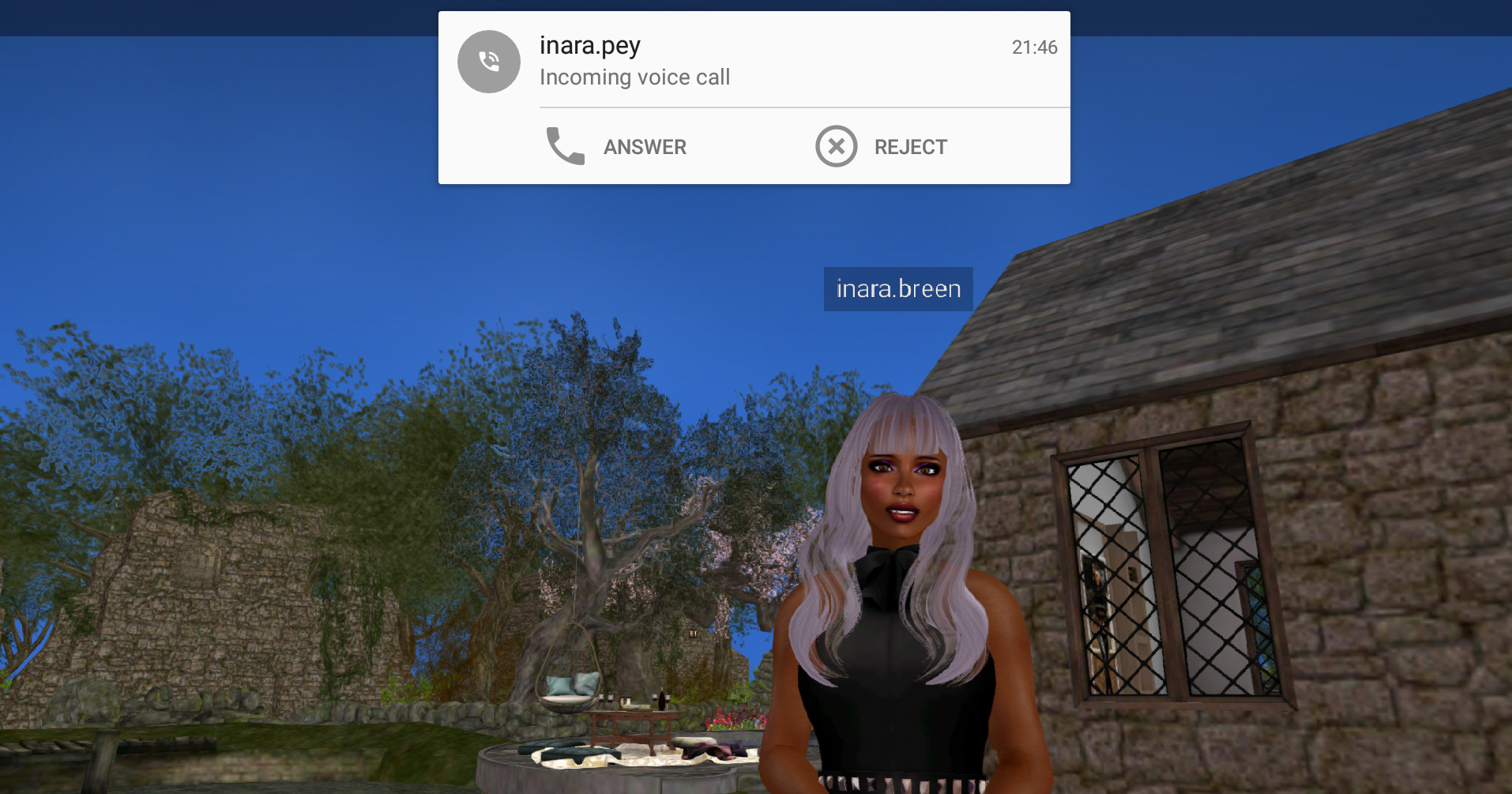
For an IM voice call, tap the name of the person you wish to IM (e.g. via the list of people nearby or your Friends list). When the IM window has opened, tap the telephone handset icon (top right.The microphone bar is displayed, with the message “Connecting…”. The person you are calling, assuming they are on a full viewer, will receive the usual Voice call message (shown inset, below).

Making a Voice IM call on Lumiya. The recipient - assuming they are on a full viewer will receive the usual notification (inset)
Making a Voice IM call on Lumiya. The recipient – assuming they are on a full viewer will receive the usual notification (inset – click for full size)
  • If they accept the call, the microphone icon on the left of the bar will turn green, indicating they’ve accepted the call, and your microphone is now hot. Remember to tap the bar when you’ve finished speaking to prevent any extraneous noises around you from being picked-up and transmitted in-world.
  • If they reject the call, or opt to converse in IM via text, the microphone bar will vanish.
  • If they do not answer the call before the Voice connection times out, the microphone bar will vanish.
  • To end the call, tap the X on the right of the microphone bar.
    • Note that you can restart the conversation from the IM window by tapping the Action menu icon (three vertical dots, top right of the screen) and selecting Voice Chat from the drop-down. This will initiate a fresh call.

Should you be in receipt of an IM Voice call when using Lumiya, a drop-down will appear at the top of the window you are using, and you can opt to accept or reject the call. If you reject the call, but wish to converse via IM text and are not in the IM chat window, you’ll have to manually switch to the IM window for the person who called you.

When in receipt of a Voice IM call, a drop-down will be displayed at the top of the currently active Lumiya screen (3D world view shown)

If you accept the call, the microphone bar will be displayed, and your microphone will be hot. Remember to tap the bar when you’ve finished speaking to prevent any extraneous noises around you from being picked-up and transmitted in-world.

Continue reading “Lumiya 3.3: Voice and more”

Lumiya 3.2: Google Cardboard support

lumiya-logoOn Thursday, November 24th, Alina Lynette release Lumiya 3.2, which brings with it support for Google Cardboard and compatible VR kits and headsets!

Even though the Lab has – at least for the foreseeable future – put work on a VR headset compatible version of the viewer off to one side, interest in seeing Second Life from the “inside”, as a fully immersive VR experience remains high, and Alina has sought to rise to the challenge with Lumiya.

There are obviously a couple of caveats to using the application in VR mode:

  • You really need a suitable headset
  • You need a device with Andorid 6.0+ Marshmallow installed

I have Android 6, but I don’t have any form of headset, Cardboard or otherwise, that I can use with my device – which happens to be a Nexus 7 2013 HD Tablet – a little clunky for any headset device, although there are some out there. Nevertheless, I gave the new capability a go as best I could.

To enter VR mode on a suitable device, simply log-in to Second Life on Lumiya, and then go to the 3D view (Menu icon, top left > 3D view).

Access the VR mode in Lumiya 3.2 is done via the Action menu, when in the 3D view

Once the view has loaded, tap the Action menu icon (top right) and select Virtual Reality Mode. The first time you do this, you will be prompted whether you want Lumiya to handle speech-to-text conversion for you to allow you to “converse” in-world, via the “microphone” button. You can deny this if you wish, but it will leave you with no means to converse.

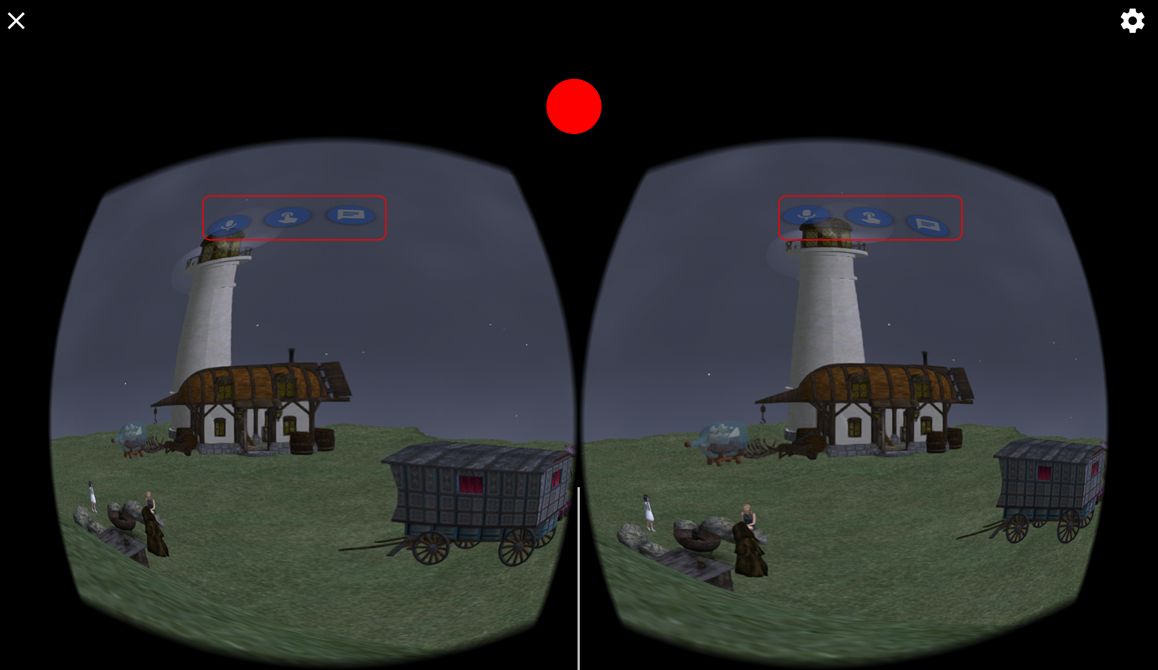
Whether you Allow or Deny the speech-to-text conversion, Lumiya will switch output to a stereoscopic format, suitable for use with Cardboard devices and the likes of the Samsung Gear VR. Three buttons are projected into the field-of-view:

  • Microphone – for enabling speech-to-text translation
  • Finger – for touching things
  • Chat bubble for text-mode chat.

Any of the three can be activated by staring at the required button – it should be highlighted when your stare is registered – then pressing the Cardboard device flap (or button / magnet actuator in the case of a Cardboard V1 device). If you’re trying Lumiya in VR mode without a headset, you can try staring at the button and touching the top of the screen between the left and right view – how successful you might be is debatable, and dependent upon on a number of factor (ambience background light, etc).

Movement is achieved by tapping and holding the same area of the device (or screen, if not using a device) while not looking at any of the buttons. You will then move in the direction yo are looking. Release the device / screen to stop.

Lumiya in VR stereoscopic mode. When using a Cardboard or similar device, staring at the on-screen buttons and pressing the flap / button on the device should activate the required function. Or if you're not using a device, you can try staring at a button and touching the screen where indicated (approximately) by the red circle. Pressing this point (or the flap / button on a device) will allow you to walk in the direction to are looking
Lumiya in VR stereoscopic mode. When using a Cardboard or similar device, staring at the on-screen buttons and pressing the flap / button on the device should activate the required function. Or if you’re not using a device, you can try staring at a button and touching the screen where indicated (approximately) by the red circle. Pressing this point (or the flap / button on a device) will allow you to walk in the direction to are looking

To exit VR mode, manually tap the X icon top left of the screen. The gear icon, top right can be manually used to access the Google Cardboard application for calibrating your headset device, if required (and if installed on your device).

The 3.2 release also includes a bug fix to prevent a black screen in the 3D world view when anti-aliasing is enabled.

As I am without a suitable headset kit / device, I was unsuccessful trying to test the button functionality, but the walking certainly worked for me without a hitch. Adding VR to Lumiya might seem to some a bit of a niche thing, but that doesn’t stop it from being a fun addition. It certainly further demonstrates what can be achieved with the application, and kudos (again) to Alina for her work.

Related Links