As always, please refer to the week’s forum deployment thread for the latest news and updates.
Second Life Server (main channel) – Tuesday December 10th, 2013
The main channel was updates with the server maintenance project that was on the RC channels in week 49. This project includes a few miscellaneous bug fixes. These include a fix for BUG-4431, which Maestro Linden, speaking at the Server Beta meeting on Thursday December 5th, described as:
A fix for avatars with crouch / crouchwalk animation overrides. Previously, the llGetAgentInfo() LSL function would only return AGENT_CROUCHING if the avatar was playing the default crouch or crouchwalk animations, so if your avatar had an AO which replaced those animations, (either with llSetAnimationOverride() or possibly with classic AOs too), scripts couldn’t tell when you’re crouching. But with the fix, the function is looking at whether you’re actually crouching, regardless of which animations are playing.
This should be the only “visible” fix within the package.
Second Life Release Candidate Channels – Wednesday December 11th, 2013
All three RC channels should receive a new server maintenance project containing a single bug fix related to vehicles becoming stuck in the ‘sat upon’ state (which prevents parcel auto return).
This issue is related to vehicles getting into a “bad” state if they lose the passenger right at region crossing. The vehicle is left with what is effectively a “ghost rider” sitting in it, which defeats parcel auto return, leaving the vehicle in-world.
SL Viewer
The SL release viewer was updated on Tuesday December 10th to version 3.6.12.284506, formerly the NameUpdater release candidate. This release does not contain any updates to the viewer’s functionality, but does change installer naming and fixes an updater issue.
Code Freeze / No Change Window
Week 50 marks the last week for deployments to release, main and RC channels by the Lab for both the viewer and the servers prior to the Christmas / New Year code freeze / no change window commencing on Monday December 16th. The no change window extends through until the start of January, and will see no significant releases (other than possible emergency updates, if they are required), although there may still be updates to project viewers.
The main reason for the no change window is to allow Linden staff, notably support personnel, have a decent break over the holiday period without the risk of having to deal with significant issues as a result of a change or update immediately prior to the actual holiday period. To ensure this is the case, the code freeze starts ahead of the actual holiday period so that the Lab can ensure those final releases for the year which are made are robust and stable and unlikely to give a major cause for concern while still having staff available to deal with matters should things get a little higgledy-piggledy*.
Other Items
“Uniform Scaling” LSL Functions
Andrew Linden has been working on a set of “uniform scaling” LSL options which would allow an object / linsket to be rescaled via a single LSL call – such as uniformly increasing or decreasing its size by a factor of 2. The work is still experimental and won’t be deployed until 2014. However, commenting on the work at the Simulator User Group meeting on Tuesday December 10th, he said:
One problem with scaling by multiplicative factor is that the scale operation might fail for a number of reasons; there are four categories of failures: hit the “prim is too small” limit. (2) hit the “prim is too big” limit (3) violation of linkability rules for linked set (when making bigger) (4) misc failures because of navmesh or other things.
The current API includes three calls: (A) llGetMinScaleFactor(), (B) llGetMaxScaleFactor() ; (C) llScaleByFactor(float). I currently handle failures (1) through (3), and the llScaleByFactor() will return FALSE if it fails, but it won’t tell you why it failed. You can use llGetMaxScaleFactor() and friend to ask what the max/min multiplicative factors are possible for reasons (1) through (3). Needs some work, but it is in progress.
A further concern / failure point was raised at the meeting: rescaling an object containing mesh and hitting the land capacity for a region as a result of the LI value increasing. One suggestion for avoiding this would be to have a function which could determine how far an object can be scaled prior to hitting the capacity limit for a parcel (e.g. returns the potential LI for a given scale value before an object is rescaled; however how this might be accurately achieved is unclear, particularly as LI scaling with mesh objects can be subject to a range of factors.
It will be interesting to see how this progresses.
*For those unfamiliar with the term “higgledy-piggledy”, I offer the following explanation:
Higgledy-piggledy explained courtesy of Mr. Berke Breathed
Alina Lyvette released version 2.5.6 of the Android Second Life / OpenSim Lumiya client on Sunday December 8th, with a further release of version 2.5.7 on Monday December 9th; with both came a chance to have a real play with my latest toy: a gorgeous new Asus Google Nexus 7 HD 2013!
Between them, these two updates comprise:
2.5.6:
View your own profile and your transaction history
Send and receive group invites;
Persistent mute/block list support
Improved performance when handling large chat histories and of flexible prims in 3D mode
Fixes for an issue with touching complex mesh objects and a few known crash issues.
2.5.7:
Quick fix for broken Unicode support in instant messages
Support for editing scripts, both in inventory and objects.
Note that with this review, I am using a 7-inch display screen, and so have split screens enabled. If you are using a device with a smaller screen / without spilt screen functionality enabled, your screen displays may differ from those shown in this review. All examples may not be the only means of accessing specific functions; they are based on my preferred usage of Lumiya.
Viewing Your Own Profile or Transaction History
Until now, Lumiya has only offered the opportunity to view other people’s profiles. With version 2.5.6+ you can now view your own. you can also view your transaction history, which will list any transactions made during your current log-in session.
To view your profile, display the Chat or 3D world view and tap on the More option (three vertical dots) at the top-right of the screen. This will open a menu of additional options. Tap on My Avatar.
If you have split screens enabled, your profile will be displayed on the right, with the My Avatar options on the left
If you are not using split screens, tap My Profile to display your profile.
To view your transaction history, follow the steps above to display the My Avatar options, then tap L$ Balance option. All transactions which have taken place while you’ve been logged-in will be displayed.
Send and Receive Group Invites
Lumiya 2.5.6 starts into providing more group management functions with the ability to send / group invites with those groups in which you have be granted the required ability, or to receive group invites from others.
Sending A Group Invite
Currently, you can only send an invite to join a group to people recorded on your Recent, Friends or Nearby lists, there is no name picker to allow you to search for and invite anyone.
Tap Chat to display your Chat / Group options
Tap the name of a group to which you wish to invite new members. The group’s panel will open
Tap the invite icon located at the top right of the group’s panel.
Lumiya 2.5.6+: the new invite option for inviting people to join your groups
A pop-up is displayed, allowing you to select the person you wish to invite from your Recent, Friends or Nearby Lists
Tap the name of the person you wish to extend an invite. A role picker pop-up is displayed
Tap the role you wish to assign to the person. The role is selected and an invite is automatically sent.
Receiving a Group Invite
As with any graphical viewer, when you receive an invitation to join a group, Lumiya displays the invitation in you Chat panel, with the name of the person sending the invitation, details of the group you are being invited to join and option buttons to join the group or decline the invitation.
Persistent Mute / Block
Lumiya 2.5.6 introduces the ability to mute / block IMs and group chat sessions, either for the current log-in session or persistently across all sessions until the block is lifted.
Muting an Individual or Group
There are a number of ways to mute an individual or group:
Muting via the chat list:
If the person or group you wish to mute is in your local chat list, long-touch the name.
A pop-up menu is displayed:
If you have selected an individual, it will include the option to Block them. Tap this. You will be prompted to confirm your action; doing so will add the individual to your Block list
If you have selected a group, it will include an option to Close and Mute the group chat. Tapping this will prompt whether you wish to mute the group chat for just the current log-in session or permanently (until unblocked). Tap the required option to add the group to your Block list.
You can mute / block group chat for your current log-in session or persistently across all log-in sessions, including via other viewers
Muting via the Friends, Group or Nearby lists or from within an IM or Group chat session:
You can block someone via an open IM session, or by starting an IM session and selecting the mute option
Select the individual you wish to mute / block from your Friends or Nearby lists OR tap on the name of the group you wish to mute chat from in your Group list
The IM or Group chat panel will open. Tap the More option icon (three vertical buttons) to display a further list of options. Tap Mute.
You will be prompted whether you wish to cancel, or mute the individual / group for the current session or persistently across all log-ins – tap your desired preference.
Muting an individual in group chat:
Long-touch the individual’s name within the Group chat panel
A pop-up is displayed allowing you to Copy Message Text or Block the individual
Tap Block to add the individual to your Block list.
Muting via the Block list:
From Chat or the 3D world view, click the More icon (three vertical dots) in the top right of the screen
Tap My Avatar
Tap Block List to display a list of blocked individuals, groups and objects
Tap the ADD button (top right of the list)
A pop-up is displayed for your Recent, Friends and Nearby lists. Tap the required list to display a list of names
Tap on the avatar name you wish to block, it will be added to your Block list
Repeat for any additional names you wish to block.
Blocking an Object
To block a spammy object:
Locate it in Chat and long-touch it
A pop-up is displayed which includes the option to Block it
Tap the Block option to add the object to your Block list.
Unmuting / Unblocking an Individual, Group or Object
The easiest way to unblock an individual or group is via your More menu:
From Chat (or the 3D world view, click the More icon (three vertical dots) to display further menu options
Click My Avatar
Click Block List to display a list of blocked individuals, groups and objects
Scroll through the list to the item you wish to unblock and long-touch You’ll be prompted to confirm the action
Once you have confirmed, the individual, group or object will be unblocked.
Note that you can also unmute an individual or group by tapping on the name in your Friends / Nearby / Group list to start an IM / Group chat session, then tapping the More icon and tapping the Unmute option.
Script Editing
Lumiya 2.5.7 allows users to view and edit scripts to which they have the requisite rights both from within inventory and contained within an object.
Open a Script from Inventory
Tap the Inventory icon to open the Inventory panel
Navigate to the folder containing the script to be edited
Locate the script in the folder’s contents and tap it
The script editor is displayed, together with the selected script in view mode.
Open a Script in an Object
In the 3D world view, long-touch the object containing the script you wish to edit
Tap the More button to display additional options
Tap Open Contents. A panel displaying the objects content is displayed
Locate and tap the script to be edited. The script editor is displayed, together with the selected script in view mode.
Lumiya 2.5.7+: viewing and editing your scripts
Editing a Script
Tap the Edit Script button at the bottom of the script editor
Position the cursor at the point at which you wish to start editing
Use the Save or Discard Changes buttons as required.
Lumiya on the Nexus 7 HD 2013
And now, a short aside.
Until now, I’ve been running Lumiya on a Samsung Galaxy S2. However, when updating my mobile (cell) phone recently, my new service provider offered me a bundled deal of a new ‘phone and free Nexus 7 HD 2013 (and other goodies) for the same monthly tariff rate I had been paying for just the S2. Needless to say, I took the deal.
Lumiya has always worked well on the S2 for me, although it did struggled at times and the relatively small screen tended to make some operations difficult. With the Nexus 7 HD, Lumiya is nothing short of glorious.
Not only do I now have the benefit of full split-screen functionality on a screen big enough to handle it when operating in landscape mode, I have the power of two quad-core processors to handle the application and graphics and twice the available memory to play with. As a result, the 3D view is a joy to behold and move around in, with very fast rendering (as compared to the S2), and much smoother movement – both of which go a long way towards making Lumiya even more of a desirable travel companion.
The in-world view is also given something of a boost as a result of the Nexus 7 HD’s screen resolution: 1920×1200 which is a higher resolution than I’m getting on my main monitor (1440×900) and at an amazing 323ppi. This presents a really crisp, clean in-world image when using the 3D view which is very pleasing to the eye; so much so that I don’t feel a screen cap really does it justice.
My home on Lumiya and the Nexus 7
The Nexus does still struggle when using the High Quality Textures setting, particularly at higher draw distances (48-96 metres), but given the load this is placing on the tablet in areas rich in textures, many of which will be of very high-resolution, I’m not actually surprised by this.
As I plan to use (and already have used) the Nexus to do “serious” work when moving around, I opted to invest in a bluetooth keyboard to go with it; and I have to say it is an absolute joy to have – part of this article was actually written on the Nexus using the keyboard and Kingsoft Office. The keyboard really adds to using Lumiya in that it obviously avoids the need to use the on-screen keypad, and the cursor keys / WASD keys can make moving around a lot more natural in feel if you’re used to using them on a viewer. Another benefit with a keyovard is the reduction in the amount of finger prints and smears appearing on the screen as you work.
I’m actually rather chuffed with the keyboard, which I obtained via ebay for £15.00 (around 18.00 Euros or $24.00 USD). When not in use it forms a protective cover for the screen, clipping securely around the tablet. Despite being aluminium in construction, it adds very little physical bulk to the Nexus when “closed”, and also has the benefit of solid-feeling keys which have a decent travel distance, which aids typing considerably. With Lumiya, it certainly adds a huge amount of ease to chatting and (now) to editing scripts! If you’re a Nexus user and decide to get one, just make sure you get the version which matches your Nexus model (2012 or 2013).
A suitable bluetooth keyboard can further enhance using Lumiya
Feedback
Two more outstanding updates for Lumiya which significantly enhance its capabilities, although on smaller screen the script editor may have limited appeal due to issues of trying to correctly position the cursor for editing and seeing what you’re actually doing when an on-screen keypad is open as well. On a tablet, the editor performs much better, although big fingers may still have problems positioning the cursor. As noted above, use of a suitable keyboard easily overcomes this problem (although are not always easy to use when on the move), and also makes chatting and IMs massively easier for those who aren’t keen on on-screen keypads.
The group and mute / block options are likely to be heartily welcomed by those putting Lumiya to extensive use and / or who routinely visit busy places. Both work very well using the methods I’ve indicated in these notes, and the functionality appears flawless.
All told, these are more than worthwhile updates to Lumiya further enhancing its reputation as the go-to solution for anyone on android who needs to access SL for a broad range of tasks while on the move.
News has been breaking that the United States National Security Agency (NSA) and the UK’s Government Communications Headquarters (GCHQ), the British equivalent of the NSA, “infiltrated” various on-line gaming platforms and virtual worlds as part of the anti-terrorist activities.
Revelations form a part of The Guardian’s “The NSA Files” series
Information on the operations, obtained via Edward Snowden, the former CIA employee / NSA contractor, who released some 200,000 documents to the press, is at the centre of a series of reports the Guardian newspaper in the UK in partnership with The New York Times and ProPublica, and which have been widely picked-up by the on-line media on both sides of the Atlantic. The reports show that both the NSA and GCHQ were so concerned about the various methods nefarious individuals might use to communicate with one another, that they started targeting various on-line platforms – often on the thinnest of reasoning.
The actual activities were varied in scope, ranging from specific data gathering through the use of “mass-collection capabilities”, through to operatives posing as players on various platforms seeking information and also charged with recruiting potential informants from the more technically aware members of the various communities – with Second Life being one of the targeted platforms.
In some respects, the interest in virtual world and games platforms is unsurprising; I’d frankly be more concerned if the security agencies hadn’t considered the potential for such platforms to be used by militant or terrorist groups (which, I would also add, should not be taken to mean I necessarily condone their actions). However, what I do find to be eyebrow-raising, and doubtless what other people will as well, is the degree to which GVEs – games and virtual environments – were subjected to surveillance and what went on.
For example, ProPublica reports that in 2009, a 3-day “test” of capabilities to gather data from within Second Life, Britain’s GCHQ gathered real-time data on chats, IMs and L$ transactions which amounted to some 176,677 lines of data. How widespread this data-gathering was, who was affected by it and what happened to the data, is unclear.
GCHQ’s interest in Second Life appears to have started out as a legitimate activity. Towards the end of 2008, they were involved in tracking down a credit card fraud ring in what was known as “Operation Galician”. When the fraud ring attempted to move some of their activities to Second Life, GCHQ and the police followed. Even so, the success (or otherwise) of that operation doesn’t seem to stand up as justification for the wholesale gathering of data as occurred in 2009.
The UK’s GCHQ – gathered over 176,000 lines of data pertaining to SL users chat, IM and L$ transactions in a single real-time “test” of their ability to gather SL data (images via Gizmodo)
The British security agency was no slouch when it came to other virtual and gaming environments, either, as the Guardian’s report reveals:
At the request of GCHQ, the NSA had begun a deliberate effort to extract World of Warcraft metadata from their troves of intelligence, and trying to link “accounts, characters and guilds” to Islamic extremism and arms dealing efforts. A later memo noted that among the game’s active subscribers were “telecom engineers, embassy drivers, scientists, the military and other intelligence agencies.”
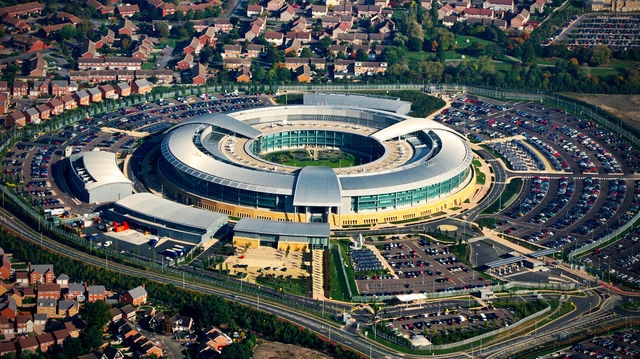
GCHQ was also the motivating force behind data gathering activities directed at the Xbox Live console network, and developed “exploitation modules” for various platforms. Much of this activity appears to have been carried out at Menwith Hill, a Royal Air Force base which provides communications and intelligence support services to the United Kingdom and the United States of America, and where GCHQ and NSA operatives worked side-by-side to infiltrate World of Warcraft.
This summary is published every Monday and is a list of SL viewer / client releases (official and TPV) made during the previous week. When reading it, please note:
It is based on my Viewer Round-up Page, a list of all Second Life viewers and clients that are in popular use (and of which I am aware) and which are recognised as adhering to the TPV Policy
By its nature, this summary will always be in arrears
The Viewer Round-up Page is updated as soon as I’m aware of any releases / changes to viewers & clients, and should be referred to for more up-to-date information
The Viewer Round-up Page also includes comprehensive links to download pages, blog notes, release notes, etc., as well as links to any / all reviews of specific viewers / clients made within this blog.
NameUpdater RC version 3.6.12.284506 released on December 3rd – core updates: – changes installer naming and fixes an updater issue; no changes to viewer functionality – download and release notes
Project viewers:
Fitted Mesh project viewer updated on December 5th to version 3.6.12.284458 – core updates: removal of the new “handle” bones, addition of new upper and lower back bones as a part of fixes for STORM-1985, updates to the avatar skeleton XML files – download and release notes
Black Dragon updated on December 4th to version 2.3.9.2 maintenance 4 – core updates: “realistic Mouselook” implementation; UI tweaks and updates; windlight updates – release notes
CtrlAltStudio Experimental version updated on December 2nd to version 1.1.6.34389 Alpha 6 – core updates: walk / fly faster / slower option added; option to swap Kinect fly up / fly down gestures with one another; separate Riftlook options for context menus – release notes
UKanDo updated on December 8th to version 3.6.11.27919 – core updates: show number of people in group in Group floater if you are a member; additional options to hide / show status bar sliders, buttons, info displays; windloight additions; user name drop-down on log-in page for mutiple account; assorted fixes and tweaks – release notes
Release notes (all) In general: GPU tables additions, assorted bug fixes and optimisations; Experimental branch: port of further fixes from viewer-interesting and from Fitted Mesh project.
Clients
Lumiya updated on December 8th to version 2.5.6 – core updates: send / receive group invites; persistent mute / block list; view your own profile; L$ transaction log; performance improvements & bug fixes – release notes
As a part of the holiday period, and as mentioned in various SL projects reports of min over the last few weeks, Linden Lab operate a code freeze / no change window in which no major updates to either the viewer or the simulator code are made, other than those required to fix significant issues impacting Second Life. This code freeze, which this year comes into effect on Monday December 16th and extends through until the start of 2014, encompasses all thing server, and the SL viewer release channel (the release viewers and RCs). The aim is to give LL’s support personnel and contractors a chance to enjoy the holiday period as well.
However, as well as encompassing the server and LL’s viewer, the Lab also request that TPVs refrain from making major releases during the same period, again to help lessen the load on LL’s viewer support team, who take a lot of TPV-related calls when users encounter problems.
This means that the window for TPVs to get significant updates out is closing fast, and both Black Dragon and UKanDo have both had what is likely to be their last updates this side of the new year (although in Black Dragon’s case, it appears the reason is because Niran is having fun relaxing with a new computer game!). Both updates are small, tidy packages, and as such, both are overviewed here.
Black Dragon 2.3.9.2
Released on Wednesday, December 4th, hard on the heels of version 2.3.9 and 2.3.9.1, both of which appeared on December 3rd, Black Dragon 2.3.9.2 is described as “Maintenance #4”, and is the latest in a line of maintenance releases of the viewer which build on existing functionality and UI changes, rather than adding anything significantly new to the viewer.
That said, version 2.3.9.2 does offer what is something of a new feature: “realistic Mouselook”. Traditionally, when in Mouselook, the camera is positioned / locked towards the centre of the avatar frame (around chest level). With this release, Niran has moved the camera position so it is effectively in the avatar’s head.
This may sound a trivial, but it does make something of a difference when operating in Mouselook, as movement in Mosuelook as a lot more responsive to avatar animations. While it is somewhat dependent upon the animations you are using, it can mean, for example, that when running, your mouselook view with “bounce” in time with your avatar’s running strides.
To help demonstrate the difference, Niran has produced a video showing what happens when in Mouselook with Black Dragon 2.3.9.2; you might want to compare it to your own experience using Mouselook in a viewer without the updates.
The option can be toggled off / on via Preferences > Camera > Mouselook Options. Additionally, Niran recommends that when using it, Mouselook Smoothing (same section of Preferences) is enabled.
A further Mouselook fix with Black Dragon 2.3.9.2 comes by way of Adeon Writer, which corrects the issue of hand attachments (weapons, etc., behaving oddly and appearing to move away from the avatar when entering Mouselook or when crouching in Mouselook.
The remaining updates for the release as recorded in the release notes comprise:
Addition of all windlight presets found in other versions of Niran’s viewer (other than his own “realistic” settings)
Updates to a number of floaters, include People, which has been a little reduced in size and the addition of the Send button to the Notices floater
Updates to the loading screens and a fix to the version history link on the log-in screen.
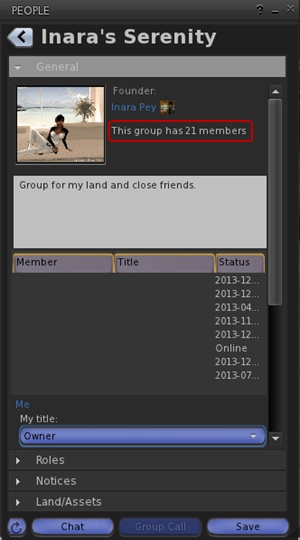
Total number of users in a group displayed for those groups you have joined (see below left)
This release offers another small package of tidy changes, several again gathered from other TPV offerings, and it’s good to see that credits for imported features are starting to appear in the release notes as well. The latter list the updates within the release as comprising:
Merged:
Updates from RLV
Tweaks:
Addition of Penny Patton’s windlight settings
Re-write/clean-up of the Status Bar code
Possible speed improvements
UKD_Logo icon updates.
Fixes:
Black background in the address bar combo list’s scroll bar fixed
An old bad merge for the avatar context menu in chat which didn’t show at the time
Net Stats graph now shows correct Kb and wdiget now clickable
Features Added:
Show the total member count on the Group panel’s General tab if you’re a member of that group
Edit option added to the Area Search floater’s context menu
Username login drop-down combo box for multiple accounts
Frames-Per-Second displayed on StatusBar (from NiranV Dean). Modified and clickable (Hidden by default)
Additional Status Bar show / hide options for FPS, Net Stats, Avatar Offset Slider and Draw Distance Slider.
Additional show / hide options for elements in the status bar (sliders, buttons, info displays)
Feedback
Both of these releases offer neat packages of updates to their respective viewers, both of which continue to be developed and enhanced in small, relevant steps and which also keep track with most of the recent code base updates from Linden Lab.
Performance-wise, both viewer showed more-or-less consistent performance levels on my primary PC as shown with earlier releases, and I had no difficulty in running both viewers with the major graphics bells and whistles enabled (ALM on, Ambient Occlusion Enabled, shadows set to Sun/Moon + Projectors, etc.), at home and in wandering.
Friday, December 6th, 2013 saw the opening of Nino Vichan’s latest work in SL, WAR: We Annihilate Remotely, which opened at Galerie Artemis on Friday December 6th.
Nino’s work is both creative and visually stunning, and he is an artist unafraid of tackling political and social issues, presenting clear-cut messages within evocative pieces that challenge one to think. At the same time, his immersive work can be simply amazing and enjoyed in its own right – as with When the Mind’s I Listens, a brilliant use of space and particle generation which was displayed at LEA6 earlier in 2013.
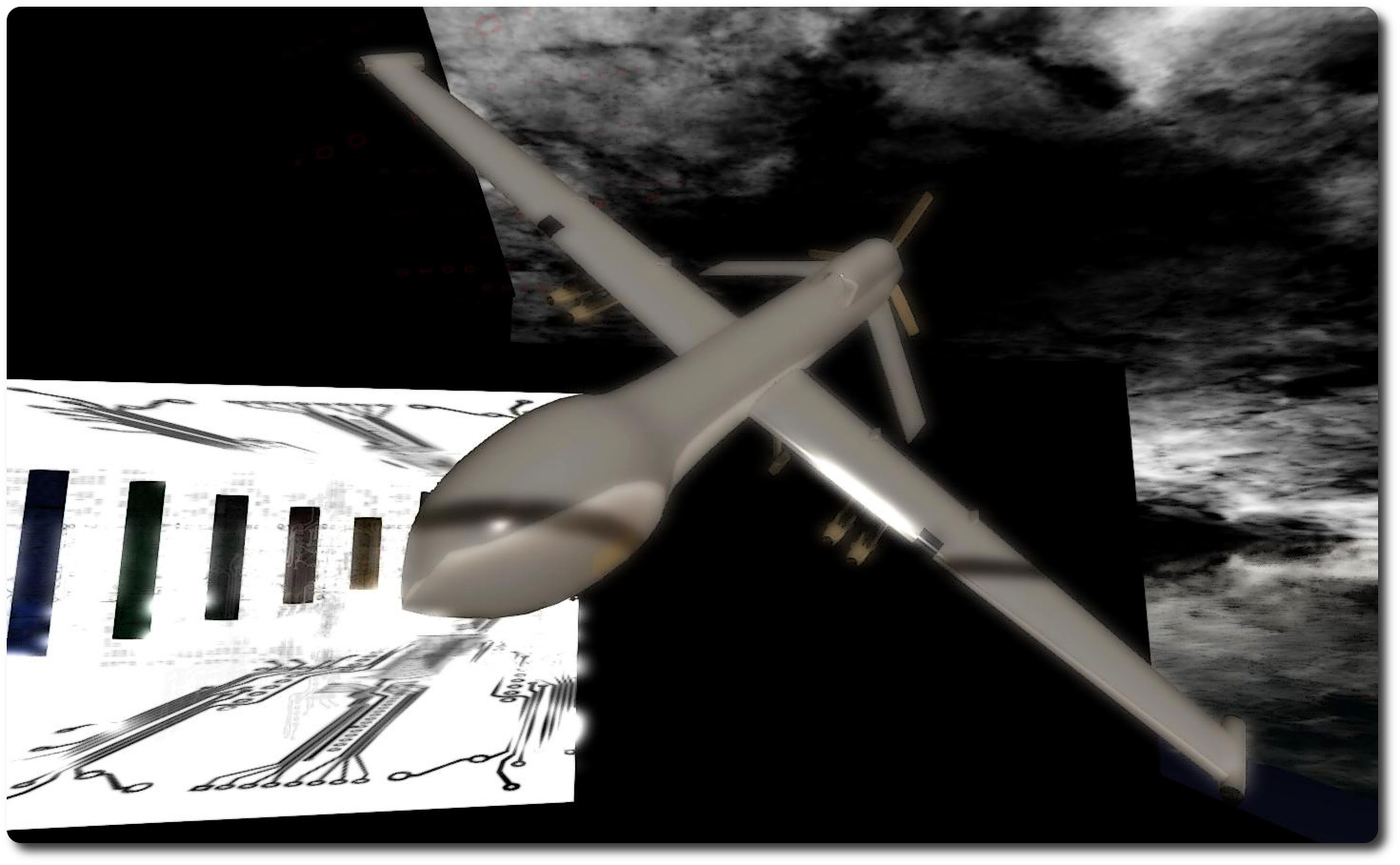
On the surface, WAR: We Annihilate Remotely appears to focus on what is a provocative and contentious issue: the use of unmanned aerial vehicles (UAVs or drones) to undertake acts of aggression half a world away.
This is a topic worthy of debate and discussion; one which has many sides to it. Those who favour the use of UAVs and other unmanned weapons systems will point to both the fact that as they are operated remotely, they present zero risk to those operating them, and that they are so technologically advanced they can be used against a target aggressor with “minimal” risk to a wider (and potentially innocent) civilian population.
The flip side to this is of course, is the very fact that the use of such weapons platforms are so “risk free” and “surgically precise” perhaps encourages their proactive use. Something which is enhanced be the perception that they can be used to “manage” the loss of innocent lives down to “acceptable levels”. Even the fact that innocent lives can still be lost has itself been sanitised in the public consciousness – they are no longer victims, they are “collateral damage”. In short, the very act of using such weapons becomes so clinical, so “clean”, that they risk becoming the preferred method of response to any situation, whether warranted or not.
There are wider aspects of the debate as well. Does the use of such systems enhance the security of those “back home” in the nation deploying them, or does it put them at greater risk of becoming retaliatory targets through acts of terror? As the use of use systems becomes more ingrained in the public consciousness, how long before the deployment of similar systems to deal with matters of domestic unrest or civil disobedience is seen as acceptable? There’s even the potential for cross-over discussion with virtual environments, where many excuse their own acts of aggression against others on the grounds that it is “only digital”, and “no real harm” is done.
Sadly, WAR: We Annihilate Remotely fails to address either its intended target or any potential wider issues. Indeed, I have to say that from my perspective, it fails to deliver much of anything at all. Even the note card on the subject matter of the installation may not be an obvious find for some visiting the piece (click on the image of Nino to receive it).
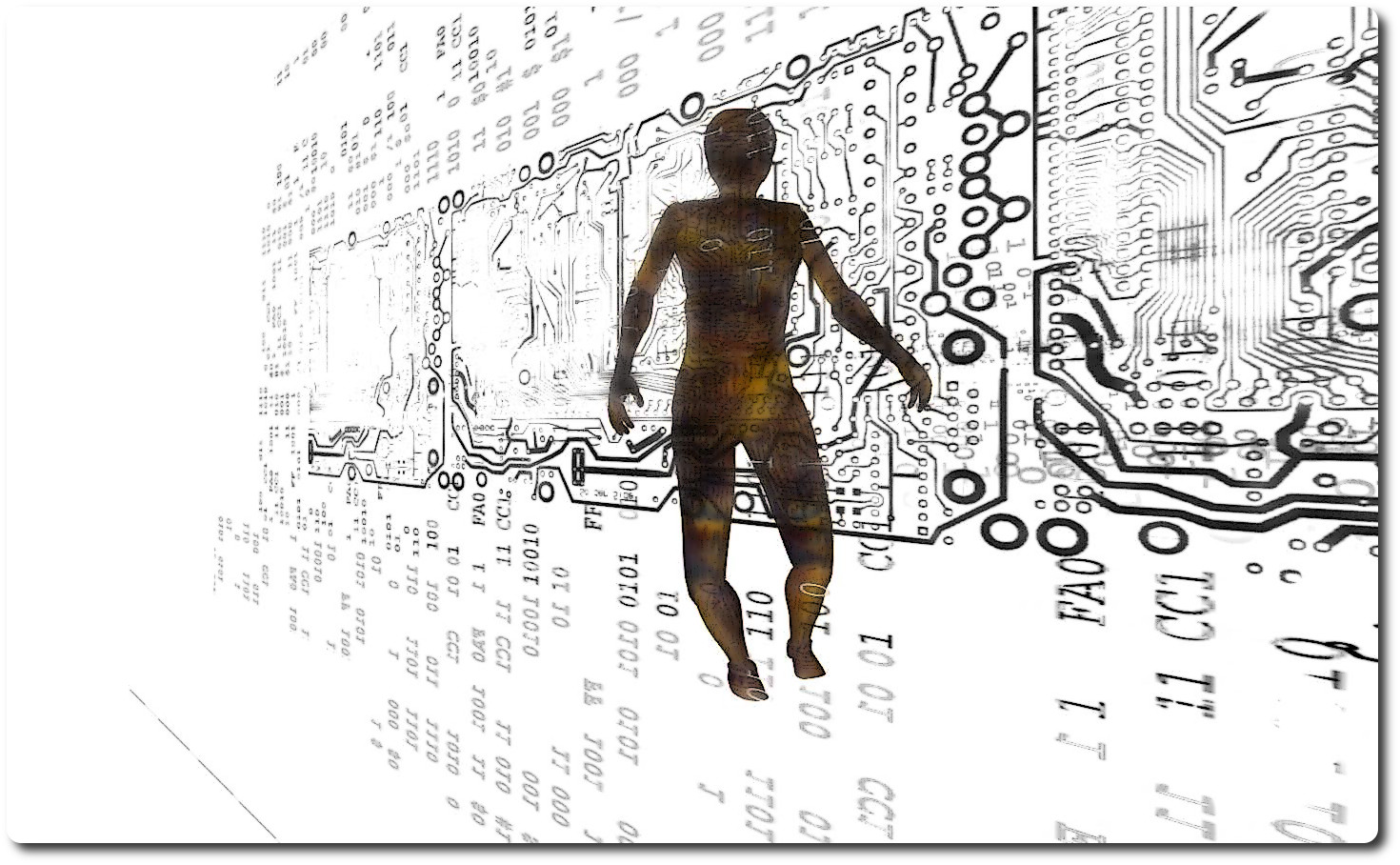
Yes, there are some impressive models on display, and there is a minimalistic approach to the use of colour (everything is predominantly red, white or black), coupled with a clever use of binary and circuitry as imagery. But at the same time I couldn’t help but feel the piece lacks any real statement, and is perhaps superficial in its presentation. And that’s a shame, because there really is much to explore, real and digital, in the intended subject matter.
Also at Galerie Artemis, and running through until mid-December, is a collaborative exhibition forming a part of the 2013 2Lei project, entitled Regaining Freedom.
Now in its fourth year, 2Lei began as a project involving artists, gallery owners, musicians, etc., with the aim of raise awareness and disseminate events related to the International Day for the Elimination of Violence against Women, November 25th.
In Regaining Freedom, which opened on November 19th and runs through until Sunday December 15th, presents eight pieces of machinima created by SL artists as commentary on the many and varied forms of violence against women, all of which surround a centrepiece sculpture created by Kicca Igaly entitled Free…Free at last!
As this is a presentation of videos, you’ll need to have media streaming enabled; just click on any of the media-on-a-prim (MoaP) whiteboards to watch a film. Images of the participating artists are located alongside each whiteboard, all of which include a YouTube link to the video in question, allowing you to watch them via a web browser if you’d prefer.
Not all of the pieces are original; some were originally created for other purposes, although their message remains clear. Some many not actually play in your country – I found Gregory Kappler’s Out of Paris blocked as a result of Warner / Chappell music’s PEDL. Some are highly charged and all are visually impressive.
The participating artists are: Kicca Igaly, Noke Yuzita, LeMelonRouge Onyett, Mary Wickentower, Natascha Randt and Karima Hoisan, Yesikita Coppola, Mauro Enyo, Gregory Kappler, Elros Tuominen and Holala Alter.






 Inara Pey: Living in a Modemworld