The following is summary of changes to SL viewers / clients (official and TPV) which have taken place in the past week. It is based on my Viewer Round-up Page, which provides a list of all Second Life viewers and clients that are in popular use (and of which I am aware) and which are recognised as being in adherence with the TPV Policy.
This summary is published every Monday, and by its nature will always be in arrears. Therefore, for the most up-to-date information on viewers and clients, please see my Viewer Round-up Page, which is updated as soon as I’m aware of any changes, and which includes comprehensive links to download pages, blog notes, release notes, etc., for Viewers and clients as well as links to any / all reviews of specific viewers / clients made within this blog.
Dolphin rolled to 3.3.18.24749 on August 10th – core updates: Asset Blacklist redcord region name when object added; Media Filter list now shared between all avatar accounts on same OS; slider add the Graphics Prefs for improving mesh rez times in areas with a lot of mesh; added improved avatar vertex weights from STORM-1800 for better avatar bending / stretching; Improved handling of SLurls between webpages and running Dolphin viewer (release notes)
Niran’s Viewer rolled to 1.48 on Aug 6 – core changes: Alterations to the log-in splash screen; addition of core pathfinding tools to menus; merge with Exodus rendering pipe; assorted fixes (release notes)
Cool Viewer: Stable branch rolled to 1.26.4.24 and Experimental to 1.26.5.3, both on Aug 11th – core updates in both: initial pathfinding support; various SLV 3.3. code back ports (release notes for both)
Lumiya release version 2.2.0 on Aug 8th and then 2.2.1 on Aug 11 – core updates: completely revised and enhanced UI; split-screen functionality; options to add / remove friends, offer teleports, set and auto response message (release notes) – read my review here
Wednesday August 8th saw the launch of Lumiya 2.2.0, followed on Saturday August 11th by 2.2.1. With them came a host of goodies, including:
A new user interface
Split-screen layouts for tablets
The ability to:
Add and remove friends
Set an auto-response for incoming IMs
Send teleport offers to others
Support for legacy user names (rather than only using Display Names)
Avination added to grid list.
As we shall see, this is really quite a modest representation of what amounts to a huge amount of work to completely overhaul what was already a very usable and increasingly intuitive application and turn it into a highly polished product.
This review was written using a Samsung Galaxy S2 smartphone running ICS 4.0.4. Note that as I do not have a tablet device, I’m unable to do any direct screen comparisons, therefore some details might differ on a larger display.
Sign-In Screen
The changes are apparent from the moment you launch Lumiya, as a slick new log-in page appears, complete with new widgets.
The older (l) and newer (r) log-in screens – note the widgets, top right, in the latter
The widgets are at the top right of the screen and comprise (in left-to-right order):
Account Manager: easily access all of the accounts you’ve used Lumiya to log-in to SL. Tapping on this will display a list of accounts, including the name of the grid the account is used to access. Tapping an account name will return you to the sign-in screen, with the user name and password fields auto-completed with the required credentials, and the client pointing towards the required grid
Settings: tap on this to access and set / amend your preferred settings for Lumiya.
Settings Options
Before getting into the various changes within Lumiya itself, it is worth covering the Settings options, as these include some important updates. Chief among them is the new Light skin option. Until now, Lumiya has presented itself on a dark background. On smaller screen, than can be hard on the eyes and lead to discomfort. The Light skin option displays Lumiya’s screens on a white background which on smaller screens especially can be easier on the eye.
The two visualisation options for Lumiya
Also within Settings are the new options to: use legacy names rather than Display Names; enable the split-screen display and when it will be activated (see Screen Orientation, below); and display local chat in the 3D world view (see Conversing in the 3D World View, on the next page).
Grid Access
The grid access list can now be displayed in one of two ways:
By tapping the name of the currently selected grid. This will display a pop-up list of grids
By tapping the Menu button on your device and selecting Grids from the menu which is displayed. This will switch to a full-screen list of defined grids
Tapping on the name of a grid in either list will automatically return you to the sign-in page, with the grid selected. Both lists also include the option to add further grids, as I’ve documented in my last review of Lumiya.
Menu Options and Icons
Tapping the Menu button on your device in earlier versions of Lumiya would pop-up a set of on-screen buttons. This has now been replaced by what I’ve dubbed here the “Lumiya menu”. This is a set of context-sensitive menus which will display options in accordance with the screen you are using / function you are performing and which take into consideration screen orientation (see below). These make working with Lumiya even smoother and more intuitive.
Greater use is also made of on-screen buttons as well. These are also context-sensitive and present a far slicker and faster means of performing activities within Lumiya than with previous versions. As the buttons rely on icons extensively when in portrait mode (at least on smaller devices), a PDF-format guide to the icons and their functions can be found here. A long touch on an icon will also show an on-screen tool tip.
Screen Orientation
Lumiya now includes much better screen orientation options when rotating between portrait and landscape modes, and adds a split-screen capability.
When rotating between portrait and landscape views the screen layout will automatically adjust itself. This will generally result in better screen utilisation in either orientation. However, when in landscape mode, it may appear as if buttons are vanishing from the screen due to the use of icons & labels – not so! Any buttons that are not displayed as icons are moved to the Lumiya menu, accessed via the Menu button on your device.
Where the icons go: rotating the Lumiya display to landscape may seem to cause buttons to vanish from the layout. Tap the Menu button on your device to display them within the Lumiya’s menu
The a split-screen option is primarily intended for tablet devices, but can still be useful when used with suitable screens on mobile phones. It is enabled via Settings (tap the Menu button on your device to display the Lumiya menu and then tap Settings), and can be set to one of the following:
Automatic: Tablets will automatically switch to split-screen when in landscape orientation, devices with smaller screens may not
Always in Landscape: the split-screen will activate whenever the device is rotated to a landscape orientation, regardless of screen size
Always: the split-screen mode will be active in both landscape and portrait modes, again regardless of screen size
Curiosity continues to operate well on Mars, with the MSL mission’s characterisation activity phase proceeding precisely as planned.
The last two Sols have been the focus of some intense work, including preparing the rover for what NASA has dubbed its “brain transplant”.
Like all computers, Curiosity’s computers have finite storage capacity, and to cram all the code required for the mission aboard the rover would be impossible. So the software in broken-down in sections that equate to various phases of the mission. The software is then uploaded to the rover and committed to its on-board computers as it becomes required, over-writing the previous mission phase software.
Prior to its arrival on Mars, Curiosity’s software was concerned with three things: the cruise phase of the mission (keeping the vehicle on-course for Mars and the planned landing site and correctly oriented for both this and communications with Earth); carrying out experiments to monitor radiation in interplanetary space and how it penetrates the vehicle (part of planning for a manned mission to Mars); and the EDL (Entry Descent, Landing) phase of the mission itself. Now the rover has landed, that software package (called the R9 Flight Software Package) has done its job, and so needs to be replaced with the software (called the R10 Flight Software Package) required for Curiosity to operate on Mars.
Sol 3
The day began with the upload of R10 files to Curiosity. Installation did not immediately take place – it is planned to commence on Sol 5 – but the rover’s back-up computer was powered-up and checked-out ready for the upcoming software upgrade. The transition will be handled on a per computer basis, in case anything unforeseen occurs. The software will, among other things, allow the robot arm and Curiosity’s “hand” of instruments to be activated and checked out. The software also contains software related to Curiosity’s ability to drive on Mars and self-navigate.
Curiosity in action: the “hand” deployed on the end of the 2-metre robot arm with the MAHLI camera visible on the top of the hand and in the foreground
The hand is crucial to the mission, containing a range of instruments capable of a range of tasks including: viewing surface features in extreme close-up (the MAHLI camera); gathering soil and dust samples from the surface; scraping the surface of rocks and drilling into them to obtain samples, and so on, all of which can be returned to the rover’s onboard analysis lab.
The Mastcam completed final calibration and then undertook a 360-degree look at Gale Crater around the rover with 130 images, each compressed into a 144×144 pixel format, returned to Earth and used to create the first colour panoramic view of the rover’s location.
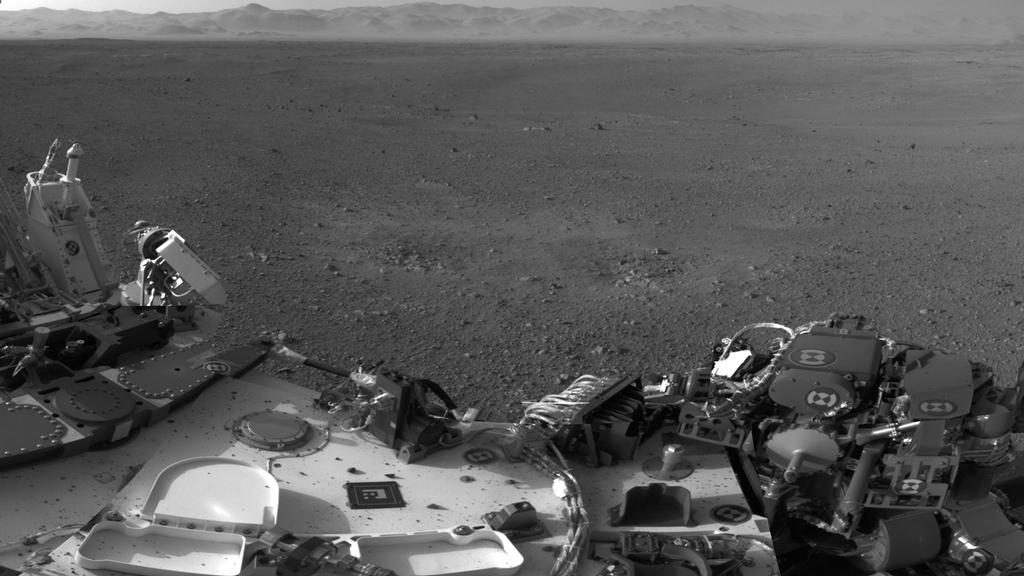
The Navcams were used to take high resolution images of the rover’s deck, taking a number of shots which revealed the vehicle to have some small debris scattered on the deck as a result of jet-wash from the descent stage motors, but nothing serious. These images were returned together with the low-res colour images during the scheduled overhead passes of Mars Odyssey and the Mars Reconnaissance Orbiter (MRO).
Hi-res Navcam image of Curiosity’s rear deck – see description in the main text
Image above: Curiosity’s rear deck. One the extreme left of the image, angling away from the deck is the RTG housing at the back of the rover. Immediately to the right of this, sitting on top of the raised structure is the arrow-like low-gain antenna (LGA). In front of this and side-on to the camera is the high-gain antenna (HGA). The rim of Gale Crater is the line of sun-brightened hills on the horizon.
Sol 3 also saw initial check-outs completed on a range of other instruments on the rover: the Alpha Particle X-ray Spectrometer (APXS), Chemistry & Mineralogy Analyzer (CheMin), Sample Analysis at Mars (SAM), and Dynamic Albedo Neutrons (DAN), all of which were successful. instruments were all successful. Issues with the Remote Environmental Monitoring Station (REMS) were resolved, allowing both REMS and RAD (Radiation Assessment Detector) to return further data on the environmental and climatic conditions in Gale Crater to Earth.
Another hi-res image of the rover’s deck
Image above: a further image of Curiosity’s deck taken as the Navcam rotates more towards the front of the rover in relation to the previous image. The LGA, HGA and drive system arm can still be seen to the left. In the right foreground is the rover’s “hand”, still in its stowed position against the front of the vehicle. Pebbles and dirt can clearly been seen on the rover’s deck, thrown-up by the jet-wash from the descent stage motors. Blast marks from the motors can themselves be seen a short distance from the rover.
Sol 4
Sol 4 was a relatively quiet day for the mission. Work continued on preparing the rover to transition to the R10 Flight Software. Key capabilities in the R10 package, as mentioned above, enable full use of Curiosity’s robotic arm and hand, and includes advanced image processing to check for obstacles while driving. This software will enable Curiosity far more autonomous than is the case with Opportunity, allowing it to make much longer drives along routes it identifies for itself and to avoid potential hazards along the way.
During the period of the transition, science and check-out operations have been deferred, and while the rover did return some images and additional data to Earth, the focus was on readying the on-board systems for the new software. The transition itself is expected to run through the weekend, with an end-time targeted for August 13th (PDT) Earth time. While this work is ongoing, the mission scientists have been putting together a geological map of a rough 390 square kilometre (150 square mile) region of Gale Crater, including the landing zone.
Elsewhere in JPL, and following the successful MSL landing, a unique video was cut together mixing footage from the “seven minutes of terror” simulation of Curiosity’s arrival on Mars with scenes from mission control at JPL during the actual sequence of events from EDL. The result is a unique film that puts a new perspective on the mission and the landing sequence.
Mission Trivia
Curiosity’s Sol 3 wake-up call came in the form of Good Mornin’ from Singin’ in the Rain.
It’s been a while, but the Exodus team released a new version of the viewer on Thursday August 9th. Version 12.08.09.1 is liable to be the first of two updates to Exodus this month (the second being aimed at incorporating the pathfinding tools for those keen to get to grips with pathfinding in Second Life). This release is the first to be made since Katharine Berry recently joined the Exodus team, and she’s been engaged in a number of the features presented with this release.
The 12.08.09.1 release (also referred to as Beta 8), brings with it a range of updates, including:
Ability to upload images from the snapshot floater to Flickr
New linear, Renhard and filmic tone mapping
New avatar troubleshooting menu
Ability to mute group chat
Inclusion of floating point “Normalized Blinn-Phong” shading LUT for deferred rendering
Latest RLVa support
Various UI updates including:
Vertical chat tabs (from Catznip)
Web browser toolbar button
Additional slider in the Quick Preferences floater for adjusting your own sound locally
Request teleport button added to IM windows
Merge with the SL Viewer 3.3.3 codebase, bringing with it:
Merchant Outbox support
Local Textures (by Vaalith Jinn)
Graded shadow support
Various fixes to the mesh queue
This article has been written using the Windows release of 12.08.09.1, and is intended to be an overview of the core updates rather than an in-depth review of the Exodus viewer (see articles list at the end of this items for further information on Exodus).
Download and Install
The Windows downloader weighs-in at a modest 28.4Mb. Installation on my system was fast and smooth (as per usual, this was a clean install for me). Start-up revealed the familiar Exodus blue sky screen with core information (particularly updates from the Grid Status Page) along the bottom. No implementation of the official splash screen here. However, if you do have issues trying to run Exodus following installation – and in particular get error messages relating to .dll problems, you might try visiting the Exodus FAQ page and following the link therein.
Logging-in revealed the familiar Exodus default screen layout, with buttons to the left and button of the screen, which can still be repositioned to the left or right, top or bottom of the screen.
Avatar Troubleshooting
Avatar Troubleshooting takes a leaf from the Firestorm book and offers three options for dealing with avatar issues. These can be found in a menu under Me->Troubleshooting and comprise:
Reload My Avatar Data: sends a request to the SL servers to download your avatar data once more. Useful where you’re seeing outfit changes but other’s aren’t (often indicative that something is going wrong within your computer, rather than anything at the server end)
Rebake my avatar textures: performs a normal local rebake, with the data sent to the server for distribution
Reset my avatar: Ruths your avatar to default shape and clothing, allowing you to rebuild it in the event of a drastic error.
Toolbar Buttons
This release of Exodus includes two additional buttons, Web, which opens the viewer’s built-in web browser, and Panic. The latter is a hang-over from testing nightly builds and debugging. As such, it is not intended for general use and may be removed or re-purposed in the next release. It is not recommended you employ the button, as it is intended to crash the viewer and generate a crash log.
Snapshots to Flickr
Flickr is a popular medium for SL photographers, so having an option to save pictures directly to it is likely to be a benefit to many. With this release, Firestorm obtains Katharine Berry’s code (Katharine also recently joined the Exodus team) to enable snapshots to be uploaded directly from the viewer to a Flickr account.
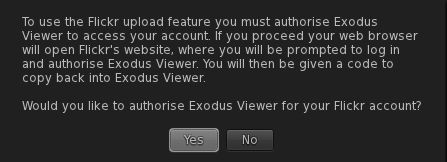
The option is presented as an additional button on the snapshot floater. The first time you click on this, it will cause a pop-up to be displayed:
Setting-up Flickr to accept snapshots from Exodus
Clicking on YES will take you to the Flickr authorisation page, which will outline the possible risks of connecting Exodus to Flickr (a standard alert page, common when using inter-application authorisation). Read the warning carefully, and if happy, confirm yo wish to proceed (refusing cancels the link and denies Exodus the ability to upload to Flickr).
Confirming that you’re happy to proceed will display a code number on the Flickr web-page. Type this into the authorisation pop-up displayed in Exodus. This will activate the link and allow you to take your snapshot and send it to Flickr. Again, note the authorisation process only has to be completed the first time you attempt to upload a snapshot directly to Flickr, thereafter snaps will be sent to your Flickr account without hindrance.
Nalates Urriah has been keeping an eye on the more technical aspects of pathfinding, and has routinely provided excellent updates and commentary on the project. Her work is largely the reason I’ve not delved overly deeply into the subject here, and why my own Pathfinding overview attempts to cover the subject from a lay user’s perspective.
Alongside yesterday’s roll-out came a lot of confusion regarding pathfinding and its impact on region performance. As a result of this, Nalates published a piece seeking to clarify matters. If you are concerned as to the impact of pathfinding, and you’ve not already done so, I thoroughly recommend you give her article a careful read.
Today, Lorca Linden took the extraordinary step of commenting on Nalates blog in order to lend further clarification on the subject. While I do not agree with his stated reasons as to why Linden Lab did not communicate more on the actually roll-out (which, in fairness, has potentially contributed to the confusion / misinformation circulating about pathfinding), the key points of Lorca’s comments vis-a-vis overall performance are nevertheless important in helping to spread better understanding of the matter. I’m therefore reprinting his comments here in full, with the key paragraph on performance underscored, in the hope that it will help them reach a wider audience.
“Although Lindens do not generally post on Resident blogs, I am going to make an “exception in this one case. Don’t expect us to make a habit of it, though 🙂
“I want to start off by thanking Nalates for what I feel has been even-handed coverage of pathfinding as a whole. While I disagreed with several of the assertions made in the “Tsunami” post, it did make us realize that there were misconceptions about pathfinding that needed clarification (particularly in regards to performance implications) and was a useful data point in identifying Resident concerns while we were still in the development phase.
“The 18% performance hit figure referenced on the Phoenix Viewer blog is a worst case scenario that will rarely be seen in practice – eg, you could see that large of a hit on a poorly optimized region that contains hundreds of pathfinding characters running simultaneously. Average perceived (viewer side) fps grid wide was actually .03 fps higher yesterday afternoon than it was the afternoon before. Average server-side performance grid wide was also inline before and after pathfinding server code was rolled out. Region crash rates – excluding a bumpy couple hours during the roll out – remain low. All of this is to say that as far as the Lab can tell, Pathfinding has not had a negative performance or stability impact in the vast majority of situations.
“I also want to make clear that the impact on some vehicles is not directly related to pathfinding per say but rather the underlying physics and terrain optimizations that made pathfinding possible and have benefits beyond pathfinding. As far as we can tell, only a small percentage of existing content is affected by this physics upgrade.
“We do not consider pathfinding to be fully released until the pathfinding viewer tools are out of beta. This is why we have not yet made an official announcement. I agree that we need to do a pass on our pathfinding related wiki as some of the information there has not been updated since we were in alpha. We plan to make a blog post in the near future that will address some common misconceptions we have heard about pathfinding. We also plan to continue updating the “Good Building Practices” guide so that it will be a useful resource for Residents looking to make optimized content.
“We understand that pathfinding can be a confusing topic at times and appreciate the effort interested Residents are making to absorb the technical details. If you have any burning questions about pathfinding, please come to our user group on Pathtest1 (on Aditi) at 4PM SLT Thursdays and ask away. Above all, we are extremely excited to see what you Residents create with the new pathfinding tools and LSL functions!”
Jut after I pressed my most recent update on the Mars Science Laboratory mission, NASA JPL release the first low-resolution colour panoramic view of Gale Crater captures by Curiosity’s Mastcam.
The images were captured by the Mastcam system’s 34 mm fixed focal length camera mounted towards the top of the rover’s remote sensing mast (it is the Mastcam camera on the left of this image).
First colour panoramic view of Gale Crater from Curiosity’s Mastcam
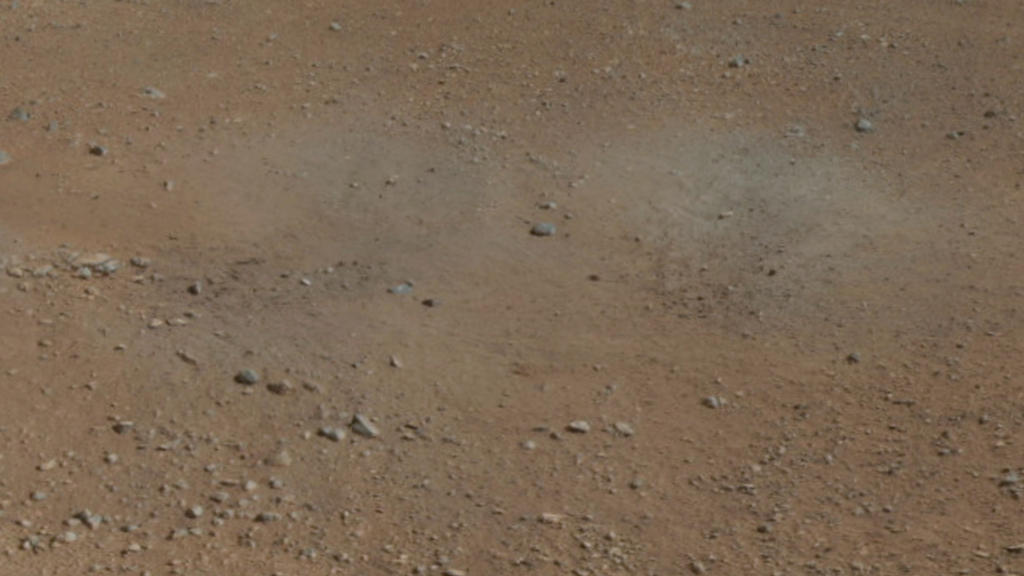
The mosaic is made up of 130 images each compressed into a 144×144 pixel format for transmission to Earth. The complete set of images has been brightened in the processing as Mars only receives half the sunlight Earth does, and these images were captured in the late Martian afternoon. The black areas denote areas outside the view of the Mastcam. The grey patches on the ground to the left and right of the rover are the result of the blast from the descent stage’s radial motors striking the ground and blowing away the topsoil, and these are already the subject of study by the science team on the mission.
A closer view of one of the blast areas resulting from the MSL’s descent stage motor thrust
The dunes on the horizon are also visible in the black-and-white panoramic view captured by Curiosity’s Navcam on Sol 2, but in this image they reveal some interesting hues that suggest they are comprised of different materials or textures.
Selected high-resolution (1200×1200 pixel) images from the panorama are expected to be returned to Earth later.
Image credit: NASA / Caltech / Malin Space Science Systems (MSSS)




 Inara Pey: Living in a Modemworld
