
On Tuesday, April 30th, Linden Lab updated the Sansar Movement release. An official summary of the update is available, and please refer to that document for details of bug fixes. Highlights of the release key features reviewed here are:
- Avatar customisation, movement and gameplay updates.
- Client Store updates.
- Scripting updates.
- Edit mode improvements.
Initial Notes
As with the majority of Sansar deployments, this update requires the automatic download and installation of a client update, particularly as it involves changes affecting the Sansar avatar system.
Avatar Updates
Uniform Scaling
Until this release, all avatars in Sansar have been of the same male / female height. With R32, users can now individually scale their avatars from 0.5 to 1.25 the scale of the default avatar size.
The scaling option will scale both avatar and current outfit and accessories. As it is part of the overall avatar customisation process, scaling can be applied to both existing looks – or now looks can be created and scaled for specific purposes, if preferred (so you could have a small and tall avatar in the same outfit for visiting different experiences, just by changing your look, rather than adjusting the scale of the one avatar).
To change an avatar’s scale:
- Click the Create button and then Style My Avatar to go to Look Book.
- From the Look Book panel, select the avatar you’d like to re-scale (if you have more than one).
- Click customise (lower right corner of our Home Space / Look Book display,
- Click the avatar icon (arrowed below) in the Avatar style panel to display the avatar customisation options.
- Click the slider button at the top of the panel (arrowed below, right).
- Use the Scale slider to uniformly re-scale your current avatar.
- Save the look.

Points of note with avatar scaling:
- Scaling will work on custom avatars.
- Scaling does not affect the avatar locomotion graph, so small avatars will appear to move faster than their taller cousins. Similarly, very tall avatars will seem to move more lugubriously than their smaller cousins.
- In VR mode, the world view is scaled accordingly to avatar height.
- Scaling can cause some clothing glitches to become more apparent.
Avatar Crouching
Avatars can now crouch and move. In Desktop mode, make sure the mouse isn’t in the Chat panel and tap C to crouch / stand up, and move as usual. In VR move, users must physical adopt a crouched pose.

Points of note with crouching:
- The avatar’s motion will be correspondingly slower when crouched – just as we tend to move slower when crouched in the physical world.
- The collider / bounding box for the avatar will also automatically adjust to match the avatar’s height as well, making it possible for tunnels, etc., to be made through which avatars must move when crouched.
- The collider / bounding box in VR will collapse in accordance to how low the user crouched.
Desktop Movement Updates
Two new options have been adding to the Settings panel (More Options > Settings, then scroll down).
- Keyboard Turn: if set to On, your avatar turns left and right when pressing A or D ( / Left or Right arrow) respectively. If set to Off, your avatar sidesteps to the left or right (without turning) instead.
- Face Forward: if set to On, your avatar attempts to face the direction your camera is looking while you are moving. If set to Off, your avatar faces the direction your are moving.
Remember to click the Save button to preserve your preferred settings.

Avatar Gameplay Updates
With R32, Desktop mode now also has a new desktop throw indicator. To use it:
- Pick up an object (left-click on the object).
- Click and hold the left mouse button. A dotted line arc will appear showing the flight of the object when the mouse button is released.
- A blue circle at the end of the dotted line arc will show the likely destination of the object when thrown – use the mouse wheel to adjust this back and forth.
- When ready, release the left mouse button as usual to throw.
Note that depending on your Desktop movement settings, you might be able to adjust the left/right aspect of your throw by moving to the left or right (this can be easier in 1st person (F3) mode).
Additional Avatar Options
- Vive Full Body tracking: VIVE Trackers can now be used to track the wearer’s feet and waist positions for improved body tracking and avatar movement in Sansar – see Full body tracking with VIVE Tracker in the Sansar knowledge base.
- New simple skeleton: a simplified avatar skeleton reference file (70 bones, and refered to as a “low resolution” skeleton in the reference documents) to make it easier to hook up animations. See Avatar reference files in the Sansar knowledge base.
- Mixamo animation support: use the simplified skeleton on Mixamo and take advantage of their library of animations. See Using the animation skeleton to create custom animations in the Sansar knowledge base.
Client Store Updates
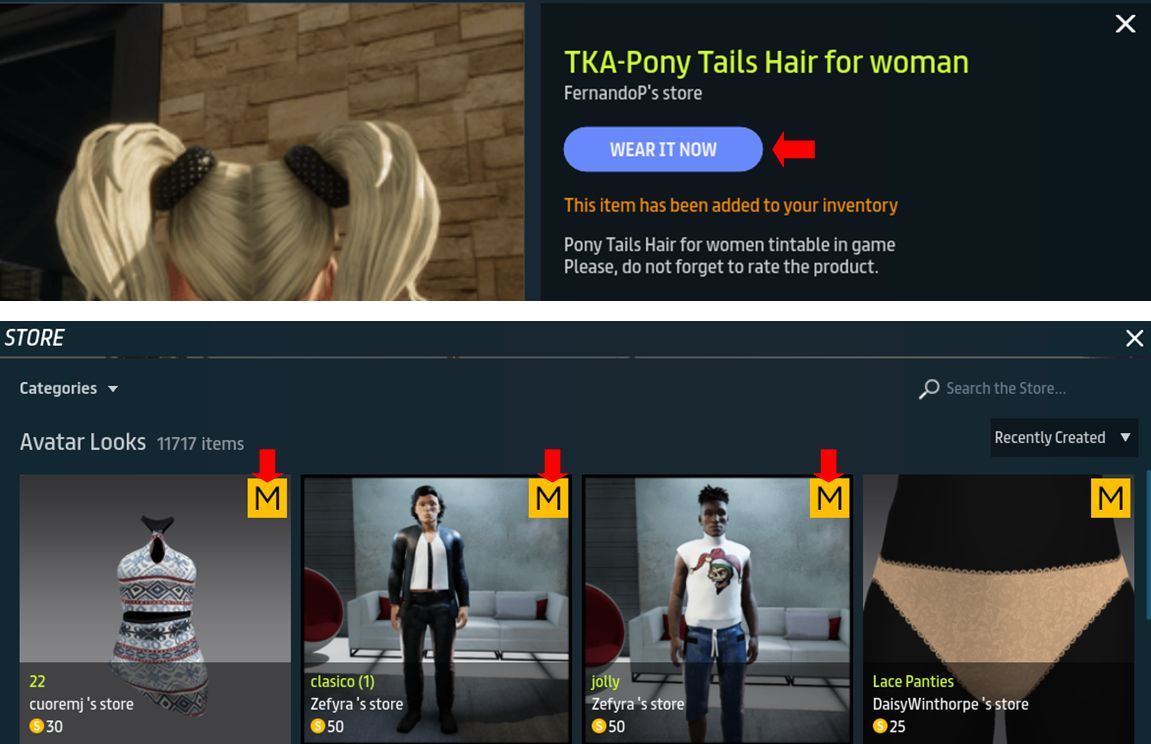
The in-Client version of the Sansar Store includes two new features:
- Wear It Now: appears for wearables post-purchase. When clicked, it will take you directly to Look Book where you can try the item on.
- Mavelous Designer icon: clothing designed with Marvelous designer now displays the M on a yellow background icon in the Client Store’s thumbnail listings (currently in the web store, the icon is still only displayed in the item’s description page).
Scripting Updates
- New Movement API: allows creators to move things within the scene even if they have no physics properties. Users can create simple moving objects, movements that follow paths, and move animated characters.
- The limitations on scripts for spawned objects has been removed.
- The tutorial hint system can now be triggered from script to allow creators to instruct users how to interact with their experiences.
Full details on the above via the official Movement Release Script API Updates documentation.
Edit Mode Updates
- Transform Gizmo Hotkeys & Adjust Object Toolbar: the transform gizmo now uses hotkeys to shift between move (default), rotate (press and hold CTRL) and scale (press and hold CTRL+SHIFT) operations. Also, a new toolbar allows individual modes to be toggled.
- Rigged assets now support collision meshes: collision meshes should be cuboid or sphere shapes, not complex, and exported in the same .fbx file as the asset. Limitations on this are currently set as:
- Rigged mesh assets intended to have collisions can only be one object
- Collision shape names must match the bone the shape is intended to collide for, with “_collision” (no quotes when used) at the end of its name.
- Collision shapes must all be separate objects (so using the rigged mesh as the collision shape).
- Collision shapes cannot have their transforms frozen. The collision shapes origin offset should match the joint location in order to match up properly.
- Collision shapes do not need any skin data.

 Inara Pey: Living in a Modemworld