I’ve made mention a few times that my PC has not been in the best of health. I’ve had a range of issues with SL and other applications which have been steadily increasing over the last couple of months and which finally pushed me into taking the plunge and getting a new machine after finding a rather spiffy-looking UK on-line supplier.
Even so, I confess I dithered over actually buying a machine – so much so that between first finding the box I wanted and actually placing an order, the price went up (a whole £12.00! Eeep!). Part of the dithering was because I really didn’t want to get a new computer purely for SL (which was having the greatest number of issues with the old machine); part of it was also because if I was going to get one, I wanted to make sure I got the right balance of performance / price / degree of “future-proofing” (if such a thing exists in computing) without spending silly money. This latter point also involved me in going out and doing a fair bit of reading to make sure my choices were reasonably well-informed.

Given the budget I’d set, and the fact I really don’t play games on the computer (Patterns and backgammon is about as far as it goes for me), I wasn’t looking to go all bleeding-edge ultra-high spec. In the end I opted for a what I think is a really nice set-up – particularly when compared to my old beast (A Q6600 2.4 GHz CPU locked to a 4 GB (max) motherboard with 3GB installed, Windows 7 32-bit, and a 1 GB Ge9800 GT).

The new machine is built around an i5 3570K on an Asus P8Z77-V LX motherboard (which was recommended to me), and with a 2GB GTX660 GPU (the new spec is in the column on the right). I wasn’t actually sure what kind of performance boost this might give to my SL experience, and the pessimist in me kept saying, “not a lot”. If I’m honest, I was half-expecting it to perhaps double frame rates in ALM + shadows on compared to the old machine (so getting into the high 20s / low 30s at ground level).
Was I ever wrong on that.
While my tests have so far been limited to a handful of regions split between mainland and private islands, I’m still bowled over. My average fps with ALM + shadows and 2-3 other avatars in the same region hass been somewhere between 60-70. Disable shadows, but keep ALM on, and fps tends to jump to between 110-120 fps. I’ll be interested to see how it performs at the Simulator User Group meeting…
What’s more I can take snaps at a resolution of 3500 pixels across without issue (and possibly higher – I have yet to check, not that I need to go massively high). Compared with the fact that the old machine had reached a point where it wouldn’t keep ALM on with the snapshot floater open when saving to disk (reducing me to screen caps), I’ve had a fair few jaw-drops in the last few hours!
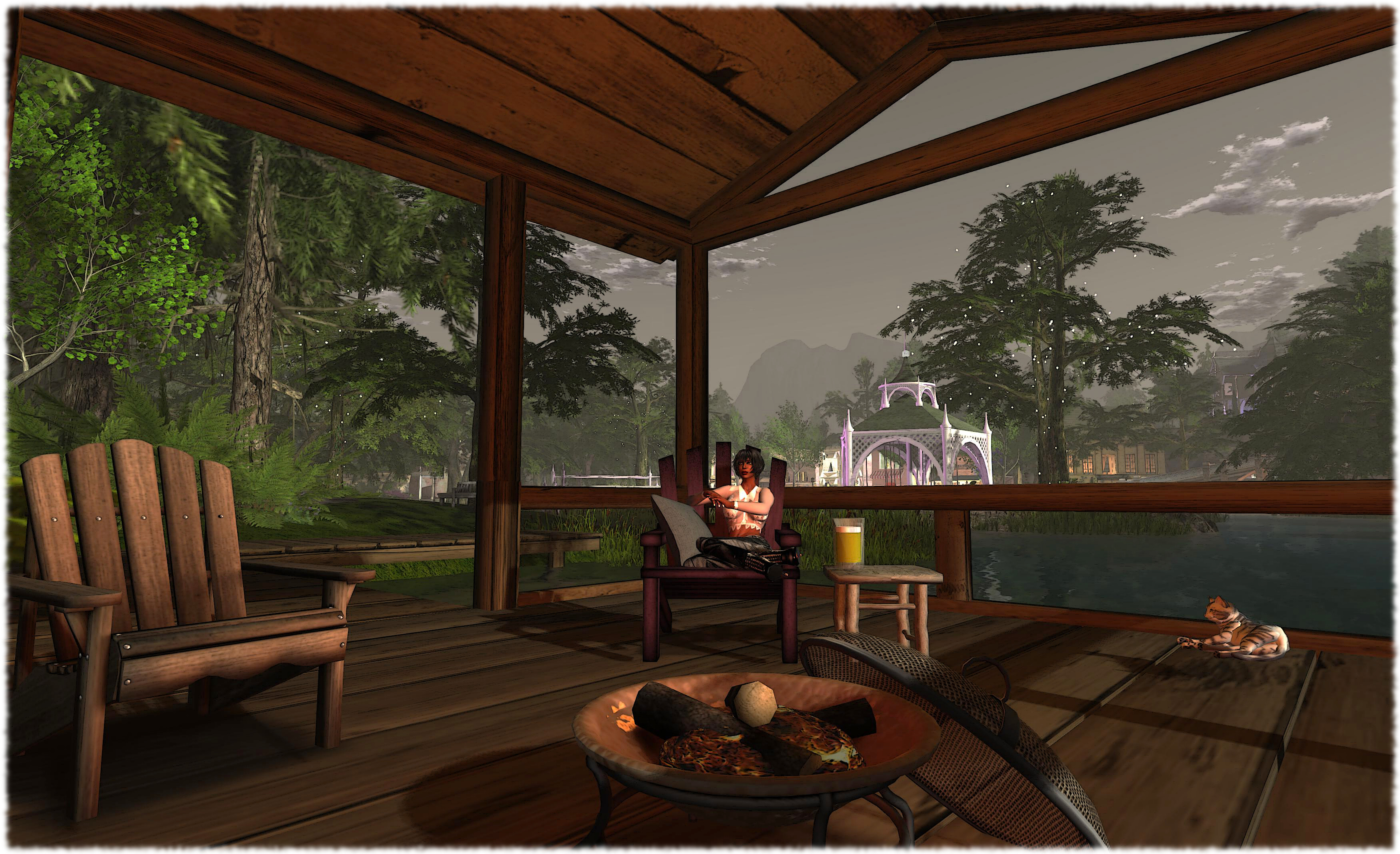
I’m not entirely sure what this means for my in-world times, but just being able to walk around SL and know I once again have all the viewer’s bells and whistles available, and to be able to turn them on and not immediately see textures being discarded due to lack-of-memory, or have ALM getting thumped by the snapshot floater or end up crashing after the 4th or 5th snapshot when I can actually use the floater & have shadows available… Well, it’s a revelation.
Suffice it to say I think my SL hiking boots are going to get a lot more use!

 Inara Pey: Living in a Modemworld
that means you love the world much more. 🙂
You also will see now you have ALM on that there are many old bad objects around with terrible light settins. the result is you need sunglasses to see something. or onle see white bright spots. btw. i love the ALM, used right it make things so much nicer. OPh. good choice for cpu.
LikeLike
Ppoint lights (and face lights – thank God for the debug to diable them!) have long been a problem in SL sadly, even with the old “render no more than six at a time” rule. People tend to go overboard with them, and the general rendering changes which have come with materials tends to highlight this a lot. I’m not sure I’ll be running with Sun/Moon + Projectors full-time for this reason. I’ll likely go back to my old (pre-issues) technique I used on my old PC: run ALM with lighting off and flick it on for lighting and shadows for photos :).
LikeLike
If there is one or more “offending lights” you could derender them? And then take your pic/ video? I do that all the time not just for lights but any object I don’t want in a scene and of course derender crowds of avatars for better performance.
LikeLike
Most of the difference comes from the graphic card
Just to give you an idea of the difference that there is in just replacing a Geforce 9800 GT with a GTX 660 on the SAME computer:
http://www.guru3d.com/articles_pages/geforce_9800_gt_vs_geforce_660_gtx_review,2.html
In SL the GPU can make a lot of difference too, a lot more than the CPU and the RAM. You can see this even on those Nvidia Optimus notebooks too, with a dual GPU: enabling the nvidia GPU instead of the integrated one makes an huge difference with SL.
As a final note to whom is thinking to upgrade their computer: while memory of a graphic card can help in some cases, it is the GPU that really makes a difference. The memory of the graphic card can be compared to the fuel tank of a car: 2 cars with the same fuel tank, can have a very different engine (GPU) and performance. I say this because too many people are deceived by the amount of Gb on the graphic card, believing that it is a measure of its computing power.
LikeLike
Yep, aware of the performance differences between the repective GPUs – it was through comparisons between the Ge 9800GT and a number of other cards which lead me to the 660. Sadly, a straightforward card upgrade wasn’t feasible for me because the older machine won’t take a dual-width card (plus I wasn’t entirely convinced that my issues were purely down to the GPU, nor was a friend who looked over the old PC, which as mentioned, has a number of issues.
That said, I’ve been told that the CPU can play a significant role as well. However, my aim in going for the i5 was not SL, but more what can give me the best approach to longeivity for my broader needs (I’d like to keep the PC and good 5 or 6 years, if not a little longer) and which keeps it within a specific budget.
LikeLike
I was wondering what your settings are for your graphics. I get about 20~30 fps and I have a monster of a machine with an i7 processor and a Nvidia 670GTX.
LikeLike
I’ve only done a few very rough tests in “real” in-world conditions, as per notes in the article. Also, as noted, I’m waiting for the opportunity to spend time in-world at meetings, etc., to get a better picutre of performance.
ETA: Currently at a simulator user group meeting with 17 others, plus particle effects from a fire, various animated objects (cat, sim performance board. Getting around 44-47fps with camera stilling still, facing into the crowd, and around 38-40fps when camming all around the meeting. This rises to the high 60’s to mid-70s with camera turned awy from the meeting and looking across the neighbouring region. All with ALM enabled + Sun/Moon + Proectors set & AO enabled.
LikeLike
I have an i7 and gtx 670. You definitely must have a setting wrong. Also Win7 will run your system in reduced power mode until it senses you have a program that needs full power. For example your video card will run at 50-300 mhz when it’s capable of 1000+. The same goes for the cpu. Four of my cores were “parked” while running SL. Win7 is trying to save battery power on a laptop with that scenario however I have a desktop. So check to see if your cpu cores are parked and if your gpu is running in game mode. http://www.youtube.com/watch?v=pl3u9eiskM4
http://www.techpowerup.com/gpuz/ This utility will show you what your video card is running at when using SL. Another good tip is you don’t need to run your viewer at more than 30 fps so you can use the Nvidia Control Panel to clip fps at 30. The benefit will be lower gpu temps and usage so more processing power available if needed for rendering I expect.
LikeLike
Sorry this took a while to appear, Ormand. The two links caused WordPress to hold the comment pending moderation & I missed it earlier due to RL & the needs of a poorly cat.
LikeLike
I also have an i7 (a 3770K set to run permanently in turbo-mode of 3.9GHz) and a 670GTX. 20~30 fps sounds low to me for that spec.
On a quiet homestead I would not expect to get less than 80fps, with 110+ not being unusual. In a popular, very populated club (40+ avatars being normal) I would not expect to go under 35~40 fps and indeed to have filmed fluid 1080HD 30fps machinima under these conditions.
Typically, I use a draw distance of 300m on the homestead and 136m in populated areas. In most circumstances: AA = 8x, Advanced Lighting ON, Ambient Occlusion ON, DoF OFF, Avatar Impostors OFF, Hardware Skinning ON, Glow OFF , Windlight = Neutral. When filming I usually switch Advanced Lighting OFF but keep AA at 8x.
As an aside, I have the SL viewer application installed on an SSD drive, and the SL viewer cache installed on a second, separate dedicated SSD “cache” drive. Although I am sure this gives a decent performance boost, it is hard to believe that this alone accounts for the differences between your typical fps and mine.
LikeLike
EDIT (great point, Sven!):
Resolution = 1980 x 1080 Windowed
LikeLike
Simply wanted to give a little more precision 🙂
For SL at least (but true for all games that have a single-threaded, CPU-bound pipeline), the Graphic card (“gpu”) will decide the graphic options you can turn on, and to a certain extent, how much quality you can get out of it without seeing the performance tank like a rock in a lake.
Using more than one GPU (SLI/Crossfire) will not work in Second Life. Some people made it work in the past, but recent tests shows it’s more a matter of luck than science. Always get a faster single GPU for SL.
The CPU speed/power (let’s say in “Mhz”, to avoid getting all complicated, though it’s slightly inaccurate but generally a good indication) will control how much FPS you can get, and how fast textures will decode in non-SSB/A scenarios. Multi-Core or HyperThreading has little impact on SL above 4 cores.
Don’t quote me on that, but as far as my experiments goes, the CPU is the major reason why so few people in SL can use shadows all the time. Laptops/Old CPUs just can’t cope with it.
Having a 660 as well, looking by the amount of FPS that you have, your CPU looks quite all right (we have about the same).
I hope it made you understand better 🙂
Little piece of advice: If someone is looking to build or buy a new computer and wants to enjoy SL at it’s full potential, there’s one question that can give you a good indication of what kind of power you need: “Can it run Crysis 2 at “Advanced” graphics settings? If the answer is yes, then you can run shadows all the time on SL.
LikeLike
@Tamira: Don’t use “Ultra” graphic settings. Draw distance at above 128m will cripple everything. Also, on you rhardware, mainland performance -where there’s things just about everywhere you look- is about that; 20-30 FPS
LikeLike
When hardware is compared in FPS, it is important to know the resolution that the test is running in. Test in 1680 * 1050 instead of 2560 * 1600 gives higher FPS.
LikeLike
If you check the column on the right, as noted in the article, you’ll see all the details of both system and viewer settings under “Review Systems” – which also records the mobile device I run Lumiya and other Android clients on :).
LikeLike
Yeah, i know Inara – you have 1440 * 900. But I think it maybe can explain why the I7 with 670 have lower FPS.
LikeLike
Gotcha :).
I’m just aware a lot of people miss the stuff on the right as I’m limited layout-wise in how I can present it :).
LikeLike
I have a 1920 * 1080 screen and use it windowed… might be part of my issue.. that windowing.
LikeLike
Unless you have a massive amount of avatars present fps should always be quite high on that system. Could be AA is set too high? My monitor is 1080P and I only see an issue with avatar overcrowding. Definitely check to see if the hardware (gpu) is running in “prefer maximum performance” in NVCPL. Another issue can be cpu/gpu temps and Win7 is throttling your hardware to prevent damage. Could be dust buildup and this can be common with laptops.
LikeLike
In the end it turned out to be my using shadows. I turn them off and my FPS jumped to the moon. 60~80 in a building and 30~40 in a full sim.
LikeLike
I’d say you still have a problem. Seems you should be getting those numbers with shadows turned on. Where is that SIM and I will test my system. Also what are your settings. AA and AF can make a significant difference. What is your imposter slider set too as well as draw distance.
LikeLike
In one of the user group meetings, it was pointed out by both Whirly Fizzle and the Lindens present that, when you enable ALM, it “locks” your anti-aliasing to a certain fixed setting (I don’t know what that setting is, TBH).
LikeLike
If it does that’s news to me. Possibly only with the Linden viewer r the latest viewers? If it does it wouldn’t be more than 4x I would guess. And I’m sure you can change it since you don’t have to have AA enabled for shadows.
LikeLike
To the best of my understanding, this applies to all viewers – set ALM on, AA is automatically enabled to a fixed setting, but I don’t know what it is.
LikeLike
The sim is =MF= Bay. Let’s see, I run ultra settings mostly, AA is 4. Imposter is at 12. Draw distance 320.
LikeLike
Ok I went to that SIM and ran shadows with your settings. No AF. got about 15-25 fps. The issue is the SIM since I went elsewhere and got 130 fps. Could be the server or they are sharing with more builds or the build itself. It has a lo of scripts running. Kind of like when I go to the mainland. I ran the viewer at 4x AA and disabled (no effects). My gpu usage was only 50%. Most Sims will use much more than that and you get higher fps so it’s not your PC i suspect. Just where you hangout.
LikeLike
It means that to override it via your Nvidia control panel (aa and af) you must stil keep the settings inside the viewer (when on any decent game, you disable the aa and af inside the game and sett it via hardware). This was something that started with the new rendering as with Imprudence or phoenix one could just disable aa and af on viewer preferences and then set to override it via nvidia control panel!
Still now i just use the inbuild viewer max aa and af and let the nvidia settings on the option aplication control instead of override (i used to have eye issues before having surgery so i had to use always the max aa and af possible, now i can use just the default 16x/4x).
LikeLike
And btw, my computer settings are the same as my soulmate, build more then 2 years ago!
Intel 7 quad core, 12 giga ddr3, windows 7 64b, Nvidea 580 gtx!
We run Sl with ALM always (even before LL found it, Niran and exodus already had it running for long!) and i also with shadows set to higg (her gpu is just a 460gtx so she cant run shadows at all times).
Both have around 35 fps on most sims.
on places really full (Any Lisa Brune concert is a good test to your settings) using a draw distance of 256, shadows set to high (on a scale of 4 like firestorm shadows sett is the same as 2) i manage still to have around 14.
Disabling ALM of course boosts the fps to over hundreds (when i used to run Nascar i disabled all graphics settings and was getting like 200 fps on Niran’s).
Be sure the old rendering (the one used by phoenix or imprudence old versions) even if allowing to make all more sharper and detailed (by disabling AA and af on the viewer and use a higer sett via GPU) where always much less FPS friendly and shadows where impossible or almost to use on a regular basis!
The new rendering for sure is much faster and should give all a boost on fps with a bit of graphics quality downside but not notiable by most (Unless you have, like i did, eye sight problems)!
LikeLike
I used to get shadows with a gtx 460 but I had to disable ambient occlusion for decent framerates.
LikeLike
And Mona it means that you can not lower or increase AA then 4!
Nvidea control panel alllows any to force the hardware and override those settings up to 32AAhq!
Normaly is a good praactice to let the hardware do the A and Af then the software, most games allow you to disable aa and af and then increase them or lower them via hardware isntead!
Old LL rendering also allowed that!
Now with the new 1, You can still override and force Sl to use AA at 32HQ (AF on the viewer you can sett it already to 16x the max in any gpu!) but you still need to keep the viewer 4x enabled, as if you disable it, the hardware will not override so you will end not using AA at all)!
Normally the best test to see diff on AA is on small metal pieces like for instance a standing frame, small jewels like earrrings and so on, when you zoom in and out you will see less or more smooth edges as you decrease or increase aa!
LikeLike
“but you still need to keep the viewer 4x enabled, as if you disable it, the hardware will not override so you will end not using AA at all)!”
Why did they do this? Not to mention not telling anyone? What if you use Nvidia Inspector instead of Nvidia Control Panel?
LikeLike
As a side note overclocking the cpu and ram in my case will increase fps about 30%. i7 930 and 1600mhz Ram (I install the viewer and SL cache in RAM). Also hyper-threading was of significant advantage too.
LikeLike
Do you want to know that if you have a second monitor, it is possible to stretch the SL viewer across both screens for uber nice wide shots?
Glad you’re enjoying your new beginnings. 🙂
LikeLike