Tutorial: Viewer Camera Presets

The default viewer camera placement has long been the bane of the Second Life viewer. Placing the camera well above and behind the avatar, it gives an awkward over-the-head view of the world, rather than the more intuitive over-the-shoulder view seen in many video games.

While the camera’s debug settings have allowed a custom camera preset to be set-up, it has never really been possible to easily create, save, and swap between presets according to need.

Table of Contents

The Camera Presets controls, developed and contributed by Jonathan Yap, the developer responsible for the graphics presets options in the viewer (see Avatar Complexity and Graphics Presets in Second Life for more), changes this. It is a capability that allow users to create one more more custom camera presets within the viewer to suit particular needs and then save them. This means, for example, you can now have a camera position for general exploring, another suitable for combat games, another for building, etc., all of which can easily be accessed and used at any time.

This tutorial explains how to create and use presets via Camera Presets options.

Note: at the time of writing, the camera presets options are only available in the official viewer, version 6.4.2.541639 or later.

UI Elements

There are five UI elements associated with creating and using camera presets:

  • The Camera Presets icon and drop-down – presenting the means to quickly access and use created camera offsets.
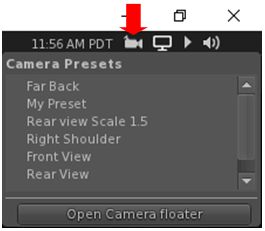
The Camera Presets icon, found in the top right of the viewer window, and a populated version of the drop-down that can be displays on clicking on it.
  • The Camera Controls floater. This provides access to provides access to the following:
    • The familiar “on the fly” controls for positioning the camera / selecting any of the pre-set camera positions, setting the camera focus or switching to Mouselook. These can also now be used to create a custom camera preset.
    • Camera Position floater for creating new camera presets numerically.
    • Save Camera Preset floater – save any preset you have created or replace an existing preset with new values.
    • My Camera Presets floater – allows you select and delete any preset you have created, or reset your camera to one of the viewer’s default front, side or rear camera positions.
    • In addition, the Camera Controls floater includes a drop-drop menu to provide quick access to any custom camera presets you have created.
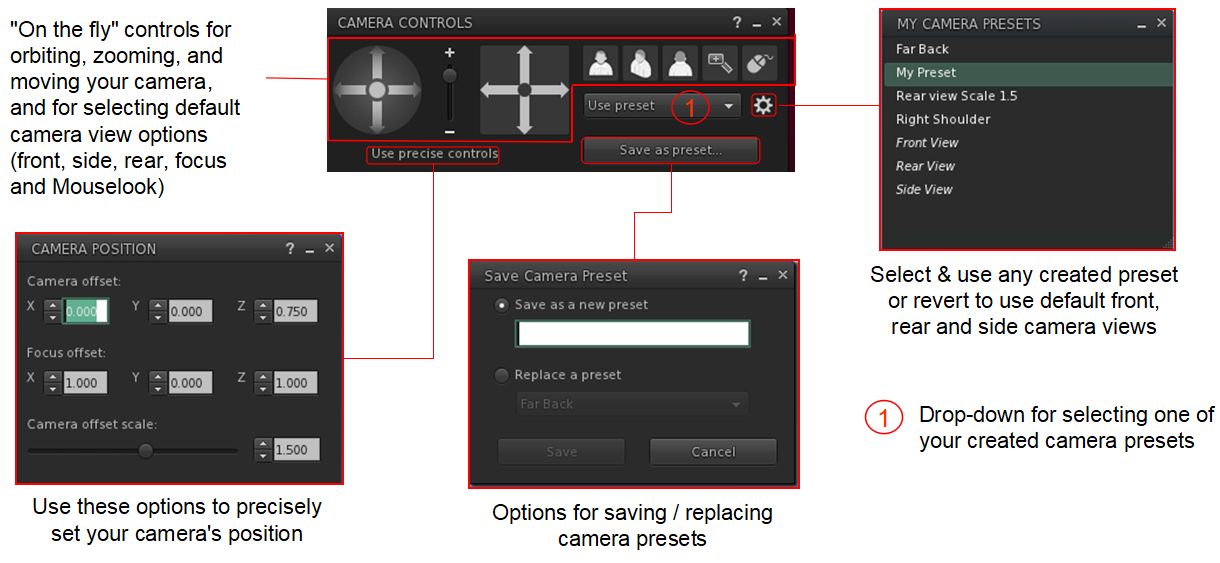
The Camera Controls and camera presets floaters – click for full size, if required

Creating a Custom Camera Preset

Using the Camera Controls

  1. Open the Camera Control floater by:
    • Hovering the mouse over the Custom Preset icon at the top right of the viewer window to open the drop-down and then clicking the Open Camera Floater button OR.
    • Clicking on the Camera Controls (Eye) button in your viewer’s tool bar, OR
    • Selecting Me→Camera Controls… from the viewer menu bar.
  2. With the Camera Control floater open, clicked the required view button (Front, Side, Rear) if required.
  3. Use the camera orbit, slide and zoom controls on the left of the camera floater to position your camera as you would like it to be relative to your avatar.
  4. When you are satisfied with the camera position and angle, click Save As Preset button in the floater, and:
    • Either make sure the Save As New Preset radio button is selected and type a name for the preset in the text box.
    • Or click the radio button for Replace a Preset, then click the button to display a list of current presets and highlight the one you wish to replace (including one of the three default positions, shown in italics).
  5. When you have entered a name or made your choice, click Save.
Using the camera controls to create a camera preset

Using the Precise Controls

If you have a numeric set of camera and focus offsets you use (e.g. such as those provided by Penny Patton, or use the table below to set your camera to some typical view points):

  1. Open the Camera Control floater by:
    • Hovering the mouse over the Custom Preset icon at the top right of the viewer window to open the drop-down and then clicking the Open Camera Floater button OR.
    • Clicking on the Camera Controls (Eye) button in your viewer’s tool bar, OR
    • Selecting Me→Camera Controls… from the viewer menu bar.
  2. In the Camera Controls floater, click on Use Precise Controls.
  3. In the Camera Position floater:
    • Enter the X, Y and Z figures for the camera offset position.
    • Enter the X, Y, Z figures for the focus offset position,
    • Use the slider to set how near / far the camera is to be positioned from your avatar.
  4. When you are satisfied with the camera position and focus, click Save As Preset button in the floater, and:
    • Either make sure the Save As New Preset radio button is selected and type a name for the preset in the text box.
    • Or click the radio button for Replace a Preset, then click the button to display a list of current presets and highlight the one you wish to replace (including one of the three default positions, shown in italics).
  5. When you have entered a name or made your choice, click Save.
Setting a precise position for a camera preset

The following table offers Penny Patton’s recommended positions for over-the-shoulder camera presets.

Over the Left Shoulder
Centre
Over the Right Shoulder
Camera Offset
X= -2.0
Y= 0.4
Z= -0.2
X= -2.0
Y= 0.0
Z= -0.2
X= -2.0
Y= -0.4
Z= -0.2
Focus Offset
X= 0.9
Y= 0.7
Z= 0.2
X= 0.9
Y= 0.0
Z= 0.2
X= 0.9
Y= -0.7
Z= 0.2
Offset Scale Slider
1.5 1.5 1.5

Using Your Custom Presets

From the Presets Icon

  1. Hover the mouse over the Custom Preset icon at the top right of the viewer window to open the drop-down.
  2. Click on the required preset name to select it.

From the Camera Controls Floater

  1. Click on the Use Preset button in the Camera Controls floater.
  2. A drop-down of custom camera presets is displayed.
  3. Click on the required preset name.
  4. The preset is selected, and the button updates to display the preset’s name.
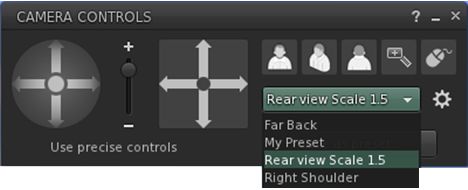
Using a custom camera preset

Deleting or Resetting Default Presets

Notes:

  • You can only delete custom presets and reset default presets.
  • No confirmation is requested: actions will be immediately implemented – so if you have overwritten one of front, side or rear camera position presets, your custom version of that preset will be lost when reset.
  1. Display the Camera Controls floater.
  2. Click the gear icon.
  3. The My Camera Presets panel opens (may default to the top left of your screen).
  4. Hover the mouse over the preset you wish to delete or reset.
    • Custom presets will display a trash can. Click it to delete the preset.
    • Default presets will display a reset icon. Click it to return the preset to its original values.

2020 Simulator User Group week #20 summary

Ostoja, March 2020 – blog post

The following notes were taken at the Simulator User Group meeting held on Tuesday, May 12th. Not a lot was discussed (again), so just a short update on server deployments / official viewer updates.

Simulator Deployments

Please refer to the simulator deployment thread for updates.

  • On Tuesday, May 12th, the majority of the grid was updated to server maintenance release 541440, comprising:
    • Updates to fix issues with the Name Change feature still calling avatars by their “old” names for up to a week (see BUG-228565).
    • Internal logging changes and improvements to how the simulator accesses internal servers.
    • A a fix to llBase64ToInteger, the colour space LSL functions.
    • This update could exacerbate issues with group notice time stamps failing to accurately report, which has been an issue on at least one RC channel (see: BUG-228562 Group Notice Timestamps don’t report accurately Server Channel 540369/ now 541440).
  • Updates are planned for the three RC channels, but at the time of writing, had yet to be announced. Commenting on the updates at the meeting, Rider Linden stated:

LeTigre and Magnum are getting competing fixes for the experience purchase problem [see Bug-228676]. BlueSteel, Snack and Preflight [two small-scale RC channels] are all getting an update that just internal fixes and extra logging.

Please refer to the deployment thread for further information / updates.

SL Viewer

On Monday, May 11th:

  • The Camera Presets RC viewer updated to version 6.4.2.541639.
  • The Love Me Render RC viewer updated to version 6.4.2.541651.
  • A new FMOD Studio update RC viewer, version 6.4.2.541570, was issued.

The remaining official viewer pipelines are currently unchanged from the end of week #18:

  • Release channel cohorts:
    • CEF Special RC viewer, version 6.4.1.541204, dated April 30th.
  • Project viewers:
    • Copy / Paste viewer, version 6.3.5.533365, December 9, 2019.
    • Project Muscadine (Animesh follow-on) project viewer, version 6.4.0.532999, November 22, 2019.
    • Legacy Profiles viewer, version 6.3.2.530836, September 17, 2019. Covers the re-integration of Viewer Profiles.
    • 360 Snapshot project viewer, version 6.2.4.529111, July 16, 2019.

2020 Simulator User Group week #19 summary

Studland Bay, March 2020 – blog post

The following notes were taken at the Simulator User Group meeting held on Tuesday, May 5th. Not a lot to report; most of the meeting was general chat about wish-lists for alternatives / updates to LSL, general commentary on animations and enquiries about the CEF viewer related to the Adult Swim event (see:Adult Swim special streaming event in Second Life).

Simulator Deployments

Please refer to the simulator deployment thread for updates.

  • On Tuesday, May 5th, the majority of the grid was updated to server maintenance release 540928, first deployed on Wednesday, April 29th, and comprising an update to the simulator build tools.
  • On Wednesday, May 6th. there should be a single RC deployment. Server update 541440 again comprises updates to fix issues with the Name Change feature still calling avatars by their “old” names for up to a week, together with some internal logging changes and improvements to how the simulator accesses internal servers, and a fix to llBase64ToInteger, the colour space LSL functions.

SL Viewer

On Monday, May 4th, the Zirbenz Maintenance RC viewer,version 6.4.1.540593 and dated April 27th, 2020, was promoted to de facto release viewer status.

The remaining official viewer pipelines are currently unchanged from the end of week #18:

  • Release channel cohorts:
  • Project viewers:
    • Copy / Paste viewer, version 6.3.5.533365, December 9, 2019.
    • Project Muscadine (Animesh follow-on) project viewer, version 6.4.0.532999, November 22, 2019.
    • Legacy Profiles viewer, version 6.3.2.530836, September 17, 2019. Covers the re-integration of Viewer Profiles.
    • 360 Snapshot project viewer, version 6.2.4.529111, July 16, 2019.

2020 Simulator User Group week #18 summary

Wizardhat Studios, March 2020 – blog post

The following notes were taken at the Simulator User Group meeting held on Tuesday, April 28th.

Simulator Deployments

Please refer to the simulator deployment thread for updates.

  • On Tuesday, April 28th, the majority of the grid was updated to server maintenance release 540213, previously deployed to an RC cluster and comprising simulator updates related to Premium benefits.
  • A single RC update is due on Wednesday, April 29th. No version number as available at the time of writing, but Rider Linden indicated it contains no functionality changes, but is an update to the simulator build tools.

SL Viewer

On Monday, April 27th, 2020, the Zirbenz RC viewer updated to version 6.4.1.540593.

At the time of writing, the remaining RC viewers have yet to be merged up to the EEP release, and there have been no project viewer updates, leaving the remaining official viewer pipelines as follows:

  • Release channel cohorts:
  • Project viewers:
    • Copy / Paste viewer, version 6.3.5.533365, December 9, 2019.
    • Project Muscadine (Animesh follow-on) project viewer, version 6.4.0.532999, November 22, 2019.
    • Legacy Profiles viewer, version 6.3.2.530836, September 17, 2019. Covers the re-integration of Viewer Profiles.
    • 360 Snapshot project viewer, version 6.2.4.529111, July 16, 2019.

In Brief

  • The fix for the issue off-line inventory losses from objects (see: BUG-227179 “All offline inventory offers from scripted objects are STILL lost”) is still awaiting deployment.
  • Simon Linden is stepping back from running the SUG meetings to focus more on the cloud uplift work. He’ll still be attending, but Rider is taking the reins.

2020 Simulator User Group week #17 summary

Peacehaven, March 2020 – blog post

The following notes were taken at the Simulator User Group meeting held on Tuesday, April 14th.

Simulator Deployments

Please refer to the simulator deployment thread for updates.

  • There was no deployment to the majority of the grid on Tuesday, April 21st, leaving in on server maintenance update 539684.
  • On Wednesday, April 22nd, three RC deployment should take place:
    • 540213 – simulator updates related to Premium benefits.
    • 540369 – containing updates to fixes for the just released name changes after it was discovered the feature could, in a couple of places still call you by your former name for up to a week (“oops!”, as the Lab put it), and assorted internal changes.
    • A further deployment 540032 first deployed on April 15th, containing updates related to the cloud uplift.

SL Viewer

On Monday, April 20th, 2020, the EEP RC viewer, version 6.4.0.540188 and dated April 15th, was promoted to the de facto release viewer. See:

At the time of writing, the remaining RC viewers have yet to be merged up to the EEP release, and there have been no project viewer updates, leaving the remaining official viewer pipelines as follows:

  • Release channel cohorts:
    • Camera Presets RC viewer, version 6.3.9.538729 March 25.
    • Love Me Render RC viewer, version 6.3.9.538760, March 25.
    • Zirbenz Maintenance RC viewer, version 6.3.9.538719, issued March 19.
  • Project viewers:
    • Copy / Paste viewer, version 6.3.5.533365, December 9, 2019.
    • Project Muscadine (Animesh follow-on) project viewer, version 6.4.0.532999, November 22, 2019.
    • Legacy Profiles viewer, version 6.3.2.530836, September 17, 2019. Covers the re-integration of Viewer Profiles.
    • 360 Snapshot project viewer, version 6.2.4.529111, July 16, 2019.

In Brief

A question was raised over the potential for EEP to cause “lag” (with up to 4 altitude layers for EEP sky settings plus the use of parcel environment options, there is concern loading and reloading the required textures could impact travellers. In response to the concern, Simon Linden said:

Compared to the cost and payload of stopping your AV on one region, sending the data to the next and adding you into that part of the world, the EEP data change is pretty small. Your viewer might have a little more work to get textures and set up the sky and lighting, but I don’t think those will be significant.

Rider, Ptolemy and Euclid Linden, the three major movers behind EEP will be on the Friday, April 24th edition of Lab Gab.

2020 Simulator User Group week #16 summary

Lake NumB, February 2020 – blog post

The following notes were taken at the Simulator User Group meeting held on Tuesday, April 14th.

Simulator Deployments

Please refer to the simulator deployment thread for updates.

  • On Tuesday, April 14th, the majority of the grid was updated to server maintenance update 539684, previously deployed to an RC channel on April7th, and comprising:
    • BUG-228417 Emails created by llTargetedEmail() in deeded objects show owner as NULL_KEY in the received email metadata.
    • BUG-228412 Emails created by llTargetedEmail() are missing header info in the received email.
    • SL-12941 Disable TARGETED_EMAIL_ROOT_CREATOR in llTargetedEmail
    • SL-11502 New LSL function llTargetedEmail
    • BUG-226917 EEP Environment, New Sky should default to midday and not 6pm
    • BUG-226737 [EEP] The ‘get parcel_dayoffset’ request returns the value of the ‘parcel daylength’ parameter in the Region Debug Console.
  • On Wednesday, April 15th, two RC deployment should take place:
    • 540032 – containing infrastructure updates related to the cloud migration.
    • 540037 – containing fixes for the just released name changes after it was discovered the feature could, in a couple of places still call you by your former name for up to a week (“oops!”, as the Lab put it), and assorted internal changes.

SL Viewer

At the time of writing, there had been no updates to the current crop of official viewers to mark the start of the week, leaving the current official viewer pipelines as follows:

  • Current Release version  version 6.3.8.538264, dated March 12, promoted March 18th. Formerly the Premium RC viewer – No change.
  • Release channel cohorts:
    • Camera Presets RC viewer, version 6.3.9.538729 March 25.
    • Love Me Render RC viewer, version 6.3.9.538760, March 25.
    • EEP RC viewer updated to version 6.4.0.538823, March 20.
    • Zirbenz Maintenance RC viewer, version 6.3.9.538719, issued March 19.
  • Project viewers:
    • Copy / Paste viewer, version 6.3.5.533365, December 9, 2019.
    • Project Muscadine (Animesh follow-on) project viewer, version 6.4.0.532999, November 22, 2019.
    • Legacy Profiles viewer, version 6.3.2.530836, September 17, 2019. Covers the re-integration of Viewer Profiles.
    • 360 Snapshot project viewer, version 6.2.4.529111, July 16, 2019.

Group Chat

With the general increase in user concurrency, issues are being experienced with group chat (general slowness, sent messages failing, etc). Commenting on the situation, Simon Linden said:

Group chat traffic grows in “interesting” mathematical ways … a single person will have X number of groups, and thus joins them all and increases the number of people in the group. That multiplies out as groups get larger so a single message goes to more people … it’s not linear. Add in the updates on people coming on-line or logging off and it bogs down –  and yes, we’ve done some work on it and want to get time for more.

A factor that’s likely contributing to the issue is that the plan to cut back on the number of group update messages created when users log-on  / log-off of Second Life was actually curtailed, with Simon also noting:

[There was] some pretty strong push-back that managers need that info … so it got more complicated about who should get what messages when, and the project went back on the shelf. But you can imagine the math … if you have a group with about 10 people on-line, every once in a while someone joins or leaves, and about 10 updates have to be sent out. Put 1000 people in a group … people are coming and going all the time, and 1000 updates have to go out if everyone needs to know

And yes – there are some different ways it can be fixed. The real issue is people getting upset if they can’t do something any more, and finding that magic spot where it works right for those that need the feature, and not a load slowing down chat for everyone