Bakes on Mesh – a basic primer

Updated with an overview of “Bakes on Mesh appliers” for Mesh bodies and head yet to be updated to support BoM.

Monday, August 26th, 2019 saw the formal release of Bakes on Mesh (BoM) for Second Life, and with it, an attempt to make system wearables (skins, tattoo and clothing layers) usable on modern mesh avatar bodies, utilising the avatar Bake Service and without the need for a dedicated applier system.

While Bakes on Mesh has been in development for over years, and much of it is known to many users, this article has been written to provide something of an introduction / overview of BoM, covering things like system wearables, the Bake Service, that changes that have been made, where to find information on using BoM, and what it may mean for Second Life users in the future, depending upon how well the capability is received by creators.

Some Basics

System Wearables and the Bake Service

System wearables as they appear in inventory

Without going too deeply into specifics for those unfamiliar with them, system wearables are a special kind of inventory asset (some of which are shown on the right) that can be directly worn / added to the system avatar to produce a “dressed” look.

These wearables come in a number of “layers”- skin (which must always be worn on the system avatar), tattoo, undershirt, shirt, and jacket.

The naming of the layers isn’t that important – a creator could be assign a bra or a shirt or a pair of pants to any one of the tattoo, undershirt, shirt and jacket layers, depending on how flexible they want their clothing to be. What is important is that the always follow an hierarchy: skin is always at the bottom and so “covered” by the other layers, which are in turn “covered” by the next (so undershirt wearables always apply “over” tattoo wearables; “shirt layers “over” undershirt wearables, etc), with the avatar able to wear up to 62 wearables in any combination of layers at one time.

This might sound very complex, but for those familiar with the system, it is very easy to grasp; however, what is important is what comes next. When an avatar’s look is complete, the information about all these wearables are sent to the simulator and then to a back-end set of servers called the Bake Service over a series of channels called the “bake channels”, which define where the layers appear on the avatar. These channels are:

  • BAKE_HEAD, which defines all the wearable elements that have been applied to the head (e.g. skin, and tattoo layers used for make-up)
  • BAKE_UPPER, which defines all the wearable elements – skin plus any tattoo, undershirt, shirt and / or jacket layer(s) that have been applied to the avatar body above the waist and below the neck (with the left arm mirrored from the right).
  • BAKE_LOWER, which defines all the wearable elements – skin plus any tattoo, undershirt, shirt and / or jacket layer(s) that have been applied to the avatar body from the waist to the feet (with the left leg mirrored from the right).
  • BAKE_EYES and BAKE_HAIR (both pretty self-explanatory).
  • BAKE_SKIRT, which defines skirt / dress style wearables.

The Bake Service then composites (bakes) the layers received on each of these bake channels into a single texture, and sends the results out to every viewer able to “see” the avatar. So, for example, facial / head skin and any make-up tattoo(s) received via the BAKE_HEAD channel are baked to become a texture seen on the avatar’s head, while the layers received over the Bake_Upper channel are baked into a texture seen on the avatar’s upper body, and so on, ensuring the avatar consistently appears to everyone dressed at the user intended, while also removing the need for individual viewers to manage the complex layering and rendering of all the individual wearable layers on other people’s avatars.

Mesh Bodies and Complexity

Since their introduction, mesh bodies have not been able to leverage this approach. Instead, they require a dedicated “applier” mechanism to achieve the same ends, together with the use of an alpha layer to hide the system avatar.

Further, to enable clothing items to be layered – so you can have an applied shirt / blouse appearing to be “under” a jacket, for a example, mesh bodies have had to be constructed in a complex manner, with several layers closely packed together (colloquially called “onion layers”) that effectively mimic the system wearable layers. This actually makes the avatar a lot more complex than they otherwise might be, resulting in their relatively high rendering costs.

Enter Bakes on Mesh

So, Bakes on Mesh has been developed to allow system wearable to be applied directly from inventory to worn mesh faces (e.g. avatar bodies and wearables) that have been correctly flagged by the creator to support Bakes on Mesh. Through Bakes on Mesh, Linden Lab hopes:

  • Users can avoid the need to use appliers, but can add wearables to their mesh avatar directly from inventory.
  • Creators will be able to simplify avatar mesh bodies and heads by removing the need for some of the “onion” layers. This should – if done – reduce the rendering complexity for bodies and heads, thus hopefully improving people’s SL experience (as avatars won’t be quite so resource intensive or require quite so much “assembly time” when encountering them on logging-on or after teleporting somewhere).

Notes:

  • As with all new features, use of Bakes on Mesh will only be apparent to those actually using viewers running the Bakes on Mesh code; anyone not on such a viewer will likely see something of a mess.And as with new features, it will take time for the Bakes on Mesh code to be implemented by all TPVs.
  • Bakes on Mesh does not mean user “have” to go back to using system wearables nor does it mean that applier systems can no longer be used. It is simply a means of making system wearables work with mesh bodies and heads, hopefully with the benefits given above. Those who wish to can continue to use applier-based clothing as they always have.
Bakes on Mesh adds new options for applying suitable textures to the baking channels for application on a mesh body by the Bake Service

An introduction to using BoM can be found in the Bakes on Mesh Knowledge Base article. This includes information on trying BOM using a test mesh body – the best way to do this is to use Aditi, the beta grid. I’m not going to go into specifics here, simply because there are multiple resources available to assist users and creators – some of which are noted at the end of this article, and I want to keep this as a more general, easy-to-understand primer.

When considering Bakes on Mesh it is important to remember it is not necessarily intended as an outright replacement for appliers and current mesh bodies from the get-go. Rather, it is initially an alternative – although if the popularity / take-up among creators and users are sufficient, then over time it could obviously become the system of choice over appliers and more complex mesh bodies. However, existing mesh bodies / heads and applier systems will continue to work as they always have.

Key Points of Bakes on Mesh

This list is not exhaustive, but is intended to give a feel for Bakes on Mesh and its use:

  • System skin layers, tattoo layers, clothing layers and alpha layers all work – the mesh just needs to be flagged by its creator as supporting Bakes on Mesh and correctly set-up for alpha layers to work as intended.
    • As an alternative, there are assorted “BoM appliers” designed to work with mesh bodies  / heads that have not (yet) been updated with Bakes on Mesh support – see below for more.
  • You do not need a full body alpha to wear a Bakes on Mesh flagged mesh. If the flag is present when you wear the mesh, the body section it is flagged for disappears. So, if you wear a lower body “Bakes on Mesh ready” avatar part, then entire lower body of the system avatar will disappear.
  • The Bake Service has been updated to support 1024×1024 resolution textures, so it offers the same texture resolution for wearables as offered through applier systems (prior to Bakes on Mesh the maximum resolution for wearables was 512×512).
    • Obviously, the wearable must be made at this resolution in order to utilise it; a 512×512 wearable will not magically appear to be 1024×1024 resolution when applied.
  • In order to be fully effective, mesh bodies using BoM and BoM wearables should match the system avatar UV map as closely as possible.
    • Fortunately, most of the current range of avatar bodies sold under brands such as Maitreya, Slink etc., do tend to stay close to the system avatar UV map. So any new BoM-specific versions / updates should continue to do so.
  • Alpha support means that  layers means that mesh bodies should no longer need to be split into multiple pieces for individual alpha-masking to prevent a body clipping through clothes. Alpha requirements are back in the hands of the clothing creator, and should be made alongside the clothing, so that when used and providing the body is correctly set-up they should just “work”. In addition, clothing makers may not longer need to include auto alpha scripts.
  • Changing mesh body parts should be easier, providing both bodies are flagged to use Bakes on Mesh. The body takes whatever is worn on the system body – skin and make-up instantly appear on each change of head, for example.
  • Skin makers will be able to offer more options by including tattoos with their skins, allowing for a variety of make-up options, whilst there will no longer be any limitation on the use of tattoos (one per zone).
  • Applier support will still be required for the following: nails; eyelashes; standalone ears, hands, feet, lips, bust implants, etc.; lip gloss; materials finishes (see Some Possible Points of Contention, below); neck blenders, anything not intended to look “painted” on.

New with Bakes On Mesh

To provide full “wearables” support, Bakes on Mesh introduces some new elements that will be of key import to creators:

  • The introduction of 5 new bake channels – LEFT_ARM_BAKED, LEFT_LEG_BAKED, AUX1_BAKED, AUX2_BAKED, AUX3_BAKED:
    • These can only be used with Bakes on Mesh, and are not available to the system avatar.
    • LEFT_ARM_BAKED and LEFT_LEG_BAKED are intended to help with making mesh avatars where the left and right limbs have different textures (and so can be asymmetric, as can currently be achieved with applier systems).
    • The AUX channels are general purpose, and could be used for body regions not possessed by system avatars (such as wings) or for other purposes.
    • This means BoM has 11 possible channels for wearables to use for textures, and for the baking service to produce.
    • However, the new channels listed above do not have alpha support like the other channels, and so cannot have “holes” cutting through the mesh face they are worn against.
  • BOM also adds a new wearable type called Universal.
    • While specifically added to allow the wearing items that use the new  channels described above, the Universal wearable has slots corresponding to all 11 of the bake channels, offering extensive flexibility of use. In layering order, universal wearables go between the tattoo and body layers.

Note that for others to see your avatar correctly when you are using Bakes on Mesh they must also be using a Bakes on Mesh viewer. If they are not, they will see your avatar as a mesh of red, blue and yellow colours showing through your mesh parts.

Left: Bakes on Mesh when seen via a non Bakes on Mesh viewer: the system avatar will show through the mesh body parts, covered by default system-supplied BoM marker textures. Centre and Right: using a “Bakes on Mesh applier” on a non-BoM body and head and via a Bakes on Mesh capable viewer. The centre image shows the “before” avatar state: the system layer skin and clothing are worn, but do not conform to the mesh body and head (which must be worn without their corresponding alphas for this type of applier to work), and so “poke through” (highlighted in places by the red circles). The right image shows how things look after the”Bakes on Mesh” appliers have been used – the system layer clothing and skin now mostly conform to the mesh head / body, with the exception of fingers and toes (highlighted) which will generally require an additional “glove” or “mask” fix.

“Bakes on Mesh Appliers”

During the testing of Bakes on Mesh, at least two experimental applier systems were produced to allow BoM to be tested on non-BoM flagged bodies and heads. For example, Omega produced an experimental BoM applier system, with instructions here.

Since then, and given that several mesh body and head creators have yet to produce BoM flagged updates to their bodies / heads, several more such “BoM appliers” have been produced, some of which are available for free, some are provided by the mesh head / body creator, and others are available at a nominal cost, and may be for specific purposes (e.g. the Bakes on Mesh skin applier (Omega) by Conor Shostakovich at L$125).

These essentially work by allowing you to dress your system avatar with the required system wearables, then wearing your mesh body / head without their alpha masks, and then using the applier to apply the system layers to the mesh body / head in a similar manner to “traditional” appliers – but again, as a single composite layer when baked.

  • How effective these systems are can be variable.
  • Due to differences in the way skin skin textures / UV maps work and the way mesh bodies tend to be put together, such appliers may not work particularly well around feet and hands.

Note: links to products does not constitute endorsement. Always check the Marketplace for products and reviews.

Such appliers are intended as an interim “fix” for using Bakes on Mesh until such time as the major head and body creators provided full Bakes on Mesh support.

Some Possible Points of Contention

However, there are what might be regarded by some as “negatives” around Bakes on Mesh, a couple of the more prominent ones being:

  • The Bakes Service – and thus Bakes on Mesh – does not support materials (normal and specular maps). How much this impacts people’s acceptance of BoM is open to debate. However, when needed, materials still can be added manually (if the mesh / mesh face in question is editable) or via a suitable applier.
  • Appliers are convenient, as they are an all-in-one solution requiring only one or two items in inventory – the outfit applier HUD and possibly an intermediary relay tool like Omega.
    • With Bakes on mesh, wearables are all individual inventory assets, which could lead to inventory growth, some of which might be quite extensive as a result of creators providing multiple options / layers (although in fairness, some applier systems can be like this – I have seen a Hugo’s Design outfit with no fewer the 40 individual items, both system layer clothing and multiple applier options).
    • Some of the inventory “bloat” BoM might cause can potentially be managed via the use of the viewer’s Outfits capability (although this obviously also adds to bloat with inventory links) or via a new form of applier system that utilises system wearables created at 1024×1024 resolution.

How much these may impinge on consumer’s willingness to adopt BoM remains to be seen.

Closing Remarks

Like all new capabilities, Bakes on Mesh will take time to gain understanding and traction. Also like all new features, it has its outright fans, and those who have – even before really getting to work with it in earnest – decided its is bad / wrong / pointless / a step back, etc.

I’m personally sitting in the middle. If it does what is claimed on the tin, and if it gains traction among mesh body and head creators (and several have been working on BoM for the 12+ months its been in development) and clothing creators, then it could do its own little bit towards a better “optimisation” (quotes used intentionally, as there is still a lot more than can be done in terms of optimisations cross SL), and make things a little better for everyone.

But it will take time for Bakes on Mesh to mature in terms of general use – creators need to update their heads / bodies (although Slink is apparently ahead of the curve, and their new bodies are said to work with existing appliers, and other creators may also be providing products / updates, I’ve just not encountered any as yet). Those making system wearables are going to need time to update to the 1024×1024 where preferred (if they haven’t already, and so on. And, most obviously, it will take a little time for the Bakes on Mesh code to percolate out to all TPVs.

In the meantime, some links to useful resources.

Resources


Kokua: Admin changes and the 6.2.4 release

The Kokua team released Kokua 6.2.4 on Friday, August 16th, 2019, and with it come some changes to general administration of the viewer’s website and management tools.

In terms of the latter, and for ease on management going forward, a number of changes are in the works including:

  • The use of the Atlassian Confluence platform to provide:
    • A blog capability.
    • Release notes support.
    • A master download pages.
    • RSS feeds.
  • The use of Atlassian Jira (as used by Linden Lab and the likes of Firestorm) for bug reporting and tracking.

The switch-over is still a work-in-progress, so the existing blog, wiki and bug tracker remain in operation for the time being, however, relevant links for the new environment are given as:

While the switch-over is in progress, users are advised against linking to individual sub-pages within these sections, as pages may change as things are bedded-in. For this purposes of this blog, the new Kokua home page is referenced in the sidebar links (right, under Maintained Viewers) and within my Current Viewers Release Page and the weekly release summaries drawn from that.

Kokua 6.2.4

Kokua 6.2.4 brings the viewer to parity with the most recently Linden Lab viewer release (version 6.2.4.529638, formerly the Love Me Render RC viewer dated August 5th, promoted August 12th). In addition, it updates the RLV version to Marine Kelley’s RLV 2.9.26.2.

As has been customary with Kokua releases of late, the viewer is provided in three versions for each of the supported operating systems (Windows, Mac OS X and Linux, all 64-bit):

  • Non-RLV – version 6.2.4.45881.
  • “Standard” RLV (can be enabled and disabled via a viewer restart) – version 6.2.4.45882.
  • “Full Time” RLV (RLV is active all the time) – also version 6.2.4.45882.

In addition to these updates, Kokua 6.2.4 includes a number of third-party additions, most notably from Firestorm, as noted in the sections below, and with due credit to the originators of the code updates.

Settings Backup

Sometimes when installing a new version of a viewer, there can be a recommendation to perform a “clean install” – removing all cached and settings files. This can make any viewer installation labour-intensive, as settings all need to be restored after the installation is complete.

The Settings Backup (Preferences > Backup) eases some of the pain by allowing users to back-up many of their global and account settings to a local hard drive. Once done, the back-up can then be restored to an updated version of Kokua (e.g. if a clean install has been required, or if some settings have become corrupted). Settings can also be backed-up at any time as changes are made.

The Kokua Settings Back-up option, courtesy of Firestorm

Settings can be backed-up to any location on a local drive, and users can select those settings they wish to back-up by unchecking / checking the available options. It is also possible to save settings on a per account basis. So if you have several accounts, each with different settings, you can back-up each of them separately – just make sure each back-up has a unique location.

Restoring previously backed-up files requires the viewer is restarted after the restore – and again, this is conveniently taken care of by the viewer allowing you to quickly log-out following a successful restore – although you’ll have to manually re-start the viewer once you’ve been logged out.

Sounds Output Device Selection

Preferences >Sound and Media includes a new drop-down allowing users to select their preferred output device for playing in-world sounds.

Sound output device selection, courtesy of Firestorm

When using it, note that:

  • Selecting Default will always select the first output device in the list.
  • If Default is selected but the previous device is no longer available, the viewer will automatically switch to the next available “default” device as defined by your operating system.
  • Manually selecting an output device from the drop-down  prevents the viewer from automatically switching to another device if the selected device is no longer available. Instead, the field will show “Unavailable Device” until such time as the nominated device is again available, or the drop-down is changed to Default or an alternate is manually selected.

Updated Debug Floater

Finally from Firestorm, Kokua 6.2.4 includes an improved debug settings floater with search and sanity checking of key values.

The improved Debug floater, courtesy of Firestorm

Other Updates of Note

Finally there are a number of fixes/improvements on the Kokua code base itself, notably fixing the pie menus so that the Hover Height command appears (i.e. was there but a mistake in the file concerned prevented it being shown). For details, please refer to the Kokua 6.2.4 release notes.

Feedback

Kokua 6.2.4 continues to maintain parity with the official viewer whilst also importing some additional updates from Firestorm that Kokua users will doubtless find useful and which are likely to help enhance Kokua as the go-to viewer for those who have used Firestorm , but who are looking for an alternative that offers reasonable familiarity.

Additional Links

Firestorm 6.2.4: EAM and paving the way

On Monday, July 15th, 2019, Firestorm released version 6.2.4.57588 of their viewer.

However please note that this release is for Second Life only.

Essentially a  maintenance update, Firestorm 6.2.4.57588 brings the viewer up to parity with the official viewer, adding a range of fixes, improvements and updates from both Linden Lab and via the Firestorm team. The major new feature for this update is the Estate Access Management options.

As such, this release paves the way for Firestorm to be able to adopt the Lab’s Bakes On Mesh and Environment Enhancement Project, once these have in turn been released by Linden Lab.

Table of Contents

As per usual, this article provides an overview of the more visible updates in the release. Please refer to the release notes for a full list of updates and all associated credits. Also, note that this update means that version 5.0.11.53634 will be blocked from logging in to the Second Life grid in about three weeks.

A small personal note: my apologies to Firestorm users who may have been directed to this post by the Firestorm team’s release announcement or the Firestorm 6.2.457588 release notes and were unable to find it. My ISP suffered a major (8+ hour) outage some 90 minutes before the release was made, preventing me from uploading and posting this overview. 

Why A Second Life Only Release?

As noted above, Firestorm 6.2.4.57588 is for Second Life only. This is because Firestorm are changing how they support Second Life and OpenSim grids. You can read the full details in the official Firestorm blog post Second Life and OpenSim are No Longer Joined  at the  Hip, but in short, and in the future:

  • The Firestorm code is forked into two repositories: Second Life and OpenSim.
  • The Second Life dedicated viewer’s grid manager will only offer Agni and Aditi (SL main and beta grids).
  • The OpenSim dedicated viewer’s grid manager will NOT offer Second Life grids.
  • If you wish to access both OpenSim and Second Life, you will have to install both versions of Firestorm
  • the two versions will install entirely independently to one another and will not share settings or cache, so they will not conflict with each other.

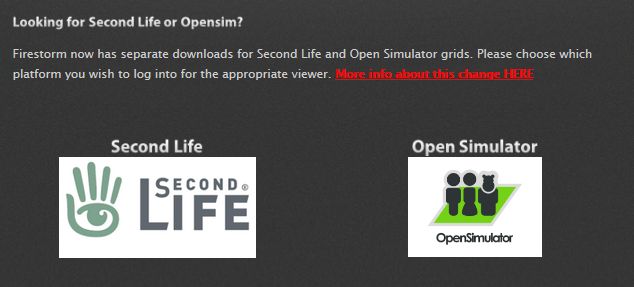
To assist is identifying the two differernt grid versions, the Firestorm downalod pages has been changes to clearly differentiate between Second Life and OpenSim.

The revised Firestorm grid download selections

Note that at the time of writing, the OpenSim download page points to Firestorm 6.0.2.56680, which still works on both SL and OpenSim, and will use the same settings folders as 6.2.4. This will change with the next Firestorm update.

The Usual Before We Begin

As per my usual preamble:

  • There is no need to perform a clean install with this release if you do not wish to.
  • Do, however, make sure you back-up all your settings safely so you can restore them after installing 6.2.4.
  • Please refer to the official release notes for a full breakdown and changes, updates and credits associated with this release.

Lab Derived Updates

Firestorm 6.2.4.57588 brings the Firestorm viewer up to the current (at the time of writing) Linden Lab release viewer, version 6.2.3.527758, formerly the Rainbow RC viewer promoted on June 18th, 2019.In addition, this release includes some upstream fixes from current LL RC viewers, such as the HiDPI retina display support on Mac systems (Love Me Render RC).

Please refer to the Firestorm 6.2.4 release notes for details of specific Lab-derived fixes for this release.

Estate Access Management (EAM)

It has long been the case that the lists for managing access to a region / estate have been crammed into the General tab of the Region / Estate floater (World > Region / Estate or ALT-R). This has made the management of these lists – particularly the Banned list – difficult when reaching large numbers.

The Estate Access Management (EAM) project was introduced by Linden Lab to address the various shortfalls with the presentation of these list, through both back-end changes and a refactoring of the Region / Estate floater. Firestorm release 6.2.4.57588 includes the updated viewer UI, allowing estate owners and officers to make use of the improved tools.

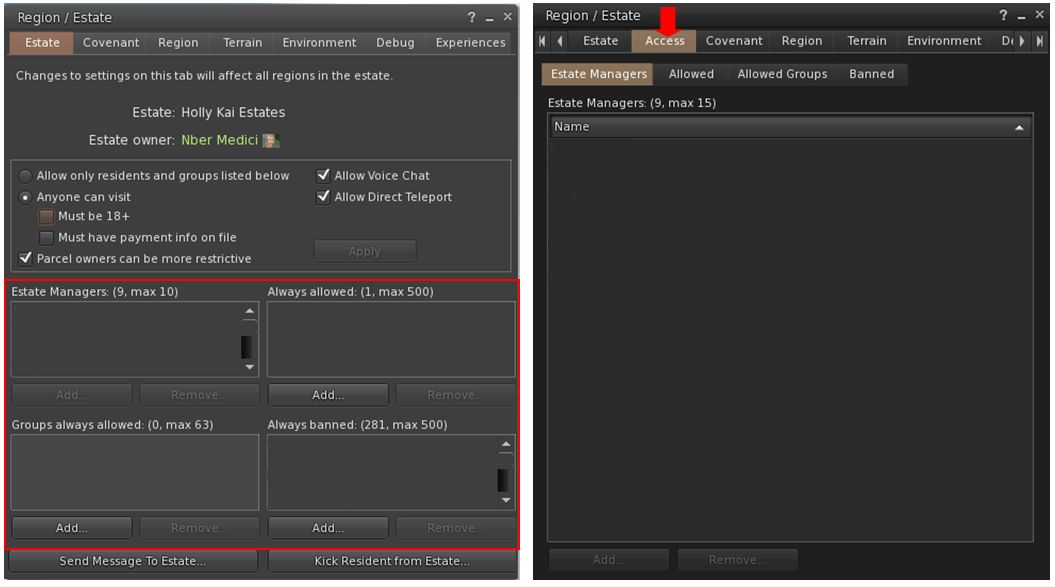
In particular, the EAM moves the access control elements of the Region  / Estate viewer away from the General tab and into their own dedicated tab (show below).

Estate Access Management: as they have previously appeared (left) and as they are under EAM (right) – note: user names have been redacted from this lists shown

In terms of adding or removing names and groups, the new Access sub-tabs work in much the same way as the list boxes in previous releases. However, with the new design, additional functionality is added to some of the lists:

  • The Banned list additionally records:
    • The last date on which a banned individual logged-in to Second Life (to assist with housekeeping the list – if an account hasn’t been used in X months or years, why keep it on the list?).
    • The date on which an individual was banned.
    • The name of the estate officer / region holder who implemented the ban.
  • The Banned tab can be sorted into ascending / descending order by banned name, date last logged in, date banned, or by person banning them. Click on the column title to sort.
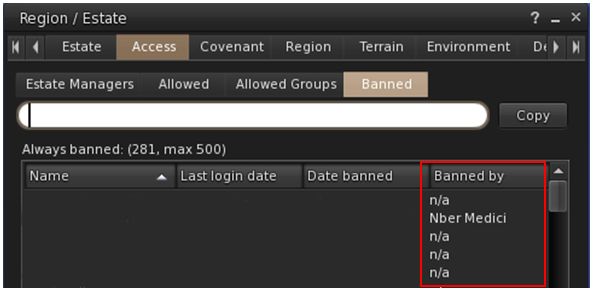
The Banned list provides more functionality: search, re-ordering, date banned, who did the banning (only applicable for banned implemented after the EAM back-end was deployed by Linden Lab earlier in 2019, pre-existing bans will have “n/a” in the new columns, as indicated by the Banned By column in this image. Note that names have been redacted from this list
  • The Estate Managers, Allowed and Allowed Groups tabs can be sorted into ascending / descending order by name. Click on the column title to sort.
  • The Allowed Groups, Allowed and Banned tabs all include a search option.
  • The number of allowed Estate Managers is increased from 10 EMs to 15 EMs – again in response to many requests from region holders.

Continue reading “Firestorm 6.2.4: EAM and paving the way”

Catznip R12.2: a little extra quality of life

Saturday, July 5th, 2019 saw the release of Catznip R12.2.

With two major releases on the horizon from Linden Lab – Bakes On Mesh (BOM) and the Environment Enhancement Project (EEP) – R12.2 is intended to be primarily a maintenance and “quality of life” release.

Table of Contents

In this, Kitty notes that starting with R12.2, she hopes to de-couple these smaller “maintenance” style of release from those containing major new features and capabilities, and to be able to make this style of release on a more regular basis as a result.

The following notes cover the key improvements seen with R12.2. For a full breakdown of the release including all improvements and bug fixes can be found in the Release Notes.

Maintenance Releases Transition Times

Kitty also notes that with these maintenance releases, there will be a shorter transition period before they become mandatory for all users. For R12.2, this means that it will become the default download from around July 19th. Therefore, if you experience any problems with R12.2, the request is that you contact the Catznip team sooner rather than later, or offer feedback via the viewer.

Linden Lab Updates

Catznip R12.2 brings the viewer up to parity with the (at the time of writing) current Linden Lab viewer – version 6.2.3.527758, formerly the Rainbow RC viewer dated June 5th and promoted on June 18th. This version specifically contains a Windows 10 fix for some Nvidia users, where on exiting Second Life, the system video is distorted. It was this update in particular that encouraged Kitty to release Catznip 12.2.

Quick Preferences Updates

Worn Items

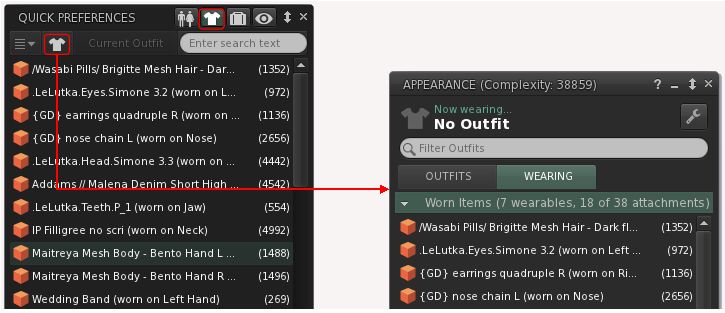
With R12.2, Quick Preferences adds a further button to the Worn Items display. This uses the same shirt icon as the top-level buttons on the Quick Preferences panel, and when clicked, will open the Wearing tab of the Appearance floater.

The new Worn Items button in Quick Preferences that opens the Wearing tab of the Appearance floater

See: CATZ-475: Add button to open wearing panel to the ‘Worn Items’ QuickPrefs panel.

Inventory Folder Button

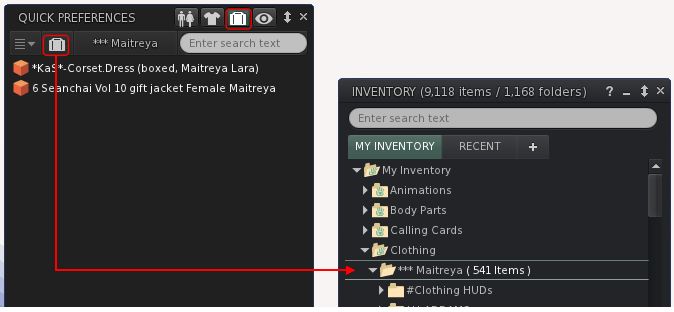
Similarly, if you have a folder set for the Quick Access inventory button, there is a new button (again using the same suitcase icon) that will open the corresponding folder in your inventory.

The new inventory option to open the inventory folder you’ve set for quick access display in Quick Preferences

See: CATZ-476: Add button to open the selected folder to the ‘Quick Access’ QuickPrefs panel.

Inventory Improvements

Catznip R12.2 includes a number of improvements to inventory.

Show In Inventory

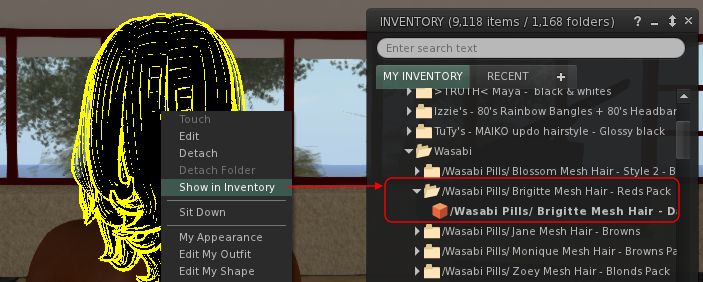
Ever wanted a quick way to locate a worn attachment in your inventory – particularly if you have multiple links to it scattered through your Outfits? Well, Catznip has the answer: Just right-click the worn item and then select Show In Inventory from the Context Menu.

With Catznip R12.2 allows you to quickly locate, in inventory, an item your avatar is wearing

See: CATZ-501: Add ‘Show in Inventory’ to the worn attachment context menu.

Clear Inventory Filter on Close

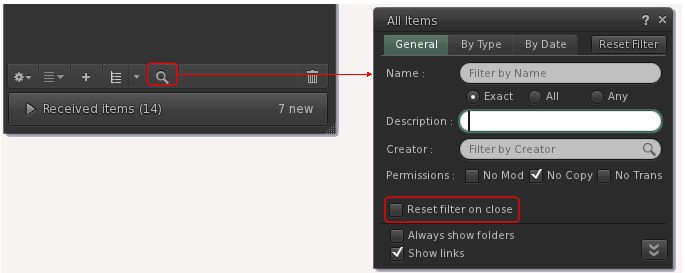
Inventory filter are useful – but can be annoying if you forget to clear them; if you do, you can re-open inventory and be confused as the last filter is still active. Catznip 12.2 solves this problem by adding an option to the filters selection panel that, when checked, will ensure any set filter is reset when you close inventory.

The Reset Filter on Close upon will automatically reset any inventory filter that has been set, when you close the inventory floater

See: CATZ-494: Option to reset the inventory filter when closing the filter floater.

Continue reading “Catznip R12.2: a little extra quality of life”

SL Legacy Profiles project viewer

In February 2019, it was indicated in a Third-Party Viewer Developer (TPVD) meeting that an upgrade to the system powering user profiles seen in the viewer, on the web, together with the  feeds, etc., was in the pipeline (see 2019 SL User Groups 7/3: TPV Developer Meeting).

At the time of the announcement, it was indicated that the overall impact of the update on the feeds has a whole had yet to be determined. However, it was also made clear that the current web-based profile floater seen in the Lab’s viewer would in the coming months be replaced by a “legacy” style profile floater (e.g. the type seen within the Firestorm and Cool VL viewers).

On Wednesday, June 5th, the Lab took the first public step towards this by issuing the Second Life Legacy Profiles project viewer, version 6.2.3.527749. This viewer offers a first pass at the re-introduction of the “old” style profile floater to the official viewer, utilising code originally contributed by Kadah Coba of the Firestorm team.

The new Legacy Profiles project viewer replaces the current web-based profile panel (left), with an “old-style” profile floater panel (right)

With this viewer, it is important to note a couple of things:

  • This is an initial release of the viewer with the profile floater. As such, it may be refined / altered / fine tuned as the viewer progresses towards release.
  • There are a number of known issues with this initial release – see the release notes for a list of these.

As TPV user – notably (but not exclusively) Firestorm – I’ve always tended to find the legacy style of profile floater to be preferable: it tends to be faster loading, and (to me) has a more user-friendly means of navigation. As seen within the project viewer, the “new” floater is perhaps a little large in its default size, but adjusting it is easy enough – although having it a little smaller by default perhaps wouldn’t go amiss.

Those interested in trying this project viewer can do so via the Alternate Viewer page.

New SL viewer release notes pages: an overview

Update, May 21st: The Alternate Viewers wiki page has been retired and replaced by a new Alternate Viewer page, which follows the same broad format as the Release Notes page (making the two slightly confusing, as they both reference recent RC viewers. However, this new page also draws a distinction between RC and project viewers, thus overcoming some of the concerns voiced in the second half of this article.

As noted in my week #20 SL Content Creation summary, Linden Lab have unveiled their new viewer release notes pages.

At the time of writing, the new pages are focused on the release candidate (RC) viewers that are in development and currently available as download cohorts in place of the de facto release viewer. It is not currently clear if project viewers will be included in the new format or not.

As Steven Linden from the viewer team notes in a Tools and Technology blog post on the subject, these new pages are part of a new website for viewer release information. This website comprises a dedicated home page with an introduction to viewer release notes. together with links on the left side to:

  • “Recent viewer releases”: a clickable list of the most recent RC viewer updates, provided as viewer version numbers. These are provided in release date order, with the most recent updates at the top.
  • Additional links to viewer-related support information:
The new Release Notes home page – access specific viewer release notes via the version numbers outlined in red on the left

Individual viewer release notes can be accessed by clicking one of the the listed version numbers, which will open a page specific to that viewer. These pages comprise:

  • Icon links to the available OS versions (Windows 32/64-bit, Mac OS).
  • The general release notes (description, etc.).
  • A list of resolved issues.

A significant change in these pages is that, where relevant, Jira links in the Resolved Issues section now, wherever possible, reference “public” bug reports (e.g. BUG-XXXXXX), rather than the Lab’s internally cloned versions of such bugs (e.g. MAIT-XXXXXX).

Currently, the new pages can also be accessed from the existing Alternate Viewers wiki page, (click the Release Notes link for an RC viewer on that page). However, whether this page will remain relevant if the release notes for project viewers are also converted to the new format, remains to be seen.

An example of the revised release notes for a viewer (in this case the Teranino Maintenance RC) – note the use of “public” Jira numbers where relevant, in the known issues list

The new pages are a lot easier on the eye, although I have a number of reservations at this time.

  • While I understand understand why version numbers are used to reference individual viewers (they are URLs and so can be dropped into the pages without necessarily requiring human intervention), they are less user friendly to those wishing to quickly look-up the specifics on a viewer.
  • The “recent Viewer Releases” lists can include links to multiple versions of a given viewer (at the time of writing, two versions of the EEP and Teranino RC viewers are listed, for example). This might cause a degree of confusion for some users, who may mist he “most recent at the top” arrangement of the list.
  • If project viewers are to be added to these pages, I would hope there will be some form of clearer distinction between them and any listed RC viewers, other than just a top-down list of version numbers, again for ease of user reference.

Related Links