Firestorm 7.2.5 release overview

On Monday, October 26, 2026 (SLT), Firestorm released version 7.2.5.81788 of their viewer.

This release brings Firestorm into line with most of the recent releases of the official Second Life viewer (SLV) up to and including release 26.3, with additional cherry-picked updates from upstream.

Note that the following is not a complete review of the 7.2.5 release and all the changes made therein; it focuses on the more visible and user-facing updates. Those requiring a list of all changes and updates, including all bug fixes, etc, should refer to the Firestorm 7.2.5 release changelog, which also provides all proper credits for the work.

Table of Contents

General Notes

Installation

  • Only download Firestorm from the Firestorm website. Do not utilise any other third-party site purporting to offer the Firestorm viewer, and remember Firestorm will never ask for log-in credentials in order to download a release version of their viewer.
  • There is no need to perform a clean install with this release if you do not wish to.
  • Do, however, make sure you back-up all your settings safely so you can restore them after installing 7.2.5.

Linden Lab Updates

This release brings Firestorm to parity with the following recent official viewer releases from Linden Lab.

Viewer 26.2 – “Flat UI”

Version and release notes:  26.2.0.25386466510 – May 2026.

  • Implements the Lab’s modernised “Flat UI”, including:
    • Adoption of Google Inter typeface, designed specifically for UIs, which is more readable.
    • Improved font scaling and layout handling.
    • A “flat” visual design on buttons, tabs, and menus so labels are more readable.
    • Blue highlight colour to increase visibility of selected list items.
  • Voice moderation by authorised users on their own land:
    • Region owners and estate managers can moderate voice on parcels configured to use the region voice channel (‘Restrict Voice to this parcel’ disabled).
    • Parcel owners can moderate voice on parcels configured to use their own parcel voice channel (‘Restrict Voice to this parcel’ enabled).
    • If a parcel is owned by a group and uses its own voice channel, any group member with the ‘Moderate Group Chat’ ability can moderate.
    • Those who are not land owners or Estate managers, some public test parcels have been set up at WebRTC Voice 1
  • Assorted bug fixes and improvements – refer to the official viewer release notes.
Firestorm Specific Notes for the 26.2 Viewer Updates
  • Flat UI Changes:
    • Google Inter typeface is available for all skins – Preferences → User Interface → Font → Font Scheme drop-down.
    • The complete “Flat UI” scheme is only implemented for the new AnsaStorm skin – Preferences → Skins → AnsaStorm from the Skin drop-down or from the login screen: Mode drop-down → Modern.
  • Voice Moderation:
    • A new Voice connection stats section has been added to the end of the Statistics floater – Ctrl-Shift-1.
  • General Updates from 26.2:
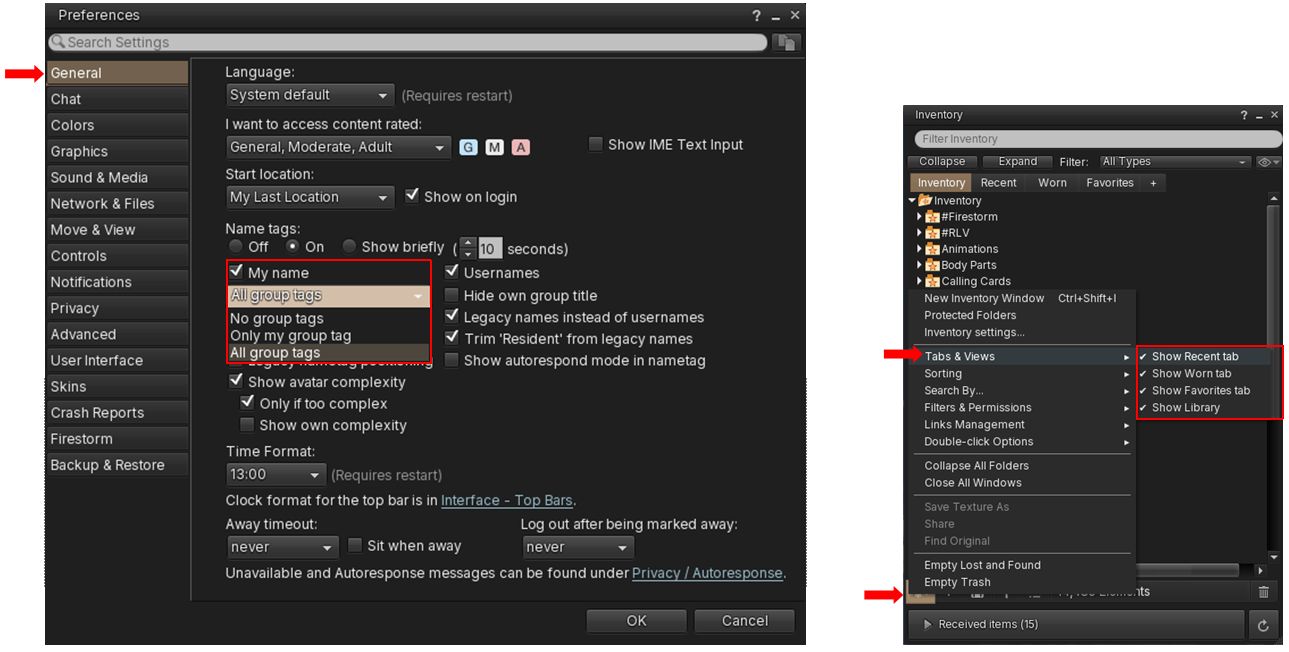
    • New setting to see your own group tag without seeing others: Preferences → General → New drop-down under Name Tags section.
    • New option to hide Recent, Worn and Favourites inventory tabs: Inventory (Ctrl-I) →  Gear Icon for menu → Tabs and Views → uncheck / check desired options.
Left: new Preferences drop-down for viewing Group tags; Right: new option in Inventory to set which tabs are displayed in the Inventory floater – click for full size, if required

Viewer 26.3 – Maintenance

Version and release notes:  26.3.0.31203661088 – August 2026.

  • Add inventory favourites by right clicking objects on your avatar. On Firestorm:
    • Context menu: right click → Add to Favourites.
    • Pie Menu right click → More → Inventory → Add Favourite.
  • Support for Windows Voice Clarity on Windows 11 – cancels echo, suppresses background noise, and reduces reverberation in real-time using AI.
  • New ‘mute’ based filter for conversation history – Top Menu → Comm → Conversation Log → View/sort options → Show Blocked. Hides blocked avatars from the call/conversation history.
  • PBR support for pipette.
  • Assorted bug fixes and improvements – refer to the official viewer release notes.

Upstream Fixes included with Firestorm 7.2.5

New Features for Firestorm 7.2.5

Major Feature: Firestorm Animation Override Overhaul

A significant overhaul for the Firestorm Animation Override intended to “move away from a basic, single-track animation player and replace it with a highly customizable, multi-layered animation system”. Key updates comprise the following.

Run Multiple Animations Simultaneously in an Animation State – Animation Tracks

This capability allows distinct Animation Tracks to be set for a given Animations State (e.g. Standing, Walking, etc.), allowing specified animations to continuously play across all animations within that state. For example: a tail wag against all walking animations.

Open the Firestorm Animation Override floater via the toolbar button and then:

  1. Make sure you have the required animation set selected via the drop down at the top of the AO floater (if you use more than one animation set).
  2. Select the required Animation State from the State drop-down.
  3. Click the + button alongside the Track drop-down at the foot of the animation list. The AO will display “Reloading Config. Please Wait.”
  4. When the reload has completed, a blank AO list for the Track will be displayed, per the instruction in the Track, drag and drop the required animation(s) into the Track and allow it to update.
  5. To switch between viewing the Main list of animations for the given State and any Track(s) you have created, click the Main/Track drop-down and select. Use the + button to add further Tracks (if required) as defined above.
    • To delete a Track, select it via the drop-down as described, then highlight each of the animations within it and click on the Dustbin icon immediately above the + button to delete each of them from the list. When the list is empty, the Track will be automatically deleted.
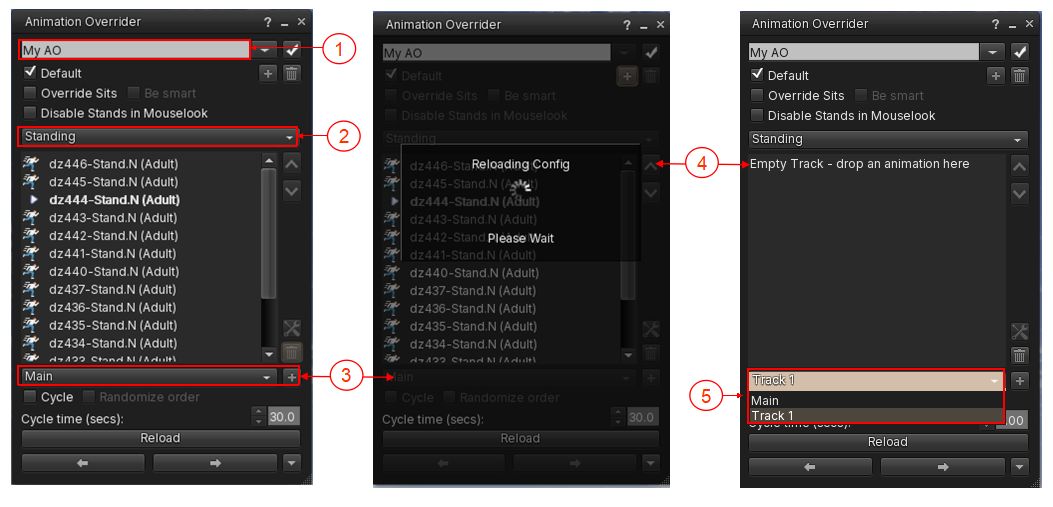
Creating an Animation Track for a selected Animations States (Standing, Walking, etc.). Animations added to the Track will play simultaneously alongside all animations played by the given State. Click for full size if required
Animation Grouping

Introduces the ability to group animations together and execute them at the same time, presenting an alternate and more powerful capability to Animation Tracks.

For example: you have a set of standing animations, a set of bento tail animations and a set of bento ear animations, and you want to associate a specific tail movement and a specific ear movement with a specific stand as your AO cycles through your Standing state. Creating an animation Group would allow you to do this, ensuring that the desired animations play together and for the same duration.

Animation Groups can be used to create pairs or sets of animations which can be added to or changed as required.

To create and use an Animation Group:

  1. Make sure you have the required animation set selected via the drop down at the top of the AO floater (if you use more than one animation set).
  2. Select the required Animation State from the State drop-down. Continue with either 3. or 4.
  3. EITHER:
    • Drag a required animation (e.g., as per the example above, a bento tail animation) and drag it to the AO floater and over the existing animation within the list to which you wish to add it to form a Group.
    • You will be prompted: Drop on Existing to Group.
    • Make sure you have selected the required animation in the list and release the mouse button.
    • Repeat the above three steps to add further animations to the same Group.
  4. OR:
    • Create a folder in Inventory, and drag and drop all the required animations for the Group into that folder (again, use the example cited above, this would be the stand animation, the tail animation and the ear animation).
    • Then drag the folder over to the required Animation State list (Standing, Walking, etc.).
    • You will be prompted: Drop Folder to Create and Animation Group.
    • Release the mouse button to drop the folder into the State list.
  5. As the AO cycles through the Animation State list (for things like stands) or the Group is selected by moving it to the top of a State List (as with walks) – all of the animations in the Group will play together, and for the defined cycle time, if applicable.
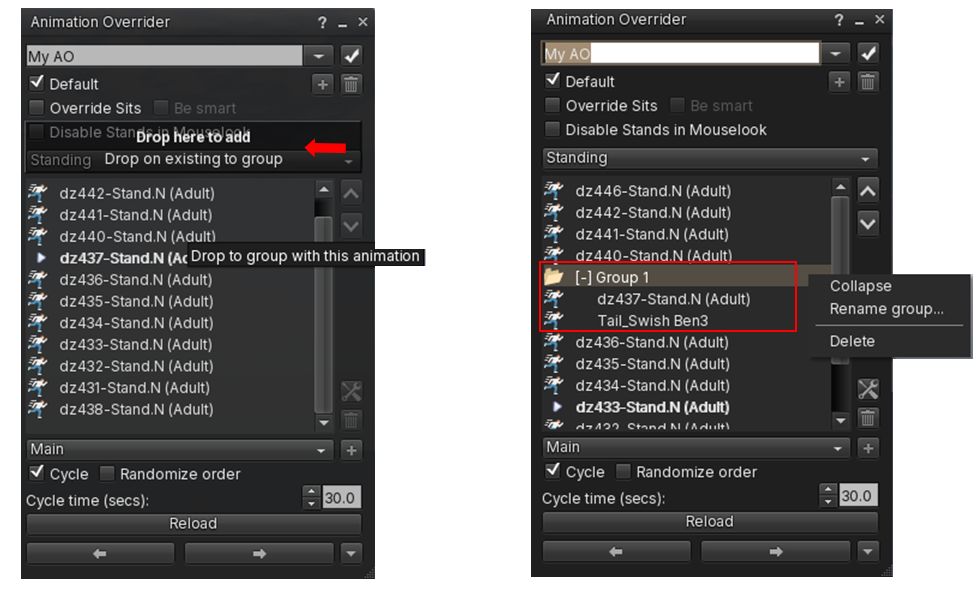
Left – the pop-up when dropping an animation from Inventory on to another in the AO Floater to create a Group (or add it to a Group). Note, as well, the drop options displayed at the top of the State List (arrowed). Right: how Animations Groups appear in the AO floater and the context-sensitive right-click menu associated with them. 

Further notes:

  • To add an animation to an existing State list without Grouping it with an existing animation:
    • Drag it from inventory to the AO Floater and onto the pop-up option Drop Here to Add, displayed at the top of the State list.
  • To expand, collapse delete or rename an Animation Group:
    • Locate the required Group in the AO Floater.
    • Right-click on it for a context-sensitive menu.
    • click on the required option.
  • Group folders can be moved up/down a State list to determine the order of play, as with animations in general.
  • To remove or delete animations from a Group:
    • Locate the required Group in the AO Floater.
    • Expand it, if required.
    • Right-click on the required animation in the Group and select either Move out of Group to move the animation back to the main State list or Delete to remove it from the Group.
    • Note: if there are only two animations in a Group, either moving or deleting one will result in either both being moved up to the main State list, or the remaining animation after the deletion being moved up. Either way, the Group will be effectively deleted.
“Always Played” Quasi-State

A new dedicated Always state meant for constantly active body parts, such as Bento-rigged ears and tails, ensuring they animate continuously without being interrupted by standard body posture changes

  • In the animation state drop-down (Standing, Walking etc.,) scroll to the end of the drop-down and select Always at the end of the list.
  • Any animations added to this state play continuously, no matter which animation state is active.
  • In addition:
    • Animations in the Always state can be optionally cycled and randomised.
    • Always state also supports animation grouping.
UI Context Menus

Adds right-click context menus directly onto the AO animation list, making editing, renaming, expanding, and deleting layout entries easier

Additional AO Updates
  • New option to clone a Firestorm Animation Overrider set:
    • Select the required AO Set from the drop-down at the top of the AO floater.
    • Click the + button directly below the drop-down.
    • Select Clone Current Set.
    • Enter a name for the cloned set in the pop-up and in accordance with the notes displayed in the pop-up.
  • New  “Find original” AO animations in Inventory:
    • Right-click on an animation listed in a State / Track list.
    • Click on Find Original.
    • Inventory will open (if not already open) and the selected animation will be highlighted.
  • Assorted fixes and optimisations, as per the release notes.
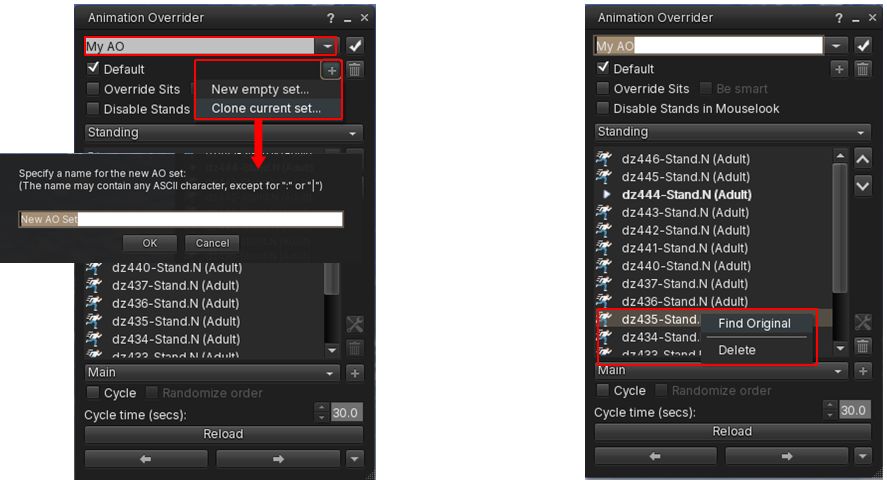
Left: cloning an Animation Set in the Firestorm Animation Override; Right: finding animation listed within the Firestorm AO, in inventory. Click for full size, if required.

Inventory Additions and Improvements

Custom Filter Inventory Tabs

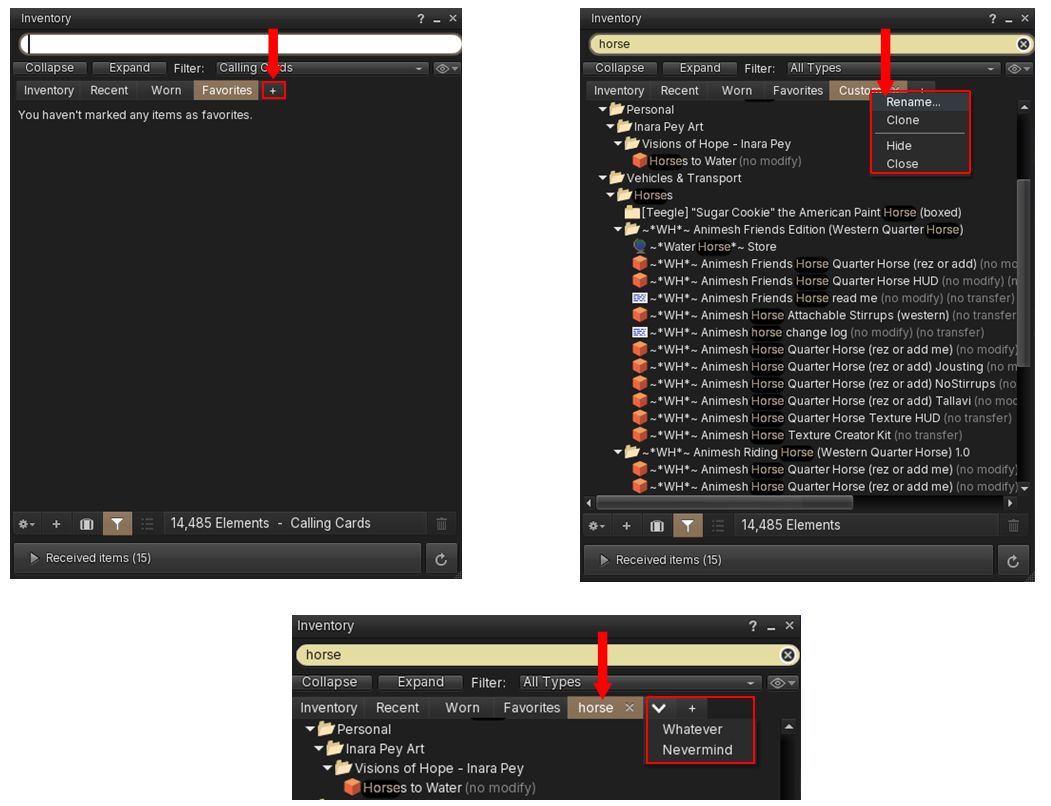
Firestorm 7.2.5 introduces the ability to create up to 64 custom Inventory tabs and use them to display selected items.

  • Click the + button at the top of the Inventory floater at the end of the tabs (Inventory, Recent, etc).
  • A new Custom Tab is created.
  • Use Search / the Filter drop-drop to display selected items.
  • Right-click on a Custom Tab to:
    • Rename it.
    • Clone it to another Custom tab.
    • Hide it.
    • Close (/delete) it – this will lose any associated filtering.
  • Note that:
    • Custom Tabs will persist between log-in sessions and save their search term &and filters.
    • Support full inventory searching and filtering.
    • Hidden Custom Tabs can be revealed as a drop-down list by clicking the down arrow displayed between the default Tabs and the + button.
      • Click on an individual Custom Folder in the drop-down list to unhide it.
    • By default, when closing a custom Tab, a pop-up is displayed warning that the associated search filtering will be lost. This can be disabled by:
Top Left: the Custom Tab button; Top Right: Custom Tab displaying results for a simple search (“horse”), and options available when right-click the Tab name; Bottom: a renamed Custom Tab and the drop-down for hidden Custom Tabs. Click image for full size, if required
Wearable Favourites: Filtering via Folders

The Firestorm Favourite Wearables floater now supports filtering via different folders. This allows you to:

  • Create labelled views of the Favourite Wearables floater as drop-down choices.
  • Assign items in All Favourites to a defined custom folder by right-clicking on it within a list (e.g. All Favourites) and then selecting Assign to Folder → folder name, or by dropping them into a custom from Inventory,
  • Rename and delete custom folders as required.
  • Example use: create a custom folder for all your HUDs contained in Favourite Wearables and then filter on that when looking for a specific HUD.
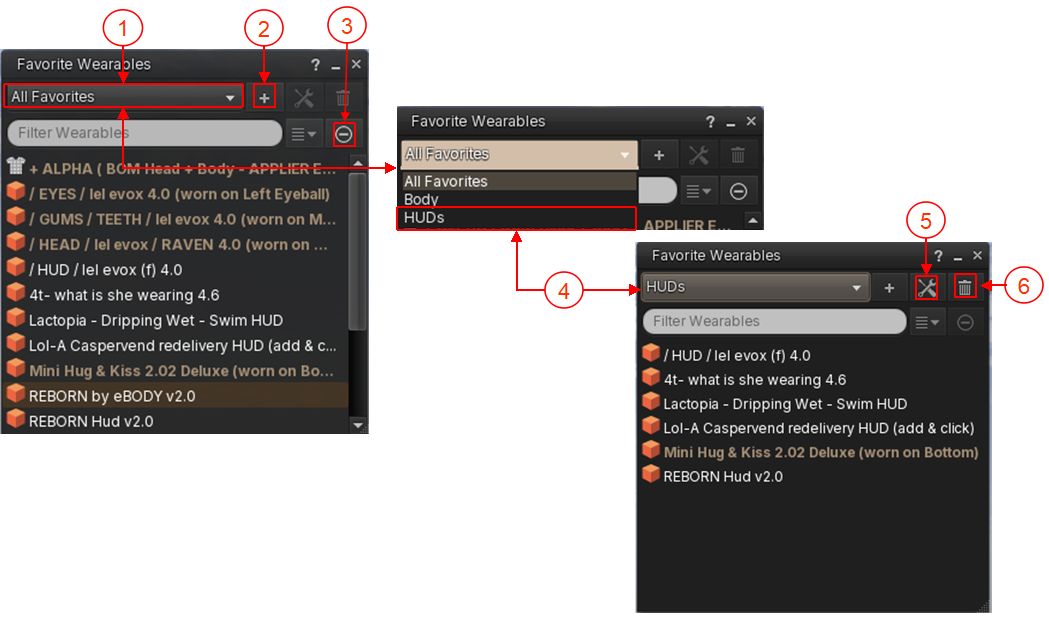
Favourite Wearables Updates: 1. New drop-down list of available views showing default All Favourites; 2. Button for creating a new View – this will prompt for a folder name name; 3. New button for deleting a Favourite link from ANY view; 4. Using the drop-down to display the view of a custom folder; 5. Rename currently display custom folder; 6. Delete currently displayed folder view. 

General Notes:

  • Folders created using the Favourite Wearables floater will be listed under #Firestorm → #Wearable Favourites (locked) folder.
  • If an item is listed in more than one Favourite Wearables folder, it will only appear once in the All Favourites view.
  • If a custom folder is deleted, it will not delete the corresponding links in All Favourites or the original items in Inventory.
  • Preserves current folder view after assigning items.
Additional Inventory and Appearance Features / Updates
  • New: alphabetical and newest-first sort options to Outfits menu – top menu → Avatar → Outfits → Outfits tab → Show sorting options.
  • New:  Copy Name to Inventory context menu for copying folder or item names.
    • Right click any inventory item or folder → Copy Name.
    • Use paste to paste name into new folder  / object name field.
  • New: Hide the Inventory Library folder – will hide the Library folder in the Inventory Folder.
    • Inventory floater → Gear button (bottom left) →  Tabs & Views →  uncheck Show Library to hide / check to show.
    • Note this will also hide the Library from the texture picker when editing objects, the load sky and water picker in the day/night cycle floater, and the My Environments floater (World → Environments → My Environments).
  • New: Custom colours for avatar clouds: two new Preferences options to customise the colour of the avatar loading / bakefail clouds:
    • Preferences → Firestorm → Extras → Avatar loading/bakefail cloud colour – set Start and End colours.
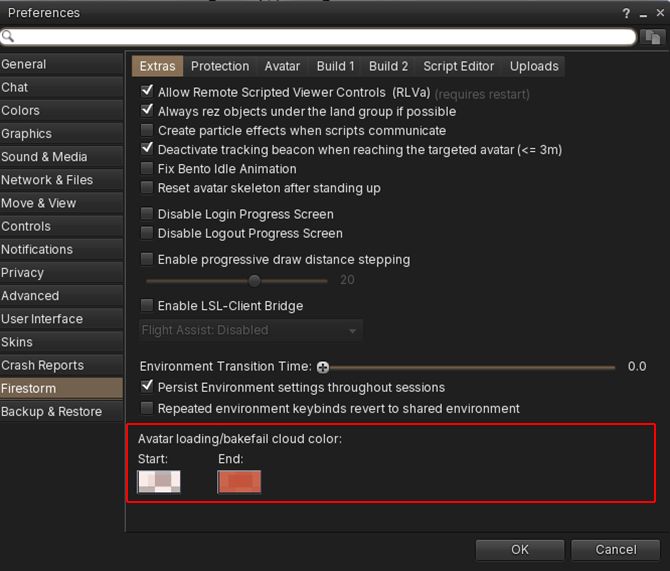
The new avatar loading / bakefail colour pickers in Preferences
  • Improvement: Inventory Gear button options have been reorganised into cleaner submenus.
    • Inventory floater → Gear button (bottom left).
  • Numerous Inventory and appearance / outfits improvements and fixes – please refer to the release notes.

Creation & Building – New Features

Colour Controls for Build Gizmo

Improved access for the visually impaired:

  • Choose custom colours for the X, Y, Z movement axes and rotation rings in the Build Gizmo, and for the stretch handles on an object.
  • Customise the background colour for the position / rotation / scale information at the top of the screen when editing an object and set whether it should be shadowed or not.
  • Increase or decrease the Gizmo’s size (scale).
  • Set via: Preferences → Firestorm → Build 2 → Build X/Y/Z axis appearance.
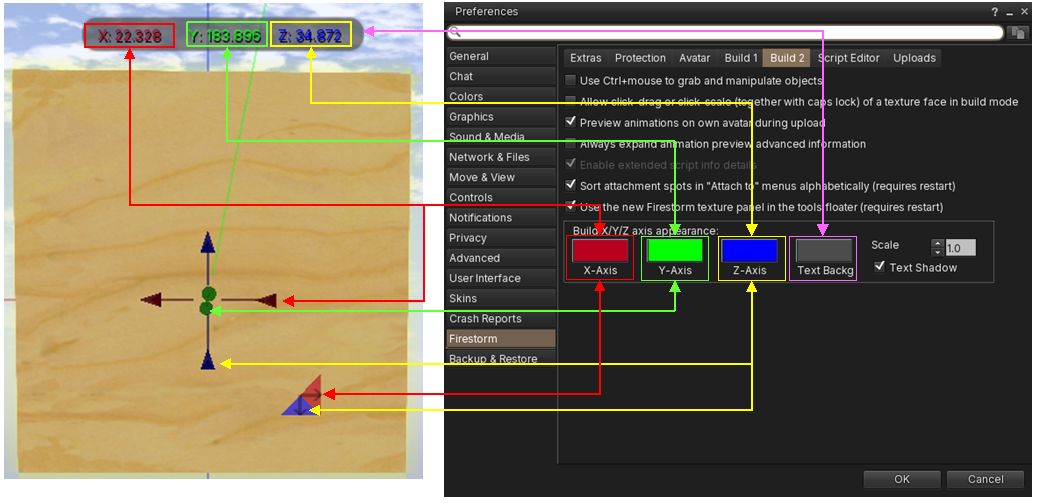
Left: The Build Gizmo and object information; Right: Preferences options for changing the Gizmo colours, and also for scaling it, setting the background colour for the informational text and whether or not that text is shadowed.
Create Notecard in Object Contents
  • Create new notecards directly in the Contents of an object.
    • Edit object → click Contents tab → click New Notecard.
General Updates for Content Creation
  • Prim count has been returned to the Build floater and is displayed next to land impact.
  • Live byte counter added to the lower left corner of Notecards, indicating  how many bytes have been used out of the maximum of 65536 bytes. Notes:
    • When embedding items in a notecard the byte counter won’t update until there is a key stroke after the embedding.
    • The counter may vanish if the notecard floater is made too narrow to display it.
  •  Fixed local mesh skinning issue with glTF rigged mesh to ensure unweighted bones and now filtered and ensure correct remapping.
  • Fixed inconsistent texture picker preview mode

Contact Sets

  • New options for the display of Contact Sets in a Profile’s group list: in the Profile panel groups section, if the avatar is in one or more contact sets you can choose to list the contact sets either at the top or the bottom of the groups list, or not display at all.
    • Comm → Contact Sets → Configure → Global Settings → Contact sets in profile → Below groups list , Above groups list , Hidden.
  • New option for a configurable colour for off-line contacts in the contact sets lists.
    • Top Menu → Comm → Contact Sets → Configure selected contact set → Custom offline contact colour.
  • New option to hide people icons in Contact Sets lists.
    • Top Menu → Comm → Contact Sets → Configure selected contact set → Show people icons in Contact Sets lists.
  • New “?” help link to the wiki in Contact Sets configuration window.
    • Top Menu → Comm → Contact Sets → Configure selected contact sets gear menu → ?.
  • Contact Sets are now sorted by online contacts first in several Contact Sets views: by online status first (online at top), then by name for All-Sets, No-Sets, Pseudonyms and Non-Friends.

Quality of Life Improvements

  • Chat link safety improvements: labelled and bracketed chat links now have clearer hover previews, helping residents see where a link is going before clicking it. This is intended to make chat links easier to inspect and harder to misuse.
    • Hover previews for labelled chat links are now enabled by default.
    • Link hover expanding/unmasking function is now larger with an instant preview in tooltip.
    • New separate options for nearby chat and other chat contexts:
      • Preferences → Firestorm → Protection → Preview real URL of bracket links in IMs and group chat (on hover)
      • Preferences → Firestorm → Protection → Preview real URL of bracket links in nearby and object chat (on hover)
    • Added special handling for Second Life and hop links so they remain visibly labelled.
    • The Firestorm icon is now used for Firestorm trusted links, instead of the LL Eye-in-Hand icon.
  • New option to set a default fallback group tag when entering unassigned regions:
    • Display Groups (Ctrl-Shift-G) → Group Titles → Click Group to be set as Default → click Set as Default.
    • A ✓ is displayed next to the chosen default Group. Title.
    • This Group tag will then be used when entering any region without an assigned Group tag (see Firestorm 7.2.4 – Region-Based Group Activation.
    • There is also a new checkbox to toggle the option off/ on.
  • Voice capture/device handling: while voice is enabled, your operating system may show the microphone as being in use for the duration of the voice session rather than only while actively speaking.
  • Exposed colour swatch for group chat history that comes from the server – this allows changing the default “muted green” colour of the recent messages fetched from group chat servers when a group window opens.
    • Preferences → Colours → Chat Colour → Group chat history from server
  • Improved Group Titles search – the Group Titles filter field previously only allowed searching for the group role title. Now you can additionally search for region name and group name in the Group Titles filter field.
  • Your home location is now displayed in the “Teleport Home” navigation bar button tooltip.

Other Notable Updates

  • Omnifilter: a flexible, client-side message filtering and response helper built into the Firestorm viewer. It allows you to define custom rules that inspect incoming messages and, when a match is found, provide predefined actions such as text replacement or automated script dialog replies.
    • Firestorm 7.2.5 brings significant updates and improvements to Omnifilter, to extensive to cover in an overview.
    • Please refer to the release notes for Firestorm 72.5 and to the Firestorm Omnifilter documentation.
  • CmdLine: enables the use of the chat bar as a command line.
    • Firestorm 7.2.5 brings significant updates and improvements to Omnifilter, to extensive to cover in an overview.
    • Please refer to the release notes for Firestorm 72.5 and to the Firestorm CmdLine documentation.
  • Music & Media:
    • Stream title history: the number of entries is now configurable with a spinner to choose Max. Entries: added a Clear button to clear the stream title history list; added a Copy to Clipboard” button – Selected lines from stream title history can be copied to clipboard – Top Menu → World → Stream Title → History.
    • The visibility of stream title windows now persists across sessions.
  • UI Skinning and Fonts:
    • AnsaStorm Modern Skin – utilises the LL “Flat UI” – see Flat UI notes earlier in this overview.
    • New font – Inter Tight – Preferences → User Interface → Font → Font Scheme → Inter tight.
    • Inter Tight fonts have more spacing above and below the text which is causing multi-line text like Script Dialog windows to appear larger than before, so a new Preferences option has been added for user-defined line spacing: Preferences → User Interface → Font → Line spacing (requires restart).
    • Major refactoring of terminology within the UI (e.g. Blocked for Muted) – please refer to release notes.
    • Numerous updates and fixes – please refer to the release notes.
  • RLVa: various fixes, as per the release notes.

In fact, everything else – please refer to the release notes; due to matters of a late release notification coupled with RL requirements, this overview has been somewhat rushed. My apologies for that.

Firestorm 7.2.4 release overview

On Monday, June 1st 2026 (SLT), Firestorm released version 7.2.4.80712 of their viewer.

This release brings Firestorm into line with most of the recent releases of the official Second Life viewer (SLV) up to and including release 26.1.0, with additional cherry-picked updates from upstream.

Note that the following is not a complete review of the 7.2.4 release and all the changes made therein; it focuses on the more visible and user-facing updates. Those requiring a list of all changes and updates, including all bug fixes, etc, should refer to the Firestorm 7.2.4 release changelog, which also provides all proper credits for the work.

Table of Contents

General Notes

Installation

  • Only download Firestorm from the Firestorm website. Do not utilise any other third-party site purporting to offer the Firestorm viewer, and remember Firestorm will never ask for log-in credentials in order to download a release version of their viewer.
  • There is no need to perform a clean install with this release if you do not wish to.
  • Do, however, make sure you back-up all your settings safely so you can restore them after installing 7.2.4.

Linden Lab Updates

This release brings Firestorm to full parity with the following recent official viewer releases from Linden Lab.

Viewer 26.1.0 – Stability and Legacy Search

Version and release notes:  26.1.0.22641522367 – March 2026.

  • The ability to hide transparent reflection probes via Build Menu → Options → Highlight Transparent Probes or pressing ALT-SHIFT-T.
  • Quality of Life improvements:
    • Gestures (Comm Menu → Gestures or CTRL-G): now includes a sortable “Status” column. Click the leftmost column to move all active gestures to the top of the list.
New Gestures ordering column will re-order gestures for either active to top or inactive to top (requires Firestorm’s Show Active Only at the bottom of the floater to be disabled)
    • Camera controls have multiple improvements, including better aspect-ratio handling and a shortcut for panning the camera downward.
    • Improved outfit list performance, especially for larger wardrobes.
    • Restored support for avatar cloth: Developer Menu → Rendering → Render Animated Avatar System Cloth.
  • Bug fixes.
  • Elements already offered by Firestorm:
    • Re-implementation of Legacy Search, added to the World menu (Firestorm has been utilising a Legacy Search capability, however please read Search-Related Updates / Improvements, below).
    • Ability to search the Resident Chooser using Agent ID (agent key).
    • Ability to save Snapshot to Inventory at 1024×1024 as a selectable resolution.

Viewer 26.1.1 – Special Note

  • The Second Life viewer release 26.1.1.23806384790 (April 2026) implemented a new one-click installer feature for the official viewer.
  • Firestorm is not implementing this feature, so nothing from this release is relevant to Firestorm users.

Upstream Fixes included with 7.2.4

  • WebRTC:
    • Fixed WebRTC connection’s task outliving the connection (LLVoiceWebRTCConnection) – Github issue.
    • Fixed WebRTC voice being muted after quickly toggling the Speak button – Github issue.
    • Fixed incoming WebRTC voice audio being disrupted after editing audio settings – Github issue.
    • Fixed voice-disabled parcel does not immediately transmit audio after joining a p2p call – Github issue.
    • Fixed P2P text chat timeout on WebRTC regions and delay voice renegotiation on disconnect – Github issue.
  • General fixes:
    • Fixed “Quick Jump” sometimes being enabled when it shouldn’t be (due to race conditions with AGENT_CONTROL_FINISH_ANIM when chaining jumps). This corrects a issue for the Ponygirl community, where use of Quick Jump is usually banned; see FIRE-34049.
    • Fixed alpha debug overlay blend and mask conflict – see FIRE-36474.
    • Fixed PBR materials with alpha mode BLEND and alpha value of 0 are not highlighted – see FIRE-36363.
    • Fixed the default save location on Mac is the Resources file of the current viewer – see FIRE-36609.

New Features for 7.2.4

Avatar Alignment and Facing Tools

To facilitate better alignment for facing other avatars for things like hugs and kisses – or simply as a courtesy when chatting – or for fine-tuning facing a specific direction, Firestorm 7.2.4 implements new tools and avatar alignment / facing options.

  • Avatar Alignment Compass:
    • Accessed via a new toolbar button.
    • Provides options for turning your avatar and facing specific directions (per the diagram below).
The Avatar Compass for aligning your avatar to a given point (or nearest avatar), and the toolbar button used to access the Compass
  • Face Nearest Avatar toolbar button

    Face Nearest Avatar: a new toolbar button which will turn your avatar to face the nearest avatar to you within 20 metres. This is supported by the following Face Towards Avatar option found on the following menus / floaters (avatars must be within 20 metres):

    • Context / Pie menus: when right-clicking on a nearby avatar.
    • People floater: when right-clicking on the name of an avatar.
    • Radar avatar list: when right-clicking on the name of an avatar.
    • Minimap or Radar minimap: when right-clicking on the green dot for that avatar.
  • General Notes when trying to align your avatar with another for hugs, etc:
    • One person right-clicks on the other avatar and selects Face Towards Avatar.
    • The other person does the same to get both avatars initially aligned.
    • The first person right-clicks on the other avatar again and selects Face Towards Avatar to fine-tune alignment.

Region-Based Group Activation

  • Allows you to set a Group to become automatically active when entering a region.
  • Accessed via the Groups panel (Comm Menu → Groups or CTRL-SHIFT-G).
  • To set a Group to become active for a region whilst physically within the region:
    1. Open the Groups panel in your viewer and click on the Group Titles button to display the Group Tiles floater.
    2. Click on the required Group name in the Group Tiles floater to highlight it.
    3. Click the This Region button.
  • To set a Group to become active in a region when not in said region:
    1. Follow steps 1 and 2 above.
    2. Click on the Type Region button.
    3. Enter the exact region name in the pop-up prompt, and click OK to apply.
Setting a Group to become active on entering a region. 1) From the Groups panel (CTRL-SHIFT-G), click Group Titles to open the Groups floater. s) In the Groups floater click a Group name to highlight it. 3) If you are within the region in which the Group is to be active, click This Region; if you are elsewhere in SL, click Type Region and enter the region name at the prompt, then click OK
  • To remove Group selection when visiting a region:
    • Open the Groups panel in your viewer and click on the Group Titles button to display the Group Tiles floater.
    • Click on the required Group name in the Group Titles floater to highlight it.
    • Click the Clear Region button.

Added Protection: Disable URL Masking

  • Preferences → Firestorm → Protection → Disable square-bracket links in chat (URL stays visible).
  • When enabled, square-bracket links sent in chat, IM, group notices and object text from other Residents are not collapsed into a single labelled link – the actual URL is shown and linked.
  • This helps reduce phishing where the visible label hides a different destination.
  • Built-in viewer text (notifications, preferences, etc.) is not affected

Other Notable Updates / Improvements

Preferences Updates

  • Group IM Tabs by Conversation Type: it is now possible to order the appearance IM tabs in your Conversations floater by type.
    • Go to Preferences → Chat → Chat Windows.
    • Check Order IMs by Type and then select your preferred IM order from the drop-down, where:
      • Groups, Conferences, IMs will display all Group IM tabs first, then any Conference session IMs then any person-to-person IMs.
      • Groups, IMs, Conferences will display all Group IM tabs first, then any person-to-person IMs then any Conference session IMs.
      • And so on through the displayed drop-down list.
    • Once set, any incoming IMs will be appended to the relevant group of tab (so any new Group IM will appear at the end of the grouping of that type of IM), rather than just appearing at the end of the list of open IM sessions.
    • Alternatively, you can check Add New IMs First ad have new IM tab open at the top of their respective grouping.
    • Once set, the ordering will persist across log-ins until changed. 
New Preferences options and drop-down for ordering the appearance of IM tabs in the Conversations floater
  • Updated options for de-selecting chat: you can now opt to de-select chat in third-person viewer and / or when in Mouselook after sending a message –  Preferences → Chat → Typing → Deselect Chat after Sending Message + sub-options.
  • Sounds & Media:
    • The “Buttons” sliders in Preferences → Sounds & Media → Sounds and the volume control drop-down (top right of the screen) have been renamed to “Interface” for clarity.
    • Preferences → Sounds & Media → UI Sounds has been refactored from 3 individual panels (UI Sounds 1, 2, 3) into a single scrolling list of UI sound options. Also added to the panel is:
      • The ability to double-click on a sound entry to hear a preview of the sound.
      • The ability to right click a sound entry and Copy sound UUID
    • A new option to play a sound when someone uses nearby chat: Preferences → Sound & Media → UI Sounds → New Nearby Chat Message.
  • Viewer colours and Opacity: new option to set semi-transparent menu backgrounds:
    • Preferences → Colors → Miscellaneous → Menus Background Opacity.
    • This controls the opacity of context menus and top menu bar background where 0.0 = fully transparent and 1.0 = fully opaque.
  • Time format updates:
    • New Time Format drop-down in Preferences →  General →Time Format to change the appearance of chat timestamps between 12-hour and 24-hour formats.
    • This option includes a link to User Interface → Top Bars → Time Format to direct those wanting to change the the format of the time ( 12-hour or 24-hour) displayed in the the viewer window’s clock display (top right corner of the viewer).
    • Preferences → User Interface → Top Bars → “Time Format” has been renamed to “Clock Format” to better indicate it refers to setting the clock’s time format.
Time / Clock Preferences options: Left – the new option for setting the format for time stamps in local chat, etc, together with a link to: right – the renamed option for setting for format of the clock in the top right of the viewer window.

Search-Related Updates / Improvements

  • LL and Firestorm Legacy Search:
    • Linden Lab’s implementation of Legacy Search is used by default in Firestorm 7.2.4.
    • To continue to use the Firestorm Legacy Search implementation:
      1. Open the viewer’s Debug Settings floater (Advanced Menu → Debug Settings).
      2. Enter FSUseFSLegacySearch into the floater’s search filter.
      3. Enable the TRUE radio button.
      4. Close the Debug Settings floater.
      5. Close and re-open the Search floater if required. On re-opening Search, the Firestorm Legacy Search floater should be displayed.
    • To switch back to used the LL Legacy Search floater, repat the steps above, but set FSUseFSLegacySearch to FALSE.
    • The following have been added / ported to the LL Legacy Search implementation to offer matching functionality with the Firestorm Legacy Search:
      • An Open Profile button has been added to the People / Group searches.
      • Ability to search via Agent ID in People Searches.
    • There are multiple additional fixes and improvements to Legacy Search – see Legacy Search in the changelog.
Firestorm 7.2.4 uses the LL implementation of Legacy Search (left), with some additional refinements – such as an Open Profile button for People searches (ringed). The Firestorm Legacy Search, with numerous improvements and clean-up, can be used via the FSUseFSLegacySearch debug setting
  • Area Search: Copy functionality added to Area Search results using keyboard shortcuts to copy selected rows from the Area Search results list to the system clipboard in tab-separated format.
    • CTRL-C: copies selected rows to the clipboard.
    • CTRL-A: select all items in results list.
    • Copied information is in tab-separated format for easy pasting into spreadsheets, can paste directly in Excel/Google Sheets, and includes header row with column names.
  • Gesture floater: a Search field has been added to the Gestures floater (Comm Menu → Gestures or CTRL-G).
  • World Map Region Search: region maturity rating (G, M, A) has been added to the names of regions returned in a search.

Firestorm Animation Override and Avatar Poser

Multiple update to the above, for details please refer to the following changelog entries:

Building and Scripting

Contact Sets Updates / Improvements

  • Drag and drop capability:  enables dragging-and-dropping name into a Contact Set from the Friends list and calling cards. See FIRE-31146.
  • Names can now be moved between Contact Sets.
    • Contact Sets → Move This Avatar to Another Contact Set.
    • See FIRE-34543.
  • Search/filter field has been added to Contact Sets.
    • Contact Sets → Filter people bar.
    • People → Contact Sets → Filter people bar
    • See FIRE-17568.
  • People in your Contact Sets can now be highlighted as such in your Friends list.
    • Contact Sets → Configure selected Contact Set → Custom Colors → Color friends list entry based on their Contact Set.
    • See FIRE-32748.
  • Sort Contact Sets by people’s On-line status:
    • Contact Sets → Configure Selected Contact Set → Sort by Online Status.
    • See FIRE-21531.
  • Set custom Autoresponse messages to Contact Sets.
    •  Contact Sets → Configure selected Contact Set →select one of:
      • Use custom Busy-mode Autoresponse for This Set.
      • Use custom Autoresponse-mode message for This Set.
      • Use custom Non-friends Autoresponse for This Set.
    • See FIRE-17006.
  • It is now possible to bulk apply Set Alias in Contact Sets. See FIRE-31777.
  • Contact Sets are now supported in the Avatar Picker. See FIRE-34809.
  • If an avatar is in one or more of your Contact Sets, you will see those Contact Sets listed below their Groups list when viewing their Profile. See FIRE-32401.
  • Quality of Life Contact Sets improvements and fixes.

And the Rest

For information on RLVa updates, OpemSim updates, skinning & translations, performance and stability updates, viewer build Improvement and Fixes in the changelog for details.

Feedback

I’ve been using the various beta release of this version of Firestorm – and most notably 80712 since it was made available and have found it as stable and reliable as the previous release version. While I’m not aware of specific performance boosts (and so this could be purely subjective). this version does appear to load my home location in SL a lot more smoothly than 7.2.2.80036. Of the new / updated features, I like the Firestorm implementation of LL’s Legacy Search – if only because I no longer have to click over the the People tab (my usual Search option) when opening the floater. The avatar alignment / facing addition is rather neat and the region-based Group activity is handy for making sure rezzing rights are maintained when hopping around regular haunts where I have said rights.

As to the rest, I leave it to you.

Firestorm 7.2.2 release overview

On Tuesday, November 11th 2025 (SLT), Firestorm released version 7.2.2.79439 of their viewer.

The primary aim of this release is to achieve parity with the Lab’s most recent releases and to add further updates to features added to the June 2025 Firestorm 7.1.13 release.

Note that the following is not a complete review of the 7.2.2 release and all the changes made therein; it focuses on the more visible and user-facing updates. Those requiring a list of all changes and updates, including all bug fixes, etc, should refer to the Firestorm 7.2.2 release changelog, which also provides all proper credits for the work.

Table of Contents

General Notes

Installation

  • Only download Firestorm from the Firestorm website. Do not utilise and other third-party site purporting to offer the Firestorm viewer, and remember Firestorm will never ask for log-in credentials in order to download a release version of their viewer.
  • There is no need to perform a clean install with this release if you do not wish to.
  • Do, however, make sure you back-up all your settings safely so you can restore them after installing 7.1.11.

Linden Lab Updates

This release brings Firestorm to full parity with the following recent official viewer releases from Linden Lab:

Viewer 2025.04 – Chat Mentions

Version and release notes:  2025.04 – 7.1.14.15192634334 – May 2025.

  • Chat Mentions: support for chat mentions allowing  for better communication and awareness in local chat.
    • Type @ in any chat then pick a name from those listed, add your message and Say. Your text chat will be preceded by the selected avatar’s name displayed as a clickable link visible to everyone in local chat range, and which will open that person’s Profile.
    • Firestorm options:
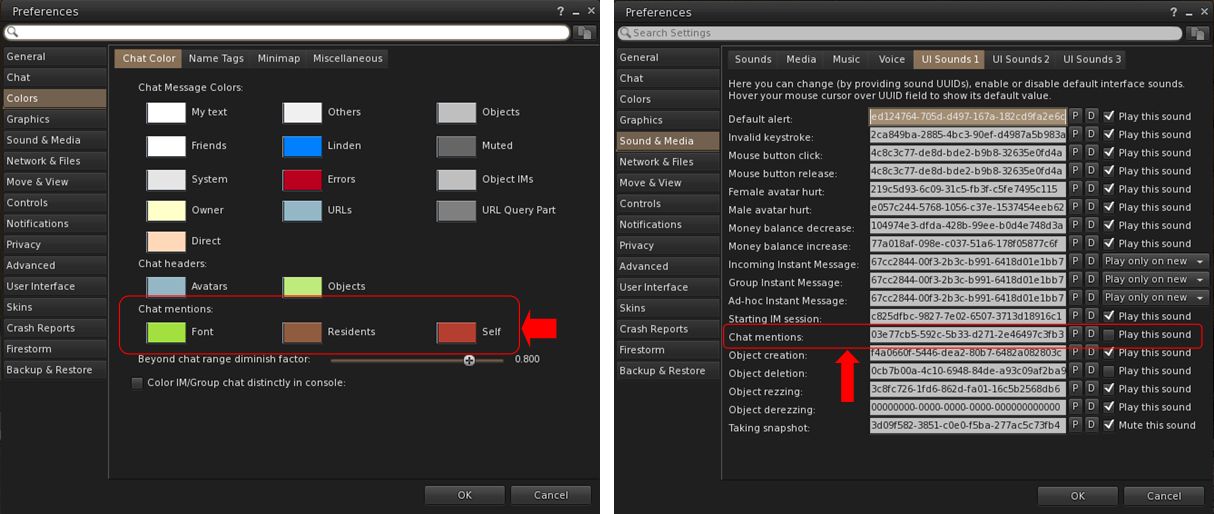
      • Set chat mention colours for Font, Residents and Self: Preferences → Colors → Chat Color → Chat Mentions.
      • Set audible tone for chat mentions using your name: Preferences → Sound & Media → UI Sounds 1 → Chat Mentions.
Chat Mention options available in Firestorm. Left: setting the colours in which chat mention links will appear; right: setting a sound to be associated with your chat mentions
  • Outfit Subfolders: the Outfit system folder now officially supports the use of subfolders.
  • Hover Height now supports new +/- 3 metre minimum/maximum values.
  • Build improvements:
    • Texture scale boundaries have been increased to match Firestorm Viewer – Canny Bug, GitHub Issue.
    • Physics Material Type now updates when selecting linked objects – Canny Bug, GitHub Issue.
    • Resolved texture “repeats per meter” value being incorrect for non-uniform sized objects – GitHub Issue.
  • Refer to the official release notes for all major updates and fixes.

Viewer 2025.04.01 – Avatar Welcome Pack

Version and release notes: 2025.04.01 – 7.1.15.15596336374 – June 2025.

  • Replacement of the old Avatar Chooser with the Avatar Welcome Pack, accessed via Menu Bar → Avatar → Avatar Welcome Pack.

Viewer 2025.05 – glTF Mesh Imports (.gltf and .glb)

Version and release notes: 2025.05 – 7.2.0.16729091892 – August 2025.

  • Support for glTF mesh imports, together with enhanced frame time metrics.
    • Allows content creators to import models in .gltf and .glb formats in a process to COLLADA uploads, with a few key differences.
    • A unified material upload for the .glb format is not yet supported (due in a future viewer update). To upload .glb models containing material, upload the model without any textures, then upload the materials separately via Upload Build → Upload → Material and then rez the model in-world and apply the materials.
  • Refer to the official release notes for all major updates and fixes .

Viewer 2025.06 – Inventory Favourites

Version and release notes: 2025.06 -7.2.1.17108480561 – August 2025.

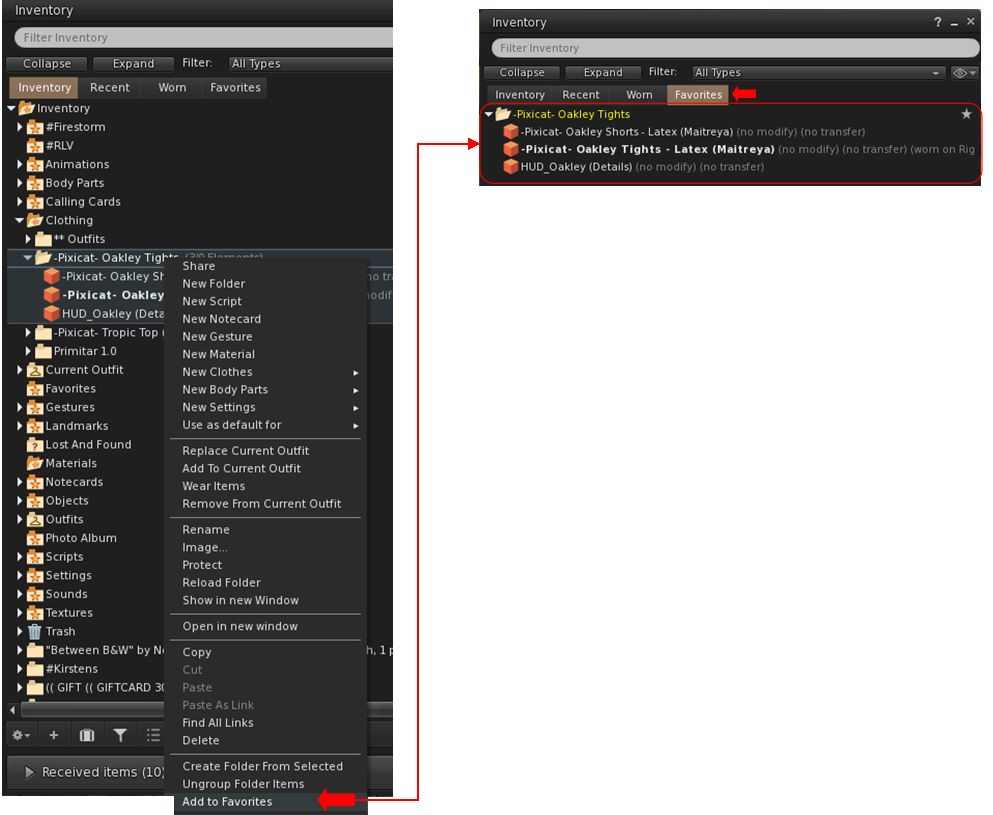
  • Adds the Favourites tab to the Inventory floater.
    • Supports the addition of individual items or folders in Inventory to the Favourites tab in the floater.
    • To add an item / folder to the Favourites tab:
      • Right click on the item or folder.
      • Select Add to Favourites in the context / Pie menu.
Inventory Favourites has been included from the official viewer, but doe not replace Firestorm’s own Favourite Wearables functionality
    • To remove an item / folder from the Favourites tab:
      • Locate the item / folder in Favourites or the original in the main Inventory tab.
      • Right-click on it and select Remove From Favourites in the context / Pie menu.
    • Note, this functionality is entirely separate to Firestorm’s Favourite Wearables feature, which remains in place in Firestorm, complete with its own toolbar button option.
  • Additional updates and improvements:
    • Assorted Avatar System fixes.
    • Camera and movement improvements.
    • Chat and Voice chat improvements.
    • UI Fixes.
    • Content Creation and Commerce improvements.
    • Environment improvements and fixes.
    • Mesh Uploader updates.
    • Refer to the official release notes for all the above updates and fixes .

Cherry-Picked Upstream Fixes from the Official Viewer

  • The Voice and WebRTC Reliability changes included in the official 2025,07 – 7.2.2.18475198968 viewer release have been added to Firestorm 7.2.2 at the request of Linden lab.
  • These changes comprise:
    • Improved device detection and recovery when unplugging/replugging microphones.
    • Fixes for several rare WebRTC crash scenarios, together with improved Voice clean-up and logging.
    • In world Voice indicator now properly reappears after tuning.
    • Fixed voice clean-up and device update crash on reinitialization.
  • All remaining updates and changes found within the 2025.07 official viewer release will be included in the next Firestorm release.

Firestorm Updates

New Features for 7.2.2

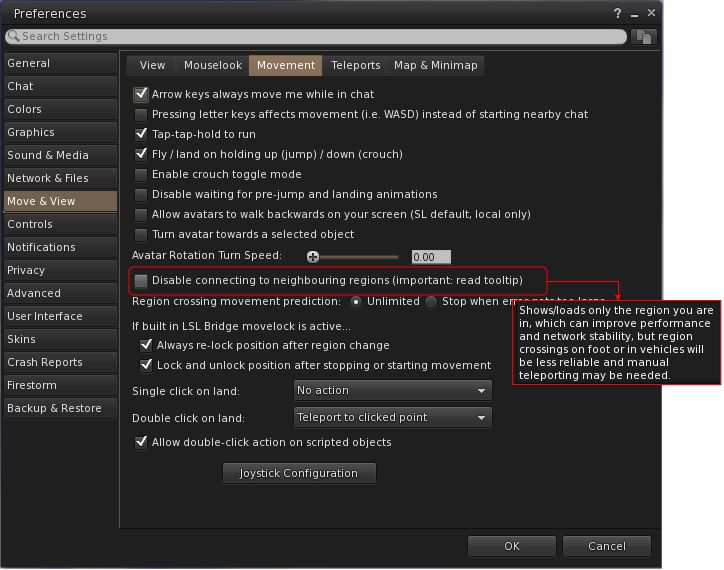
Disable Connecting to Neighbouring Regions (Navigation and Teleporting)
  • Preferences → Move & View → Movement → Disable connecting to neighbouring regions.
  • Request: FIRE-2325.
  • When enabled:
    • Prevents the viewer from connecting to neighbouring regions (which are ignored by the viewer), and only the current region (login/teleport destination) is connected, effectively isolating it.
    • This may improve performance for users with weaker computers or slower connections, assist multi-region event setups by lowering client overhead and reduce unintended neighbour interactions.
The new Preferences option to disabling the viewer from connecting to neighbouring regions, complete with the tooltip, which should be read to understand the implications
  • Limitations:
    • Region crossings will not function normally, as neighbouring regions are not visible or connected to the viewer.
    • Only direct teleports and logins to regions will work reliably.
    • The sense of world scale and continuity is reduced, and travellers or explorers may find it limiting.
New Imposter / Avatar Imposter Exclusions (Inventory / Avatar Appearance)
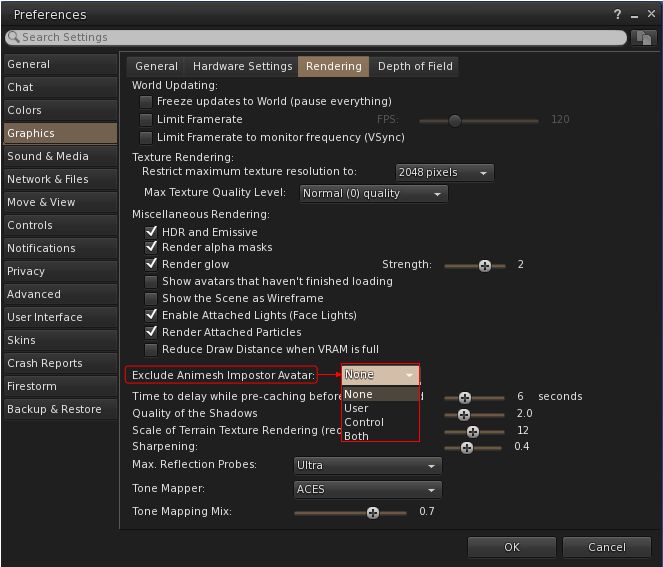
  • Preferences → Graphics → Rendering → Exclude Animesh Impostor Avatar.
  • Request: FIRE-35735.
  • When selected, allows a user to keep using the imposter system, but protect Animesh avatars from not animating or from having rendering issues (e.g. missing attachments).
The new Impostors option for protecting Animesh avatars from not animating or from having rendering issues
  • Comprises four options:
    • None: Default, don’t exclude any avatars.
    • User: Exclude only user avatars which have Animesh attached to them.
    • Control: Exclude only control avatars.
    • Both: Exclude both User Animesh avatars and control avatars.
New Snapshot Framing Guides and Settings (Photography / Snapshot Floater)
  • The snapshot frame overlay and composition guides were added to the Snapshot floater with Firestorm 7.1.13.
  • They allow the user to:
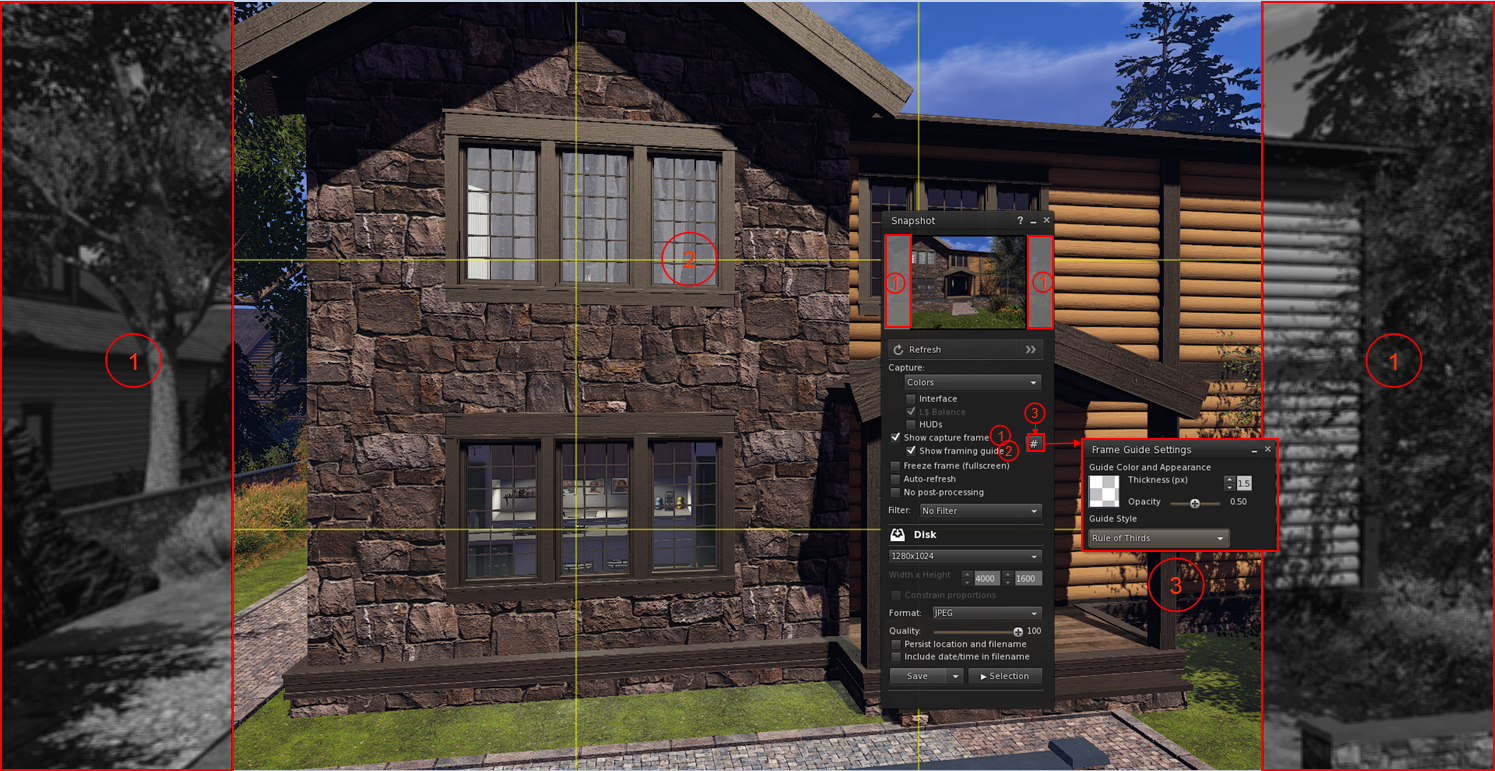
    • Overlay their in-world view with a frame mirroring the selected image size selected from the relevant image size drop-down, with the parts of the in-world view outside of the image capture size rendering in monochrome (Show Capture Frame)
    • Optionally display a composition guide overlay as a set of yellow lines within the image frame on their world-view.
    • Use a series of Debug settings to customise the snapshot frame.
  • Firestorm 7.2.2 enhances these frame overlays and guides with additional options, access via a  new # button.
  • When clicked, this button allows the user to:
    • Adjust the thickness and opacity of the frame guides displayed in-world by the viewer without having to use the Debug Settings.
    •  Select from an expanded down-down of guide styles:
      • Rule of Thirds.
      • Golden Ratio: – one of Top Left, Top Right, Bottom Left or Bottom Right .
The Snapshot floater showing the frame overlay option (1) and the yellow composition guide (2) using the Rule of Thirds, added to the floater as a part of the Firestorm 7.1.13 release. Also shown is the new Firestorm 7.2.2 # button (3) which opens the Frame Guide Settings floater, allowing the user to customise the frame guides and select from the composition guide drop-down (defined in the text above)- click for full size, if required

Firestorm Avatar and Animesh Poser

The Firestorm avatar and Animesh poser system was introduced with the release of Firestorm 7.1.13 as a re-write of the Avatar poser system developed by NiranV Dean (and found on the Black Dragon viewer). For assorted reasons, that release of Firestorm did not have any associated overview in this blog, therefore for detailed information on it, please refer to the following links:

Firestorm 7.2.2 introduces a large number of improvements and updates to the Avatar and Animesh Poser, all of which are summarised in the viewer changelog, to which those interested are referred to for details.

Other Notable Improvements / Updates

Note: for bug fixes, etc., please refer to the viewer changelog

Inventory, Appearance & Avatar
  • New option to automatically reset skeleton upon standing up, which is also automatically broadcast to surrounding avatars as well: Preferences → Firestorm → Extras → Reset avatar skeleton after standing up.
  • New Stop button on the link replacement floater (Right click inventory item → Replace Links (FIRE-29394).
  • ‘Delete from outfit’ context menu entry when right clicking on an item in an outfit, in the Appearance window, Outfits tab.
    • This is useful for when you mistakenly added some HUD or anything else you didn’t want in your outfit, and is simpler than going inside the inventory and deleting the links from the outfit folder.
    • Note that only links are deleted, not actual inventory items.
    • Accessed via: Appearance → Outfits tab → Right click item → Delete from outfit.
  • Visual warning about too many saved outfits:
    • If a user has a large number of saved outfits, this can cause the viewer to freeze for a short time when opening the Appearance panel or when searching for saved outfits on slower hardware.
    • Therefore, when the user has over 200 saved outfits, they will now see this warning notification:
      A large number of outfits were detected: [AMOUNT]. This may cause viewer hangs or disconnects. Consider reducing the number of outfits for better performance
Radar, Navigation and Teleporting
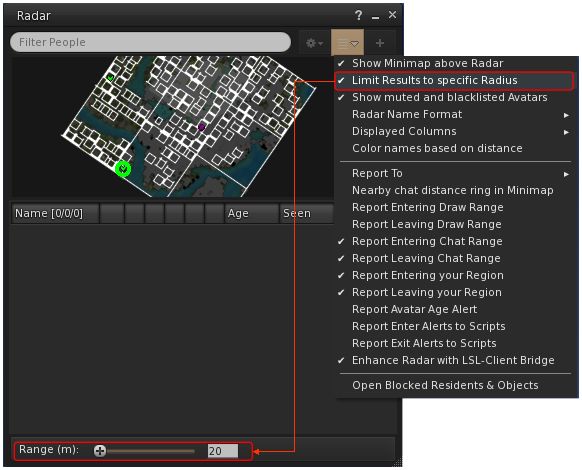
  • New Radar option to set the maximum range for results to be obtained (FIRE-35815):
    • World Menu → Radar (or Radar Toolbar button)→ Radar Options drop-down → Limit Results to specific Radius → open range panel at the foot of the floater.
    • Use the slider to set the desired radius, or manually enter the radius.
Firestorm 7.2.2 radar range option and slider / entry field
  • An option to View Chat Transcripts’ added to the Nearby People and Radar right-click context menu.
  • Option to show yellow beacons at region corners to help avoid region boundary disconnects, especially when driving or flying: Top menu → World → Show More → Beacons → Show → Region Corners (FIRE-33085).
  • The maximum zoom on the World Map has been increased to match the official viewer (FIRE-35934).
Communication + Sound and Media
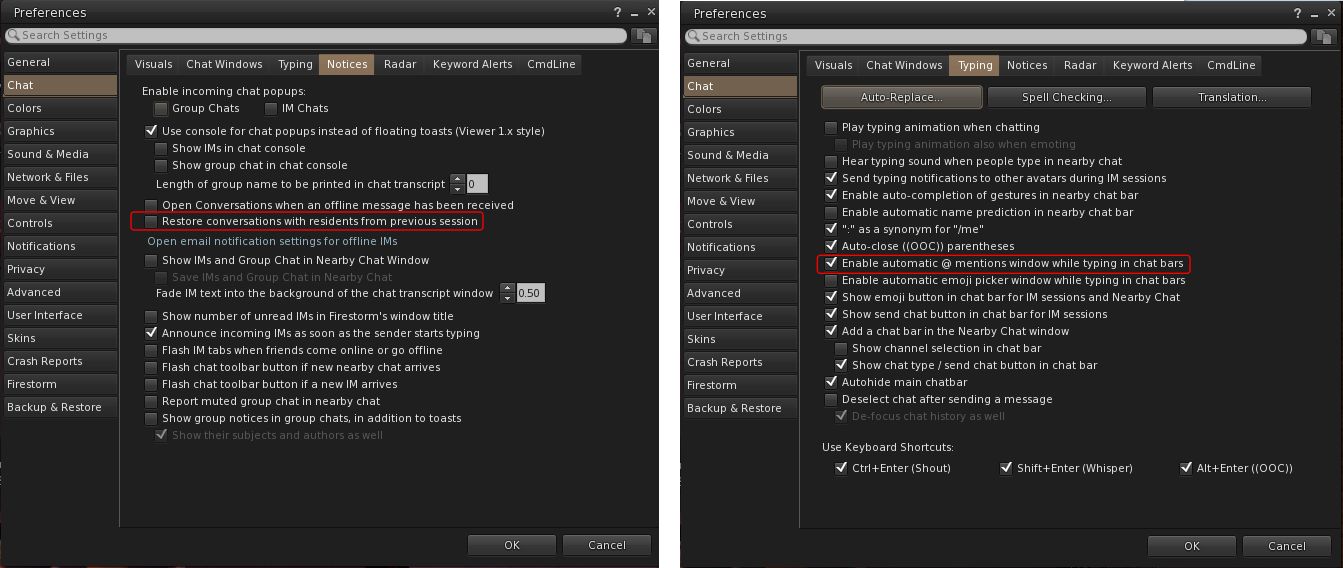
  • Functionality to save and restore open resident-to-resident IMs from the previous session (Group chat sessions are not always ready in time during start-up, making their restoration unreliable): Preferences → Chat → Notices → Restore conversations with residents from previous session.
  • Option to enable / disable auto-completion when typing @ mentions in chat: Preferences → Chat → Typing → Enable automatic @ mentions window while typing in chat bars.
New Chat Preferences to restore resident-to-resident IMs (left) and to enable / disable auto-completion when typing @ mentions (right)
  • Separate conversations opacity options, together with new checkbox to allow the conversation floater to abide by the active opacity when it is focused, so that way it can have its own inactive transparency separate to everything else – FIRE-35804.
    • Preferences → Colours → Miscellaneous → Floating Window Opacity → Conversations.
    • Preferences → Colours → Miscellaneous → Floating Window Opacity → Use Active Opacity value when the conversations window is focused.
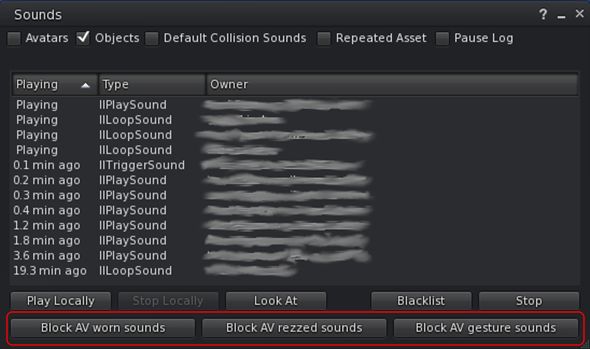
  • Sound Explorer:  new buttons in Sound Explorer to mute all attached, rezzed or gesture sounds for a specific avatar
    •  Muted sounds are re-enabled via the Asset Blacklist.
New Sound Explorer checkbox for muting specific sounds from an avatar
  • Asset Blacklist: new Flags column to the Asset Blacklist to denote if the muted sound is one of  Avatar Worn Object Sounds, Avatar Rezzed Objects Sounds or Avatar Gesture Sounds.
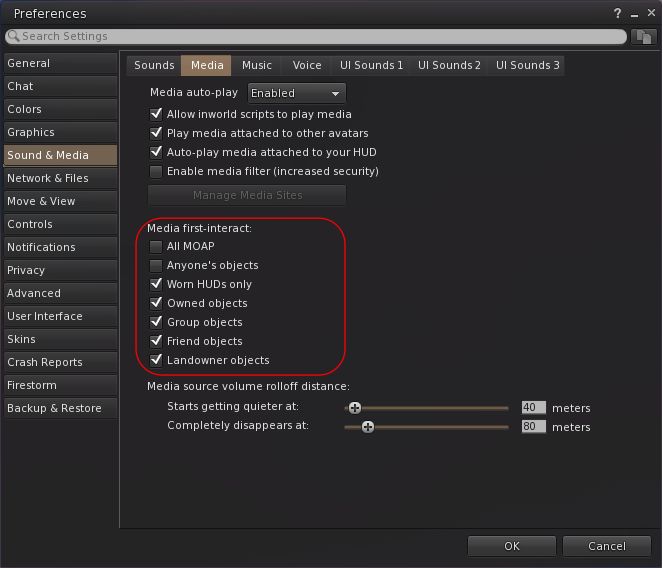
  • Media on a prim (MOAP) interaction option can now be set individually (when set, does not require a first click to focus before interaction can begin): Preferences → Sound & Media → Media → Media first-interact.
Firestorm 7.2.2 MOAP first interaction options
Miscellaneous Updates
  • Show On-Screen Console shortcut revised to ALT+SHIFT+`.
  • Area Search improvements:
    • Added functionality to save Area Search flags and options as defaults when the floater is opened: 
      Top Menu → World → Area Search → Filter Tab → Save as Default.
    • Improvements to more reliably send all objects and not just objects in front of the camera.
  • Camera:
    • Added an option to disable the reset buttons in the camera floaters (prevents the centre bullseye of the orbit and move camera controls from resetting the camera): Preferences → User Interface → Interface Windows → Disable camera controls reset buttons
    • Added a TPP preset button to the added to the right of the front, side & rear buttons on both the small and regular camera floaters – FIRE-32595.
  • Added Default buttons for Preference → Move & View → View sliders for ease of resetting to default values – FIRE-32710.
  • Height of Preferences floater increased for improved readability.
  • Graphics: Draw Distance VRAM Optimization changed to be optional:
    • Preferences → Graphics → Rendering → Reduce Draw Distance when VRAM is full or
    • Top Menu → Developer → Rendering → Reduce Draw Distance when VRAM is full.

Feedback

Sorry, no real feedback from me on 7.2.2, my personal situation has been such that I only managed to try the 79438 beta and the 78439 release less then 24 hours before the release of 79439.

Firestorm on the Official Viewer download page: tipping the balance?

via Linden Lab

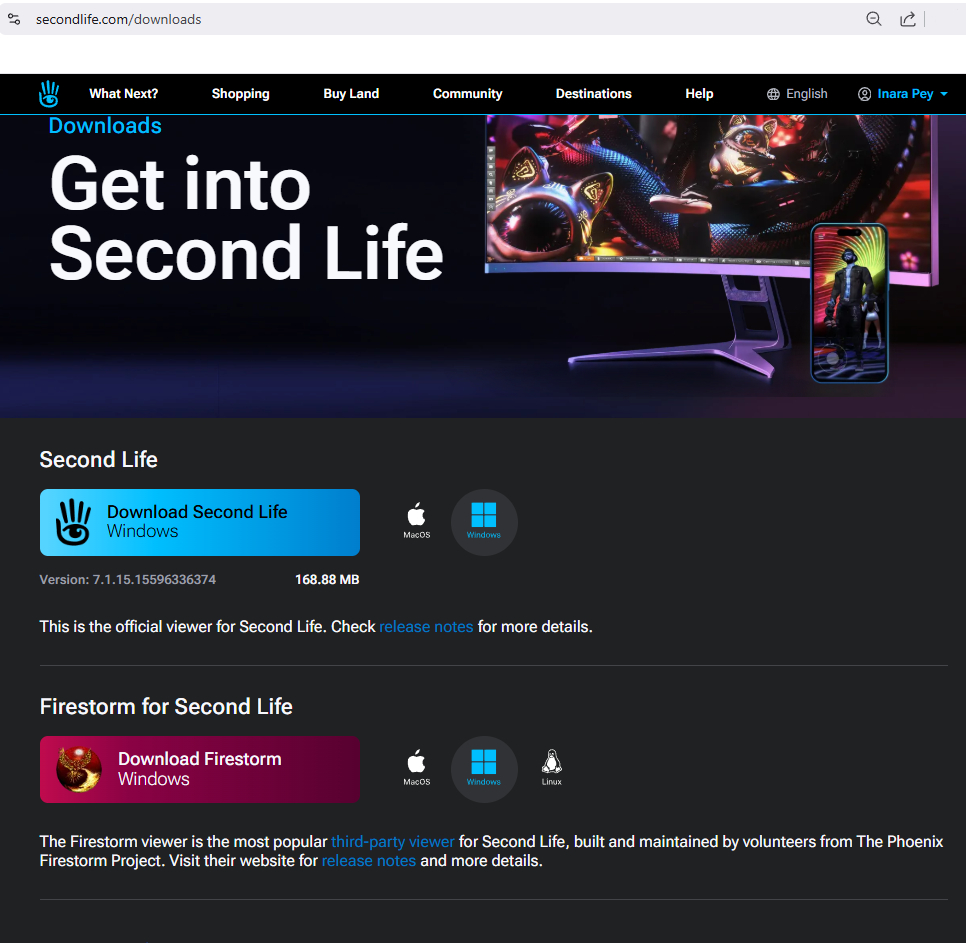
I’ve been a user of the Firestorm third-party viewer (TPV) since its inception (and was a user of its precursor, Phoenix). It’s a viewer which offers a comprehensive set of capabilities – those also available in the Official Viewer; those otherwise tucked away in the debug settings and brought to light through the building of UI elements; and those developed by members of the Firestorm team and those contributing to it down the years.

True, it may not run well on all systems – indeed, it may not run as well as other viewers on the same computer; but it offers such a range of capabilities that it is practical for anything a person might want to turn their hand to in SL, from simply pootling around and having fun, to photography, building, scripting, and content creation. Hence why it has become the most widely used TPV in Second life (and, quite likely, Open Simulator worlds).

Given the large percentage of users engaged with SL through Firestorm can clearly present LL with some major headaches, particularly when it comes to matters of support and the deployment and adoption of new capabilities within Second Life. For example, in the six months or so prior to this article one of the main hold-ups in allowing LL to completely switch Second Life over to the WebRTC Voice service and finally turn-off the outdated, troublesome (and potentially costly?) Vivox service, has been the fact that many Firestorm users still use versions of the viewer without the necessary WebRTC support (although that number has been declining).

As it does have such a large percentage of the the total SL user base means it cannot simply be ignored by LL on any level. In this, I do applaud recent moves on the part of the Lab to allow staff to become more au fait with Firestorm and its capabilities, and in publicly recognising the sheer weight of user numbers Firestorm has. Not only does this potentially assist in terms of support issues, it allows Lab personnel more readily understand where people like content creators are coming from when discussing options and capabilities that may have been exposed within Firestorm but may not be so readily apparent in the Official Viewer.

However, what I don’t think is particularly fair is the for Lab to promote Firestorm to the exclusion of all other TPVs. At the June Web User Group it was stated that Firestorm would be added to the Official Viewer download page, and this was due shortly thereafter.

The updated official viewer download page with Firestorm

What I find unfair in this move is not the inclusion of Firestorm on the Official Viewer download page per se. As noted, there are good reasons for LL to acknowledge it. Rather it is in the fact that in doing so, all other TPVs are completely ignored to the point where they might as well not exist. Even the one link referencing third-party viewers goes to the Firestorm Viewer download page, not the Third Party Viewer Directory. There’s not even a statement as to what a TPV actually is.

Worse, the appearance of Firestorm alone on the Official Viewer download page can so easily be interpreted as meaning Firestorm is now “officially endorsed” by Linden Lab as “the” alternate viewer for accessing Second Life; or for those relatively new to SL, that Firestorm is the only TPV on offer.

As such, I cannot help but find this move to be demeaning towards the developers of other third-party viewers. Yes, they may well have a smaller overall percentage of users when compared to Firestorm, but this doesn’t invalidate them. What’s more – and as I’m sure the Firestorm developers will agree – many of the people behind those other viewers have contributed to the success of Firestorm and the Official Viewer through code contributions (direct and indirect).  Thus, to ignore them entirely is to do them a disservice, however unintended.

The point here is that all of the above could have been easily addressed from the outset by including a section on the Official Viewer download page below the one for Firestorm, outlining what third-party viewers are, and which provides links to the TPV Directory and the TPV Policy. Nor does such a statement have to be complicated. For example:

Third-party viewers are developed by users of Second Life. They are based on the core code from the official viewer but offer additional options and capabilities to users. Third-party viewers (including Firestorm) are not endorsed or supported by Linden Lab. However, those recorded on our Third Party Directory have been self-certified for their compliance with our Third Party Viewer Policy to provide a positive and predictable experience for all Second Life Residents.

Such an inclusion would only be fair an appropriate – as I hope that if anyone from the Lab who might read this piece would agree. All TPV developers put in considerable amounts of their own time and effort into developing viewers to offer users a broader choice in the software they might opt to use. As noted, numbers of active users employing them might pale in comparison to Firestorm, but this does not make them any less deserving of a similar degree of recognition by LL.

Firestorm 7.1.11: DeltaFPS: performance updates and tweaks

On Tuesday, October 22nd (SLT), Firestorm released version 7.1.11.76496 of their viewer. The primary aim of this release is to achieve parity with the Lab’s DeltaFPS viewer release, and bring the performance enhancements and fixes from that viewer to Firestorm.

Note that the following is not a complete review of the 7.1.11 release and all the changes made therein; it focuses on the more visible and user-facing updates.

Those requiring a list of all changes and updates to Firestorm 7.1.11, including all bug fixes and changes since the last release, should refer to the Firestorm 7.1.11 release changelog, which also provides all proper credits for the work.

Table of Contents


General Notes

Installation

  • Only download Firestorm from the Firestorm website. Do not utilise and other third-party site purporting to offer the Firestorm viewer, and remember Firestorm will never ask for log-in credentials in order to download a release version of their viewer.
  • There is no need to perform a clean install with this release if you do not wish to.
  • Do, however, make sure you back-up all your settings safely so you can restore them after installing 7.1.11.

On Version Blocking

The Firestorm Team provide the following on viewer blocking and updating:

  • As per the 7.1.10 release documentation, Firestorm 6.6.17 will not be blocked, but will remain available for those who need it. However, it will not be maintained in terms of updates and bug fixes.
  • Firestorm 6.6.14 will also remain unblocked for the time being. However users running version 6.6.14 are strongly advised to update to version 6.6.17 on the ground of greater stability.
  • Users on the initial Firestorm PBR release, 7.1.9, are strongly encouraged to update to this release – 7.1.11 -in order to benefit from both greater stability and improved performance. Version 7.1.9 may well be blocked in the future, due to the high number of crash reports.

Linden Lab Updates: DeltaFPS

  • Viewer version number 7.1.10.10800445603 (release notes).
  • Date of promotion to release status: 17th September, 2024.

This is the first of two viewer releases from the Lab specifically targeting performance improvements (both PBR and non-PBR related), and which offers some additional quality of life improvements for users and a range of bug fixes. The following is a summary of some of the more notable updates within the DeltaFPS release:

Schedule Region Restarts

  • Region holders / Estate Managers with access to to the Region /Estate floater can now schedule their region restarts to run at a given time.
  • Top menu → World → Region Details → Region → Manage Restart Schedule button.

Disable 2K Textures for Bulk Uploads

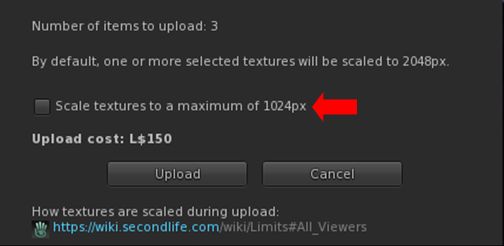
  • Even with the pop-up warning when including 2K textures during a Bulk texture upload, some people are still getting caught out. To further help prevent this, it is now possible to limit all Bulk textures to a maximum of 1024×1024 (thus limiting costs to L$10 per texture uploaded).
  • Top menu → Build → Upload → Bulk  → check Scale Textures to a Maximum of 1024px in the upload floater.
The option to limit the image size in Bulk texture uploads (and reduce costs to a level L$10 per texture)

Disable LookAt Animations

  • Tired of your avatar constantly tracking you mouse pointer movement, and looking like an idiot, constantly look up and down? You can move disable the animation.
  • Top menu → Developer → >Avatar → Character → Tests Disable Look At Animation.
  • Note this does not disable LookAt data being broadcast by the viewer (the cross-hairs / name tag), it only disables any avatar body / head movements associated with LookAt.

Notable Bug Fixes

    • Issue 1870: Improved performance on lower-end systems: lower-specification systems should see improved viewer performance; particularly those with the following:
      • Intel HD 4000, 4400, & Iris Xe video cards.
      • Nvidia GT 1030.
      • Laptops with an AMD video card.
      • Macs with the M1, M2, or M3 Silicon SoC chips.
    • Issue 2225: Fixed opening the Joystick Configuration floater causing a hug FPS drop.
    • PBR-related fixes:
      • Issue 853: Fixed – PBR Material resets to legacy material after teleport
      • Issue 1299: Fixed – PBR texture stretches when “stretch textures” is unchecked.
      • Issue 1847: Fixed – Negative UV scale causes wrong lighting on PBR materials.
      • Issue 1922: Fixed – Make PBR scale and offset crosshair work the same as Texture crosshair.
      • Issue 1857: Fixed – Reset texture transforms for a terrain PBR material when the material is applied.
      • Issue 2027: Fixed – Being unable to apply PBR materials on larger linksets.

General Quality of Life Improvements:

  • Issue 1209: Fixed – Newly-created sculpted prims not rendering until relog.
  • Issue 1253: Fixed – Viewer tries to detach attachments in inventory on shutdown.
  • Issue 1500: New – Better out of disk space handling: The viewer should no longer crash when disk space is low; instead the user will receive the warning: The system is out of disk space. You will need to free up some space on your computer or clear the cache.
  • Issue 1965: Fixed – Selection beam swirls swirl forever when the user interface is hidden
  • Issue: 1905: Fixed – The “Share” and “Pay” buttons are active when selecting multiple avatars in Nearby tab.
  • Issue 1988: Fixed – The ‘Set Empty’ option (Preferences → Controls does not remove previously applied keys for all control modes with the ‘Apply to all’ checkbox.
  • Issue 2144: New – Added tooltip to the region Object Return button to clarify who “someone else” means.
    • Top menu → World → Region Details → Debug → Object Return → Options → On someone else’s land.
    • Tooltip has been changed from “Return only objects which are on land belonging to someone else” to “Return only objects which are on land that isn’t owned by selected user”.
  • Issue: 2395: Fixed – Favourite and Featured locations sending user to (0,0).
  • Issue 2467: Fixed – Sim surrounds do not fully load.
  • Issue 2482: Fixed – Second Life reports incorrect amount of available video memory on some discrete GPUs on Windows.

Notable Viewer Build Updates

  • Updated llphysicsextensions to version 1.0.66e6919
  • Updated Tracy profiler to version 0.10
  • Updated Meshoptimizer package to version 0.21
  • Updated llca to version 202407221423.0
  • Updated Boost to version 1.85
  • Updated Ogg Vorbis to version 1.3.5-1.3.7
  • Updated VLC to version 3.0.21
  • Updated libhunspell to version 1.7.2-r1
  • Updated from jpeglib to libjpeg-turbo 3.0.3

WebRTC – Reminder

Note: as WebRTC is (subject to last-minute stoppers) now due to be deployed across the gird in the very near future, the following is repeated from my 7.1.10 release overview, for the benefit of those who use Voice and who may not have upgraded to Firestorm 7.1.10 / read that overview.

WebRTC communications protocol (RTC=”real-time communication”) is the new Voice communications protocol for Second Life, replacing Vivox Voice.

Why Make The Change?

Voice in Second Life has been supplied through an arrangement with Vivox. This has required Linden Lab to utilise a viewer plug-in tool – SLvoice.exe – to manage voice services within the viewer., which in turn has made LL both reliant on Vivox for bug fixes for the plug-in, and subject to changes in support for operating systems imposed by Vivox such as the latter ending native support for Linux some years ago).

WebRTC by contrast is the predominant telephony protocol used by web-based applications, such as Google Meet, and is integrated into most common browsers. It has almost all the features common to Vivox in supplying a voice service – spatial in-world voice; peer-to-peer sessions; Group voice (including moderation) and multi-user Voice conferencing – although the are some limitations (see below).

Benefits and Improvements

WebRTC Offers a range of benefits over Vivox, including, but not limited to:

  • 48khz audio bandwidth providing cleaner sound.
  • User control over:
    • Audio noise reduction – high reduction for noisy environments, no reduction for clean audio sources (performers, etc.)
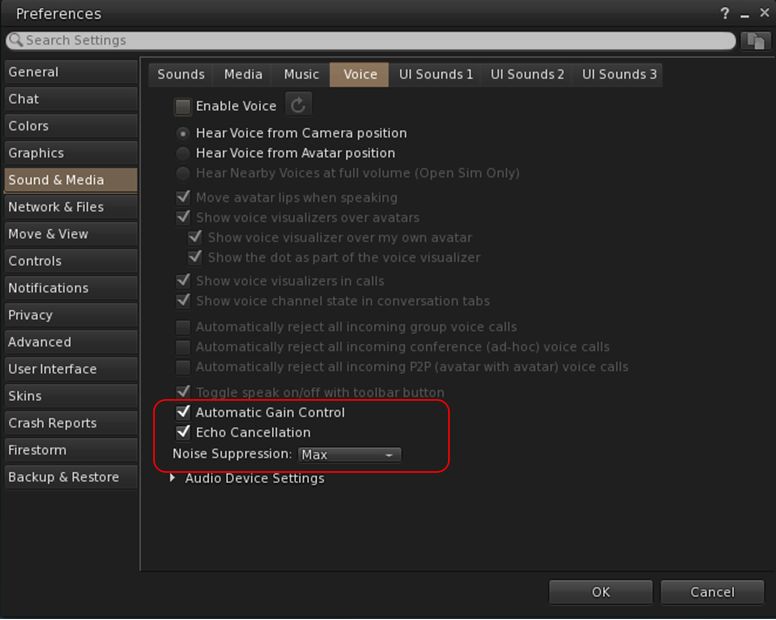
    • Automatic gain control – less need to individually tune other user’s audio levels.
  • Audio/video device selection.
  • Improved: spatialization,  audio echo cancellation and audio sampling rates for improved audio quality.
Options for managing WebRTC Voice quality can be found under Preferences → Sound & Media → Voice

Most significantly, WebRTC removes all reliance on a third-party plug-in for the viewer. Instead, it is supplied as a  a library and wrapper within the viewer. This means:

  • Linden Lab has greater ability to address Voice related issues directly, without having to await fixes from a supplier.
  •  Potentially opening the door to adding features and capabilities to SL Voice in the future, including some which have been long-requested.

Limitations

  • WebRTC does not support the existing Voice Morphing capability in Second Life.
    • This is because voice morphs are tied to the Vivox service, and cannot be utilised with WebRTC.
    • Those who do use the current Voice Morphing capability are directed to this SL Wiki article on Voice Morphing, which provides a list of solutions which can be used with WebRTC.
  • Conferences and group voice calls are limited to 50 participants.

Security

The Second Life implementation of WebRTC addresses security issues such as potential eavesdropping, exposing users’ IP addresses, etc., by routing communication through proxy servers managed directly by LL .

Additional Information

Firestorm Updates

Performance: AVX2 Update

AVX2 (also known as Haswell New Instructions) is the more recent of the Advanced Vector Extensions for  Intel and AMD, which should offer improved performance for more modern systems. To quote the official blog post on the AVX2 work:

Installer choices – supporting modern CPUs (AVX2): One of our aims is to help those on lower-end machines, and one change that our early-access users have loved has been enabling a feature of modern computer (called AVX2) which can unleash extra performance even on smaller machines. It works on CPUs built in the last decade, but don’t worry if you are not sure, the Firestorm installer will warn you if your computer is too old for this, and will redirect you to a more traditional version (Linux user can check here).  Some have found it makes a massive difference.

Pie Menu: Object Take Options

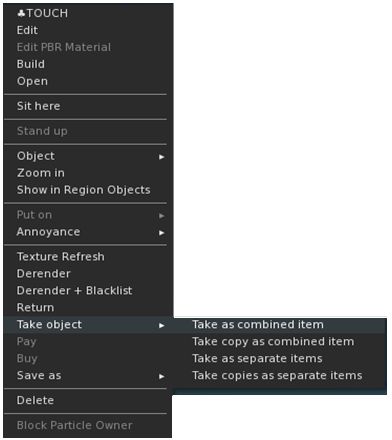
  • Linden Lab recently added further options for picking-up multiple objects collectively selected in-world and returning them to inventory as one of the following:
    • Take As Combined Item: return all the selected objects to inventory as a single, coalesced object (old behaviour).
    • Take Copy As Combined Item: return copies all the selected objects to inventory as a single, coalesced object, leaving the originals in-world as individual objects (old behaviour).
    • Take As Separate Items: return all the selected objects to inventory, but list them as individual items, not as coalesced (new behaviour).
    • Take Copies As Separate Items: return copies all the selected objects to inventory, but list them as individual items, not as coalesced, leaving the originals in-world (new behaviour.
  • These options were added to the right-click Context menu in Firestorm 7.1.10 (see: Object Take from my Firestorm 7.1.10 overview).
  • Firestorm 7.1.11 now extends this options into the pie menu as well – not that they will only be displayed within the pie menu when selecting multiple objects to return to Inventory at the same time.

Camera Roll and Key Bindings

Camera Roll Added to the Phototools Camera Floater
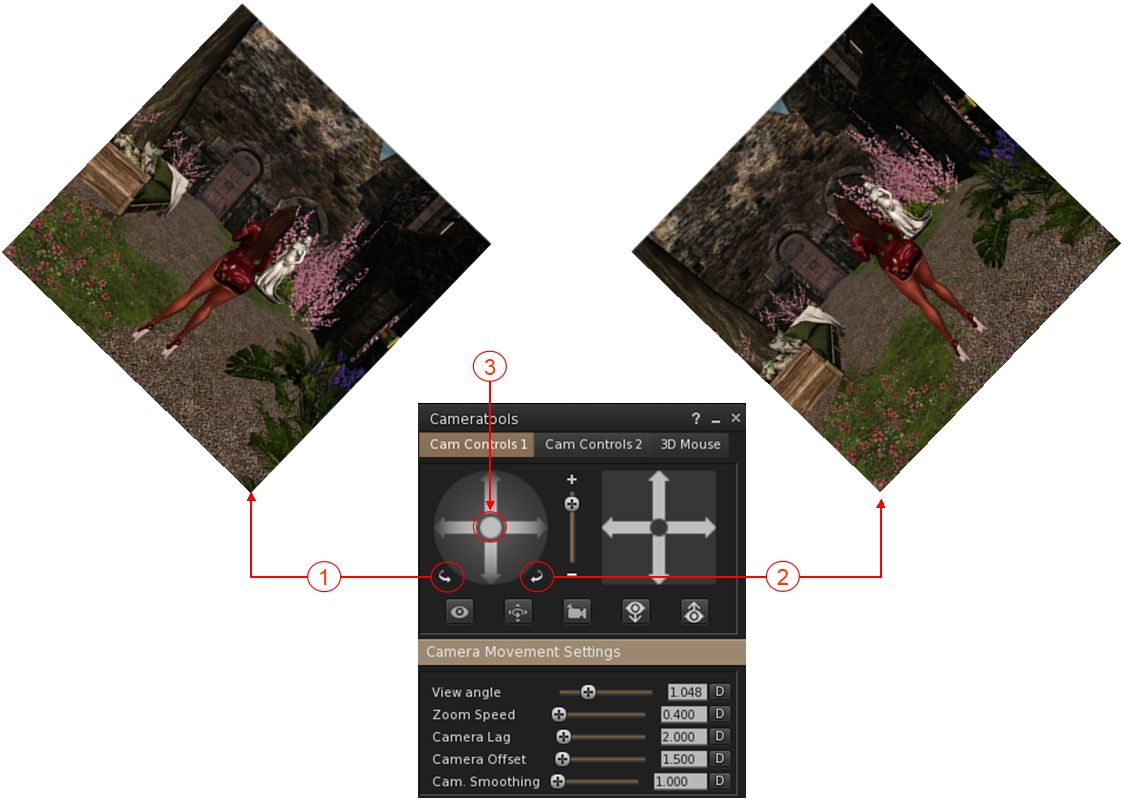
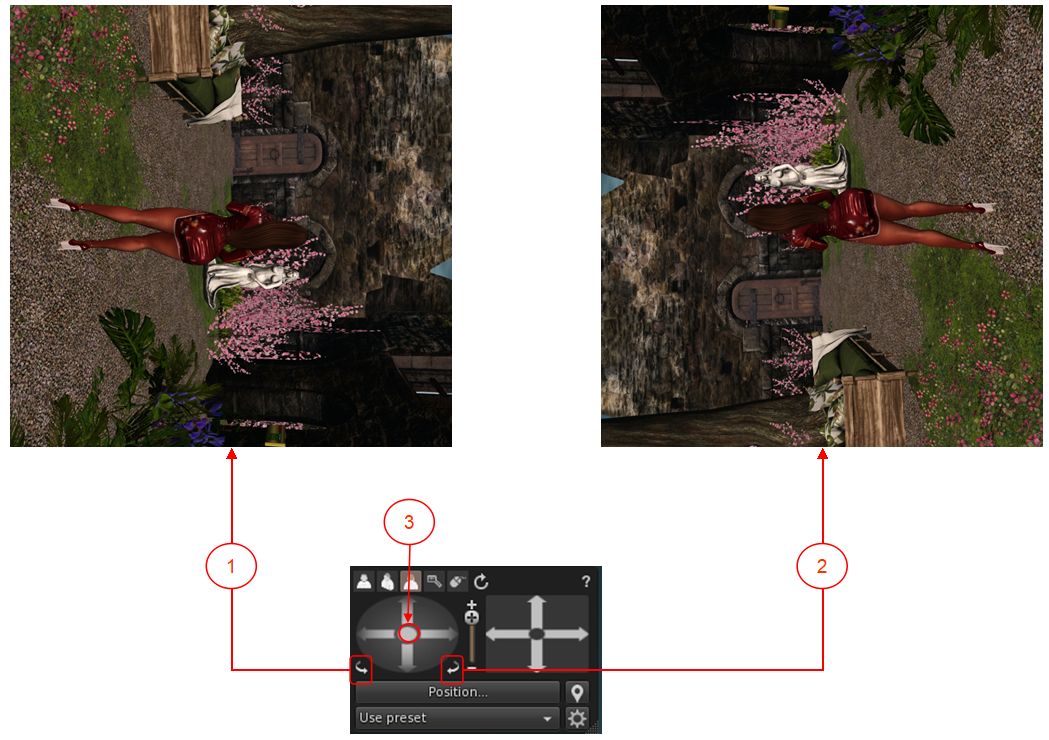
  • Camera Roll was added to Firestorm 7.1.0, in the form of two buttons on the Camera floater which allow the camera to be rolled clockwise or counter-clockwise for more dramatic photos see here for more).
  • These buttons have now been added to the Phototools Camera Floater.
The Camera Roll buttons have now been added to the Phototools Camera floater: 1. The left button will roll the camera view clockwise on your screen through up to 360º; 2. The right button will roll the camera view counter-clockwise on your screen through up to 360º; 3. Clicking the button at the centre of the rotation controls will reset the view to “normal”.
Camera Roll Key Bindings
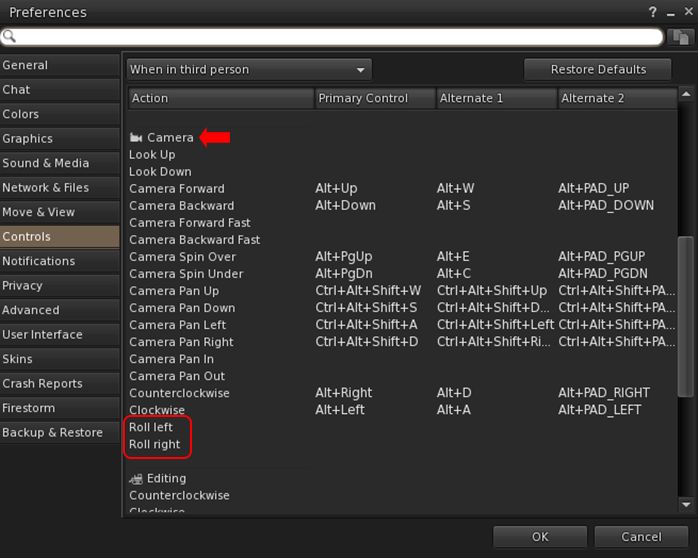
  • In addition, Firestorm 7.1.11 adds the ability to create key bindings for the camera roll buttons: Preferences → Controls → When in third person or when sitting → Camera section → Roll left / Roll right.
The new Camera Roll Key bindings options allow you to assign key combinations to enable the camera roll capabilities (left / right)

Assorted Quality of Life Updates

  • Addition of a “eye” button on the login splash screens.
    • When clicked, will display the alphanumeric values for a password as it is typed in, rather than black dots.
    • If the password has previously been saved (and so entered automatically on account name selection), clicking the button will display a placeholder, not the password.
    • See: FIRE-34629.
  • Pie menu autohide function has been extended to also work with sub menus and not only slices.
  • Whitelist adviser text corrected, as per FIRE-34524.
  • Snapshot floater updated so that the Current Window option no longer gives any pixel sizing (“512×512”), to reflect the fact that images up to 2K can be captured using this option, potentially incurring additional costs. See FIRE-34562.
  • Preferences → Graphics: in order to reduce potential confusion, the setting GPU Dedicated VRAM (GB): (Preferences → Graphics → Hardware Settings) has been renamed to Override GPU Dedicated VRAM (GB):.

OpenSim Updates

  • Removed the hardcoded classified fee for OpenSim (see FIRE-34618).
  • Fix for a crash when querying glTF materials (see FIRE-34589).
  • Fix for an OpenSim crash in surface patch gen Tangents for empty patch (see FIRE-34672).
  • General fix for OpenSim viewer build.

Feedback

In the limited time I’ve had to use 7.1.11.76496, I’ve found that it (and earlier versions of the Beta release) provide a decent improvement in performances and better stability. I did find with both 7.1.10 and earlier 7.1.11 Beta versions I experienced multiple crashes during / when attempting teleports. This has not been the case with 7.1.11.76496, although I have been running it less than 24 hours at this point. As with the PBR release, I have no feedback to offer with this release, as I’ve not had time time to bounce around with it to any great degree.

Firestorm 7.1.10: WebRTC and performance tweaks

On Tuesday, September 17th (SLT), Firestorm released version 7.1.10.75913 of their viewer.

This release is primarily focused on a merge with the Linden Lab Atlasaurus release code base, which combines initial performance bug fixes to help correct some of the issues seen with recent viewer releases with the WebRTC code in preparation for the switch away from using Vivox Voice with Second Life.

In addition to the above, there are some cherry-picked updates from the Lab’s upstream code (DeltaFPS), and also updates from the Firestorm Team.

Note that the following is not a complete review of the 7.1.10 release and all the changes made therein; it focuses on the more visible and user-facing updates. Those requiring a list of all changes and updates to Firestorm 7.1.10 should refer to the Firestorm 7.1.10 release changelog, which also provides all proper credits for the work.

Table of Contents

Note: as this review was going to post, Linden Lab promoted the DeltaFPS viewer to de facto release.

General Notes

Installation

  • Only download Firestorm from the Firestorm website. Do not utilise and other third-party site purporting to offer the Firestorm viewer, and remember Firestorm will never ask for log-in credentials in order to download a release version of their viewer.
  • There is no need to perform a clean install with this release if you do not wish to.
  • Do, however, make sure you back-up all your settings safely so you can restore them after installing 7.1.10.

Linden Lab Updates

Atlasaurus/WebRTC Viewer

  • Viewer version number 7.1.9.10515727195 – release notes in full.
  • Date of promotion to release status: 26th August, 2024.

WebRTC

WebRTC communications protocol (RTC=”real-time communication”) is the new Voice communications protocol for Second Life, replacing Vivox Voice.

Why Make The Change?

Voice in Second Life has been supplied through an arrangement with Vivox. This has required Linden Lab to utilise a viewer plug-in tool – SLvoice.exe – to manage voice services within the viewer., which in turn has made LL both reliant on Vivox for bug fixes for the plug-in, and subject to changes in support for operating systems imposed by Vivox such as the latter ending native support for Linux some years ago).

WebRTC by contrast is the predominant telephony protocol used by web-based applications, such as Google Meet, and is integrated into most common browsers. It has almost all the features common to Vivox in supplying a voice service – spatial in-world voice; peer-to-peer sessions; Group voice (including moderation) and multi-user Voice conferencing – although the are some limitations (see below).

Benefits and Improvements

WebRTC Offers a range of benefits over Vivox, including, but not limited to:

  • 48khz audio bandwidth providing cleaner sound.
  • User control over:
    • Audio noise reduction – high reduction for noisy environments, no reduction for clean audio sources (performers, etc.)
    • Automatic gain control – less need to individually tune other user’s audio levels.
  • Audio/video device selection.
  • Improved: spatialization,  audio echo cancellation and audio sampling rates for improved audio quality.
Options for managing WebRTC Voice quality can be found under Preferences → Sound & Media → Voice

Most significantly, WebRTC removes all reliance on a third-party plug-in for the viewer. Instead, it is supplied as a  a library and wrapper within the viewer. This means:

  • Linden Lab has greater ability to address Voice related issues directly, without having to await fixes from a supplier.
  •  Potentially opens the door to adding features and capabilities to SL Voice in the future, including some which have been long-requested.
Limitations
  • WebRTC does not support the existing Voice Morphing capability in Second Life.
    • This is because voice morphs are tied to the Vivox service, and cannot be utilised with WebRTC.
    • Those who do use the current Voice Morphing capability are directed to this SL Wiki article on Voice Morphing, which provides a list of solutions which can be used with WebRTC.
  • Conferences and group voice calls are limited to 50 participants.
Security

The Second Life implementation of WebRTC addresses security issues such as potential eavesdropping, exposing users’ IP addresses, etc., by routing communication through proxy servers managed directly by LL .

Project Status
  • At the time of writing this update, back end support is available on the WebRTC “Pop Rocks” simulator channel: WebRTC Voice 1 – WebRTC Voice 2 – WebRTC Voice 3 and WebRTC Voice 4.
  • Deployment to RC channel should  commence on Wednesday, October 2nd, when the code will be deployed to the BlueSteel RC channel.
  • During this deployment period both WebRTC Voice and Vivox Voice will be supported.
  •  LL will turn off the Vivox support on the simulators some time after WebRTC has been fully deployed and there is sufficient support for the service across all viewers.
Additional Information

Usability Enhancements

Object Take
LL’s new object Take options, as displayed through the Firestorm right-click context menu

When picking-up in-world objects you can now chose to:

  • Take As Combined Item: return all the selected objects to inventory as a single, coalesced object.
  • Take Copy As Combined Item: return copies all the selected objects to inventory as a single, coalesced object, leaving the originals in-world as individual objects.
  • Take As Separate Items: return all the selected objects to inventory, but list them as individual items, not as coalesced.
  • Take Copies As Separate Items: return copies all the selected objects to inventory, but list them as individual items, not as coalesced, leaving the originals in-world.

Note that for Firestorm 7.1.10, these options are ONLY available as a sub-menu set in the right-click context menu; they have not as yet been added to the Pie menu (see: FIRE-34438).

Avatar Rendering Updates

Linden Lab added new options to enable the prioritisation of rendering avatars using the following criteria:
  • Limit by complexity – any avatar with a complexity greater then your Avatar Maximum Complexity” setting will be rendered as a Jellydoll.
  • Always show friends – your friends will never be rendered as Jellydolls, no matter what their complexity
  • Only show friends – all avatars except your friends will be rendered as Jellydolls.

Within Firestorm, these options can be found as follows:

  • In  the  top menu → World → Avatar Display.
  • In the Performance Floater → Avatars Nearby.
Linden Lab’s avatar rendering options, as located within Firestorm 7.1.10
  • Notes:
    • In addition to these updates, Firestorm 7.1.10 retains the Firestorm option World → Show Friends Only. When enabled, the viewer will only renders your friends.
    • The now redundant Always Display Friends In Full Detail checkbox has been removed from the Performance Floater → Avatars Nearby.

Avatar-Related Improvements

  • Avatar height now correctly displays  in edit appearance window (see: FIRE-34192).
  • Worn clothing layers now all correctly report as such in inventory (see: FIRE-34343).
  • Fix for integer underflow causing issues with wearables.
  • Fix for avatar attachments & surroundings not rezzing after teleport when teleport screens are disabled (see: FIRE-33981).
  • Setting for AvatarRotateThresholdSlow and AvatarRotateThresholdFast added back into Firestorm following their removal as part of a viewer code clean-up by LL (see: FIRE-34196 and LL Bug #1963).

General Updates / Improvements

  • Add Images to Inventory Items in Bulk: select up to 50 inventory items → Right click selection → Image.
  • Option to control the amount of lights: Preferences → Graphics → General → Max Nearby Lights slider.
Control nearby lighting through the nearby lighting slider
  • GLTF model preview: use a prim to preview the appearance of a glTF scene / model:
    • Edit the prim. then Top menu bar → Developer → GLTF → Open.
      • To enable the Developer menu, either go to Advanced → Show Developer Menu or press Ctrl-Alt-Q or go to Preferences → Advanced → check  Show Developer Menu
    • Note that this feature is still in the early stages of development and that glTF models will only appear locally in your own viewer, they will not be rendered for others to see in their viewers.
  • Better MOAP URL handling in order for users to not only be able to CTRL-C or Cmd-C copy but also to see decoded URL payloads for easy inspection. In the nearby media list, you can also right click a media/data link and Copy URL/Copy Data.

Performance Improvements Summary

  • Mirrors disabled by default for all graphics quality levels to improve performance.
    • You can choose to enable mirrors manually in Preferences → Graphics → General → Mirrors.
  • Improved general performance with PBR – Issue 1769.
  • Fixed performance regression since Graphics Featurettes viewer – Issue 1831.
  • Fixed viewer failing to detect more than 4Gb of video memory on Windows – Issue 1583.
  • Improved texture memory calculation – Issue 799.
  • Various performance improvements for Mac:
    • Improved PBR viewer performance on Apple Silicon – Issue 1527.
    • Fixed setting a map beacon causing extreme lag on Mac – Issue 999.
    • Fixed severe stall and stutter in PBR viewers on Mac when editing objects – Issue 1203.
  • For the full list of fixes and improvements from Atlasaurus, please refer to the Atlasaurus release notes, linked to above.

Upstream Fixes from LL

  • Added error handling for intel crashes from the GLTF Scene shader – this fixes the login crashes on systems with older Intel HD graphics (see Issue 1856).
  • Fixed visual corruption caused by divide by zero in lighting functions – this fixes black & white areas in certain locations (see Issue 1852).
  • Fixed the voice call button being greyed out when you logged in to a voice disabled parcel (see this Canny bug).

Significant Firestorm Updates

Camera Roll

Ever wanted to physically roll the camera with ease when taking pictures? With Firestorm 7.1.10 you can, using an update based on an Alchemy viewer feature.  Both the large and the small camera control floaters have new camera roll buttons (see image below):

The new camera roll buttons and the button for re-centring the view
  1. The left button will roll the camera view clockwise on your screen through 360º.
  2. The right button will roll the camera view counter-clockwise on your screen through 360º.
  3. Clicking the button at the centre of the rotation controls will revert the viewer to “normal”.

General Improvements

  • Check folder limit safeguard:
    • If you select the Wear Items option in the Inventory folder context menu, and the total number of items in the folder(s) exceeds the maximum limit for wearable items / attachments, a warning pop-up is displayed.
    • This prevents multiple items withing a folder (and sub-folders) being worn / removed / worn in excess of the limit when the Wear Items option is clicked.
A new safeguard warning is displayed when clicking on the Warn Items Inventory menu option for a folder containing items that exceed the maximum number of wearable items / attachments
  • Raised the 512×512 limitation for uploading snapshots to inventory to 2048×2048.
  • Multiple bug fixes for memory issues, RAM detection, texture management, UI bugs, stability and improvement fixes, crash fixes and more – please refer to the Firestorm 7.1.10 changelog for specifics.

OpenSim Updates

  • Fix for inventory fetching issues on OpenSim (see FIRE-34403).
  • Fix for occasional crashes on large inventories or slow grid asset servers (see  FIRE-34403).
    • Previously, an assertion failure would occur if mComplete.size() was zero. This has been downgraded to a warning message and early return, improving stability especially for large inventories or slow grid asset servers.
    • This entire code path is only accessed by OpenSim pending their implementation of AISV3, when it will be removed.

Feedback

As with the PBR release, I have no feedback to offer with this release, as I’ve not had time time to bounce around with it to any great degree.

Note that the performance improvements from the Lab’s Atlasaurus viewer constitute a first round of fixes; more will be coming with the upcoming DeltaFPS viewer (promoted to release status, Tuesday, September 17th) and the ExtraFPS viewer (still to be issued by LL at the time of writing).