The following notes were taken at the Simulator User Group meeting held on Tuesday, February 25th.
Simulator Deployments
As always, please refer to the week’s deployment thread for updates.
The SLS (main) channel servers were updated with simulator update 2020-02-14T20:17:32.536748. It’s not clear on what this update contains, as the release notes generation process is currently broken.
A “large load” of RC simulators are planned to be updated on Wednesday, February 26th. However, at the time of writing, the status of the release was in the air due to some last minuted investigations to determine if the updates are fit for purpose.
SL Viewer
At the time of writing, the official viewer pipelines remain unchanged from the end of week #8:
Current Release version 6.3.7.535996, formerly the Yorsh Maintenance RC, dated February 7, promoted February 20 – NEW.
Release channel cohorts:
EEP RC viewer updated to version 6.4.0.536347, February 11.
Love Me Render RC viewer, version 6.3.7.536179, February 10.
Camera Presets RC viewer, version 6.3.6.535138, January 24.
Project viewers:
Copy / Paste viewer, version 6.3.5.533365, December 9, 2019.
Project Muscadine (Animesh follow-on) project viewer, version 6.4.0.532999, November 22, 2019.
Legacy Profiles viewer, version 6.3.2.530836, September 17, 2019. Covers the re-integration of Viewer Profiles.
360 Snapshot project viewer, version 6.2.4.529111, July 16, 2019.
Sansar and Second Life
While Sansar and SL are very different platforms based on different technology and capabilities, it has often been asked if / whether capabilities found in Sansar might be ported / developed for Second Life.
We are going to take a look at Sansar tech and see what might be brought into SL but that’s a long-term project … nothing at all has been decided.
Whether this means the upcoming long-term graphics / rendering project mentioned in the February 21st Lab Gab session with Ebbe and Grumpity Linden (see Lab Gab: Second Life in 2020 with Ebbe and Grumpity (and Keira!) ) might look towards poking at the Sansar render engine for ideas or not remains to be seen. However, a recurring request that has cropped up vis. Sansar capabilities and SL has been the potential for a similar level of Marvelous Designer™ cloth simulation to be added to SL – although it’s unlikely this could be done without some headaches.
However, as Simon notes, any project related to what might be adopted from Sansar for Second Life is a long term thing, and LL has enough on its plate vis cloud uplift, etc.
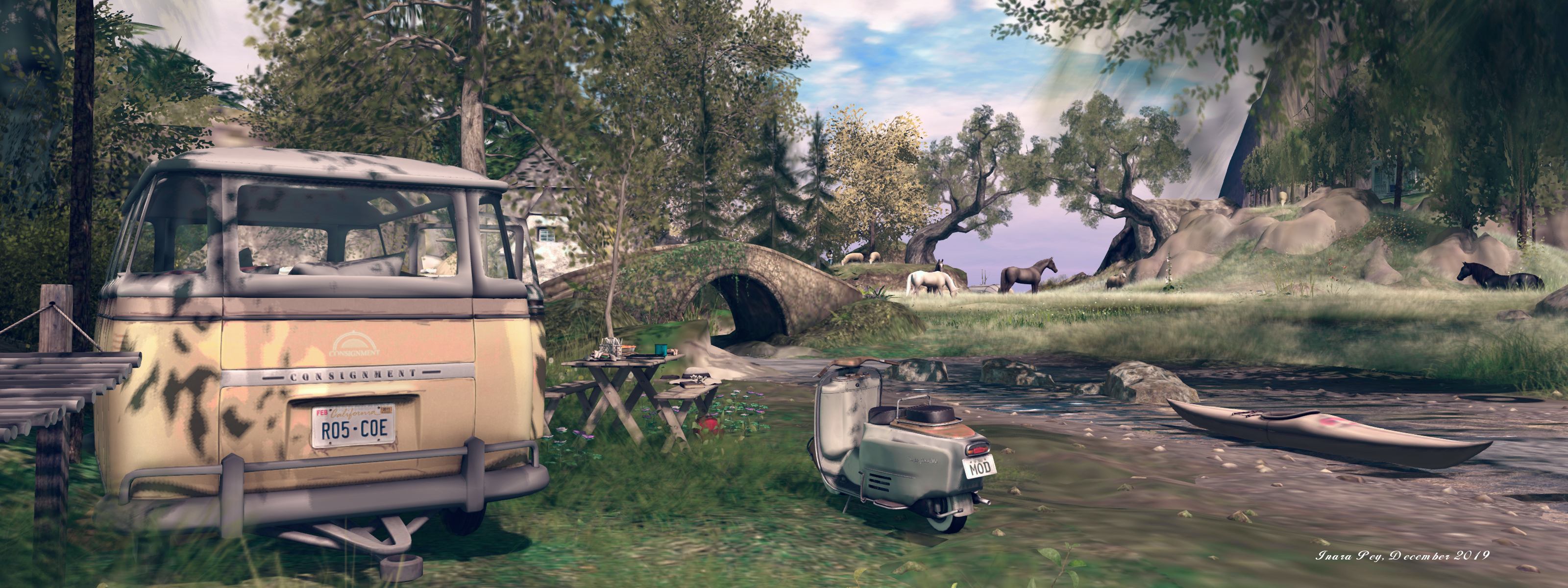
Mimmo, December 2019 – click any image for full size
The following notes were taken at the Simulator User Group meeting held on Tuesday, February 18th.
Simulator Deployments
As always, please refer to the week’s deployment thread for updates.
The SLS (main) channel servers were updated with simulator update 2020-02-05T22:16:31.536040, providing support for the upcoming Name Changes feature.
At the time of writing, the deployment thread indicates there is no RC deployment scheduled for Wednesday, February 19th, however according to Simon Linden speaking at the SUG meeting, there will be an RC update. so again, check the deployment thread for updates.
SL Viewer
At the time of writing, the official viewer pipelines remain unchanged from the end of week #7:
Current Release version 6.3.6.535003, formerly the Xanté Maintenance RC, dated January 22, promoted January 27 – No Change.
EEP RC viewer updated to version 6.4.0.536347, February 11.
Love Me Render RC viewer, version 6.3.7.536179, February 10.
Yorsh Maintenance RC viewer, version 6.3.7.535996, February 7.
Camera Presets RC viewer, version 6.3.6.535138, January 24.
Project viewers:
Copy / Paste viewer, version 6.3.5.533365, December 9, 2019.
Project Muscadine (Animesh follow-on) project viewer, version 6.4.0.532999, November 22, 2019.
Legacy Profiles viewer, version 6.3.2.530836, September 17, 2019. Covers the re-integration of Viewer Profiles.
360 Snapshot project viewer, version 6.2.4.529111, July 16, 2019.
Brief Notes
Script running: concerns continue to be expressed over recent changes to script behaviour designed to improve script performance within a region may be affecting the ability of scripts to run in a timely fashion when their object is rezzed. Up to a 2-second delay has been observed, although this is by no means constant for any given object. This is a known issue with the Lab, who are continuing to work to improve the situation.
A single RC channel deployment is planned for Wednesday, February 12th. Server update 2020-02-05T22:16:31.536040 should comprise support for the upcoming Name Changes capability.
On Monday, February 10th, the Love Me Render RC viewer updated to version, 6.3.7.536179.
At the time of writing, all remaining viewer pipelines remain as follows:
Current Release version 6.3.6.535003, formerly the Xanté Maintenance RC, dated January 22nd, promoted January 27th – No Change.
Release channel cohorts:
Yorsh Maintenance RC viewer, version 6.3.7.535996, February 7th.
EP RC viewer updated to version 6.4.0.535668, February 4th.
Camera Presets RC viewer, version 6.3.6.535138, January 24th.
Project viewers:
Copy / Paste viewer, version 6.3.5.533365, December 9th, 2019.
Project Muscadine (Animesh follow-on) project viewer, version 6.4.0.532999, November 22nd, 2019.
Legacy Profiles viewer, version 6.3.2.530836, September 17th, 2019. Covers the re-integration of Viewer Profiles.
360 Snapshot project viewer, version 6.2.4.529111, July 16th, 2019.
Brief Notes
Work is continuing to try to clear the last blockers staying in the way on the Name Changes deployment.
BUG-228162 “Issue with experience_permissions_denied() and XP_ERROR_NOT_PERMITTED triggered when experience permissions are granted by more than one person” – appears to report an issue in granting permissions if dialogue requests are simultaneously open.
The following notes were taken at the Simulator User Group meeting held on Tuesday, February 4th.
Simulator Deployments
As always, please refer to the week’s deployment thread for updates.
A single RC channel deployment is planned for Wednesday, February 5th. Server update 2020-01-30T23:51:10.535702 should comprise support for the upcoming Name Changes capability.
Linden Lab is considering dropping the date / time stamp from simulator update references, and just leaving the version number (the last 6 digits of the reference – so 535702 and 533447 in the releases above).
SL Viewer
On Tuesday, February 4th:
The Yorsh Maintenance RC viewer, version 6.3.7.535600 was issued.
The EEP RC viewer updated to version 6.4.0.535668.
At the time of writing, all remaining viewer pipelines remain as follows:
Release viewer,version 6.3.6.535003, formerly the Xanté Maintenance RC, dated January 22, promoted January 27
Release channel cohorts:
Camera Presets RC viewer, version 6.3.6.535138, January 24.
Love Me Render RC viewer, version 6.3.6.534234, January 9.
Project viewers:
Copy / Paste viewer, version 6.3.5.533365, December 9, 2019.
Project Muscadine (Animesh follow-on) project viewer, version 6.4.0.532999, November 22, 2019.
Legacy Profiles viewer, version 6.3.2.530836, September 17, 2019. Covers the re-integration of Viewer Profiles.
360 Snapshot project viewer, version 6.2.4.529111, July 16, 2019.
Brief Notes
Rider Linden is working on trying to improve avatar and vehicle region crossings by reducing some of the overheads involved.
It has been pointed out that with the on-going work in transitioning Second Life to the cloud, parsing http-in urls is not a good idea.
Simulator host names are still liable to include “agni” and “aditi” following the cloud transition, but they will not be at “lindenlab.com”.
Not a lot to report; much of the conversation was around general ideas for improving aspects of SL scripting (e.g. script-to-script communications) and speculations about the migration of SL to AWS.
Simulator Deployments
As always, please refer to the week’s deployment thread for updates.
There were no deployments to the main SLS channel on Tuesday, January 28th, although there are reports some regions were restarted.
An RC deployment is planned for all simulators on the RC channels for Wednesday, January 29th. Server update 2020-01-23T00:43:42.535128 is specifically aimed at making “rolling the grid more gentle on our non-simulator servers”. According to Simon Linden, speaking at the meeting:
These updates shouldn’t be user-visible, but should help improve the issue of starting scripts following a simulator re-start.
They *might* result in improvements on region crossing between regions on the RC channels, but this is by no means certain.
SL Viewer
The Xanté Maintenance RC viewer, version6.3.6.535003 and dated January 22nd, was promoted to de facto release status on January 27th.
At the time of writing, all remaining viewer pipelines remain as follows:
Release channel cohorts:
Camera Presets RC viewer, version 6.3.6.535138, January 24.
Love Me Render RC viewer, version 6.3.6.534234, January 9.
On Friday, January 24th, Linden Lab issued the Camera Presets release candidate viewer – links at the end of this article.
Developed as a result of the code contributions and work of Jonathan Yap, who was responsible for bringing graphics presets to the viewer (which allows users to create and store custom graphics settings for their viewer – see: Early looks: Avatar Complexity and Graphics Presets (2015)). This idea with this viewer is to provide an easy and intuitive means for users to be able to create avatar camera positions they find comfortable to use, and which can be saved and used as needed.
Many people have developed custom camera placement options that range from instructions on editing the camera debug settings through to the use of scripted HUDs. Some third-party viewer developers also provide adjusted defaults within their viewer offerings. There are many reasons for doing this – from things like improved game play (combat games, etc.), through to being able to better build to scale without fear of cameras ending up stuck the wrong side of ceilings, etc. For my part, and as an example, I’ve long used Penny Patton’s camera offsets, which she first allowed me to reproduce in these pages far back in 2011 (see: SL Camera Offsets), and which I still use today, saved as a part of my personal settings for Firestorm.
However, manually setting up a camera preset involves a dive into using the viewer’s Debug settings – something many users do not find comfortable and which is not particularly easy unless you know exactly which debug options to play with. The Camera Presets Viewer eliminates this by providing access to the required options through the viewer UI and by using the camera controls. What’s more, it makes it possible to create and save multiple camera presets that cane be used as requires with a simple click or two of the mouse.
To achieve this, the Camera Presets RC viewer presents five new or updated UI elements::
The Camera Presets icon and drop-down – presenting the means to quickly access and use created camera offsets.
An updated camera floater, which is used to both control your camera and create any camera presets you may need. It in turn provides access to three new options:
A new Camera Position floater – allows you to create a camera preset using the Camera Offset and Focus Offset debug settings.
A My Camera Presets floater – allows you manage your camera presets:
Delete any custom ones you have created or
Reset a “standard” Front, Rear or Side camera preset you may have replace with your own values to its default position.
A Save option – directly save a camera offset you have created under a unique name (adding it to the Presets drop-down) or using it to replace one of the default camera positions of Front, Side or Rear.
The Camera Presets options and floaters (includes the updated Camera Controls floater, centre)
A Quick-Fire Guide to Creating and Using a Camera Preset with the Viewer
Note that you can create multiple camera presets, depending on your SL needs.
Creating a Custom Preset Using the Camera Controls
Open the Camera Control floater by:
Either clicking the Custom Preset icon at the top right of the viewer window to open the drop-down and then clicking the Open Camera Floater option.
Or clicking on the Camera Controls (Eye) button in your viewer’s tool bar.
With the Camera Control floater open, clicked the required view button (Front, Side, Rear) if required.
Use the camera orbit, slide and zoom controls on the left of the camera floater to position your camera as you would like it to be relative to your avatar.
When you are satisfied with the camera position and angle, click Save As Preset button in the floater, and:
Either make sure the Save As New Preset radio button is selected and type a name for the preset in the text box.
Or click the radio button for Replace a Preset, then click the button to display a list of current presets and highlight the one you wish to replace (including one of the three default positions, shown in italics).
When you have entered a name or made your choice, click Save.
The revised Camera Controls floater and using it to create camera presets
Creating a Custom Preset Using the Precise Controls
If you have a numeric set of camera and focus offsets you use (e.g. such as those provided by Penny Patton):
Follow steps (1.) and (2.) above to display the Camera Controls floater.
In the Camera Controls floater, click Use Precise Controls to display the Camera Position floater.
Enter your X, Y and Z figures for the Camera and Focus offset positions. Use the spinners to fine-tune your positioning, if required.
As there is no field for entering a CameraOffsetScale adjustment, zoom must be used as an arbitrary means of setting camera distance from the avatar, should this require adjusting.
When you are satisfied with the camera position, follow steps (4.) and (5.) above to save your camera preset.
Using Your Presets
From the Presets icon:
Click the Custom Preset icon at the top right of the viewer window to open the drop-down.
Click on the required preset name to select it.
From the Camera Controls floater:
Either click on the required view button (Front, Side Rear).
Or click on the Use Preset button (only available if custom presets have been created) and select the required custom preset.
Note that with either approach, the currently-selected custom preset will be indicated in both the presets drop down (by a tick appearing next to it) and in the Camera Controls (the Use Preset button will update to display the name of the preset being used).
Deleting or Resetting Default Presets
Note you can only delete custom presets and reset default presets. Note that no confirmation is requested: actions will be immediately implemented.
Display the Camera Controls floater.
Click the gear icon.
The My Camera Presets panel opens (may default to the top left of your screen).
Hover the mouse over the preset you wish to delete or reset.
Custom presets will display a trash can. Click it to delete the preset.
Default presets will display a reset icon. Click it to return the preset to its original values.
Feedback
This capability has been in development by Jonathan for a while, and it is good to see it finally surface. As a long-time user of custom camera presets I’ve been looking forward to Jonathan’s work seeing the light of day in the hope it will provide an easier means for people to adjust their camera without the fear / concern of having to dive into debug settings.
In this, I was somewhat disappointed to see there is no option to quickly enter a value CameraOffsetScale using the “precise controls”. It’s a minor niggle, although it can be advantageous to some views in having the camera set back further than the usual default distance. While the zoom slider can still be used to achieve this, it is somewhat arbitrary compared to entering a precise value, which still requires the use of the debug setting to achieve.
On the positive side, being able to set a preset through the familiar orbit, zoom and slide controls in the Camera Controls floater is probably going to be more than enough for most users, and the approach makes experimentation and playing with camera presets a lot less off-putting than tweaking debug settings.
Also, all of the new panels and drop-downs are clear and easy to understand, although some on laptops or lower-resolution screens might find the increased size of the Camera Control floater gives rise to a certain amount of gritting of teeth if it is a floater they like to keep open. For my part I admit to liking the way in which it brings all the Camera Control options together as a single visible element, rather than having to “page” between them as is currently the case with the release viewer.
Given the contained nature of the capability and the fact it appears to be working exactly as advertised – and my hope that CameraOffsetScale might find a way to being included in Camera Positions Floater with a future release notwithstanding – I suspect this might be a viewer that could quickly find its way to being promoted to de facto release over the next few weeks, rather than awaiting its turn in line behind others.




 Inara Pey: Living in a Modemworld