On Thursday, August 20th, the Alchemy team released version 3.8.2.36473 of their viewer in the first of their promised monthly updates.
This release brings the viewer to par with the Lab’s 3.8.2 code base – which means Viewer-Managed Marketplace support. Also, and interestingly, the windows version of the viewer is now built using Visual Studio 2015 (this will generate a VS2015 Redistributable message as a part of the installation process as core elements required for the viewer to run are installed).
Also with this release – and the Alchemy team are calling it a release, rather than a “beta”, as with recent updates – is support for up to 2 gigabytes of texture memory; improvements to the build floater and right-click context menu option; some tweaks to Preferences; and the arrival of OpenSimulator support as well.
So, as a quick look at the main updates.
Alchemy now has VMM support
The SL VMM support offers the expected Marketplace Listings panel, found under the Me menu.
I admittedly did not play with it extensively (i.e. I didn’t attempt to create an entirely new listing, as I don’t have anything not already listed via VMM), but everything did appear to be working quite happily while I poked at updating listings, etc.
In Preferences, the Sound and Media tab gets two new sub-tabs. The first of these is for media, and entitled Sounds; it also includes a toggle for enabling / disabling audio stream notifications.
The second sub-tab is called Voice, and does exactly what it says on the label: provides access to the Voice options.
A minor update to the Setup tab sees the Use Built-in Browser option re-labelled to be more generic in recognition of OpenSimulator support (“in-world” rather than “Second Life”).
A new tab in Preferences, called Grids, provides access to the viewer’s grid manager for adding OpenSimulator grid details, which can then appear on the log-in / splash screen grid selection. By default, both the SL main (Agni) and beta (Aditi) grids are listed, and adding further grids is the usual case of adding the appropriate URI, with the Grid Manager set to recognise the more popular destinations.
Alchemy 3.8.2 brings with it OpenSimulator support
In testing I found everything working as expected, and I had no issues adding Kitely and logging-in. In addition to the new grid options, the OpenSim updates also include both hypergrid support, and support for OpenSim variable regions.
The build tool updates come in two parts. The first is an expanded build sub-menu available from the right-click context menu, which now includes the various script-related options (recompile, reset, set running, etc). The second is the addition of a check box to the build floater itself to automatically synchronise settings (repeats, offsets, etc), between materials layers on an object / object face.
Alchemy 3.8.2 brings with it expanded build options in the right-click context menu, and the ability to synchronise materials on an object / object face
All told a tidy update in which the OpenSimulator support could be very welcome. As always, for full information on updates, any known issues, etc., please refer directly to the release notes.
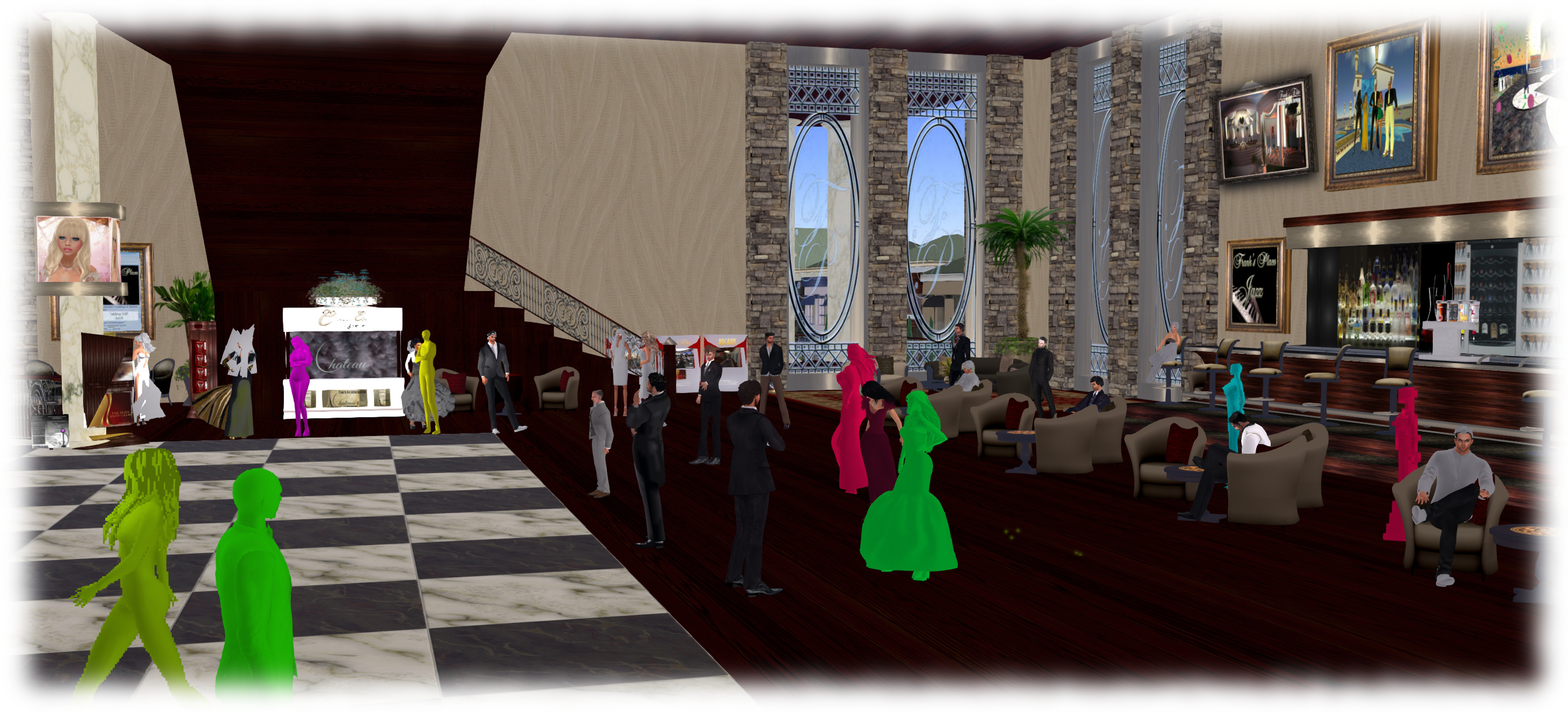
Avatar Complexity (aka Jelly Babies) is now available in the Quick Graphics project viewer
Update:See BUG-9962 for issues relating to avatars becoming stick as Jelly Babies when using Avatar complexity.
On Friday, August 21st, the Lab issued their Project Quick Graphics project viewer. Version 3.8.4.304433 brings with it the much-anticipated Avatar Complexity and graphics presets capabilities, both of which are intended to assist in improving viewer performance for those on lower-specification computers.
I provided an overview of the viewer while it was still in an early version, so this is offered as a further update.
Avatar Complexity introduces a new slider to the viewer which can be used to set a level above which avatars requiring a lot of processing will appear as a solid colour (including their attachments), giving them the nickname ” Jelly Babies” after the sweet (candy) of the same name.
As avatars can often be the single biggest impact on the viewer in terms of rendering, particularly in crowded places, using this slider is intended to greatly reduce the load placed on a system compared to having to render them in detail, allowing users to adjust the setting according to circumstance – the setting can be increased, rendering more avatars as solid colours in crowded regions, and turned down for quieter spaces. At the same time, there’s also the ability to set how individual avatars are rendered on-the-fly during the current log-in session.
The Avatar Complexity slider in Preferences > Graphics > Advanced Graphics Preferences (l) and the new format of information displayed when Advanced > Performance Tools > Show Avatar Complexity Information is enabled (r)
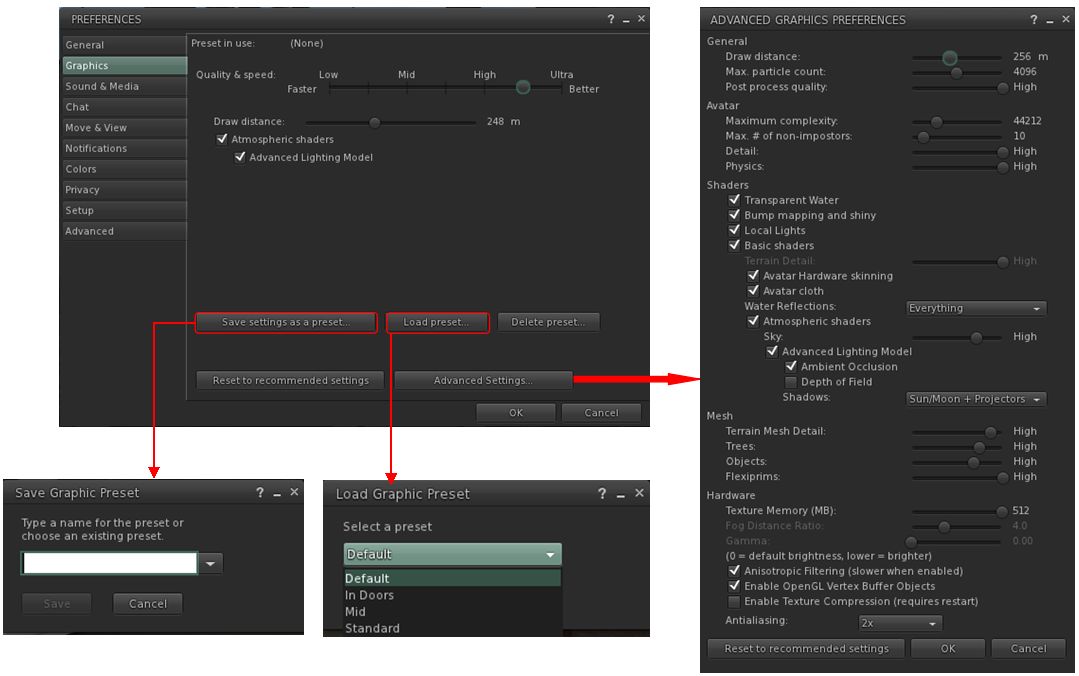
The Avatar Complexity slider can be found on the Advanced Graphics floater (Preferences > Graphics > Advanced Settings…), The values run from 19,999 to 300,000, above which it switches to No Limit, meaning all avatars in your field of view will fully render, with the default based on the rendering performance of your system. As noted in my last piece on this, the values used by this slider are based on those previously used to determine Avatar Draw Weight / Avatar Render Cost.
It is possible to see the render complexity of all avatars in your field of view (including your own) by enabling Advanced > Performance Tools > Show Avatar Complexity. This displays a series of figures above avatar heads which is updated in real-time. The one likely to be of interest to most users is at the top: the actual render complexity value. This should remain fairly constant, allowing for how people might change their appearance by adding / removing items and changing their appearance.
The viewer also generates information messages in the upper right corner related to Avatar Complexity. One is displayed each time you change your own avatar’s appearance and impact your own rendering complexity. The second acts as an indicator for when you’re over the limit of “too many” of the avatars around you, and are being rendered as a Jelly Baby.
The viewer displays notifications when you (l) make a change to your own avatar which impacts its render complexity; (b) if your avatar is largely rendered as a Jelly Baby by others
A further element of Avatar Complexity is the ability to selectively alter how individual avatars are rendered on-the-fly. This is achieved via the right-click Avatar context menu, which includes three new options:
The right-click avatar context menu has options to allow you to define how you want specific avatars to render during the current session
Render normally – the avatar will render as defined by the Avatar Complexity setting. If the avatar’s complexity is lower than the setting in the viewer, it will render correctly; if it is higher, it will render as a Jelly Baby
Always Render Fully – does exactly what it says – the avatar will always be fully rendered, regardless of it exceeding your set complexity limit
Do Not Render – renders the avatar as a Jelly Baby (or even not at all save for name tag if already very easy to render) regardless of your Avatar Complexity setting. Note that this setting does not persist across log-ins (so if you re-log, those avatars you’ve used it against will render normally), and it will not block the ability to read their local chat or receive their IMs, etc.
There are a couple of final points worth mentioning with Avatar Complexity. The first is that it is not a replacement for Avatar Imposters, but can be used alongside it. The second is that with this project viewer release, the colours of Jelly Babied avatars has been muted when compared to test versions of the viewer, making them a lot easier on the eye (the image at the top of this article shows the former, more vivid colours).
Graphics Presets (see STORM-2082) allows users to create, save and use their own graphics presets, each designed to meet a specific requirement, and which can be quickly switched between with the overall aim of helping with viewer performance.
For example, one preset may have all the performance hitting items (shadows, projectors, etc.) turned on / up for times when the overall quality and depth of detail in a scene is important for taking photos, another may have them dialled-down for crowded places, and a third might have them adjusted further for “indoor” use (so draw distance is greatly reduced, sky and terrain details are set to low, water reflections turned off, etc.).
The viewer includes the means to create and save sets of graphics presets which can be quickly loaded according to need / circumstance to help maintain a viewer’s performance
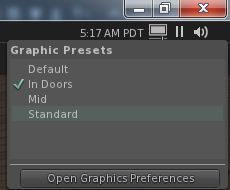
Once a preset has been set-up, using the revised Advanced Graphics Preference panel, it can be uniquely saved, and then applied at will using the either via Preferences > Graphics > Load Preset, or more directly by the Graphic Presets icon located in the top right of the viewer.
When the mouse is hovered over this icon (shown right), a list of all saved presets is displayed, a tick appearing alongside the one currently being used. Clicking on any other preset will immediately apply it.
In addition, this panel also has a button which will open the viewer’s graphics settings in Preferences.
As noted in my previous article on these updates, the Advanced Graphics Preferences panel has been seen as less-than-optimal due to its size; the Lab have acknowledged the feedback, but have not made any significant changes to the layout as yet with this project viewer release. Whether they do or not may depend on feedback they receive directly from users, and what they feel can be done to improve clear deficiencies.
The ability to create and save graphics presets is a welcome addition to the viewer – these are not the same as backing-up and restoring viewer settings as seen in other viewers, but do provide a fast and efficient way to adjust graphics settings according to situation, if needs be.
Avatar Complexity is liable to be an interesting addition to the viewer. While there is a risk of seeing a return of ADW / ARC drama, it also provides the means for people to accurately judge the impact their avatar might be having on others – and their own, given their avatar must be rendered by their own computer as well – SL experience. It also potentially offers content creators to better understand how the use of mesh and textures can impact other people’s SL experience, allowing them to further improve their products.
Those wishing to try the viewer for themselves can find it here. Keep in mind, that is it s project viewer, prone to possible bugs and to further changes from the Lab, and issues should be reported via the JIRA.
Update:this release has seen further issues for those using Webroot anti-virus (problems include low FPS, high ping rates to the simulator, very slow rendering, etc.). If you have Webroot installed on your system and are experiencing issues, please try manually whitelisting the viewer’s cache folder.
Tuesday, August 18th saw the release of Firestorm 4.7.3.47323. This release comes a little later than had been planned, thanks largely to a series of last-minute blockers caused be assorted external influences (such as win 10 driver issues for Intel).
This is once again a major release, packing a huge amount into it, and which brings Firestorm pretty much to parity with the Lab’s code base. It also sees the return of the Linux 64-bit build to the fold.
Given the sheer number of updates in the release, I do not intend to cover everything here, but rather offer an overview of some of the more major / interesting changes, updates and fixes to be found in the release. for full details of all changes, and all due credits to contributors, etc., please refer to the official release notes.
As this is a full release, expect an announcement on the blocking of version 4.6.1 and 4.6.5 to be made once the dust from this release has settled.
Log-in Screen Updates: Text Mode and Remember User Name
Login Screen > Select Mode >Text
When enabled, this disables the viewer’s 3D rendering, allowing Firestorm to be used as a “text viewer” for low-end systems and launches the viewer with the in-world view blanked out, but all of the menu options and tool bar buttons accessible HUDs (which are not displayed) and other attachments can be manipulated via the Touch option in the Inventory context menu.
The Text Mode option, accessed from the Select mode drop-down on the right of the log-in / splash screen enables you to run Firestorm without 3D graphics on a low-end system – menus and buttons will still be accessible, as will floaters. The Remember user name check box (highlighted above left) is also a new feature, restoring the functionality last seen in Phoenix
The Remember Username check box has been added to Firestorm in response to a series of requests to bring back this functionality from the Phoenix viewer – see FIRE-5735.
Additional Log-in Screen Fixes
The issue of Remember Password box checking itself after a failed log-in attempt and refusing to uncheck itself (see FIRE-16535) has been fixed
Several focus issues within the login panel have been fixed (see FIRE-6930)
Lab Updates
The 4.7.3.47323 release brings Firestorm up to parity with the Linden 3.8.2 code base (with some additional updates from the current 3.8.3 code base). Chief among the LL updates are the following.
Viewer Build Tools Update
This release means that Firestorm is now built using the updated viewer build tools, notably Visual Studio 2013 for windows and Xcode 6.1 for Mac, with some additional tool improvements, all designed to provide improved performance and stability, as well as easing the viewer build process. Details on the new build tools can be found in my blog post on the subject, however the key points with this change are:
The Windows version of this viewer will not install on Windows XP systems, regardless of the Service Packs also installed (previous versions of the release viewer would install on Windows XP system which had Service Pack 3 installed)
The Mac version of the viewer will not install on any version of OS X below 10.7.
Attachment Fixes
Firestorm 4.7.3 includes the Lab’s Project Big Bird fixes for a wide range of viewer attachment loss issues, which tend to noticeably occur after regions crossings (physical or teleport), such as: attachments appearing to be detached in your view, but not to others, and vice-versa; attachments appearing to have detached from you, but showing as attached in Inventory, and so on. These also fix issues such as adding multiple attachments at the same time failing to attach everything selected, and attempting to wear an outfit with too many attachments failing.
Project Layer Limits
This changes how system clothing layers (shirts, pants, under shirts, jackets, etc.), are handled. Prior to this update, an avatar could wear a maximum of 5 items of any single layer – say the jacket – at one time. With this change, an avatar can wear any combination of layers up to a global maximum of 60 – so you can wear 1 pair of pants and 59 jackets if you so wish, or just 60 jackets, etc.
Note that this change does not apply to body layers – skins, shapes, eyes, etc., for which the limit is still one of each, nor is it applicable to attachments, which retain a limit of 38 per avatar.
Experience Keys / Tools
Firestorm 4.7.3 adds the full set of Experience Keys / Tools controls and floaters in the viewer. For those not familiar with Experience Keys / Tools, I offer my own overview from July 2015.
This update means that on entering an area where an Experience is running, Firestorm users will see the full permissions request dialogue, rather than an abbreviated version.
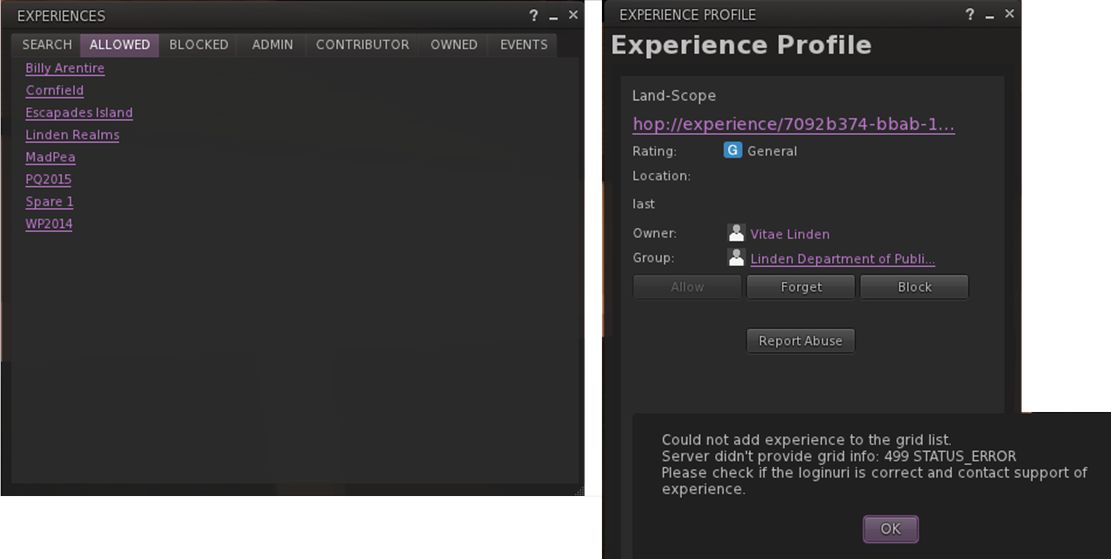
With release 4.7.3, Firestorm users can access the Experience floater and review information on those Experiences they have allowed, blocked, owned, etc., and display individual Experience profiles. Land owners can also display information on Experiences running / blocked on their land through World > Region Details and / or the About Land tab
In addition, Firestorm gains the additional Experiences-related panels and floater options. So users can now access the Experiences floater via Avatar > Experiences, and the Region and About Land floaters have also been updated to include Experiences tabs and information.
Viewer-Managed Marketplace (VMM) is designed to enable merchants to manage the creation and management of Marketplace product listings through the viewer, bypassing the need to use the Merchant Outbox (and have copies of items stored on the Marketplace inventory servers) or using Magic Boxes (as VMM fully supports the sale on No Copy objects). It was fully deployed in July 2015, and all merchants have had their Marketplace listings migrated to VMM, and should by now have also migrated their Magic Box listings and items to VMM.
Firestorm 3.7.3 now fully supports VMM functionality, providing the Marketplace Listings panel and hiding the Marketplace Listings folder by default.
Those still requiring information on VMM are referred to my blog posts on the subject, which also include links to the Lab’s official information resources.
Dragging Folders into My Outfits
A recent change to viewer functionality meant that it was no longer possible to drag and drop sub-folders of items into the My Outfits / Outfits folder – see BUG 9209 (FIRE-15603). This changed caused some consternation among those who use My Outfits to order their outfits. As a result of the use-cases supplied to the Lab within the JIRA, this has been reversed in an upcoming release, and has been cherry-picked for inclusion in Firestorm 4.7.3.
On Friday, August 8th, Nicky Perian announced the release Kokua 3.8.2.35975, which brings the popular SL and OpenSim viewer to parity with recent Linden Lab code releases, and includes additional tweaks and fixes from the Kokua team.
The release marks a considerable amount of work under-the-hood for the viewer, which is now built using the new tool chain for both Windows and Mac (with acknowledged thanks to Gavin Hird (aka Dayturn) for his work in getting the latter working). Also with regards to the new tool chain, the viewer has been available in test builds using the new tools for a while, but 3.8.2 marks the first official release.
In all the code updates from the Lab incorporated in this release comprise:
Release 3.7.29.301305 – global system layer limit of 60 wearable layers in any combination
Release 3.7.30.302599 – DLL update to provide MSVCP100.DLL and MSVCR100.DLL which were missing from the Windows version of the viewer, and as a result causing problems for some users by their absence
Release 3.8.0.302622 – Experience Keys / Tools support
Release 3.8.1.303130 – Project Big Bird attachment loss fixes
Kokua 3.8.2 provides the expected floaters and tabs for Second Life Experiences. The main floater is accessed via the View menu. However, there is a slight glitch: when opening an Experience Profile from the list of Allowed Experiences, the viewer opens the Profile, but then displays an error message which suggests it is trying to add the Experience to the grid manager.
Kokua 3.8.2 does throw an error message when viewing an Experience Profile, but this doesn’t interfere with things – click OK to clear
The message doesn’t interfere with accessing Experiences or managing your Allowed / Blocked, etc., Experiences – just click OK to clear it. I’ve reported this issue to Nicky. Other than this, everything I’d expect to work with Experiences worked (albeit it in a rapid-fire test at the Lab’s PlaeoQuest). The expected Join dialogue was display, items attached as expected once permissions had been granted, and permissions were detached and permissions revoked on leaving the game play area.
Viewer-Managed Marketplace
The Marketplace Listing Panel is access via the View menu, and Kokua 3.8.2 completely removes the old Merchant Outbox (which no longer works anyway, following the VVM migration). Again, in a quick trial run using a single, uncomplicated item, I didn’t notice any obvious issues. The Marketplace Listings folder is also correctly hidden within Inventory, and the expected warnings are displayed on attempting to delete anything from the Listings Panel.
Kokua 3.8.2 provides full VMM support to SL users
Other Notes
A high-speed flight across Blake Sea yielded a positive result with attachments. I neither parted company with my hair or my feet / shoes throughout – which is pretty much a given for me on any viewer without the fixes after just a couple of crossings. I did part company with my MD-900 somewhere over Dutch Harbor (so apologies if anyone found themselves getting slapped in the back of the head by a fast-moving helicopter!). However, that’s just a fact of Second Life, and not something endemic to Kokua!
There’s no RLV implementation with this release; it will likely be added in a test version in the near future.
As always, please refer to the Kokua release notes for the full list of updates and known issues.
I’ve not put this release through an extensive test; however, the time I have spent using it (roughly 5 hours on Friday 7th and Saturday 8th August), I’ve encountered no issues other than the niggly little error message thrown by Experiences, as notes above.
Congrats to Nicky and all involved on the update, and in getting Kokua shifted to the new build tool chain.
NiranV Dean once again issued a rapid-fire series of updates to Black Dragon in week #29, upping the version number from 2.4.3.6 to 2.4.3.9 in the process.
The reason for the speed of updates is a combination of the Lab pushing through quite a lot at the moment, and Niran providing some tweaks, fixes and updates of his own / sourced from other RPVs.
The first update out of the gate was 2.4.3.7, on Monday July 13th, which incorporated the Lab’s summer Maintenance release (version 3.8.2.303563 at the time of writing – see the release notes on the Lab’s release for a list of the updates incorporated into Black Dragon).
This was followed on Wednesday, July 15th by version 2.4.3.8, which incorporated the Lab’s Project Big Bird updates. These are a series of viewer-side fixes for a fair number of attachment issues people have been experiencing since the arrival of AIS v3, and some which pre-date it. These include, but are not limited to, teleporting / crossing a region and having attachments removed; teleporting or crossing a region and losing attachments in your view while others can still see them (and vice-versa); seeing attachments as removed but the viewer reports them as attached, etc.
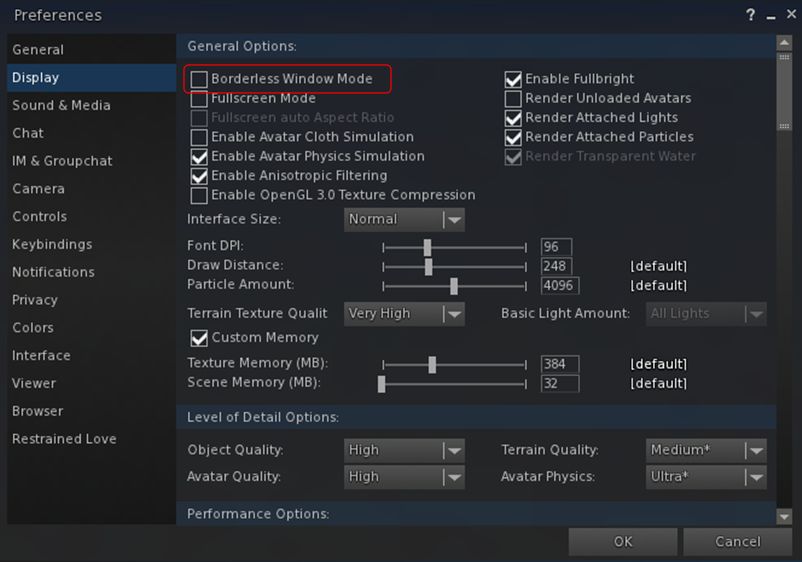
This version also incorporates Kitty Barnett’s “borderless window mode” (Preferences > Display). when enabled, this will expand the viewer window to the full size of your screen, hiding the title bar without the need for a re-log. When disabled, will return the viewer window to its last framed sized.
The borderless window option with expand the viewer window to your full screen size, hiding the top bar and without the need fora re-log
Released on Sunday, July 19th, version 2.4.3.9 contains further maintenance tweaks and updates, notably the official code for right-clicking and selecting worn mesh.
Niran has also addressed the issue found in the Notifications Viewer, where the buttons for accepting / declining a group invitation are only displayed when an invitation is received – if you miss it due to AFK or anything, and then open the invitation in the Notifications floater, it is displayed without any means to act upon it – see BUG-9625, which also points out that invitations to Experiences, and requests to accept deny debit permissions suffer the same issue).
Niran has added the buttons for accepting / rejecting a group invite when it is displayed in the Notifications floater.
As well as the above, Niran has included a range of fixes and updates with each of these releases – please refer for the relevant release notes for details – and is continuing to tweak things on the rendering side of things, improving things like lens flare, ans also tweaking the Unified Snapshot floater.
There will doubtless be a further Black Dragon update winging its way towards release very soon, one which contains the Lab’s Viewer-Managed Marketplace updates. In the meantime, these updates ensure Black Dragon remains on a par with the majority of the Lab’s offerings available in the viewer release channel.
On Thursday, July 16th Alchemy both released their latest beta and announced they are considering moving to monthly releases in order to better keep pace with the Lab’s own releases.
Such a schedule would in part depend upon what the Lab have coming downstream, even allowing for their aim of promoting a viewer every other week. So we’ll likely see how this pans out. In the meantime, there is Alchemy Beta 3.8.1.35916. The following a brief summary of the release; as always, please refer to the release notes as well.
This update brings Alchemy to parity with the Lab’s 3.8.1 code base, meaning it has everything found in the Lab’s release viewer up to and including the attachment fixes found in the SL viewer 3.8.1.303130.
Some of Alchemy’s new additions: displaying the avatar name in the viewer title bar and the audio information floater
In terms of Alchemy additions, the 3.8.1 release brings an optional musical stream identification floater (accessed via Me > Audio Ticker), and now shows the currently logged-in avatar’s name in the viewer title bar; a useful addition if you’re running multiple instances of the viewer and wish to see which is which when they are minimised.
A further addition is the option to view profiles (your own and other people’s profiles either in the “legacy style” floater or as a web profile. The profile view can be switched by checking / unchecking Preferences > Interface > General > Open profiles in web mode.
Which profile: legacy or web? You get to choose
Among the under-the-hood changes and the fixes in this release can be found OpenSSL updates, while a further update visible to users is a fix to prevent the radar spamming a series of messages about avatars in a previous region “leaving” when teleporting to another region, if you have it set to report “entering” and “leaving” agents (see ALCH-223).
There is a known issue with the viewer starting on Windows. If you receive a message similar to “The application was unable to start correctly (0xc000007b)”, please download and install one of the following two files from Microsoft:
If you are using the 32-bit version of Alchemy: vcredist_x86.exe
(The above links will take you to the respective download pages at Microsoft, where you can review the file details prior to downloading.)
There is also a known issue when trying to alter Music URL etc., when accessing About Land via the land information icon in the navigation bar. This will be fixed in the next release; for now the workaround is to right-click the ground and access About Land via the context menu.
A small, tidy update. Will be interesting to see if the Alchemy devs do opt to try for monthly updates.
 On Thursday, August 20th, the Alchemy team released version 3.8.2.36473 of their viewer in the first of their promised monthly updates.










 Inara Pey: Living in a Modemworld