Nicky Perian announced the release of Kokua 4.0.1.37934 on Tuesday, March 1st 2016.
The update sees Kokua gain parity with the latest release version of the viewer from Linden Lab (version 4.0.1.310054 (Maintenance release) at the time of writing), and also with the February 26th release of RLV version 2.9.16 from Marine Kelley.
Not that if you are currently still using a test version of the viewer, the automatic update feature will not function. A separate download and install is required.
CEF Updates
This release incorporates the Chromium Embedded Framework (CEF) updates for media from the Lab, as well as the assorted crash and bug fixes from the Maintenance release. Also included for CEF are a series of contributed updates for Linux, coming by way of Drakeo and including work by Nicky Dasmijn of Firestorm and Henri Beauchamp of CoolVL. Commenting on this, Nicky points out:
Drakeo’s development focus is media and providing Slackware viewer packages. Upstream CEF frequently issues security updates and Drakeo puts those into his own Slackware packaged viewers and contributes updates to Kokua. These security updates from CEF come more often than the Kokua release cycle, however, our Test viewers can be used to maintain a level of currency. Please remember that Linux viewers are Alpha and that is even more the case now that we no longer have the benefit of Linden Lab’s Quality Assurance run through of new features added to Linux viewers. We do our best to provide stable Linux viewers, but with the vast number of Linux distributions problems will occur that may not have timely solutions.
Inventory Updates
Transferable Items Filter
Kokua 4.0.1 includes a new Transferable Items Only inventory search filter. When active, this will limit the main inventory display to transfer enabled items only.
To prevent possible confusion / worry about inventory loss, the option does not persist between log-in sessions when enabled.
The new Transferable Items Only filter will display only those items which are transfer enabled in your inventory
OpenSim Exportable Parameter
Kokua 4.0.1 adds an Exportable parameter to the Item Profile floater for OpenSim grids, allowing content creators to easily mark items they build as being exportable to other grids. The option is not displayed by the floater when logged-in to Second Life.
The OpenSim only Exportable parameter
Do Not Let Me Fly
A new option added to Preferences > Kokua and to the Commands menu is Do Not Let Me Fly. As the name suggests, when checked, it prevents your avatar from flying even where flying is enabled. The option is specifically intended for use in combat zones where flying within the region may still be enabled, to prevent any risk of accidentally flying (such as when jumping an obstacle) and interrupting the combat flow.
The Do Not Let Me Fly option will prevent you avatar for accidentally flying whilst still allowing Page Up to be used for jumping
Under the Hood
In addition to the above, the release includes numerous under the hood improvements and updates, all of which are listed in the downloadable change log for those interested.
On Tuesday, February 16th, the Alchemy team announced the release of Alchemy 4.0.0.37374 Beta.
The release – as indicated by the version number shifting to 4, incorporates code for the Chromium Embedded Framework (CEF) for media handling. Already in the official release viewer on some TPVs, CEF replaces the ageing QTWebkit framework, and supports all modern web technologies including HTML5, CSS3, and WebGL.
This release also implements the Lab’s auto update feature, which means that when a new version of Alchemy is release, users well get a notification prompting them to allow the updater to run and install the latest update when they log into an older version.
Perhaps a more visible change to the viewer is the ability to initiate nearby chat through a local chat bar, rather than either through the Conversations floater or having the detached Nearby Chat bar always open either full-sized or minimised.
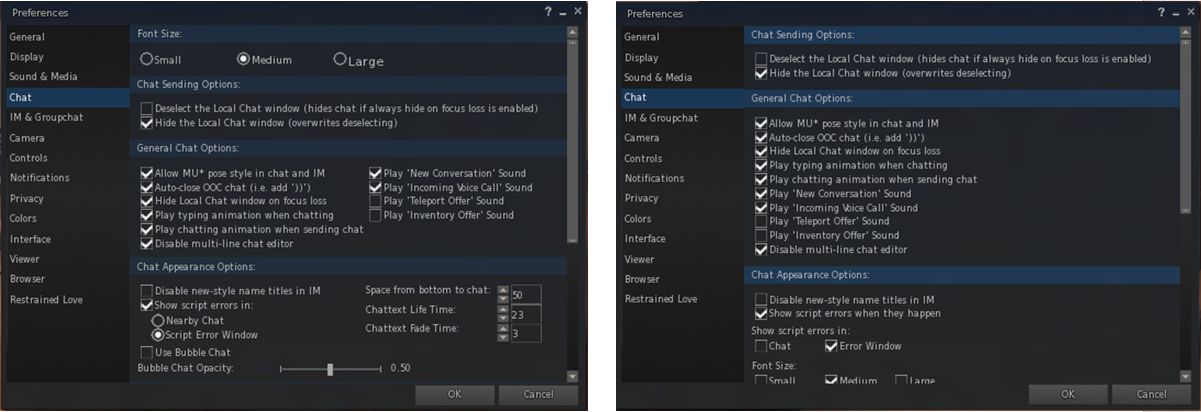
As with similar local chat bar options found in other TPVs, this will only work if you set the viewer so that pressing letter keys starts local chat (Preferences > General). You also need to ensure that Preferences > Chat > Open Conversations When Initiating Nearby Chat is unchecked. Once done, starting to type within the viewer window will open a compact chat bar, which will close automatically upon pressing Enter.
The new local chat bar offers a convenient means of typing local chat, complete with gear icon options, and can be enabled by ensuring pressing the letter keys on your keyboard initiates typing (rather than movement), and that the option to Open Conversations when Initiating Nearby Chat (shown above) is unchecked (leaving it checked will open the Conversations floater in full or the Nearby Chat floater, is detached from it)
Removed from this version of Alchemy is media pop-ups, which aren’t supported by CEF. Other updates are reported to be directed at OpenSim use, together with a few “hidden gems” and also under-the-hood updates intended to improve performance. There are also a number of fixes implemented, as indicated in the release notes.
Update: February 8th, 2016: Catznip 10.1 beta is now available. Functionally, it is exactly the same as the R10 release except is has a much updated openJPEG, If you are a Catznip user and are experiencing crash issues, this beta may help.
To find out if your issues are openJPEG related, go to Preferences > Crash Reports. and if you see openJPEG anywhere on that page, you should updated to the R10.1 beta as soon as you can.
Saturday, January 30th saw the long-awaited release of Catznip R10, the first update to the viewer in some 18 months, largely as a result of fate playing a very unfair hand to members of the Catznip team (and it’s good to see you back in-world Kitty, and hoping your recovery swiftly moves beyond the uncomfortable stage) .
Currently, the release is for Windows only, but it see Catznip come right up to date with the current release version of the official viewer, including support for Chromium Embedded Framework (CEF), for modern media support.
Lab Updates
Obviously, so long a period between releases means that there have been a string of major and minor updates from the Lab, all of which have had to be incorporated into Catznip R10, and which have all be covered to one degree or another in the pages of this blog. With this in mind, and to avoid boring people with a lot of repetition of information already available, I’ve summarised the cor Lab changes found in R10 below, together with links to additional information for those who need it.
Revised Log-in / Splash Screen
The first noticeable change is that Catznip R10 now uses the revised log-in splash screen as deployed by Linden Lab, which places the log-in options at the top of the screen. However, because Catznip is unlikely to be the first viewer new user to SL are likely to encounter, the “first time log-in” option has been disabled.
SL Share 2 and Unified Snapshot Floater
SL Share 2 capabilities, introduced in 2014, allow users to upload snapshots directly to Twitter and Flickr, while the unified snapshot floater provides an initial means of accessing the options to upload snaps to Facebook, Flickr and Twitter from within the snapshot floater, as well as adding a much larger snapshot preview panel.
Group Ban Functionality
Group Bans allow group owners and those roles provided with the ability within a group, to remove troublemakers from that group / prevent them from joining / re-joining the group.
HTTP Pipelining
HTTP pipelining enables the viewer to issue multiple asset fetches on a connection without waiting for responses to earlier requests. This helps to improve things like initial scene loading. In addition, the pipelining code includes improvements to inventory fetching.
Avatar Hover Height
Avatar Hover Height, developed as a direct request of a proposal put to the Lab by members of the Firestorm team, allows “on-the-fly” adjustments to be made to your avatar’s height with the minimum of fuss and without having to use the Edit Appearance Hover slider or use a modifiable shape.
Experience Keys
Also referred to as Experiences, this allows creators to build more seamless and immersive experiences in Second Life without the need to constantly ask users to grant permission to act on their avatar. Instead, permission is requested once when they join (or re-visit) the experience, and then revoked when they leave.
Viewer-Managed Marketplace
The Viewer-Managed Marketplace, or VMM, enables merchants to manage the creation and management of Marketplace product listing through the viewer, bypassing the need to use the Merchant Outbox (and have copies of items stored on the Marketplace inventory servers) or using Magic Boxes.
In addition, there has been all the maintenance, snowstorm and other releases which have all board improvements and changes to the viewer, and all of which have been incorporated into Catznip R10. These include, but are not limited to: viewer build library updates, interest list improvements, inventory handling updates, GPU benchmarking, attachment fixes, the ability for an avatar to wear up to 60 wearable layers – jackets, shirts, tattoo, alpha, etc. – in any combination, rather than being restricted to a maximum of 5 per specific layer type, and so on.
Notifications Floater Improvements
Caznip offer a means to filter received notifications as well as a drop-down list for displaying notifications by category
A further update made to the official viewer during 2015 was that of the Notifications floater, which appeared in the latter part of 2015.
For those unfamiliar with it, the Notifications floater allows incoming notifications (group, system, invitations and transactions, to be sorted and displayed for easier viewing. The default floater splits all such notifications using a tab system, with a tab for each category.
In implementing the feature, however, Catznip have made a couple of improvements.
The first of these is that rather than presenting received notifications under a series of sub-tabs, Catznip R10 allows the user to select which category of notifications they wish to view (or all of their received notifications) via a drop-down list, removing the need for any scrolling between tabs.
This has allowed the Catznip team to include their second improvement, in the form of a search filter. This allows users to filter notifications based on criteria such as originating group, sender’s name, etc. If, like me, you are someone who receives a lot of group notices, this significantly eases sorting through and finding those to which you might want to pay particular attention.
Firestorm have announced that as from Thursday, January 7th, Firestorm viewer 4.7.1 is to be blocked from accessing Second Life, and those using 4.7.1 are being encouraged to update to a more recent version (or revert to 4.6.9 for the time being if using Windows XP or Mac OS X 10.6) ahead of the block coming into force.
The move is in keeping with Firestorm’s commitment to Linden Lab to only have 3 versions of their viewer (allowing for specific issues which might otherwise come us, as has been the case for Mac users, who have had to face a series of (apparently) Cocoa related issues impacting their ability to use viewers incorporating these updates) active at any given time.
As noted in the announcement, this means that only Firestorm 4.6.9 will remain available for those still using Windows XP or versions of OS X older than 10.7, and this will be blocked some time after the next release of Firestom, which currently looks to be set for some time in February.
Black Dragon, the v3-style viewer by NiranV Dean updated to version 2.4.4.6 (aka version 4.0.1.36965) on Tuesday, December 29th.
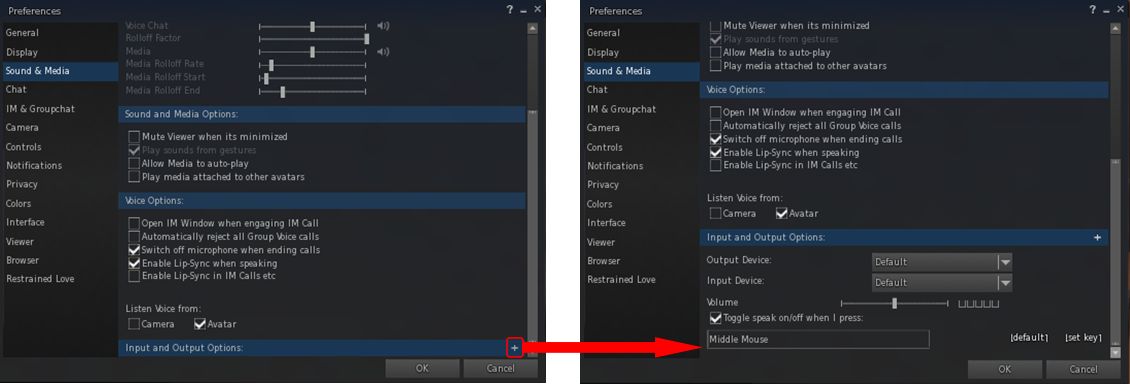
The update primarily comprises a re-working of the viewer’s preferences floater, with Niran noting, “while the display preferences tab has gotten quite some upgrades and consistency changes, all the other panels were left out… until now.”
The most noticeable change is that several more of the tabs now have a slider to the right, the result of options which had previously been presented in two columns now appearing in a single column. As well as this, some options have been moved around to present a more logical top-down flow, as has previously been seen in the Display option tab, and with radio buttons replaced by combo boxes.
Niran has been re-working the Black Dragon Preferences floater, offering an approach to the tabs which matches the top-down flow seen within the Display options tab (click to enlarge)
The result is a more logical flow, but currently comes at a cost – the aforementioned increase in sliders on the right of some of the tabs. However, and here’s where an assumption on my part comes in – I do wonder if this might only be an interim thing, and whether Niran will be adding expanding sub-tabs, again in the same style as the Display tab – as possibly evidenced by the inclusion of one such sub-tab in the Sound and Media tab.
The Sound and Media tab includes a sub-tab expansion option – a sign that expansion capabilities are to be added to the Preferences tab
Niran also notes that this release was to have contained the Project Bento avatar skeleton updates, but these have been left out. This is probably a wise decision; Bento is still in formative beta testing, and could be subject to changes throughout the next few months, as such the viewer code (and server-side support) could undergo change. As it is, Bento support is best witnessed on Aditi.
This is clearly a tidying-up, rather than a major update. however, it continues Niran’s work in offering a consistent presentation of the UI within his viewer. Also, given that the Lab prefers TPVs do not make significant releases over the holiday period, keeping the updates to UI clean-up is probably no bad thing.
And it certainly makes a nice little Christmas present for Black Dragon users.
Update #3, January 9th, 2016: The testimonials on the landing pages have now been updated with genuine comments and images from Second Life users.
Update #2: I’ve further been informed that the testimonials are intended to the express the sentiments of SL users and are based upon feedback. expressed by SL users. Similarly, the images are in fact stock Internet images. A footnote to the effect that “The consumers above are not actual consumers of the advertised product.” has now been added to each of the landing pages.
Update #1: I’ve been informed by various third parties that the testimonials on the landing pages may not in fact be genuine. I’ve therefore revised this post until I hear further on this matter.
On Monday, December 28th, Friestorm announced the arrival of their Gateway landing pages, and asked Firestom users for their assistance in helping to spread the word about Second Life.
The Landing pages are an integral part of the Firestorm Gateway, which itself forms a part of the upcoming trail Gateways Programme I previewed back in September, and which hopefully will be officially announced as up and running by the Lab in the near future.
In all, six landing pages have been produced, each one of which is intended to showcase a specific aspect of using Second Life, and encourage those new to Second Life to sign-up and log in to the platform. To help with this, Firestorm is asking SL users to share those pages they feel their non-SL friends and contacts would find to be of the most interest and thus sign-up. The six pages have the following topic descriptions:
While one might quibble over the subject titles (role-play and exploring might seem to exhibit a high degree of cross-over, for example), the pages themselves offer a crisp, clean approach to present Second Life, including endorsements from (and photos of) actual SL users.
Each of the pages includes a series of sign-up buttons which carry those interested to the initial phase of sign-up: creating an account – providing a user name, etc.
The sign-up form using the Lab’s API
It’s probably worth pointing out here, and before the conspiracy theorists reach for their tin-foil hats, that this sign-up process uses an API supplied by Linden Lab. This means that, just like all third-party TPVs, none of the gateways in the programme – Firestorm or anyone else – is storing or accessing the sign-up information a new user provides. The information is strictly between the user and the Lab. The only part of the sign-up information which can be accessed is the e-mail address: and that only for as long as it takes for an automated welcoming e-mail to be sent.
Providing the fields are correctly filled-out – error messages will be displayed at the foot of the input fields, although you may have to use the vertical slider to bring them into view thanks to the API – clicking Get Started will move you on to the next page, intended to step the user through downloading, installing and launching the viewer.
The Firestorm instructions page
To me, this page presents some issues which perhaps need to be dealt with if it is to be as effective as might be hoped – I’ll come back to this a little later.
One thing established SL users are bound to note is that nowhere is there any opportunity for the new user to select an avatar.
This isn’t an oversight on the part of the Firestorm team – it is a result of having to use the “old” user sign-up API, which doesn’t have any hooks into the Avatar Picker seen on the Lab’s own sign-up pages. Thus, the first opportunity new users get to picker the gender of their avatar is after they have logged-in – and even then, they only initially get either the male or female default Character Test avatars which (a long while ago) replaced the infamous “Ruth”.
As the gateway has to use the “old” SL registration API, users do not get to select the gender of their avatar until after they log-in (left), and are then defaulted to either the female or male Character Test avatar (click to enlarge, if required)
Obviously, this is far from ideal. First impressions count, and many people seeing their avatar for the first time and comparing it to the glossy images on the landing pages could end up feeling a tad bit aggrieved or disappointed and might even simply log off.
This issue has already been raised with the Lab, so hopefully, something can be done about it, either by providing the updated API with the avatar picker to those involved in the gateway programme, or by the Lab finding the means to present new users coming into SL via these gateways with at least one of the new “Classic” avatars instead of the Character Test versions.
Once they have selected their gender and have seen their avatar appear, the new user will find they’re starting at the start of the Firestorm’s orientation island, where they can start learning to use the viewer, before progressing on to finding out more about Second life in general through the various activities and events operating within the Firestorm gateway regions.
Given that new users are confronted with the Character Test avatars on first logging in (and allowing for the fact this will hopefully be changing), I did find myself wondering if a short lesson couldn’t be provided showing the new user how to access the Avatar Picker and quickly create an alternative look, just to reassure them that avatars in SL really don’t all look like they first see themselves.
Once new users have progressed through the Firestorm landing / sign-up pages and have installed the viewer and logged-in with it, they’ll be delivered to the orientation island in the Firestorm gateway regions
 Nicky Perian announced the release of Kokua 4.0.1.37934 on Tuesday, March 1st 2016.








 Inara Pey: Living in a Modemworld