Firestorm 5-0: Bento, VOB, VLC and more!

Following the unprecedented demand for Firestorm 5.0.1 (see here for details), formal mirror sites are now available. When downloading Firestorm 5.0.1, please ensure you use with either the Firestorm download page or one of the mirror site links. Please do not source your copy of Firestorm from elsewhere.
The mirror site download links are available here.

firestorm-logoOn Tuesday, December 13th, the Firestorm team released Firestorm 5.0.1.52150 – the new version number both reflecting the inclusion of the Lab’s Project Bento code and also bringing Firestorm more into line with the Lab’s own viewer version numbering, which the latter has been gently requesting for some time now.

As well as Bento, the release includes almost all the latest code updates and improvements from Linden Lab, and a lot of new nips and tucks from the Firestorm team and via contributions from other parties.

In keeping with my usual approach to Firestorm releases, what follows is  not an in-depth review of version 5.0.1.52150, but rather an overview, highlighting some of the more significant / interesting changes, updates and  fixes, which I feel will be of most interest to users.

For full details of all changes, and all due credits to contributors, etc., please refer to the official release notes. Note that this release means that Firestorm version 4.7.5 will be blocked in around three weeks time.

The Before We Begin

  • There is no need to perform a clean install with this release if you do not wish to.
  • You should, however, remove your existing version of Firestorm before installing 5.0.1.
  • Before removing your current version, make sure you back-up all your settings safely so you can restore them after installing 5.0.1.

Lab Derived Updates

Firestorm 5.0.1 brings the viewer up to parity with the Lab’s 5.0 code base, which means this release supports the new Bento skeleton enhancements plus VLC media capabilities, the Visual Outfits Browser (VOB), a range of fixes and improvements and some upstream additions from the most recent Maintenance RC.

Bento Avatar Skeleton Enhancements

As most people are aware, Project Bento is a collaborative project between the Lab and content creators to improve and enhance the Second Life avatar skeleton in order to better support mesh avatars (Bento does not work with the Second Life system avatar). It adds numerous new bones to the avatar skeleton, allowing easier creation and animation of things like additional wings and limbs, and offers the opportunity for greater facial animations with mesh heads and faces, and even finger manipulation on mesh hands.

In addition, Bento provides a set of new attachment points to work with the new joints – however, the overall limit of the number of attachments you can wear at any one time remains 38 (including HUDs).

Most of all of this work is entirely under-the-hood. However, there are two additions to the avatar right-click context menu for both your own and other avatars: Reset Skeleton and Reset Skeleton And Animations, which should be noted.

These options have been added because sometimes, when changing between one mesh avatar and another, the basic SL avatar can become deformed, resulting in it looking squished, stretched, caught between two looks, or something else. This problem is generally the result of race conditions when the avatar’s appearance is being updated, and both of these buttons are intended to correct the problem  – the option to reset animations being intended to fix deformations which may be due to animations also kicking-in incorrectly / at the wrong time as well, which may cause an avatar to deform.

The reset skeleton options should “fix" your own or other avatars which appear distorted in your view after changing looks / shape – note both options only affect your view of the avatar in question, it does not affect how others may see the same avatar. Those using the Pie Menu should find the options under Appearance > Reset
The reset skeleton options should “fix” your own or other avatars which appear distorted in your view after changing looks / shape – note both options only affect your view of the avatar in question, it does not affect how others may see the same avatar. Those using the Pie Menu should find the options under Appearance > Reset

Note than anyone not using a Bento-capable viewer will see Bento avatars “deformed” or “melted” and will also see any attachments using the new Bento attach points rendered in the avatar’s chest.

Further information on Bento can be found via the following links:

HUD Complexity Warning

If you attach a HUD which makes heavy / excessive use of large textures and which, as a result, can impact your system’s performance, the viewer will display a warning to indicate the problem and which names the HUD. It will naturally fade after a set time has passed.
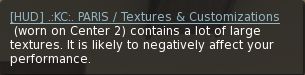
The new HUD complexity warning

Visual Outfits Browser

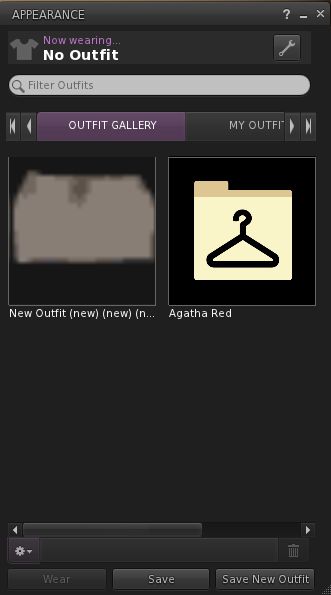
The Visual Outfits Browser (VOB) allows you to use the Appearance floater to capture / upload / select images of your outfits and save them against the outfits in a new Outfit Gallery tab within the floater. It can be accessed by either right-clicking your avatar and selecting Change Outfit or Edit Outfit > Click the left arrow at the top of the floater or via Avatar > Appearance / CTRL-O, then

The tab displays all of your created outfits as a series of folder icons, each one with the name of the outfit beneath it. You can replace these icons with an image of the outfit quickly and easily in one of three ways:

  • You can wear the outfit, then right-click on its associated folder icon and select Take a Snapshot. This will open the snapshot floater with save to inventory selected by default, allowing you to photograph yourself wearing the outfit and upload the image to SL, where it automatically replaces the folder icon for the outfit
  • You can use Upload Photo to upload an image of the outfit your previously saved to your hard drive, and have it replace the folder icon
  • You can use Select Photo to select any image previously saved to your inventory (including any image supplied with the outfit in question, if appropriate), and use that to replace the folder icon for the outfit.
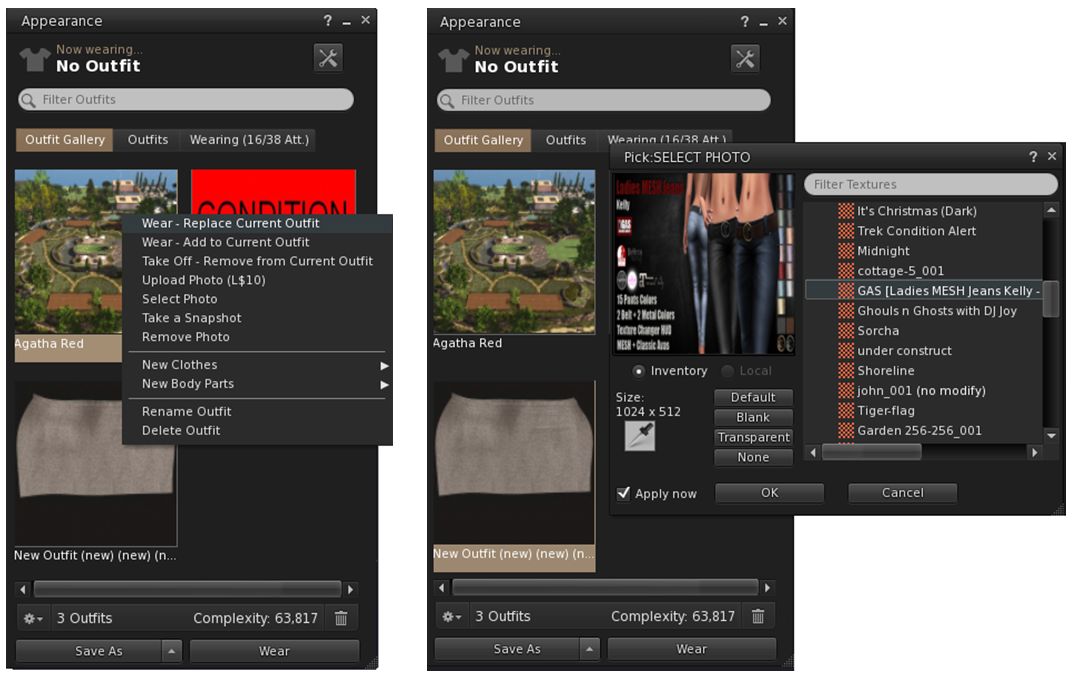
The Visual Outfits Browser (VOB) allows you to browse your outfits in the Outfits folder be associating a snapshot with them which can be uploaded directly, or pulled from inventory (256x256). You can also wear or remove outfits through the VOB
The Visual Outfits Browser (VOB) allows you to browse your outfits in the Outfits folder be associating a snapshot with them which can be uploaded directly, or pulled from inventory (256×256). You can also wear or remove outfits through the VOB (images purely for show – I don’t actually use the Outfits folder!)

Any outfit within the gallery can be worn (Add to or Replace current outfit) and removed via the right-click context menu, which also includes options to create / delete new outfits, and to create new system clothing items / body parts.

When using the capability there are a number of points to keep in mind:

  • Both the Take a Snapshot and the Upload Photo options will incur the L$10 upload fee, with the images themselves saved in your Textures folder
  • In all three cases, link to the original images are placed in the outfit folder
  • VOB only works for outfits you’ve created using the Appearance floater / the Outfits tab. It doesn’t work for any other folders where you might have outfits – such is the Clothing folder.

You can find out more on the VOB via the Visual Outfits Browser Knowledge Base article.

VLC Media Support

QuickTime has been replaced with LibVLC support for the Windows and Linux versions of the viewer. This is due to Apple discontinuing QuickTime for Windows while leaving vulnerabilities unpatched. see QuickTime for Windows: “uninstall today”.

Other Lab Updates of Note

  • The viewer is now DPI aware on Windows 8.1+. This fixes the problems with tiny font size & user interface size on high-resolution monitors on Windows 8.1 and above. The UI Scaling is now be automatically set to the correct value for the system at viewer launch. The maximum UI scaling setting has also been raised as follows:
    • Windows 7: 2.0.
    • Windows 8.1: 2.5.
    • Windows 10: 4.5.
  • Improvements to the region “Object Bonus” setting – see BUG-11913.
  • A time stamp has been added to Help > About floater.
  • A fix to prevent editing marketplace listings before inventory has fully fetched causing listings to be unlisted – see BUG-11804.
  • A fix for resetting scripts via the build menu no longer works on many scripted objects – see BUG-20086.
  • A new alert has been added, warning if too much inventory is in coalesced objects.
  • A fix for incorrect radius calculation in the viewer – see Beq Janus’ blog post – Bug hunting – Fixing an ancient LOD issue and also FIRE-20192 / STORM-2138
  • PERMISSION_DEBIT notification now defaults to Deny, to to help prevent accidental granting of debit permissions (see below).
The old debit notification (left) gave equal emphasis to accepting / denying the request to access account balances. The update to the Maintenance RC viewer new focus attention on denying a request for account access as the default option.
The old debit notification (left) gave equal emphasis to accepting / denying the request to access account balances. The update now focuses Deny as the default option.

Firestorm Updates

Preferences

Notable Preferences updates are:

  • Move and View: new option to re-render temporary derendered objects after teleport or after end of session/manual re-rendering via the asset blacklist floater: Re-Render Temporary Derendered Objects After Teleport (see also Asset Blacklist Updates, below).
  • Privacy > General: New option to log auto-accepted inventory to nearby chat (requires Automatically Accept New Inventory Items to be enabled).
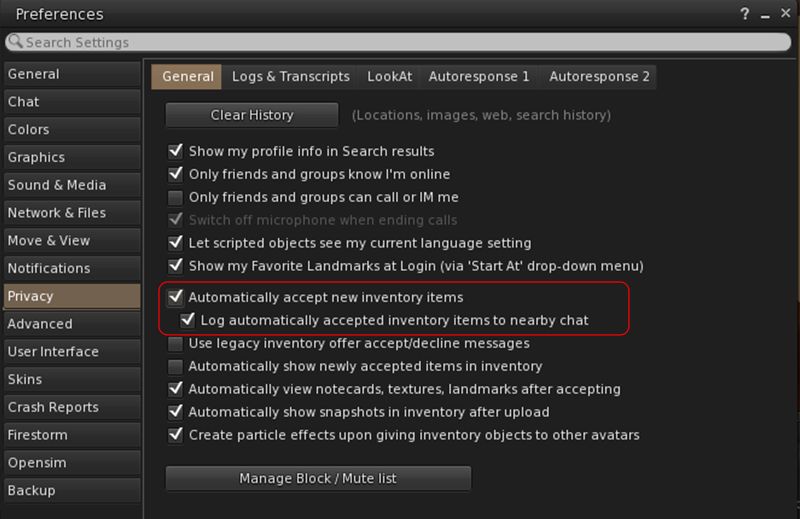
 New option to log auto-accepted inventory to nearby chat when Automatically Accept New Inventory Items is enabled
New option to log auto-accepted inventory to nearby chat when Automatically Accept New Inventory Items is enabled
  • User Interface > Font: new font option: Noto.

Avatar Render Settings

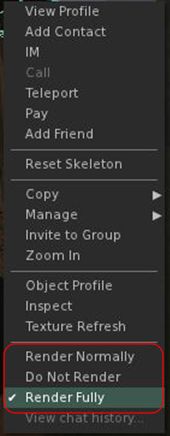
Unlike the official viewer, the avatar render settings you apply to individual avatars will persist across log-ins, so if you set an avatar to Do Not Render, that avatar will only render as a grey imposter until such time as you right-click on them again and select either Render Normally (e.g. fully or as a Jelly Doll, depending on your Complexity Setting), or Render Fully, so they will always render in your view, no matter what your Maximum Complexity setting.

With Firestorm 5.0.1 you can track those avatars you’ve set to either always render fully or to never render (other than as a grey imposter) using World > Avatar Render Settings. This displays a floater listing all the avatars you’ve applied a render setting to as either Fully or Never. Right-clicking on an avatar’s name (or using SHIFT-click / CTRL-click for multiple selections) will display a pop-up menu, allowing you to change the current setting for the selected avatar(s). You can also right-click on an avatar’s name and then click the information icon just to the left of their render setting to display their profile.

World > Avatar Rendering Setting allows you to review all avatars whom you have set to either always Fully or Never (other than as a grey imposter) render
World > Avatar Rendering Setting allows you to review all avatars whom you have set to either always render Fully or Never (other than as a grey imposter)

Asset Blacklist Updates

The Asset Blacklist (World > Asset Blacklist) has a number of improvements:

  • Temporarily blocked objects are now shown in the blacklist floater so they can be removed.
  • A fix has been added to prevent crashing when leaving an area where many objects were blacklisted.
  • A Preferences option has been added to re-render temporary derendered objects after teleport or after end of session/manual re-rendering via the asset blacklist floater: Preferences > Move & View > View > Re-Render Temporary Derendered Objects after Teleport.
  • A Clear Temporary button has been added to the blacklist floater to clear all temporary derendered objects.

Graphics Presets Now Global

Graphics presets (a Linden Lab capability introduced into Firestorm with the 4.7.9 release) are now treated as a Global setting, rather than a Per-Account setting. This means that presets can be set from the log-in  splash screen without actually logging-in to the viewer, and helps ensures consistent presentation of the current preset setting. However, it also means that any existing presets either have to be re-created, or need to be manually copied from the per-account settings folder to the global user_settings folder. See FIRE-19810.

 FSExperimentalLostAttachmentsFix

There is currently (at the time of writing) an issue in messaging between the simulator and the viewer during region crossings (physical or teleports), which can result in attachments being detached or, harder to detect, attachments being removed server-side, but remaining visible (but effectively ghosted) in your view, and which cannot be individually removed, as the simulator doesn’t recognise them as being there.

A common cause for this problem is multiple items using the same attachment point – which can be a major issue with things like rigged meshes, which then to be set to attach to something like the right hand. Thus, a way to solve this is to move multiple attachments using the same point elsewhere – in the case of rigged mesh, this should be relatively simple, as it will retain its orientation and position relative to your body no matter where it is attached.

The Lab is still investigating this problem. However, in an attempt to help mitigate it, Firestorm have implemented two new debug settings in Firestorm 5.0.1:

  • FSExperimentalLostAttachmentsFix: enabled by default, this triggers an attempt by the viewer to correctly resync what it believes to be your attachments with the simulator’s understanding of what you have attached, and either prevent items being unexpected removed, or items being removed, but remaining ghosted in your view, etc.
  • FSExperimentalLostAttachmentsFixReport: this option is disabled be default to prevent message spamming on your screen. When enabled, it reports any attachments which the simulator attempted to incorrectly detach during a teleport or region crossing to nearby chat.

RLVa (Restrained Love) Updates

For the full list of RLVa updates, please refer to the release notes. However, the following are worth highlighting:

  • RLVa restrictions can be sorted in ascending / descending order via RLVa > Restrictions and clicking on the Restrictions header
  • RLVa can be toggled on / off from the viewer log-in splash screen without the need to re-start the viewer on doing so.
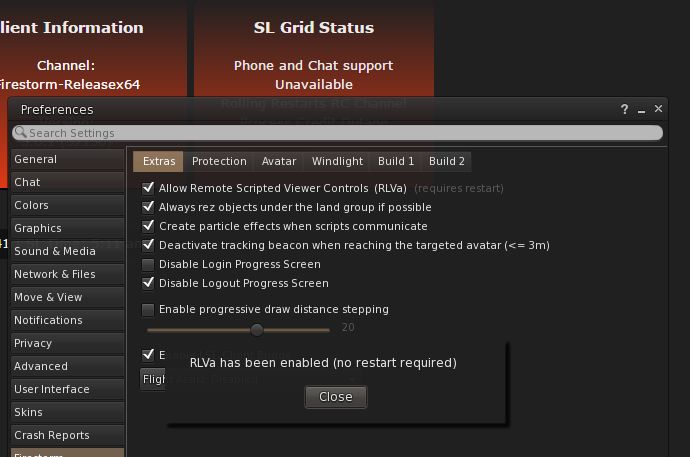
If you are not logged-in to the viewer, RLVa can be toggled on / off from the Firestorm 5.0 login / splash screen without having the result the viewer.
If you are not logged-in to the viewer, RLVa can be toggled on / off from the Firestorm 5.0 login / splash screen without having the restart the viewer.

Building and Scripting

Mesh uploads should no longer fail from a folder with Unicode characters in the name (FIRE-19806 and BUG-37632), and clicking on a link in a script dialogue should no longer open it as a SLurl rather than launching a web browser (FIRE-20054).

In addition, the LSL preprocessor has the following improvements:

  • The “Preprocessed” text window of the preprocessor is no longer editable.
  • Line and column are now shown on the “Preprocessed” tab.
  • Context menu items and button which are unavailable are properly disabled.
  • Actions for context menu items and for buttons are performed on the active tab (if action is available) instead of always on the possibly hidden editor tab.
  • The Search / Replace and Goto Line floaters now work on the active tab instead of always on the possibly hidden editor tab.

Other Updates of Note

  • An FPS meter has been added to the viewer status bar, with a seconds count also added to the status bar clock (top right corner of the viewer
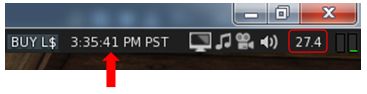
FPS meter (circles) and seconds on the clock
  • 64-bit CEF for Windows x64 in now built as native 64-bit plug-in; no more QuickTime
  • The custom payment message is now also sent in-world with the payment instead of only being visible in transaction history
  • Sort order and column widths of the region tracker now persist between sessions (FIRE-20025)
  • Your own avatar’s attachments should now appear in the correct locations when in Mouselook (FIRE-10574 and BUG-1408)
  • CTRL-F will now focus the local search editor of a window if available – can be disabled through the Debug setting FSSelectLocalSearchEditorOnShortcut to FALSE
  • Comma separators added to the avatar complexity notification (so 1,456,897 appears as such, rather than 1456897)
  • A refresh button has been added to the texture preview window when viewing people’s profile pictures, group insignia, textures in inventory, etc, to overcome issues of the image failing to render in the preview (FIRE-20150)
A refresh button has been added to texture preview windows to help deal with situations where the image may not properly load or render
  • Group updates:
    • A Copy SLurl to Clipboard option has been added to the right-click context menu when clicking on a group name – this copies the group’s URI to the clipboard (FIRE-20146)
    • Clicking a group URI should now put focus on an already open and maximised group profile.
  • Flickr upload fixes:
    • Direct snapshot uploads to Flickr should no longer upload multiple copies (FIRE-20026)
    • Flickr upload time-out increased to 5 minutes
    • Uploader now checks std:string.max_size() before appending image data to avoid buffer overrun (FIRE-20094)

OpenSimulator Updates

  • Setting Home location should no longer fail on OpenSim grids (FIRE-19894)
  • Legacy search results list items should now be selectable under all circumstances in Inworldz (FIRE-19912).

General Observations

Firestorm 5.0.1.52150 brings Firestorm bang-slap up-to-date with the Lab’s own viewer, something the Firestorm team have been striving to achieve for the past couple of years, so kudos to all concerned.

With the inclusion of Bento, this release now means all those making use of the most recent releases of all currently maintained viewers can now correctly render Bento products – so it will be interesting to see how the Bento market for mesh avatars (human or otherwise) now develops.

A side benefit with Bento is that during testing, a good number of preview and beta testers reported an overall improvement in viewer performance – potentially more than can be put down to a purely placebo effect. I run a reasonably high-end system, but have witnessed a step up in average frame rates on our home island / region when compared to 4.7.9 (which also brought something of an improvement for me), and have found some regions I’ve traditionally had problems with (FPS down in the teens with the bells and whistles on) also behaving better.

5.0.1 has, for me, so far been the most stable of all the recent Firestorm releases – not that I tend to have major issues (just oddball ones!). So, as Christmas presents go, this release certainly fills the stocking nicely!

Related Links

Catznip R11: jelly dolls, Bento, oh my!

catznip logoOn Sunday, December 1tth, Catznip R11 arrived, bringing with it a lot of Lab love and Kitty goodness. With the last update having been back towards the start of 2016, there are quite a few updates and features from Linden Lab, and well as some niceness from the Catznip team themselves.

In particular, this release picks up on the Lab’s Avatar Complexity capability and graphics presets, and also include Bento avatar skeleton support, as well as a raft of Lab changes such as HTTP co-routines, CEF, LibVLC, voice improvements, bug fixes, and more.

This is not intended to be a comprehensive review of Catznip R11; rather, the hope is to provide an overview of the more major updates and changes. Information on all changes can be found in the release notes (when available – link to be added).

Updates Via the Lab

Avatar Complexity, aka Jelly Dolls

There are probably very few in SL who have not heard of Avatar Complexity, be it by that name or its more popular nickname, Jelly Dolls. However, for those who need a quick re-cap and run through, here’s the deal.

As avatars can often be the biggest single rendering load on our computers (and why you can experience a lot of lag in a crowded place) Avatar Complexity is a means by which you can set a “complexity limit” within your viewer. Any avatar (including their attachments) exceeding this limit will be rendered as a solid colour – a “Jelly Doll” – thus putting a lot less load on your computer. It comes with a handful of notable points:

  • Avatar complexity only applies to other avatars in your view; your own avatar will always be rendered fully to you
  • You can also override the setting for individual avatars around you and select how they render in your view
  • You can adjust the limit at any time according to your needs at that time
  • You can use graphic presets (see below) to save different avatar complexity settings for different circumstances (e.g. a very low limit for crowded places, a much higher limit for home use, etc.).

When first installed, a viewer with Avatar Complexity will set a default limit for you based on your current viewer graphics settings. Hence why you might see a lot of solid colour avatars around you when logging-on for the first time with Catznip R11. These default limits are:

  • Low: 35,000
  • Low-Mid: 100,000
  • Mid: 200,000
  • Mid-High: 250,000
  • High: 300,000
  • High-Ultra / Ultra: 350,000

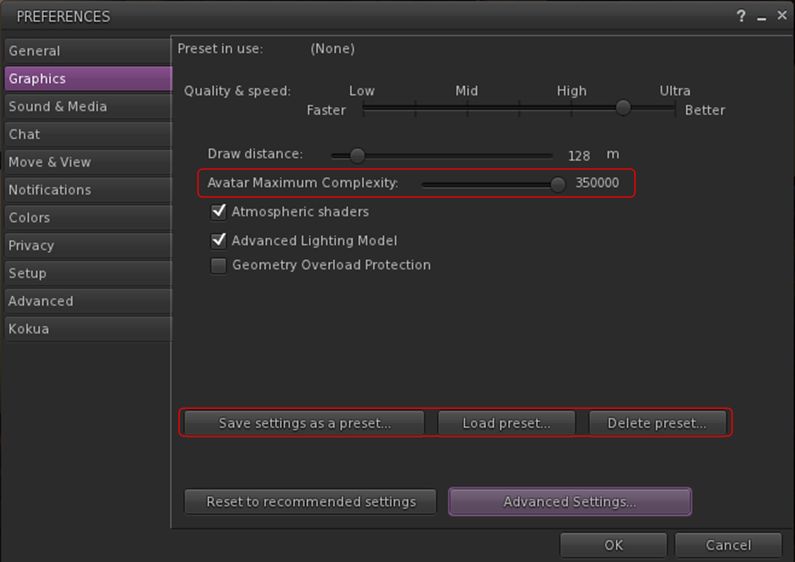
Avatar complexity is controlled via the Avatar Maximum Complexity  slider, which can be found in three locations:

  • In the Preferences > Graphics tab: Avatar Maximum Complexity
  • In the Advanced Graphics Preferences floater (see Revised Graphics Preferences, below, for more on this): Avatar Maximum Complexity
  • The Quick Appearance panel of the new Catznip Quick Preferences floater (see below for more on this): Complexity Limit
The Avatar Complexity slider in Preferences > Graphics

In all three cases, moving the Maximum Complexity slider to the right increases your threshold, allowing more avatars around you to be fully rendered, while moving it to the left decreases your threshold, increasing the number of avatars liable to be rendered as solid colours. Changes made in one slider will be reflected in the others.

Note that you can set the Maximum Complexity slider to No Limit (all the way to the right). However, this isn’t recommended because it leaves your viewer vulnerable to any graphics crashers some inconsiderates still occasionally try to use. It is far better to set your viewer to a high limit (e.g. 350,000) if you don’t want to be bothered by seeing Jelly Dolls.

To help you understand how complex your own avatar is, every time you change your appearance, a small notice with your new complexity value will appear in the upper right of your viewer window for a few seconds. Your own complexity value is also displayed at the top of the My Appearance floater (Me > Appearance or right-click your avatar and select My Appearance from the menu), and on the Quick Appearance panel of Quick Preferences (“Complexity”), while the Quick Wearing panel will provide a breakdown of the complexity of all your worn attachments (see Catznip Quick Preferences, below for more on Quick Preferences).e

You can find your own maximum complexity via the avatar context menu > Edit Appearance, and a breakdown of your avatar cost via Quick Preferences >Quick Appearance
You can find your own maximum complexity via the avatar context menu > Edit Appearance, and a breakdown of your avatar cost via Quick Preferences > Quick Appearance

You can also display avatar complexity information on yourself and all avatars around you by going to the Advanced menu (CTRL-ALT-D if not visible) > Performance Tools > Avatar Complexity Information (previously Show Render Weight for Avatars). This displays three items of information over the heads of all avatars Including yours):

  • The render complexity for each avatar
  • A ranking of the avatar’s distance from your camera (1=closest)
  • The attachment surface area for an avatar, expressed in square metres.

Other points of note:

  • Setting an individual avatar's rendering in your view
    Setting an individual avatar’s rendering in your view

    The complexity value of your avatar is transmitted to each simulator as you travel around Second Life. In return, you’ll get a brief notice in the upper right of your screen telling you the approximate percentage of avatars around you who are not fully rendering you because of your avatar complexity.

  • If you always wish to fully render certain other avatars, no matter what your Maximum Complexity setting, you can right-click on those individuals and select “Render Fully” from the context menu.
  • Conversely, if there are avatars around you whom you’d rather render as grey imposters, right-click on them and select “Do Not Render” from the context menu.
  • Note that in both cases above, these per-avatar settings do not persist between log-ins. If you re-log, any avatars you have set via these options will revert to being displayed in accordance with your Avatar Complexity setting
  • You can also revert any avatar exceeding your Maximum Complexity setting by right-clicking on them and selecting Render Normally from the context menu. They will become a Jelly Doll once more.

Finally, Avatar Complexity does not replace Avatar Imposters, but rather is intended to work alongside of it, offering another means to reduce avatar rendering load on your computer.

HUD Complexity Warning

If you attach a HUD which makes heavy / excessive use of large textures and which, as a result, can impact your system’s performance, the viewer will display a warning to indicate the problem and which names the HUD. It will naturally fade after a set time has passed.

The new HUD complexity warning

Graphics Presets

Graphics Presets allows you to easily save and restore different sets of graphics settings within the viewer, which can then be used according to need. So you might have one with all the performance-hitting options enabled for when you’re taking photos, and another with many of them turned off, as they’re not really needed (e.g. for shopping or clubbing, etc.), for example. You can then swap back and forth between them as needed via a drop-down options list and without any need to relog.

There is no limit to the number of presets you can create, and any you no longer require can be easily deleted.

The Graphic Presets buttons on Preferences > Graphics

Continue reading “Catznip R11: jelly dolls, Bento, oh my!”

Hands-on: Second Life 360-degree snapshot viewer

Credit: Linden Lab
Credit: Linden Lab

On Wednesday October 26th Linden Lab announced the release of the 360o snapshot viewer, which I’ve had the good fortune to be able to play with for the last week.

The viewer is still very much under development, and has been released as project viewer with a number of caveats against it as development continues. Essentially, it allows you to take a set of images (6 in total) of the location around your camera, and then produce these as a scrollable 360o view – you can see the results in action on this sample page. Just click drag on an image to manually scroll around it.

The viewer is available via the Alternative Viewers wiki page as project viewer, with documentation on the wiki. As noted there are some caveats concerning it, which need to be kept in mind:

  • The 360o capture operates all around your field of view simultaneously. This can lead to conflicts with the viewer’s Interest List, so that objects which may be “behind” your camera position may not be properly rendered, etc. To avoid this, always pan your camera around  (or turn your avatar around if you are taking a picture from your avatar’s position) to completely view the scene and allow things to initially load, before taking a shot.
  • The current viewer saves the resulting image to your local disk as a zip file. You’ll need to set-up your own local web host in order to view them (or if you have your own website, you could set one up there). Again, this will be changing as the project develops
  • However, even in this format, once you are viewing an image, you can download it in a 2:1 aspect ratio suitable for upload to Flickr for sharing with friends and viewing in 360o.

As I’ve covered three of the 360o camera HUDs available in Second Life, I’m offering the rest of this article as a walk-through in using the new viewer and viewing your photos.

Note – these instructions apply to Windows, I don’t have access to a Mac to provide guidelines for that platform.

Setting Your Viewing Environment

Before taking your photos, you’ll need – for the time being at least – to set-up a simply local web server. Callum Linden has made this relatively easy.

  • Download Python from the Python website. You can select to install either Python 3.5.x (latest) or Python 2.7.x (the Lab uses Python 2.7 as a point of reference).
  • When installing Python, make sure you add the installation to your Windows path.
    • If you are installing Python 3.5.x, simply check the box in the installer
    • If you are installing Python 2.7, click the Advanced button in the installer, scroll down the list of customisable options and set Add Python .EXE to Path to Will be installed on local hard drive.
Adding the Python 2.7 EXE to the Windows path
  • Download the Lab’s 360 snapshot web viewer ZIP file from the Lab’s 360 snapshot wiki page.
    • If you are familiar with Mercurial, you can clone the existing web framework via the link given in the wiki page. I found going the ZIP file route easier.
  • Unzip the web viewer files to a location on your hard drive.
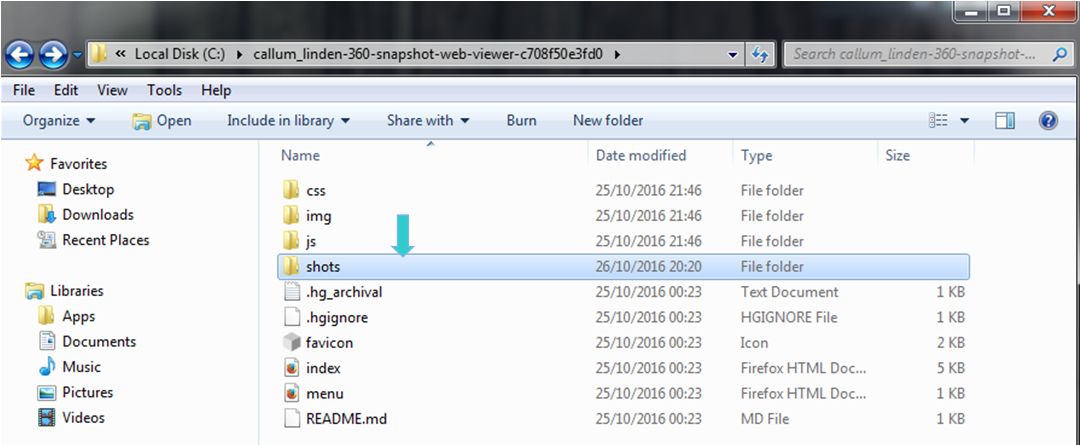
Web you have unzipped the web viewer package, you should have a folder looking like this - note the SHOTS folder, this is where you'll be wanting to save your snapshot sets
When you have unzipped the web viewer package, you should have a folder looking like this – note the SHOTS folder, this is where you’ll be wanting to save your snapshot sets (Windows environment)

Using the Viewer

When you have downloaded and installed the 360o snapshot viewer, proceed as follows:

  • Position your avatar  / camera at the centre of the area you wish to photograph. If you are using your avatar, not that you should “hide” it via removing all attachments and alpha-masking, or by using something like a “vanish” gesture.
    • Note that you can positioning your camera for a 360o snapshot simply by positioning your camera (e.g. using ALT-zoom or by flycamming).
  • Make sure you freeze the clouds in order to assist the image “stitching” process, and to avoid visual discontinuities in the finished image. Use Menu > World > Environment Editor >Sky Presets > Edit Presets. You should also avoid using Depth of Field.
  • Set your preferred windlight / time of day setting.
  • Turn your camera / avatar slowly around in a circle to view everything in the field of view around it, and allow everything to render.
  • Open the Snapshot floater and click on the 360 option – not that although this displays the filter options for snapshot, the filter effects are not currently captured when taking  360o shots.
  • When you are ready, Click Save to save the image set – you will be prompted to save a ZIP file to your hard drive.
    • Navigate to the location where you unzipped the web viewer files (above) and then save the ZIP file (with a suitable file name) in the SHOTS folder.

Continue reading “Hands-on: Second Life 360-degree snapshot viewer”

Kokua forks Second Life and OpenSim support

kokua-logoKokua, the viewer 4-style Second Life and OpenSim viewer has forked development between the two platforms.

The announcement came on Monday, September 26th, with lead developer Nicky Perian announcing the initial release of KokuaOS-4.1.0.38653 in a blog post thus:

Gavin Hird (macOS) is the lead developer for KokuaOS. This viewer is for OpenSim grids and is branched off at Kokua version 4.0.2. The default grid is set to 3rd Rock Grid as their support for Kokua and Imprudence extends back a number of years with the Hoagie sim contribution.

The reason for the split appears to be the increasing complexities in having a unified viewer code set supporting both OpenSim and Second Life, with Nicky noting:

While the ability to log on to Second Life is present, Jelly Doll support is not, and we expect more wandering away from Second Life as new features such as Bento Joints, and server infrastructure removal take place.

However, this shouldn’t be taken to mean that the OpenSim viewer will not be implementing changes made to the SL viewer; simply that only those changes which make sense to adopt will be carried forward into the OpenSim variant.

So, for example, KokuaOS-4.1.0.38653 includes the code from the Lab’s recently released Visual Outfits Browser, allowing OpenSim users to browse through their outfits using the thumbnail image feature, and the Windows version also includes the switch to using a media plug-in based on LibVLC to replace QuickTime.

Core updates with the OS-4.1.0.38653 release comprise:

  • Kukua OS-4.1.0.38653 includes the Visual Outfits Browsers from Second Life, but not Avatar Complexity
    Kukua OS-4.1.0.38653 includes the Visual Outfits Browsers from Second Life, but not Avatar Complexity

    There is no auto update capability. New updates must be manually installed and downloaded

  • Recent SL updates included comprise:
  • Excluded SL updates comprise:
    • Avatar Complexity (aka Jelly Dolls) and Graphics Presets
  • Media content on Linux uses Gstreamer, but can be switched to VLC by editing skins/mime_types_linux.xml- You can upload and play back sounds of up to 60 seconds
  • The Mac OSX version now use a gamma of 2.2 which improves tonal range of the scene.
  • Microphone and volume can be tested without an active session
  • Additional functionality in support of the OpenSim Export function
  • Almost complete localisation of the viewer to German.

Full details of all changes and known issues can be found in the OS-4.1.0.38653 release notes, and the download is available via the Kokua downloads wiki.

Following this, on October 1st, Nicky announced the release of the Second Life version of Kokua, version 4.1.1.39717. This update see the removal of all code which facilitated the switch between logging-in to Second Life or to OpenSim grids, and brings this viewer to parity with the Second Life 4.1.1 code base and with RLV-2.9.20.1.

Core updates in this release comprise:

  • Most menu items with OpenSim specific functionality has been deactivated.
  • Support for:
Kokua version 4.1.1.39717 for Second Life does include Avatar Complexity and Graphics Presets
  • Mac OSX Updates:
    • Use of a gamma of 2.2 which improves tonal range of the scene. System gamma of 1.8 has not been used by Apple since Mac OSX 10.6
    • Support for OSX 10.12, with a minimum requirement of OSX 10.9
    • OSX send and receive buffer size has been increased for better network performance
  • Advanced and Develop menus updated with new functionality and more relevant HUDs
  • Improvements to:
    • Voice floaters and functionality
    • Media playback functionality, including in the chat / IM floater
    • Mesh uploads
    • The world map and mini map
  • The built-in AO now shows which animation is playing
  • Own voice dot and speaker indicator no longer shown over avatar’s head (via  Firestorm)
  • Almost complete localisation of the viewer to German.

Again, please read the release notes for all changes, updates and known issues with this release. The download is available via the Kokua downloads wiki.

The two versions can be run side-by-side, providing different installation locations are used (offered by default by the Windows installer) and chat logs.

Links

VOB viewer reaches release status in Second Life

secondlifeOn Thursday, September 15th, the Lab promoted the Visual Outfits Browser (VOB) as the de facto release viewer, version: 4.0.8.319463.

For those who missed my coverage of this viewer when it reached RC status, and simply put, the VOB viewer allows you to use the Appearance floater to capture / upload / select images of your outfits and save them against the outfits in a new Outfit Gallery tab within the floater.

The new Outfits Gallery tab (right-click your avatar > select My Appearance > Outfits Gallery) displays all of your created outfits as a series of folder icons, each one displaying the name of the outfit beneath it. You can replace these icons with an image of the outfit quickly and easily in one of three ways:

  • You can wear the outfit, then right-click on its associated folder icon and select Take a Snapshot (shown above left). This will open the snapshot floater with save to inventory selected by default, allowing you to photograph yourself wearing the outfit and upload the image to SL, where it automatically replaces the folder icon for the outfit
  • You can use Upload Photo to upload an image of the outfit your previously saved to your hard drive, and have it replace the folder icon
  • You can use Select Photo to select any image previously saved to your inventory (including any image supplied with the outfit in question, if appropriate), and use that to replace the folder icon for the outfit.
The Visual Outfits Browser viewer is another of the forthcoming updates mentioned in the official blog post, and you can read my overview as well
The new Outfit Gallery tab in the Visual Outfit Browser allows you to create photos of any outfits saved to My Outfits as thumbnails. You can then use the Appearance floater to scan your outfits to decide what to wear, and use the context menu to wear the one you want

When using the capability there are a number of points to keep in mind:

  • Both the Take a Snapshot and the Upload Photo options will incur the L$10 upload fee, with the images themselves saved in your Textures folder
  • In all three cases, link to the original images are placed in the outfit folder
  • This approach only works for outfits you’ve created using the Appearance floater / the Outfits tab. It doesn’t work for any other folders where you might have outfits – such is the Clothing folder.

Overall, it would seem that the VOB viewer has received favourable feedback by many of those who have used it during its time as a release candidate viewer. I confess, I cannot offer any real feedback, as I actually don’t used the Outfits folder that much. However, with its arrival as the de facto release viewer, expect to be seeing it in more TPVs (those which haven’t already adopted the code) as they continue to update.

Related Links

Bento project reaches RC status in Second Life

Bento: extending the avatar skeleton

OK, I admit I wasn’t expect this until next week, but on Wednesday, September 14th, the Lab  announced that Project Bento is now officially available as a release candidate viewer – version 5.0.0.319688 – which can be obtained through the Alternate Viewers wiki page.

And just in case anyone has missed all the Project Bento news, the best way is to catch-up through the official video. In short, Bento adds a wealth of new bones to the basic avatar skeleton (30+ to heads / faces and to hands alone!), making a wealth of new avatars (humans and non-human) and mesh wearables possible.

The reason I wasn’t expecting the viewer to get promoted just year is that the Lab also has a proof-of-concept viewer being tested, so I assumed any push to RC would come after a decision had been made on incorporating those changes (if they are to be adopted). So, not for the first time, I’m been wrong 🙂 .

The move to release candidate status doesn’t mean the project is at an end. There is still further work to be done as remaining bugs are fixed, etc  (so updates such as the slider locking in the proof-of-concept might yet arrive in the viewer). What it does do is three things:

  • Makes the viewer available to a wider audience through the Lab’s RC distribution mechanism, thus allowing any unforeseen issues in merging the Bento code into the current release viewer code (and which may be outside of direct Bento testing) to be identified and fixed
  • Potentially makes the viewer more widely available to content creators who may not have so far tried the viewer
  • Means that TPVs can now officially start incorporating the Bento code into their viewers (in fact, Cool VL Viewer has had Bento in its Experimental branch from some time, and Firestorm have also been working to merge the Bento code as well – but this shouldn’t be taken to mean there will be a new release of the latter in  the near future).

In keeping with the status of the Bento code, the Lab do ask people – particularly avatar content creators – to give the viewer a go,  and to file a JIRA against any issues found.

As noted above, Bento offers a range of opportunities for mesh wearable and avatar creators – you can see a couple of video exploring the AK and Catwa preview Bento mesh heads in my SL project update. Also, back in August, Vista Animations produced a video illustrating the potential of finger animations:

Then, of course, there is a huge range of non-human avatars: centaurs, “rideables”, winged creatures – all of which can be achieved a lot more efficiently through Bento than has previously been the case.

Teager's Bento Raptor using Bento bones
Teager’s Bento Raptor using Bento bones

So – get ready for the Bento Revolution!

Additional Links