Update, May 23rd: version 5.0.5.326444 of this viewer is now the release version of the official viewer.
On Friday, May 12th, 2017, Linden Lab issued a new Maintenance release candidate viewer – now version – 5.0.5.326444 – featuring a number of bug fixes and improvements.
In particular the viewer includes updates to reflect the revised region / parcel access controls now deployed to the main grid. It also includes improvements to inventory management and purging Trash, and a range of other improvements and updates as well as numerous bug fixes.
As per usual, this is not intended to be an in-depth review of the viewer, but rather to highlight some of the new / updated features and an overview based on the release notes.
Region / Parcel Access Controls
The new region / parcel access controls are paired with a server-side update first announced in April, and the first part of which was deployed to the LeTigre server RC channel on Wednesday, May 17th. Until these server-side updates are deployed grid-wide, this particular set of changes in the view may not function on all regions.
In short, the new controls mean that when a region holder / manager explicitly set a region for open access by visitors (via the Region / Estate floater), parcel holders on the region will no longer be able to override the setting at the parcel level and create ban lines around their parcel. They will, however, still be able to use their parcel ban list or deploy security orbs or similar (assuming the use of the latter is allowed under any covering covenant).
This means that with this viewer, both the Estate tab in the Region / Estate floater has been updated, and the behaviour of the Access tab in the About Land floater has changed.
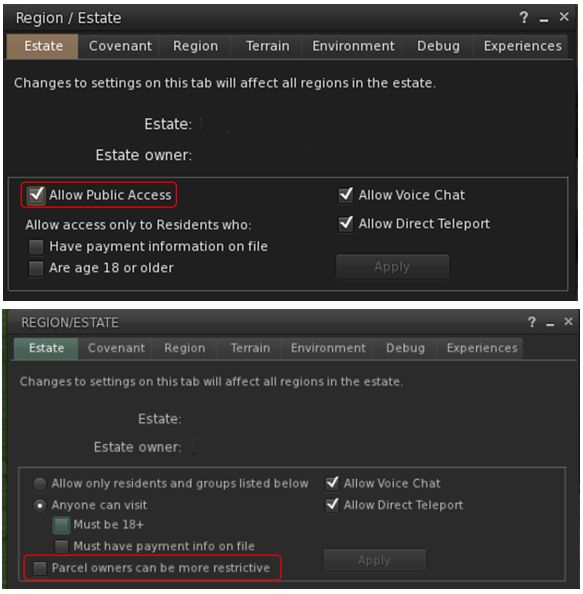
In the case of the Estate tab in the Region / Estate floater, the check box Allow Public Access has been removed, and a new option, Parcel Owners Can Be More Restrictive, has been added (see below).
With the new parcel access overrides, the old setting to Allow Public Access (top) has been replaced by a new setting, Parcel Owners Can Be More Restrictive (bottom), as found in the current Maintenance RC viewer
By default, Parcel Owners Can Be More Restrictive is checked, which means that as the updated settings are deployed server-side, parcel owners should see no difference in behaviour for their parcels unless an estate holder / manager opts to make changes at the estate level (as shown in the image above).
Should the option be unchecked, the estate holder / manager making the change will receive a model warning that they are about to make a change that could affect parcel settings in the estate.
The new modal warning estate holder / managers will see when changing the new access settings
Should they go ahead and APPLY the change, two further things will happen:
Parcel owners will receive a new system notification for every parcel in the region they hold which has been affected by the change (below).
The new system notification displayed to parcel holders for every parcel in the region they hold which has been affected by a change to the region’s access settings at Estate level
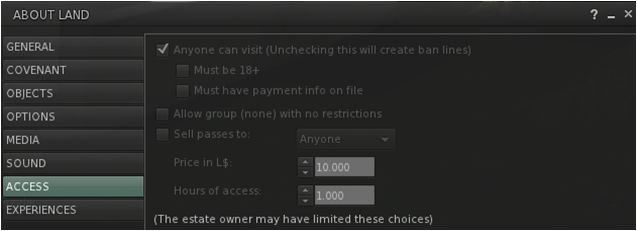
Any previously active banlines around affected parcel will be removed, and parcel owners will no longer be able to set parcel access restrictions via About Land > Access, as the options to do so will be greyed out (as shown below).
When the Parcel Owners Can Be More Restrictive option is checked, the parcel-level access options in the About Land floater will be greyed out for parcel holders, preventing them from overriding the region-level access
If a region which previously allowed parcel holders to set their own access restrictions is set to public access (by unchecking Parcel Owners Can Be More Restrictive and clicking APPLY), and then is reverted again (by checking Parcel Owners Can Be More Restrictive and clicking APPLY), all parcels on the region will revert to the access settings applied to them before any changes to region access were made at the estate level.
I recently received an IM from Kitty Barnett recently, asking me if I’d be interested in taking a look at some new features she’s been working on for the upcoming Catznip R12 release which is Coming Soon™.
Obviously as someone who has followed (and uses) Catznip (although not as frequently as I use Firestorm, admittedly), I was delighted to take a look. Nor was I alone, Kitty also put together a couple of articles on the features on the Catznip blog, (which you can find under the titles Three Days of Teasers Day #1 and Day #2 – a third part was planned but that pesky thing called the physical world got in the way of Kitty’s plans), and invited Catznip users to have a look.
With Kitty’s approval, I’ve summarised those two articles here – and if you are a Catznip user already, and haven’t seen Kitty’s original documents – please hop over to the Catznip blog, have a read & offer feedback.
Inventory Management
Catznip has tended to position itself as the viewer for shoppers, and with the upcoming R12, Kitty offers some enticing new features to make shopping and inventory management a lost more pleasant. She introduces the basic concept thus:
Whenever you buy or grab something you have to click that “Buy”/’Pay”/”Keep” button anyway so wouldn’t it be great if we could just do some pre-sorting right then and there?! It wouldn’t really interrupt the flow of going to an event and hovering up demos or buying things you’re sure you want since you don’t actually have to go to your inventory while you’re at the event and you’d be able to teleport home with an inventory no worse off then when you arrived.
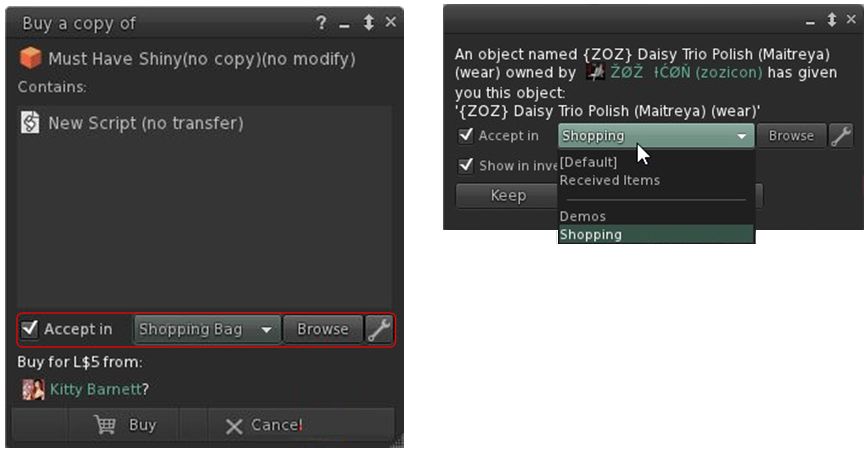
And so with this in mind, Kitty has revised the Buy / Pay floater and the Accept Inventory floater so that they offer you the ability to select where incoming items are going to be stored in your inventory.
Catznip R12’s upcoming options to select where items your buy / receive go in your inventory. Credit Kiity Barnett / Inara Pey
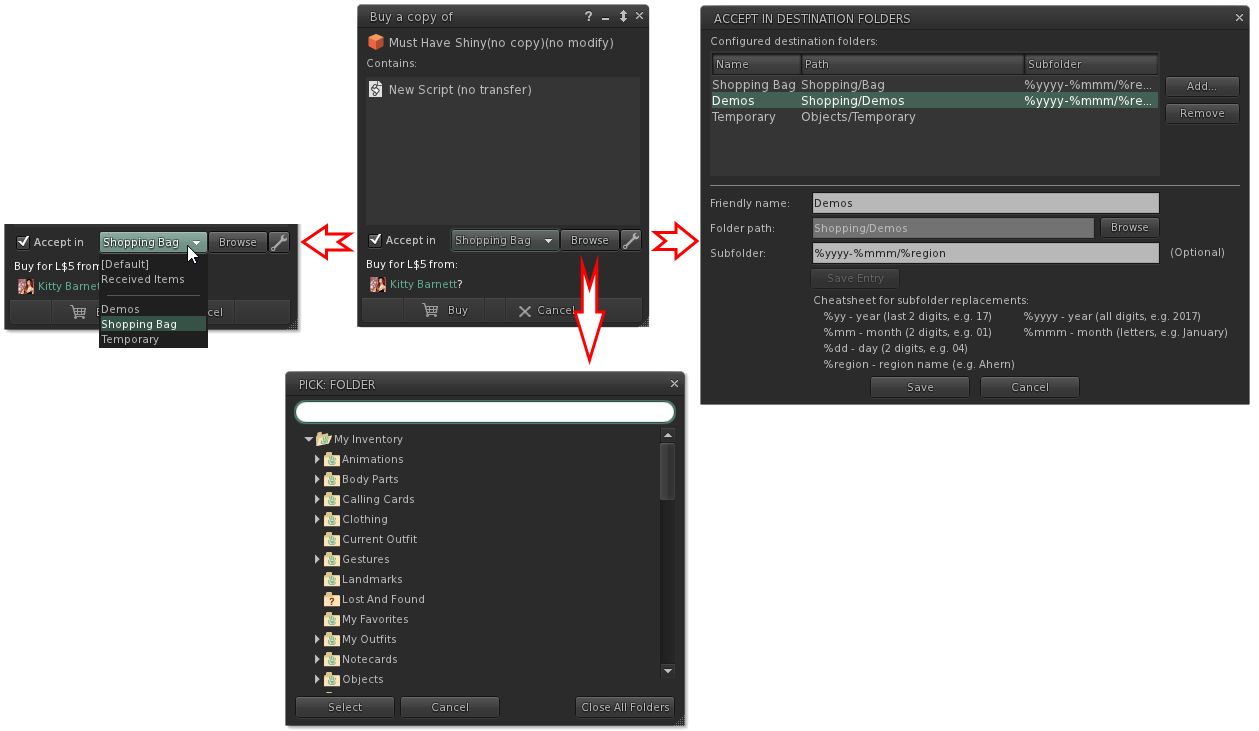
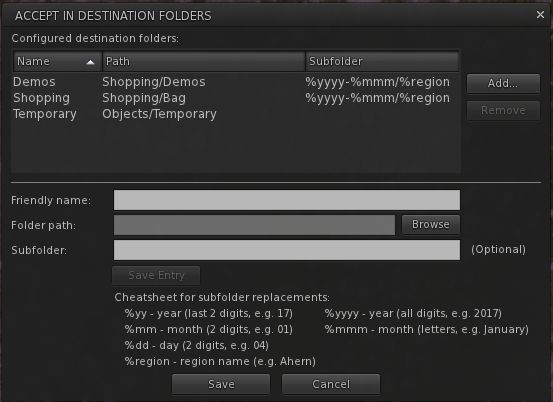
The options should be fairly self-explanatory. Check Accept in and the remaining options are activated. The drop-down will display a list of folders you have opted to allow incoming items to be delivered (show in the image on the right), the browse button allows alternative from you list of folders in the drop-down to be selected, and the spanner button allows you to establish your list of destination folders. The roadmap of these various options is shown below.
What the options do. Note they are available in both the expanded floater view (centre) and the collapsed view (left) – click for full size, if required. Credit: Kitty Barnett
Note only can you select the folders into which you want incoming purchases to go, you can also set Catznip R12 to dynamically create new folders in which to place incoming items. This means, for example, that if you got to a big shopping event at one location, you can set the viewer to deliver all the demo you obtain / items you purchase into folders define by – say – the month in which you got them, and the location where they were obtained.
So, for example, if in April you go to shopping event X on region YYYY, and grab a load of demos, and then later in the month go to event A on region BBBB and grab more demos, you can have them delivered to sub-folders in your “Demos” folder, respectively labelled “April 2017 YYYY” and “April 2017 BBBB” – both of which are dynamically created by Catznip as they are needed. So even if you don’t get around to trying them for days after your visit, you can quickly and easily locate the demo items without have for fiddle around searching for folders and objects.
The panel for setting folders into which incoming purchases can be received, and the option for setting dynamically created sub-folders within that folder. Credit: Kitty Barnett
Inventory Searching
Inventory searches can be a pain. Even with the search filters, things are hardly ideal. To help improve things, Kitty has in the past added additional search options to Catznip such as Open Folder In, which considerably eases the pain for further refining searches / making items visible in folder which might otherwise remain hidden as a result of the search term / filters initially used to try to find things.
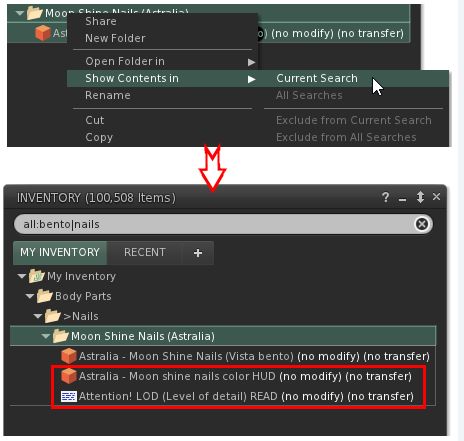
With Catznip R12, she further improves things by adding a new Contents In capability. Rather than displaying the results of a search in a separate tab, this option displays the folder(s) matching your search criteria with all of the contents visible, rather than just the items which might match your search criteria, making it much easier to see if the folder(s) contain what you are looking for (particularly where some / all of the items in the folder might not be consistently named, and so might otherwise be masked from view after a search).
The New Show Contents In presents a more refined way to see all of the contents in a folder when they might otherwise be masked by the search criteria / filter you have set. Credit: Kitty Barnett.
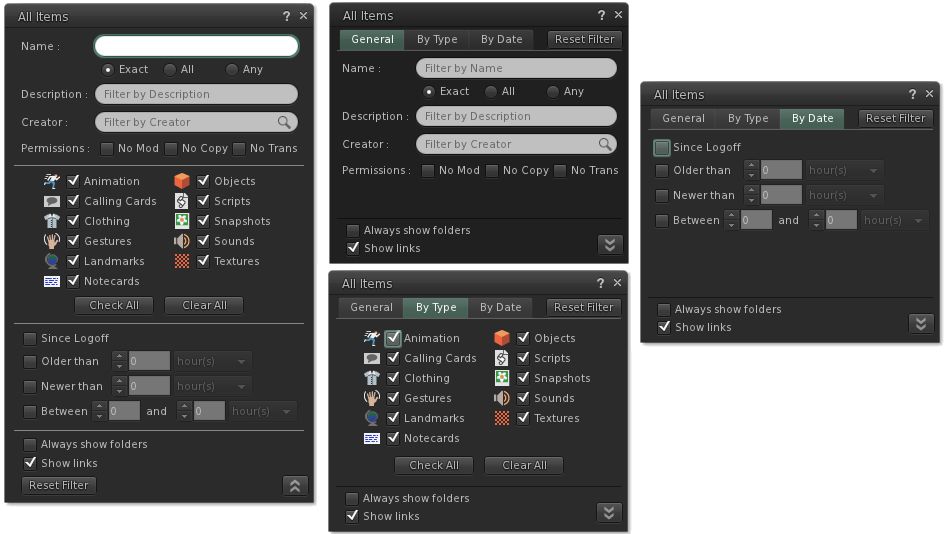
Finally – and not a part of the two articles by Kitty linked-to above – Catznip R12 will see further refinements to the inventory search features themselves, and highlighted in the set of images below. I’ll have more on this when the viewer is ready for release.
The Advanced Inventory filter floater for Catznip R12 in its expanded and tabbed forms.
Feedback
I’m not the world’s greatest shopper in many respects. In the physical world, I’ve reach that point in life where I know what I like to wear and am happy wearing it; shopping for fashion or trends passes me by. This is reflected in my SL time as well; I don’t go to the major shopping events, be they fashion or the gacha events. I tend to be targeted in what I’m buying.
But, that said, there are times when I can hit a store and go demo-mad, and I find it annoying that depending on how they are delivered, demos can end up anywhere in the top-level of my inventory when delivered as a folder, or get rudely shoved in Objects. I’m also slightly OCD in my inventory management and ordering.
Both of these being the case, I’ve long wanted to have the means by which I could better control what goes where when entering my inventory, rather than having to set aside time after (say) an infrequent demo splurge shunting folders and boxes around my inventory. So the new destinations options get a big thumbs up from me. Similarly, inventory filtering and searching has long been in need of refinement, so I’m looking forward to having a play with kitty’s updates in more detail when R12 surfaces.
And when might that be? Well, there is still some work to be done before the viewer is ready for a full release – but there is a chance that a preview version might be available on a limited basis in the next few days.
In the meantime, Kitty welcomes constructive input on these ideas, so again, if you have any suggestions, comments, additions, or obvious things that could be added (keeping in mind that if you’re not a Catznip user then there are already quite a few inventory/appearance features that you might not be used to) – she’d like to hear from you. Drop your comments here or – better – on the Catznip blog posts, which I’ll again linking to below to save scrolling.
On Thursday, March 23rd, 2017, Linden Lab issued a new Maintenance release candidate viewer – 5.0.4.324882 – featuring a number of bug fixes and improvements.The viewer was actually a replacement for an earlier Maintenance RC, version 5.0.4.324646, which was withdrawn after it was noted it lacked some of the expected improved functionality.
In particular, this RC viewer brings some additional options for managing Avatar Complexity (aka Jelly Dolls), gives us a new option for checking the Grid Status page and offers a number of other nice nips-and-tucks to the viewer, as well as resolving a series of bugs.
As is my usual approach the following is not intended as an in-depth review of the RC, but is intended to highlight the core changes.
Avatar Complexity Rendering Updates
The re-named avatar complexity rendering options in their new sub-menu
There are several improvements to avatar complexity, which are outlined below.
The Options for how you render an avatar have been updated to Default (i.e. in accordance with your avatar complexity threshold setting); Always (i.e. always render the selected avatar) or Never (i.e. permanently render them as a grey imposter). These options have also been moved to a sub-menu on the right-click Avatar context menu (shown on the right).
Also, and following Firestorm’s lead, whatever setting you select for an avatar will now persist across all log-ins for the viewer, until either reset or your settings are cleared by a clean install or similar.
Finally, the viewer gets two new options for Avatar Complexity, located on the Preferences > Graphics tab. The first is a check box, Always Render Friends, which is pretty much self-explanatory: when checked your friends will always fully render, regardless of your Avatar Complexity threshold.
Graphics > Preferences: the new Avatar Complexity options
The second is an Exceptions button, which adds a further level of complexity control for how other avatars – including your Friends – are rendered in your view.
Using Avatar Rendering Exceptions
Clicking the Exceptions button opens a new floater, Avatar Render Settings, shown below left. This comprises a people filter for the list of names recorded on the floater (which is obviously blank when first opened), together with a + (add) button.
The Avatar Complexity Exceptions floaters
Clicking + will display a pop-up with two options:
Always Render A Resident
Never Render a Resident
Clicking on either of these will open the Choose Resident floater, shown above right. You can then use the Search, or Friends or Near Me tabs to select an avatar or avatars, adding them to the list on the floater. Clicking OK will add them to the Avatar Render Settings panel. The avatars will also be rendered in accordance with whichever option you used to launch the selection process (Always render or Never render).
Changing the Avatar Complexity setting for an avatar listed in your Exceptions floater – not Default will remove them from the list, as they will be rendered as per your Avatar Complexity setting
You can also update how any avatar in your Exceptions list is displayed.
To do this, simply open the list floater via Preferences > Graphics > Exceptions, locate the name of the avatar in question (use the filter if you have a lot of avatars in your exceptions), and right-click on the avatar’s name.
This displays a sub-menu of rendering options, with the currently selected option indicated by a tick. Click on either of the other two options to change it. Note that “Default” will remove the avatar’s name for your exceptions list and display them in-world in accordance with your overall Avatar Rendering Complexity setting.
Grid Status Display Toolbar Button
Maintenance RC 5.0.4.324882 adds a new Grid Status toolbar button to the viewer. This can be accessed via Me -> Toolbar or by right-clicking your toolbar to select Toolbar Buttons. Either of these routes will open your Toolbox floater. You can then drag the Grid Status button to the toolbar location of your choice (left, right or bottom of your screen) where it will be displayed.
The new Grid Status button
Clicking on the button will open the Grid Status page in the viewer’s built-in browser, regardless of your Preferences setting for how web content is to be displayed.
Other Improvements
In addition to the above, this RC viewer also includes the following improvements:
Inventory Offer messages now display the name of the object being offered to another avatar
Library items can now be worn via a right-click context menu, and not just drag & drop
The Snapshot floater will now remember what you did last, and open with that mode next time (until you next relog)
You can now see and change the type of block (Voice / Text / Particles) from within the block list in People floater
LLTextBox message lines will extend along with the length of the message now.
Bug Fixes
The release notes provides the following list of bug fixes with this release:
Some builds wouldn’t link to release notes. Now they do.
Other minor UI tweaks and adjustments
Removed several instances of legacy People API usage, thanks to Ansariel Hiller.
Inventory floater was missing UI for spawning new Inventory floaters. So now you can do it even if you don’t know the Ctrl+*Shift*+*I* shortcut.
Build floater used to hide behind other floaters due to wrong Z-priority. Not no more!
Appearance editor didn’t “Save as” as well as it should have, but now does.
Avatar animations wouldn’t play after several operations with editing and wearing objects, but do now.
Closing inventory window used to leave an orphaned context menu.
Active listings folder stayed active after everything was cut from it. We don’t need that confusion.
Teleport offers and Eject messages will show complete name when that’s what you’ve chose to see.
You can now remove friends even when you’re in a Groups floater looking at Members list.
Feedback
I’ve not driven this viewer for more than an hour thus far, so cannot give any feedback on performance / stability. In terms of the improved features, making Avatar Complexity settings persist between log-ins is a welcome addition to the viewer. Both the Always Render Friends check box and the Exceptions options are also nice additions. .
The Grid Status button is also a handy addition, and should provide help for those of us wanting to know what is going on with the grid (when suspecting something might be wrong), but who get a little annoyed at having to manually visit the grid status page in order to do so.
On Friday, February 3rd, Linden Lab released the latest Maintenance RC viewer – version 5.0.2.323359 – which brings with it another round of updates and fixes, together with a couple of new features requested by users, one of which could prove popular for creators and builders: the ability to select default folders for saving uploads.
Also for builders, the RC includes some long-awaited fixes to the build floater / objects when building. Several other niggles people have had with the viewer are also fixed with this update, making it a handy set of improvements to have.
The following is not intended as an in-depth review of the RC, but is intended to highlight the core changes.
Custom Folders for Uploads
With Maintenance RC 5.0.2.323359 users can now select their own preferred inventory folders into which uploads – images / textures, sounds, animations and mesh models are saved by default (rather than having all textures + images go to Textures for example).
You can select your own preferred folders for image, animation, sound and mesh uploads, rather than using the normal default folders
To set a custom folder for an upload type:
Go to Inventory and right-click on the desired folder.
Select Use As Default For. This opens a sub-menu of upload types (shown on the right).
Click on the type of upload you wish to always save to that folder.
Note that this only applies to uploads: images / textures, mesh models, etc., received via transfer will still go to the their “default” folders.
So, for example, an animation passed to you in-world by someone else will still go to your Animations folder, regardless of any custom destination you have set for animation uploads.
You can also review which custom folders you have set at any time via Preferences > Uploads, a new tab in the preferences floater. This list updates dynamically as you select / change custom locations for your uploads.
The new Uploads tab in Preferences, with a custom location set for mesh uploads
Other Requested Fixes / Updates
There are several other oft-requested updates are also included in the RC:
New Block list tally
A long-term and understandable annoyance among role-players / combat players is that a change made by the Lab some time ago meant that the Damage icon would not show in parcels that were damage-enabled. This has now been reverted.
The issue of the Sun sometimes appearing to jump around rather than moving incrementally has been fixed.
The Block list has been updated so that the last name on the list once again displays correctly, and a tally has been added to show number of avatars / objects blocked, and total limit (see right).
Avatars should now correctly display after a fresh inventory fetch.
Changes in wearables should now properly save.
Build / Edit Improvements
The following build / edit fixes and improvements have also been made to the viewer:
Repeats per meter value is now correctly saved.
An object created when a linkset is open is now shown in the linkset list.
Select Face will now show selection for all faces until such time as an individual face is selected.
The contents of any object worn from the ground should now correctly update.
The Script Debug Floater should now be useful once more.
Other Updates and Improvements
The release notes for the viewer also draw attention to the following updates:
Hanging texture downloads have been cleaned-up for better performance (via contribution from Ansariel Hiller).
Viewer Login will no longer save password when it is not supposed to.
Beacons will once more show when in Mouselook.
Teleport location selected from World Map no longer omits Z value.
Grid selection short cut at login is fixed.
Crash Fixes in LLPanelEditWearable::isDirty(), LLFloaterIMContainer::visibleContextMenuItem(), opening many scripts.
/displayname and /completename no longer change when toggling “View Display Names”.
Link added to Events in World menu.
Full details on the viewer updates, included a list of resolved MAINT JIRAs can be found in the viewer release notes and download page. Note that as they are MAINT (LL internal), not all of the JIRAs may be open to public view.
On Sunday, January 8th, the Alchemy team released a beta version of Alchemy 5.0.0, the first update to the viewer to include support for Project Bento and Avatar Complexity (although no Graphics Presets).
As well as Bento support, version 5.0.0.40120 includes several updates specifically aimed at those with estate management responsibilities, plus a range of bug fixes and improvements from both Linden Lab and the Alchemy Team. In addition, this release includes work that is ongoing to reorganise the UI.
The following is intended to be a general overview of the more visible updates to Alchemy 5.0.0, and a summary of some of the bug fixes.
Project Bento
As almost everyone in SL must be by now aware, Project Bento introduces an enhanced avatar skeleton offering greatly improved support for mesh avatars and rigged mesh attachments. It also includes a set of new attachment points to work with the new joints, although the overall limit of the number of attachments you can wear at any one time remains 38 (including HUDs).
Most of all of this work is entirely under-the-hood. However, there are two additions to the avatar right-click context menu for both your own and other avatars: Reset Skeleton and Reset Skeleton And Animations which should be noted. In Alchemy 5.0.0, they can be found in the Appearance sub-menu of the right-click avatar context menu.
They have been added because sometimes, when changing between one mesh avatar and another, the basic SL avatar can become deformed, resulting in it looking squished, stretched, caught between two looks, or something else.
The reset skeleton options should “fix” your own or other avatars which appear distorted in your view after changing looks / shape – note both options only affect your view of the avatar in question, it does not affect how others may see the same avatar
The problem is generally the result of race conditions when the avatar’s appearance is being updated, and both of these buttons are intended to correct the problem – the option to reset animations as well is intended to fix deformations which may be due to animations also kicking-in incorrectly / at the wrong time.
Further information on Bento (if needed) can be found via the following links:
To be honest, I thought this had been part of Alchemy already, but looking through my past reviews and Alchemy’s release notes, I can’t find evidence of it being mentioned, and the 4.0.0.37571 release doesn’t include the Avatar Complexity options. Anyway, assuming I’m not going bonkers and thus repeating myself, here’s a rapid breakdown – please refer to my Avatar Complexity release article for in-depth info, if required.
, Avatar Complexity (aka Jelly Dolls), is in short a means to reduce the rendering load placed on your computer in having to render all the avatars around you in detail. Instead, you can set a rendering limit (aka Maximum Complexity) in the viewer. Any avatar exceeding this limit won’t be rendered in full – unless you opt otherwise – but will instead be rendered as a solid colour (aka Jelly Doll).
The revised Preferences > Graphics tab, including the Maximum Complexity slider. Setting this to high values will render avatars which may place additional rendering load on your computer, slowing your SL experience, to be fully rendered. Lowering it will cause such avatars to be rendered as solid colours, reducing their render load on your system
With Alchemy, this means that The Preferences > Graphics tab adopts the official viewer’s approach, displaying frequently used options within it, and moving the more advanced options to a separate Advanced Graphics Preferences floater.
The newer Advanced Graphics Settings floater (accessed via the Advanced Settings…. button in the Preferences > Graphics tab
Avatar Complexity includes some additional capabilities / options
Every time you change your appearance, and thus your avatar complexity, your current complexity value will be briefly displayed in the top right corner of the viewer window
You can display information on your own and other avatar’s complexity by going to the Advanced menu (CTRL-ALT-D to display it, if required) and selecting Performance Tools > Show Avatar Complexity Information
Your own avatar will always be fully rendered in your own view
Maximum Complexity has a No Limit setting. It is not recommended you use this. If you wish to avoid seeing the vast majority of avatars around you as Jelly Dolls, set the slider to a high value. Setting it to No Limit can leave you vulnerable to graphics crashers.
Use the avatar right-click context menu and the Visibility options to select how another avatar is rendered during your current log-in session
You can also alter how you see other avatars around you without altering your Maximum complexity setting. To this, right-click on an avatar to display the context menu. Go to Visibility to display the sub-menu. This has three options:
Render Normally – will render the avatar in accordance with your Maximum Complexity setting
Render Fully – will render them fully, no matter what your complexity setting
Do Not Render – will render them as a grey 3D imposter, no matter what your complexity setting.
Not that Render Fully and Do not Render only apply to your current session. If you re-log the avatar in question will once again be rendered in accordance with your Maximum Complexity settings.
Project Bento – now a part of the Kokua Second Life viewer and the Restrained Love Viewer
Kokua and Restrained Life have become the latest viewers to update to v5.x status, with release of versions support the Project Bento code.
Kokua 5.0.0
Kokua 5.0.0..40327 for Second Life (release notes) appeared on Saturday, December 17th, bringing with it Bento rendering support, plus additional fixes and improvements:
FMOD Ex audio streaming libraries updated to version 4.44.64.
Avatar texture display now works.
Pie menu updates.
Pie menu “Sit here” response no longer ignores llSetSitText(string), and should now display the defined scripted target prompt (e.g. “Ride” or “Fly”, etc., rather than “Sit Here”).
Just in case there is anyone who missed it, Project Bento adds numerous new bones to the avatar skeleton to improve and enhance support mesh avatars (Bento does not work with the Second Life system avatar). This makes it easier to create and animate things like additional wings and limbs, and offers the opportunity for greater facial animations with mesh heads and faces, and even finger manipulation on mesh hands.
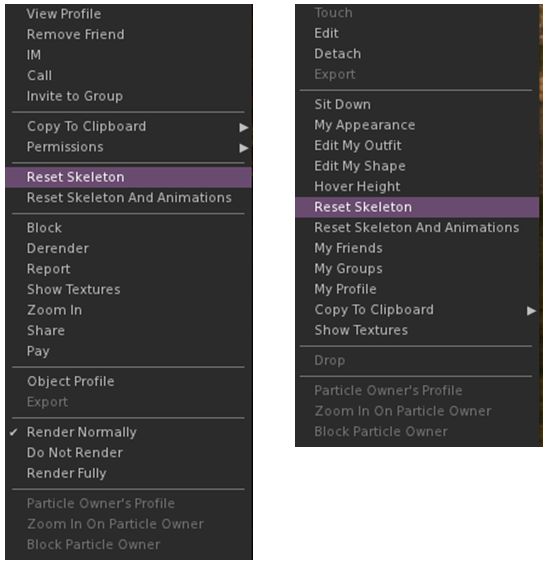
As with all Bento viewers, the visible viewer update is to the avatar menus (both right-click context and pie menu in the case of Kokua), where the Reset Skeleton and Reset Skeleton with animation options can be found.
Reset Skeleton options on Kokua 5.0.0 on the right-click context menus for other avatars (l) and your own avatar (r). With the pie menus they can be found under More > More > Reset (other avatars) and Appearance > Reset on your own avatar
These options have been added because sometimes, when changing between one mesh avatar and another, the basic SL avatar can become deformed, resulting in it looking squished, stretched, caught between two looks, or something else. This problem is generally the result of race conditions when the avatar’s appearance is being updated, and both of these buttons are intended to correct the problem – the option to reset animations being intended to fix deformations which may be due to animations also kicking-in incorrectly / at the wrong time as well, which may cause an avatar to deform.
Restrained Love Viewer
Restrained Love Viewer 2.9.21 (release notes), released on Friday December 16th, brings Bento support to that viewer as well. As with Kokua and other Bento capable viewers, this also sees the Reset Skeleton and Reset Skeleton with Animations options added to the right-click avatar context menus as the most visible sign of Bento support (outside of Bento meshes rendering correctly!).
In addition the update includes a minor change to RLV, with the “?” symbol no longer being used to identify a cheat inside emotes, as some emotes may end with genuine questions.
 Update, May 23rd: version 5.0.5.326444 of this viewer is now the release version of the official viewer.