In a sad notice posted today, Kirstenlee Cinquetti has announced the end of line for the foreseeable future – if not permanently – of the outstanding Kirsten’s Viewer. The entry in full reads:
“You may have noticed that the client has not been updated in some time. Sadly Real Life events have taken an unfortunate turn which basically puts an end to any more development.The Plans for S22 have been shelved and the project has been marked as discontinued.
“Installers have been removed as they are now very outdated, the sourcecode will of course remain. The website and forums will stay up for as long is required. Also inworld groups will stay active. It is of course entirely your choice as to how long you continue to use the client, however I do stress that it will fall behind with features and it may be wise to seek alternatives in the near future.
“Dawny has been very Ill, and had to stop working. As you can imagine my priority is to support her in any way possible and that means I have to become the main bread winner, as much as I enjoy working on the client it’s obviously the first thing to go.
“Not much more to say…
“BUT finally I would like to wish everyone who has supported the project over the years, a huge hug and many thanks, Jabba, Altair and all the people who have put up with my ranting and raving and unusual colour choices in UI. 🙂
“Who knows what the future holds! But for now Kirstens Viewer goes into a deep sleep.
“Presses the Shut Down button, Drives spin down, silence……….
“Love to you all, KL”
This is a very sad day for Second Life and Viewer development. Over the years, Kirsten’s Viewer has set the benchmark for SL-related photography and machinima as well as being ground-breaking in many other areas, not the least of which was the development of the first Viewer 2 hybrid client that offered a usable interface well ahead of V2’s own at the time, and which has remained innovative and highly preferable to LL’s own offering. More recently, it became the first and, up until its suspension, only Viewer to support the upload of mesh objects outside of Viewer 3.x.
I’ve always enjoyed using Kirsten’s Viewer – it requires a fairly high-end machine, and at times my PC had struggled with it, but it has always given me faultless performance and the ability to enjoy elements of Second Life that just weren’t available to me through other Viewers – such as the initial iteration of dynamic shadows.
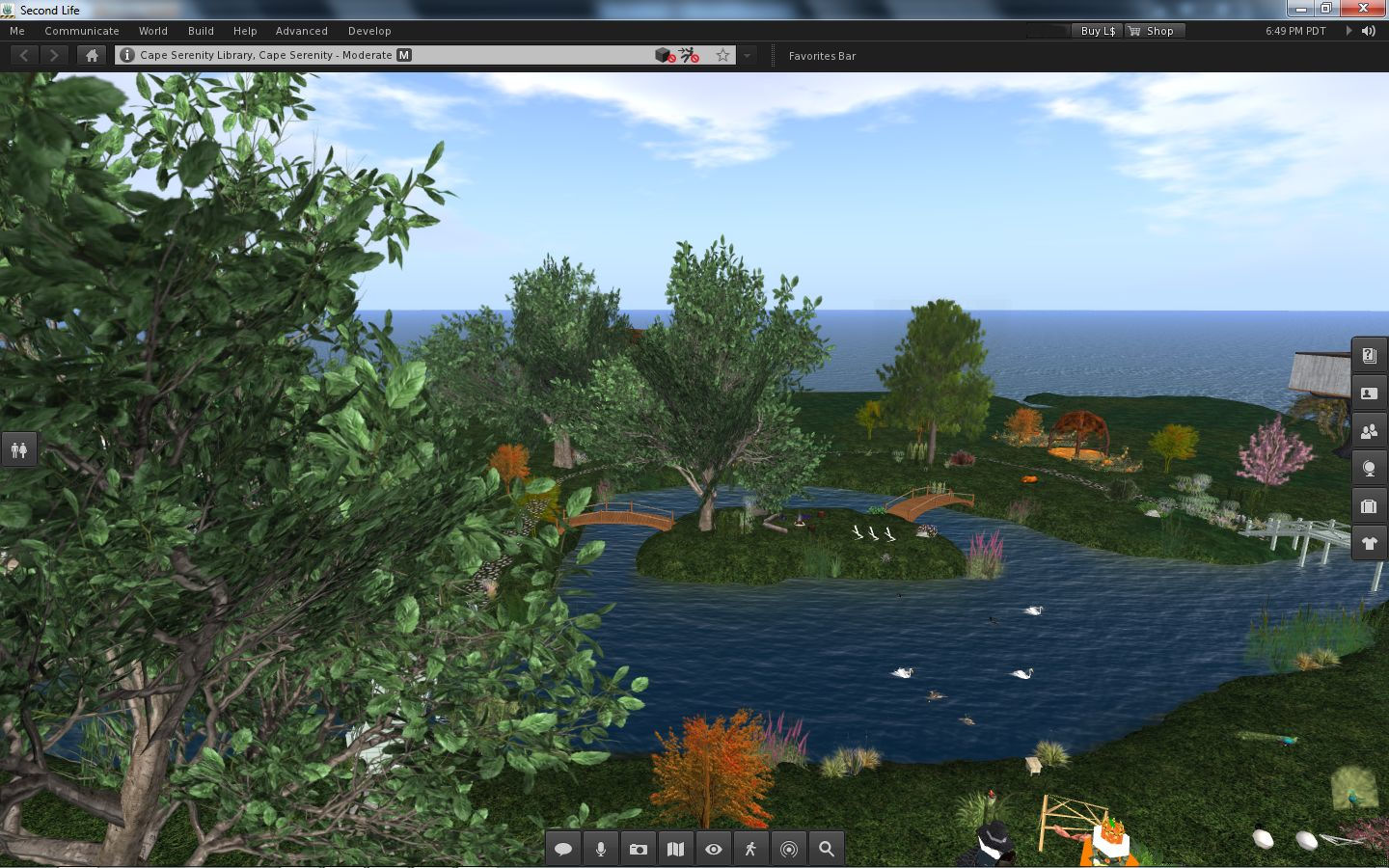
Happier times: Jabba Abbye’s screen capture celebrating the release of S21 Build 9 with mesh object rendering / upload support
I’d like to take this opportunity to thank Kirstenlee and the team for everything they have done and achieved with the Viewer, together with a personal message of best wishes and a return to health for Dawny. For now it is Adieu to Kirsten’s Viewer; perhaps we’ll meet again in the future.
Yesterday, the Phoenix / Firestorm team released a Beta version of Firestorm (officially called 3.0.1.22525), specifically aimed at mesh object rendering. The team is keen to emphasise that this is bordering on an “experimental” release, and urge anyone trying it out to read the accompanying release notes – of which more anon.
The release itself was almost destined not to take place; on Tuesday morning the team discovered a series of regression issues that needed to be resolved, then their service provider announced significant issues with their fibre, leaving the Phoenix servers only able to accept around 10 connections at a time!
Nevertheless, the team worked through issues and, following the fortnightly Phoenix Hour on MetaMix TV, the Beta was duly released. So – what is it like?
Starting Firestorm
The differences between this version and earlier releases are apparent from the moment you install and run Firestorm. On the log-in screen alone are three new features:
Log-in screen – new features
Log-in drop-down list: Firestorm gains the Phoenix username drop-down list with this release. If you use several alts, names and passwords can be retained by the Viewer and chosen from a drop-down list, making for easy selection. In a further nice touch, if you use the same name to log on to multiple grids, the Viewer will remember the specifics. For example, I have three entries under username: “Inara Pey”, which logs me into the SL Main grid; “Inara Pey @ Second Life Beta” which logs me in to aditi, and “Inara Pey @ InWorldz” which logs me in to InWorldz – the required Grid is automatically selected when I select the user name
Beneath the Username field is a new button – DELETE THIS ENTRY (arrowed). This removes the details of the selected avatar from your log-in records held by the Viewer – again, useful if you have multiple avatars and discard one, or if you no longer log-in to a specific grid
There is also now an option called DEFAULT SETTINGS. This allows you to select a default “UI” style with which to run the Viewer. By default, it is set to “Phoenix”. Clicking on the arrow to the right of the option displays the additional options of “V3” and “Hybrid” (boxed above).
Now, these have been described as setting different User Interface styles – and to a point, they do (setting V3, for example, will give you the familiar Sidebar tabs from Viewer 2.x/3.x); but if anyone is expecting “Phoenix” will deliver a full-blown Phoenix-esque V1.x UI will be in for a disappointment – the differences in presentation are far more subtle: “Phoenix” delivers a UI that is pretty much identical to the current Firestorm release UI, for example.
Firestorm 3.0.1 “V3” UI option
“Hybrid” refers to a new – and, I’d say cleaner – variant of the Firestorm UI developed for this release, which I’ve now set as my default (as far as possible – there is at least one issue with this release).
Firestorm 3.0.1 “Hybrid” UI option
As with the Viewer Modes in Viewer 2.x / 3.x, changing the default settings will require you quit and restart Firestorm. While this requirement is the same as the official Viewer when switching between Basic and Advanced modes, it would be nice if this could be automated if at all possible: clicking the OK button shutting down and restarting the Viewer in one convenient go.
Firestorm 3.0.1 “Phoenix” UI option
Navigation and other “Top” Bars
By default, both the Phoenix and Hybrid settings have the Navigation Bar at the top of the screen turned off, while the V3 option has it on, together with the Search bar. Speaking of the Search Bar, as there is an option to turn it off/on, it would be nice if this worked independently of the Navigation bar (currently turning Search on / off only makes a difference if the Navigation Bar is displayed). It’s a small thing, but would add to convenience of use.
The Favourites Bar is on by default in all three, and while I like the fact that in the Phoenix and Firestorm options it is on a transparent background, this may cause issues for some and it is frequently difficult to see against, say, the sky. I also like the Hybrid option’s transparency around the tool bar at the bottom of the screen; this is a nice touch and adds to the feeling that one has a greater in-world viewing area.
Of Sidebars and Pie Menus
The “V3” option of the UI obviously uses the V2.x/V3.x Sidebar and tabs, although options can be accessed from the toolbar at the bottom of the screen as well.
The “Hybrid” UI option uses the “tabless” Sidebar seen in earlier Firestorm releases, with options accessible from the toolbar buttons. In both cases, options can be “torn off” from the Sidebar and floated as independent windows, and will persist as such between log-ins.
The “Phoenix” UI option disposes with the Sidebar completely, and simply floats options in their own windows.
Both the Phoenix and Hybrid options utilise the Pie Menu by default – I would personally prefer the Context Menu were the default in the case of the latter, but I suspect I’d be in the minority for saying so! The V3 option uses the Context by default.
Major New Features
Volume Control Access
Volume Setting Controls
With this release, Firestorm inherits Phoenix’s quick-access panel for all volume control settings. Simply hover the mouse over the volume icon at the top right of the Firestorm window and the control panel will drop down.
All the expected options are there, with sliders, together with options to mute those that are frequently not used: streaming music, media and Voice.
Alongside the Quick Preferences button located down on the toolbar, this is perhaps one of the most eagerly awaited V1 TPV UI options to reach Firestorm.
Built-in Flight Assist
Adding to the client-side AO, Firestorm now sports a flight assist option. This is accessed through PREFERENCES -> FIRESTORM and then checking the ENABLE BRIDGE FLIGHT ASSIST option. As the option itself suggests, the Firestorm Bridge must be worn in order for the flight assist to work; furthermore, you should remove / turn off any other flight assist options before using the built-in flight assist, or you might experience all sorts of issues!
Camera Floater Updates
The camera floater receives an update in the new release, with the Phoenix and Hybrid versions receiving new buttons, while the V3 floater sits somewhere between the previous Firestorm version and the Viewer 3.x controls.
Camera floaters Viewer 3.x (left), Firestorm Beta, Firestorm “V3” and Firestorm “Phoenix” / “Hybrid” (right)
The layout of the new “Phoenix” / “Hybrid” floater makes it appear slightly larger on-screen, and also a little tricker to resize.
Contacts List Changes
The Contacts List has been updated to show whether friends have allowed you permission to map them / edit their items – all to the good. On the downside, a column to show Display Names has been added alongside user names, which tends to push out the size of the window unnecessarily.
Contacts List – a lot of screen space
It would be nice if there were an option to turn off either the user name column or the Display Name column in order to make the List less screen-consuming. If this could be coded, and reduce the amount of screen real estate lost to the window.
This is a summary report only, due to the circumstances of the release. A full review on the Firestorm Mesh Beta will be forthcoming, complete with a detailed list of all new features and an overview of fixes.
Following the Phoenix Hour today, the Phoenix Firestorm team have released a BETA version of Firestorm with mesh object rendering support.
The release is not to be regarded as a full release – more work is required.
Furthermore, the team has specifically requested anyone wishing to download the release to read the accompanying notesbefore downloading and trying the Viewer as there are some critical issues.
There is also a list of known bugs that Firestorm has inherited from Linden Lab. These are already known about and the team request people do not raise further JIRAs on them again, please read the list before reporting bugs.
Other points to note:
nVidia 400-series and above graphics cards may be prone to immediate crashing on running the Viewer if Basic Shaders are enabled. This again is a bug inherited from Linden Lab, and users of 400-series and above nVidia cards are asked not to enable Basic Shaders
The release should clear settings and cache as a part of the installation. If you wish to preserve chat and IM logs, and set them to the default locations, make sure you move them elsewhere first
Should settings / cache not be automatically cleared, people should go to PREFERENCES -> NETWORK & CACHE and use the button there to clear settings and cache and then relog
This release does not include the spell check option – this will be added in the final release; all effort has gone into responding to user demands to provide a version of Firestorm that can render mesh objects
Mesh uploads are not in this release – the code needs further work.
Jessica (r) and Phaylen at today’s show
The following feature are included in the release (not definitive):
Yesterday I mentioned Radegast 2.0 (.1130) had been released and that it has, among other things, the 3D scene renderer (now called the Scene Viewer), the ability to support avatar physics and the capability to render mesh objects.
Well, it does – and it does so exceptionally well.
Installation is as per previous versions – unsurprisingly – and when you start the application, you’re greeted with the familiar splash screen, albeit it with the login data fields nicely resized and moved to the right. The discerning user will also note that 3D Scene has been added to the menu / tab bar – a hint of what is to come.
Once logged-in, you’re presented with the chat display, which retains the same overall layout as earlier versions, but with a somewhat sharper look, with resized movement controls and extended chat bar.
Preferences Options
The File menus now includes a PREFERENCES option which, when clicked, opens the Settings floater.
Radegast Preferences
This allows you a set a range of familiar preferences within Radegast, including the popular RLV Support (this is described as “partial” support in the documentation, of which more anon) and the use of MU* style emotes (so “:” can be used in place of “/me” when typing an emote), together with the ability to turn-off the typing animation. Unlike the SL Viewer, there is no requirement to re-start Radegast after checking / unchecking certain items (such as, again, RLV).
Preferences also gives you access to two other tabs: Auto Response and Graphics Settings. Auto Response operates in a similar manner to the Auto Response function found in popular TPV Viewers such as Firestorm and Phoenix, allowing you to send a customised message to people who IM you. You can set the response to be sent automatically under one of three conditions:
When you set BUSY from the World menu
When anyone not on your Friends list IMs you
Whenever anyone IMs you.
The Graphics Settings obviously apply to the 3D Scene Viewer. Here you can set a number of graphics defaults that are common to most TPVs, and adjust your draw distance to a maximum of 176 metres. There is also an option to turn-on water reflections, but this will only be accessible when the 3D Scene Viewer is running.
Graphics settings
All options selected in Preferences are applied automatically (unless a restart is explicitly asked for – as with Anti-aliasing in the Graphics Settings), so there is no APPLY button – simply close the Settings floater when done.
An important note to remember if you’re running Radegast over a mobile connection: you might was to keep the draw distance in the Scene Viewer turn down relatively low to reduce the bandwidth you’re using in downloading data & so reduce any charges you may be incurring.
The 3D Scene Viewer
The 3D Viewer itself is now fully embedded into the main Radegast window. When you start it, it simply opens up a new tab.This is a nice touch when compared with the experimental versions, especially as it includes the chat bar as well, a very practical addition over some of the early variants of the renderer.
Radegast scene rendering compared to the SL Viewer (inset) – impressive (click to enlarge)
The rendering is actually bloody impressive, and offers a very good alternative to the full Viewer – but bear in mind that:
This isn’t a full-blown graphical Viewer, so things might take a little time to render, especially in “busy” environments. The results, however are well worth it, as the image above hopefully demonstrates
Running the Scene Viewer significantly increases the use of system resources, and so might not be the best for older systems
There are a few issues, but whether these are tied to the software or your hardware set-up is hard to say. In my case, for example, I found that some prims (such as around the flowerbeds in my garden) simply didn’t rez at all, no matter what draw distance was set or where I stood relative to them. Similarly, not all my sculptie plants were properly rendered and some of the grass of one my lawns was rendered hovering above the surrounding grass and stonework.
However, to suggest this in any way ruined my enjoyment in having my in-world scene rendered, or my inability to interact with it, would be a lie. Certainly, when compared to a Second Life view of the same location, Radegast’s ability to render the scene so well is absolutely clear. I also think the ability to render water reflections is pretty amazing as well (below).
Water reflections
Mesh rendering is equally impressive, as the images below of two familiar vehicles from the Beta grid should demonstrate (top picture captured using the old Mesh Project Viewer, the lower image captured in Radegast 2.0).
Rendering mesh objects: “Full” Viewer (top) and Radegast
Movement in the Scene Viewer has been refined to be smoother than earlier versions, although avatar rendering isn’t entirely perfect. By default, the camera is positioned behind your avatar, a-la the SL Viewer, and you can use the LEFT and RIGHT arrow keys to turn, UP to walk forward and DOWN to walk backwards – all as one would expect. If you are using an AO, the Scene Viewer attempts to render the movement scripted by the AO, although this doesn’t always *quite* work, and occasionally your avatar might develop something of a drunken lean while walking!
Tip: if you opt to reposition the camera at any time, always tap ESCAPE to place it back behind your avatar before you attempt to move again (the camera will not automatically reposition itself should you try to move). Even if you can see your avatar, you should still reposition the camera prior to moving – direction of movement appears to be relative to the camera position, not avatar position, so if your camera is not behind your avatar, it is easy to get confused as your avatar sets off in a totally unexpected direction when you press the UP or DOWN keys!
Camera movement still take a a little getting used to. Movement is carried out through a combination of holding the left mouse button and either the ALT or CTRL keys:
Left-click (and hold) & press ALT to orbit around something when moving the mouse
Left-click (and hold) & press CTRL to pan left / right up/down when moving the mouse.
Camera movement can initially be confusing – using CTRL and the mouse to move to the left will apparently pan the camera to the right, for example. The best way to understand this is to think of all camera movement in terms of dragging the on-screen image. So if you use CTRL + left mouse-click and move the mouse to your right, you are effectively “dragging” the image to the right side of your screen – and the camera position will consequently appear to move to the left as a result. This rule applies to panning up / down (“drag” the image towards the bottom of your screen to pan up, etc.), and also to the use of the ALT key to orbit around something.
Tip: If you find the image going off-centre compared to what you are trying to achieve when panning / orbiting, try pointing the cursor at something you wish to centre-on and ALT-left click to centre the view on it; then try panning / orbiting again.
Additional Viewer Options
For those that prefer the Scene Viewer detached, right-click on the tab name for the Scene Viewer and select Detach. This will float the Scene Viewer in a separate window, complete with a chat bar
Right click anywhere within the Scene Viewer to display an additional menu:
Undock (/Dock): will float the Scene Viewer in its own window or re-dock it as a tab within the main Radegast window
Options: Displays the graphics preferences that can also be accessed through FILE -> PREFERENCES
Debug Panel: opens the Debug options for the Viewer, where you can RESET VIEW and move the camera back behind your avatar (i.e. the same as tapping ESCAPE on your keyboard), and adjust things like the image brightness and contrast using the top two sliders.
Objects in the Scene Viewer respond to touch as they would in the “full” SL Viewer: doors will open, menu-driven objects will display their menu, etc. Right clicking on in-world objects will display a context-sensitive series of additional option to the menu described above. For example, if you right-click on an item you own, you’ll get additional options to take, delete, touch or sit on the object. Right-clicking on an object owned by someone else may give you the options to touch it (if scripted) and / or sit on it.
RLV Support
This is an interesting addition to Radegast. While it is not a full implementation of the RLV API, it nevertheless opens options and possibilities. Among the things it can do:
Deny the ability to remove locked items
automatically accept forced teleports
Act upon forced animations (although not necessarily rendered in the Scene Viewer)
Restrict chat and IM (including forcing chat to whisper, etc.)
The broader restrictions provided by RLV aren’t replicated in Radegast, so things like blocking inventory access, restricting far touch, vision restrictions, etc., are not implemented.
Other Updates
The login screen now stores the details of avatars logged-in to virtual worlds using Radegast, including the actual grid the avatar logged-in to. Simply select the avatar (/grid name) from the drop-down list available from the USERNAME field. The user name, password and grid are all then set
Radegast now supports Viewer 2 avatar Physics Layer – so if you wear a physics layer of clothing, it will render movement correctly in other people full graphical Viewers (the movement won’t be rendered in the Radegast Scene Viewer).
Opinion
Radegast 2.0 offers some nice improvements over the previous releases, and still sits head an shoulders above other “non-graphical” clients in the most common areas of use. If you want a genuinely “light” text-based access to Second Life / OpenSim the likes of Libretto or SLiteChat might be more appealing, but if you are stuck in a situation where you simply cannot run a “full” Viewer and want to have a very flexible means of accessing your preferred VW for more direct interaction with friends and the people around you, Radegast really cannot be beaten.
Elements of the client are still described as “experimental” and as such may well still be prone to crashing. That said, I’ve sent the good portion of a day running the client on both a desktop PC and my Notebook (Intel Atom 330 w/2Gb RAM and nVidia Ion2 graphics processor) without any crashes or major issues (the Notebook did have occasional avatar rendering issues – I was hair and shoes a few times, with nothing between!) and both the PC and the Notebook seemed to have issues rendering the odd prim here and there.
All-in-all a significant and well-implemented update to Radegast which is enjoyable and intuitive (for the most part!) to use. And RLV is a nice option to have – and not just for those of us into D/s scenes *grins*.
Metabolt has recently been through two significant updates – and in doing so, has stolen a march on graphical Viewers. With Phoenix and Firestorm due to get “Contact Sets” for managing Friends lists in the future, Metabolt has the capability to sort and group Friends now.
The 0.9.47 release of 28th August saw a raft of major fixes and the inclusion of new LSL-related Action Commands: Eject from group, Touch, Sit, Stand, Move To (walk, run or fly), Follow, and Send Notice. Additionally, the following enhancements were made:
Metabolt upgraded to the latest version of libopenmetaverse
New neutral colour scheme throughout
LSL API is now activated via the Security tab under Application/Preferences where you need to specify a master avatar and a master object UUID so that commands are only accepted from them. Unchecking the “enforce” option will mean METAbolt will accepts commands from all avatars and objects that pass a valid METAbolt password as it used to be before.
Movement controls issues resolved for better avatar movement
Received Inventory items are auto accepted in 15 minutes of being received if not dealt with within that time limit and information is printed on the chat screen
Deleted inventory items now go into the Trash folder which you will need to empty
Viewer 2 Physics Layer supported (if a physics layer of clothing is worn, movement will render correctly in graphical Viewers).
The 0.9.49 release of 3rd September (which obviously includes the 0.9.47 updates) revises the login splash screen to add two new button that are displayed when OTHER is selected from the Grid drop-down list.
New Grid list button (circled)
The first of these will open the grid list in a suitable editor (e.g. Notepad), allowing you to easily add additional grids to the list. The second button will refresh the list to display any new grids you’ve added.
Once logged in to Metabolt, 0.9.49 allows you to organise your friends list into Groups using two new tabs and a new drop-down list.
New Friend Groups options
Creat a Group allows you to create a new group you can categorise your friends by
Friend Groups displays a list of groups you’ve created. Clicking on a group will open a box allowing you to drag-and-drop the names of friends from the main list on the left into the Friend Group.
Currently Displaying under th you main friends list on the left of the window allows you to display all your friends, or select a specific group you have created via a drop-down list.
These are sure to be welcome additions that further enhance Metabolt.
In July, I reviewed Radegast 1.28.872 as part of a series on text clients for Second Life / OpenSim. As a part of that article, I took a quick look at the 3D scene renderer then under development.
Today, Latif Khalifa has announced Radegast 2.0, with the 3D viewer is now released. Not only that, but avatar physics are included and the ability to render mesh objects! Here, in full, is the announcement:
“The Radegast Development Team is proud to announce the immediate availability of Radegast version 2.0.
“This release brings the 3D Scene Viewer that allows users to see the 3d worlds around them. Most of the object rendering features are implemented and functional, including the support for showing regular prims, sculpties and meshes, but one should keep in mind that this is still very experimental and might cause crashes. Known issues include: not entirely correct avatar rendering, no support for glow or flexible prims. If you do encounter problems please do report them in our issue tracker.
“In addition to the Scene Viewer, Radegast 2.0 comes with the support of the new avatar physics wearable type. There is also a crash reporter that will ask you to submit the crash reports should something unexptected happen. We encourage you to submit those reports as they make the future releases of Radegast better.”
I have to say that of all the “text” clients, Radegast is personally my favourite simply because of the scene rendering. so you won’t be surprised to learn I’ve already downloaded the .EXE file and will be trying it out – and reporting back – very shortly.
In the meantime, for those of you who’d like to try it, here are the links: