This is intended to be a weekly round-up of current public SL viewers (of which I’m aware). Links to my most recent reviews of said viewers will be included, but may not reflect the current release. As few Viewers are static, and releases are made according to individual development cycles, further versions of any given Viewer may well be released between these updates, and as such the information here may become out-of-date as the week progresses. Please check with the relevant download pages.
Changes since the last round-up shown in green.
SL Official Viewers
Available for: Windows, Linux, Mac
Current Release version: 3.2.6.248086 (download page)
Beta version: 3.2.9.248932 (released: Feb 6th) (download page)
Development version: 3.3.0.248913 (released: Feb 6th) (wiki page)
Simplified Inventory Project version 3.2.8.248008 (wiki page)
Catznip R5 (3.2.1), available for Windows and Linux is released today with some rather smart features.This was apparently intended to be a maintenance release, but things grew as work progressed to the point where it became a release in it own right. It’s based on the V3.2.7 code base (“ish”, as the Catznip blog puts it), and so should include some of the latest Shining fixes from LL to reach the Viewer code repositories.
Installation
The Windows installer weighs-in at just a touch over 26Mb – par for the course for most V3.2-based Viewers nowadays, and installation is pretty much as expected as well. no unpleasant surprises, just accept the licence and away you go. As usual, I opted for a completely clean install, including the manual deletion of all user-related folders, although this isn’t listed as an explicit requirement for the release.
Mini (Location Bar) Moves
On start-up, everything appears pretty much as usual: the familiar V3.2 FUI, buttons ranged to the left and along the bottom of the screen, the mini-Destination Guide open by default. Nothing special here, it would seem. However, as we all know, looks can be deceptive.
That the Navigation Bar can be switched with the Mini-location Bar is common knowledge among V3 users. Usually when this is done, the Mini-Location bar replaces the Navigation Bar, occupying the same space beneath the Menu Bar, but shunted to the left of the screen, hence earning the name “mini”. However, Catznip offers-up more screen real-estate to users by placing the Mini-location Bar within the Menu bar and the top of the screen. Additionally, users have the options to hide either or both of the BUY L$ and the Marketplace SHOP buttons.
Navigation & Mini-location Bars in V3.2 and most V3 TPVs (top) and the Catznip approach (bottom), using the Menu Bar and with the Marketplace button hidden
Both the move of the Mini-location Bar (which will dynamically resize as the Viewer Window is resized) and the ability to hide the buttons are well-considered. The former gives a modest increase in screen real estate while the latter are likely to be appreciated by those who either don’t buy their Linden Dollars through the Viewer, or who prefer to access the Marketplace directly through a Browser bookmark. Moving the maturity rating to a clearly visible icon within the Mini-location Bar is also a smart move.
Chat and Spell
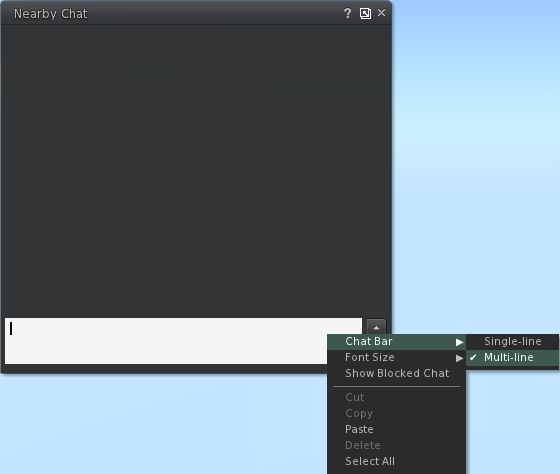
This release brings some nice additional options to Nearby Chat. Right-clicking on the Chat Bar itself reveals new menu items: the ability to switch between a single-line and multi-line chat bar and to change the displayed font size in Nearby Chat on-the-fly, together with the ability to reveal blocked chat (from muted avatars). Both the single/multi-line Chat Bar and the font size options will update the options in the relevant Preferences tabs (Catznip->Chat and Chat respectively).
New Nearby Chat options.
Alongside of these, although it is not at all obvious from using the Viewer, is a completely re-written in-line Spell Check. For those that aren’t aware, Kitty volunteered her services in order to bring the Spell Check to the official Viewer, and the re-write present in this release of Catznip represents part of this ongoing work. The core changes to the in-line checker comprise:
added : ‘Second Life glossary’ dictionary (enabled by default)
fixed : overwriting existing text won’t trigger a new spell check
fixed : opening an existing modifiable notecard doesn’t always show existing misspellings
fixed : scrolling through a notecard can hide all misspellings
fixed : squiggly lines aren’t centered on the misspelled word (fixed for LLTextEditor)
(from the Catznip blog)
Preferences Updates
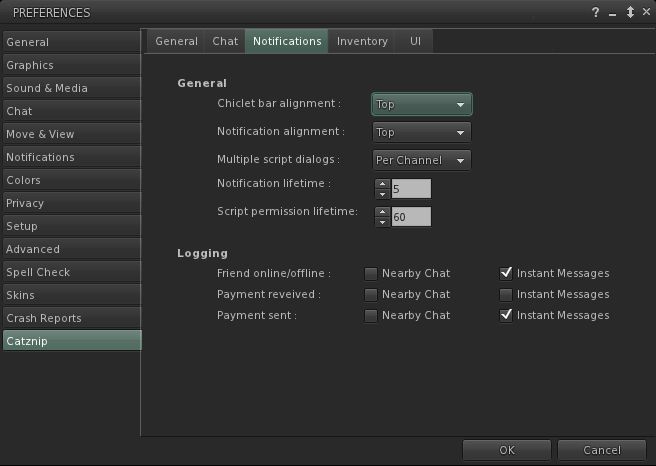
This release brings with it a tidy-up of the General settings tab in Preferences, and sees the Notifications options moved to their own sub-tab under Catznip, together with additional items, but little in the way of other major changes in layout.
New Notifications sub-tab
A lack of widespread updates to Preferences shouldn’t be seen as a sign that Viewer isn’t still growing a developing – as the next section shows, Catznip is being constantly enhanced. A stable Preferences floater is more a sign that the Viewer is maturing in a stable, smooth manner.
Script Recovery
The major new addition to Catznip is the Script Recovery feature. To quote from the Catznip blog:
“Ever crash or get logged out while editing a script and then lose all your work?
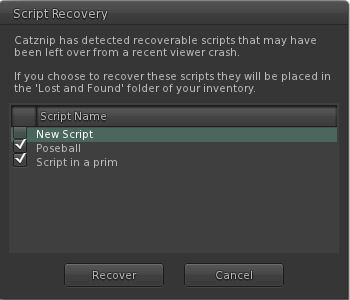
“Following a crash or forced disconnect you’re now presented with a dialog offering to recover the scripts you had open.
“This works for all scripts, everywhere, and as we found out while trying to take the screenshot for this release, is very robust and persistent. It won’t go away till you either recover or dismiss it .. even if you crash.”
Catznip Script Recovery floater (with thanks to the Catznip team)
Script Recovery works by locally auto-saving open scripts every 60 seconds. Should the Viewer crash, scripts are presented to the user via the floater shown above, and optionally recovered to lost & found folder. Further:
The backup copy is only saved when the editor isn’t pristine
The backup copy is removed when the script has been successfully uploaded, or when the floater is closed.
Once would anticipate this finding favour among scripters, and is liable to be picked up by other TPVs down the line. However, full kudos and credit to Kitty and the Catznip team from bringing it into being.
Other Nips and Tucks
RLVa is overhauled with this release, with a number of FUI-induced bugs being eliminated. Specific updates include:
changed : flipped “RLVaEnableSharedWear” on by default
fixed : disabling a toolbar button doesn’t block the button’s commit signal
fixed : LLFloaterReg::toggleInstanceOrBringToFront() bypasses the blocked folder list and the validation signal
fixed : region “alerts” aren’t show location or show names filtered
fixed : various issues and enhancements relating to @showloc
fixed : the RLV API renames “Avatar Center” to “Root”
(from the Catznip blog)
Group Moderation gets a Catznip boost – with this release it is possible to directly remove someone from a Group by opening the Group Participants list and right-clicking against an individual name – the eject option will appear in the context menu.
There are a number of other nips and tucks to the Viewer which can be seen listed in the official blog post on the release.
Performance and Opinion
Based on 3.2.7 (or thereabouts), this release of Catznip runs extremely well on my standard PC; in fact, Catznip, as with Exodus, has tended to run somewhat better than other TPVs as a rule anyway; I’ve no idea why – it simply seems to like my PC. This release tends to continue the trend, and puts Catznip, tested against the current 3.2.6.248086 V3.2 release on the same sim with the same avatar load (albeit with different screen layouts, yadda, yadda), gave a pretty good run for itself in default mode – averaging some 32-33fps on the ground with 5 other avatars on the same sim while about 8-10fps faster at 390m. Enabling deferred and shadows easily halved these figures – with ground rates only just managing to stay in double figures.
Overall, another release that solidly builds on Catznip’s reputation, and which includes another series of smartly convenient extras that make the UI even more convenient to use in terms of direct access to functions and options. Not being a hard-core scripter, I have no idea how often crashes feature in terms of lost work, but as stated above, those that script from directly within the Viewer are liable to appreciate the Script Recovery function should they find their Viewer vanishing on them unexpectedly.
Tuesday February 7th saw the resumption of The Phoenix Hour broadcasts via Metamix TV. Given the sim was full and the stream hit a capacity limit, I’m guessing the show was somewhat eagerly awaited. As I couldn’t get either into the sim or onto the stream, feedback on the show will have to wait until it is available on the Metamix channel and I’ve had a chance to watch it.
In the meantime, and coinciding with the show, a Maintenance Release of Firestorm was made – 3.3.0.24880. Here’s a quick overview of the elements that caught my attention.
Points of Note
There is an impressive list of additions, changes and fixes for the release, as well as a number of known issues. You are advised to read-up on the latter prior to installing
It is recommended that you do a completely clean install of the release
This release does not include the V3.2 FUI from LL – that’s coming down the road (see below) so far as I can tell, the parametric deformer also isn’t a part of the release.
Particle Editor and Other Highlights
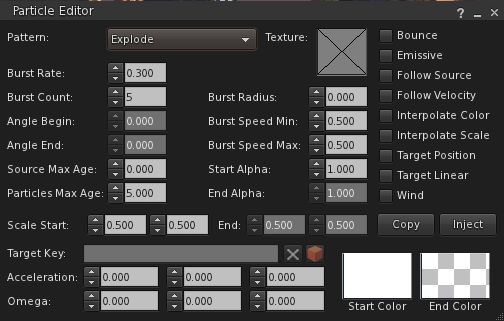
While I’m not going to launch into a full review – I’m saving that for when the FUI version of Firestorm arrives – this release includes a number of cool bits worth mentioning. Most notably among them is Zi Ree’s client-side particle editor, which has been the cause of some angst having been released ahead of Firestorm (for which it was specifically being developed) within the Zen Viewer.
There is a comprehensive guide to using the particle editor on the Firestorm wiki, so I’m not going to delve massively deeply into it here. All I will say is, full kudos to Zi for making it so ridiculously easy, even I can understand it and play with particles…
New particle editor
Another nifty addition from Zi that builders are likely to find handy is the BUILD->DUPLICATE option (CTRL-D). This allows builders to immediately duplicate any prim or linkset they’ve created – hand on repetitive builds.
Inventory gains the ability to search by creator, UUID, description and ALL and filter options to display Links, hide Links or hide everything else but Links to the inventory gear menu.
Estate owners / managers also get some useful updates with this release by way of Ansariel Hiller:
ALT-R will now open the Region / Estate floater
The TOP OBJECTS floater (from the DEBUG tab of the Region / Estate floater) now includes a button allowing Estate owners / managers to teleport to offending objects
Camera smoothing is also now in the Move / View tab of Preferences, as is the ability to adjust the transition time for shifting focus, while the camera View Angle is updated to allow the entry of numerical values – all options machinimatographers should find useful. The transition time option is something I first encountered in Niran’s Viewer, and really like, especially when exploring SL and appreciating the sights I find – so it’s good to see it in Firestorm. I also particularly like the options to disable some of the more annoying notifications thrown out by the Viewer during routine operations.
There are even a couple of new skin options: Firestorm High Contrast and also Vintage – the latter of which harks back to V1 in terms of button colours and presentation.
And all this just scratches the surface of a lot of effort by many within the team to add features and enhance the Viewer’s overall capabilities – kudos to all.
Performance
Given this is a maintenance release, I wasn’t expecting to see the kind of dramatic improvements I’ve been fortunate to experience with other Viewers, Shining Fixes notwithstanding – and that’s pretty much the case. Overall, through nigh-on three hours of playing with the Viewer and leaping around the place, banging prims together and generally poking my nose in and seeing what happens, performance has been pretty much on a par with the 3.2.2 release, with the occasional boost in fps when shadows are enabled. Shadows themselves also seem to render more crisply with this release, although that could simply be a trick of my eyes.
Crash-wise, outside of the issues listed by the team, I did initially have some problems running with shadows active in that clicking the PEOPLE button with deferred & shadows active initially caused me to crash several times. As the problem later went away, I’m assuming it may have been either issues within my PC, or possible issues with the sim I was on at the time.
Overall, this is a worthwhile update to Firestorm – although a read-through of the known issues is well advised.
This is intended to be a weekly round-up of current public SL viewers (of which I’m aware). Links to my most recent reviews of said viewers will be included, but may not reflect the current release. As few Viewers are static, and releases are made according to individual development cycles, further versions of any given Viewer may well be released between these updates, and as such the information here may become out-of-date as the week progresses. Please check with the relevant download pages.
Text clients I am able to run and review may be included in the future, depending upon how useful this page proves to be.
SL Official Viewers
Available for: Windows, Linux and Mac
Current Release version: 3.2.6.248086 (download page)
Beta version: 3.2.8.248668 (released: Jan 30th) (download page)
Development version: 3.3.0.248913 (released: Feb 6th) (wiki page)
Simplified Inventory Project version 3.2.8.248008 (wiki page)
The development of the Kokua and Imprudence Viewers has been somewhat stalled for several months for a wide range of reasons, all of which are understandable given the voluntary nature of Viewer development in general.
At the end of January 2012, the Kokua / Imprudence team held an open meeting at which the future of both viewers was discussed, and following this, a blog update was put out summarising the conclusions reached, and which reads in part:
We’re going to continue to develop Third Party viewers with a focus on cross supporting Second Life and OpenSim/Aurora. However we’re going to focus on Kokua in the future, the ultimate fate of Imprudence is still undecided though as we may push for a final 1.4 release but nothing that takes up too much of our time. Kokua will use Second Life v3.2 as a base, we feel the LL code for v3.2 has matured greatly beyond v2 and v3 and we’ll of course make our own modifications to it to make it more “purple” in flavor. It is also our intent to finalize the name change from Imprudence to Kokua, Imprudence and Kokua are separate viewers and the project has historically been called the Imprudence project. The intent was to switch from Imprudence to Kokua as the next generation client was released but it has been dragged out for quite a while now and caused confusion, so we’re going to finish the change over to Kokua.
This is excellent news for the SL TPV / OpenSim worlds, as Imprudence has long had an outstanding reputation for usability and has been popular across the wider metaverse (may of us who bounce between SL and other grids find it to be our Viewer of choice when outside of SL). That the expertise that has made Imprudence so popular and so capable a Viewer is now being brought to bear on the V3.2 FUI and capabilities is good news and means that both OS and SL stand to gain given wider choice in Viewer options.
Of course, many will lament what amounts to the eventual passing of Imprudence – but again, all Viewer development is only voluntary, and teams / devs must move in the direction that they feel is most appropriate for them in terms of building and maintaining a viable Viewer and it would be unfair to chastise the Kokua / Imprudence team for their decision.
Work will, for the forseeable future, focus on Windows (32-bit) and Linux 32-bit & 64-bit), although it is hoped both Windows and Mac 64-bit options will be available “down the road” – with the further caveat that Mac development is dependent upon the team gaining a Mac developer. Sounds reasons are given for not focusing on a Windows 64-bit version from the off, although the 32-bit version will have SSE optimisation.
Alongside the core work on the Viewer, the Kokua / Imprudence blog & forums are liable to see an overhaul in the near future as well.
As well as the blog post on the subject, you can also read the full transcript of the meeting, if you were unable to attend.
Update January 27th, 2013: The Zen viewer has been discontinued by its creator.
Zena Juran released a new version of the Zen Viewer over the weekend – something I almost missed due to being busy with other things in-world (of which I’ll say more another time). As mentioned in my original review earlier in the month, Zen is aimed at bringing an enhanced build experience to the V3.2 environment.
Currently still only available for windows, this new release (3.2.8.7) remains based on LL 3.2.8 Development / Project Viewer code, but sees some major changes and additions in terms of the TPV code that has been merged.
Installation and Start-up
The EXE retains more-or-less the same size as the 3.2.8.6 release, and the Viewer installs the same, complete with dedicated user folders and cache locations (rather than using the SL defaults).
Logging-in reveals little in the way of changes between 3.2.8.7 and earlier releases – other than the fact that the UI buttons are no longer transparent (more on this in a moment), the layout is the same as 3.2.8.6 and prior releases. However, open up Preferences, and the updates immediately make themselves apparent.
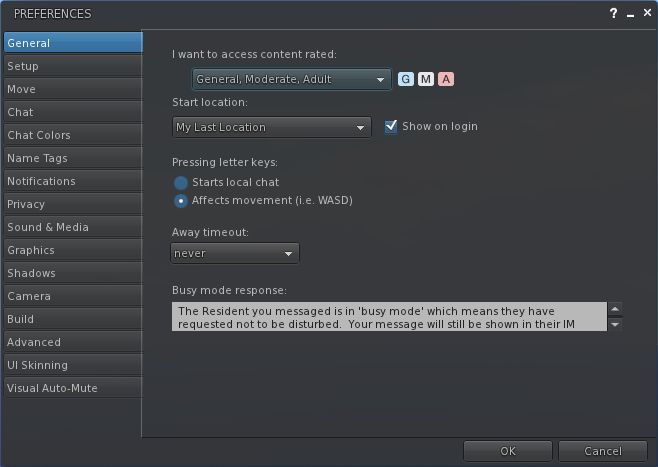
New Preferences Tabs
In my original review, I commented that Preferences were little-changed from V3.2, but Zena would be adding to the list of capabilities over time. Well, she has – and massively so! At the same time she’s also re-arranged things somewhat.
Expanded Preferences
Release 3.2.8.7 sees one tab in Preferences removed (LSL Pre-processing), and five new tabs added, together with an overall re-ordering of things which may initially catch used to operating by wrote a little off-guard (Graphics, for example has gone from near the top of the tab list to fairly well down the order of things). This shouldn’t interfere with overall usability, however.
The five new tabs are (in the order displayed:
Name Tags: Pulls together the V3.2 (usually found in the General tab) and popular TPV options relating to name tags (setting colours, etc.) together into a single tab
Shadows: pulls-in the shadow options popular among TPVs, and which can be found in a variety of locations (a sub-tab under graphics, for example)
Camera: pulls-together “standard” options such as view angle & distance (from MOVE & VIEW), disabling camera constraints (from the Advanced menu), depth of field on/off (duplicated from Graphics), and camera / DoF sliders again found in other TPVs
Build: presents the Build enhancement tools first seen in the likes of Emerald / Phoenix, and now widely used in TPVs
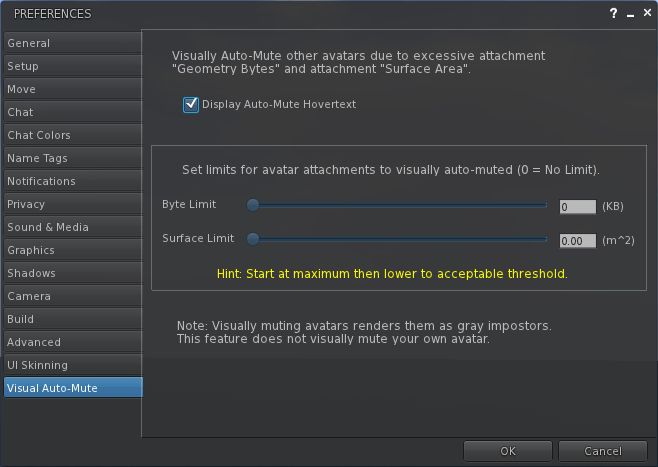
Visual Auto-Mute
This is perhaps the most interesting change within Zen (and potentially the most drama-risk feature to pop-up in the Viewer code in general for a while), and is the first merge I’ve seen of a new functionality from LL that was recently released as a changeset (my apologies to other TPVs if they’ve in fact merged it as well, I’m still trying to catch up on 3 days of missed blogging and updates).
Visual Auto-mute
Essentially, this functionality allows you to set thresholds above which avatars with a very heavy load (high-res textures, complex attachments (multiple prims, flexi prims, sculpts, and what have you), etc., – but not scripts, which are a completely different kettle of fish) will not be rendered by your Viewer. Instead, they will appear as “grey ghosts”, similar to when you’ve muted someone; however, you will still be able to IM them and chat with them. This should theoretically reduce the load placed on the Viewer and your system in terms of rendering, and lead to an improved SL experience.
The Graphics tab in Zen’s Preferences has also been updated, with an improved overall layout, largely due to the removal of the low-med-high-ultra slider from the top of the tab (itself no real loss), although a full screen option has yet to appear.
Graphics tab updates
UI Skins and Button Transparency
This release sees the range of skin options (colours) expanded, with gold, purple and red being added to the original LL teal and Zen blue. It also appears that Zena has taken-up the comment I made in my original review about having the transparency of the UI buttons user-adjustable. This release sees an opacity slider for the buttons added to the UI Skinning tab – so while the buttons are initially solid on first-time start-up, you can adjust them to a level of transparency to suit your needs.
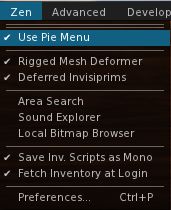
Zen Menu Updates
Zen menu
The Zen menu sees a couple of updates. The Notifications to Top for moving incoming notifications to the top right of the screen has gone (it can now be found in PREFERENCES->NOTIFICATIONS). This moves the Pie Menu option (on by default) to the top of the menu, while an option for accessing Preferences slips-in at the bottom.
I’d still prefer to see a button added to simplify accessing preferences, but this is still a logical addition that streamlines access to frequently used menu options.
Opinion
This release moves Zen up a notch. While performance is unchanged on my usual system (no surprises there given it’s still effectively the LL 3.2.8 Development / Project Viewer code base), the additional preferences options help make the Viewer more accessible and potentially feature-friendly to SL photographers who prefer something closer to the “official” Viewer rather than plunging into Exodus or Niran’s (although Zen does not have the advanced capabilities of either of these two Viewers, obviously).
The Build heritage for Zen is clear – drawing heavily on Firestorm in terms of floater layout and the availablity of popular tools. I’d personally still like to see the camera floater get some button functionality, and still am undecided on the complete removal of button-based functions from some of the menus. Some might find it feature-light compared to other TPVs (the list of what’s not there is still pretty much as it was for 3.2.8.6), but I don’t count this against Zen in any way. Overall this is still a Viewer that presents something of the best of both worlds – good, solid building capabilities wrapped up in LL’s 3.2 code. With it now listed in the TPV Directory, it’s worth a look by anyone who might be considering easing away from the official Viewer to take advantage of TPV-originated tools, but who doesn’t necessarily want to get swamped with additional features and options.





 Inara Pey: Living in a Modemworld