This summary is published every Monday and is a list of SL viewer / client releases (official and TPV) made during the previous week. When reading it, please note:
It is based on my Viewer Round-up Page, a list of all Second Life viewers and clients that are in popular use (and of which I am aware) and which are recognised as adhering to the TPV Policy
By its nature, this summary will always be in arrears
The Viewer Round-up Page is updated as soon as I’m aware of any releases / changes to viewers & clients, and should be referred to for more up-to-date information as the week progresses
The Viewer Round-up Page also includes comprehensive links to download pages, blog notes, release notes, etc., as well as links to any / all reviews of specific viewers / clients made within this blog.
Updates for the week ending: 25 November, 2012
SL Viewer updates:
Beta version rolled to 3.4.3.267135, on November 20 – release notes
Development version rolled to 3.4.3.267201 on November 20
Exodus rolled to 12.11.24.1 on November 24 – core updates: large group management code; full pathfinging implementation (incl. navmesh visualisation); removal of OpenSim support from grid selector; removal of –loginuri support; various UI updates, bug fixes and minor changes – release notes
Zen Viewer rolled to 3.4.3.0 on November 24 – core updates: latest mesh deformer code; Reverted OpenJPEG Decoder; Area Search, Local Bitmaps, Build floater updates (script (Contents tab) and texture (Texture tab) options) from latest Firestorm Beta; re-categorized and shortened Object Context Menu – release notes
Cool VL updates:
Stable branch rolled to 1.26.4.40 on November 24 – core updates: Reworked & renamed Audio & Video Preference tab (to Audio & Media); backported a fix to the new target omega code from viewer-development v3.4; fixed improper support for wheel mouse scroll events in parcel media; added a setting to override auto-zooming on media faces; added a “mute” button to the Media HUD; assorted minot fixes and ports
Experimental branch rolled to 1.26.5.20 also on November 24 – core updates as per main release, plus: Media on a Prim compiled and enabled. See this thread
Saturday November 24th saw the next release of Exodus hit the download page, and Ash Qin from the team was kind enough to give me the nod – I confess, I’d lost track of the nightly builds and so have fallen well behind with the viewer’s on-going development – and access to the beta release of the build.
Exodus 12.11.24.1 is based on the Linden 3.4.2 code base, so it includes the majority of the most recent updates from the Lab, including the new Group Services code for managing and editing groups with more than 10K members, and a host of other Linden goodness.
Installation
The Windows installer weighs-in at a touch over 34MB in size and contains absolutely no surprises during the install process – as one would expect. As per usual, I did a completely clean install, which brought me to my first surprise: on start-up Exodus displayed the Steam-related “Create Account” prompt.
No, Exodus isn’t going to Steam.
This doesn’t mean Exodus is heading for Steam a-la the official viewer, just that the Steam code is now part and parcel of the SL beta viewer code, and the Exodus team didn’t see any reason not to merge it into their code, given it is only ever something established users are ever going to see once after a fresh install (and possibly not at all if they don’t perform a clean install or the team moves to an updater system – which is something they are considering).
Pathfinding
This release brings with it pathfinding, which the team had originally hoped to release a lot sooner. This includes not only the build tools associated with pathfinding (Linksets and Characters floaters, attributes in the Build and Object Profile floaters, etc.), but also includes the Navmesh visualisation code, as Exodus becomes the latest viewer to sign-up to the Havok sub-licence agreement with Linden Lab.
An impressive image of Deshima, showing the navmesh visualisation in Exodus
This means that anyone who has been using Exodus to access OpenSim grids via –loginuri will no longer be able to do so when using this release. Similarly, the optional grid selector which can be displayed on the login splash screen only lists Agni (the main grid) and Aditi (the beta grid).
The move to the Havok sub-licence also means that with this release, Exodus moves to the official mesh upload code from LL, rather than using the HACD code which has been in common use within TPVs.
Group Services
Large groups will load and can be edited with this release of Exodus
As mentioned above, Exodus gains the large group management and editing code from Linden Lab with this release, allowing groups with 10K or more members to load in the Group floater and which allow group owners and officers to edit and manage very large groups.
Again, just as a point of reference for those unfamiliar with the new code changes: these do not relate to group chat or anything related to improving group chat. That is an entirely separate project within Linden Lab (and one which may not be being actively progressed while other work is being undertaken). This is purely about using HTTP protocols (rather than the old UDP) to bring more stability to the downloading, viewing and editing of very large groups.
Viewer Updates
Alongside the updates and fixes from LL, Exodus 12.11.24.1 gets a number of updates all of its own:
The Flickr option on the Snapshot floater now includes an option to include the parcel name / SLurl in the description
You can now Paste as Link’ and Copy as Link using the right-click or CTRL-SHIFT-V and CTRL-SHIFT-C using Exodus’ built in “pastebin” functionality
A Copy as Link button added to the About Second Life Viewer floater, allowing the information in the floater to be viewed via the web
A Copy Key option added to the avatar right-click context menu, allowing for easy copying of the Avatar Key.
Two new options for Exodus: the include location option for Flickr uploads on the Snapshot floater, and Copy as Link on the About Second Life Viewer
Fixes and Changes
Exodus 12.11.24.1 also includes a number of fixes and changes from the team:
MOTD should work now on OS X
Added copy key to gear menu for avatar inspection panels
Colouring of certain elements
BMP cursors on Linux
Higher compression of LZMA packages on Linux
Curl on OS X no longer defaults to trying to use IPv6 in Curl (related to MOTD issue).
Performance and Feedback
Performance-wise Exodus 12.11.24.1 again gives very similar results on my usual review system (see the panel on the right sidebar of this page) as recent viewer releases I’ve taken a look at in the last month:
Deferred off:
Ground: 28-29 fps
370 metres: 36-38 fps
2875 metres: 43-45 fps
Deferred on + lighting set to Sun/Moon + Projectors; ambient occlusion off:
Ground: 9 fps
370 metres:15 fps
2875 metres: 18 fps
Like like Catznip R7 and the recent Firestorm beta, these figures dropped only very slightly (just 1 fps on average) if I also activated ambient occlusion in deferred; again marking the fact that for me, things seem to have improved recently over the start of the year.
Compared to other recently releases, this one from Exodus is relatively small and compact – which doesn’t lessen its overall impact; once again it places Exodus back among the leaders of the V3-based TPV pack. There are still a couple of things I’d like to see, one of them being my usual request of TPVs in general: the ability to left / right range the toolbar buttons at the bottom (or top for those that use that space) of the screen. Only one does it so far, and it is really handly having the option.
Nevertheless, nothing should be taken away from the Exodus team, offering as they do a pleasing and worthwhile update.
Week 47 marks Thanksgiving in the USA so as reported last time, there have been no server-side deployments for the Release Candidate or main channels, and no rolling restarts. This is liable to continue into week 48 (week commencing Monday 26th November), as there is unlikely to be any deployment to the main channel. There will, however, be deployments to the RC channels, details TBA.
HTTP Updates – Texture Fetching
After indicating that there would be no viewer releases during week 47 in the run-up to Thanksgiving, the Lab rolled out the first of the 3.4.3 beta releases – 3.4.3267135 – on November 20th. The major change to this is the inclusion of the first phase of Monty Linden’s new HTTP-based texture fetch capability, designed to significantly improve texture rezzing within the viewer. As the release notes state:
A new scheme for performing HTTP operations is introduced with this release. It is intended to reduce crashes and stalls while performing HTTP operations and generally enable performance and reliability improvements in the future. In this release, it is being used by the viewer’s texture retrieval code. Our expectation is that it will provide consistent and predictable downloading of textures. As well as the usual problem reporting, we’re also interested in confirmation of improvements where this release improves your experience.
The HTTP texture fetching code is now available in the latest SL beta viewer (3.4.3.367135)
The code for these improvements has already started appearing in some TPVs, and will doubtless be available across all flavours of the viewer in the near future.
Observable improvements in rezzing times have been reported by those who have used the project viewer releases of this code, so it should yield benefits for those using the beta. Monty Linden, who is handling this project is apparently now working on further improvements to the server-side of the equation, which should see additional improvements in the future.
Also pushed out during the week was a new version of the development viewer – 3.4.3.267201.
It is currently not clear when the renewed roll-out od beta and development viewers will result in updates appearing with the production version of the viewer, I believe that this may be additionally delayed while other requirements are put in place related to the Steam link-up (the code for the Steam link-up already having been merged into the beta viewer).
Volumetric Pathfinding
Also during the Tuesday Simulator meeting on November 20th, the question of volumetric pathfinding came up, and how pathfinding might be extended into the air, to allow birds, etc., and under Linden water. There are a range of issues with doing this – perhaps the biggest being the actual demand. There is also the matter of keeping birds and the like from crashing into buildings and skyborne objects, or in keeping fish in the water.
During the meeting, Baker Linden passed a question on the subject to Falcon Linden and indicated that Falcon felt, “It’d be about 3 months of work to get volumetric pathfinding — and that still wouldn’t handle dynamic avoidance (which is the hard part). Theoretically, it’s not that hard — it’s having to rework some Havok systems to work with intermediate data.”
This doesn’t mean that the work is about to be undertaken in any way whatsoever – just that were LL to consider it, getting the basics going for volumetric pathfinding going would take around three months. However, even then, unless the issue of dynamic hazard avoidance, it is unlikely this is something we’ll be seeing in SL for a while yet.
Server-side Object Rezzing Performance
Baker Linden indicated that he has started looking at server-side object rezzing. This work isn’t connected to Andrew Linden’s Interest list work, which is related to which assets the simulator should be loading ready for rezzing, but is rather focused on reducing the server-side lag which is induced when an object physically rezzes in a region. As Baker explained during the meeting, “If you get a really complex object, with many large meshes, or large LLSD files, it takes a while to rez into the world. I’m trying to reduce that.”
There are no timescales associated with the work, although it is expected that it will include avatar attachments as well as in-world objects have less of a performance / fps hit on the region when rezzing complex items, particularly in Baker can get the parsing of large object files to work asynchronously, which currently does not occur. Whether this will translate to visible viewer-side improvements is debatable.
SL Issues
Homestead Performance / Memory Issues
There have been growing reports of region performance issues occurring across the grid. These primarily appear to be impacting Homestead regions – although it can be encountered on full regions as well.
Essentially the problem manifests itself (for most users) when they find they are unable to rez objects in-world and / or as attachments, while raw prims created in-world may rez, but are reported as turning phantom on creation. The issue appears to be large and abnormal memory usage by the region’s physics system, although the precise causes as to why it is occurring are currently unknown.
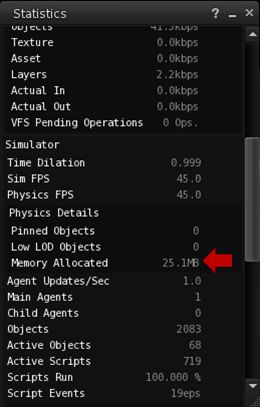
Physics memory use can be monitored via the Statistics floater (CTRL-SHIFT-1)
Regions are allocated a fixed amount of memory that can use. In the case of a full simulator, this is about 1GB, while Homesteads are allocated around 250MB. Generally, physics memory usage for a region – even a busy one – is around 40-80MB. However, on affected Homestead regions, the physics memory use is reaching or exceeding 200MB.
When the physics memory for a simulator gets abnormally high (close to or on 90% of the allowed maximum) internal region safeguards kick-in and prevent object rezzing in an attempt to limit further calls of the region’s memory and keep it alive. This is the behaviour people are witnessing in their regions. The safeguards themselves are designed to help prevent regions from becoming unstable during griefing attacks. However, the problems people are experiencing appear to be entirely unrelated to any form of griefing, and are thus causing a certain amount of head-scratching at Linden Lab.
Reed Linden, in responding to a support request from Motor Loon, provides clear guidelines on what to do if you have a Homestead and experience these issues. It is thought that the most likely culprit for the problem is an unidentified memory leak, but this has yet to be confirmed. Reeds comments regarding particle systems are fascinating. Particles tend to be more viewer-intensive than server, and as many commented at the Simulator User Group meeting on Tuesday 20th November, it would take something bizarre to be going on for particles to be impacting region performance; however, at least one region affected by the issue appears to have a large number of particle emitters in operation.
A further interesting twist came at the meeting itself, when a pathfinding snake and a number of pathfinding characters were rezzed, and the region suffered a severe performance hit (sharp FPS drop experienced by all attendees, sharp increase in both physics memory use and time taken to ping the region) which appeared to be linked with the snake (which was set to follow its creator around) re-calculating its path to both follow its creator and avoid other avatars / objects. However, when the snake was re-rezzed a short time later, no similar issue was noticed, with the region using around 116MB physics memory, with no other outward performance issues.
I the meantime, and as the Linden dev team continue to investigate the issue, if you experience this kind of problem, please ensure you raise a support ticket, supplying as much information as possible, including region name / simulator version (from HELP > ABOUT (either Second Life or the name of your viewer), the time the problem occurred, how it manifested and, if possible, information from the Statistics bar: memory used, FPS and physics performance details, etc.
This summary is published every Monday and is a list of SL viewer / client releases (official and TPV) made during the previous week. When reading it, please note:
It is based on my Viewer Round-up Page, a list of all Second Life viewers and clients that are in popular use (and of which I am aware) and which are recognised as adhering to the TPV Policy
By its nature, this summary will always be in arrears
The Viewer Round-up Page is updated as soon as I’m aware of any releases / changes to viewers & clients, and should be referred to for more up-to-date information as the week progresses
The Viewer Round-up Page also includes comprehensive links to download pages, blog notes, release notes, etc., as well as links to any / all reviews of specific viewers / clients made within this blog.
Updates for the week ending: 18 November, 2012
SL Viewer updates:
Beta version rolled to 3.4.2.266561 on November 14 and then to 3.4.2.266995 on November 18 (release notes)
Development version rolled to 3.4.3.267061 on November 15
Dolphin rolled to 3.4.3.26620 on November 18 – core updates: Group Services code updates for editing / managing large SL groups; items from multiple creators now show “multiple” rather than “unknown” when viewed in inventory (properties); new in-world maturity functionality (dialogue warning on trying to enter a region with a higher rating than your current setting &uption for setting to be updated); code base now up to LL’s latest viewer-dev and Marine Kelley’s RLV (2.08.03.04); – release notes
Firestorm released 4.3.0.30936 Beta on November 15 specifically aimed at Firestorm users who need to edit and manage large SL groups – release notes
Niran’s viewer rolled to version 2.0.3.2262 on November 12 – core updates: Group Services code updates for editing / managing large SL groups; UI fixes and tweaks – release notes
Cool VL updates:
Stable branch rolled to 1.26.4.39 on November 17 – core updates: bug fixes, backport (and update to) V3 font rendering; improved the logic for the font size and the anisotropic settings; minor speed optimization to the world map backported from Singularity
Experimental branch rolled to 1.26.5.19 also on November 17 – core updates as per main release, plus:improved logic for the font size and the anisotropic settings has also been extended to the anti-aliasing setting; bugfix to the render pipeline backported from viewer-development v3.4
The Group Tools Installer moved to version 2.2.15.0 on November 18 – no release notes available
Libretto – removed from round-up page due to website being unavailable for a month and no response from creator on status (also removed from the SL Third-party Viewer Directory)
Wednesday November 14th saw the same code deployed to all three RC regions in preparation for the US Thanksgiving week code freeze (see below). This primarily brought all three RCs to the same code level, release-wise and fixed a bug discovered in week 45.
There will be no rolling restarts in week 47 (week commencing Monday 19th November) due to the code freeze.
SL Viewer Update
The beta viewer rolled to the last of the 3.4.2 releases on Thursday November 15th, with the release of 3.4.2266995. Providing the crash statistics remain good (they were very positive for the first 24 hours), it will be going to the production (release) viewer QA in week 47 and should result in the release of a new version of the viewer shortly after the Thanksgiving weekend.
This beta contains a lot of updates and improvements, as well as a wide range of fixes for issues encountered with earlier releases up to and including the previous beta release, 3.4.2.266708, issued on November 8th. For a comprehensive list of changes, please refer to the release notes.
At the same time, the development viewer rolled to 3.4.3.267061, marking a further update of the development viewer to the 3.4.3 code, which should be appearing in the next release of the beta viewer. This include the new viewer-side code for the HTTP texture fetch project developed by Monty Linden as a part of the Shining Project improvements.
The code for faster texture fetching / rezzing has moved from a project viewer into the viewer-development stream and is present in the 3.4.3267061 Ddevelopment viewer release and should appear in the beta viewer after the US Thanksgiving weekend
As the holiday period is approaching, viewer releases will be slowing down, but the aim remains to try to clear the backlog of waiting merges and updates by the New Year with a view to resuming their more usual cycle of releasing a development / beta update around every three weeks. Once things are back on track, LL will be looking more closely once again at the question of disabling tcmalloc completely within the viewer.
Code Change Freezes
The official dates for code change freezes during the upcoming holiday periods currently stand at:
Week 47 – Monday 19th November through to Sunday 25th November
Week 51 – Monday 17th December through Sunday 23rd December
Week 52 – Monday 24th December through Sunday 30th December.
No status has yet been given for the New Year week (Monday 31st December through Sunday 6th January 2013.
Avatar Baking
Bake fail: work on new service progressing
On Friday 16th November, Nyx Linden provided a brief update on the Avatar Baking project, which again forms a part of the Shining project improvements to Second Life. In short:
The viewer code is starting to look stable. However, merging the new code into the existing viewer code is liable to be somewhat more “painful” (Nyx’s term) than had been hoped
Work is progressing on the server-side elements (the composite baking server), with the code reaching a point where avatar texture can be generated server-side
Currently, the plan is to continue working on both sides of the equation, with the aim of ensuring the new code is successfully merged into the viewer development branch, and then offering it in a “very alpha” form to TPVs so that they can start merging it into their code and assist with testing. As this happens, one or two regions on the beta (Aditi) grid will be set-up to allow testing on the new service.
There is still no time frame for the appearance of the viewer code in the development branch or any test regions on Aditi, but in Nyx’s view, both are liable to be on the horizon “pretty soon”. Overall, the plan still remains to have at least a two month period from when the code is made available for testing purposes through to the official implementation of the new service.
Interest List Demonstration and Weirdness
The focus of this project is to optimise the data being sent to the viewer, information already cached on the viewer and the manner in which that data is used in order to ensure it is used more efficiently so that things rez both faster and in a more orderly manner than is currently the case.
This work is being undertaken by Andrew Linden in a number of stages, the first being to clean-up the code related to information sent to the viewer from the simulator relating to objects in the camera’s viewing range such that only objects actually in the camera frame are updated (if updates are required) and that objects outside of the current camera frame are not updated, thus reducing the amount of data both the server and the viewer need to process, which should lead to performance improvements.
It is possible to visualise the update process using a viewer debug setting (Develop > Show Info > Show Updates to objects or Ctrl+Alt+Shift+U) to show object updates being received by the viewer. This shows updates in three colours: red, which indicates the viewer is receiving a “full” update on the object (generally because it is being “seen” / is within draw distance) for the first time; blue, which indicates the viewer already has data on the object and is receiving “terse” updates relating to changes in the object’s appearance / position relative to the viewer’s camera position; and green, which indicates the object has been deleted / remove from the camera view, and updates are about to cease.
On the 15th November, Andrew used this debug setting, together with a set of scripted “bouncing” cubes to demonstrate his improvements to this update process. Observers were asked to focus their camera on the cubes, which were initially static and had no coloured data stream associated with them. The cubes were then set bouncing, which generated a stream of blue “terse” updates, indicating the motion of the cubes in the viewer was being updated. However, when observers angled their camera to view the space above the cubes (so the cubes were not directly in their world view), the update stream ceased – indicating the viewer was no longer receiving update data for the cubes.
This may seem a small change, but it does dramatically decrease the amount of information the viewer has to process relating to in-world objects, and should result in performance improvements within the viewer. In the future, further work will be undertaken to enhance the interest list code even further – such as prioritising the order in which objects in the world view are actually rezzed, so that items closest to the camera view are rezzed first, etc.
HUD Issues
Following the demonstration, however, some people started noticing an odd issue: they could right-click on the centre of their screen and reveal a prim attachment belonging to someone else’s HUD. Chieron Tenk was the first to raise the issue, although Ana Stubbs also quickly reported the same problem.
Chieron Tenk posted an image of the problem: a prim appears in the centre of his viewer which, on inspection, appears to be linked to a HUD worn by Rex Cronin
After initial confusion, investigation revealed it was possible for anyone to find they had random prims from other people’s HUDs appearing on their screen, simply by attaching a HUD or a prim to their own screen. Concerns were further raised when it appeared that events might be able to be triggered if the prim was touchable.
I find I have a prim belonging to Ana Stubb’s Mystitool appearing on my screen
The issue appears to be tied to changes made to the interest list code on the test region, and is obviously going to be the subject of further investigation on the Lab’s part prior to the interest list project being carried forward.
Firestorm 4.3.0 has arrived slightly earlier than expected, in the form of an initial beta release made as a result of the implementation of new Group Services code across the main grid.
While this is only a beta, and the associated Firestorm blog post gives fair notice that it may yet be somewhat wobbly while final work on getting it QA’d and ready for a formal release is ongoing, there is more than enough in the release to make it something people are liable to be hungry for. So here’s a preliminary review of the release as it stands today, with the caveat that things may change between now and the full release, which is currently scheduled for December.
Download and Installation
The download .EXE is big – 40MB, which is unsurprising given that Firestorm packs so much into it. I’ve been running pre-releases of this version for a while now, and the size has been consistent between them and while much bigger than other TPVs and the official viewer, it hasn’t grown overly much since the last release.
The installer is actually the place where the updates to the viewer begin for Windows users, as it now incorporates:
A pop-up requesting whether or not the user wishes to have a Windows Start menu entry created for Firestorm during installation
Addition of the version string and estimated installed size to the installer
Addition of new OS detection code to warn if Windows Service Packs are not up-to-date and to prevent Firestorm being installed on Windows XP with
Publisher data, Phoenix URLs and Firestorm icon for the Firestorm entry in the Windows uninstall list
Automatic deletion of all previously installed skins to reduce issues arising from an unclean install
Addition of a DETAILS button in the installer pop-up window to allow the installation to be reviewed.
Lab Updates
Version 4.3.0 of Firestorm sees the viewer merged-up the official Linden 3.4.1 code base and the inclusion of later updates which are just filtering through to the official viewer 3.4.2 code pipe. Together these mean that this release incorporates and number of LL updates, including:
Recent updates and improvements to the viewer-side pathfinding code
Memory leak and memory crash fixes
Translation updates (together with further updates from members of the Firestorm team)
Incorporation of the official LL spelling checker (contributed to LL by Kitty Barnett to LL) and the official Auto-replace function (contributed to LL by Kitty Barnett, Jonathan Yapp, Tankmaster Finesmith and LordGregGreg Back)
Rendering fixes and optimisations
Group Services (group management) update (from the LL 3.4.2 code branch) allowing groups with more than 10K members to be edited and updated
Objects by multiple creators show creator details when viewed in inventory (Properties), rather than “unknown”
This release also incorporates the new LL maturity rating function which:
Notifies a user when trying to enter a region without having set the required maturity level in the viewer and presents the option to change their maturity setting (subject to age verification)
If applicable, sends a message to the person offering a teleport that the recipient is unable to access the region due to their maturity level.
Havok Sub-licence
Firestorm 4.3.0 sees the implementation of the Havok sub-licence agreement between the Firestorm team and Linden Lab. This means that this is the first version of Firestorm to be released without any support for OpenSim access. Both –loginURI capabilities and the Grid Manager functionality have been removed.
However, as Jessica Lyon has previously noted, development of the viewer will be forking, and OpenSim support will continue in the future via a version of Firestorm which excludes the code required to access the LL Havok libraries. How tailored the OpenSim version will be for use on those grids is not clear, and those who use Firestorm to access both SL and OpenSim grids should read Jessica’s comments on support in the future.
The Havok sub-licence agreement does mean that this release of Firestorm can access the new LL-supplied Havok libraries which in the first instance, enable TPV viewers to visualise and model the pathfinding navmesh.
The pathfinding navmesh can now be visualised in Firestorm 4.3.0
Group Services
The Group Services update was the main reason for pushing out a beta release of Firestorm 4.3.0.
This code allows for improved loading of membership lists of very large groups, together with improved reliability in editing such groups (i.e. assigning roles, removing people, etc.), by the group moderators. The server-side element of this code has been available on the RC channels for the last couple of weeks, and was deployed to the main release channel on Tuesday November 13th, making it available right across the main grid.
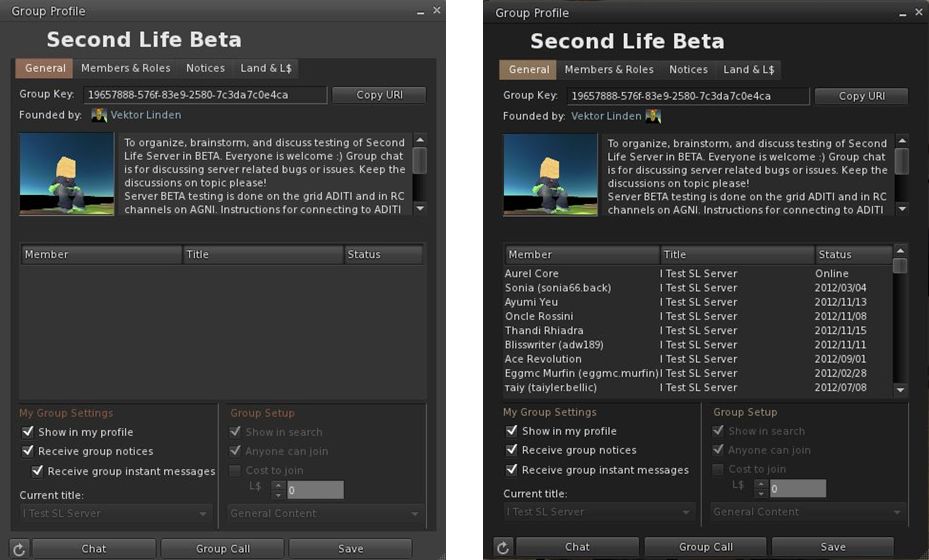
However, in order to be used, it requires additional viewer-side code. Without this additional code, the viewer will be unable to display membership lists for groups with more than 10K members (although any groups with fewer than 10K of members can still be edited using any viewer). Thus, the decision was taken by the Firestorm team to release 4.3.0 in a beta version so that users responsible for managing groups with very large members lists can continue to edit them.
Group Services update – the difference: On the left, an attempt to load a group with almost 20K of members in the current release of Firestorm 4.2.2. On the right, the same group loaded using the new Firestorm 4.3.0 beta.
In making this release, Firestorm joins Cool VL and Niran’s Viewer in being able to handle large groups alongside the official SL beta viewer. However, the remaining TPVs are likely to have updates to support the capability out in the near future (and the code will soon be available in the SL release viewer as well).
Please use the page numbers below to continue reading this review top of page