2020 Simulator User Group week #21 summary

Sea Brook, April 2020 – blog post

The following notes were taken at the Simulator User Group meeting held on Tuesday, May 19th. Not a lot was discussed in terms of meaningful reportage (again), so just a short update on server deployments / official viewer updates.

Simulator Deployments

Please refer to the simulator deployment thread for updates.

  • On Tuesday, May 19th, the majority of the grid was updated to server maintenance release 541970, comprising:
    • A fix for a bug that disabled the “Acquire an Experience” button for some premium users – see Bug-228676.
    • Internal fixes.
  • On Wednesday, May 20th there should be two RC deployments:
    • 542403, to fix the group notice archive timestamps bug – going to Bluesteel, LeTigra and Preflight.
    • 542391, with further updates related to the cloud migration – going to Magnum and Snack.

SL Viewer

On Tuesday, May 19th:

The remaining official viewer pipelines are as follows:

  • Release channel cohorts:
    • FMOD Studio RC viewer, version 6.4.2.541570, issued May 11th.
    • CEF Special RC viewer, version 6.4.1.541204, dated April 30th.
  • Project viewers:
    • Mesh uploader project viewer, version 6.4.2.541645, issued May 15th.
    • Copy / Paste viewer, version 6.3.5.533365, December 9th, 2019.
    • Project Muscadine (Animesh follow-on) project viewer, version 6.4.0.532999, November 22nd, 2019.
    • Legacy Profiles viewer, version 6.3.2.530836, September 17th, 2019. Covers the re-integration of Viewer Profiles.
    • 360 Snapshot project viewer, version 6.2.4.529111, July 16th, 2019.


Tutorial: Viewer Camera Presets

The default viewer camera placement has long been the bane of the Second Life viewer. Placing the camera well above and behind the avatar, it gives an awkward over-the-head view of the world, rather than the more intuitive over-the-shoulder view seen in many video games.

While the camera’s debug settings have allowed a custom camera preset to be set-up, it has never really been possible to easily create, save, and swap between presets according to need.

Table of Contents

The Camera Presets controls, developed and contributed by Jonathan Yap, the developer responsible for the graphics presets options in the viewer (see Avatar Complexity and Graphics Presets in Second Life for more), changes this. It is a capability that allow users to create one more more custom camera presets within the viewer to suit particular needs and then save them. This means, for example, you can now have a camera position for general exploring, another suitable for combat games, another for building, etc., all of which can easily be accessed and used at any time.

This tutorial explains how to create and use presets via Camera Presets options.

Note: at the time of writing, the camera presets options are only available in the official viewer, version 6.4.2.541639 or later.

UI Elements

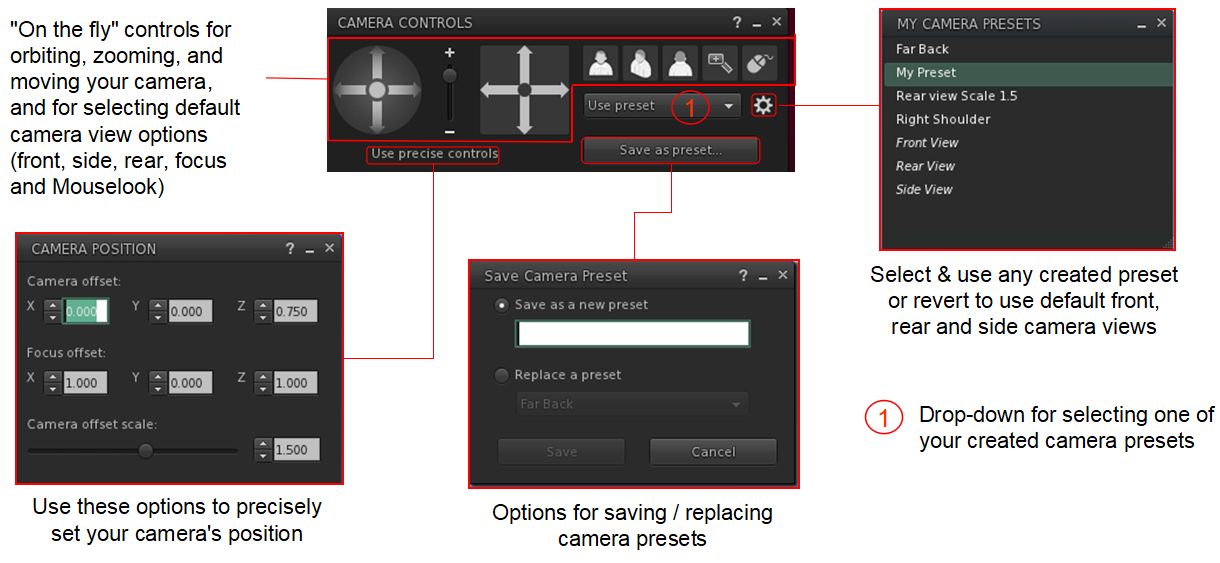
There are five UI elements associated with creating and using camera presets:

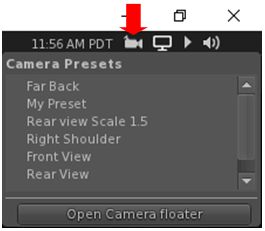
  • The Camera Presets icon and drop-down – presenting the means to quickly access and use created camera offsets.
The Camera Presets icon, found in the top right of the viewer window, and a populated version of the drop-down that can be displays on clicking on it.
  • The Camera Controls floater. This provides access to provides access to the following:
    • The familiar “on the fly” controls for positioning the camera / selecting any of the pre-set camera positions, setting the camera focus or switching to Mouselook. These can also now be used to create a custom camera preset.
    • Camera Position floater for creating new camera presets numerically.
    • Save Camera Preset floater – save any preset you have created or replace an existing preset with new values.
    • My Camera Presets floater – allows you select and delete any preset you have created, or reset your camera to one of the viewer’s default front, side or rear camera positions.
    • In addition, the Camera Controls floater includes a drop-drop menu to provide quick access to any custom camera presets you have created.
The Camera Controls and camera presets floaters – click for full size, if required

Creating a Custom Camera Preset

Using the Camera Controls

  1. Open the Camera Control floater by:
    • Hovering the mouse over the Custom Preset icon at the top right of the viewer window to open the drop-down and then clicking the Open Camera Floater button OR.
    • Clicking on the Camera Controls (Eye) button in your viewer’s tool bar, OR
    • Selecting Me→Camera Controls… from the viewer menu bar.
  2. With the Camera Control floater open, clicked the required view button (Front, Side, Rear) if required.
  3. Use the camera orbit, slide and zoom controls on the left of the camera floater to position your camera as you would like it to be relative to your avatar.
  4. When you are satisfied with the camera position and angle, click Save As Preset button in the floater, and:
    • Either make sure the Save As New Preset radio button is selected and type a name for the preset in the text box.
    • Or click the radio button for Replace a Preset, then click the button to display a list of current presets and highlight the one you wish to replace (including one of the three default positions, shown in italics).
  5. When you have entered a name or made your choice, click Save.
Using the camera controls to create a camera preset

Using the Precise Controls

If you have a numeric set of camera and focus offsets you use (e.g. such as those provided by Penny Patton, or use the table below to set your camera to some typical view points):

  1. Open the Camera Control floater by:
    • Hovering the mouse over the Custom Preset icon at the top right of the viewer window to open the drop-down and then clicking the Open Camera Floater button OR.
    • Clicking on the Camera Controls (Eye) button in your viewer’s tool bar, OR
    • Selecting Me→Camera Controls… from the viewer menu bar.
  2. In the Camera Controls floater, click on Use Precise Controls.
  3. In the Camera Position floater:
    • Enter the X, Y and Z figures for the camera offset position.
    • Enter the X, Y, Z figures for the focus offset position,
    • Use the slider to set how near / far the camera is to be positioned from your avatar.
  4. When you are satisfied with the camera position and focus, click Save As Preset button in the floater, and:
    • Either make sure the Save As New Preset radio button is selected and type a name for the preset in the text box.
    • Or click the radio button for Replace a Preset, then click the button to display a list of current presets and highlight the one you wish to replace (including one of the three default positions, shown in italics).
  5. When you have entered a name or made your choice, click Save.
Setting a precise position for a camera preset

The following table offers Penny Patton’s recommended positions for over-the-shoulder camera presets.

Over the Left Shoulder
Centre
Over the Right Shoulder
Camera Offset
X= -2.0
Y= 0.4
Z= -0.2
X= -2.0
Y= 0.0
Z= -0.2
X= -2.0
Y= -0.4
Z= -0.2
Focus Offset
X= 0.9
Y= 0.7
Z= 0.2
X= 0.9
Y= 0.0
Z= 0.2
X= 0.9
Y= -0.7
Z= 0.2
Offset Scale Slider
1.5 1.5 1.5

Using Your Custom Presets

From the Presets Icon

  1. Hover the mouse over the Custom Preset icon at the top right of the viewer window to open the drop-down.
  2. Click on the required preset name to select it.

From the Camera Controls Floater

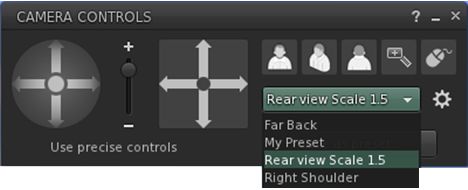
  1. Click on the Use Preset button in the Camera Controls floater.
  2. A drop-down of custom camera presets is displayed.
  3. Click on the required preset name.
  4. The preset is selected, and the button updates to display the preset’s name.
Using a custom camera preset

Deleting or Resetting Default Presets

Notes:

  • You can only delete custom presets and reset default presets.
  • No confirmation is requested: actions will be immediately implemented – so if you have overwritten one of front, side or rear camera position presets, your custom version of that preset will be lost when reset.
  1. Display the Camera Controls floater.
  2. Click the gear icon.
  3. The My Camera Presets panel opens (may default to the top left of your screen).
  4. Hover the mouse over the preset you wish to delete or reset.
    • Custom presets will display a trash can. Click it to delete the preset.
    • Default presets will display a reset icon. Click it to return the preset to its original values.

Cherishville’s tropical summer in Second Life

Cherishville, May 2020 – click any image for full size

Lam Erin is a gifted landscape artist who is also responsible for the design of Cherishville, a Homestead region we have enjoyed visiting on a number of occasions over the past few years. This being the case, it was an obvious choice for a re-visit when we heard Lam have redressed the region for spring / summer 2020. For this design, Lam has turned to what is something of a traditional theme for the summer months in Second Life: a tropical setting that also includes a Mediterranean touch with the style of buildings selected for it.

Surrounded by off-region islands, the setting is in two parts: a smaller circular island that has the appearance of perhaps once having been a major fortification, but which is now home to a pair of stone houses and an old, copper-domed watchtower / lighthouse. Facing this, the rest of the region forms a curving finger of an island, the north-western end of which continues the theme found in the smaller island: cut-stone walls rising to a table-flat top, its paved parapet offering a walk for those so inclined.

Cherishville, May 2020

It’s easy to imagine this area as either a continuation of the old fort – the ruins of which still occupy a part of the round island – if not actual fortification, then perhaps barracks or similar. Now, however, it home to a Mediterranean-style villa and a farmhouse-style home, each with is share of outhouses, all perhaps built using the stones that once formed the fort’s own walls.

Beyond this, the land drops to a curved beach that cups a shallow bay in its arms. Curving north and east, it forms a beach-come-sandbar backed on its east side by rocks, with a single large outcrop supporting a second lighthouse. This is not a pristine place; the sand and the buildings on it show signs of age, while the north-eastern tip of the sandbar is home to a windmill that puts its time of construction as 1918. All of this gives a further sense of presence to the region and the idea it has been inhabited for a long time.

Cherishville, May 2020

An ageing psychedelic VW van and an old Lambretta / Vespa style scooter sitting on the beach give the suggestion that the region might have once been connected to one or more of the surrounding islands, allowing them to be driven here before being deserted.

The beach offers numerous places to sit, from deck chairs to sun loungers  to rowing boats, while those prepared to explore the south side of the island will find an old fisherman’s hut sitting atop a shelved beach. It offers a little more privacy than the more open beach.

Cherishville, May 2020

There were one or two rough edges to the setting we couldn’t help but notice during our visits – a building or wall set slightly above ground here, floating plants there, one or two unsupported flights of steps. These can be a little unsettling once noticed, and give the impression the region may have been put together in a hurry. However, during one of my return visits I did see Lam working on things, so it’s likely this ruffles are liable to be smoothed out as he has time.

As noted at the top of this article, tropical  / Mediterranean themes tend to be a popular choice for region designs as spring progresses into summer in the northern hemisphere. What sets Cherishville apart is the sense of longevity / history I’ve alluded to here that is imbued in the region’s design; this allows a visitor to build up a story about where the island might be, and the past it may have seen.

Cherishville, May 2020

SLurl Details

Dropping in to Michiel Bechir’s Gallery in Second Life

Michiel Bechir Gallery

One of the best ways to see art in Second Life is to visit the many boutique galleries that can be found across the grid. I say this because they generally have limited space, and so offer a small number of artists on exhibition, allowing a visitor to better appreciate the art on offer without feeling overwhelmed by the sheer volume of work or the number of artists.

Take Michiel Bechir’s gallery, for example. The latest exhibition there features the work of four artists: two offering individual exhibits, and two forming a joint exhibition.

Michiel Bechir Gallery: RoseHanry

With Sunrises, RoseHanry presents a collection of eight images on that subject, with her introduction:

The theme for this exhibit was born when I visited the amazing private SIM “Vintage Lace” owned by the talented Skip Staheli and Delinda Dench. I took a photo that I posted on Flickr by the name a new sunrise which is included in the collection of photos in the exhibition.

I grew up near beaches where I had the privilege to watch sunrises and sunsets building the skies in fascinating lights and colours, and I have tried to re-create that magic on my works in a different way that I am use to doing.

– RoseHanry

The result is a selection of eight tonal pieces ranging from monochrome through sepia to full colour that offer personal. In particular this use of tones helps to bring out the rich differences a sunrise can bring, from the seemingly black-and white of the very early dawn, when the Sun is so low on the horizon when facing it, the light seems to wash colour from your surroundings, through the the orange brightness that comes as the Sun climbs high enough for its light to be refracted by the early morning haze.

Michiel Bechir Gallery: Ethan Hawkins

Across the foyer is an exhibition by Ethan Hawkins, offering a mix of landscape and avatar studies, with a lean towards the latter. These avatar images are of a personal nature for the artist, reflecting as they do his relationship with his SL partner, Tresore. However, they each represent scenes anyone who has been in a relationship will both recognise and empathise with the emotions they represent.

Ethan’s landscape images are similarly evocative, offering romantic views of locations in Second Life which have a sense of having been painted without the appearance of being overly post-processed. This exhibition is rounded-out a a series of four images of waterfowl and an owl that truly bring the subject matter to life.

Michiel Bechir Gallery: Ladmilla and Eli

The upper floor of the gallery features a joint exhibition by Ladmilla and Eli Medier, who between them run The Edge Gallery. They are perhaps best known for sharing Ladmilla’s images with Eli’s words, and have oft been featured in these pages. Here they share their images and styles. Both are accomplished in capturing pictures that offer a story, with their images here forming nicely contrasting, yet complimentary sets.

Rounding out the gallery’s art is a selection of Michiel’s own landscape images, featuring some of the many locations across Second Life, with this selection carrying an emphasis on green.

Michiel Bechir Gallery: Michiel Bechir

SLurl Details

2020 viewer release summaries week #20

Logos representative only and should not be seen as an endorsement / preference / recommendation

Updates for the week ending Sunday, May 17th

This summary is generally published every Monday, and is a list of SL viewer / client releases (official and TPV) made during the previous week. When reading it, please note:

  • It is based on my Current Viewer Releases Page, a list of all Second Life viewers and clients that are in popular use (and of which I am aware), and which are recognised as adhering to the TPV Policy. This page includes comprehensive links to download pages, blog notes, release notes, etc., as well as links to any / all reviews of specific viewers / clients made within this blog.
  • By its nature, this summary presented here will always be in arrears, please refer to the Current Viewer Release Page for more up-to-date information.
  • Note that for purposes of length, TPV test viewers, preview / beta viewers / nightly builds are generally not recorded in these summaries.

Official LL Viewers

  • Current Release version  version 6.4.1.540593, dated April 27th, promoted May 4th. Formerly the Zirbenz Maintenance RC viewer – No Change.
  • Release channel cohorts:
    • FMOD Studio RC viewer, version 6.4.2.541570, issued May 11th.
    • Camera Presets RC viewer updated to version 6.4.2.541639 on May 11th.
    • Love Me Render RC viewer updated to version 6.4.2.541651 on May 11th.
  • Project viewers:
    • Mesh uploader project viewer, version 6.4.2.541645, issued May 15th..

LL Viewer Resources

Third-party Viewers

V6-style

V1-style

Mobile / Other Clients

  • No updates.

Additional TPV Resources

Related Links

Illusions, music, nuns and a galaxy far, far, away

It’s time to highlight another week of storytelling in Voice by the staff and volunteers at the Seanchai Library. As always, all times SLT, and events are held at the Library’s home, unless otherwise indicated. Note that the schedule below may be subject to change during the week, please refer to the Seanchai Library website for the latest information through the week.

Monday, May 18th 19:00: Illusions: The Adventures of a Reluctant Messiah

Gyro Muggins reads Richard Bach’s 1977 novel.

Donald William Shimoda styles himself a latter-day messiah. He quit his job as a mechanic to offer people the miracle of flying through the cloud-washed air between the cornfields of Illinois and blue infinity of the skies overhead. But the people want the thrill of the the flight more than they want to understand the miracle of flight or the truth of Donald’s words.

Donald first comes to the attention of fellow barnstormer and disillusioned writer Richard when the latter witnesses Shimoda dealing with a grandfather / granddaughter pair who arrive at the the makeshift farm airstrip where both men are due to fly their biplanes. Normally, it is the younger people who are keen to fly with the barnstormers, but here it is the grandfather who wants to soar in Shimoda’s biplane whilst the granddaughter is terrified by the idea.

Richard watches as Shimoda talks to the granddaughter, gently uncovering the cause of her fear, calming her to the point where she is ready to fly. Drawing close to the older man, Richard becomes friends with him, and together the two men become brother aviators, Shimoda teaching Richard to become – reluctantly – a messiah and miracle-worker in his own right.

Tuesday, May 19th,

12:00 Noon: Russell Eponym, Live in the Glen

Music, poetry, and stories in a popular weekly session at Ceiluradh Glen.

19:00: Staying Open

Ktadhn Vesuvino offers a journey in poetry and images from sculpture, through rain and lockdowns, to a beach re-opening.

Wednesday, May 20th, 19:00: A Nun in the Closet

What do two Benedictine nuns, a secretive man-on-the-run, a Tibetan monk, three hippies, members of the Mafia and children of migrant workers have in common? Why, A Nun in the Closet, of course.

When a cloistered monastic community of nuns inherit an old house with 150 acres in up-state New York courtesy of a mysterious benefactor, they are at a loss as to what to do. Sister John and Sister Hyacinthe are therefore dispatched to give the property the once-over and report back. A simple enough assignment, except neither Sister is entirely prepared to deal with all that they find.

From hippies on the lawn to suitcase stuffed with money sitting at the bottom of a well, disguised cocaine and a wounded man who has hidden himself in a closet to avoid Mafia hitmen, not to mention strange apparitions in the night, It might have been better had Sister John and Sister Hyacinthe remained cloistered in the abbey.

But it is amazing what two nuns can achieve armed only with their faith and boundless energy – up to and including a shocking revelation or two about ghosts, gangsters – and murder.

Join Caledonia Skytower as she reads Dorothy Gilman’s 1986 mystery.

Thursday, May 21st

19:00: Han Solo: A Star Wars Story

Young Han Solo finds adventure when he joins forces with a gang of galactic smugglers and a 190-year-old Wookie named Chewbacca. Indebted to the gangster Dryden Vos, the crew devises a daring plan to travel to the mining planet Kessel to steal a batch of valuable coaxium. In need of a fast ship, Solo meets Lando Calrissian, the suave owner of the perfect vessel for the dangerous mission: the Millennium Falcon.

With Shandon Loring and Caledonia Skytower. Also in Kitely – grid.kitely.com:8002:SEANCHAI).

21:00 Seanchai Late Night

Contemporary Sci-Fi-Fantasy from on-line sources including Light Speed, Escpade Pod, and Clarkesworld.