Venta Silurum in Second Life

Venta Silurum; Inara Pey, October 2016, on Flickr Venta Silurum – click any image for full size

Venta Silurum, a homestead region by Tally (Tallyesin) and Kiana  (kiana Jarman), takes its name from a small town which once existed in the Roman province of Britannia (Britain), the remains of which now lie in the village of Caerwent, Monmouthshire, south-east Wales. It also, in part, reflects its physical world namesake, in that it includes a number of ruins open to the public to explore, while part of the landscape pays homage to the more rugged parts of Wales.

However, a facsimile of ancient Venta Silurum this most certainly isn’t; as the About Land notes state, this region is a place for adventure and exploration – and it offers one or two unexpected surprises along the way.

Venta Silurum; Inara Pey, October 2016, on Flickr Venta Silurum

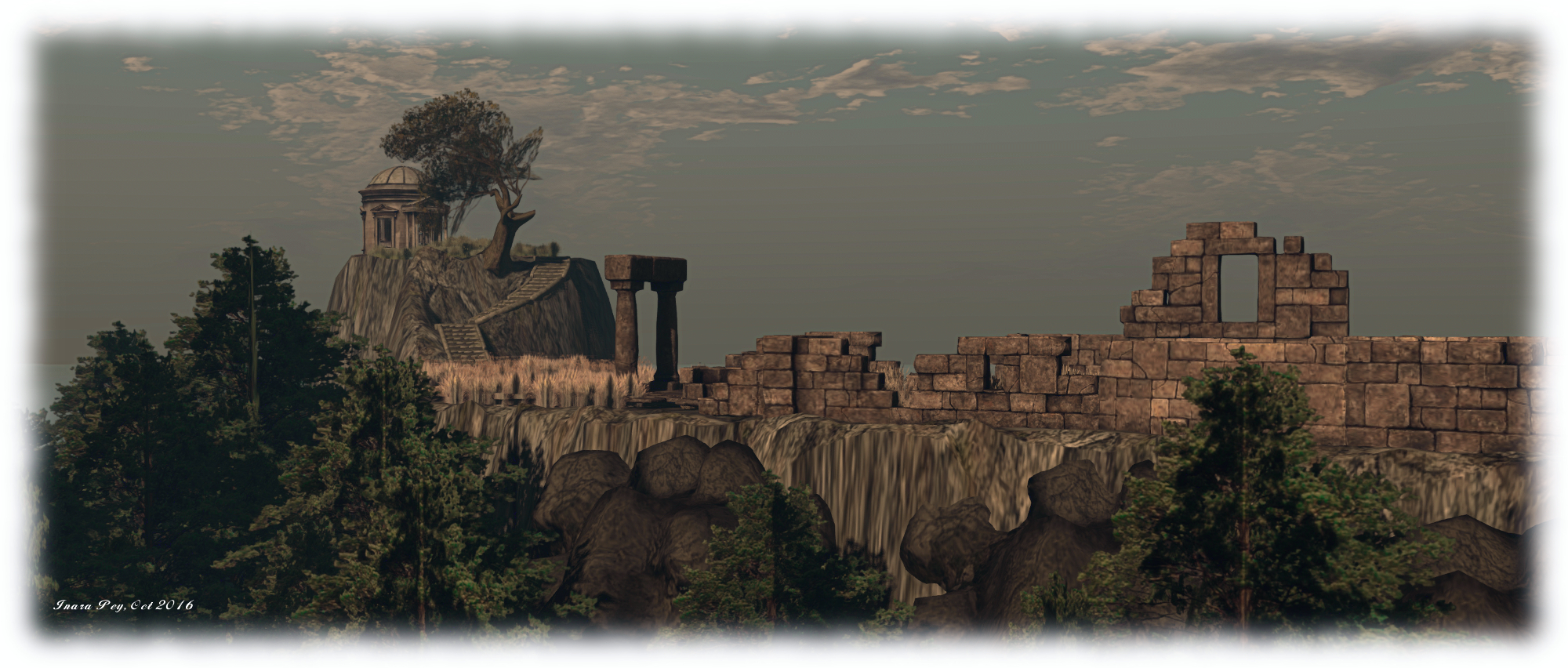
An explorer’s visit commences on the west side of the region, atop a grassy plateau fronted by jumbled rocks dropping sharply to the waters below. A lighthouse stands at this small headland, while behind it are the narrow fields of a small farm, watched over by the whitewashed tower of a windmill. Caught in the spell of a forever dusk, the region inspires and immediate air of mystery, which is heightened by the distant line of ruins and a single  finger of a folly standing before the eastern sky.

How one reaches these may not immediately be apparent; wooden steps offer a way down between the rocks beneath the lighthouse, and thence out across the reedy waters that cut into the land, pointing the way to a lone farmhouse to the north. However, a careful examination to the south and east, over the still waters of a flooded quarry, will reveal stone steps winding their way up the ridge on which the ruins sit, and which are reached by following the rutted track past the squeaking sails of the windmill.
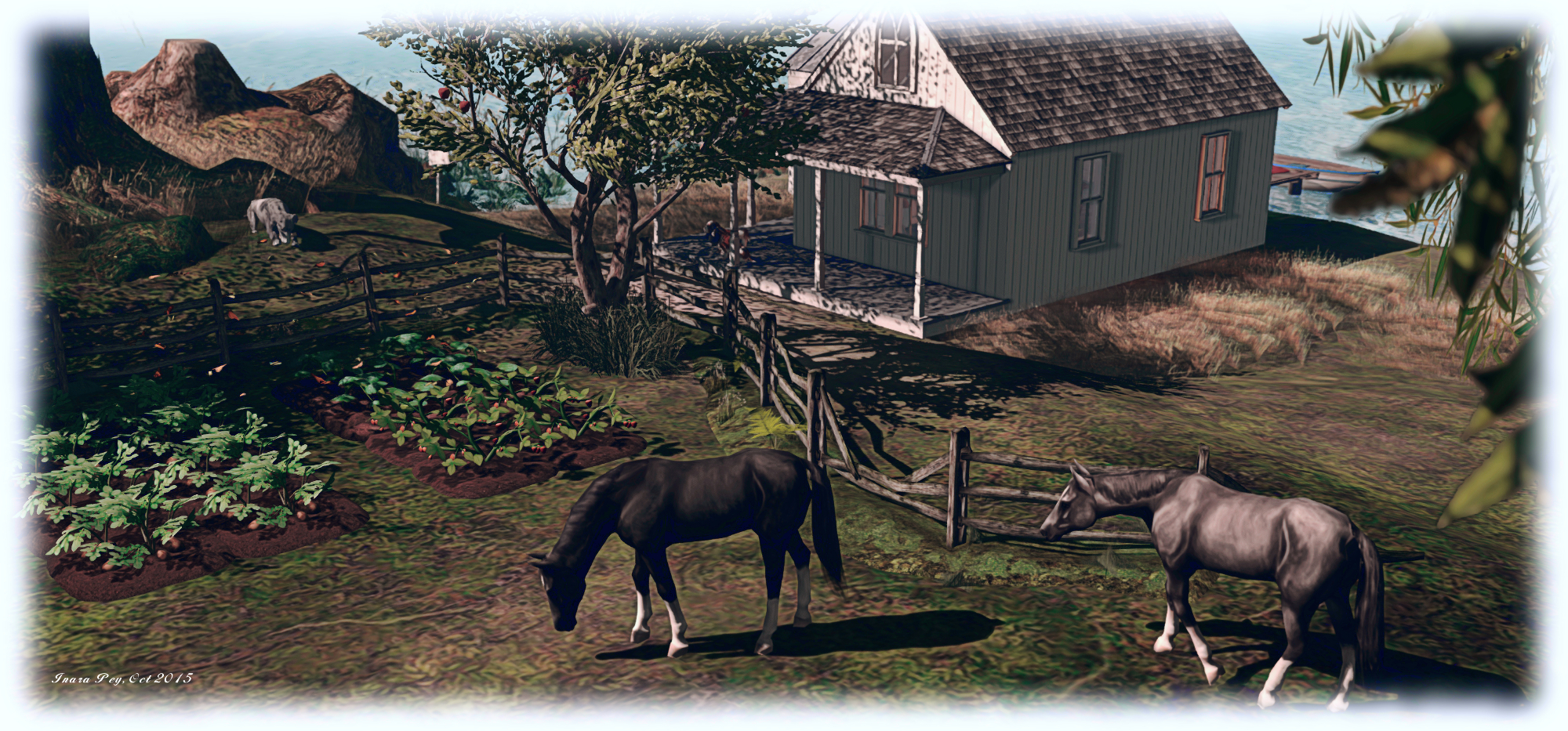
Venta Silurum; Inara Pey, October 2016, on Flickr Venta Silurum

Following the track will bring you, by way of a narrow gorge spanned by a covered bridge and a gated fence, to the foot of the stone steps. These in fact lead both up and down – up to the ruins, and down to a secluded southerly beach with ramshackle bar and places to sit and cuddle or lie quietly on the sand. Beside these stone stairways sits one of wood, dropping away into the heart of the region.

Climb the stone stairs and you’ll find your way through ancient walls of square-cut stone and flgstone floors to the folly, now apparently the lonely sanctum of someone interested in the sciences – or perhaps magic. Take the wooden steps and you’ll be led under rock to where more mysteries await beneath the boughs of trees, and onward and northward to where more ruins sit under the shoulder of the sheer ridge, a stone bridge spanning a channel of water, leading the way back to the small farmhouse first glimpsed from the landing point.Venta Silurum; Inara Pey, October 2016, on Flickr Venta Silurum
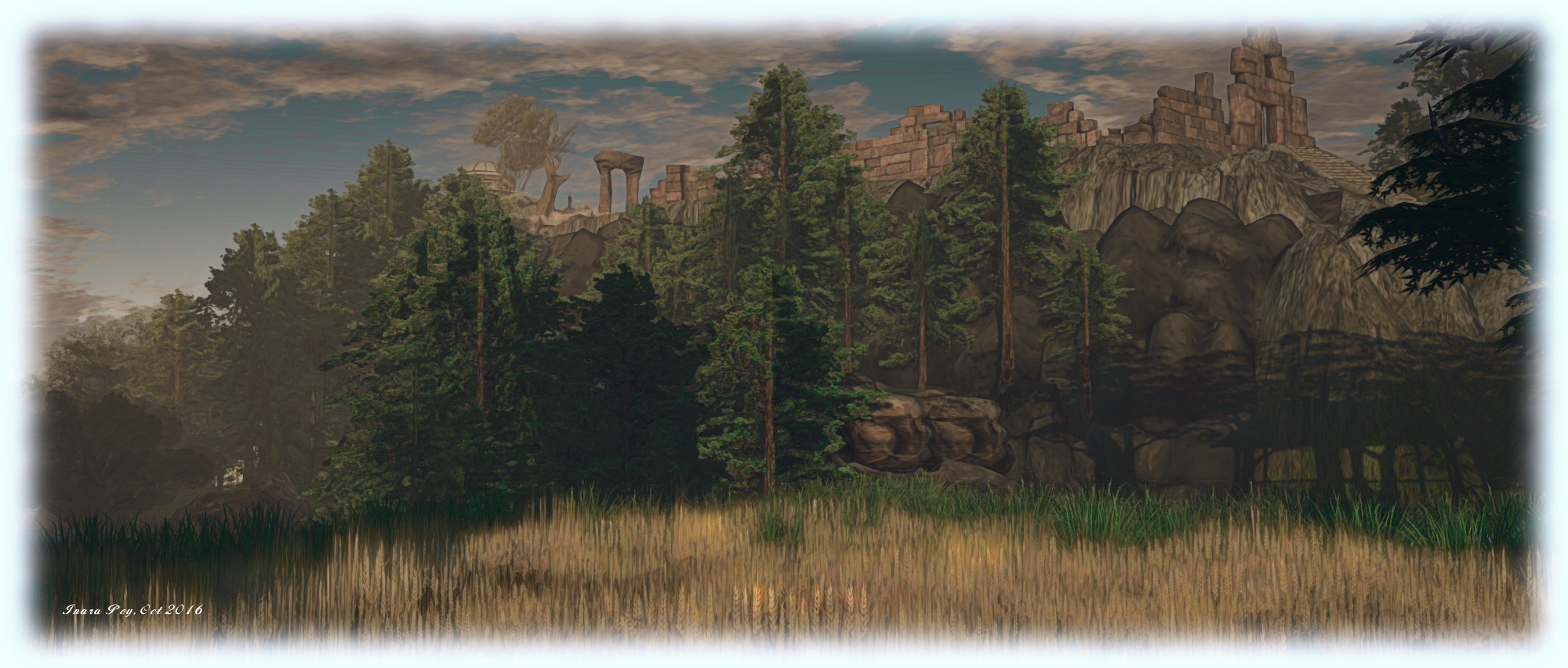
Set beneath a marvellous windlight, filled with ambient sounds and rich in opportunities for photographs, Venta Silurum offers an intriguing and delightful visit, sure to conjure up stories about its various sights and offerings, ancient or more modern.

SLurl Details

The Illiastra Panoramic Camera: 360-degree images of Second Life

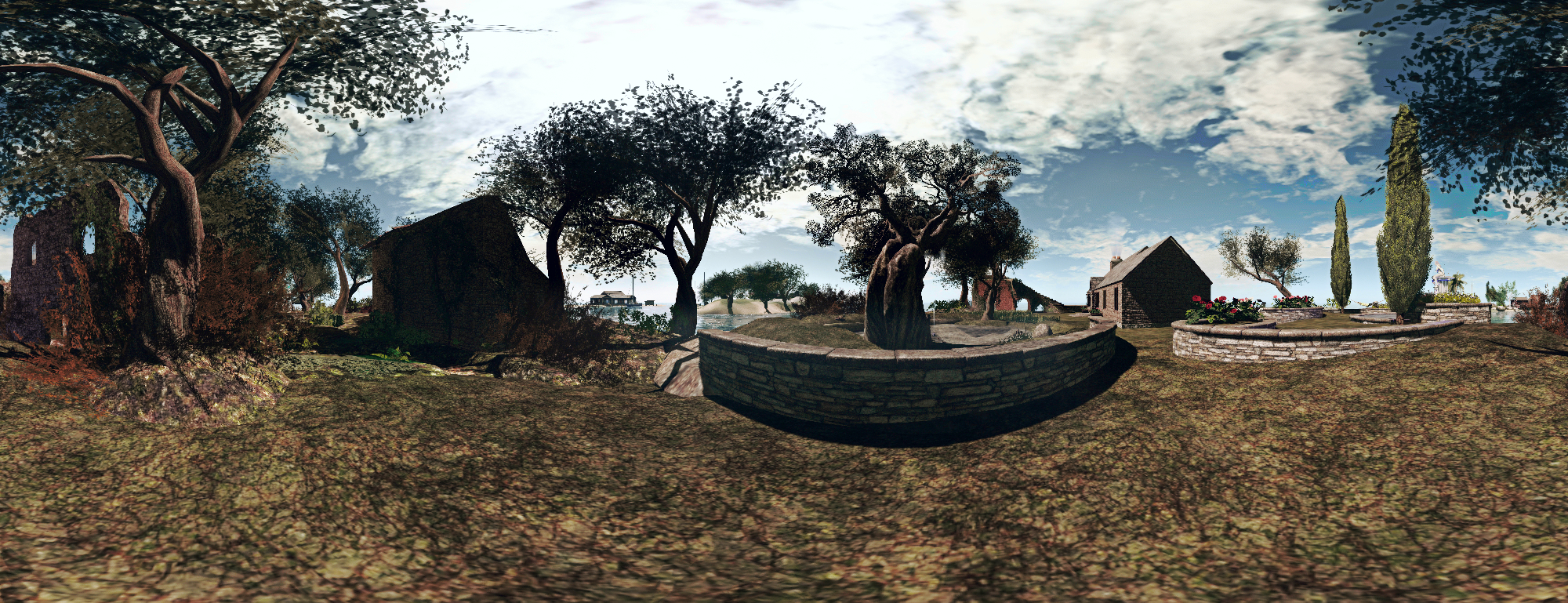
Illiastra Camera Test; Inara Pey, October 2016, on Flickr A static panoramic view of our home island produced using the Illiastra Panoramic Camera and the Hugin Software.

I received a generous gift from Illiastra Ascendent (NVZN, aka James Reichert in the physical world) over the weekend, who sent me the Illiastra Panoramic Camera (MP link) to try-out in Second Life.

This is a HUD-based system which can be used to produce set of images of an in-world scene which can be stitched together using suitable software to create a static 360-degree view. These can in turn be uploaded to Facebook or websites such as VRchive and YouTube, as scrollable, 360-degree views of a location.

The system comprises two camera HUDs, “basic” and Pro, together with a photosphere for viewing captured images in-world. The difference between the two cameras being that the “basic” model uses 8 images to create a 360-degree panorama, while the Pro version takes a total of 26 (including directly above and below you) to produce either a panoramic view using 24 images, or a spherical view using all 26 images.

Producing your static panoramic image is a 2-step process:

  • Capturing your in-world shots using the camera
  • Stitching them into a panoramic mosaic using a suitable software application.

Once this is done, you can proceed to prepare them for 360-degree viewing on Facebook, VRchive, etc. Illiastra provides comprehensive set of videos on producing your panoramic shots, stitching them together and uploading them to Facebook, which I highly recommend.

For the rest of this article, I’ll take you through producing a panoramic shot and then uploading it to VRchive and converting it to a 360-degree video for You Tube.

Taking the Shots

There are some basic steps to follow when preparing to take shots using the system:

  • Position yourself at the centre of the location you want to capture in a 360-degree image. Be careful of where you select – too close to building or trees, etc., could have them dominating a part of the view.
  • Set your preferred windlight and daytime settings.
  • Make sure you freeze the clouds – you’ll be taking up to 26 images which will need to be stitched together, and moving clouds could make that a bit of a bugger to do. Use Menu > World > Environment Editor >Sky Presets > Edit Presets or PhotoTools > Clouds and check the scroll lock check boxes.
  • Make sure the viewer’s camera is set to the default view  angle, FOV and focal length
  • Hide yourself from view  – used the supplied alpha mask after removing all attachments or use something like a Vanish gesture. Otherwise, the top of your head will be in every shot.
  • Tap ESC on your keyboard to free your camera (and free it from any other influences acting upon it).

Once you’re set, click the camera HUD your camera will rotate and position itself for the first shot. Use the Snapshot shortcut CTRL-‘ (tilde) to save the image – you’ll be prompted for a file name and location on your computer for the very first short after the HUD is attached.

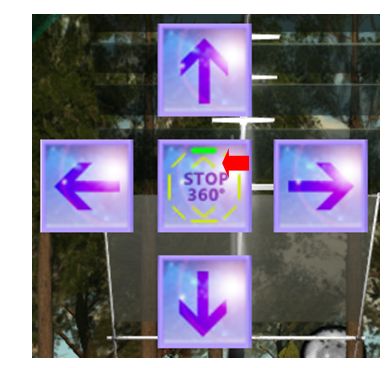
The Pro version of the camera produces 24 shots using the left / right keys (+ CTRL-' for image capture), the chevrons denoting the progress through upper / lower sets of 8 images apiece. The up and down buttons position the camera for taking sky / ground shots respectively, which can be used to create spherical views
The Pro version of the camera produces 24 shots using the left / right keys (+ CTRL-‘ for image capture), the chevrons denoting the progress through upper / lower sets of 8 images apiece. The up and down buttons position the camera for taking sky / ground shots respectively, which can be used to create spherical views

When you’ve saved the shot – which is effectively the first frame of your panoramic image – click the right arrow on the HUD to advance the camera to the next point (indicated in green on the HUD), and take another snapshot (CTRL-‘). You won’t be prompted for a file name for this and the remaining frames – simply progress on around the HUD, capturing a snapshot at each of the highlighted views in turn.

If you are using the “Basic” camera, you’ll be taking a total of 8 shots – once around the HUD. If you are using the Pro camera, you will be taking 24 shots around you – that’s 3 times around the HUD clicking the right button, giving you 8 horizontal shots, 8 angled upwards, and 8 angled downwards – just follow the prompts on the HUD. When you’ve taken all 24, click the UP arrow on the HUD to capture an overhead view, and the DOWN arrow to capture a shot of the ground under your feet. Again – remember to press CTRL-‘ to save each image.

Note that after the very first instance of asking you to select a file location / name for your shot for image ever captured using it, the HUD will automatically save any subsequent set of shots you capture to the last location on your hard drive you used to save images captured using the snapshot floater

Producing your Panoramic Image via Hugin

Once you have taken your shots, you’ll have either 8 (“basic” camera) or 26 (Pro camera) shots of your location. These now need to be stitched together. GIMP or PhotoShop can be used for this for those proficient in using them, otherwise Illiastra recommends using the Hugin Panorama Stitcher available through Sourceforge.net.  I opted to use this.

With Hugin installed and launched, proceed as follows:

  • In the Assistant tab, click on Load Images…
    • If you have been using the “Basic” camera, select all 8 of your shots
    • If you have been using the Pro camera, selected the first 24 shots  – do not include the final overhead sky shot or ground shot – these can be added later, if required.
  • A dialogue box will appear. Enter a value of 90 in the Horizontal Field of View (HFOV).
  • Click OK to load your images into Hugin – things will initially look a mess – don’t worry!
  • Click on the Align button to initially align your shots – this may take a while to process, depending on your system, the image resolution, etc., and then may end-up upside down. Again, don’t worry!
Loading and aligning your images in Hugin
  • When Align has completed, click on the Move/Drag tab and click Straighten. If your shots are upside down, enter 180 in the Roll text box and click Apply. Your images will further align and flip the right way up.
Straighten and correct inverted image, if required

Continue reading “The Illiastra Panoramic Camera: 360-degree images of Second Life”

AMD & Nvidia drivers resolve Win 10 OpenGL issues in Second Life, et al

win10-logoIn September I blogged about the OpenGL issue affecting many Windows 10 users, including some using Second Life. An intermittent problem, not encountered by every Windows 10 user, the issue results in exceptionally low FPS rates (on the order of 1 or 2 fps) when experienced.

The root cause appears to be the Cumulative Update for Windows 10 (KB3176938) released at the end of August 2016, intended to fix a lot of issues encountered with the Windows 10 Anniversary update, However, since its release on August 31st, 2016, KB3176938 has given rise to renewed Windows 10 / OpenGL issues  which have been impacting a number of games – and also affecting Second Life.

However, it now appears as if the problem has been resolved. As indicated by reader Lee McKay, both Nvidia and AMD have released new drivers which should address the problems Windows 10 users have been experiencing as a result of this issue.

The two drivers are:

As I’m not a win 10 user, I cannot verify if these drivers (or at least the Nvidia driver, as I’m a GTX 970 user) do fix the problems, but Lee indicates they have been tested and verified as correcting the problems.

So, if you are a Windows 10 user with an AMD or Nvidia GPU, and you’ve been experiencing fps issues of late, you might want to try downloading the relevant driver and giving it a try.

With thanks to Lee McKay for the updates on this situation.

BURN2 2016: a press day in Second Life

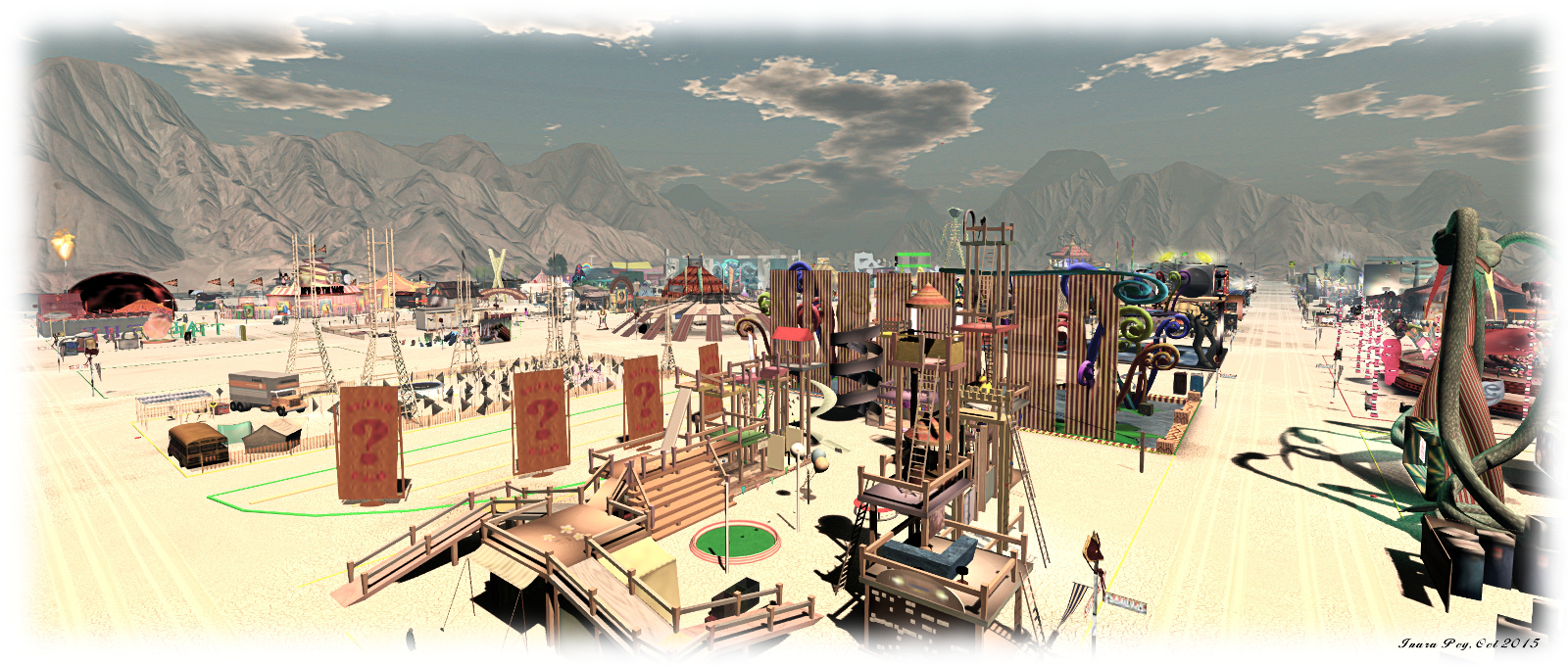
DV-posterBURN2 2016 will be opening its gates on Saturday, October 15th, and will run through until Sunday, October 23rd 2016, culminating in the burning of the Man the Temple on the closing weekend of the event.

The theme for this year is Da Vinci;’s Workshop, matching that of the official Burning Man event, and builders have been hard at work preparing camp sites across the four regions of this year’s event, and festivities will run right through the week, culminating in the burning of the Man on Saturday, October 22nd, and the Temple on Sunday, October 23rd.

Bloggers wishing to get early access to BURN2 are invited to complete the Press Sign-up form and join special previews of the regions on Friday, October 14th, at 12:00 noon through 14:00 and 19:00-22:00 SLT.

In addition, there are still slots available on the DJ and live performers schedules for the week-long festival. If you are interested in participating as a performer, contact one of the following individuals in-world:

  • Live performers: Cuga Rajal
  • DJs: Tracer Graves or Fifi Candyfloss (siouxsieincognita) or Leondra Larssen
BURN2 2015
BURN2 2015

About BURN2

BURN2 is an extension of the Burning Man festival and community into the world of Second Life. It is an officially sanctioned Burning Man regional event, and the only virtual world event out of more than 100 real world Regional groups and the only regional event allowed to burn the man.

The BURN2 Team operates events year around, culminating in an annual major festival of community, art and fire in the fall – a virtual echo of Burning Man itself.

Related Links

Autumn walks all start with a smile in Second Life


It All Starts With A Smile (360-degree view) Play the video and left-click / drag to pan around

It All Starts With A Smile, Kaelyn Alecto’s Homestead region, has been a regular Second Life destination for me since 2013. My last trip there was in June 2016, when Caitlyn and I enjoyed the tropical summer beauty of the region. But the year has moved on since then, and with autumn now upon those of us in the northern hemisphere, It All Starts With a Smile has transformed itself to suit the season, making a return visit very much in order.

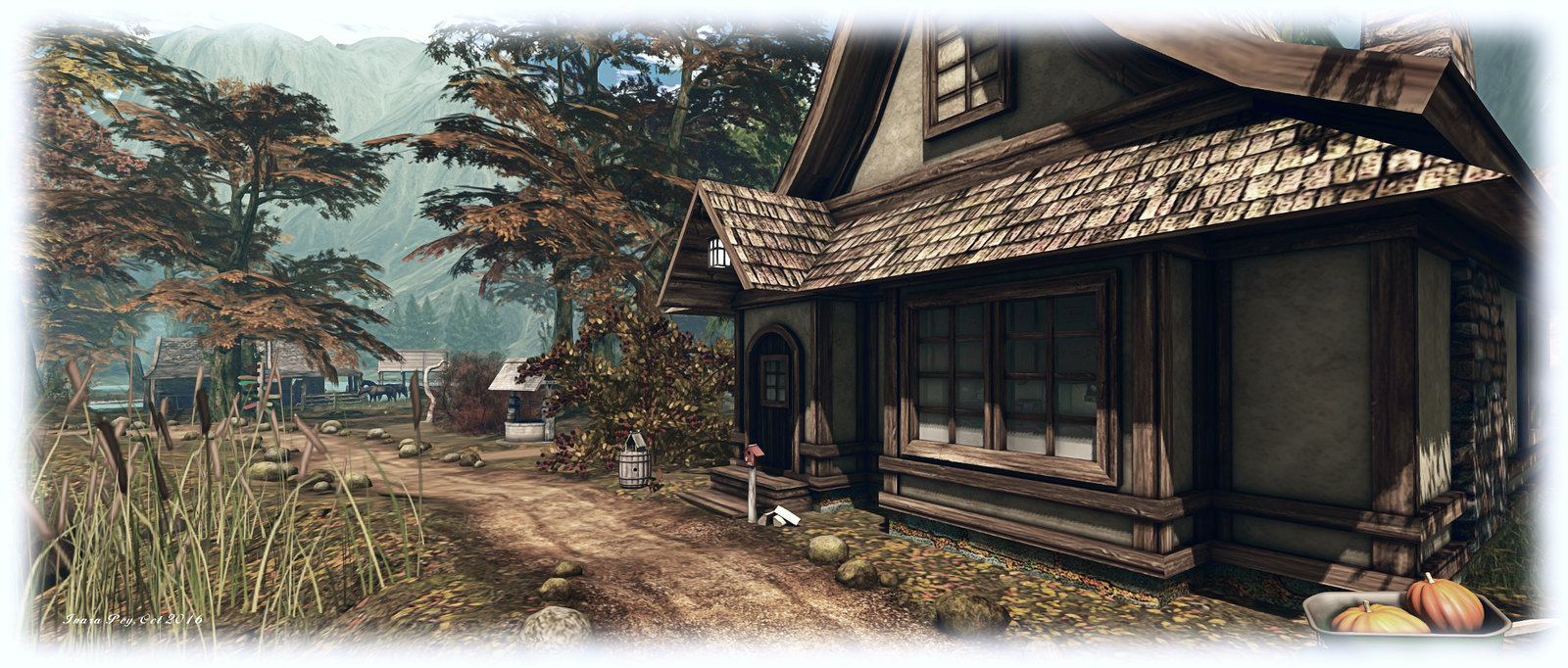
The land lays under a mantle of autumnal colours: yellow and brown leaves cover the ground, whilst those on boughs have turned ochre in preparation for their own spiral down to the grass and tracks below.  Even the red hues of wooden barns and cabins add a feeling of the shortening days and winter’s approach as they sit under a suitably beige sky.

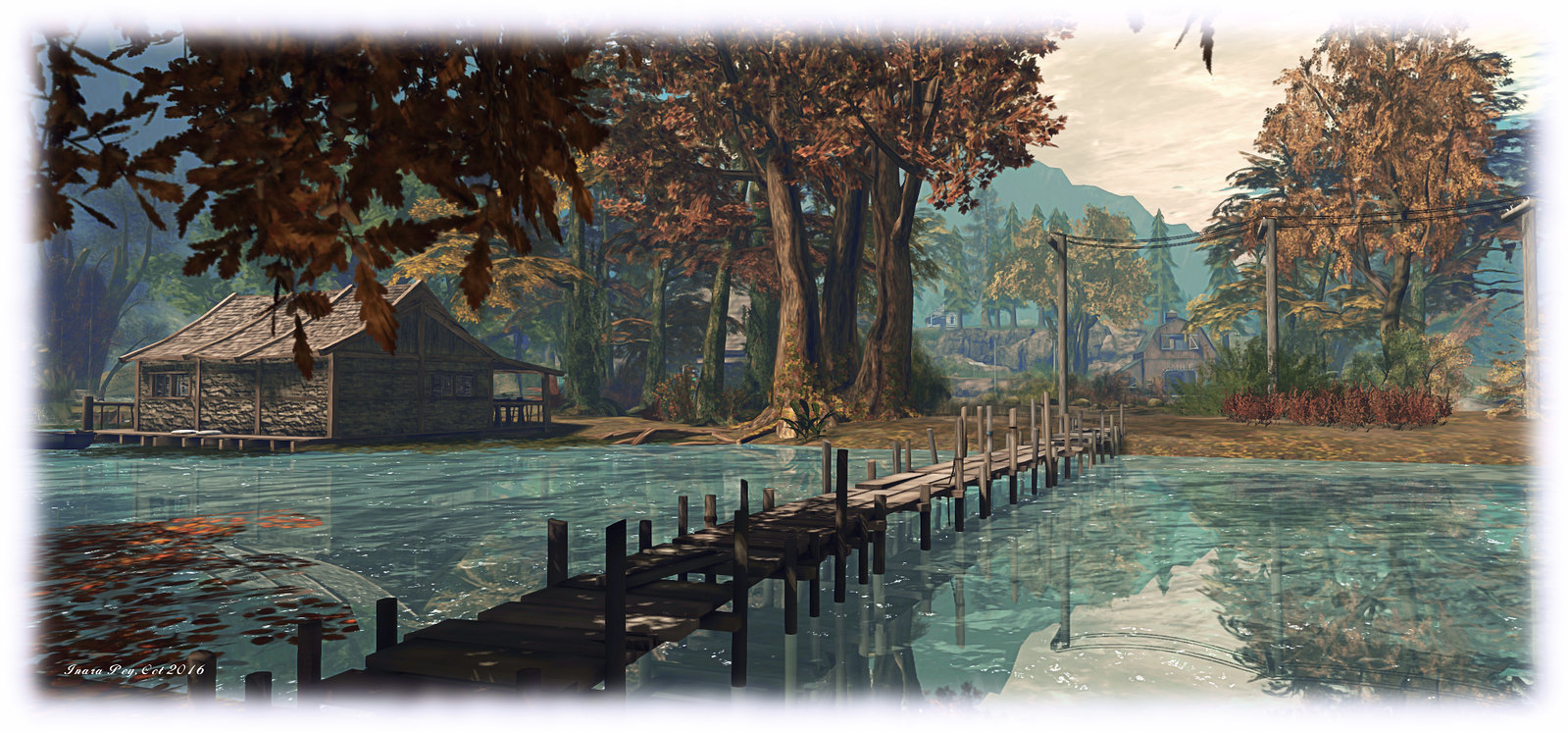
It All Starts With a Smile; Inara Pey, October 2016, on Flickr It All Starts With A Smile – click any image for full size

From the landing point, visitors have a choice of routes to be followed – around a small central lake, or up into the low hills to the east and north, dusty tracks pointing the way. Either route will take you past cottages, barns and little cabins, while the track around the lake presents opportunities to wander a little further, out over low wooden walkways spanning an arc of water to connect to a trio of little islands to the west and south, each joined to the next by walkways of their own.

All of the cottages and cabins are open to the public, and each has been comfortably appointed, encouraging visitors to tarry for a time under their roofs. More places to sit and ponder / spend time with a loved one can be found outside as well, with lots of little spots scattered across the region, be they in the backs of wagons or old pick-up trucks, offered by blankets spread on the ground or on a pier, up on platforms or rocking gently within rowing boats moored on the waters. For those seeking a little fun, bumper boats can be played on the lake, whilst thirsts can be quenched at the bar-in-the-barn alongside the landing point.

It All Starts With a Smile; Inara Pey, October 2016, on Flickr It All Starts With A Smile

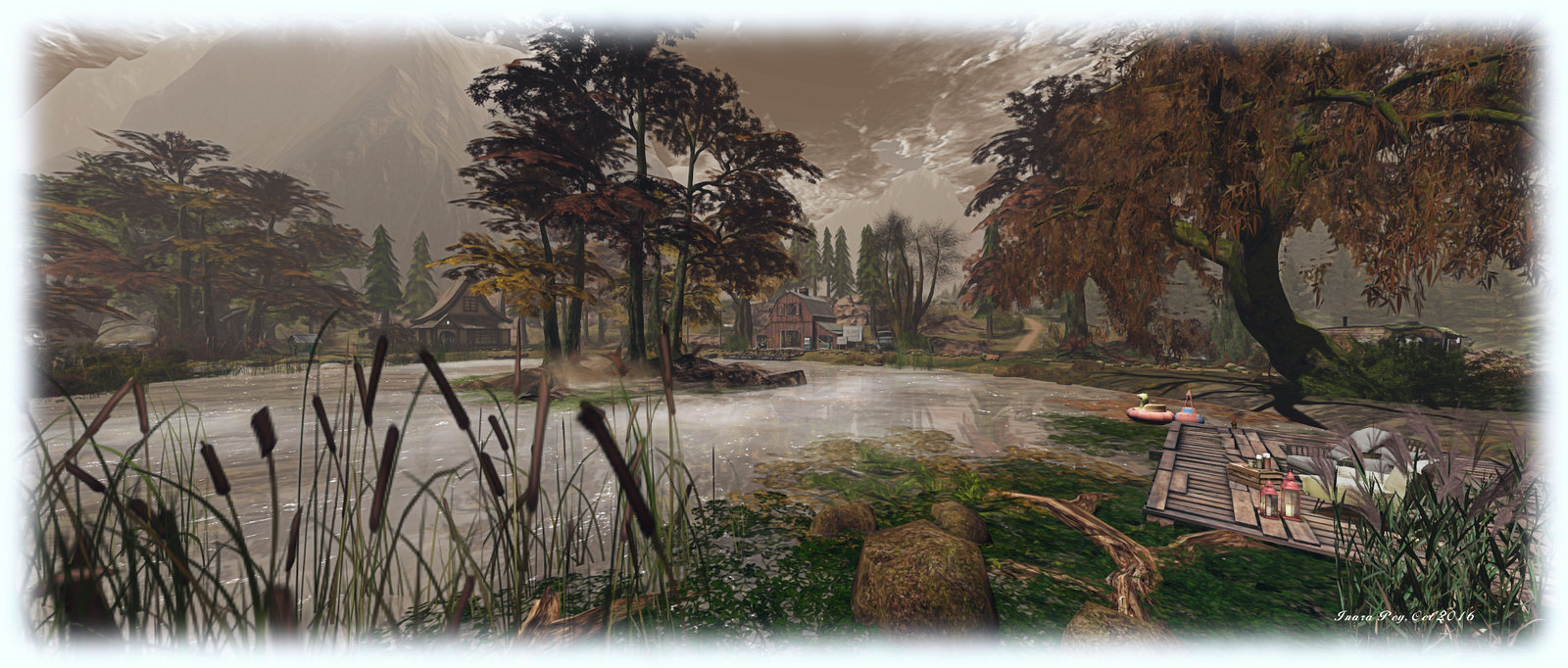
As is always the case with Kaelyn’s designs for It All Starts… this autumn look is highly photogenic and lends itself naturally to many different windlight settings – I opted to go with a variation on an Annan Adored preset for the middle two images offered here.  Those wishing to rez props for their photography can do so by joining the region’s group at the landing point,

With goats calling from the hills, birds singing in the trees and horse grazing near the lake as dogs bark and puppies yap, autumn at It All Starts With a Smile is very much a living thing, and somewhere in which time and troubles can be forgotten; a place where the slant of sunlight through a canopy of autumn leaves to dapple a path below, reminds us that while summer has now passed, it will return again.

It All Starts With a Smile; Inara Pey, October 2016, on Flickr It All Starts With A Smile

Should you enjoy your visit, do please consider a donation towards It All Start’s  continued existence, via one of the tip jars offered across the region.

SLurl Details

2016 SL project updates 40 (1): server, viewer

Neverland - Calas Galadhon Halloween
Neverland – Calas Galadhon Halloween – blog post

As always, please refer to the server deployment thread for updates or changes.

  • Tuesday, October 4th saw the Main (SLS) channel updated with the server maintenance package previously  deployed to the three RC channels, which includes a fix for BUG-40565, introduced as a result of the deployment of the week #38 server maintenance package.
  • There is no planned deployment / restart for the three RC channels, although there should be a new RC package available for week #41 (commencing Monday, October 10th).

SL Viewer

The Maintenance RC viewer was rapidly updated on Tuesday, October 4th, after only having been released on September 28th. Version 4.0.9.320231 see the addition of a Project Espeon fix (“Experience permission dialogue should include “Sit your avatar””), suggesting this project is making progress.  Overall, this viewer includes over 70 crashes and bug fixes and improvements – refer to the release notes for the full list.

Excluding this update, the remainder of the current crop of official viewers remains unchanged:

  • Current Release version: 4.0.8.319463 (dated September 9), promoted September 15 – formerly the Visual Outfit Browser RC viewer
  • Release channel cohorts (please see my notes on manually installing RC viewer versions if you wish to install any release candidate(s) yourself):
    • Project Bento (avatar skeleton extensions), version 5.0.0.319893, dated September 22nd
    • VLC Media Plug-in Viewer RC, version 4.1.1.319856, dated September 20th – replaces QuickTime in the Windows viewer with a media plug-in based on LibVLC
  • Obsolete platform viewer version 3.7.28.300847, dated May 8, 2015 – provided for users on Windows XP and OS X versions below 10.7.