You win or you die 2: Highgarden

Earlier this month I paid a visit to the Mountains of the Moon, a Game of Thrones role-play region in Second Life. The region is linked with that of Maui West and Maui Central, wherein can be found Highgarden, the seat of House Tyrell. Given my love of George R.R. Martin’s A Song of Ice and Fire – or Game of Thrones as it is perhaps now more widely known, thanks to the HBO series of the same name – I could hardly visit the one without also visiting the other. So today I made a journey to the rose-enfolded walls of Highgarden.

Bandor Tyrell: Lord of Highgarden

The arrival point  is a small gazebo standing just outside the walls of the great fortress (although you can also reach Highgarden via the Game of Thrones Role-play Welcome Centre). Here you will be able to obtain background information on the setting for role-play within the sim, an “observer” tag (which you should wear if you are a casual visitor and wish to make it clear you are not actively engaged in role-play), and a wealth of additional information, including establishing a suitable character, historical information on House Tyrell, and information on how to address others when in character (a useful primer – even as an observer, it is polite to address others in-kind). Simply click the large image of Highgarden to receive the information pack.

Role-play here is set in the same period as Mountains of the Moon – before the seven kingdoms of Westros were “united” under the rule of Aegon Targaryen; this allows characters to move freely between the two regions, allowing full continuity of role-play.

As with the Mountains of the Moon, the visualisation  here (created by Bandor Tyrell, otherwise known as Bandor Beningborough) is impressive. As depicted in the books, Highgarden sits on the Roseroad linking Oldtown on the coast with Kings Landing, as the road follows the broad river Mander. Like the Mountains of the Moon, sim extenders have been used to great effect here, particularly in reference to the creation of the Mander itself.

Highgarden

Details on the design and layout of Highgarden itself is not as well-defined within the books as somewhere like The Eyrie, and this tends to leave matters open to interpretation in terms of look and feel.  Bandor Tyrell has opted for a look that has echoes of a romanticised Arthurian period (think BBC’s Merlin series, or Le Morte d’Arthur), with the castle having something of a French / German fortified château / schloss look combined with the more traditional curtain walls and round-towered gatehouses more often associated with medieval times. In this, the look of the castle reflects the high chivalric and romantic ideals personified by the Tyrells herein as well as presenting an environment entirely in keeping with G.R.R. Martin’s vision of Westeros as a whole.

Within the curtain walls sits a small town, complete with sept, bathhouse and housing for some of the members of the Game of Thrones Roleplay group. During the personal tour he kindly volunteered to give me, Bandor explained that the housing, when available, is offered free to group members. The town also continues beyond the walls, where the “small folk” – peasants and farmers to you and me – live and work and where the local brothel resides.

The brothel underlines the fact that role-play here mirrors the lifestyles found within the books; while outright nudity or public lewdness for the sake of it is not welcomed, role-play that remains true to the overall themes and ideals of Martin’s world is allowed (and sometimes encouraged!) and this can involve a degree of bawdy goings-on in some public spaces; hence the regions – as with Mountains of the Moon – are rated Adult.

This open nature of role-play here allows many other elements found within Martin’s novels to be played-out as well. Political intrigue, treachery, false alliances – all have their place and serve to make matters all the more – interesting – for those immersing themselves in the role-play.

The lists

The diverse richness of role-play is also reflected in the fact that combat  – for honour or for sport (in the form of competitive melees or jousts) – is very much part of the events that take place at Highgarden – all of them handled in character.  The castle also hosts dances, which are open to all, either in character or OOC, and which offer the curious the opportunity to sample Highgarden life in a more relaxed atmosphere than full-on role-play might allow, while at the same time offering an experience more immersive than might be obtained when visiting as a casual observer.

As with the Mountains of the Moon, there is much to explore and see here. You can witness the seven new gods of Westros in the sept, or sit under the spreading branches of the weirwood in the godswood and contemplate the old ways. If you prefer, you can explore the buildings of the town and wander the halls of the castle. If you are so minded, you can venture further afield and follow the Roseroad out into the wilderness – but be warned! There are both wolves and brigands wandering the woods and hills, neither of whom may take kindly to your explorations.

Highgarden has been put together with a lot of forethought in order to encourage the broadest possible GoT role-play, with the layout on both Maui Central and Maui West having been recently overhauled to enhance this. Together with The Mountains of the Moon, they are generating a significant amount of interest among GoT role-players. Both have certainly piqued my interest, and it is entirely possible I’ll be returning to both not only as a visitor – but also with a character backstory!

Related Links

Niran’s Viewer 1.46: the Skyrim influence

Niran’s Viewer continues to be updated on a weekly basis, with various new ideas being tried out. Version 1.46 sees an interesting take on the viewer Preferences, and as such, I thought it worth a look, as well as providing an update on some of the changes occurring in recent releases.

Download and Installation – 1.46

The x64 download weighed-in at just over 41Mb

On starting the viewer the first time, I received a virus threat warning for SLPlugin.exe. This tends to be a frequent false positive for the likes of Nortons, but rarer with AVG; this is one of the few times I have had the warning flagged.

New Preferences Layout

The most significant change within this release is to Preferences. As well as including the main Preferences floater (NV->FILE->PREFERENCES or CTRL-P), NiranV has included an experimental Preferences overlay, which can be accessed via the F2 key (you will have to re-assign any gesture using F2 to another key in order for this to work).

“Skyrim”-style approach to Preferences

NiranV describes this as his “Skyrim inspired” approach to Preferences – and I have to say that, overall, I like the concept.

Right now, the option is clearly experimental and offers access to a limited set of Preferences options, so it is a little hard to judge as to how well it will scale and whether it will provide improved access to all Preferences options. However, the potential would appear to be there – and the ability to use the entire screen rather than a defined floater area would appear to offer significant advantages in terms of information presentation. As it stands, my only potential critiques of the approach is that:

  • Some of the text within the Preferences is poorly defined against the background (this has been something of a problem in general with Preferences in the viewer)
  • Some people might not like the fact that in using an overlay in this manner they cannot access other on-screen floaters (such as being able to IM others with Preferences open). A way around this might be to offer a toggle switch allowing users to display Preferences either as an overlay or as a “traditional” floater
Readability issues exacerbated?

I’m personally not so bothered by the second issue as I am by the first; elements of Preferences in Niran’s Viewer have always been hard to read at times, although swapping skins has tended to alleviate the problem. However, everything in the overlay Preferences is displayed on a relatively dark background which tends to mask some text in the displays very well (see the image above), exacerbating the problem of legibility.

Nevertheless, I’ll be watching to see how this idea develops over time, and how NiranV translates-over the use of multiple sub-tabs within a panel (e.g. incorporates the RLVa and  Setup sub-tabs into Viewer, for example).

Server-side Avatar Baking

This release of Niran’s viewer includes a debug setting to “enable” server-side avatar baking. As this service is not actually available at present – and is unlikely to be rolled-out for least another 4-to-6 months – it is probably worthwhile pointing out that enabling the debug setting will not alter the way in which your avatar is baked.

Other Recent Updates

The following is a summary of the significant changes made to Niran’s Viewer since I last blogged on it:

  • 1.40: saw the machinima sidebar (released in 1.39) modified so it slides over the Ui, rather than shunting things to one side (a-la the original Viewer 2 Sidebar); the Picks and Places floaters were added to NV->EDIT
  • 1.41: primarily saw the update / addition of Windlight presets
  • 1.42: local chat fixes to show the speaking indicator correctly; toggle check box added to the Machinima Sidebar for easy switching between Region default and Custom Windlight
  • 1.43:  ability to sat the time after which the Navigation bar will auto-hide; new World Map layout; ability to right-click/zoom to People floater for avatars within draw distance; alignment with LL’s code releases
Niran’s updated World Map
  • 1.44: replaced rendering engine with the current Linden Lab rendering code; addition of spell checking.

Performance (1.46)

Performance has been a mixed bag for me with this viewer – and NiranV Dean has some comments in the release notes for 1.46 on the subject. Overall, performance on my usual system & with the usual settings (see the panel on the right of the home page of this blog), I had the following results, based on my home sim with 4 other avatars present. With deferred / shadows and lighting disabled: ground level: 14-17fps; 370m: 35-39fps; 2875m: 48-50fps. With shadows and lighting enabled: ground level: 7-9fps; 370m: 11-12fps; 2875m 13-14fps. All of this was remarkably consistent, and only slightly lower in all cases than I’ve experienced of late with other viewers.

Related Links

Viewer release summary 2012: week 29

The following is summary of changes to SL viewers / clients (official and TPV) which have taken place in the past week. It is based on my Viewer Round-up Page, which provides a list of  all Second Life viewers and clients that are in popular use (and of which I am aware) and which are recognised as being in adherence with the TPV Policy.

This summary is published every Monday, and by its nature will always be in arrears. Therefore, for the most up-to-date information on viewers and clients, please see my Viewer Round-up Page, which is updated as soon as I’m aware of any changes, and which includes comprehensive links to download pages, blog notes, release notes, etc., for Viewers and clients as well as links to any / all reviews of specific viewers / clients made within this blog.  

Updates for the week ending: 22 July, 2012

  • SL Viewer updates:
    • Beta version:3.3.4.262068, July 18
    • Development: rolled to 3.3.5.262070, July 18
  • Niran’s Viewer rolled to 1.44 on July 16th – core changes: use of LL’s Viewer rendering code; performance improvements; faster rendering of shadows, local lights, occlusion, etc.; integration of tone mapping from the Exodus Viewer
  • Singularity rolled to 1.7.0 on July 16 – core updates:- Multi-Wear release; general graphics engine update; region windlight support; RLVa partial update to 1.4; LSL editor update; sound system bug fixes & new sound system FMOD Ex; mouselook gun aiming incorporated; new build preferences; radar now indicates gesture/sound/particle/animation spam; holding Shift while crouching works as crouch toggle (release notes)
  • LittleSight was added to my list of Android clients on July 22 – review here

Related Links

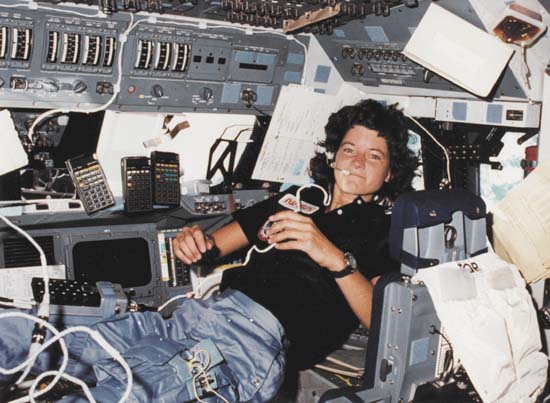
In memory of Sally Ride

 Oh! I have slipped the surly bonds of Earth
 And danced the skies on laughter-silvered wings;
 Sunward I’ve climbed, and joined the tumbling mirth
 of sun-split clouds, — and done a hundred things
 You have not dreamed of — wheeled and soared and swung
 High in the sunlit silence. Hov’ring there,
 I’ve chased the shouting wind along, and flung
 My eager craft through footless halls of air….

 Up, up the long, delirious, burning blue
 I have topped the wind-swept heights with easy grace.
 Where never lark, or even eagle flew —
 And, while with silent lifting mind I have trod
 The high untrespassed sanctity of space,
 – Put out my hand, and touched the face of God.

(Pilot Officer  John Gillespie Magee, Jr., RCAF)

Sally Ride, 1951-2012
First American female astronaut.
Missions flown: STS-7, 1983; STS-41G, 1984.

 www.sallyridescience.com

LittleSight: a chat / IM SL client for Android

Cinder Roxley pointed me towards LittleSight, a simple SL client for Android.

The application has been around for at least a year or so, going on the download page comments, and is now at version 1.0.4 (reviewed here). There does not appear to be any dedicated website for the application, and it is not listed in the TPV Directory.

Compared to the likes of Mobile Grid Client and Lumiya, the functionality is extremely limited, however, if you want a quick means of accessing SL on-the-go for the purposes of IMing others, it may offer something to you.

The application is free – although it limits you to being logged into a random location and will display ads at the top of the screen. You can unlock additional log-in options and remove the ads on payment of around $1.28 / 1.05 Euros / 0.82 GBP via Google play.

Once installed, LittleSight is simple to use. The log-in screen comprises fields for your user name and password, with an option to save the password for future use.

log-in: unpaid (l); paid (r)

As mentioned above, using the application in unpaid mode will log you into a random location (this used to be “Yamato of Japan”, but the region no longer appears to be active). If you opt to pay for the application (via the Start At button), tapping the Start At button will present three further options in addition to “Yamato of Japan”:

  • The last location you visited
  • Your home location
  • Any named region (default arrival point: 128,128 – SLurls do not appear to be supported).

Once logged-in, you are presented with a simple and clean (other than the ads in the “unpaid” mode) interface. At the top are four buttons:

  • Chat – will display all local chat going on around you (if any), with avatar name / profile pictures displayed against their text. Tap the text input box to open your on-screen keyboard and start chatting
  • IM – allows you to display IM conversations and converse one-to-one
  • People – displays a list of people nearby / friends on-line
  • Map – displays a map of the region you’re currently in.

In addition, two further on-screen buttons – Logout and Settings can be displayed by tapping the menu button on your device..

People

Logging-in opens the People display by default. This may display a list of people within chat range (if any) and / or your friends who are also on-line (if any).

People nearby (l) and people nearby & friends on-line (r) (note ads displayed in “unpaid” version)

If none of your friends are on-line and no-one is within chat range, all that is displayed are the list headings at the top of the screen.

Long-touching a name in either list will initiate an IM conversation (see below).

IM Conversations

Starting an IM conversation requires a little bit of screen-swapping. First you need to long-touch the name of the person with whom you wish to converse via either the Chat screen or the People screen. In either case, you’ll see a pop-up prompting you to Send IM. Tapping on this will swap you to the IM display, with the name of the person you are about to IM displayed at the top and text entry field immediately below it. Enter your message and tap SAY.

Any new incoming IMs are automatically sent to your IM display, and you can respond to them directly from there.

IM only displays one conversation at a time – to swap conversations, tap on the name of the person with whom you are currently conversing. This pops-up a list of all active IM conversations. Tap the name of the person you wish to switch to in order to display the conversation.

IM conversations display and swapping between conversations (tap the name of the person you are currently IMing to display a pop-up list)

Logs

LittleSight automatically logs and saves all chat and IM conversations, some / all of which is automatically displayed on opening Chat or when initiating an IM conversation with someone you’ve previously IM’d. logs can be deleted through the Settings options (see below).

Map

Map display

The Map option offers a reasonable image of the region you are in, with avatars displayed as familiar green dots. Tapping on any dot will display the name of the avatar at the bottom of the map. You own avatar is displayed by a dot which is slightly larger than those of other avatars, having a yellow circle around it. The only real annoyance with the map is that the region name isn’t displayed; given log-ins can be random, it would be nice to work out where you are rather than having to ask a passer-by.

Settings Options

The application includes a number of settings options, which are accessed via the menu button on your device and then tapping the on-screen Settings button. From here you can:

  • Set the application to display an icon in the status bar of your device when it is running
  • Prevent the screen of you device from sleeping when the application is running
  • Set audible (ringtone) or vibration notifications when friends log-in to SL, someone logs-in nearby, when you receive chat or IMs
  • Delete the Chat and / or IM logs. Note that when you do this, the Chat and IM displays will be cleared of all current conversations as well.

Issues

Several reviews on the LittleSight Google Play page indicate problems when using the application, particularly on Motorola Droid devices. While the application has, for the most part, run OK on my Samsung Galaxy S2,  I did encounter a problem which I could only resolve by re-installing the client. This manifested in the application crashing while entering my log-in credentials, then repeatedly force-closing on me, which not even a shut-down and restart of my ‘phone would clear. The re-install did finally resolve the issue as a last resort, which has since not recurred.

Feedback

LittleSight is a simple, lightweight and largely intuitive SL client. The displays are all clear, and conversations in chat / IM are easy to follow are displayed well, with names (and profile images) appearing against text entries, complete with time & date stamps. If chat / IM is all you feel you need when accessing SL when away from your computer and you’ve not tried a mobile client before, then it might be worth a go.

However, if you already have the likes of Mobile Grid Client and Lumiya, LittleSight really has little to offer. Similarly, if you need mobile access to SL to do more than chat / IM, you’ll probably be better-off looking elsewhere.

Related Links

Firestorm announces pathfinding support

Following-on from the TPV/Developer meeting on the 13th July, during which pathfinding was discussed, and the recent roll-outs of pathfinding functionality to the Magnum  Release Channel, the Firestorm team have announced that they will be adding pathfinding support to upcoming releases. The announcement reads in part:

What’s next…Pathfinding!
We’ve decided to release LL’s Pathfinding work in Firestorm in two stages.

Stage 1 (next release).
Pathfinding Tools. Not to be confused with theHavok library, which is used to display Navigation Mesh (NavMesh), thePathfinding Toolsare what you will need to optimize your regions once Pathfinding goes live.

Unless LL changes the current plan, when Pathfinding goes live, all regions will have pathfinding enabled by default, and all objects that contain scripts will be treated as “Movable Obstacles.” Movable Obstacles will have an impact on region performance, so region owners will need tooptimize their regionsby setting scripted objects that don’t move to “Static Obstacles.” To do this, you will need Pathfinding Tools!

So our plan with our next release is to get Pathfinding tools out as soon as we can. This will be based on our 28744 release + post 28744 crash fixes + LL Pathfinding code. There have not been many new additions beyond that since the release, and this is for the best: we expect this code will destabilize the viewer to a degree, since it will be a large merge, and we’d rather base this version on a solid release than on a wild card.

Stage 2 (follow-up release).
Release with the Havok Library for NavMesh. Havok will be used to enable viewing of NavMesh, display of object types and AI Preview of object paths.So the second Firestorm release from now will have Havok + stability fixes to the previous release + more of our own goodies.

The two-stage release is unsurprising, given Lorca Linden’s recommendations at the meeting on the 13th July.  At this time, no time-scales are available for the releases, because, as Jessica points out in the post:

How soon?
Great question, and a very tough one to answer since there are many factors involved that we have little control over. Like…

  • LL’s timeline to release Pathfinding;
  • How much Linden code we have to merge into Firestorm;
  • How many regressions and new bugs we pick up from that merge;
  • How long it’ll take us to fix them, etc.

But we want to get these out as soon as we possibly can once it’s live on the grid.

Phoenix

Phoenix will not immediately be getting pathfinding due to the amount of work involved in getting the capabilities integrated into Firestorm. Region holders using Phoenix will still be able to disable/enable pathfinding using a viewer-independent console, but for all else they will need to switch to a viewer that supports the full pathfinding tool set.

Related Links