Comparative Viewer frame rates

Last week, Pserendipity Daniels left a comment on comparing Viewer performances which got me thnking. As I said in my reply, coming up with an objective means of comparing the performance of various Viewers is a little difficult, as so much as client-side dependent (hardware) while some is also down to your network connection.

However, I decided to take those Viewers I’ve actively used over the last 12 months (as opposed to reviewed and put to one side), and see what I could come up with by way of a very basic and simple means of comparing Viewer performance that might address Pep’s question without me getting bogged down in anything complex (which would probably go right over my head anyway…).

So, the two tables below represent my findings based on Viewer frame rates – which I appreciate aren’t the only measure of a Viewer’s performance (but they are the one most looked at). There are further notes below the tables on how I set-up and ran my “tests”.

Jan 6th: Tables updated to reflect the fact that Niran’s Viewer has been using the 3.2.6 code base since release 1.01. Also, Nalates Urriah has carried out further analysis on these figures.

370m altitude – click to enlarge

Average ping rate for sim: 167ms (averaged across all eight Viewers)

22m altitude – click to enlarge

Average ping rate for sim: 174ms (averaged across all eight Viewers)

Key

  • “High” = graphics set to the SL “High” setting (Ultra in the case of Phoenix), shaders ON, all Deferred Rendering options for lighting & shadows and ambient occulsion (or equivs) OFF
  • Deferred  = deferred render ON, but ambient occulsion / shadows OFF
  • Ambient = deferred render ON, ambient occulsion ON, shadows OFF
  • Shadows = deferred render ON, ambient occulsion OFF shadows ON
  • Ambient + Shadows = deferred render on, but ambient occulsion / shadows ON
  • Numbers in brackets refer to the official Viewer release I believe each TPV is based upon.

Test Environment

To try and give as level a playing field as possible for the tests, I attempted to create a “test environment”, namely:

  • Tests were run after a completely clean reinstall of the listed Viewers (original installation and all associated files / folders uninstalled / deleted)
  • All Viewers were configured alongside my nVidia Control Panel in accordance with this tutorial from the Shopping Cart Disco blog (with thanks to Innula Zenovka for pointing it out)
  • All other major graphics and network settings within the Viewers were set to the same criteria (e.g. Draw Distance set to 300m; network bandwidth set to 1500kbps, etc.)
  • Where possible (and with the exception of Firestorm and Phoenix) the UI was set-up the same: same buttons, same locations, and not other floaters / panels were open, and any group chat sessions active on logging-in were terminated
  • The same avatar with the same attachments was used with each test (with a Draw Weight of 112,986), with the same camera defaults
  • I used the same regions for all Viewers tested, each with 4 other avatars in the regions during the tests. One region was a skymall shopping area, the other a residential sim at ground level (which actually had the same 4 other avatars present in it for all tests!)
  • The same test was used for each case: Teleport to an arrival point; allow rez time, then walk a set route for around 3 minutes, monitoring fps rates
  • Recorded frame rates are based on a roughly-calculated average, rounded up or down to the nearest whole number, as appropriate.

Hardware and network connection

The hardware used for the tests comprise my usual PC and nework connection:

  • Windows 7 32-bit with SP1; Intel Q6600 CPU 2.4Ghz; 3Gb RAM; ASUS motherboard (no idea of the model); nVidia Ge9800GT with 1Gb on-board RAM (driver: 8.17.12.8562 15-10-2011); Viewers running on 320Gb SATA drive @ 7200rpm
  • Netgear DGN2200 (wireless between PC and router)
  • Internet connection averaging a ping of 43ms to the preferred test server, with a download speed of 9.55Mbps and 1.02Mbps upload (speedtest verified).

Notes

  • I don’t pretend that either the methodology or the results are particularly scientific, and underline that they are at best indicative – and even that’s strongly caveated
  • Frame rates varied somewhat from those recorded in my reviews (obtained using a basic alt avatar & on a variety of sims)
  • On my home sim, when alone, SL 3.2.6, Exodus and Milkshake all exceed 60fps in “High” mode at altitudes above 300m; on the ground all achieve rates in the high 40s
  • Niran’s Viewer has achieved higher rates in Beta then with release 1.03, which Niran notes as being a “test” release. Unfortunately, the 1.02 release will not run on my PC at all, so I’ve been unable to test it
  • SL 3.2.6, Exodus, Milkshake and Niran’s all demonstrate considerably faster sculptie rendering than the other Viewers on my PC (sculpties rarely initially rez as a sphere or disk, but simply “pop-out” fully formed a few seconds after other prims).

Obviously, there are other factors that weigh-in on Viewer choice, and it is actually possible to have a worthwhile in-world experience with what might be regarded as low frame rates (I’ve been running Firestorm with shadows enabled since before Christmas, with an average frame rate probably around 12fps (allowing for averages between locations) for example). In the case of Niran’s Viewer and Exodus, the graphics enhancements may well provide more of an incentive for use than straightforward frame rates. Certainly, the quality of rendering on Niran’s Viewer is signifcantly better when optimised than the majority of other Viewers (although it really hits my GPU hard!).

So, in conclusion, you’re free to interpret these results as you see fit; how much value they represent is questionable. As always, individual experences may vary wildly from my own (particularly those of you fortunate enough to run a higher-specfication CPU / GPU combination). However, as a finger-in-the-air reference point for my own reviews, the tables may have value, and I may maintain them…

Again, to be clear: I’m not claiming the test is designed to be either empirical or scientific – please do not take it as such.

Exodus Beta 6: Combat, mesh, FUI and more!

Update 4th January 2012: Due to some issues with gamma correction, etc., the Exodus team have issues Beta 7. Core changes are listed here.

The New Year brings with it a new release of the Exodus Viewer. Version 12.01.02.1 (Exodus run a release number system based on the day/month/year of the release, so in this case the release is the first release made on the 2nd January 2012), also known as Beta 6, brings with it a host of new features. Among them:

  • New graphics functionality
  • The parametric deformer Alpha
  • Mesh upload
  •  New FUI options and improved chat bar
  • V1-style chat console
  • Ability to save or load position and rotation information of a object into it’s description (something I’ve been wanting for years – so YAY, EXODUS!)
  • AZERTY keyboard support
  • The new V3.2 snapshot floater
  • A range of options imported from other TPVs
  • RLV/a
  • Bug fixes.

Exodus is available in Windows, Mac and Linux flavours – this review is based on the Windows release.

Installation

The installer weighs-in at 28Mb – the same size as the official V3.2.6 Viewer. Installation offered no surprises, with the installed Viewer taking-up around 108Mb of disk space – again, the same as the official 3.2.6 Viewer.

On start-up, the Viewer bucks the recent trend in using all, or part of the V3 log-in/splash screen, and instead opts for a clean design with links to the Grid at War Blog, the Exodus Twitter feed and the SL Grid Status page. I’d personally prefer more from the V3 log-in screen, but that’s purely a personal view.

Cool blue splash screen

Once logged-in the Viewer displays the familiar V3.2 Flexible User Interface (FUI), and as Cilla Black might say, there are a lorra, lorra buttons, particularly on the left side of the screen – which we’ll get to in a moment.

Other than the buttons, the UI offers little in the way of major surprises on first looks, presenting pretty much the standard Menu bar, Navigation / Favourites bars layout. Your region co-ordinates are included in the Navigation Bars – which is not to say things haven’t changed. Unlike recent Viewers using the 3.2 code, the Destination Guide isn’t opened by default in Exodus.

Menus

Popular menu options in yellow

The menus offer some nice nips-and-tucks: those options that are Exodus-specific / rated to combat use / are popular options are coloured yellow, immediately drawing the eye to them. Where these options are toggle on/off, toggling them on will cause both the familiar tick to appear alongside them and the item colour to revert to white, a nice touch to prevent visual distractions with items you don’t want to reset.

There are a couple of nice additional touches in the Advanced menu – double-click teleport is included as an option, and camera constraints are disabled by default.

The Me menu includes an additional option to access Exodus’ dedicated Preferences. In earlier releases, these could be found in a Sidebar panel (Exodus having been released just before Rodvik gave word of the coming new FUI), and are now displayed in a dedicated floater panel, accessed wither through Me or via CTRL-SHIFT-P.

The Build menu has a nice addition: you can select an object or linkset and use the BUILD->SCRIPTS->REMOVE SCRIPTS option to remove all scripts from the object / root prim of the object.

Buttons Galore

Exodus, being feature-rich even before the FUI appeared, has a lot of buttons in order to cater for the wide range of options / dedicated functions it contains. With this release, it becomes the Viewer with the most buttons displayed by default on starting-up. These are:

  • Left: Avatar chooser, Appearance (outfit) editor, Inventory, Search, Places, Map, Raid Advisor, Mini-map, Animation Overrider (complete with mini on/off), Exodus Preferences, Preferences, Quick Preferences, Redraw
  • Bottom: Chat, Messages, Speak, Voice, People, Profile, View Move

The Customise Toolbar floater reveals further options, including Exodus’ Mini-radar, Mini-statistics, Statistics, and Visuals buttons.

Button options

This is a very comprehensive set of buttons; however, some might find the similarity between some of the icons – the Map and Raid Advisor or the AO and Move, for example (when only using icons) to be initially a tad confusing, leaving them reliant on tool tips until familiarity kicks-in.

Button Placement and Labels

Exodus draws on Niran’s Viewer, in that buttons can be located to the left, right, bottom and top of the screen, and introduces additional display options (left). The FUI has been critique by people who don’t like icons, it’s been critique be people who like icons; it’s been critiqued by those that don’t like icons and text….

So Exodus now gives you the best of all worlds – display your buttons as icons only; reduce the size of the buttons if you find them too big; display your buttons with text and icons or with text labels only. However, note that with standard V3.2 FUI functionality, buttons placed on the left and right sides of the screen automatically default to icons only (regardless of setting), and so text options are limited to the buttons placed at the top / bottom of the screen.

AO Button

Among the buttons there are a couple worthy of additional mention. The first of these is the AO button. Initial solutions for including the AO in the FUI have been to provide two buttons – one for AO settings, one for turning them on / off. Exodus has a single button, with a smaller integral button in the top right corner. Click the main part of the button to access AO settings, click on the inset button to turn your AO on (inset button turns blue, as per the screen capture here), click it again to turn the AO off. Quite simply the most elegant solution to client-side AO integration into the FUI I’ve yet seen.

Redraw

Exodus does not have a texture refresh option, as is starting to appear in other TPVs, but it does have a Redraw button, which will temporarily drop your draw distance to zero, before resetting it to your default, forcing the Viewer to re-draw everything and re-render all that is in line-of-slight. This can actually be alarming when it first happens, as your in-world view can clear of all detail (see below) for a few seconds before everything re-renders.

Where did everything go? Redrawing your view

If this happens to you, don’t panic, everything will reappear. I can’t say how effective this is for sorting out unloaded / rendered textures, as Exodus has rendered everything so fast for me fast and perfectly.

Niran’s updates: shadow enhancements, mesh uploads & parametric deformer

NiranV has released two further updates to Niran’s Viewer for the New Year.

Version 1.02

Version 1.02 brings with it enhancements to shadow rendering – what NiranV calls multi-level shadowing, which sees alpha objects casting shadows (something I’ve actually recently noticed in V3.2.6 and specifically Milkshake, wherein the decorative glass panels I used a a house build now render shadows…).

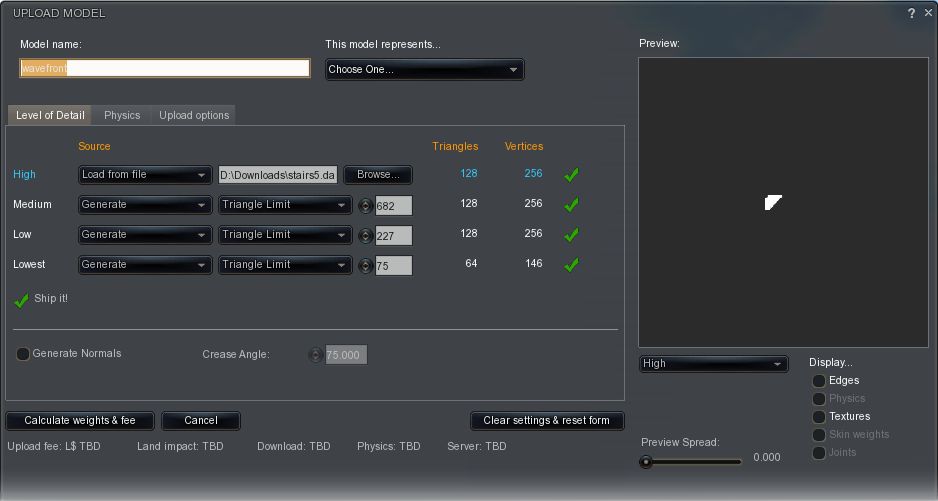
The version also incorporates Nicky Dasmijn’s mesh uploader code, making Niran’s the second TPV to adopt her code.There are also a number of bugfixes and tweaks that address minor issues withing the Viewer.

Mesh uploads using Nicky Dasmijn’s code

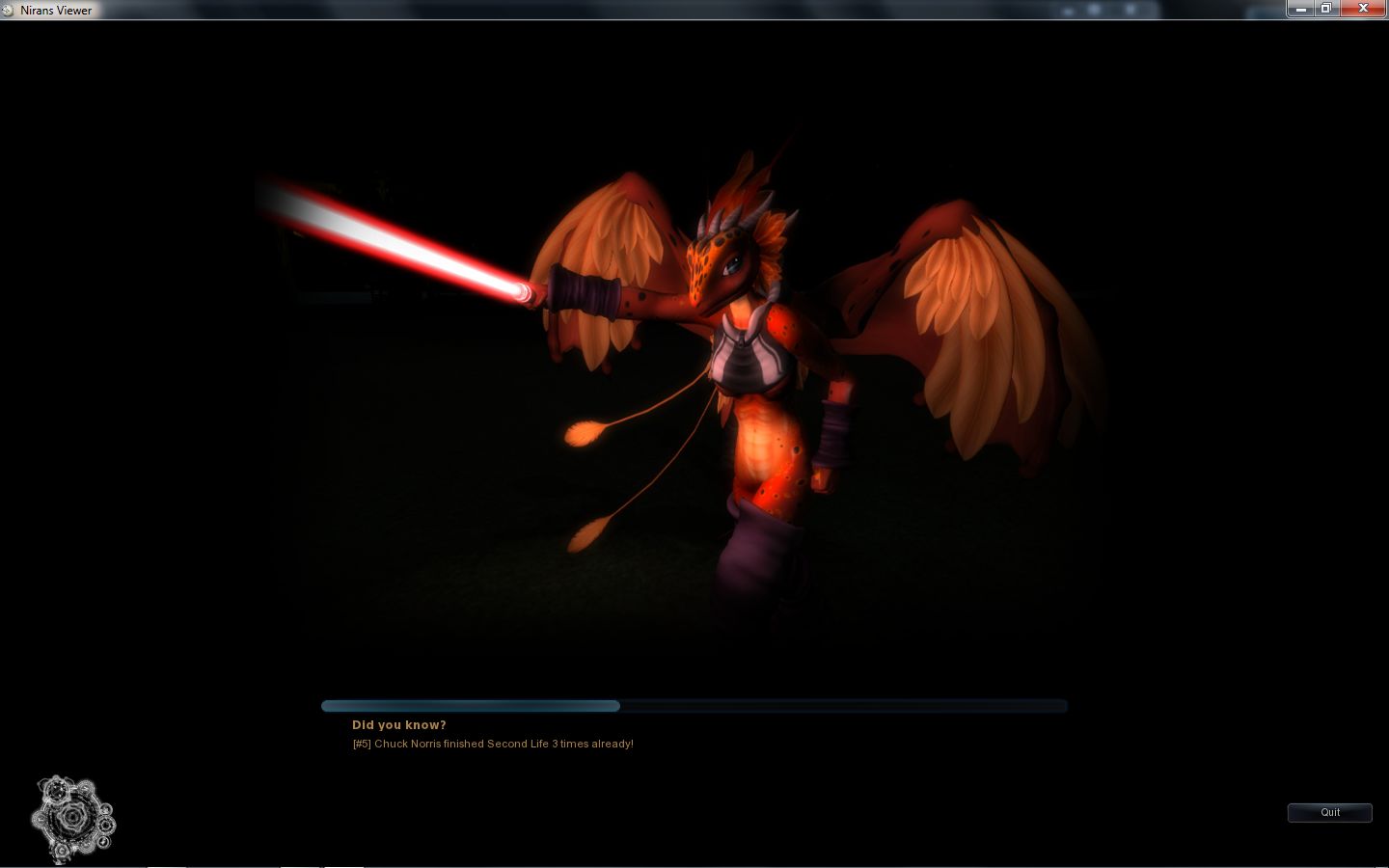
Another noticable change is with the loading screens – gone is a snapshot of your last in-world view together with the MotD and progress bar. Instead, there’s a mandelbrot-esque design in the lower left corner, images from NiranV’s in-world explorations and assorted hints and tip displayed with the load progress bar. All-in-all a refreshing change.

Niran’s: new loading screens

Version 1.03

An experimental release, version 1.03 brings with it the parametric deformer alpha release, so those who wish to try-out the deformer (particularly clothing designers) can do so. Note that it might not work in all instances; a lot depends on how the mesh is weighted.

Given it is experimental, NiranV informaed me that the code would likely be removed from the next release of the Viewer (which currently does not have a time frame).

Links

Have a Parametric New Year!

The New Year brings with it news that the mesh parametric deformer project has reached an Alpha code release.

The news broke via a Metareality podscast, and follows-on from the previous weeks’ podcast in which Karl Stiefvatar (Qarl Fizz in SL, formerly Qarl Linden) was about to make an Alpha push of the code.

In discussing the release, Karl states, “I should specific immediately that it’s not done; but the heavy lifting part of it is – the tricky 3D math, the place to integrate into the render pipeline,etc, etc, is … So I’ve giving it to you now in this form so that you can give me feedback, because there are decisions that need to be made now that we should make together.”

You can read the background to the project via my conversation with Max Graf.

Karl has released a video demonstrating progress to date, which is available on his website and YouTube:

The video itself is both informative and impressive; demonstrating the deformer working on a standard avatar and on “mesh avatars” human & non-human  (so using it, you can now increase the body fat of a mesh avatar if you so wish). Additionally, the deformer works with the Linden-Lab implemented avatar physics as well – again including non-human avatar meshes.

The code does have a couple of additional caveats at present, one of which is that changes applied to an avatar are applied to all meshes attached to the avatar; this is fine where clothing is concerned; but as Karl points out, if you have something like a gun attached to your avatar, you don’t want it to resize as well; so he suggests boolean function may be required to determine which meshes are affected by the deformer – and this may additionally require input from Linden Lab.

Karl openly encourages LL and TPVs to incorporate the code in order to allow users such as clothing designers to experiment with it, as feedback is now the key.

Those wishing to add the code as it stands – and bearing in mind Karl’s warning that this is only an Alpha release can also find it on his website.

A JIRA (SH-1716) has been opened to deal with the deformer code itself, on which a number of baseline questions on the deformer are asked and answered by Karl himself (to reference frame for the project), and within which further questions and feedback is encouraged. Karl specifically asks that you use this JIRA, and not his website for feedback – and as an extension to this, it is suggested that the original parametric deformer JIRA is not used for feedback relating to the code.

SH-1716 already has interesting discussion-points within it, relating to preferred models on which to base the deformer, how to address the question of a boolean function to handle “rigid” attachments (such as the aforementioned gun) – and indeed whether any boolean is in fact required, or whether the matter can be handled via other means. Therefore anyone with a technical interest in the project would do well to give the JIRA a look, bearing in mind Oz’s pleas on the subject of wider discussion (although given the complexity of the subject, one would think that forcing a split in questions & feedback & wider issues could result in something of a fracturing of information on project).

Niran’s Viewer

Those really keen to see the deformer in action might want to download version 1.03 of Niran’s Viewer, which already incorporates the code, but note that NiranV regards this as an experimental release, and the code will likely be removed from the next release.