SL Jira Tutorial part 1: bug reports

Introduction

This tutorial has been written as a guide to filing SL bug reports and feature requests using the Second Life Jira. It comprises two parts:

Bug Reports (this section):

  • What is / is not a bug report.
  • Filing a bug report.
  • What a Security Exploit is.
  • Filing a Security Exploit report.
  • What happens to a report once filed.

Feature Requests:

  • What a feature request should be.
  • Filing a feature request.
  • Using a proposal.
  • What happens to a feature request once filed.

Both sections are self-contained and can be bookmarked / referenced independently of one another for ease of use. However, to further assist in finding information, the table of contents on the right can be found in both part of the tutorial, and can be used to reference specific sections of either one.

Table of Contents

Acknowledgements and Thanks

I would like to express my thanks to the following people for their input into this tutorial and for sanity checking the contents: Alexa Linden, Grumpity Linden, Kyle Linden, Soft Linden and Whirly Fizzle.

What is the Jira For?

As noted above, the Jira is primarily for:

  • Filing reports on bugs that impact Second Life (covering the viewer, the simulator and the web), and which in doing so adversely impact the user experience.
  • Putting forward suggestions on features and capabilities that might enhance Second Life for users.

The Jira can also be used by third-party viewer (TPV) developers to have their viewer added to the TPV Directory, or for reporting TPVs that may be violating the TPV Policy / Second Life Terms of Service. Both of these options fall outside the scope of either part of this tutorial.

When using the Jira, please keep in mind:

  • It should not be used to report problems which are specific to you or for general enquiries about things like log-in issues; tier payments; running Second Life on a specific hardware configuration, land issues, and so on.
  • If you believe the bug presents a security risk (such as allowing griefing or exposing sensitive information), you should use the SEC bug report, details of which can be found in Security Exploits.
  • When adding comments to a report / feature request (see Commenting on filed reports), these should focus on technical feedback / input pertinent to the issue/ request being made. Personal opinion or general discussions on a bug / feature request can be held through the Second Life forums.

What Makes a Good Bug Report?

Ideally, a good bug report should:

  • Focus on a single issue.
    • Even if problems appear to be related, resist the urge to incorporate multiple issues on a single report, as this can confuse matters when trying to triage a report.
    • Instead, file multiple bug reports and cross-reference them. Those with authority to do so can then formally cross-link the reports as related issues.
  • Be a set of directions, providing:
    • A summary of the issue encountered that can form the title of the bug report.
    • A clear description of what happened when the issue occurred.
    • A set of step-by-step instructions on what you were doing when the issue occurred that allow someone else to follow them and (hopefully) encounter your issue, helping them understand it.
    • A description of what you were expecting to happen had you not encountered the issue.
    • Information on the viewer you were using, your location in Second Life at the time the problem was encountered, etc., all of which can easily be obtained from the viewer, as described in the instructions, below.
    • Relevant supporting information. This might comprise one or more of: any error message which may have been displayed; a screen shot of the problem; the inclusion of relevant log files, if appropriate.

As a reminder: when filing a bug report please keep in mind that if the problem you’ve encountered doesn’t require Linden Lab to make a change that can affect all users, then it probably isn’t appropriate to file a bug report against it.

Before You File a Bug Report

Known Bugs

It is possible the issue you are encountering is already known, or the subject of an existing bug report. So before you file a new bug report please consider:

  • Checking the viewer release notes to see if the bug is listed as a Known Issue. This can be done in one of two ways:
    • From within the viewer you’re using via Help → About, and then clicking on the Release Notes link at the top of the panel.
    • By checking the release notes for viewers listed on the Alternative Viewers pages to see if the issue is recorded among them.
  • Using the Jira Search option to see if the issue has already been reported.

If you find that a bug report already exists for the issue, you can opt to click the Watch option (top right of a bug report, under People) to receive e-mail updates on the Jira (you can also uncheck Watch at any time to stop receiving updates).
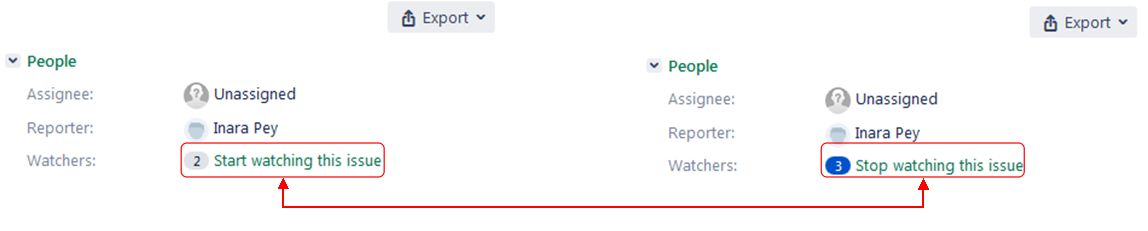
You can receive e-mail updates on a Jira by clicking the Start Watching This Issue (l) option (under People in the top right of a displayed Jira). The option will update to Stop Watching This Issue (r), indicating you’re receiving updates. Click the option again to stop receiving updates; the option will revert to Start Watching This Issue

A Note to Users of Third-Party Viewers

Third-party viewers (TPVs) surface options / include capabilities that may not be visible / available in the official viewer. Because of this:

  • If you encounter a problem with a TPV that you think might affect users on other viewers, please check to see if it can be reproduced on the official SL viewer.
  • If you can reproduce the bug on the official viewer, please file a bug report through the Second Life Jira using / referencing the official viewer, not your preferred TPV.
  • If the bug only occurs with the TPV you are using, please file a bug report with the developers of the TPV through whatever means they provide. Bug reports filed on the Second Life Jira that only reference a TPV are subject to being closed without action.

Official SL Bug Report Information

Official information on the SL bug reporting is available at :

Filing A Bug Report

Setting the Project and Issue Type

  • Log-in to the Second Life Jira using your Second Life log-in credentials.
  • Click on the blue Create button in the top menu bar.
  • Check the top of the form and make sure:
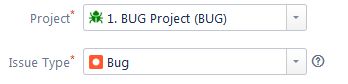
    • Project is set to 1. BUG Project (BUG).
    • Issue Type is set to Bug.
    • Use the drop-downs to set either, if required.
When filing a bug report, make sure Project is set to 1. BUG Project (BUG), and Issue Type to Bug.

Providing Details of the Bug

Required Fields

The following fields of a bug report are mandatory:

  • Summary: provide a concise summary of the issue (also forms the report title).
    • If the bug is related to a specific project (e.g. Animesh), please include the project name at the start of the summary in square braces (e.g. [Animesh]).
  • What Just Happened?: provide a description of the actual behaviour you saw as a result of the bug.
    • Be as clear and concise as possible – the more information of a clear nature you can give, the better the issue can be understood and the bug investigated.
    • If you received an error message as a result of the bug, you can type or copy/paste it here.
  • What Were You Doing When It Happened?: give step-by-step instructions on how to reproduce the problem.
    • Treat this section of the form as if you are explaining the bug to someone who has never encountered it and / or has never used the function / capability being used when the issued occurred.
    • Make sure you list all the necessary steps that are needed to reproduce the issue as you encountered it, no matter how obvious these steps might appear to be.
    • Use the Attachment button (see below) to include any images of the issue as you saw it and which help to explain things. Make sure they are clearly annotated and cross-referenced in this section.
  • What Were You Expecting To Happen Instead?: give a clear and concise description of what you were expecting to happen instead of the bug.
    • If it helps, use step-by-step instructions here as well.
    • Use the Attachment button (see below) to include any images of what you expected to happen, if required / possible. Make sure they are clearly annotated and cross-referenced in this section.
  • Environment: use this section to provide information on the environment – viewer and simulator – in which you encountered the problem. This information can be obtained directly from the viewer as follows:
    • Make sure you are in the region were you encountered the issue (this must be done when reporting possible simulator bugs).
    • In the viewer, go to Help → About Second Life → Info tab.
    • Click on the Copy to Clipboard button at the bottom of the tab.
    • Paste the information into this field of your bug report.
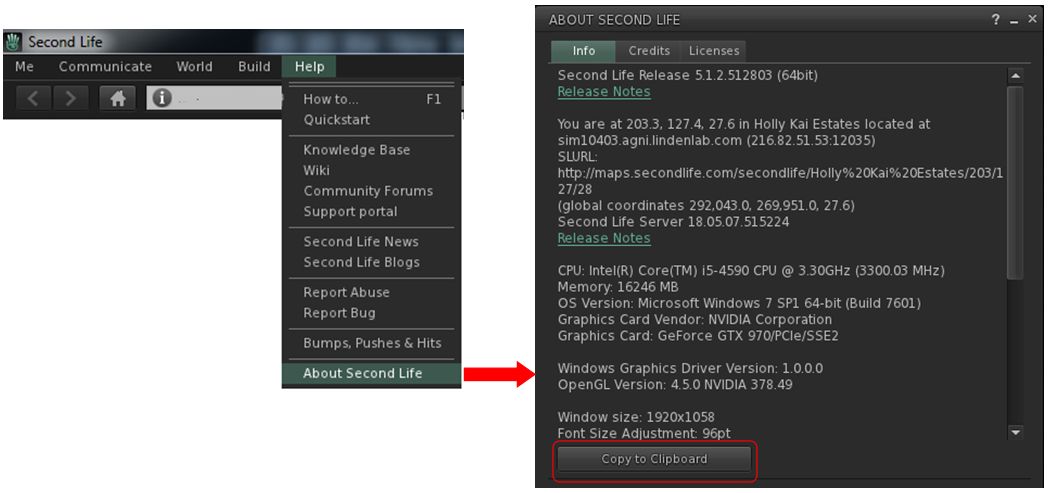
Obtaining environment information through your viewer
Optional Fields

The following fields are optional, and can be used to provide any additional information you may feel is useful is helping to understand / reproduce / resolve a bug.

  • Is There Anything You’d Like To Add? use this section to add any further information you think might be of value in assessing the bug – or leave blank if not required.
  • Where: an additional field for entering the SLurl for the region where the issue was encountered (a Map link can also be used).
  • System: two fields to help refine the nature of the issue.
    • The first allows you to select the affected area of Second Life: viewer, simulator, SL website, Linden-made content in SL.
    • The second offers a series of further options based on the first section.
  • Attachment: use this option to add any suitable attachments to the report, such as images of the issue and / or of error messages or your viewer’s log files (see Log Files for more).
    • Multiple images can be submitted, but ensure each is clearly labelled / annotated and properly referenced in the relevant text fields in the first part of the bug report form.
    • Note that individual attachments can be no larger than 10 Mb.
  • Security Level: a drop-down to select the security level to be assigned to the report. These are:
    • Public – viewable to anyone logged-in to the Second Life Jira.
    • Triagers and Reporter: only viewable by those with specific Jira access and the person raising the report – anyone else trying to view it once filed will receive a “permission violation” message.
    • If you are unsure of which to set, leave this option as Public.

Log Files

One of the most useful aids for helping to deal with bug reports are Second Life log files. All viewer log files can generally be found in the following locations:

  • Windows log files location: C:\Users\[user name]\AppData\Roaming\SecondLife\logs.
  • Mac OS log files location: /Users/[user name]/Library/Application Support/SecondLife/logs.

The relevant log files you should include with your bug report are:

  • SecondLife.log: stores status and debugging output from the Viewer during the current logged-in session.
    • This file grows while the viewer is active. If it gets too large, it is trimmed by the crash logging application.
  • SecondLife.old: when the viewer re-starts, it renames the existing SecondLife.log to SecondLife.old. SecondLife.old is used when the Viewer reports a freeze in the previous execution.
  • SL_Launcher.log: stores status and debugging output of the launch and update processes that start the viewer or update it. This file is appended to, not overwritten, but will be trimmed over time.
  • SL_Launcher.old: back up copy of SL_launcher.log created from the prior launch.
  • SecondLife.start_marker: a marker file that should only live as long as the Viewer is running.

You can combine these log files into a compressed (ZIP) file for easier attachment to your bug report.

Submitting Your Bug Report

When you have confirmed the information is correct and as clear as possible, and any images / files you wish to include are attached, click the Create button at the bottom right of the form to file your bug report.

Refer to What Happens Next?, below, for information on what happens to a filed bug report.

Security Exploits (SEC)

A Security Exploit report is a special kind of bug report designed to deal with threats to Second Life, its Residents or content. Examples of Security Exploits include:

  • Exposure of real life Resident identity without consent.
  • Risk of destruction of content.
  • Permitting unauthorised access to Second Life/Linden Lab resources.
  • Compromising a client or server host, subjecting it to remote control, potential griefing vectors, etc.

There are two ways to file security exploits:

  • Via a Second Life Security Exploit report, as described here. This is the preferred method of raising such issues.
  • Via email to security-at-lindenlab.com.

Notes:

  • By their very nature, SEC bug reports are not available for public viewing.
  • SEC issues should be reported as soon as they are identified, together with all relevant viewer / simulator environment information.
  • The SEC project (and security mailing list) is only for reporting security exploits that might compromise a Residents identity or the Second Life Grid. All other requests including account issues and account security will not be addressed – these should be reported directly via the Second Life Support Portal.

SEC Bounties

Linden Lab offer a L$10,000 (approx US $40) bounty for each previously unknown exploit that can be verified. These bounties are generally awarded after the reporter helps confirm that an issue has been fixed, and are contingent on not disclosing the issue prior to Linden Lab resolving the issue.

Filing A Security Exploit Report (SEC)

  • Log-in to the Second Life Jira using your Second Life log-in credentials.
  • Click on the blue Create button in the top menu bar.
  • Check the top of the form an make sure Project is set to 2. Second Life Security Exploit (SEC). Use the drop-down to set it, if required.
  • Note that Issue Type will automatically default to Bug.
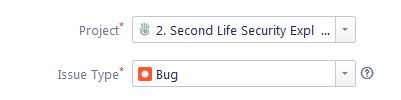
When filing a SEC report, make sure the Project drop-down is set to 2. Second Life Security Exploit
Basic Tab
  • Summary (required field): provide a concise summary of the exploit (also forms the report title).
  • Environment (required field): use this section to provide information on the environment – viewer and simulator – in which you encountered the problem. This information can be obtained directly from the viewer as follows:
    • Make sure you are in the region were you encountered the issue (this must be done when reporting possible simulator exploits).
    • In the viewer, go to Help → About Second Life → Info tab.
    • Click on the Copy to Clipboard button at the bottom of the tab.
    • Paste this information into this report.
  • Description (required field): provide a clear and unambiguous description of the exploit.
    • Provide step-by-step instructions on how the exploit can be revealed / leveraged and to ensure a “solid reproduction” of the issue.
    • Include information on all notable uses, events, indicators, outcomes, information exposed, etc., related to the exploit (and as relevant to the exploit).
    • If the exploit is specific to a location in Second Life, supply a SLurl or map reference to that location.
  • Attachment (optional): use this option to add any suitable attachments to the report, such as images showing how the exploit works and / or its outcome.
    • Multiple images can be submitted, but ensure each is clearly labelled / annotated and properly referenced in the relevant sections described above.
    • Note that individual attachments can be no larger than 10 Mb.
Advanced Tab
  • Priority (optional): set your considered priority for the issue. Note that this may be adjusted when the SEC report is triaged.
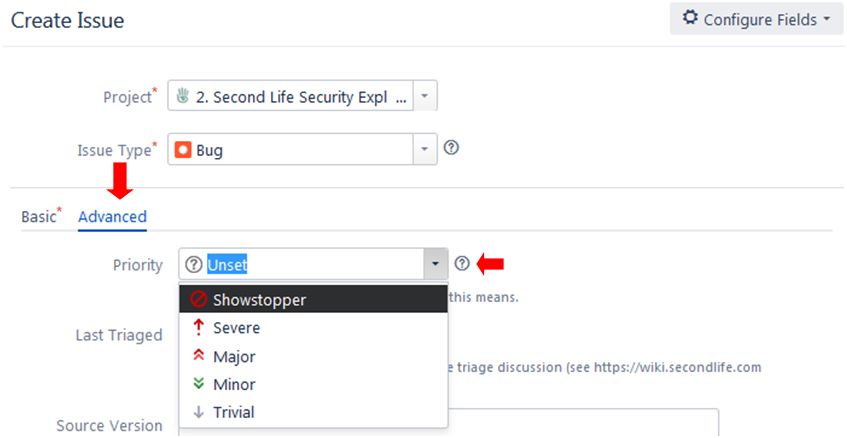
You can use the Advanced tab to set the severity of the exploit (This can also be done by the Lab when the issue is triaged)
  • Please do not complete any other parts of the Advanced tab of the form.

Submitting Your SEC Report

When you have confirmed the information is correct and as clear as possible, and any images / files are attached, click the Create button at the bottom right of the form to submit your bug report.

Refer to What Happens Next?, below, for information on what happens to a filed SEC report.

Commenting on Filed Reports

Sometimes after filing a bug report, there may be additional information you wish to add. You can generally do this via the Comment button at the bottom of a bug report page.

  • Who can comment on a bug report depends on a variety of factors, including general permissions, the security level for the report (Public or Triagers and Reporters), together with the current status of the report (Open, Needs More info, Accepted).
  • If the Comment button is unavailable, you will need to request permission to make JIRA comments. Send  an e-mail to letmein-at-lindenlab.com, giving your avatar name and a clear reason for requesting access.
  • Note that you do not need comment rights in order to file bug reports or feature requests.

What Happens Next?

The Jira Workflow

A submitted bug report follows a set workflow, as shown in the diagram below.
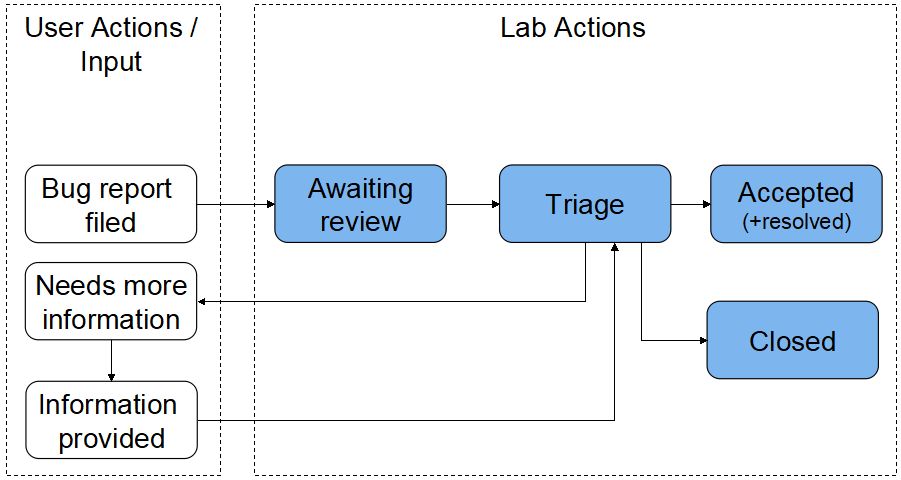
The Jira workflow – simplified
  • Awaiting Review: when you submit a bug report, it enters a queue for review (triage) by the Lab’s QA and Product teams.
  • Triage: incoming bug reports are triaged on a daily weekday basis. The outcome is generally one of the following, as indicated in the status area of the report:
    • Needs More Information: if the report is vague or not easy to understand or doesn’t contain sufficient information needed to reproduce a bug, it will be flagged by the Lab as Needs More Information from the reporter.

      • This sets the Needs More Info flag on the report. In addition, a comment is generally provided by the Lab as to what is required.
      • The reporter should review the report and any comment(s) recorded by the Lab, and attempt to provide the missing information.
    • Information provided: when additional information has been added to a report, it is essential the Info Provided button is clicked. This will update the bug report to inform the Lab that the information has been supplied. Note that a failure to click the button could result in a delay in the report being further actioned.
The Needs More Info flag (arrowed) and the Info Provided button (highlighted in red)
  • Accepted: the report is accepted by the Lab and cloned into their internal Jira system for tracking. However:
    • Accepted does not mean a bug report will acted upon immediately. There are a number of factors which may influence if / when it may be actioned, including things like the severity of a bug and work in progress which may help resolve a bug. As such, a bug report can remain as Accepted for an extended period of time. before any action is taken.
    • Sometimes, on further reviewing a bug report internally, Linden Lab may request even more additional information, and will re-open the original report to comment / update to allow users to do so. Therefore, you should always maintain a watch on the bug reports you have filed.
    • Once an accepted bug report has been actioned and the issue resolved, the originating report will be Closed with a status of Resolved.
  • Closed: typically, a bug report will be closed and annotated with one of the following reasons:
    • Contact Support: the issue is not a bug and should be handled through the Support Portal or Second Life Answers.
    • Expected Behaviour: what has been reported is seen as “normal behaviour”, and so no further action will be taken.
    • Duplicate: there’s another issue about the same problem.
    • Cannot be reproduced: the bug, as described, cannot be reproduced, and therefore cannot be investigated / resolved.
    • Unactionable: the described issue is not in a form that allows action to be taken (e.g. the report doesn’t define a bug / problem, etc.).
    • Not Applicable: the reporter has decided to close the issue.
    • Resolved: it is believed the issue has been fixed / resolved.

Where Next?

Bakes on Mesh – a basic primer

Updated with an overview of “Bakes on Mesh appliers” for Mesh bodies and head yet to be updated to support BoM.

Monday, August 26th, 2019 saw the formal release of Bakes on Mesh (BoM) for Second Life, and with it, an attempt to make system wearables (skins, tattoo and clothing layers) usable on modern mesh avatar bodies, utilising the avatar Bake Service and without the need for a dedicated applier system.

While Bakes on Mesh has been in development for over years, and much of it is known to many users, this article has been written to provide something of an introduction / overview of BoM, covering things like system wearables, the Bake Service, that changes that have been made, where to find information on using BoM, and what it may mean for Second Life users in the future, depending upon how well the capability is received by creators.

Some Basics

System Wearables and the Bake Service

System wearables as they appear in inventory

Without going too deeply into specifics for those unfamiliar with them, system wearables are a special kind of inventory asset (some of which are shown on the right) that can be directly worn / added to the system avatar to produce a “dressed” look.

These wearables come in a number of “layers”- skin (which must always be worn on the system avatar), tattoo, undershirt, shirt, and jacket.

The naming of the layers isn’t that important – a creator could be assign a bra or a shirt or a pair of pants to any one of the tattoo, undershirt, shirt and jacket layers, depending on how flexible they want their clothing to be. What is important is that the always follow an hierarchy: skin is always at the bottom and so “covered” by the other layers, which are in turn “covered” by the next (so undershirt wearables always apply “over” tattoo wearables; “shirt layers “over” undershirt wearables, etc), with the avatar able to wear up to 62 wearables in any combination of layers at one time.

This might sound very complex, but for those familiar with the system, it is very easy to grasp; however, what is important is what comes next. When an avatar’s look is complete, the information about all these wearables are sent to the simulator and then to a back-end set of servers called the Bake Service over a series of channels called the “bake channels”, which define where the layers appear on the avatar. These channels are:

  • BAKE_HEAD, which defines all the wearable elements that have been applied to the head (e.g. skin, and tattoo layers used for make-up)
  • BAKE_UPPER, which defines all the wearable elements – skin plus any tattoo, undershirt, shirt and / or jacket layer(s) that have been applied to the avatar body above the waist and below the neck (with the left arm mirrored from the right).
  • BAKE_LOWER, which defines all the wearable elements – skin plus any tattoo, undershirt, shirt and / or jacket layer(s) that have been applied to the avatar body from the waist to the feet (with the left leg mirrored from the right).
  • BAKE_EYES and BAKE_HAIR (both pretty self-explanatory).
  • BAKE_SKIRT, which defines skirt / dress style wearables.

The Bake Service then composites (bakes) the layers received on each of these bake channels into a single texture, and sends the results out to every viewer able to “see” the avatar. So, for example, facial / head skin and any make-up tattoo(s) received via the BAKE_HEAD channel are baked to become a texture seen on the avatar’s head, while the layers received over the Bake_Upper channel are baked into a texture seen on the avatar’s upper body, and so on, ensuring the avatar consistently appears to everyone dressed at the user intended, while also removing the need for individual viewers to manage the complex layering and rendering of all the individual wearable layers on other people’s avatars.

Mesh Bodies and Complexity

Since their introduction, mesh bodies have not been able to leverage this approach. Instead, they require a dedicated “applier” mechanism to achieve the same ends, together with the use of an alpha layer to hide the system avatar.

Further, to enable clothing items to be layered – so you can have an applied shirt / blouse appearing to be “under” a jacket, for a example, mesh bodies have had to be constructed in a complex manner, with several layers closely packed together (colloquially called “onion layers”) that effectively mimic the system wearable layers. This actually makes the avatar a lot more complex than they otherwise might be, resulting in their relatively high rendering costs.

Enter Bakes on Mesh

So, Bakes on Mesh has been developed to allow system wearable to be applied directly from inventory to worn mesh faces (e.g. avatar bodies and wearables) that have been correctly flagged by the creator to support Bakes on Mesh. Through Bakes on Mesh, Linden Lab hopes:

  • Users can avoid the need to use appliers, but can add wearables to their mesh avatar directly from inventory.
  • Creators will be able to simplify avatar mesh bodies and heads by removing the need for some of the “onion” layers. This should – if done – reduce the rendering complexity for bodies and heads, thus hopefully improving people’s SL experience (as avatars won’t be quite so resource intensive or require quite so much “assembly time” when encountering them on logging-on or after teleporting somewhere).

Notes:

  • As with all new features, use of Bakes on Mesh will only be apparent to those actually using viewers running the Bakes on Mesh code; anyone not on such a viewer will likely see something of a mess.And as with new features, it will take time for the Bakes on Mesh code to be implemented by all TPVs.
  • Bakes on Mesh does not mean user “have” to go back to using system wearables nor does it mean that applier systems can no longer be used. It is simply a means of making system wearables work with mesh bodies and heads, hopefully with the benefits given above. Those who wish to can continue to use applier-based clothing as they always have.
Bakes on Mesh adds new options for applying suitable textures to the baking channels for application on a mesh body by the Bake Service

An introduction to using BoM can be found in the Bakes on Mesh Knowledge Base article. This includes information on trying BOM using a test mesh body – the best way to do this is to use Aditi, the beta grid. I’m not going to go into specifics here, simply because there are multiple resources available to assist users and creators – some of which are noted at the end of this article, and I want to keep this as a more general, easy-to-understand primer.

When considering Bakes on Mesh it is important to remember it is not necessarily intended as an outright replacement for appliers and current mesh bodies from the get-go. Rather, it is initially an alternative – although if the popularity / take-up among creators and users are sufficient, then over time it could obviously become the system of choice over appliers and more complex mesh bodies. However, existing mesh bodies / heads and applier systems will continue to work as they always have.

Key Points of Bakes on Mesh

This list is not exhaustive, but is intended to give a feel for Bakes on Mesh and its use:

  • System skin layers, tattoo layers, clothing layers and alpha layers all work – the mesh just needs to be flagged by its creator as supporting Bakes on Mesh and correctly set-up for alpha layers to work as intended.
    • As an alternative, there are assorted “BoM appliers” designed to work with mesh bodies  / heads that have not (yet) been updated with Bakes on Mesh support – see below for more.
  • You do not need a full body alpha to wear a Bakes on Mesh flagged mesh. If the flag is present when you wear the mesh, the body section it is flagged for disappears. So, if you wear a lower body “Bakes on Mesh ready” avatar part, then entire lower body of the system avatar will disappear.
  • The Bake Service has been updated to support 1024×1024 resolution textures, so it offers the same texture resolution for wearables as offered through applier systems (prior to Bakes on Mesh the maximum resolution for wearables was 512×512).
    • Obviously, the wearable must be made at this resolution in order to utilise it; a 512×512 wearable will not magically appear to be 1024×1024 resolution when applied.
  • In order to be fully effective, mesh bodies using BoM and BoM wearables should match the system avatar UV map as closely as possible.
    • Fortunately, most of the current range of avatar bodies sold under brands such as Maitreya, Slink etc., do tend to stay close to the system avatar UV map. So any new BoM-specific versions / updates should continue to do so.
  • Alpha support means that  layers means that mesh bodies should no longer need to be split into multiple pieces for individual alpha-masking to prevent a body clipping through clothes. Alpha requirements are back in the hands of the clothing creator, and should be made alongside the clothing, so that when used and providing the body is correctly set-up they should just “work”. In addition, clothing makers may not longer need to include auto alpha scripts.
  • Changing mesh body parts should be easier, providing both bodies are flagged to use Bakes on Mesh. The body takes whatever is worn on the system body – skin and make-up instantly appear on each change of head, for example.
  • Skin makers will be able to offer more options by including tattoos with their skins, allowing for a variety of make-up options, whilst there will no longer be any limitation on the use of tattoos (one per zone).
  • Applier support will still be required for the following: nails; eyelashes; standalone ears, hands, feet, lips, bust implants, etc.; lip gloss; materials finishes (see Some Possible Points of Contention, below); neck blenders, anything not intended to look “painted” on.

New with Bakes On Mesh

To provide full “wearables” support, Bakes on Mesh introduces some new elements that will be of key import to creators:

  • The introduction of 5 new bake channels – LEFT_ARM_BAKED, LEFT_LEG_BAKED, AUX1_BAKED, AUX2_BAKED, AUX3_BAKED:
    • These can only be used with Bakes on Mesh, and are not available to the system avatar.
    • LEFT_ARM_BAKED and LEFT_LEG_BAKED are intended to help with making mesh avatars where the left and right limbs have different textures (and so can be asymmetric, as can currently be achieved with applier systems).
    • The AUX channels are general purpose, and could be used for body regions not possessed by system avatars (such as wings) or for other purposes.
    • This means BoM has 11 possible channels for wearables to use for textures, and for the baking service to produce.
    • However, the new channels listed above do not have alpha support like the other channels, and so cannot have “holes” cutting through the mesh face they are worn against.
  • BOM also adds a new wearable type called Universal.
    • While specifically added to allow the wearing items that use the new  channels described above, the Universal wearable has slots corresponding to all 11 of the bake channels, offering extensive flexibility of use. In layering order, universal wearables go between the tattoo and body layers.

Note that for others to see your avatar correctly when you are using Bakes on Mesh they must also be using a Bakes on Mesh viewer. If they are not, they will see your avatar as a mesh of red, blue and yellow colours showing through your mesh parts.

Left: Bakes on Mesh when seen via a non Bakes on Mesh viewer: the system avatar will show through the mesh body parts, covered by default system-supplied BoM marker textures. Centre and Right: using a “Bakes on Mesh applier” on a non-BoM body and head and via a Bakes on Mesh capable viewer. The centre image shows the “before” avatar state: the system layer skin and clothing are worn, but do not conform to the mesh body and head (which must be worn without their corresponding alphas for this type of applier to work), and so “poke through” (highlighted in places by the red circles). The right image shows how things look after the”Bakes on Mesh” appliers have been used – the system layer clothing and skin now mostly conform to the mesh head / body, with the exception of fingers and toes (highlighted) which will generally require an additional “glove” or “mask” fix.

“Bakes on Mesh Appliers”

During the testing of Bakes on Mesh, at least two experimental applier systems were produced to allow BoM to be tested on non-BoM flagged bodies and heads. For example, Omega produced an experimental BoM applier system, with instructions here.

Since then, and given that several mesh body and head creators have yet to produce BoM flagged updates to their bodies / heads, several more such “BoM appliers” have been produced, some of which are available for free, some are provided by the mesh head / body creator, and others are available at a nominal cost, and may be for specific purposes (e.g. the Bakes on Mesh skin applier (Omega) by Conor Shostakovich at L$125).

These essentially work by allowing you to dress your system avatar with the required system wearables, then wearing your mesh body / head without their alpha masks, and then using the applier to apply the system layers to the mesh body / head in a similar manner to “traditional” appliers – but again, as a single composite layer when baked.

  • How effective these systems are can be variable.
  • Due to differences in the way skin skin textures / UV maps work and the way mesh bodies tend to be put together, such appliers may not work particularly well around feet and hands.

Note: links to products does not constitute endorsement. Always check the Marketplace for products and reviews.

Such appliers are intended as an interim “fix” for using Bakes on Mesh until such time as the major head and body creators provided full Bakes on Mesh support.

Some Possible Points of Contention

However, there are what might be regarded by some as “negatives” around Bakes on Mesh, a couple of the more prominent ones being:

  • The Bakes Service – and thus Bakes on Mesh – does not support materials (normal and specular maps). How much this impacts people’s acceptance of BoM is open to debate. However, when needed, materials still can be added manually (if the mesh / mesh face in question is editable) or via a suitable applier.
  • Appliers are convenient, as they are an all-in-one solution requiring only one or two items in inventory – the outfit applier HUD and possibly an intermediary relay tool like Omega.
    • With Bakes on mesh, wearables are all individual inventory assets, which could lead to inventory growth, some of which might be quite extensive as a result of creators providing multiple options / layers (although in fairness, some applier systems can be like this – I have seen a Hugo’s Design outfit with no fewer the 40 individual items, both system layer clothing and multiple applier options).
    • Some of the inventory “bloat” BoM might cause can potentially be managed via the use of the viewer’s Outfits capability (although this obviously also adds to bloat with inventory links) or via a new form of applier system that utilises system wearables created at 1024×1024 resolution.

How much these may impinge on consumer’s willingness to adopt BoM remains to be seen.

Closing Remarks

Like all new capabilities, Bakes on Mesh will take time to gain understanding and traction. Also like all new features, it has its outright fans, and those who have – even before really getting to work with it in earnest – decided its is bad / wrong / pointless / a step back, etc.

I’m personally sitting in the middle. If it does what is claimed on the tin, and if it gains traction among mesh body and head creators (and several have been working on BoM for the 12+ months its been in development) and clothing creators, then it could do its own little bit towards a better “optimisation” (quotes used intentionally, as there is still a lot more than can be done in terms of optimisations cross SL), and make things a little better for everyone.

But it will take time for Bakes on Mesh to mature in terms of general use – creators need to update their heads / bodies (although Slink is apparently ahead of the curve, and their new bodies are said to work with existing appliers, and other creators may also be providing products / updates, I’ve just not encountered any as yet). Those making system wearables are going to need time to update to the 1024×1024 where preferred (if they haven’t already, and so on. And, most obviously, it will take a little time for the Bakes on Mesh code to percolate out to all TPVs.

In the meantime, some links to useful resources.

Resources


Projectors as mirrors in Second Life

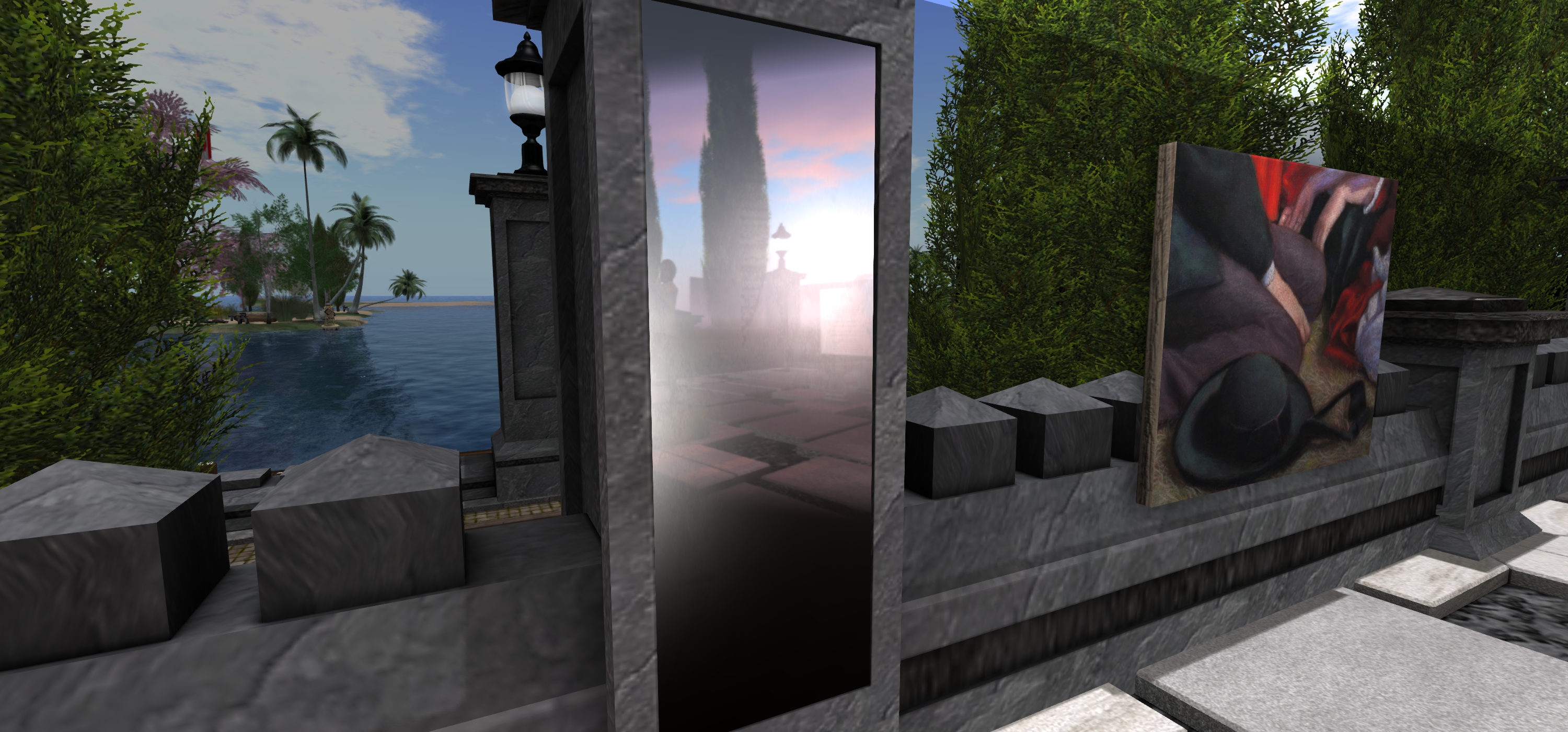
Using a projector and “reflective” surface in SL to creator a mirror in our living room at home. Note how the “reflection” changes as the viewing perspective moves

Second Life lighting projectors are an extremely useful capability that can be put to a wide variety of uses. I first covered their basics far back in 2011. Since then they’ve been notably easier to use (and that original article was subsequently updated to reflect this).

In 2016, for his art display, Mirrored Garden, at Holly Kai Garden (see here for details), Silas Merlin demonstrated a means to create mirror-like effects in Second Life, with a number of “mirrors” mounted around his sculptures “reflecting” them and the garden in which they were being displayed. I’ve since seen a number of SL artists use a similar approach to add depth to their work, and in April 2018, Adeon Writer offered a video tutorial on using projectors to create “portal-like” effects.

One of the “mirrors” Silas Merlin created for his Mirrored Garden art exhibition at Holly Kai Park in April 2016

Given the latter, I thought it high time a revisited a draft of an article about Silas’ approach I started in 2016, but never quite finished (my apologies to him), gave it a polish and present it as a tutorial for those interested in using projector-based “mirrors” in SL.

Prerequisites

  • For this time of “mirror” to work, those looking at it must have viewer’s Advanced Lighting Model (ALM) enabled via Preferences > Graphics. Anyone who does not have ALM enabled will just see a blank surface instead of any reflections.
  • The “mirror” itself is made up of a number of elements: the “reflective” surface itself (which can be a mesh or prim face), and one or more lighting projectors – the exact number and their placement will be subject to the effect you are trying to achieve.

For this tutorial, I’m producing a single “mirror” using a single projector to create a finished item – a simple household room mirror. Adeon’s video provides an outline on how to use multiple projectors to achieve a result.

Create the “Mirror”

The “mirror” is simple flat surface (face) of a prim or mesh. When done, it can be made part of a more ornate item – so you could add a frame around it, etc.).

  1. Create a prim and size it.
  2. Right-click the prim and click the Select Face radio button, then click on the face of the prim you want to make “reflective”.
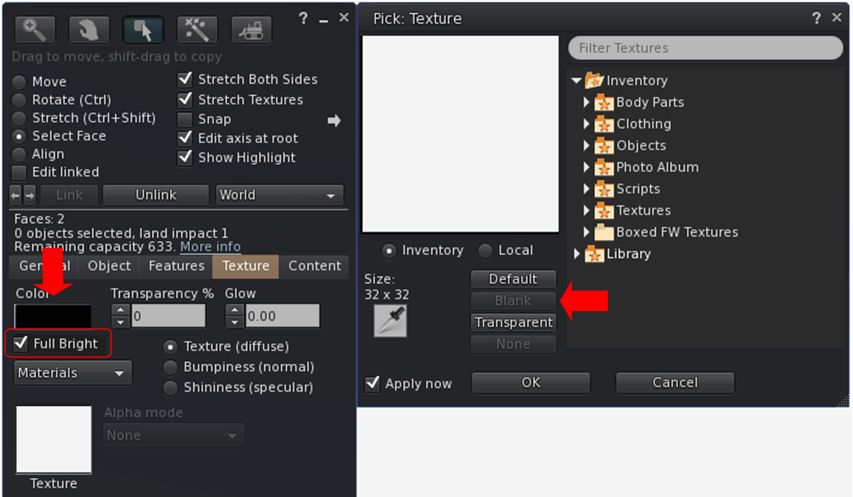
  3. In the Edit > Texture tab:
    • Use the texture picker to set the texture to Blank.
    • Set the colour of the face you have selected to black and leave Transparency at 0
    • Enable Full Bright to reduce unwanted reflection of nearby lights.
Setting the texture options for a reflective “mirror” surface.
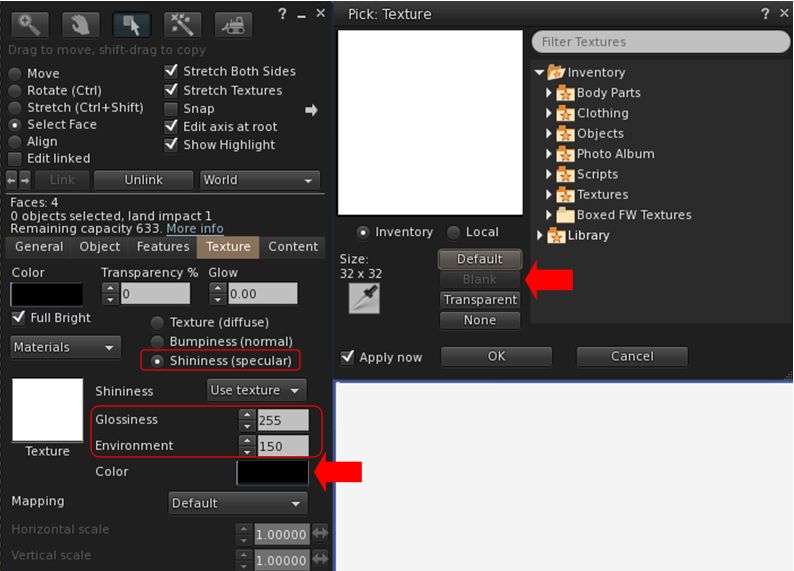
  1. Click Shininess (specular) radio button and:
    • Use the picker to set the map to blank (white).
    • Set Glossiness to 255 (highest).
    • Set Environment to a value that works best for your overall lighting conditions – generally speaking, higher is better.
    • Set the specular colour swatch to black to further reduce unwanted light reflection.
Setting the specular options for your reflective “mirror” surface

Create Your “Reflections”

This can sound complicated, but it’s actually relatively straightforward, requiring two main steps: create an image that will form the “reflection”; create the projector that will use the image.

Create the “Mirror” Image

  1. Position your “mirror” in the location you intend to hang it. Position your camera “in” the “mirror”, and facing out – so you are looking from the “mirror’s” point-of-view (e.g. from the wall on which it hangs looking out into the room it which it is hanging).
  2. Take a snapshot at a reasonably high resolution.
  3. Use an image editing tool to crop the image to give the desired look for the “reflection” – and flip it horizontally before saving.
  4. Repeat for any additional projectors you are using, taking your snapshots from the perspective of each projector.
  5. Don’t upload the texture(s) as yet.

Create the Projector(s)

Repeat the following steps for each of the projectors you’ll be using.

  1. Create a prim.
  2. Edit the prim and select the Features tab.
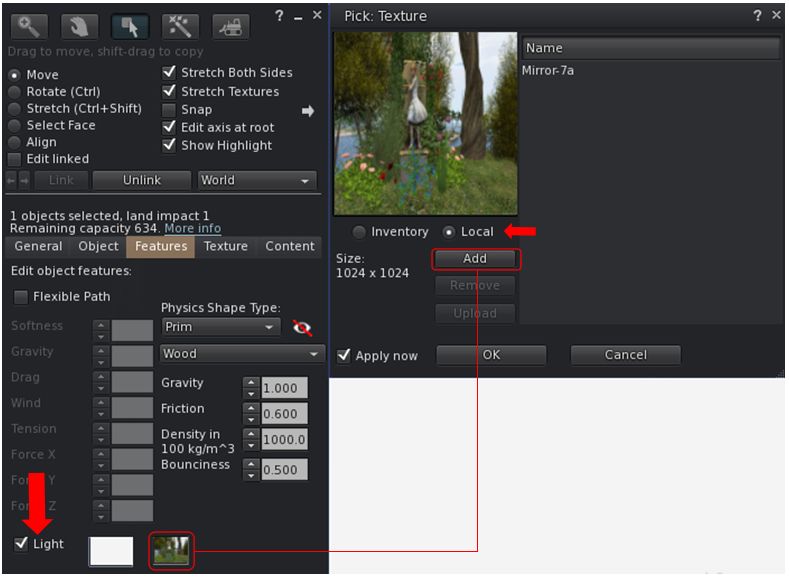
  3. Check the Light option to enable it and then:
    • Click the second box alongside the Light option to open the texture picker.
    • Click the Local radio button.
    • Use the ADD button to allow you to select the projector texture from your hard drive (note: only you will be able to see the results when using the Local option, but it allows you to experiment without having to upload textures multiple times).
    • When you have selected the required texture it will appear in the texture list on the right of the picker.
    • Click on the texture name to select it; the texture will be applied to the bottom face of the prim.
Applying a texture to a projector

Continue reading “Projectors as mirrors in Second Life”

Tutorial: creating Second Life Place Pages

The Holly Kai Park Place Page banner
Introduced in 2017, Place Pages are a means to allow region and parcel owners to create a web browsable page (hosted by the Lab) for their location(s) in-world. These pages can then be shared through blogs, websites, Twitter, Facebook, etc., offering a means to promote those places to a broader audience, advertise events, etc so on. Table of Contents

In addition, all published Place Pages can be searched via the Place Page home page, or browsed as thumbnails.

There is an official Knowledge Base article providing information on creating and using Place Pages, but I thought I’d offer a step-by-step guide to setting-up one or more Place Pages.

Place Page Features

A Place Page showing the use of images, descriptive text and the inclusion of an events calendar. Click for full size

By default, every region and parcel in Second Life has a Place Page associated with it, derived from information in the parcel’s existing profile. These are provided in a default format, complete with place holder image. Each page comprises a number of features:

A banner “hero” image, together with additional images which can rotate as the page is refreshed or as a slide show; descriptive text; options for:

  • Listing a calendar of events.
  • Showing a region’s covenant – useful for residential rental regions).
  • Showing items for sale.
  • Adding a YouTube video.

Buttons to allow visitors to the page to launch their viewer and teleport directly to the location (assuming they are Second Life users – if not, they’ll be taken to the SL sign-up page).

In addition, a region’s Place Page can include a list of surfaced parcel Place Pages, and parcel Place Pages will include a link back to their “parent” region’s Place Page.

Prerequisites for Managing Place Pages

In order for you to be able to use the Place Pages to promote your in-world locations, certain criteria must be met:

  • You must own the parcel / region in question OR you must be assigned a the group ability to Toggle ‘Show Place in Search’ And Set Category within the group owning the land
  • For a parcel’s Place Page to be public, About Land > Show Place in Search for the parcel must be checked (incurring a weekly fee of L$30).

Managing Your Place Pages

Setting-Up a Place Page

  • Visit the Place Pages dashboard and log in using your Second Life credentials.
  • Access your available place pages either by clicking your name in the top right corner of the page and selecting My Places, or by clicking on My Places just below the banner.
Accessing your available Place Pages
  • Depending on your land holdings (e.g. the number of regions, the number of parcels on those regions), your list of available Place Pages might be short or long. Each Place Page item provides a summary and a default image.
  • Note:the Is Viewable? column in the list determines whether or not a Place Page is viewable or not.
    • True indicates the page is publicly viewable.
    • Not Viewable indicates the Place Page cannot be publicly viewed, either because you as the owner have set it that way, or because it relates to a parcel which does not have Show Place in Search checked within its About Land floater.
Sample Place Pages listing – note the region / parcel differentiator

When you have located the Place Page you wish to edit, click Edit on the right of the listing to open the Page in default / edit view. This comprises a number of easy-to-understand sections, complete with explanatory text.

  • Details: this section allows you to determine if the Place Page is publicly viewable, and define the information it displays.
    • Disable This Place Page: prevents the page being publicly displayed.
    • Show Covenant: displays the covenant associated with the land (if provided).
    • Items for Sale: item must be set to Show in Search on the General tab of the object editor window, and will be listed with price, description and a teleport button. Note that items not for sale will also be listed, but will appear at the end of the list with Not Available in the price column.
    • Show Calendar: displays a calendar of events for the region / parcel. Event must be created via the  Events section of your Second Life dashboard at secondlife.com.
    • Title: the title for the Place Page – shown overlaying the banner image.
    • Tag line: 150-charcter tagline for the Place Page, shown overlaying the banner image.
    • Description Editor: for entering formatted descriptive text to be displayed on the Place Page.
  • Optional: this section provides you with the ability to set the page, font, and link colours used on the page. There is also a space to provide a YouTube URL.
    • Note that at the time of writing the link colour only applies to the links in the Parcel Information section of your page; it does not apply to any links you may include in the description section of your page or any events listed with a calendar (if present). That can create visibility problems with these links, depending on the page background colour selected.
  • Images: Section for uploading at banner / Hero image and additional images that are displayed in rotation on the finished page.
  • Stats: general information on the region / parcel automatically displayed on the finished page as Parcel Information.

At the foot of the page are buttons to Update the page with any changes you have made, or Cancel them. Note that clicking Update will refresh the page and display your changes.

Including Parcels in a Region Place Page

If you have more than one parcel in a region, you can automatically include all of your visible parcel Place Pages in the region’s Place Page. Note, again, parcels must have how Place in Search set within their About Land floater (incurring a weekly L$30 fee) in order for them to appear on their “parent” region’s Place Page.

Parcels in a region can be listed in the region’s Place Page

Continue reading “Tutorial: creating Second Life Place Pages”

Clouds and windlight skies by Stevie Davros

Saturn over Holly Kai Park, via the Cosmic Skies clouds set by Stevie Davros

ARCHIVE ONLY – SUPERCEDED BY EEP

  • Update, December 29th: Stevie has produced a range of EEP sky / cloud sets for people to use / modify to suit their needs – see Paint your skies with Stevie Davros’ EEP sets.
  • Update, June 2020: The EEP project mentioned at the end of this article was officially released on April 2020. EEP includes some significant differences to hose .XML environment files and .TGA cloud files are used.  For further information on EEP, please refer to:
    • My EEP Primer article, for a general overview of the capability and its viewer-side elements, or
    • My EEP Tutorial for an in-depth look at the EEP controls in the viewer.


During the Friday, January 26th, 2018 TPV Developer meeting, mentioned was made of cloud texture sets produced by Australian photographer Stevie Davros, which he offers for sale through the Marketplace. Curious, I decided to go and take a look and have a play.

In all, Stevie is offering five sets of cloud textures at prices ranging from L$99 through to L$599. These are essentially collections of .TGA files designed to replace the cloud texture found in the viewer, and a selection of associated windlight sky .XML files specifically designed to work with the cloud textures, together with comprehensive set of installations instructions and links to his installation videos. To help people understand how they work, Stevie provides a sixth demonstration set for free.

As delivered from the marketplace, each set comprises a note card providing a general introduction to the sets, and a set of links, as follows:

  • A link to a Dropbox file location where the actual files for installation can be downloaded.
  • A link to a YouTube slide show of the various cloud textures.
  • A link to his set of Flickr albums showings the cloud images.
  • Assorted links to windlight tutorials.
The JuilaSet clouds and ~Clouds_JulietSet_Blue_Day windlight .XML by Stevie Davros (Sci-Fi and Fantasy clouds)

On receipt of a note card (delivered to your Received Items in its own folder), simply copy / paste the Dropbox link into your web browser to display a preview of the download ZIP contents (thumbnails of the folders and instruction files), and click the Download button, top right of the web page – don’t download the individual files.

I’m not going to run through the installation process here, as Stevie provides a comprehensive guide in both .PDF and .RTF formats, and links to his installation videos. Some file manipulation is required, but providing you are comfortable navigating a folder / directory hierarchy via your computer’s file manager / explorer, and with renaming files and copy / pasting files, you shouldn’t find the installation that taxing. Suffice it to say that the downloaded ZIP contains:

  • A choice of folders with the cloud .TGA files – one for PC, one for Mac OSX. These are intended to replace the default cloud texture provided in the viewer.
  • A folder of .XML windlight files that can be used with the cloud textures. Copy the contents of this folder to your viewer’s user windlight skies folder, rather than the viewer’s main windlight skies folder.
  • Installation instructions in .PDF and .RTF.
  • Two images used in the installation instructions.
The JuilaSet clouds used with Annan Adored’s Morning Dream windlight

For most viewers, using the different cloud textures requires renaming the texture you wish to use via your computer’s file manager, and restarting their viewer. Again, Stevie’s installation instructions explain what is required.

If you use Firestorm, you can simply copy all of the cloud textures to the viewer’s windlight\cloud folder and select your required cloud texture from the Preferences → Windlight → Cloud Texture drop-down, although a viewer restart will still generally be required to apply the change.

Note: when re-logging after selecting a custom cloud TGA, you may either:

  • See no change in your sky if you are in a region using the default sky settings, or
  • Things might look initially messy.

If this happens simply switch to a suitable windlight setting – see below.

There are a wide variety of ways to access windlight .XML files depending on the viewer you are using. Within the official viewer, windlights are access via the World menu → Environment Editor and then using either the Environment Settings panel or Sky Presets → Edit Preset floater, using the drop-down on each to select your preferred windlight setting (see below).

Selecting windlight pre-sets from the World menu in the official viewer – click for full size, if required

When applying the cloud textures and windlights supplied by Stevie, it’s worth keeping the following in mind:

  • Some of the cloud textures have recommended or specific sky .XML presets for use with them. For example, in the Cosmic Skies set:
    • The JuliaSet clouds have set of associated .XML files with the prefix ~Clouds_JuilaSet_[name]).
    • The Saturn cloud texture requires the ~Clouds_Saturn windlight sky in order to display correctly (the planet will display with some other windlights, but generally appears distorted)
  • Some of the cloud textures can look rough – faint rings may appear in the sky, the texture repeats might have a definable edge, etc. These issues can generally be corrected by adjusting the amount of cloud cover using the appropriate slider (e.g.  World menu → Environment Editor → Sky Presets → Edit Preset … → Cloud tab) and use the coverage slider to adjust as required.

Feedback

Given there are a lot of windlight .XML sets freely available to users, charging for them might at first seem odd – but remember, with these sets, it is not the .XMLs you are paying for, but the .TGA cloud files. How useful then might be to the individual depend on your Second Life use. Photographers will potentially find the sets to be of the most use; however, there are some points to be noted:

  • The cloud .TGA files are copyrighted by Stevie Davros. As such, although they are supplied outside of Second Life, they should be regarded as supplied under the following permissions: Copy, Modify, No Transfer, and should not be passed to other users.
  • These sets are intended to be applied on the viewer side only (in fact, the cloud .TGA files can only currently be applied through the viewer), so only you will see them in operation. However, those with their own region / with EM rights, might apply the windlight .XML files to their region.

It is perhaps also worthwhile pointing out that Rider Linden is working on the Environment Enhancement Project (EEP), which will significantly change how Second Life environments will change – read this overview about the project for more. As such, some might prefer to see how this project is implemented – testing is due to start on Aditi very soon – before purchasing sets of clouds.

Tutorial: raising Abuse Reports in Second Life

Griefing, be it through word, action, noise, or object (as seen here), etc., is one of the items covered by the Abuse Report
The following notes are drawn from a presentation Governance Team manager Tommy Linden and team member Corky Linden are making to various communities within Second Life as part of an initiative to better disseminate information about the Governance Team, and on filing Abuse Reports (ARs). The hope is that the information provided will give users a better understanding of what the Governance Team hope to see provided in an Abuse Report in order to fully investigate it.

Note that  official information on Abuse Reports can also be found in the Knowledge Base.

Table of Contents


Governance Team: Quick Facts

  • The team is relatively small – under a dozen in size – but handles an average of 400-500 Abuse Reports per day
  • All Abuse Reports get reviewed as the first stage of an investigation, with priority given to those seen as critical (such as an in-progress griefing attack).
  • All ARs that can be investigated are investigated. However:
    • How far the investigation goes largely depends on whether the AR is filed against something Governance is empowered to investigate, and how much meaningful information is supplied in it.
    • The Governance Team intentionally does not report back on the outcome of their investigations for a number of reasons. Just because the outcome might not be visible to the reporter / match their expectations when filing an AR, does not mean the report was ignored.
  • One of the biggest issues with incoming Abuse Reports is that they often lack the basic information required in order for an investigation to be properly carried out.

What is an Abuse Report?

The Abuse Report (AR) is for reporting any individual or group of avatars or any in-world object engaged in an activity deemed inappropriate under the Second Life Terms of Service  / Community Standards and/or is in contraction to the maturity rating for a region.

ARs apply to: griefing, spamming, age play, assault / pushing / disturbing the peace, disclosure of personal information, fraud, harassment, indecency and Skill Gaming violations. In addition, there are Welcome Area Guidelines governing places like Infohubs, which contain restrictions on what should not be done in those areas with any violations also subject to ARs. Report.

There are also certain things that do not apply to ARs. For example, being banned from a particular group or region or parcel, or a dispute over rental payment between residents are not actionable via AR.

ARs can be filed by anyone suffering abuse, or by those directly witnessing an abusive act. However, this does not mean teleporting multiple people into a location and having them file reports as well. Rather than “speeding up” any investigation, it can actually slow down the entire process by forcing Governance to spend time reviewing dozens of additional (and possibly contradictory) reports.

What Is The Governance Team Looking for in a Report?

The Governance Team is looking for clear, concise and consistent information in an Abuse Report, as summaries in the image below and expanded upon in the following sections.

A “good” Abuse Report, presenting all the information and making good use of a screen shot – click to open the slide in a separate tab for easier reading. With thanks to Corky Linden

Accessing the Abuse Report Floater

The AR floater can be accessed via:

  • Menu bar > Help > Report Abuse.
  • By right-clicking on an avatar or object and locating / selecting Report Abuse from the context menu / pie menu.
    • Make sure you have the right avatar / object selected when doing this.
    • Launching the AR floater using either of these two options will auto-complete parts of the form.

The following guidelines are intended to help with filing an AR.

Screen Shots

Where possible, try to include a screen shot of the situation you are reporting. It can be the most effective means of illustrating what is going on, and gives the Governance Team clear visual proof / evidence of what has happened. It can also make up for information missed from the rest of the report.

The slide below outlines some of the key points to remember when using the AR floater to capture a snapshot – click to enlarge it in a separate browser tab for ease of reading.

Abuse Report snapshots: click on the slide to open it in a separate browser tab for easier reading

Note that most viewers do not have a refresh button for the snapshot preview, so try to make sure all the information you wish to capture is on your screen. If you are unable to get a screen shot for whatever reason, it is important you provide clear, accurate information in the Summary and Details section of the report (see below).

Object Picker

The Object Picker allows you to identify an abusive object (e.g. a particle / noise spammer, a weapon, etc.), and include its name and owner in the body of your Abuse Report. Instructions on how to use it are included in the AR floater, and this section will be auto-completed if you launch an AR by right-clicking on an abusive object. Remember you can further verify the item by including it in a snapshot with the Edit floater open to show the object name & owner.

Report Categories

The Abuse Report floater includes a pre-defined, drop-down list of categories which should be used when filing a report. Notes on the *valid* categories can be found here. Note that filing under the wrong category doesn’t prevent a report from being investigated, but it can slow things down, particularly if there is insufficient information provided elsewhere in the report.

Abuser Name

This allows you to grab the name of someone causing abuse from those around you. If you launch an Abuse Report by right-clicking on an object or avatar, this section will auto-complete (make sure you have selected the right avatar), otherwise click the Choose button and follow the on-screen instructions.

Continue reading “Tutorial: raising Abuse Reports in Second Life”