After recent delays as the code passed through QA, the Materials Processing viewer unexpectedly reached beta release on Friday, May 31st with the release of version 3.6.0.275764, accompanied by a blog announcement from the Lab.
What is Materials Processing?
In case you’ve missed the news to date (if you already are, feel free to skip to the info on the viewer :)).
Materials processing brings normal and specular maps to object surfaces in Second Life (prims, sculpts and mesh – but not avatar skin / clothing layers). The capability has been developed as a collaborative effort between TPV developers (notably from the Exodus, Catznip and Firestorm teams), content creators and Linden Lab.
Note: The following two sections are not intended to be a technical discussion on computer graphics mapping or a detailed analysis of normal & specular maps. It is intended purely as a broad, non-technical of the latter.
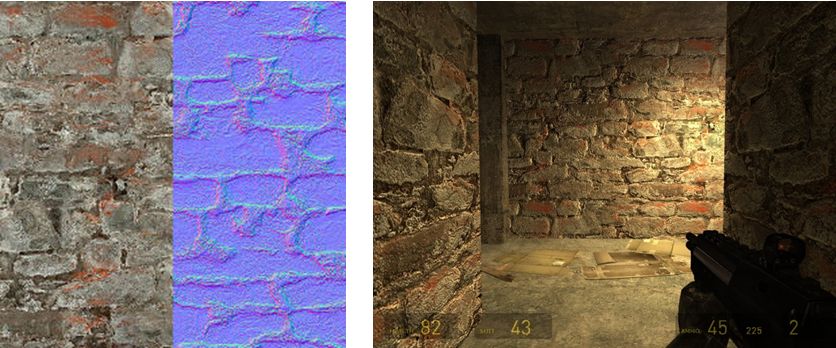
Normal Maps in a Nutshell
Normal maps (sometimes referred to as bump maps, although they are more rightly the most common form of bump map) are a means of faking high levels of detail on an otherwise bland surface by means of simulating the bumps and dips that create the detail. Normal maps can be created in several ways.
For example, when working with 3D models, a common method is to make two models of the same object: one a very complex, highly detailed model with a high polygon count, the other a much lower polygon count model with significantly less detail. An overlay process is then used to generate a normal map of the detailed model’s surface features which can be applied to the less complex model, giving it the same appearance as the highly detailed model, but for just a fraction of the polygon count, reducing the amount of intensive processing required to render it.

Another common way to produce a normal map is to generate it directly from a texture file. Most modern 2D and 3D graphics programs provide the means to do this, either directly or through the use of a plug-in (such as the nVidia normal map filter for Photoshop or the GIMP normal map plugin). When combined with diffuse maps, the normal map creates the impression of surface detail far greater than can be achieved through the use of the texture alone.
Specular Maps in a Nutshell
In the real world, every highlight we see in an object is actually the reflection of a light source. Surfaces and surface details reflect light differently to one another, depending on a range of factors (material, lighting source point(s), etc.). Specular maps provide a means of simulating this by allowing individual pixels in an object to have different levels of brightness applied to them, giving the illusion of different levels of light being reflected by different points on the object.

Like normal maps, specular maps can be produced in a number of ways, both within 3D graphics modelling programs and in tools like PhotoShop. As shown above, they can be combined with normal maps and textures to add detail and realism to 3D models and flat surfaces.
Second Life itself already includes a very dynamic example of how materials can be combined to create in-world effects in the form of Linden Water. This is created using an animated normal map to create the wave-like effect for the water, while an animated specular map adds the highlights and reflections. The result is a very realistic simulation of moving water able to catch and reflect sunlight.
Some key points about materials processing:
- Effects will currently only be visible when using the Materials Processing beta viewer
- In order to be visible in your world view, whether you are creating objects using materials processing OR whether you simply want to see them in-world, you must have the Advanced Lighting Model (previously “Lighting and Shadows” and often referred to as “deferred rendering”) option in Preferences > Graphics enabled
- Note that this does not mean you also have to enable shadows themselves – you can leave the drop-down set to None and still see materials in use in-world, thus minimising any impact on your frame rates
- The Lab has done a lot of work on the rendering pipeline to improve performance; as such, if you’ve not run with the Advanced Lighting Model / deferred rendering enabled on your computer due to previous performance issues you might find you can now enable Advanced Lighting Model in your viewer without experiencing a dramatic loss of frame rates
- When creating objects which use materials processing, note that they will automatically move to the “mesh” accounting system for land impact, which can affect the impact value assigned objects and models
- Materials capabilities do not work when under Linden water.
Continue reading “Materials processing reaches beta – overview and more”





 Inara Pey: Living in a Modemworld