2020 viewer release summaries week #12

Logos representative only and should not be seen as an endorsement / preference / recommendation

Updates for the week ending Sunday, March 22nd

This summary is generally published every Monday, and is a list of SL viewer / client releases (official and TPV) made during the previous week. When reading it, please note:

  • It is based on my Current Viewer Releases Page, a list of all Second Life viewers and clients that are in popular use (and of which I am aware), and which are recognised as adhering to the TPV Policy. This page includes comprehensive links to download pages, blog notes, release notes, etc., as well as links to any / all reviews of specific viewers / clients made within this blog.
  • By its nature, this summary presented here will always be in arrears, please refer to the Current Viewer Release Page for more up-to-date information.
  • Note that for purposes of length, TPV test viewers, preview / beta viewers / nightly builds are generally not recorded in these summaries.

Official LL Viewers

  • Current Release version  version 6.3.8.538264, dated March 12, promoted March 18th. Formerly the Premium RC viewer – NEW.
  • Release channel cohorts:
    • EEP RC viewer updated to version 6.4.0.538823, on March 20th.
    • Zirbenz Maintenance RC viewer, version 6.3.9.538719, issued on March 19th.
  • Project viewers:
    • No updates.

LL Viewer Resources

Third-party Viewers

V6-style

V1-style

Mobile / Other Clients

  • No updates.

Additional TPV Resources

Related Links

Speedlight client: recent updates and 3D world view

via Speedlight

The Speedlight client for web browsers and Android, continues to be developed apace, with a number of recent updates delivering further functionality, including:

  • The ability to teleport, including via landmarks.
  • The ability to buy and / or sell land.
  • The initial 3D world rendering capability (currently only available to Gold subscribers).

Teleporting

Speedlight now offers two means of teleporting around SL:

  • Via the summary screen.
  • Using inventory landmarks.

Via the Summary Tab

If you know the name of the location to which you wish to teleport, you can do so directly from the Summary tab when logging-in to Sppedlight and Second Life (see Speedlight: access SL via a browser (incl. mobile devices for details on creating Speedlight accounts and linking them to your Second Life account(s) if required).

  • When you are logged in to Second Life with Speedlight, click on your avatar’s name on the left-side menu to display the Summary tab (if it is not already displayed).
  • Click the Teleport To… option under the name of your current location. The location display changes to a field where you can enter a SLurl Or Region Name.
    • As you start to type-in a SLurl / name, the field will further change to display spaces for (optionally) entering the X, Y, Z coordinates for the location.
  • Click the Teleport button.
  • The location map should update to show you have moved to the desired location.
Teleport via the Summary tab: 1. Click the Teleport To… option; 2. The Enter SLurl or Region Name input field is displayed. 3. Start entering a SLurl or region name and the input field will add (optional) X, Y, Z coordinate fields; 4. Click the Teleport button to teleport your avatar.

Teleport via a Landmark

  • When you are logged in to Second Life with Speedlight, click on the Inventory option in the left-side menu.
  • Open your Landmarks folder and click on the Landmark you wish to use.
  • The landmark’s details are displayed in the Inventory Details tab.
  • Click the Teleport button to teleport.
Teleporting via Landmark

Buying and Selling Land

As of March 2020, it is possible to buy / sell land using Speedlight.

Buying Land

As with a viewer, you need to be on land that is for sale in order to purchase it.

  • In the Summary Tab, click on the About Land link displayed to the top and right of the map.
  • The About Land tab is opened, detailing information relating to the land – location, name, description, whether it is for sale or not, etc.
Buying Land in Speedlight: the Buy Land button
  • At the bottom of the tab will be a combination of up to three buttons: Sell Land, Buy Land and Abandoned Land.
  • Click Buy Land.
  • A summary of the land you are about to purchase is displayed, giving information on size, purchase price etc.
  • If you want to purchase the land:
    • Click the check box to accept the covenant (required whether or not a covenant is displayed). This enables the Purchase Land button.
    • Click Purchase Land.
    • To cancel a purchase, return to the Summary tab display without clicking the Purchase Land button.
Buying Land in Speedlight: completing the purchase
  • Providing you have sufficient funds on account, the purchase will be made, and the summary screen will update to display your purchase has been made and display you as the owner.
    • Note that you may be required to complete additional steps to make full use of the land – such as contacting the estate owner and request group access for rezzing rights, etc. These are land-dependent and outside the scope of this article.
  • With the land purchased, you should be able to rename it and change the description, and use the Parcel Options link to set the parcel’s capabilities (Fly, Build, Object Entry, Run Scripts).

Selling Land

To sell land you have permission to sell:

  • In the Summary Tab, click on the About Land link displayed to the top and right of the map.
  • The About Land tab is opened, detailing information relating to the land – location, name, description, whether it is for sale or not, etc..
  • At the bottom of the tab will be a combination of up to three buttons: Sell Land, Buy Land and Abandoned Land.
  • Click Sell Land.
  • The Land Management summary is displayed.
  • You must now:
    • Set the price for the land.
    • (Optionally) set an avatar name against the sale (so the land can only be sold to that avatar, if required).
    • Set whether or not any objects on the land are to be sold with the land.
  • When you have done so, click the Set Land On Sale button.
  • The summary tab will update, and will display an orange Cancel Land Sale button, should you wish to cancel the sale at any time prior to a purchase being made.

3D World View

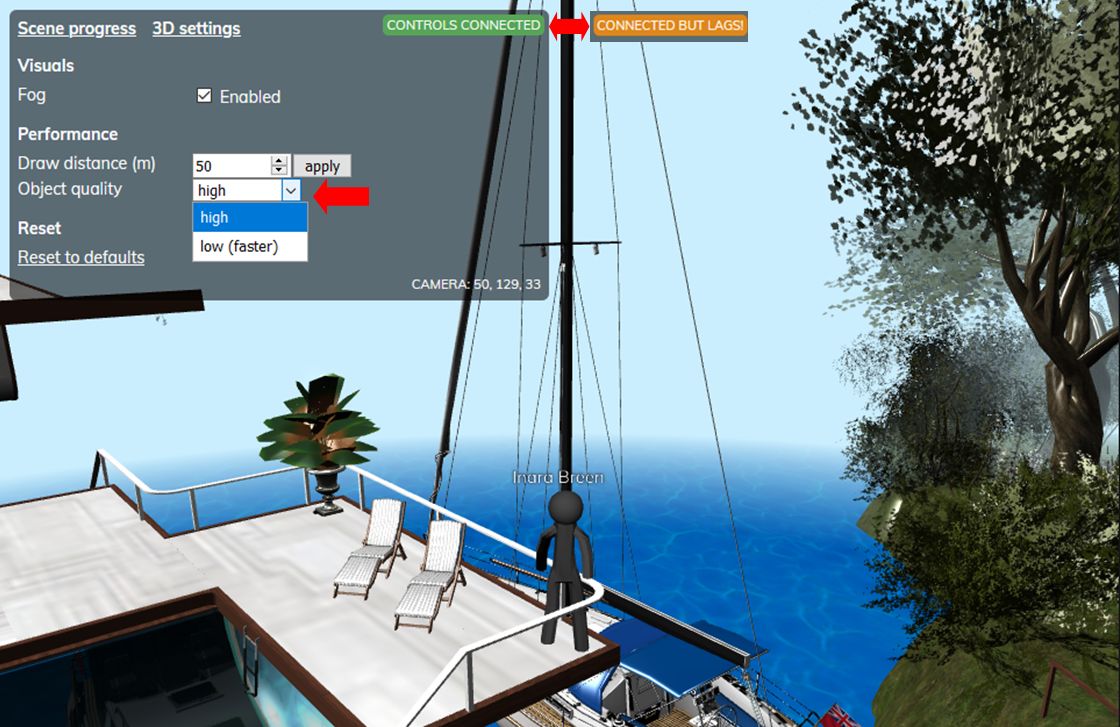
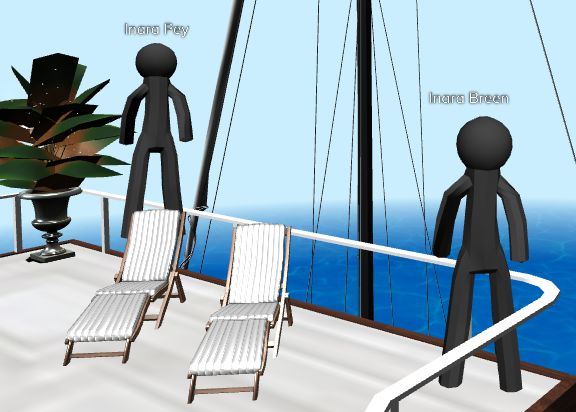
The Speedlight 3D world view, March 2020, showing an avatar “mannequin”

Speedlight’s 3D world view is in the early stages of development, but is currently available for Gold subscribers to test. The capability comprises two elements:

  • The client-side world renderer.
  • A “world storage” server-side database. Details on this are not clear, but I assume it is a server operated by Smartbots that received asset data from the Lab (via CDN) and then feeds that data to the client.

The renderer has a number of limitations / issue at this point in time, all of which are being worked on:

  • Limitations:
    • Avatars can only be rendered in “mannequin” form.
    • The renderer will not draw avatars seated on objects.
    • There is no avatar / world interaction (so you cannot touch objects, etc).
    • Avatar mannequins  cannot walk or move (teleporting is possible).
  • Issues:
    • Semi-transparent textures will render in black.
    • Other texture issues may be encountered.
    • Numerous additional problems and issues to be resolved.

Obviously, the “mannequin” avatar form is only rendered by Speedlight, Those using a viewer will see your avatar fully rendered when you are logged-in to SL via Speedlight.

For those wishing to try the 3D renderer / help with its development, Gold subscriptions are available at L$1990 (US $8.00) a month, and can be purchased in L$ through the client for those wishing to obtain an early look at the capability.

Feedback

A good set of updates, along with a series of issues fixes made in the end-of-February 3.059 release that demonstrate Speedlight is continuing along a steady development path.

It’s still – as noted – early days for the 3D renderer, and before anyone complains at the avatar appearance, lack of functionality, etc., at this point in time, it’s worth pointing out that 3D world rendering in Lumiya started from a very similar point, and went on to become flexible and usable, so time should be allowed for Speedlight’s capabilities to develop.

Related Links

2020 viewer release summaries week #11

Logos representative only and should not be seen as an endorsement / preference / recommendation

Updates for the week ending Sunday, March 15th

This summary is generally published every Monday, and is a list of SL viewer / client releases (official and TPV) made during the previous week. When reading it, please note:

  • It is based on my Current Viewer Releases Page, a list of all Second Life viewers and clients that are in popular use (and of which I am aware), and which are recognised as adhering to the TPV Policy. This page includes comprehensive links to download pages, blog notes, release notes, etc., as well as links to any / all reviews of specific viewers / clients made within this blog.
  • By its nature, this summary presented here will always be in arrears, please refer to the Current Viewer Release Page for more up-to-date information.
  • Note that for purposes of length, TPV test viewers, preview / beta viewers / nightly builds are generally not recorded in these summaries.

Official LL Viewers

  • Current Release version 6.3.7.535996, formerly the Yorsh Maintenance RC, dated February 7, promoted February 20 – No Change.
  • Release channel cohorts:
    • Premium RC viewer updated to version 6.3.8.538264 on March 12th.
  • Project viewers:
    • No updates.

LL Viewer Resources

Third-party Viewers

V6-style

  • No updates.

V1-style

  • Cool VL viewer Stable branch updated to version 1.26.24.11 on March 14th – release notes.

Mobile / Other Clients

  • No updates.

Additional TPV Resources

Related Links

2020 viewer release summaries week #10

Logos representative only and should not be seen as an endorsement / preference / recommendation

Updates for the week ending Sunday, March 8th

This summary is generally published every Monday, and is a list of SL viewer / client releases (official and TPV) made during the previous week. When reading it, please note:

  • It is based on my Current Viewer Releases Page, a list of all Second Life viewers and clients that are in popular use (and of which I am aware), and which are recognised as adhering to the TPV Policy. This page includes comprehensive links to download pages, blog notes, release notes, etc., as well as links to any / all reviews of specific viewers / clients made within this blog.
  • By its nature, this summary presented here will always be in arrears, please refer to the Current Viewer Release Page for more up-to-date information.
  • Note that for purposes of length, TPV test viewers, preview / beta viewers / nightly builds are generally not recorded in these summaries.

Official LL Viewers

  • Current Release version 6.3.7.535996, formerly the Yorsh Maintenance RC, dated February 7, promoted February 20 – No Change.
  • Release channel cohorts:
    • Premium RC viewer, version 6.3.8.537335, released March 3rd.
  • Project viewers:
    • No updates.

LL Viewer Resources

Third-party Viewers

V6-style

  • Black Dragon updated to version 64-bit 3.7.4, March 2nd (no release notes).

V1-style

  • No updates.

Mobile / Other Clients

Additional TPV Resources

Related Links

2020 viewer release summaries week #9

Logos representative only and should not be seen as an endorsement / preference / recommendation

Updates for the week ending Sunday, March 1st

This summary is generally published every Monday, and is a list of SL viewer / client releases (official and TPV) made during the previous week. When reading it, please note:

  • It is based on my Current Viewer Releases Page, a list of all Second Life viewers and clients that are in popular use (and of which I am aware), and which are recognised as adhering to the TPV Policy. This page includes comprehensive links to download pages, blog notes, release notes, etc., as well as links to any / all reviews of specific viewers / clients made within this blog.
  • By its nature, this summary presented here will always be in arrears, please refer to the Current Viewer Release Page for more up-to-date information.
  • Note that for purposes of length, TPV test viewers, preview / beta viewers / nightly builds are generally not recorded in these summaries.

Official LL Viewers

  • Current Release version 6.3.7.535996, formerly the Yorsh Maintenance RC, dated February 7, promoted February 20 – No Change.
  • Release channel cohorts:
    • No updates.
  • Project viewers:
    • No updates.

LL Viewer Resources

Third-party Viewers

V6-style

V1-style

Mobile / Other Clients

Additional TPV Resources

Related Links

Speedlight: using the Android app

via Speedlight

Earlier in February, I reviewed Speedlight, the browser-based app for accessing Second Life from almost any web browser (see Speedlight: access SL via a browser (incl. mobile devices), February 14th). Created by long-term Second Life resident Glaznah Gassner, who is responsible for the SmartBot group / bot management application, SpeedLight is still very much under development, with the cost of the work paid form via the Gold account subscription fees and through optional Patreon support.

At the time of my first look at Speedlight, I focused on using it purely through a web browser on both a PC and on an Android device, highlighting its OS-agnostic nature. However, the team behind the app has also released Speedlight as an Android app available through Google Play, so this article serves as a brief introduction to the app.

The Android version is available for free, and offers all of the same capabilities when compared to running it within a browser, using the same style of interface. It requires Android 4.4 or above to run.

In order to use the app, you will need a Speedlight account, to which you can then link the Second Life avatar account(s) that are to be used with Speedlight (you can add and remove accounts as required). If you’ve previously created a Speedlight account via the Speedlight website, you’re good to go. If you don’t have a Speedlight account, the app will offer you the option of creating one through it.

You’ll need a Speedlight Account to use the app (in addition to your SL account) if you don’t have a Speedlight account when first using the app, you can see the Have No Account? link to create one

Those new so Speedlight will also then have to connect the avatar account(s) they wish to use with Speedlight. This is a on-time operation (unless you opt to remove an avatar account later). Link avatars to a Speedlight account is simple, and is covered in my article on the web browser version of the application (link below).

Those who already have avatar accounts link to their Speedlight account, will, on logging into the Speedlight Android app, be presented with a list of their available avatars (and can add more via the + panel if required. Tab the log-in button for the avatar that is to be used, and enter the required log-in credentials (you can optionally have the app save the credentials).

Logging-in to an SL avatar account via the Speedlight Android app

Once logged-in to Second Life via the app, note that:

  • As with the browser version, Free account holders are limited to one hour of continuous log-in time before they must re-log, while gold subscribers can remain logged-in all the time, or until actually logged out or until the Speedlight app is closed.
  • The clock in the left menu column will advise you on the remained time before you may need to re-log or will be logged out.
  • The Speedlight menu on the left of the screen will switch to a set of icons, making room for your avatar menu, just as it does in the browser version of speedlight.
  • Minimising the app will not disconnect you, and you have the choice of:
    • Logging out of SL and leaving Speedlight active on your device.
    • Exiting Speedlight, both disconnecting you from SL and terminating the current app session on your device.
  • The application offers the same options for both Free and Gold account users as seen when running Speedlight in a web browser. The only difference between the two is the larger amount of screen real estate available to the application, as it does not require a browser tab.
  • Details on using the available options can be found in my article on using the web browser version (link below).
There is absolutely no difference is using Speedlight in a browser on a computer or mobile device (left) or via the dedicated Android app version (r), other than the latter doesn’t run in a browser tab (click for full size, if required)

Feedback

As light clients go, there is no faulting Speedlight. It does, as the saying goes, exactly what it says on the tin. If you’ve not seen it before, I do recommend reading Speedlight: access SL via a browser (incl. mobile devices) to get a more thorough overview.

Given the Android app gives an identical experience to running Speedlight through a web browser, whether you opt to actually install the app or not comes down to the choice between the convenience of a simple tap-to-launch (and potentially smaller memory footprint) the app brings, or being happy launching a browser and fiddling with URLs / bookmarks.

As noted above, the app offers the same capabilities as using Speedlight through a browser, and has the same seamless switching between devices (I was happily flicking between the app on my Nexus and browsers on both the device and on a PC without any issues or being logged out in more back and forth when using my test avatar account and playing with the app).

Still only text based for the time being, Speedlight is already a credible SL mobile solution, and I understand we’re now not that far from seeing the first iteration of its 3D world rendering.

Related Links