The crowdfunder effort to keep Kirsten’s Viewer alive did not reach the required target of £25,000.
Kirstenlee (Lee Quick) posts a sad message today on the subject, confirming that the end of the road has now been reached, saying:
I will no longer have the time ( or inclination ) to develop any more, on January the 1st I start a new job, and will be busy looking after my nearest and dearest.
Given all they are facing, a move back to England, getting into a new home, Dawny’s health and the need for full-time work, one cannot help but extend both Lee and Sylvia (Dawny) love and best wishes.
It’s easy to dwell on what might have been in terms of the crowdfunding effort, and not to feel regret that Kirsten’s Viewer will not longer be under development. However, I’d like to remember some of what Kirsten’s gave us.
It may not have been my primary Viewer, but it was the one I always looked to when I wanted to take really good photos in SL – simply because it was so good, it made anything I took look good.
It was the first Viewer (indeed, the only Viewer for a long time) on which I could experience shadows in SL.
Kirsten’s goes V2
It was the first Viewer to demonstrate what Viewer 2 could have been and that the V2 UI could actually be made into something usable.
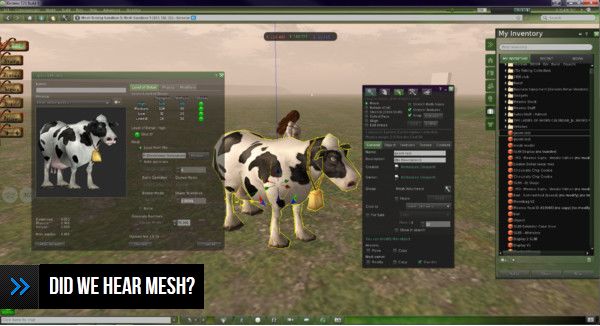
It was the first Viewer to give us DoF in a usable degree and the first hybrid TPV to bring us both mesh rendering and mesh uploads.
Kirsten’s and mesh
It remains the most comprehensive viewer made available for photography and machinima.
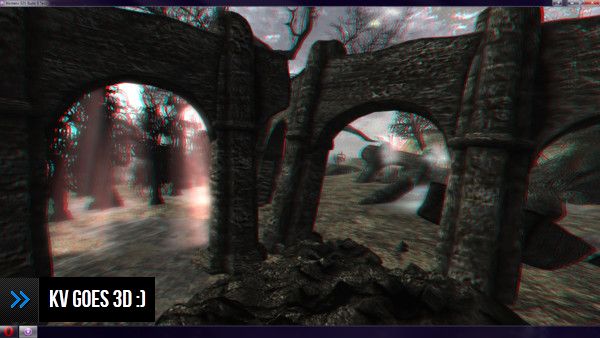
Kirsten’s goes 3D
It was the first – only, to date – Viewer that dared to go 3D.
To Kirsten and Dawny, and on a personal note, I hope that Second Life continues to bring you both fun, friendship and enjoyment throughout 2012, and I’d like to wish both Lee and Sylvia a happy and bright Christmas and a prosperous and healthy 2012.
Thank you to both of you, and to everyone involved in Kirsten’s Viewer.
On Saturday December 17th, a Phoenix / Firestorm Q&A was held at the Rockcliffe University regions, where Jessica took questions on both Viewers from the audience and which had been posted beforehand either to her directly, or via the Phoenix blog.
Jessica and host Nigma Sterling at the Q & A session
The event, hosted by Nigma Sterling, was recorded for those who could not attend, and the video has now been released on YouTube. The video is some 2hrs 30 mins long, and covers a lot of ground.
This is an honest and open response to the many criticisms the team have faced from their user community, and for those that have concerns about Phoenix and / or Firestorm it is a worthwhile spending time watching it.
I’ve not been privy to much of the situation that is alluded to in the video – the heated discussions regarding Phoenix and the perceptions that the team are somehow “abandoning” their users in “forcing” them into the V3 world through Firestorm – and i’m not about to embroil myself in it.
However, I do emphasise very much with Jessica and the team – indeed with all TPV developers in that they all face a difficult hill to climb, whether they are attempting to stay current and work within the constraints of the new Viewer code base or whether they are trying to work within the constraints of a code base (Viewer 1) that has been effectively frozen by LL for a year now, and which LL have themselves indicated is only going to get more and more broken as time goes on.
It’s a thankless task, however you look at it, and one that is never going to please everyone, be it for genuine technical issues or simply because of people’s unwillingness to take the time to work with a new UI. This being the case, I’m going to take a moment and lift a metaphorical glass of mulled wine to all TPV developers and say “thank you” for all of your efforts over the years.
Sadly, I cannot embed the Phoenix / Firestorm Q&A, as it is locked from doing so. However, you can see it here.
Catznip migrates to the V3 FUI with release of version 3.2.0, which comes in two flavours: R3 (without the LL OpenGL fixes) and R4 (with the fixes). Unlike the recent Dolphin and Niran’s releases, the release doesn’t add any new button positions or button options to the FUI, but instead offers some very nice features elsewhere.
The 3.2.0 R4 release installed without a hitch, and on launching displayed the now-familiar FUI, with almost all the buttons active by default, occupying the left and bottom sides of the window (only ABOUT LAND, BUILD, MAP, PICKS, PREFERENCES and SNAPSHOT are excluded).
New Features
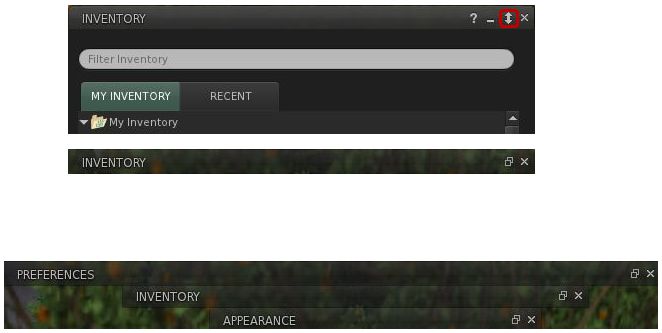
The most obvious new feature added to Catznip is that rather natty “collapse” button on the majority of panels / floaters. If you are using several panels and simply want them out of the way, but not actually closed (as you’re still using them), this button causes the selected panel / floater to collapse into a single line, allowing you to “stack” a number of panels and quickly swtch back and forth between them.Collapsed panels can be aligned to the top side of the screen (e.g. under the Navigation / Favourites Bar, if you use it), allowing you to present yourself with an alternative means of accessing those panels / floaters you routinely use.
The “collapse” button in the Inventory panel (top); the Inventory panel collapsed (centre); several panels collapsed (bottom)
Other key changes comprise:
“ChatTimestampSeconds” setting has been included to show seconds in chat timestamps (for nearby chat and instant messages)
An active group title drop-down to the group side panel tab, with the “” entry keeping the group active, but hiding the group title from your nametag
“Wear on Current Outfit” option has been added to the inventory category context menu; (replace) wears all items in the folder similarly to selecting all items and right-click “Wear”
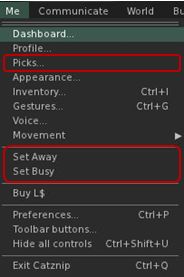
The Me menu has been revised to include a new option to open profile Picks directly, and to include the SET AWAY and SET BUSY options (no longer in a submenu as with V3) – see right
An “Expiration” and a “Clear History” option have been added to the recent people history gear menu
Optional skins have been removed from the installation folder
As well as making your own Picks directly accessible from the Me menu, the panel can now be displayed from your avatar context menu by right-clicking on your avatar and selecting MY PICKS from the context menu.
Preferences UI Updates
The PREFERENCES->CATZNIP–>UI tab has been extended to include a range of options, including:
Whether or not the “collapse” button described above should be displayed in floaters and panels
The ability to have the chiclet bar and / or notifications displayed at the top or bottom right of the screen
Whether item properties open in a separate floater or the inventory panel
The ability to set display lifetimes (seconds) for script permissions and notification
Catznip new custom UI options
Elsewhere Catznip sports the new translation options in PREFERENCES->CHAT (no surprises there) and gains the new snapshot floater that includes the option to upload snaps directly to your web profile feed.
Performance
On my PC, pretty much in line with the most recent V3 release and the likes of Dolphin 3.2. Frame rates on a sim with 5 other avatars hovered in the mid-teens, dropping sharply to single figures with shadows enabled. I have encountered a few problems in terms of settings not persisting between relogs (graphics would default back to HIGH and 128m Draw distance, while the Destination Guide insists it is open on my screen with each log-in). Other preferences (spell check language, button changes, etc), all persisted without incident.
Opinion
Yet another great Viewer from Kitty, with some very nice touches – did you know for example, that you can teleport directly from a landmark contained in a notecard in Catznip? Just open the notecard and right-click on the LM. Touches like this make Catznip fun to use (although I don’t use it nearly enough to discover all of them), and the move to the FUI, coupled with both popular TPV options (such as radar and Kitty’s own spell check) and the enhancements described here (as well as a number of bug fixes), continue to ensure Catznip presents a viable and well-considered alternative to the official viewer.
I’ve been asked to pass on the following – and while only too happy to do so, I’m closing the item to comments as it is important anyone who has questions and who can’t attend the event, post their question to the official Phoenix Firestorm blog.
The Phoenix / Firestorm team are holding a public Q&A session this coming Saturday to answer questions and concerns relating to both the Phoenix and Firestorm Viewers.
The meeting will take place at 13:00 SLT at the 4-region auditorium at Rockcliffe University and will be hosted by Nigma Sterling of Rockcliffe University.
Those wishing to attend are advised to arrive early, and using the following SLurls according to the first initial of your FIRST name:
The event will be recorded and made available online after the fact (no live streaming planned at this point).
Note that the focus of the event is to discuss genuine concerns relating to either Viewer and their future development, and to answer questions and address specific critiques.
This is turning in to the week I catch up on Viewers!
Lance Corrimal has released Dolphin 3.2 (3.2.0.22166), which sees his Viewer move to the new Flexible User Interface (FUI), and gain a few choice goodies as well.
Installation
Installation was smooth with the Windows installer, although it was interesting to see the a copy progress pop-up appear as files were extracted and copied to my install directory.
FUI and Updates
At first glance after installation, this would appear to be a simple adoption of the FUI with various other TPV updates. But if you think that – best look again. There may not be mesh upload in this release, but there’s more going on than meets the eye here.
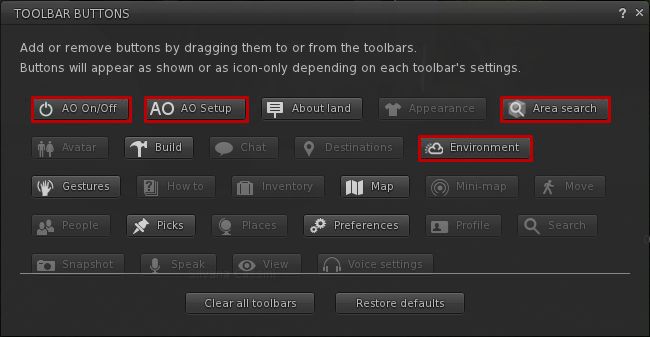
Like Niran’s Viewer, Dolphin 3.2 tweaks the FUI a little – only rather than providing an area at the top of the screen where buttons can be added, Lance has incorporated additional buttons into the Button Toolbar:
AO ON/OFF and AO SETUP – for quick access to the Viewer’s animation override functions
AREA SEARCH – accesses the Area Search for Objects floater (WORLD->AREA SEARCH or CTRL-SHIFT-A)
ENVIRONMENT, provides quick access to the Environment Settings panel floater, otherwise accessed by WORLD->ENVIRONMENT EDITOR->ENVIRONMENT SETTINGS.
New button options in Dolphin 3.2
Note that by default, all four buttons are active when you launch Dolphin 3.2 from a fresh installation (all on the left side of the Viewer window), I’ve shown them in the toolbar floater out of convenience.
Providing buttons for the Viewer-side AO makes perfect sense, as does including Area Search (something not everyone is aware exists in and keyboard shortcut notwithstanding) and quick access to environment settings, which itself is an option people twiddle with a lot.
Dolphin 3.2 also gets the new snapshots floater, complete with the option to upload to your web profile feed. According to Lance’s notes, he’s also working on porting the option to upload snapshots to Flickr to the new floater, but will probably be a while before it appears in the Viewer.
This release also gains
The ability to turn your avatar around when walking backwards, again a popular viewer-side feature among TPVs
Firestorm’s texture refresh, which forces a re-fetch of the textures for an avatar or object which remains stubbornly grey on your screen (right-click & select from the context menu)
Firestorm’s object particle editor, which may yet be the subject of a separate blog post here
The latest RLV updates from Marine Kelley
The STORM-1713 fix, which corrects the issue of the mouse pointer flickering over UI elements that has been seen in V3.x.
Performance
Overall, performance on my system is comparable to the official SL V3.2 averaging in the mid-20s when I’m in a sim on my own, and dropping to around the mid-teens when sharing a sim with 5-6 others. All comfortable enough. With shadows enabled, this falls to an average of 6-8 fps, again pretty much in line with official V3 performance on my PC.
Opinion
Frankly, another robust Viewer from Lance that again builds on V3 to present a nice, tidy alternative with a good crop of additional features and options. The fact that it doesn’t have mesh upload shouldn’t be any hindrance to most – mesh rendering in the Viewer is fine. And one cannot blame Lance for wanting more time to consider what is the best fit for his Viewer when it comes to incorporating an uploader, rather than rushing to add the first that comes along.
If you’re looking for something that offers the V3.2 FUI, together with a good, solid selection of popular items from TPVs – radar, area search, Viewer-side AO, together with Lance’s own mods to the Viewer (including these excellent 3.2 FUI tweaks), then Dolphin 3.2.0.22166 is very much worth a look.
Note Dec 24th: The release version of this Viewer is now available. As such I have an update / continuation of this review, and have closed comments on this article (comments on the second are open).
Niran’s Viewer is an intriguing hybrid; forked from Kirsten’s Viewer, it includes everything that made Kirsten’s unique, as well as adding some very individual flavours from NiranV Dean and, in the most recent builds, the V3.2 FUI. The result is a Viewer that steps out of the box somewhat from what we’ve seen to date, offering some amazing capabilities – although you may find you need a high-end system to get the most out of it.
In Brief
Currently Windows only
Forked from Kirsten’s Viewer
Lots of graphics updates (including completely revamped graphics preferences)
New and unique menu layout
Viewer 3.2 Flexible User Interface (FUI)
Fast rendering on suitable machines
Additional ATi support
RLV/a
Mesh rendering and uploads
Lots more (did I mention fast rendering?)
Installer with default location
Installation and Logging-in
The installation is straightforward – and other than the installer being partially in German, offered no surprises per se
Like Marine’s RLV standalone installation, no desktop shortcut or icon is produced, so once installed, you’ll have to go play hunt the EXE in C:\Windows\Program Files\Nirans Viewer (assuming you use the default installer path).
This is no biggie, but I hope (as I’m a lazy cow) that NiranV will provide a defacto desktop icon in the future – that way my VistaMenu utilities for Win7 can grab what’s needed and I can keep my desktop nice and tidy with the minimum of fuss on my part :).
On start-up the Viewer pulls no punches letting you know you’re entering new territory, as the log-in splash screen demonstrates.
Log-in screen
Top left of the screen are the familiar Me and Help menu options – the former providing access to the Viewer’s Preferences. Over to the right of the screen is the log-in area, neatly laid-out and with three options in bold white text sitting under it:
Select Other Grids: the Viewer appears primarily aimed at SL, so this option provides access to the Beta grid
Settings: open the Preferences floater
Help: opens a set of additional options:
Sign-up: takes you to the official SL sign-up pages via your web browser
Forgot password…: opens the official password reset page in your web browser
Grid Status: opens the Grid Status page
About Niran’s Viewer: opens the HELP ->About Viewer pop-up.
It’s a nice arrangement, although my personal preference would be to see some take on the official V3 log-in screen – the Destination Guide, etc. – make an appearance. Perhaps that’s scheduled for a future build…
To actually log-in, you need to click on the LOGIN option after entering your username and password – tapping Enter doesn’t appear to work on this release.
The UI
Once logged-in, you’re again immediately aware that you’re in a Viewer that dares to break all the established rules.
Wot’s that? Buttons on the TOP? No menus?! (click to enlarge)
The Viewer clearly uses the V3.2 FUI, but NiranV has added the option to place buttons at the top of the screen as well as the sides / bottom – thus being the first to respond to requests for this capability. I’d still like to see VWR-27455 implemented for the FUI by someone, but just having the additional top area for use might make it easier for people to group buttons.
By default, the following buttons are available on first starting the Viewer:
Buttons can be removed, added or relabeled simply by right-clicking on an existing button and selecting the required menu from the displayed menu – CHOOSE BUTTONS opening the Toolbar Button floater. In a further step away from V3.2, CTRL-ALT-B will also open the floater, rather than CTRL-T, the use of which in V3.2 has caused some consternation amongst users, given that key combination has had a previous use.
The top of the screen is also conspicuous as it apparently doesn’t have a menu bar – no Me, Comm, World, etc. Instead we have the Navigation / Favourites Bar.
The Navigation Bar contains a wealth of information, looking at it from left-to-right: the familiar (to V2/V3 users) FORWARD / BACK buttons; then a panel of five buttons: HOME, WINDLIGHT FLOATER, SKY SETTINGS, WATER SETTINGS, and ABOUT LAND; the address bar area (as with V2/V3, right-clickable for additional options); Draw distance slider; Search option; account balance & BUY L$ button, and, at the right end, the media options with the time under them.
As with V3, you can switch between Navigation & Favourites or the Mini-location bars by right-clicking on the blank area of the Navigation / Favourites Bar and selecting your preference, but NiranV has extended this drop down menu to include the ability to configure which options are visible on the Navigation Bar, complete with additional options not displayed by default. In addition, the entire Navigation Bar / Favourites Bar has further configuration options within Preferences – something I’ll return to shortly.
But Wait! No Menus, You Say?!
Well, not exactly; I fibbed a bit :).
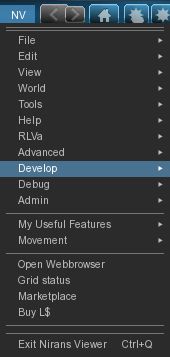
The menus are there, but are tucked away as Niran’s takes another innovative approach to the Viewer UI presentation. At the left-hand end of the Navigation Bar (or Mini-location Bar, if you display that), is the label “NV”. Clicking on this opens a vertical menu system which V1.x users should find somewhat familiar, despite the orientation, but those already familiar with V2/V3 might initially find a tad confusing, given the options listed are predominantly V1 menu labels.
Niran’s Menus
Having the menus displayed in this manner brings with it certain advantages; for one thing, the impact on your in-world view is minimised to the left side of the screen. There is also something more intuitive about this approach that makes using the menus somewhat faster and more intuitive: the action to select just about any option is a simple down-and-right action, making moving from menu to menu faster and easily than across-down, across-down, across-down…
NiranV has done a sterling job trying to align options with the first few menu headings (File, Edit, View) to reflect V1, which should help some with transitioning from V1 to the world of V3. However, the approach does have its own risk: V1 and V2/V3 are radically different in their menu offerings, so using similar menu titles could lure people into thinking they’ll find all the familiar options in the same sub-menus and locations – which isn’t quite the case. Similarly, as an established V2/V3 TPV user, I have to say I was initially thrown by the menu system when I first encountered it – although I quickly adapted to it and have to admit to preferring it.
A very nice touch in the menu system is the inclusion of an option to call-up the Grid Status page. This is particularly handy if you find you’re having problems, as it saves playing hunt-the-page through the SL website – and if you use the Viewer’s internal browser, the info is there without having to switch windows.
There is also a menu option called MY USEFUL FEATURES, which includes the STOP ALL ANIMATIONS option and REBAKE TEXTURES (for those unfamiliar with the keyboard shortcuts.
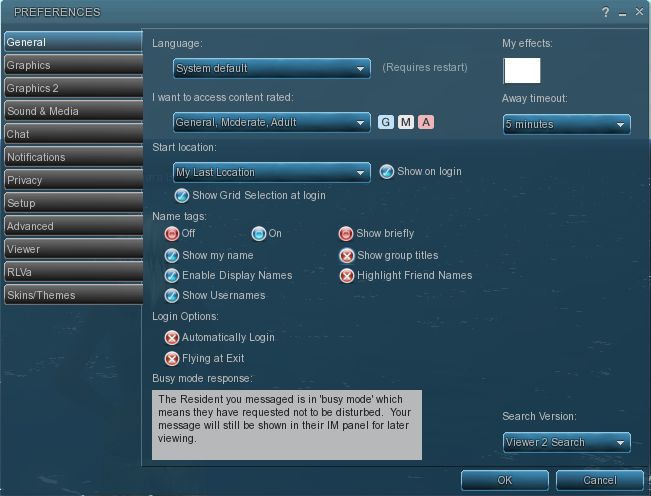
Preferences
This is another element of the Viewer that has been extensively revised, and nicely so. For a start, buttons are given a 3D polish and are clearly coloured: blue / tick = on; red / cross = off; grey = inactive / unavailable. Where buttons represent either/or options (e.g. name tags on/off), clicking one will turn it on and the other off.
Preferences – 3D buttons and a full revamp
Most of the main tabs also dispense with additional horizontal tabs. Instead, a “slider” action is used. Take chat as an example: open it, and you have the primary chat options, with a bar at the bottom labelled IM OPTIONS – click on that, and the IM options duly slide up into view. To swap back, simply click on the CHAT OPTIONS bar. It’s neat and tidy – although you need to keep your eye on things, as it’s easy to overlook a slider when looking for a specific option you’re used to seeing in a dedicated tab.
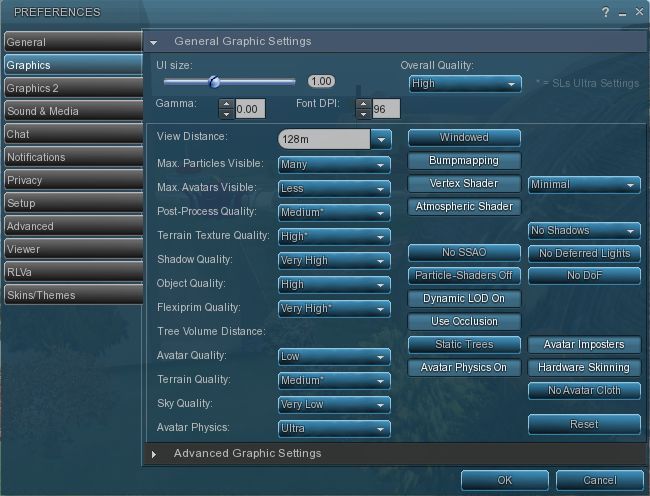
However, it is in the graphics tabs that the biggest changes are most readily apparent. There are two tabs – GRAPHICS and GRAPHICS 2, but they actually toggle between different presentations of the same settings.
Preferences -> Graphics
To the uninitiated, both can be something of a shock – the combination of options builds on Kirsten’s rendering pipe and offer enormous flexibility for setting the Viewer’s graphics capabilities. If you want, there are enough options here to take your world view right back to the earliest days of Second Life as well as bringing you cutting-edge in-world rendering – just take a look at NiranV’s blog post on the subject to see some of the results.
However, I’m not entirely sure that replacing the traditional sliders for some options with a button that toggles between “none”, “less”, “medium”, “more” and “many” entirely works; what is the scale of reference? How many is “many”? How few is “less”? There’s also the fact that the sheer number of options could be somewhat bewildering to many, and may, as a result, be ignored. But, for those into photography, etc., it’s worth taking a good look at what’s on offer.
Obviously, the two tabs are supposed to be used independently of one another, rather than together, and it is intended for people to use the one they find more intuitive. In this I was initially drawn to GRAPHICS, which is closer to what I’ve been used to seeing in other Viewers, but then I quickly swapped over the GRAPHICS 2.
Graphics 2
Shadow rendering appears to be linked to “glow” in this Viewer. This means that with shadows enabled, you can end up with a very bright sky, with the Windlight clouds glowing oddly.
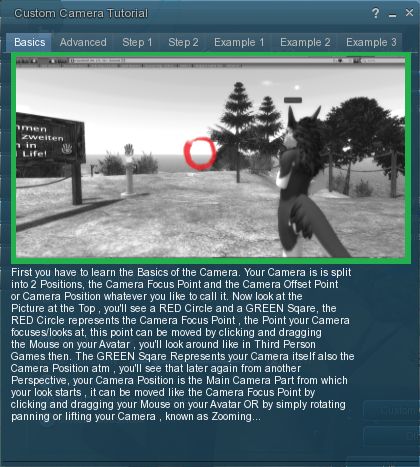
Camera tutorial
Away from this, it’s worth going through the Preferences tabs and sliders carefully – there are other cool bits and pieces. For example, for those unfamiliar with the degree with which the camera position can be customised to give a much improved world view, NiranV has included a tutorial on the subject with some practical examples of options. This is something that other Viewers should have, as whether you’re tall or short, the default camera position for SL is far from ideal, yet most people live with it, simply because they’re not aware of how to modify things beyond fiddling with the default Preferences sliders. Huge kudos from me for this (friends know I’m a constant nag on the subject…!).
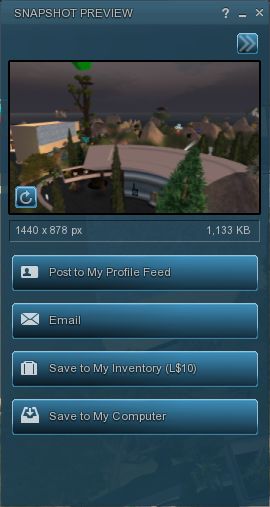
New snapshot floater (click to enlarge)
On the subject of cameras as well, NiranV has made a very subtle alteration to the camera smoothing, setting it to a default of 10 – and the difference in camera movement is stunning (allowing for differences in graphics capabilities on individual systems); panning is wonderfully smooth, as is zooming, with both exhibiting a gentle inertial effect as you stop the movement: rather than coming to an abrupt stop, the camera glides to a halt. Wonderful!
The snapshot option also includes the updated floater with the option to post snapshots directly to your web profile feed.
Nor does it end there: those that like their pie (menu) can have it (on by default), while those who like things in context (menus) and have their way as well.
Within PREFERENCES->VIEWER-> UI SETTINGS are a host of goodies, including:
The ability to increase / decrease the transparency of the Navigation / Favourites bars by disabling layers
Turn off the Favourites Bar independently of Navigation
Select which of the buttons Windlight Settings, etc.) should be display in the right-click drop-down menu
One-click teleport to SLurls displayed in chat
An ATi tweak
A collection of useful debug features that can be toggled on or off.
There is even an ability to enable / disable the new Direct Delivery “inbox” and “outbox” in your Inventory (although these can currently only be used with ease on the Beta grid) – but it gives you an idea of what it coming.
Performance
This Viewer is a fork of Kirsten’s Viewer, so one expects it to be resource demanding – and it is that, as soon as you start turning on the more advanced graphics features.
But to dismiss Niran’s as a KV clone with a tweaked front end would be a grossly unfair oversimplification. There has been a lot of under-the-bonnet work carried out, and I gather that NiranV went so far as to re-write OpenGL elements while waiting for LL’s fixes – and used an OpenGL release that is a lot more recent than that used by LL for their fix. This means that while the Viewer is resource-hungry, it is also blisteringly fast. Rendering is some of the fastest I’ve witnessed on my PC; I’m simply not used to arriving home and having sculptie items immediately pop out at me (no waiting several seconds), fully formed, as if going “Boo!” It’s really impressive.
Frame rates are equally stunning on my PC. At home, (370m above ground), with draw up at 360m, five others on-sm, and with settings comparable to those I use on Firestorm and Exodus, Niran’s screams past them at a rocketing 57-60 fps. At ground level, this drops to some 45-48 fps, which is still very credible.
Unfortunately for me, enabling shadows does slaughter my system: frame rates collapse to the low-end of single figures, and the Viewer demonstrates a notable stutter in camera movement. However, I got much the same with the last of Kirsten’s builds as well, so this is likely to be as much down to my graphics system and CPU getting a little long in the tooth as anything else.
Opinion
This is still very much a Beta Viewer, but even so, if you’re not into running shadows (or have a very high-end system), it tends to blow most others out of the water performance-wise. Obviously, as a Beta, there are rough edges; I’ve been running the Viewer on both the Main and Beta grids for a total of about 6 hours over the last few days, and crashes haven’t been infrequent; therefore, you should use it with caution. Also, as it is a Beta, don’t expect absolutely everything to be implemented – there is still a number of items listed as “to do” on NiranV’s website, and some options in Preferences are greyed-out.
That said, this Viewer is a serious contender in the usability stakes. For those who do want to try something that offers a different and flexible approach to the V3.2 UI, Niran’s Viewer is definitely one to watch. For those into photography and machinima and who have used Kirsten’s Viewer in the past, will find just about everything here they need. As it is, and even though there are a number of elements I’d like to see included in it, this Viewer has already moved comfortably into my top 3 “Viewers of choice”.
So, if you are looking around for a Viewer and feel like you can dare to be different, why not give Niran’s Viewer a try?
 The crowdfunder effort to keep Kirsten’s Viewer alive did not reach the required target of £25,000.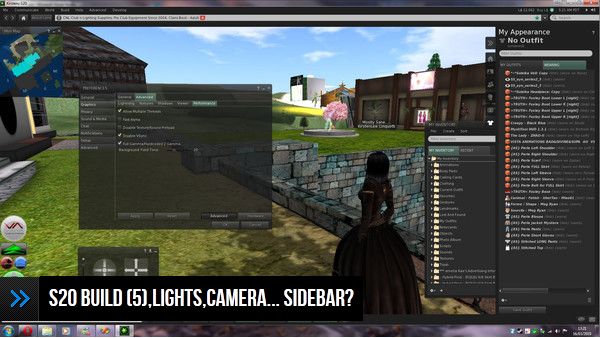







 Inara Pey: Living in a Modemworld