This summary is published every Monday and is a list of SL viewer / client releases (official and TPV) made during the previous week. When reading it, please note:
It is based on my Viewer Round-up Page, a list of all Second Life viewers and clients that are in popular use (and of which I am aware) and which are recognised as being in adherence with the TPV Policy
By its nature, this summary will always be in arrears
The Viewer Round-up Page is updated as soon as I’m aware of any releases / changes to viewers & clients, and should be referred to for more up-to-date information as the week progresses
The Viewer Round-up Page also includes comprehensive links to download pages, blog notes, release notes, etc., as well as links to any / all reviews of specific viewers / clients made within this blog.
Updates for the week ending: 23 September, 2012
SL Viewer updates:
Current Release rolled to 3.4.0.264911 on September 20 – release notes
Beta version rolled to 3.4.0.264785 on September 20 – release notes
Dolphin issued 3.3.21.24786 on September 23 – core updates: Windlight updates (some pre-sets renamed, inclusion of new pre-sets & removal of duplicates); new Reset button on machininima floater; RLV updated to 2.08.03.04; fix for Linux viewer stalling when text printed on the on-screen console (release notes)
Kokua rolled to 3.3.4.23807 (GM) on September 20 – core updates: Grid Manager changes and fixes. No release notes available
Zen rolled to 3.4.1.2 on September 20 – core updates: performance updates; Show Avatar Location in Status Bar; assorted fixes; release of Phototools options (taken from Firestorm ahead of official launch) – release notes
Cool Viewer the Stable branch rolled to 1.26.4.31 and the Experimental branch to 1.26.5.10, both on September 22. Core updates:
Stable: improved Preferences->Graphics tab layout; Fixed MultipleUpdate messages and the object import feature (both SL only); Implemented Singularity fix for SLPlugin.exe preventing media from playing (Windows only); fixed Max OS-X build system issues; fixed OpenSim crash issue / when using the status bar search box; assorted other memory and minor fixes
Experimental: as per 1.26.4.31, plus:fix for rendering system memory leak; fixed the deferred rendering invisprims support
Group Tools is a Windows client for Second Life specifically designed for those who need to send out group notices or IM messages simultaneously across a number of groups.
Rather than having to create individual notices for each group, or copy & paste a message multiple times into different group IM sessions, Group Tools allows you to set up a single message (with attachments, if required) as a notice, as an IM or both, to all groups you have determined should receive the information. As such, the client is aimed towards people like entertainers, large event organisers, venue owners, and so on, who may operate multiple groups which need to receive the same information, or are members of multiple groups to which they frequently send the same information.
To achieve its goals, Group Tools is designed to be used with an alt account, which is treated as an in-world bot for the sending of messages. So to make effective use of the client, you will either require an alt account which can be used in this way, or create one specifically for use with Group Tools. The bot itself needs to be a member of all the groups to which you regularly send IMs and notices (ans will require permission to send out notices in the case of the latter), and be logged into SL via Group Tools in order to send messages as required. To add flexibility, Group Tools includes the concept of an “Operator’s Group”, which allows those you trust to be able to send out notices / IMs through the bot (they do not need to be running Group Tools).
Account Registration
Group Tools is unusual in that it requires an account registration process and a licence fee payment in order to be used. The registering account should be your main account, which is used to manage your bots, and not any account you intend to use as a bot. Accounts are registered in-world at the Group Tools office.
Licence fees can be purchased on an in perpetuity basis (one payment only) or on a monthly renewable basis. For those wishing to try-out Group Tools, a free one week trail period is available, which provides access to Group Tools in full. Licence prices can be found on the Group Tools website, as can the Privacy Policy, which is a recommended read.
Registration will also supply you with a sample notecard which can be used as a template to help with formatting your own message notecards.
Once you have registered, you’re ready to download Group Tools (if you’ve not already done so), and set-up your bot(s).
Download and Install
The Group Tools download .EXE is 7.56Mb in size, and should install OK once downloaded. However, issues have been reported using Norton Internet Security, and guidelines have been posted on the Group Tools website for those who may encounter similar problems.
Control Centre
Group Tools comprises two parts: the Control Centre, used to set-up bots and log them into Second Life, and the Client Window, where specific operations can be carried out.
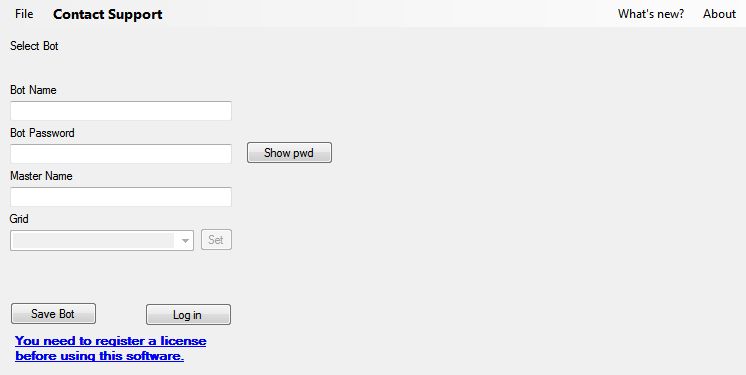
Launching Group Tools displays the Control Centre screen which you use to define your bot(s). Bots are set-up using the account name / password for an SL account and linking them to the registered Master account. Account names are entered with a period between the first and last name, not a space (i.e. “Inara.Pey”, not “Inara Pey”).
Control Centre screen as it appears before any bots have been defined
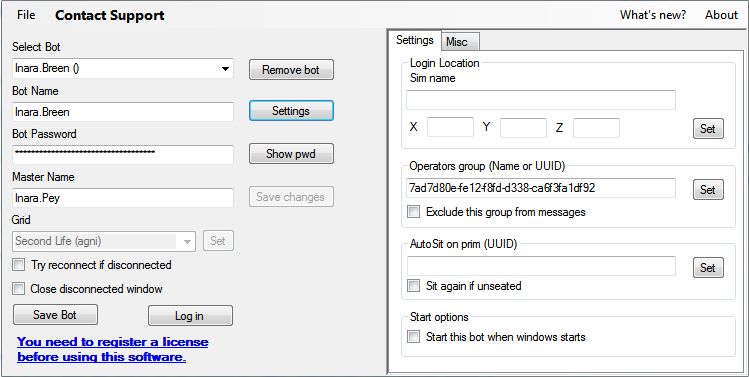
Once this initial information has been entered, SAVE BOT should be clicked. This will create a dedicated bot account within Group Tools, complete with a Group Tools-specific password, which is quite separate to the bot’s SL password (and so cannot be used to log-in to SL with the bot via other means). Clicking SAVE BOT will also refresh the Control Centre screen to display a SETTINGS button next to the bot’s name. Clicking on this opens a tabbed panel (below), allowing further options to be set for the bot.
Updated log-in screen for a saved bot
The Settings tab comprises options to:
Set a default log-in location for the bot when using Group Tools
Allow the bot to automatically sit on a defined prim (useful if the bot is logged-in to a busy area and you do not what it to be an obstacle to traffic – just supply the UUID of the prim on which the bot is to sit)
Assign the bot to an Operators Group – see below.
Set whether or not Group Tools should start and log-in to SL using the bot whenever you start Windows.
The Misc tab allow you to set various options, including:
Whether or not the bot can accept friendship offers from anyone or just from operators
Whether the bot can use money
An automatic IM reply sent in response to incoming IMs
How inventory offers are received by the bot.
Once you have set / changed any of these options for a bot, make sure you click SAVE BOT to ensure the settings are correctly stored by Group Tools.
This summary is published every Monday and is a list of SL viewer / client releases (official and TPV) made during the previous week. When reading it, please note:
It is based on my Viewer Round-up Page, a list of all Second Life viewers and clients that are in popular use (and of which I am aware) and which are recognised as being in adherence with the TPV Policy
By its nature, this summary will always be in arrears
The Viewer Round-up Page is updated as soon as I’m aware of any releases / changes to viewers & clients, and should be referred to for more up-to-date information as the week progresses
The Viewer Round-up Page also includes comprehensive links to download pages, blog notes, release notes, etc., as well as links to any / all reviews of specific viewers / clients made within this blog.
Updates for the week ending: 16 September, 2012
SL Viewer updates:
Beta version rolled to 3.4.0.264601 on September 12 – release notes
Development: rolled to 3.3.5.264693 on September 13
Dolphin issued 3.3.20.24775 on September 16 – core updates: bug fixes including OOC closing correctly, use of “:” as umlaut when using MU* pose “:”, landmarks open from notecards correctly; new features including Groups list show number of used / free group slots; Groups hidden from profile display (when viewed by others) shown in yellow; Mac OSX build now digitally signed; RenderVolumeLOD defaults to 4.0 for High graphics; “All Friends” can now be hidden on Friends List; AO folder only created when client AO used; Object highlighting when editing can be turned off/on via ALT-H
Cool Viewer:
Stable branch rolled to 1.26.4.30 on September 15- core updates: Add fast timers from V3 backport; implemented toggleable, dual code paths for llTargetOmega() angles tracking; workaround for MultipleUpdate message bug on OpenSim
Experimental release rolled to 1.26.5.9 also on September 15 – core updates as per 1.26.4.30, plus: Added the v3.4 renderer specific fast timers; Enabled invisiprims rendering in deferred rendering mode (Advanced->Rendering->Deferred Rendering menu); Fixed old style mini-map dots rendering issue (also fixes OpenGL compatibility context issue, speeding up deferred rendering)
This summary is published every Monday and is a list of SL viewer / client releases (official and TPV) made during the previous week. When reading it, please note:
It is based on my Viewer Round-up Page, a list of all Second Life viewers and clients that are in popular use (and of which I am aware) and which are recognised as being in adherence with the TPV Policy
By its nature, this summary will always be in arrears
The Viewer Round-up Page is updated as soon as I’m aware of any releases / changes to viewers & clients, and should be referred to for more up-to-date information as the week progresses
The Viewer Round-up Page also includes comprehensive links to download pages, blog notes, release notes, etc., as well as links to any / all reviews of specific viewers / clients made within this blog.
Updates for the week ending: 9 September, 2012
SL Viewer updates:
Current release rolled to 3.3.4.264214 on September 5 – release notes
Beta version rolled to 3.4.0.264445 on September 5 – release notes
Development: rolled to 3.3.5.264487 on September 5
Group Services project viewer 3.4.1.264495 released on Sept 7, but awaiting server-side roll-out on Aditi
Zen Viewer rolled to 3.4.1.1 on September 7 – core updates: Flickr upload option added to snapshots floater; Latest Mesh uploader with avatar shape deformation; whisper/mumble option for OpenSim; performance updates – release notes
Cool Viewer:
Stable branch rolled to 1.26.4.29, on September 8- core update: Re-reverted to v3.4 latest fixes to llTargetOmega()
Experimental release rolled to 1.26.5.8 also on September 8 – core update: Fixed the bug that caused objects not to be rendered in sims with mesh support disabled (such as in Inworldz)
Firestorm achieved a number of significant milestones recently, all of which are worthy of note.
On Sunday September 2nd, the viewer was officially two years old
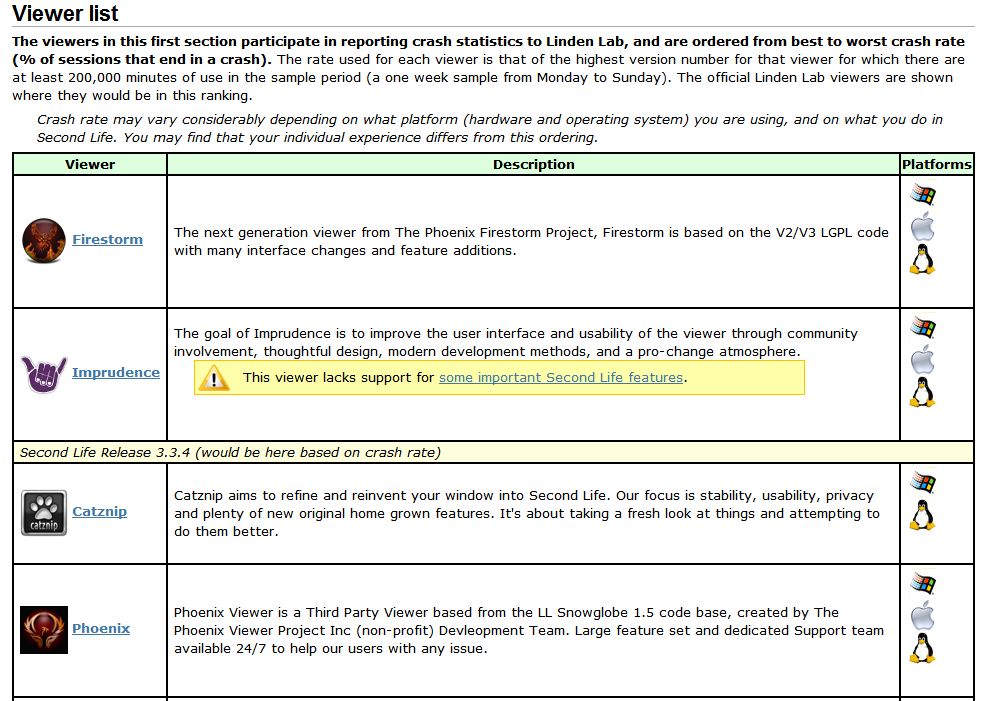
On Tuesday September 4th, version 4.2.2.29837 officially achieved the lowest crash rate for any V2/V3-based TPV at just 8.54%. This is even lower than LL’s own 1.23.5 viewer, which although long in the tooth and increasingly out-dated, is still regarded as very stable.
Extract from the Third-party Viewer directory listing, showing the most stable viewers at this time
Also on Tuesday 4th September, the team received official notification from LL that Firestorm has taken over from Phoenix as the most popular viewer in use in Second Life. This was marked by Oz Linden putting out an e-mail through the open-source development mailing list:
“On behalf of Linden Lab, I’d like to extend congratulations to the Firestorm Viewer team.
Last week, Firestorm took over the #1 spot on the list of Second Life viewers in terms of total user time, surpassing its elder cousin, Phoenix. The Phoenix viewer still has a slight lead in number of sessions, but Firestorm viewer sessions are on average significantly
longer – which may in turn be due in part to its substantially better stability.
“The Firestorm team has worked long and hard to support users who want both the latest Second Life features being developed by Linden Lab and the additional capabilities you provide, and this achievement is one you can all be proud of.
“Thank you.“
Congratulations to everyone at Firestorm for all the time and effort devoted to the project.
Update: Phototools is fully integrated into Firestorm.
Not long after joining Second Life, William Weaver, known in-world as Paperwork Resident, became interested in both SL photography and machinima. While he quickly realised the viewer has a huge capability for making both, he found that even in a TPV like Firestorm, many of the controls remain spread across multiple floaters and tabs and buried within the debug settings, making it hard to use the viewer to its fullest potential for in-world picture production without a lot of frustrating shuffling of floaters and tabs.
His solution was to develop Phototools, a menu system for Firestorm that pulls together all the various settings and options within the viewer that a photographer or machinima maker is liable to need during a shoot. With Phototools, it is possible to quickly and relatively easily set-up the viewer to produce stunning visual images in a one-stop pass using a dedicated floater; allowing some stunning results to be had without the need for any post-processing through Photoshop or similar tools.
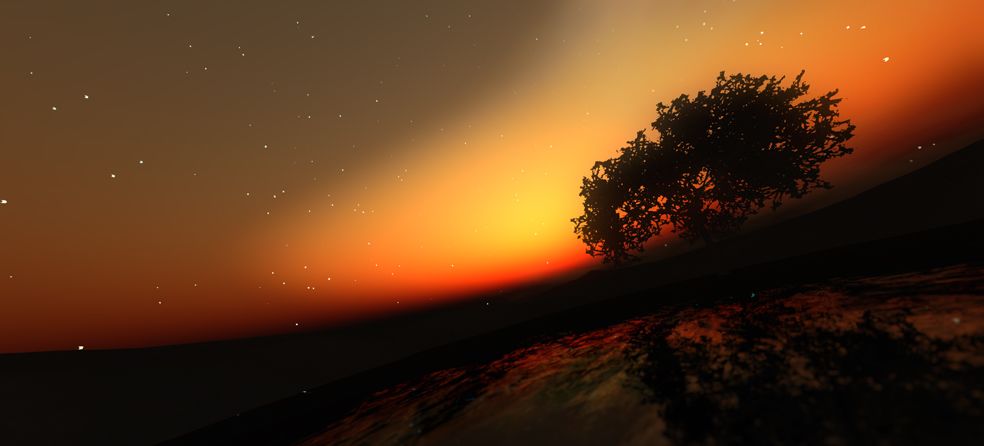
“Discover” by William Weaver – an image produced in Firestorm using the options made available through Phototools and with no external post-processing
Phototools has been around now for a while, available from Williams, blog, Paperwork Shows, and has been gaining popularity among Firestorm users. However, William has been working on preparing it for full integration into the viewer, and as a part of this work, he has made a number of changes to it which have just been released as version 0.94.
Essentially, Phototools replaces several of Firestorm’s default floaters with updated versions. In the original release, these included a replacement camera floater, which presented a wealth of additional camera and mouse / joystick options. However, as it was also relatively large and cumbersome, William has reverted to using the original camera floater in the new release, with the additional controls incorporated into the main Phototools floater. For those who have been using the earlier version of Phototools, the new release includes an .XML file for the original Firestorm default camera floater.
The Phototools Floater
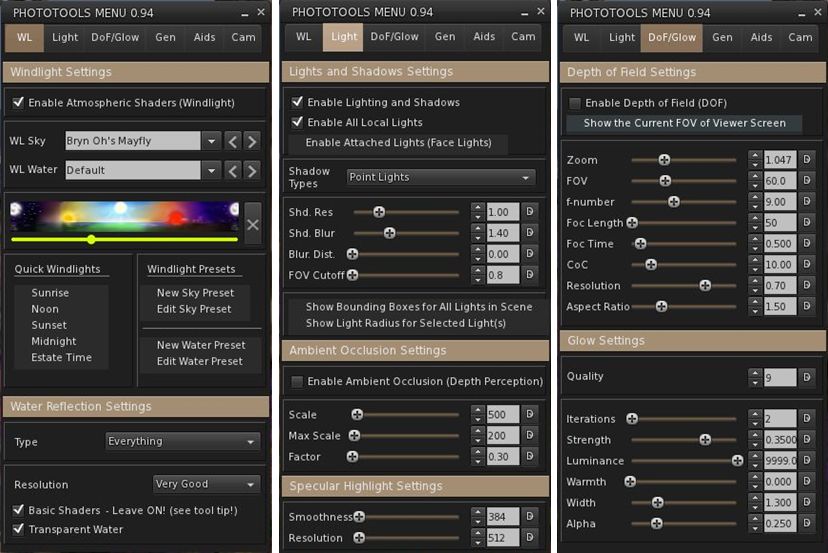
The main floater replaced by Phototools is the Firestorm Quick Preferences floater. For those who find this a very handy tool to have at your fingertips, it is not entirely lost: most of the options it contains are still available in its replacement, which I like to call the Phototools floater. This comprises six tabs: WL – for Windlight settings Light – for lighting and shadows; DoF/Glow – for depth of field and glow effects; Gen – for setting Draw Distance, terrain detail, avatar counts, etc; and Cam – for camera and mouse options.
Three of the Phototools floater tabs (click to enlarge)
Anyone familiar with Firestorm’s Preferences tabs will immediately recognise many of the options presented within the Phototools floater; others may not be so instantly recognisable, as they’ve been pulled from the debug settings. This is where the power of Phototools lay: not in providing new options or functions, but in making those already present in the viewer a lot easier to access and use from a single reference-point with the minimum of fuss and without taking up huge amounts of screen space (and having a heavy impact on frame rates).
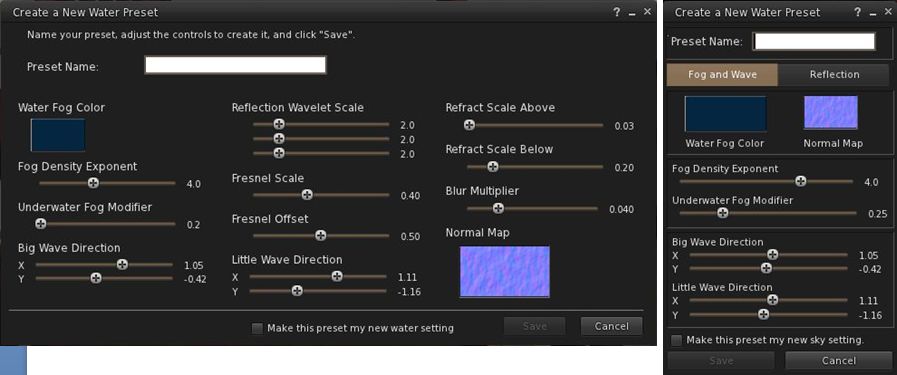
The first tab in the floater is for Windlight settings and this includes options to open the Windlight water and sky presets floaters (which can also still be accessed via World-> Environment Editor ->Sky Presets / Water Presets). Both of these floaters have been extensively re-worked to make them much more compact and screen-friendly when compared to the default versions found in most viewers.
Windlight Water Presets: the default floater (l) and the Phototools updated floater (r) both to scale (click to enlarge)
Taken together, the Phototools floater and revised sky and water presets floaters present all the options needed to manipulate the environment, as seen through your viewer, in three panels which are compact enough not to overwhelm the screen; a major benefit when trying to set-up lighting, etc., for a specific shoot or film sequence and you need to see the impact of changes on your world-view as you adjust lighting and other effects to achieve a specific result.
Another of William Weaver’s images created entirely using the viewer options presented through Phototools
How it all Came About
I recently caught up with William with a view to finding out more about Phototools and the future holds for them. I started by asking him how he got started on the road of developing them.
“When I first started in SL I was using it to write,” he explained. “I would role-play and write chapters in a story from the events of the role-play. While doing this, I started taking some pictures and I noticed SL has a great deal of potential for very good image making.”
He also noticed that a lot of people relied on external post-processing to achieve their finished results, “While I appreciate people who are good with Photoshop and after effects, I enjoy working with the limits of the viewer.” This started him thinking about how the capabilities within the viewer could be presented in a more user-friendly and accessible manner. At the same time, and while also involved in the role-play, William got to make his first SL machinima, which brought him up against additional problems.