Mesh, Phoenix and the future

Jessica Lyon has issued a statement on the Phoenix website concerning the future of the Viewer. It makes interesting and clear reading.

On Mesh

A release of Phoenix will be forthcoming that can render mesh objects in-world. Jessica makes it absolutely clear that credit for this largely goes to Henri Beauchamp and his work in backporting the Viewer 2.x/3.x rendering code into Cool Viewer. She also makes it clear that the Phoenix implementation pretty much is Henri’s code as is. In the post, Jessica states:

“I don’t want you all thinking we’ve changed our focus back on phoenix, truth is we haven’t. Ansariel handled all the work of pulling Henri’s work into phoenix, LGG has helped. Aside from Tonya and Tech fixing some of the bugs.. That’s it.. essentially we’ve only had two developers working on this, and there are no plans to increase development on phoenix beyond that. However, mesh in phoenix will accomplish two things. It will complete [the] adoption of mesh in SL, which is pretty cool actually. But equally important, it will also fulfill our promise to keep phoenix going until it’s dying day.”

She also gives a stark warning on Phoenix with mesh rendering:

“Speaking of QA, don’t expect phoenix to be just like the last release only now it has mesh support. This work effectively makes Phoenix a Ford Pinto with a diesel engine from a school bus duct taped into it. Not only will it have all the existing mesh related bugs, but it will have plenty of its own bugs specific to having a diesel engine in a Ford Pinto. It will have a negative effect on crash rates no doubt, will be a performance drop for some, an increase for others. It will not be perfect, as it is not designed to support mesh.”

On RLVa

Jessica has also indicated that the next Phoenix release will have an update to RLVa as a result of Kitty Barnett’s hard work as well. Details aren’t clear, but one assumes this will bring it into line with the updated RLVa seen in Firestom.

On the Future

Jessica is unequivocal as to the future however: Viewer 1.x is, in her opinion, on its deathbed where SL is concerned, and as such, trying to maintain the Phoenix code on a par with Viewer 3 is going to be too much of a headache. As she points out:

“Consider this.. it took over 9 months to get mesh to work in a v1 viewer.. it took us just over 2 weeks to merge mesh into Firestorm once we started the merge. This will be the pattern with all new things LL releases, making it work in Firestorm or a v2 based viewer will be far easier to adopt faster than making it work on a v1. Maintaining v1 long-term is just not being realistic.”

No date is given for a release of Phoenix with mesh rendering capabilities, other than it will be released once it has passed QA.

The release is also liable to mark the end of the road for Phoenix where non-SSE2 capable computers are concerned. The release for such machines will not include mesh rendering support.

Overall, this news is liable to be met with approval from Phoenix users not yet ready to make the jump to Firestorm and might, conceivably ease some of the pressure on the Firestorm team to get some of the current bugs and issues with the latest Beta release ironed out.

And on the subject of Firestorm, Jessica did offer a small tease: “Mesh upload capability is also under development and making some promising advancements thanks to Nicky Dasmijn.”

Read the full blog post.

Metabolt Updates

Metabolt-logoMetabolt has recently been through two significant updates – and in doing so, has stolen a march on graphical Viewers. With Phoenix and Firestorm due to get “Contact Sets” for managing Friends lists in the future, Metabolt has the capability to sort and group Friends now.

The 0.9.47 release of 28th August saw a raft of major fixes and the inclusion of new LSL-related Action Commands: Eject from group, Touch, Sit, Stand, Move To (walk, run or fly), Follow, and Send Notice. Additionally, the following enhancements were made:

  • Metabolt upgraded to the latest version of libopenmetaverse
  • New neutral colour scheme throughout
  • LSL API is now activated via the Security tab under Application/Preferences where you need to specify a master avatar and a master object UUID so that commands are only accepted from them. Unchecking the “enforce” option will mean METAbolt will accepts commands from all avatars and objects that pass a valid METAbolt password as it used to be before.
  • Movement controls issues resolved for better avatar movement
  • Received Inventory items are auto accepted in 15 minutes of being received if not dealt with within that time limit and information is printed on the chat screen
  • Deleted inventory items now go into the Trash folder which you will need to empty
  • Viewer 2 Physics Layer supported  (if a physics layer of clothing is worn, movement will render correctly in graphical Viewers).

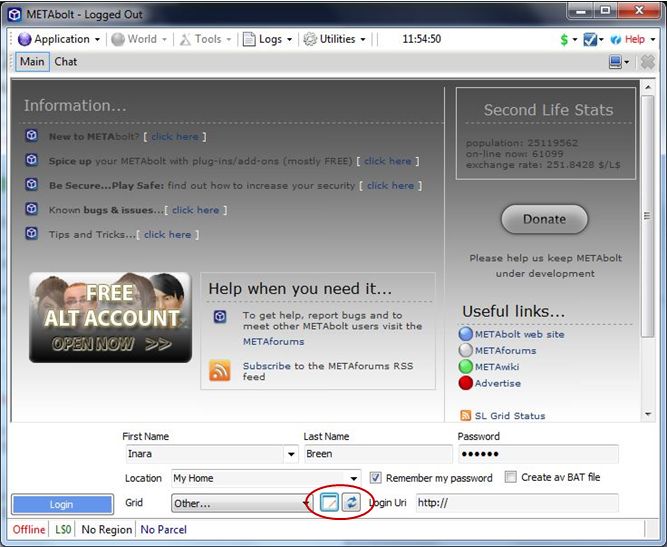
The 0.9.49 release of 3rd September (which obviously includes the 0.9.47 updates) revises the login splash screen to add two new button that are displayed when OTHER is selected from the Grid drop-down list.

New Grid list button (circled)

The first of these will open the grid list in a suitable editor (e.g. Notepad), allowing you to easily add additional grids to the list. The second button will refresh the list to display any new grids you’ve added.

Once logged in to Metabolt, 0.9.49 allows you to organise your friends list into Groups using two new tabs and a new drop-down list.

New Friend Groups options
  • Creat a Group allows you to create a new group you can categorise your friends by
  • Friend Groups displays a list of groups you’ve created. Clicking on a group will open a box allowing you to drag-and-drop the names of friends from the main list on the left into the Friend Group.
  • Currently Displaying under th you main friends list on the left of the window allows you to display all your friends, or select a specific group you have created via a drop-down list.

These are sure to be welcome additions that further enhance Metabolt.

Related Links

Happy Birthday Phoenix

On September 3rd 2010, Jessica Lyon added an entry to her personal blog. It read, in part:

“My name is Jessica Lyon. My goal during my time with the Emerald Project, was always to give the users what they want. That goal has never and will never change. I’m very happy to announce, it continues…

“A few days ago, I assembled a team of developers to work on a new viewer. Some who were originally Emerald developers, some who were not. All are respected reputable residents in the SecondLife Community. The goal was simple, to provide users with what they want and do it transparently.

“I’m am very proud to announce the launch of the Phoenix Viewer.”

Phoenix was aptly named, rising from the ashes of the Emerald project, to soar gracefully as potentially the more successful and popular of all Second Life third-party Viewers – and all in the space of a few short months.

The Phoenix party with dramatic windlight settings active

To mark the anniversary of that blog post and Phoenix’s birth, Jessica and her team held a party, hosted by Ed Merryman on Wailele Moku sim.

Jessica Lyon

Some 50 people were on the sim for most of the celebrations, which included speeches, music and dancing and general merriment.

Many of the Phoenix development and support teams were present, including Jessica herself, who was out on the dance floor and mingling, and there were opportunities to be had to chat about Phoenix and Firestorm.

It’s been a remarkable twelve months for the Phoenix team. Not only have they met  – and exceed the wants and hopes and desires of a huge number of former Emerald users and overcome the angst and concerns that surrounded that particular episode of SL history, they’ve worked equally hard on developing Phoenix’s potential successor, Firestorm, which is already proving to be a huge success even before it has reached the status of a formal release.

So it’s been a remarkable and productive – not to mention successful – year. As a former Phoenix user now committed to Firestorm, I’d like to give my thanks to Jessica and the team for all of their effort over the year and say that I hope this is the first of many such birthday celebrations for both Phoenix and Firestorm in Second Life and in the OpenSim environment.

Happy Birthday, Phoenix!

Update Sept 4th

Here’s the birthday speeches via metamix TV.

Imprudence celebrates its birthday and a new project organiser

Just on a month after Jacek Antonelli announced she would be retiring from the Kokua / Imprudence project, the team have announced they have a new project organiser in the shape of  ZATZAi Asturias.

ZATZAi, aka Sean Greyhound in SL, has been active in SL since 2005, and among other notable activities, helped organise the in-world elements of SLCC 2007, and his appointment has been warmly received.

Also, this weekend see Imprudence celebrate its third birthday, and the team are marking this with a series of events across a number of grids. In Thursday 1st, they celebrated on their “home” grid, 3rd Rock. Over Friday and Saturday, they’ll be travelling to InWorldz, OSGrid and Second Life, with an open invite for friends and supporters and everyone else to join them in celebrating. Here’s where:

  • Friday September 2nd:
  • Saturday September 3rd:
    • OSGrid at Imprudence, commencing at 13:00 PDT
    • Second Life at Rouge, commencing at 22:00pm PDT
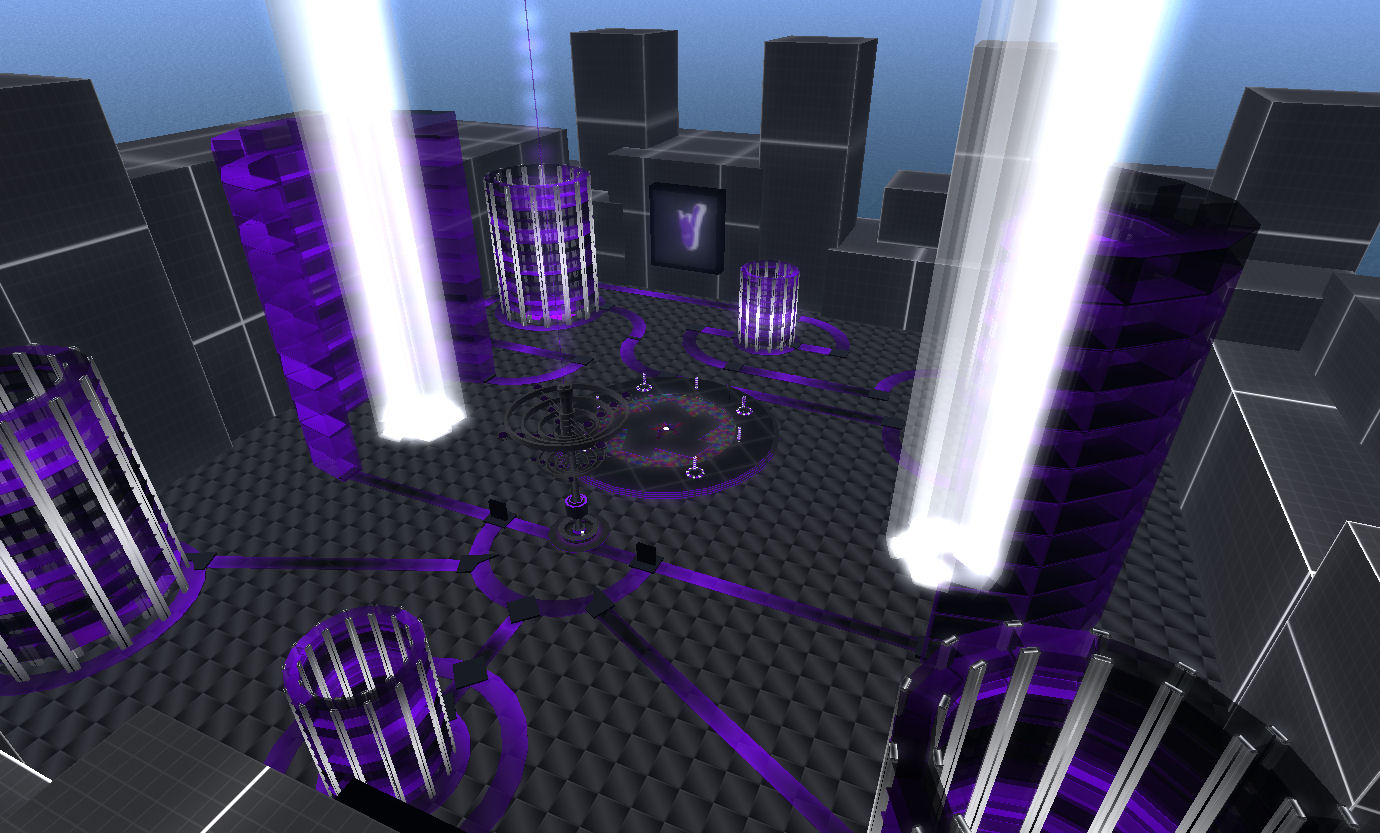
Purple rules: the Imprudence sim on OSGrid

Happy birthday, Imprudence!

Phoenix 1.5.2.1185 out

Phoenix have released the latest maintenance update to the Viewer. This comes with a number of bug fixes, including:

  • Phoenix appends (PH) in official support groups, with an option to disable
  • Fix for crash on changing shape and sometimes on appearance (fixes PHOE-59, and part of PHOE-3002)
  • Fix for crash when an animation is played on another avatar with an unknown joint
  • Partial fix for crash when script error buffer is overloaded by only displaying your own script errors by default.
  • Webkit related updates and fixes.
  • Linux Webkit updated to 4.7.1 (to same as windows and mac)
  • Fixes showcases not working for regions with a space in the name
  • Add Plugins and Javascript settings to web preferences
  • Add ability to disable SSL certificate errors in LLQtWebkit.
  • Add ability to add certificates.
  • Fixed Mac OSX Lion error messages about missing files
  • Updated bridge to prevent other objects from making your av move
  • Added option to disable server version change notifications, and set notifications to a lower priority
  • Updated copy paste code in build floater and fixed position on attachment
  • Avatar physics fixes – pie menu detach works, as does setting beer belly bounce on male
  • Handle llRegionSayTo() messages sent to local chat properly. Fixes PHOE-2998.
  • Webkit related upgrades and fixes
  • GPU list corrections and additions.

Of particular interest to many is the inclusion of the following functions:

  • The new Parcel Privacy options, and the ability to mute avatar sounds (generated by gestures) have been backported from Viewer 2
  • The “official” code for sharing region environment settings has been incorporated
  • STORM-1037 compliance has been added, and the redundant “hide URL” checkbox removed (redundant, as there are other means to obtain the URL even when the checkbox is ticked).
  • Viewer 2’s capability to mute avatar sounds at the parcel level
  • Phoenix can now detect whether a region supports the upcoming new maximum prim size of 64x64x64 (which will be introduced alongside mesh, as is currently available in the mesh-enabled sandboxes and private sims that signed-up to the Mesh/Live Volunteer program). This option will obviously become redundant once mesh is rolled out across the main Grid, but for now is useful, as it gives Phoenix users the opportunity to find a suitable sim and play with the new prim sizing capabilities.

Jessica also appears to have been following me around the mesh-enabled sims on both agni and aditi, as she also supplies a series of images showing mesh when seen in a mesh-capable viewer and a non-mesh viewer!

Text clients reviewed 2: Metabolt

Metabolt-logoWe’re all familiar with the Second Life Viewer in one flavour or another. But what about the non-graphical “lightweight” clients that are available for accessing SL when using a “full” Viewer isn’t always an option?

Like the Viewer, these “lightweight”, or text-only clients come in a number of flavours, some of which can run on computers and others on mobile devices. Given I don’t have a suitable mobile device, I thought it might be interesting to take a look at the former, focusing on the Windows platform, and given some kind of insight into their features and capabilities for those who have never used them. So over the course of three articles, I’ll be taking a look at Libretto, Metabolt and Radegast – all of which are on the SL TPV Directory, and all are still very much under enhancement.

Metabolt
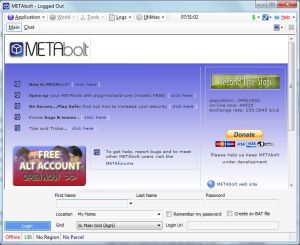
Metabolt modestly describes itself as, “a thin text client with rich features to enable users to perform most important functions in SL”

Installation comprises downloading a ZIP file, extracting the contents to a temporary folder and then installing from there, which is somewhat long-winded, but the results are worth it.

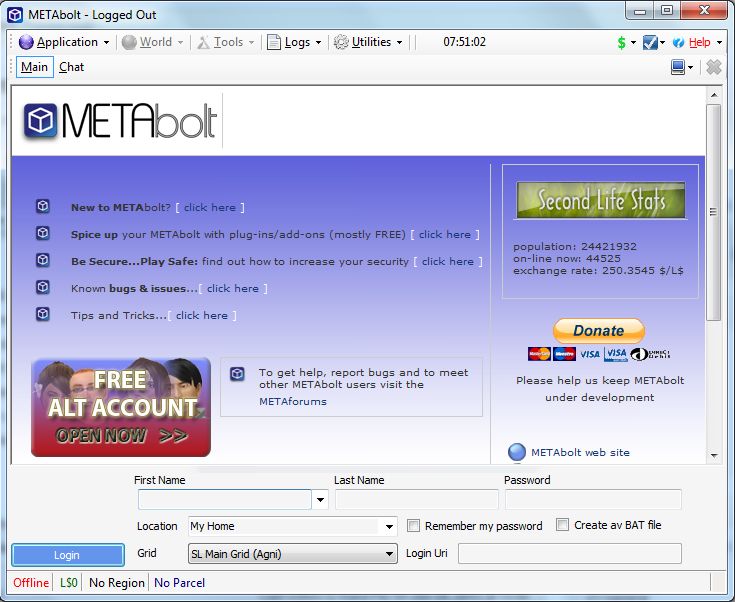
From the start it is clear that Metabolt is intended to cover a lot of bases, allowing you to not only log-in to Second Life’s Main grid, but also to the Beta aditi grid, and to a number of pre-defined OS grids. You can even define a custom log-in for any grid not on the list, providing you have the necessary login uri. As with a graphical Viewer, you can additionally set your preferred log-in location. Finally, on logging-in, your avatar’s details are saved by Metabolt & can be selected from a drop-down drop-down list (First Name), simplifying the logging-in process in future sessions.

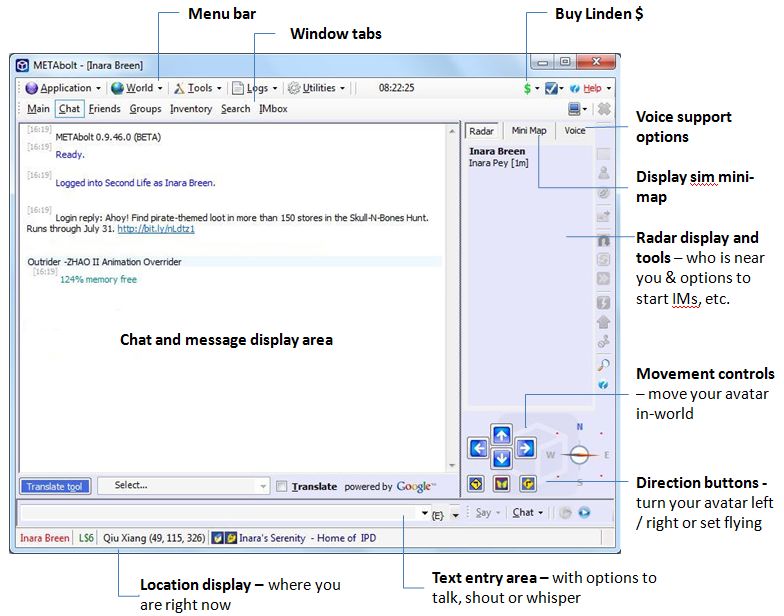
A successful log-in to Metabolt takes you directly to the Chat window (below).
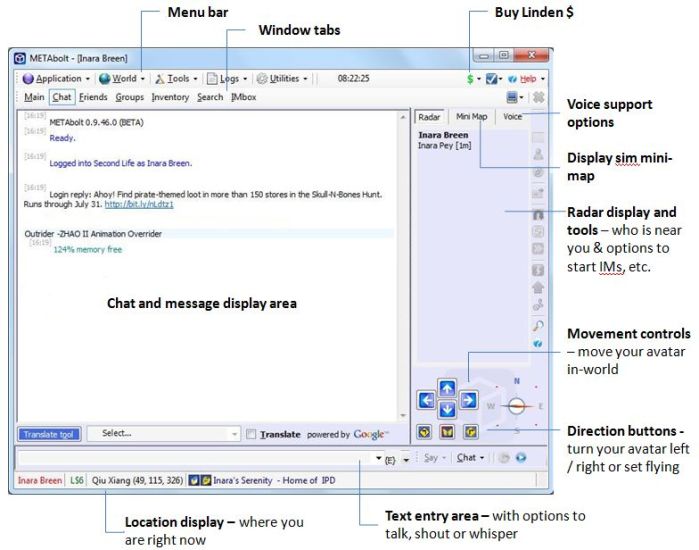
Menu bar

  • Applications Menu: provides access to a comprehensive set of preferences, some of which (Text, etc.), mirror the chat preferences in the SL Viewer, while others (such as the AI icon), are specific to Metabolt
  • World: provides a series of in-world and avatar-specific options, including the ability to animate your avatar (so you can dance if you log-in at a club, rather than standing like a lemon); allows you to Tp Home or set a Tp point where you are, rebake (useful if someone informs you that you are a cloud in-world), go to your account history page at secondlife.com, etc.
  • Tools: provides access to a range of tools, including a searchable grid map, complete with teleport options, a separate teleport option, an exceptionally powerful Object Manager (see below), an upload tool for images, and various other tools
  • Logs: allows you to define save locations for for Metabolt chat and IM log files (a-la the Viewer), and accesses a log of all teleports made while using Metabolt
  • Utilities: Reloads the AIML libraries associated with the AI plugin and allows you to launch the official SL Viewer, if you have it installed.

Window Tabs

  • Chat: displays the chat window, show above.
  • Friends: opens the Friends tab. Here you can:
    • IM a friend, view their profile (in a Viewer 1-style profile window), offer to teleport them to you, pay them, or remove them from your friends list.
    • IMing a friend opens a new tabbed window which in turn provides options to view their profile, save a log of the conversation, review the history of the conversation and even mute them
    • You can also set / revoke map, edit and see permissions against Friends from this tab
  • Groups: displays a list of your current Groups, and allows you to start a Group IM, activate a Group tag, view Group information, leave a Group, invite someone into your Groups, and even create a new Group
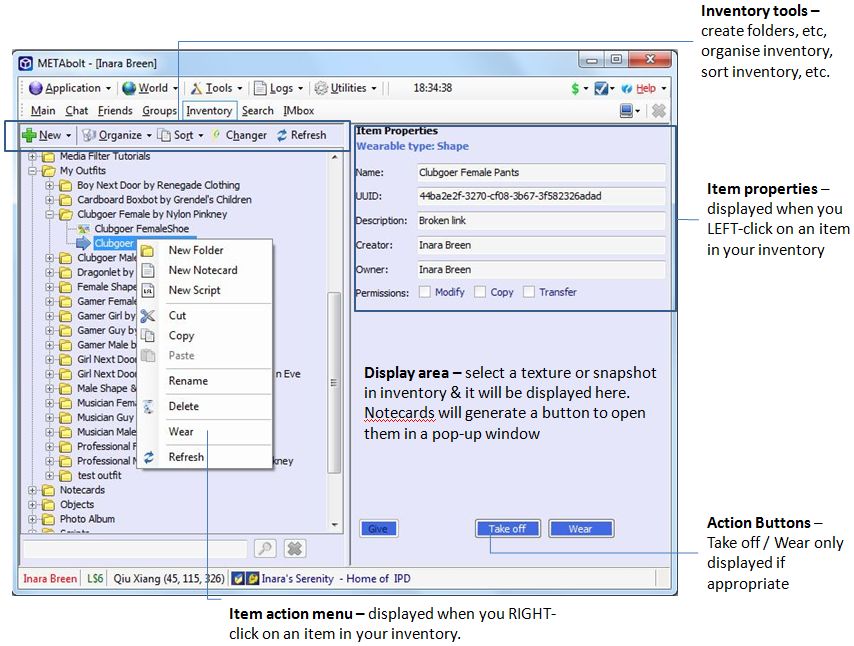
  • Inventory: is a powerful window that allows you to view, sort and organise your inventory, look at item properties and wear / remove / transfer items, as well a perform a number of other tasks as shown below.
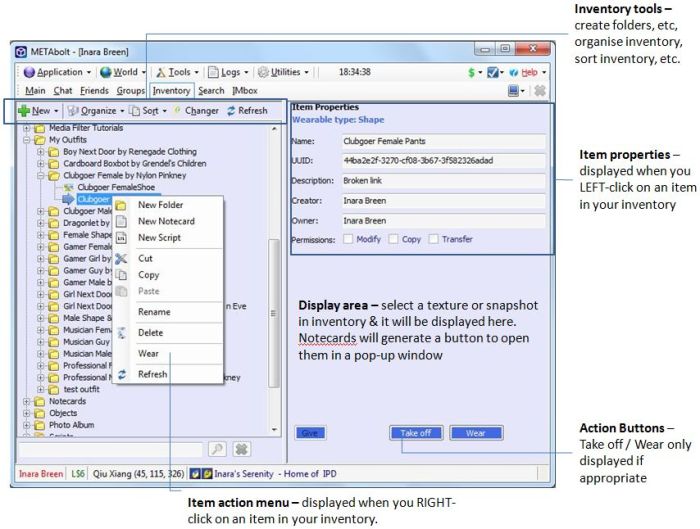
  • Search: opens a Viewer 2-type search window, allowing you to search in-world and the SL forums and related sites
  • IMbox: allows you to review and reply to unread IMs you’ve received from other avatars.

To the right side of the window tab is a small computer icon which will display a drop-down menu:

  • Merge with: allows you to merge a selected window with another window and display them in a single tab. The option will then change to Split, allowing you to separate the two windows once more
  • Deatch: will detach a selected window tab from Metabolt and display it in its own floater. Use the Reattach option in the floater, or simple close the floater to redock the window with Metabolt.

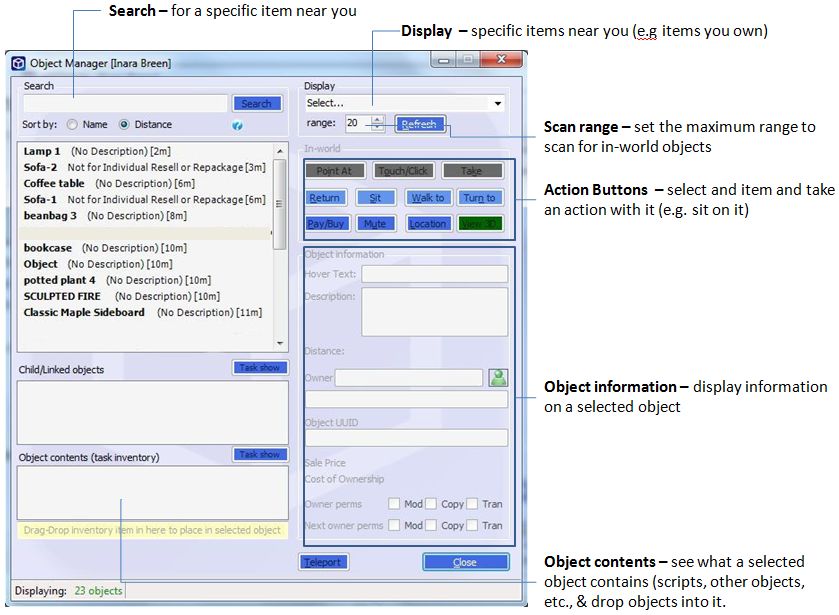
Object Manager Window

This is a powerful feature within Metabolt when interacting with objects around you. Using this tool you can:
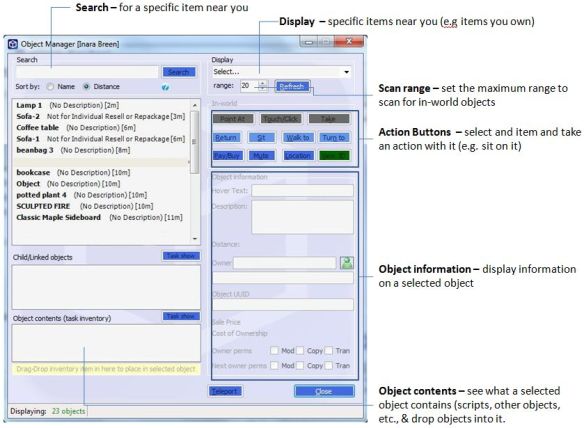
  • Scan your immediate vicinity for objects (set your desired scan range)
  • Interact with objects using the In-world tools – walk to an object, point to it, sit on it, stand up from it, mute it, etc.
  • View the contents of an object (CONTENTS) to check scripts and other items it might contain
  • Display a 3D image of the object (3D View) and:
    • Zoom in/out on it, rotate it, etc., using the ALT key and your mouse
    • Right-click on the image to display a list of actions you can take with it (sit on it, return it, etc.)
    • Use the camera icon at the bottom of the image window to save the image to your hard drive
  • You can additionally view details of a selected object and its child components.

The Object Manager includes a button to touch items around you and which should – I think – bring-up any menu associated with them to allow you to interact with it; however, this option does not appear to work as expected at present: a window is opened for the Touched object, but no actual menu is displayed.

Moving using Metabolt

Moving around in-world using Metabolt is obviously not easy – you can’t see where your avatar is going, or who or what is in the way. However, movement is possible in a number of ways, including:
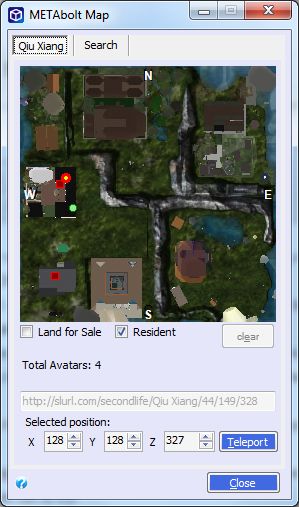
  • By using the Object Manager window and selecting an object then clicking on GO TO (to walk to it) or LOCATION to teleport to it
  • By opening the map (TOOLS -> MAP or CTRL-M) and displaying a region before setting your desired co-ordinates and teleporting to it
  • Using the movement and direction keys, in combination with the map / mini-map
  • Having someone teleport you to them (TP offers appear in red alongside the Window Tabs)
  • Getting friends around you to help direct you as you use the movement keys.
  • Using the radar FOLLOW or GOTO buttons (see below).

None of these options – other than teleporting to fixed points – are terribly effective, but can at times help with things, and can be fun to try!

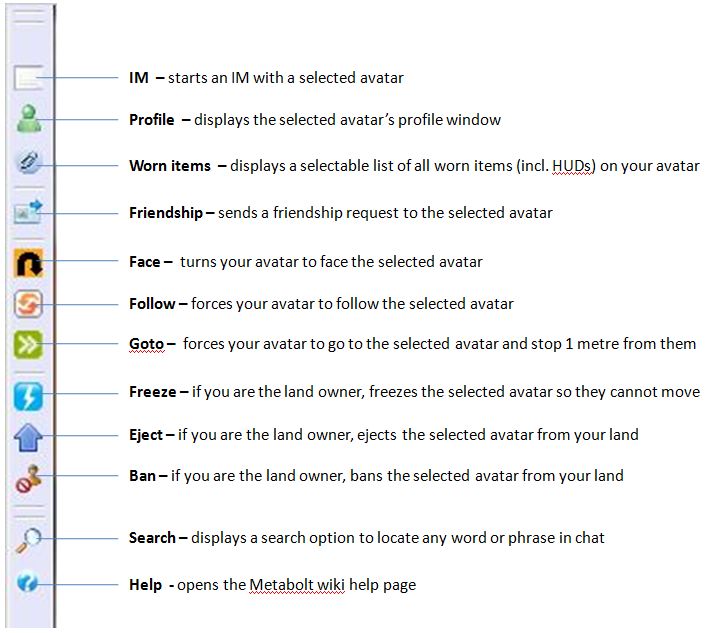
Radar Buttons

Another useful set of tools are the radar buttons, which are displayed in the Chat window. These become activate when an avatar name is selected from the list of nearby avatars, and are described below
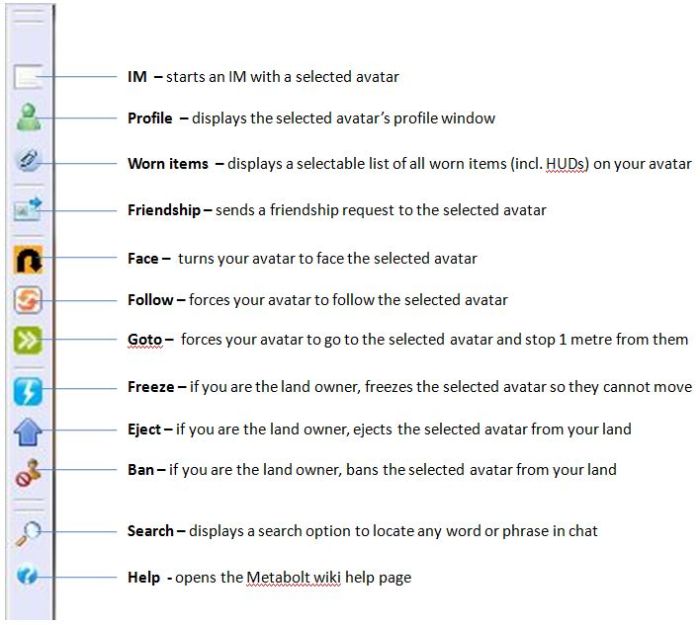
Metabolt and other Grids

A major plus point for Metabolt is that it supports other grids, making it a good contender if you have a presence on several grids and need a text-based client to access them. I tried Metabolt with both InWorldz and Avination – neither of which are on the default list of grids, and logging in to both was as simple as giving my avatar details, selecting OTHER… from the drop-down list of grids and then giving the login URI for the grid to which I wanted to connect. If I have a complaint here, it is that the grid name isn’t added to the list of available grids, so you have to re-enter the URI each time you wish to enter a grid that isn’t listed.

Website

The Metabolt website is very polished and provides excellent support in the form of a set of wiki pages, one of which provides a series of additional plug-ins to the “basic” client, as well as a reasonably-good Help section. There is also a forum for users as well, which appears to be in reasonable use, suggesting that there is lots of help to be had there from other users, should you need it.

Use and Opinion

Metabolt can appear a little off-putting with the log-in page ads (although there is an option to remove these if you donate to the project) – but don’t let them stop you trying out the client, as it may prove to be what you’re looking for when you can’t use the full Viewer.

Despite the apparent complexity of the main window, getting to grips with Metabolt is very easy, and you should encounter few problems in using it for basic tasks. That said, refinement of some of the more advanced options – such as touching objects – is required.

I’m personally not convinced of the need to include movement keys – unless there are plans to include some kind of 3D real-time rendering tool, a-la Radegast. I also felt the overall colour scheme could be improved; some of the background colours on the Object Manager buttons might make reading the button labels hard for some people. Sitting on a object was also sometimes touch-and-go due to not being able to define precisely WHERE on an object you might want to sit (unless a poseball is available for selection); but this is an issue for any non-graphical client offering this type of functionality.

That said, Metabolt is certainly a more involved text client than Libretto, and can enable you to do a lot more while without full graphical access to a grid. Overall a very good application with an impressive feature list.

Related Links