Radegast: 3D Rendering progresses

The 3D rendering capability I reported on a week ago in Radegast continues to develop.

The rendering window itself has been improved, with the debug panel now OFF by default, giving it a much cleaner appearance. Avatar movement, via the cursor keys (or the movement buttons on the main Radegast window) is smoother, although still not as refined as the Viewer. Right-clicking on scripted-items in the render window now also calls-up any associated menu, or allows you to take direct actions such as sit, take, etc.

Clicking a menu-driven item in the render window displays the associated menu in the main Radegast window

The most eye-catching addition that may be coming, however, is the ability for water reflections to be rendered, as shown in the video below from the Radegast team.

Now, I have to confess, I’ve downloaded the most recent nightly build, and couldn’t get the water reflections to work. This might be simply because the code to do so isn’t as yet in the latest build – I have no idea; but that doesn’t make the video above any less impressive.

There are a few issues around camera movement that could be refined or improved: holding CTRL and moving the mouse to the right – and seeing the camera move to the LEFT relative to its on-screen position, for example, can be a little confusing. But again, this rendering option is still experimental, so there is every chance that if things like this can be refined, they probably will be.

Overall, it’s fascinating to watch these developments within Radegast, and kudos to the team for the progress made so far.

A look at the new V2 log-in screen

As has been widely reported, Linden Lab have updated the Viewer 2 splash / log-in screen with version 2.8.1.

The new screen, available in both Basic and Advanced modes is a completely new, and interactive layout which may well encourage newcomers to SL to explore and take a dip in things – and could well help users who are logging-in specifically to attend an event to get to it from the off, and without having to log-in to home, or somewhere and dig-out a landmark.

The new screen features 5 distinct areas:

  • The Editor’s Choice: twelve images of locations within Second Life
    • Use the left / right arrow buttons below and to the right of the images to page through them
    • Hover the mouse over an image to display further information about it, including an option to set it as your current logging-in point when you click on the log-in button
  • The What’s Hot Now bar which features eight “pages” of four destinations apiece that are proving popular
    • Locations apparently selected on the basis of the number of avatars currently in attendance
    • Page through the list 4 locations at a time using the left /right arrow buttons
    • Hover the mouse over a location for further information and the option to add it as your Start At point when you log-in this time
  • The Destinations bar
    • Multiple pages of destinations in Second Life sorted into categories which can be selected from a drop-down list (see image above)
    • Page through the list 4 locations at a time using the left /right arrow buttons
    • Hover the mouse over a location for further information and the option to add it as your Start At point when you log-in this time

To the right of these are two text areas drawn from the same feeds that server your dashboard at http://www.my.secondlife.com:

  • An Upcoming Events feed which lists the current events listed in your dashboard and which can be paged through using the left / right buttons. Clicking on an event does two things:
    • Displays a pop-up with further information on the event
    • Updates your Start At location to deliver you to the venue when you log-in (a warning that this has happened is also displayed in the pop-up)
  • A Blogs Feed that features all current LL blog entries found on the dasboard, but without any streaming into familiar categories (“Featured News”, “In-world”, etc.). Clicking on a blog title open-up a pop-up window and displays the blog entry in a scrollable format (below).

Overall, the new approach is a nice idea. Were I to pick any issues with it at all, it would be:

  • The lack of any Grid Status display – that there is none is utterly and completely short-sighted; if there are issues in-world, people have the right to know before money or goods are put at risk through asset server errors and suchlike. Yes, it may spoil the nice shiny hue to SL, but not including such a listing and ensuring it is updated ASAP a problem occurs is a pretty glaring omission – as Rodvik, if you’re reading this and given your promise to get better notification of issues and problems out to users, this oversight needs fixing
  • The lack of any info relating to current and 60-day logins is also unfortunate, and one has to wonder at the logic behind removing it.

Overall, and interesting approach lacking a couple of features, but one that may encourage people to start exploring more, and help newcomers to seek out places of interest and potentially avoid getting unpleasantly dumped into one of the many (un)welcome areas within SL.

Update

At SLCC 2011, Brett Linden, Managing Editor at the Lab, reviewed the new log-in screen, commenting that it is currently “version 1” and the Linden Lab would like feedback on it in terms of how people are using it, information displayed, etc. Brett and the Editorial Team can be contacted at editor@lindenlab.com.

Jacek Antonelli announces retirement

Jacek Antonelli, one of the major driving forces behind Imprudence  / Kokua has today announced she is retiring form the Imprudence team. Her announcement in part reads:

After 3 years of serving this project, I will be retiring effective September 1. As often happens in life, the priorities in my life have shifted over time, and it is now time for me to focus on other things.

Obviously, this will be a major transition for the project. But, I will be working for the next month to make it as smooth as possible, so that everything can continue with minimal disruption. At this time, we have not yet decided who, if anyone, will replace me as “benevolent dictator“, or whether there will be some other form of project leadership. Of course, we will keep you guys informed as the details are fleshed out.

My retirement is not an occasion for somberness, but rather for fond reflection on the past, and hope-filled anticipation for the future. I am proud of the work we have done and what we have accomplished so far, and I look forward to the great things that will be accomplished after I am gone. What’s more, I am immensely proud that we have accomplished all this without compromising our principles or our integrity, even when the road was most difficult, and the temptation most pressing.

Imprudence has been a major force in the world of third-party Viewers, and the team, lead by Jacek, have rightly gained themselves a loyal and enthusiastic following. Over the years, Imprudence has often been a pathfinder for new functionality, and/ or has striven to meet the most-needed requirements of users.

It is not entirely clear what will be happening in the future – the team have a month to get things sorted out, and hopefully both Imprudence and the still in-initial-development Kokua will remain with us, and the vision of seeing Imprudence 1.4 stablised and Kokua gorwing into its worthy replacement will be realised over time.

As a former Imprudence user myself, I’ve always appreciated all the work the team has put into the Viewer, and I personally wish Jacek every good wish and every success, both in her virtual and real lives.

Thank you for everything you’ve done, Jacek.

Linden Lab calls for more mesh volunteers

Charlie Linden reports there are currently 100 mesh-enabled sims on the main Grid – but LL wants to treble that number. In an e-mail posted to the the opensource dev group by Oz Linden, Charlie states:

We’re at about 100 regions right now – but we want to be at 300+ by the end of the week.

Now we want to accelerate the process, and to do that, we need more volunteers. If you have a region, or know a resident who has one, the mesh team would love for you to volunteer it to run mesh.

Those interested in joining the initial roll-out should go to the Mesh/Live Volunteers wiki page to find out more – including risks and limitations (programme is only open to private sim owners, Mainland sims cannot participate, for example).

For those wishing to see what mesh is like for themselves, there are a series of mesh-enabled sandboxes located around Mesh Sandbox 0 (Surl). However:

Alternatively you can visit Morbidette, a private sim that is mesh-enabled, but does not require you join the Volunteer Group – you will, however still need a mesh-enabled Viewer.

With thanks to Opensource Obscure for the info on the call for additional volunteers & info on Morbidette.

Phoenix 1.5.2.1185 out

Phoenix have released the latest maintenance update to the Viewer. This comes with a number of bug fixes, including:

  • Phoenix appends (PH) in official support groups, with an option to disable
  • Fix for crash on changing shape and sometimes on appearance (fixes PHOE-59, and part of PHOE-3002)
  • Fix for crash when an animation is played on another avatar with an unknown joint
  • Partial fix for crash when script error buffer is overloaded by only displaying your own script errors by default.
  • Webkit related updates and fixes.
  • Linux Webkit updated to 4.7.1 (to same as windows and mac)
  • Fixes showcases not working for regions with a space in the name
  • Add Plugins and Javascript settings to web preferences
  • Add ability to disable SSL certificate errors in LLQtWebkit.
  • Add ability to add certificates.
  • Fixed Mac OSX Lion error messages about missing files
  • Updated bridge to prevent other objects from making your av move
  • Added option to disable server version change notifications, and set notifications to a lower priority
  • Updated copy paste code in build floater and fixed position on attachment
  • Avatar physics fixes – pie menu detach works, as does setting beer belly bounce on male
  • Handle llRegionSayTo() messages sent to local chat properly. Fixes PHOE-2998.
  • Webkit related upgrades and fixes
  • GPU list corrections and additions.

Of particular interest to many is the inclusion of the following functions:

  • The new Parcel Privacy options, and the ability to mute avatar sounds (generated by gestures) have been backported from Viewer 2
  • The “official” code for sharing region environment settings has been incorporated
  • STORM-1037 compliance has been added, and the redundant “hide URL” checkbox removed (redundant, as there are other means to obtain the URL even when the checkbox is ticked).
  • Viewer 2’s capability to mute avatar sounds at the parcel level
  • Phoenix can now detect whether a region supports the upcoming new maximum prim size of 64x64x64 (which will be introduced alongside mesh, as is currently available in the mesh-enabled sandboxes and private sims that signed-up to the Mesh/Live Volunteer program). This option will obviously become redundant once mesh is rolled out across the main Grid, but for now is useful, as it gives Phoenix users the opportunity to find a suitable sim and play with the new prim sizing capabilities.

Jessica also appears to have been following me around the mesh-enabled sims on both agni and aditi, as she also supplies a series of images showing mesh when seen in a mesh-capable viewer and a non-mesh viewer!

Text clients reviewed 3: Radegast

We’re all familiar with the Second Life Viewer in one flavour or another. But what about the non-graphical “lightweight” clients that are available for accessing SL when using a “full” Viewer isn’t always an option?

Like the Viewer, these “lightweight”, or text-only clients come in a number of flavours, some of which can run on computers and others on mobile devices. Given I don’t have a suitable mobile device, I thought it might be interesting to take a look at the former, focusing on the Windows platform, and given some kind of insight into their features and capabilities for those who have never used them. So over the course of three articles, I’ll be taking a look at Libretto, Metabolt and Radegast – all of which are on the SL TPV Directory, and all are still very much under enhancement.

Radegast

  • Platform(s): Windows / Linux (Windows reviewed)
  • Available from: http://radegast.org/wp/
  • Version reviewed: 1.28.872

Radegast pitches itself as , “Light-weight feature rich non-graphical client, ideal for situations where full 3D rendering client is less than ideal option, for instance, an office environment, running on low performance computers and similar” – and given just what the client is capable of, this is something of an understated description.

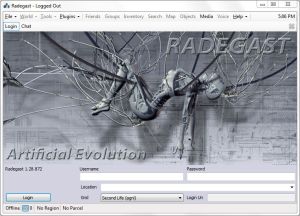
Unlike Metabolt and Libretto, which I’ve also reviewed as a part of this series, Radegast is available in both a Windows and a Linux flavour – although it is the Windows version that is investigated here. Comprising a downloaded .EXE installer, the client installed itself easily enough and when started presented a very professional-looking log-in / splash screen featuring a crisp and clean design.

Following Viewer 2’s example, Radegast dispenses with requesting your first name and last name in individual fields, but simply asks for your user name and password. Beneath these are options to enter / select your preferred log-in location and to select your preferred grid Use the drop-down list or supply the required uri; the grid will automatically be added to the list).

Once logged-in, you are transferred to the chat window, as shown below.

Menus

  • File: provides options to upload images / objects, start another Radegast session (so you can log-in another avatar), the ability to disconnect / reconnect to SL with the current avatar without needing to manually log-in; and an option to quit Radegast
  • World: presents a set of familiar in-world actions, such as setting Fly, Always Run, Ground Sit, Stand, Stop all Animations, set Busy / Away,create a landmark, teleport home, etc. Two interesting options are also offered: the ability to change your Display Name, and the ability to view parcel / region information (and, if you own the sim, to restart it)
  • Tools: access a series of tools, the majority of which are self-explanatory, and of which My Attachmentsis most interesting, as this displays a list of attachments worn by your avatar, allowing you to:
    • VIEW any attachment in an image window where you can rotate it, zoom in and out on it, etc.
    • TOUCH it (if it is a scripted object) to access and use the associated menu – just as you would if you were using a regular Viewer.
  • Plugins: Allows you to run / manage additional Radegast plugins (which fall outside the scope of this review in consideration of article length)
  • Help: (extreme right of Radegast window) accesses a comprehensive set of help options, including a useful set of keyboard shortcuts.

Window Tabs

  • Chat: displays the chat window, show above.
  • Friends: opens the Friends tab. Here you can:
    • IM a friend, view their profile (in a Viewer 1-style profile window), offer to teleport them to you, pay them, or remove them from your friends list.
    • IMing a friend opens a new tabbed window to converse with them
    • You can also set / revoke map, edit and see permissions against Friends from this tab
  • Groups: displays a list of your current Groups, and allows you to start a Group IM, activate a Group tag, view Group information, leave a Group, invite someone into your Groups, and even create a new Group
  • Inventory: is a powerful window that allows you to view, sort and organise your inventory. In addition, you can use it to create new inventory items, wear or remove clothing / attachments, review information (creator, UUID, permissions, etc.) for a specific item (left-click to select) and transfer items to other avatars (permissions allowing). a search function is included to make locating objects easier

  • Search: allows you to search for people, groups and places
  • Map: accesses the SL world map and provides the same functions as a graphical Viewer
  • Objects: accesses the Object Manager (see below)
  • Media: accesses the parcel media stream controls, allowing you to set the volume, start / stop the client fro relaying local sounds, etc.
  • Voice: accesses the SL Voice options.

A point to note when using menu options that open a window or any of the window tabs is that when you open an additional window, a further tab appears under the Menu / Window Tabs area:

The menu displayed by right-clicking on a tab is particularly useful:

  • Detach: detaches the window from Radegast and places it in an independent floater. Closed the floater (red X) to re-dock it with the main Radegast window
  • Merge With: allows you to merge one window with another.
    • This will change the Merge With option to Split, allowing you to separate the windows once more
  • Close: closes the selected window (in addition to using the two options shown in the image above)

Object Manager Window

This is a powerful feature within Radegast when interacting with objects around you.

Using this tool you can:

  • Scan your immediate vicinity for objects (set your desired scan range)
  • Interact with objects using the In-world tools – walk to an object, point to it, sit on it, stand up from it, mute it, etc.
  • If the object is touchable, you can use TOUCH/CLICK; if it contains any menu that is open to other avatars to use, the menu will be displayed & can be used just as you would in a graphical Viewer
  • View the contents of an object (CONTENTS) to check scripts and other items it might contain
  • Display a 3D image of the object (3D View) and:
    • Zoom in/out on it, rotate it, etc., using the ALT key and your mouse
    • Right-click on the image and display a list of actions you can take with it (sit on it, return it, etc.)
    • View its wireframe, etc.
  • You can additionally view details of a selected object and its child components.

Radar, Movement and Interaction

The radar can scan the entire sim you are on (up to 4096 metres altitute), and list all occupants by name and distance from you. Left-clicking on a name activates the radar buttons to the right of the radar list for that avatar. Alternatively, you can right-click on an avatar name and display a menu with more detailed options. In both cases, actions that cannot be used with the selected avatar (e.g. because they are out of range or you don’t have permissions for the action, such as Eject or Ban), will be greyed-out.

Movement can be handled in a number of ways:

  • By using the Object Manager to select an object and using WALK TO to walk to it
  • Using the Map to teleport to a selected destination
  • Accepting a teleport offer from a friend
  • Use the Radar to select someone nearby and then FOLLOW them
  • Using the Movement keys, located in the Chat window, under the Radar options: ^ moves your avatar forward; << turns your avatar to its left; >> turns your avatar to its right; R moves your avatar backwards.

An interesting means of direct interaction with another avatar, beyond chat and IM, is the  ATTN/Attachments button/menu option in the Radar display.

This opens a window listing all attachments the selected avatar is wearing, together with a VIEW button, which will display a 3D image of the selected objected when clicked, much like the 3D VIEW button in the Object Manager. If the attachment is touchable, an additional TOUCH button will be displayed;  if the attachment contains any menu that is open to other avatars to use, the menu will be displayed & can be used just as you would in a graphical Viewer. This makes it possible for users to enjoy something of a higher level of personal interaction possible when using Radegast when compared to other text-based clients, and could be useful in certain situations.

3D Scene Rendering

However, for those who would still like a visual element to their Second Life experience, but who cannot use their Viewer for whatever reason, the Radegast team is currently developing a “3D Scene Viewer”. This is quite simply stunning, even in the pre-release mode. Simply put, it gives you a window on what is going on around you in-world.

You can pan, zoom, and move around the image, see other avatars moving around, and your own avatar will respond to your use of the movement keys in the Chat window. Much of this capability is still under development, so I couldn’t test it thoroughly without encountering crash issues, but again, it looks set to be an excellent addition to Radegast that will lift it head-and-shoulders above other text clients; although whether one can continue to call it a “thin” client is technically debatable – with the rendering option running, Radegast’s memory usage ballooned from 79,392K to a huge average of 239,536K (which compares to Firestorm’s 381,080K and Phoenix’s 198,324K averages). One cannot fault the feature on this, however. I’ll be curious to see how this develops and whether it’ll be able to handle things like mesh.

Radegast and other Grids

A major plus point for Radegast is that it supports other grids, making it a good option if you have a presence on several grids and need a text-based client to access them. I tried Radegast with both InWorldz and Avination – neither of which are on the default list of grids, and logging in to both was as simple as giving my avatar details, selecting CUSTOM from the list of grids and then entering the login URI for the grid to which I wanted to connect. Once the grid details had been entered, the grid name was also automatically added to the drop-down list of available grids.

Website

The Radegast website matches the client – very well put together, informative and demonstrating that the client has both a strong development cycle. The wiki provides a good measure of documentation and a nice range of screenshots, although elements of it (such as the help pages) have been deleted (presumably to be re-written), and the link back to the main site didn’t work in Chrome.

Use and Opinion

Radegast is polished, professional and impressive. While the client can look a little complex, getting to grips with it is easy, and it offers considerable flexibility of use. I’ve by no means covered everything in this review; rather I’ve covered the features and capabilities that are liable to see the most use, and haven’t mentioned things like speech recognition for voice commands or the ALICE AI plug-in. If you want to find out about these, and other features, I suggest you give Radegast a go; you’ll find it a fascinating tool to play with.

I found very few issues with the client, although response times when logging-in to other grids were noticeably slower by comparison to SL, but that was about it. As expected, sitting on a object can sometimes be touch-and-go unless there are handy-dandy poseballs – but that’s to be expected.

Overall, I personally put this as the best of the current non-graphical Windows clients on offer via the TPV Directory; ideal for those with a presence on multiple grids, or who find themselves in environments where logging-in to SL using a full Viewer isn’t possible, and who wish to be able to enjoy a level of direct interaction with friends – something that will be enhanced even further once the 3D scene rendering is fully incorporated into the client.

Related Links