I reported on the last Phoenix Hour update recently, in which Jessica made it clear that where new releases of Firestorm are concerned, the team is pretty much waiting on Linden Lab and fixes to the OpenGL issues (for which the team are also providing assistance).
At the time of that broadcast, LL were saying that it could be another couple of weeks before suitable fixes are in place and ready to roll. However, since that time, progress has been made, although there still issues to be resolved. Among these is an issue with Mac systems using nVidia, which can experience black screens when running SL.
While there is still no date for merging the revised code into the main Viewer code, the progress, together with the fact that it has been a little quiet over on the Phoenix blog has prompted Jessica to drop a line or two on what is going on.
In the post, Jessica discusses the OpenGL issue, before going on to state:
“As of yesterday Firestorm development shifted into release mode. This means we are now focused on fixing the significant remaining bugs, polishing up any unfinished features that have been in progress and we’ve started an intense QA program. If all goes well, the next release of Firestorm will be the big one!”
Of course, such an admission is bound to bring cries of when, as Jessica acknowledges. However, she will only say:
“Unfortunately it seems every time we announce a date.. something goes wrong to jinx it, so I won’t go down that path, but I will say.. VERY SOON!”
This is pretty positive news, as the release promises to be pretty amazing, featuring, among a long list of things:
Spell checker
AO updates
Inventory “jump” fix and improved inventory load times
Mouselook zoom
Notecard text search
Chat bar auto-hide
More V1-style functionality in the Phoenix mode
Radar-in-a-floater
Right-click -> reload texture
Mesh uploads!
Commenting on the promised mesh-rendering version of Phoenix, Jessica indicated this will be following a couple of weeks behind the Firestorm release.
I’ll be aiming to bring a review of the release as soon as possible after it hits the download page!
This week’s Phoenix Hour saw a couple of guests sharing the sofa with Jessica: Ed Merryman and Lette Ponnier, who would be joining Jessica and Phaylen in a discussion on matters relating to Viewer support. Ed actually heads-up the Viewer support side of the Phoenix / Firestorm group, and both he and Lette provide classes in using Firestorm.
To kick things off, however, Jessica ran though the latest status for both Phoenix and Firestorm before going on to pass comment on the new LL Viewer UI – which, at the time of her comments, was about to be merged with the Development Viewer code but had not actually been released for anyone to see.
The Viewers
Overall, not a lot has changed since my last report on The Phoenix Hour – the team are really waiting on LL to resolve issues their end before making any further releases of either Phoenix or Firestorm.
Phoenix Status
The mesh rendering code, supplied by Henri Beauchamp, is in the Phoenix code repository
The current graphic issues being experienced with the Firestorm Mesh Beta (and other mesh-capable Viewers) will be in the code for mesh rendering in Phoenix; Jessica estimated that around 50% of people using mesh-enabled Viewers are caught with the issue (basic shaders causing Viewer crashes)
This issues are Linden Lab issues, and as such, Phoenix is being held pending a fix or fixes from the Lab
The team have been working with LL with these bugs, and a version of Firestorm would be pushed to the Beta group to assist with further testing on the working being undertaken to fix things.
Firestorm Status
The next release of Firestorm is good to go, but again awaiting the GPU-related fixes from Linden Lab
All blocking issues from with the Firestorm project that might have delayed a release have now been resolved
There are still a number of targets the team would like to achieve prior to a release, but these are not blockers to a release; so if a graphics fix comes out of LL before all the targets have been reached, a release may still go ahead
Issues and fixes for Firestorm can be tracked via the project JIRA – although people will need to register in order to gain access
Focus has been placed on Firestorm locking-up and going into “(not responding)” mode and also inventory load times; Nicky Dasmijn has, in Jessica’s words, “Made a world of difference” to the issues
Jessica is convinced even those who didn’t have major inventory load time issues are going to notice a significant performance improvements as a result of this work once the new release can be rolled out
As an example of the improvements, she stated her own 72K+ inventory now takes around 20 seconds to load!
While the new mesh uploader will be in the next release, as per the last Phoenix Hour, there are some issues around the physics weight calculations for mesh objects (which are presumably being worked on)
New feature: Jessica revealed during discussions that a new feature has been added to Firestorm for the next release: right-click -> reload texture. This forces the server to re-send a given texture (worn or on a prim) which has failed to rez.
So to repeat: progress on both Phoenix and Firestorm has been good, but until the graphics issues are resolved by Linden Lab, there will not be any releases. As a side note, Jessica and Ed said the Lab themselves are indicating it will possibly take another two weeks of effort on the Lab’s part to resolve the issues – but this is not guaranteed.
New Official Viewer UI
Jessica expressed disappointment around the way in which Linden Lab has handled the new Viewer 3.x UI, going so far as to state the view that working “in secret” on the UI was “Wrong. In so many ways”. Given the degree with which TPV developers working on V3-based code have been trying to make the Viewer more accessible and acceptable to die-hard V1.x users, one has to admit it is hard not to agree with her – although not necessarily for the reasons she cites.
Had the Phoenix team, for example, been made aware of LL’s plans, they could have made a choice as to whether to pursue the massive amount of effort they’ve put into creating a V1-style option for the Firestorm UI or whether to direct that effort elsewhere – such as in supplying even more help to LL in trying to resolve the current graphics problems. As it stands, a lot of effort on the part of the team may well have been wasted, and LL have run the risk of alienating TPV developers who might otherwise be well-placed to assist them with future issues.
However, the flip side to this is, of course, that the new UI hasn’t been developed “in secret” in the strictest sense. While the code may have been developed without much in the way of consultation with the user community, Linden Lab nevertheless do have over 18 months of considerable feedback from users on the Viewer 2 UI. They’ve also taken positive steps to better understand its limitations for themselves, as demonstrated at SLCC 2011. Ergo, the redevelopment work isn’t directly comparable to the situation that brought about Viewer 2.0, with the work being carried out in an apparent vacuum.
Support
The core of the show was devoted to support issues – especially in relation to Firestorm, but some of which also applied to Phoenix. This started with a review of the Firestorm courses the team offer, the schedule for which can be found on the Phoenix / Firestorm wiki, before moving on to the most common issues the support team deal with.
Bake Fail
Bake fail is the number one issue for the Phoenix / Firestorm support team, despite the fact it is not actually a Viewer issue per se. Rather it is a server-derived issue involving a communications failure, such as between the server and your computer, or the server and someone else’s computer / a group of computers. Typical examples of each are:
Everyone else sees you in an outfit you just changed into, but you still see yourself in the previous outfit = you have suffered bake fail
You see yourself wearing the outfit you’ve just changed into, but others see you still in your previous outfit = others have suffered bake fail.
Oz Linden has defined this problem as being the result of a series bugs within the rendering pipe (not all of them directly connected with bake fail itself) that have individually been treated with a band-aid at the time they occurred, with each bug causing the next bug in the chain. This has resulted in an issue that – as much as Oz has stated he’d personally like to see fixed – is next to impossible to sort out without significant time and effort (and risk) being put into the rendering pipe itself – a piece of code LL tend to treat with the utmost caution.
Ed makes a point of expressing the value in making sure you make a “backup” copy of your appearance as far as you can – skin, hair shape & suitable clothing. If you have severe rendering issues, and REPLACE CURRENT OUTFIT isn’t available as an inventory option because it is grayed-out, drag the folder with the back-up from your inventory and drop it onto your avatar.
Blurry Textures
If your avatar bakes, then the textures go blurry, you rebake & go blurry, try:
Reducing your texture memory allotment by around 75% of the current setting
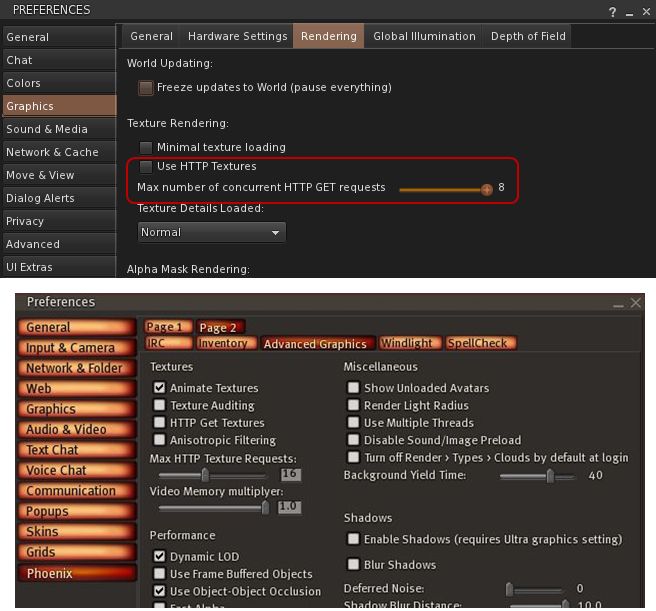
If both of these fail to resolve the issue, disable the HTTP Get function entirely (uncheck USE HTTP TEXTURES in Firestorm or GET HTTP TEXTURES in Phoenix, which are contained in the respective Viewer Preferences tabs defined in the above steps. If you disable the option, make sure you clear cache to avoid texture corruptions.
HTTP get texture options – possible aid in resolving avatar blurring issues
I See Grey People
An interesting tip from Ed Merryman formed a part of the bake fail discussion: if you see a grey avatar or avatars near you, don’t ask them to rebake – try changing your Group tag.
DNS Issues
Lette offer a number of solutions were offered for those experiencing a DNS related error on trying to log-in to Second Life:
Check your anti-virus software, some anti-virus software mistakenly view the Viewer as somehow harmful / trying to make an illegal connection and block it from doing so (some may even throw out a virus infection warning)
Change your DNS server to Google Public DNS or OpenDNS.
DNS errors appear to be on the increase across all Viewers, although why this should be isn’t clearly understood at this point in time.
The Phoenix / Firestorm Wiki
One of the best places to get help for either Phoenix or Firestorm is through the wiki. This includes details on basic troubleshooting, dealing with issues such as bake fail (as described above) and information on Firestorm classes, etc. The wiki also has a number of pages that cover broader issues and items, including:
The hot LL JIRA list – those items that are on the Linden Lab JIRA as known issues
Both of these pages are being continually updated, so people are asked to take a peek at them when encouraging issues.
The Phoenix Team Halloween Party
At 14:00 SLT on Saturday 29th October, the Phoenix team will be hosting its second annual Halloween Costume Party. Arrangements are still being made, but details and an LM will be sent out via the support group nearer the date.
The first phase of the new UI has arrived as a Development Viewer release (3.2.1 (243328)). So what do we have in store?
No Modes
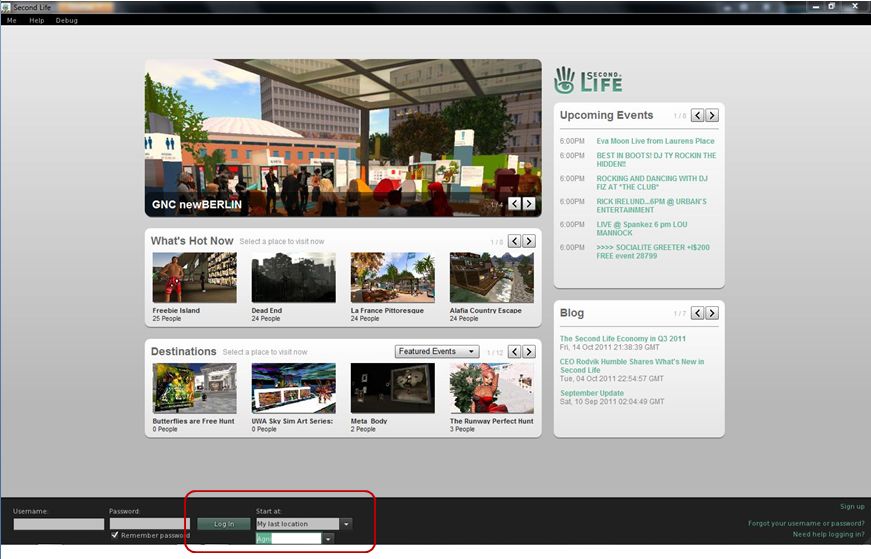
Well, actually, quite a lot, and it’s obvious right from the login screen, where the absence of the BASIC and ADVANCED modes is clear.
No mode options!
Once logged-in, more differences make themselves immediately felt:
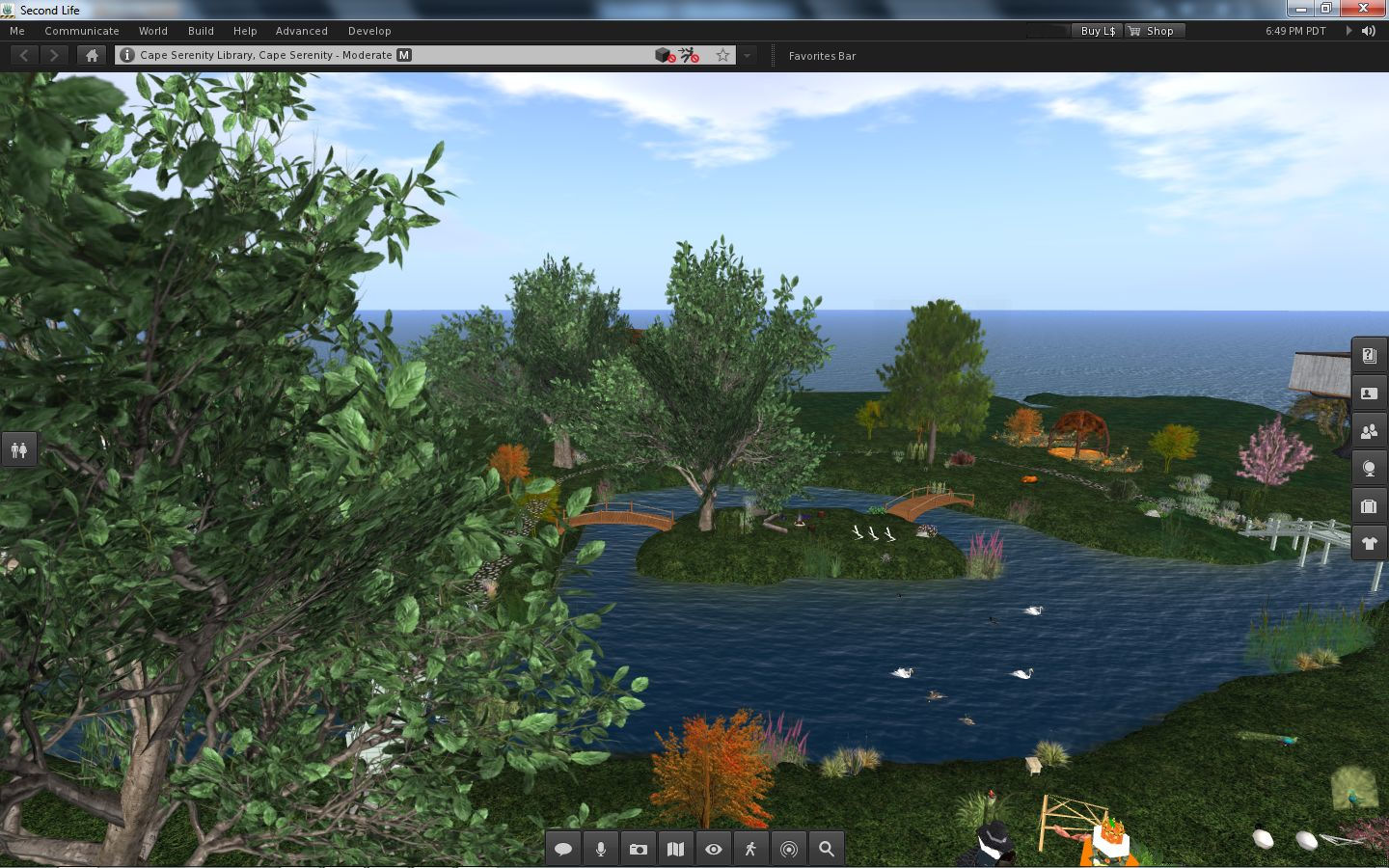
The top of the UI has been revised so that the Navigation and Favourites bars have been combined, with a slider between the two allowing you to adjust their sizes relative to one another
There is a new button up on the Menu Bar I’ll return to shortly
There are no Sidebar tabs visible on the right of the screen
There is no chat bar at the bottom of the screen
There are two sets of buttons visible: one on the left, featuring icons only (by default), and one at the centre bottom of the screen, featuring text and icons (by default).
The default UI on logging-in
If you want to type, you can either click the CHAT button on the bottom toolbar, select NEARBY CHAT from the COMMUNICATE menu (as per previous versions of the Viewer) or, in a move that follows V1 behaviour, tap ENTER. All three options will display the chat bar in its own repositionable floater.
Buttons, Buttons, Buttons
As there are a lot of them, let’s start with the buttons – most of which should be perfectly obvious.
On the left of the screen, we have by default, seven buttons. These are: Avatar, Appearance, Inventory, Search, Places Map, Nearby Voice and Mini-map. All of these will be familiar to V2/V3 users. They perform the same functions as in earlier releases of the Viewer; although in the case of Appearance, Inventory and Places, rather than opening them in the Sidebar, the buttons open the Appearance (outfit), Inventory and Places panels in their own floaters.
I have to admit, Mini-map had me fooled for a moment – the button’s icon suggests it is something to do with Voice.
Only Avatar is a new button here, lifted directly out of the BASIC mode. Clicking it opens up floater than enables you to pick an entire avatar look – shape, skin, clothes, etc. Four types of avatar are provided with the development release: human, animal, robot and vehicle. One suspects further choices (such as other races) will be added in time.
At the bottom of the UI is the more familiar toolbar with the following options: Chat, Speak, Destinations, People, Profile, View, Move and How To.
Of these, Chat enables the chat floater, as described above, while Speak, View and Move do exactly what they did in previous releases of the Viewer. People and Profile display the People and Profile panels from the Sidebar, now in their own floaters, leaving Destinations and How To.
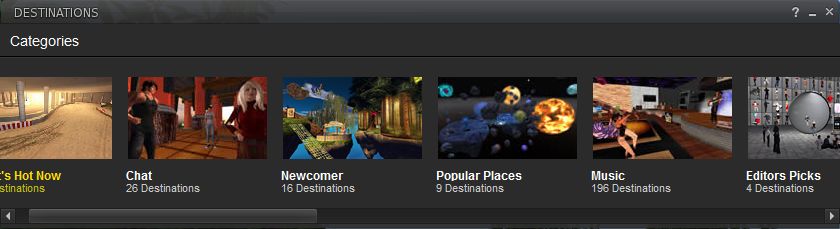
Both of these will be familiar to those who have tried the BASIC mode: Destinations displays a mini Destination Guide floater, with destinations split into categories: What’s Hot Now, Chat, Newcomer, popular Places, and so on.
Destinations FloaterHow To
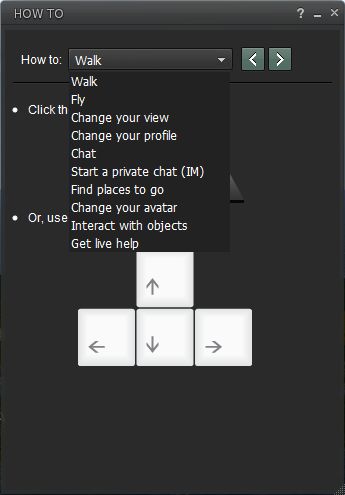
How To is something I’d speculated / hoped would be carried over from the BASIC mode as a part of the merge. I was a big fan of How To when it made its debut in the BASIC mode, as it is a simple, easy to use “cue-card” system for obtaining help, especially for those new to SL. If I’m honest, it is something I banged on at Rodvik about back when it first appeared, I was that enthusiastic about it, so I’m really pleased it has come up into the revised UI.
True, I’d personally like to see the range of topics it covers increased (without going completely overboard), but perhaps further topics will be added over time.
Within How To, the GET LIVE HELP option is new – it wasn’t in the BASIC mode. At first my oldbie heart soared on seeing it, as it seemed to herald the return of the long-gone and sadly lamented Live Help as used to be in Viewer 1.x.
Sadly, this is not the case. Selecting the option displays this message:
“Need help?
“Click the button below to teleport to a Help location where a Second Life guide is available to assist you between the hours of 10am – 6pm PST.”
Beneath it is a TELEPORT button, which in turn opens the Places floater, from which you should, in theory, be able to teleport to a suitable help location. Quite what or where this help location is and who staffs it (one assumes resident volunteers) is unknown. I’m not sure if it is because I tried the option after 18:00 SLT or simply that the function isn’t working as yet – but Places came up a blank, leaving me nowhere to teleport.
So, back to the buttons…
Looking at the layout, one might end up thinking that all LL have actually done is swapped a set of ugly tabs and screen-hogging slidey Sidebar and replaced them with a set of buttons on the left of the screen.
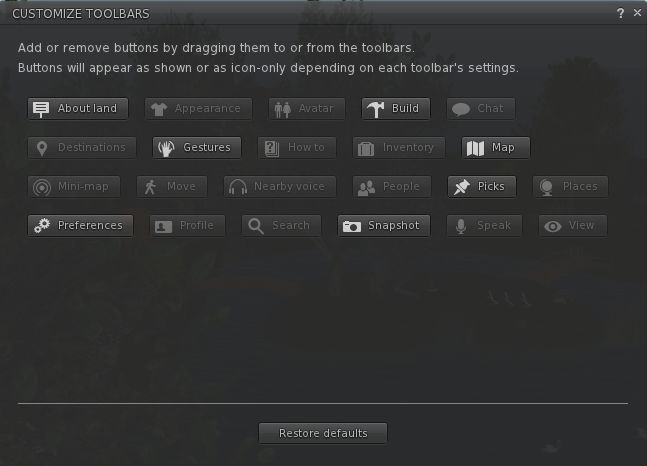
And one would be entirely wrong. Why? Because these buttons are movable buttons. Not only that, they are customisable (to a degree). For example, right-click on any of the sets of buttons and a prop-up displays a menu with the options CHOOSE BUTTONS, ICONS AND LABELS and ICONS ONLY.
The latter two options allow you to switch between displaying the buttons with icons only (as is the case by default with the buttons on the left side of the screen) or with an icon and text (as is the case with the buttons on the bottom of the screen). But it is when you select CHOOSE BUTTONS that things start to get interesting, because this displays a Button Toolbox floater (which can also be accessed via CTRL-T or the TOOLBARS option of the ME menu).
Button Toolbox
This contains all the buttons available to you within the UI. Any buttons that you haven’t yet used are highlighted for easy identification. Note here, as well, that there are a few new buttons to play with, notably ABOUT LAND, PICKS AND PREFERENCES (yes, you can now have one-click access to the Viewer Preferences!).
To add a button to your UI simply position the mouse pointer over it, click and hold the LEFT mouse button and drag the button from the toolbox.
As you do this, you’ll notice the border on three sides of the Viewer turns blue, indicating you can position the button either on the left, bottom or right side of the screen. Nor does it end there.
You can also move buttons between locations (left side, right side and bottom of the screen) using the same method: simply left-click and hold over each button you wish to move in turn, and drag it to your preferred location. Thus, it is perfectly possible to have all your buttons placed at the bottom of the screen a-la V1, or you can split your buttons between the bottom and right of the screen, a-la a “traditional” V2 style.
Tateru Nino carries some news relating to the initial changes to the official Viewer UI, obtained courtesy of Rhett Linden.
Rhett’s revelations, while interesting reading, are not entirely earth-shattering, and don’t actually go that much beyond what Rod Humble himself has already said concerning the Viewer, and what some of us were speculating as a result.
In a nutshell, Rhett has confirmed:
The Sidebar is to go. This is something that wasn’t hard to guess at, given Rod himself said as much at SLCC 2011
There is to be a more flexible approach to the UI in general, that will allow users to, “Arrange the UI to fit the way they use Second Life. This is important because it moves us toward a model more like most creative software“
This latter point more than likely refers to things like the “Customise Toolbars” and the “FUI” (which people have taken to mean “Flexible User Interface”), both of which are mentioned in passing / hinted at in the SL Helpfile wiki pages (although no specific information is available on either right now). Certainly, the release notes for the merge (see below) point in this direction as well.
What is worthy of note is that Rhett confirms that the initial code for the UI changes, which should also see the arrival of things like click-to-move and the new camera palette (again as revealed by Rod Humble, this time talking on the SL Universe forum), was merged into the Development Viewer code today – although TPV developers had been expecting as much, going on comments passed elsewhere during the day.
For those planning on trying out the latest development Viewer, be aware that the release notes state:
The Viewer floater camera views and presets do not work
The Nearby Voice panel does not update to a new call or from nearby voice info once opened
Viewer crashes when updating UI size in preferences
The Speak button is activated when dragging and dropping between toolbars and/or moving back to the toolbox
Viewer crash when moving the speak button from one toolbar to another when there is an active call request
Teleport history doesn’t display visited locations
Viewer crash when double-clicking the mini-map in People > Nearby
Notification and conversation chiclets overlap
WASD controls don’t move avatar while move floater is in focus
Closing voice controls while a group or p2p call also closes the group call / IM window
Viewer crash after teleport
Hitting back in the ‘Create Group’ panel or ‘Blocked’ panel requires multiple clicks for action to occur.
An experimental release of the popular V1-based Singularity Viewer was made today – version 1.6.0 (0). According to the blog post accompanying the release, it has been four months in development, and most of the changes are under-the-hood, with the team acknowledging they still have a lot of work to do in some areas. However – the exciting news for Singularity user (and for those who prefer using V1-style Viewers as a whole) is that the release includes mesh rendering.
Currently the release is only available for Windows users – and requires systems running SSE2. Work is underway on a release for Linux, which is listed as “It’ll be here soon!”. However, Mac users may have a longer wait in store, as the download page states: “There are serious bugs affecting OS X in current codebase and also present in Linden V3 codebase. So far there is no known solution“.
So, how does this Windows release look and handle?
Installation and First Run
Given this is an experimental release, it is recommended that previous versions of Singularity are removed prior to installing 1.6.0. (0), or that you install it in an entirely separate folder hierarchy. I opted for the second option, and following the download and scan of the regularly sized .EXE file (22Mb), installed the new release into a folder I called “Singularity-Mesh”.
Starting the Viewer brought with it a surprise: up popped the “new” V3 login screen from LL with the Destination Guide, etc. This is the first time I’ve seen this login screen appear in a V1-based Viewer and as such, the Singularity team deserve double kudos; both for being the first, and for actively using the screen. It’s a massively useful feature for both old and new SL users – particularly when you want to get to a noted event fast (as I’ve done myself several times even if it has meant using V3 in preference to Firestorm).
Singularity uses the “new” LL login screen
Once logged-in, you’re presented with the familiar (or in my case nowadays – not so familiar!) V1 UI in Singularity’s stylish charcoal grey / black. Don’t expect any obvious updates or changes here in terms of menu options and Preferences options; again, as the release notes state, most of the changes with this release are under-the-hood.
However, one change that is obvious (for those that use it) is with the Grid Manager (accessed via the login screen or via PREFERNCES -> GRIDS). In most V1 Viewers including older versions of Singularity, opening the Grid Manager would display the full information relating to the grid you are / will be logged-in to (below left).
Grid Manager changes: old (left) and new (right) – but no GET GRID INFO button
With Singularity 1.6.0. (0), a cleaner, summary page is displayed (above right). To access detailed information for a specific grid, one needs to lick on the ADVANCED tab, near the top of the floater.
This is regarded as an experimental Grid Manager, which includes megaregion support for OpenSim. However, it is missing a critical element: there is no GET GRID INFO button in either the ADD or the AdVANCED tabs. Thus, there is currently no way to fetch information relating to a grid (login page URI, etc.) on the basis of the grid name and URL. Instead, all additional information has to be manually typed-in (assuming you have it to hand).
This is something of a major oversight for those of us who do jump between grids – particularly given the button was present on earlier Singularity releases. Hopefully it will be back in an update.
Mesh Rendering
However, it is mesh that will be tweaking most people’s interest, and in this area, the Viewer is flawless in its ability to render mesh objects. A nice touch is that “Prim Equivalence” and “PE” have been abandoned in the Edit menu floater when viewing mesh objects, and replaced with a simple “Cost”. This should cause less confusion for users who still get caught between “Prims” and “Prim Equivalency” and also allow the Viewer code to easily be tweaked to read “Impact” once LL’s “Land Impact” approach becomes widely adopted.
There is no mesh upload tool at present, but apparently work on an uploader for V1 Viewers is underway on several fronts.
Other Noteworthy Bits
As those familiar with Singularity know, it includes much of the functionality found within Phoenix and other V1 TPVs. Radar, client-side AO, media filters, quick preferences, command line support (“/dd” for draw distance, etc), some shield options, and so on, so I’m not going to delve into these. However, a few things are worthy of note in terms of the “haves” and “have nots”:
RLVais updated to the latest release. When using the Viewer, remember:
RLVa is turned on by default in Singularity, so there’s not need to go hunting for a Preferences or menu option to enable it, and no need to then log out / log back in
To disable RLVa, enable the ADVANCED menu, then click on RESTRAINEDLOVE API. A message will be displayed informing you RLVa will be disabled following a restart. Use the same procedure to re-enable
There is no support for MOAP, multiple clothing layers and region Windlight settings, but these are being worked on
Other updates include:
Renderer updated to move from mixed-pipeline to shader-only pipeline on capable hardware, analogous to V3
Editor support for more LSL/OSSL functions
Additional Windlight presets
A texture fetch and bake bug fix
Improvements to the notecard editor
V3-style media browser
Performance
Overall, performance good, although obviously slightly down on the non-mesh version. On my usual test machine (Q6600 quad-core Intel at 2.4Ghz, Windows 7 32-bit with all service packs, 3Gb RAM, nVidia GE9800 GT with 1Gb RAM), Singularity 1.6.0 (0) clocked an average of 23-25fps on a sim with 4 others, compared with 36-38 fps on 1.5.10 (2) – graphics set to ULTRA on both as usual, and Draw distance set to 256m.
Enabling shadows did, unsurprisingly, cause a huge fall-off in FPS – down to an average of 4-5fps. I also had issues with some mesh objects which had Shininess enabled rendering as plain white objects with shadows active; something I’ve not encountered with other Viewers.
Overall, the new release performed very well, and easily matched anything other mesh-enabled V1 Viewers could achieve.
Singularity 1.6.0 (0) and Other Grids
As mentioned above, the experimental Grid Manager floater has an issue in that it lacks a GET GRID INFO button. However, once you’ve set-up accessing another grid, Singularity 1.6.0 (0) seems to work as smoothly as Imprudence. I skipped around InWorldz quite happily with in and dipped a toe into a couple of OpenSim grids without mishap. Frame rates in InWorldz matched those for Second Life, although the Viewer suffered the same issue I’ve had with others in relation to InWorldz – crashing on attempting to log out (this happens for me with Imprudence on InWorldz as well).
Opinion
A long-awaited and tidy update. Feature changes may appear small – but getting mesh rendering active is no trivial matter, and there are apparently in excess of 68,000 new lines of code within this release to enable it and take care of the other under-the-hood fixes and updates!
The release should go down well with Singularity users, the “experimental” tags not withstanding. Given Singularity also includes much that makes Phoenix popular it could prove to be a viable alternative for Phoenix users who want to get to see mesh now, but who don’t yet wish to make the jump to Firestorm or a V3 TPV.
Coming on top of yesterday’s tweet, there is good news for those who wish to see Kirsten’s Viewer continue.
Kirstenlee Cinquetti has announced that, following the outpouring of support for the Viewer, the team are going to try and obtain funding by going the Crowdfunder route.
In announcing the approach, Kirstenlee blogs:
Many of you have asked and wondered what the future would hold for the Viewer, well here is the answer..
After lots and lots of thought and quite a bit of behind the scenes activity we are going to go Crowdfunder!
The upshot of the whole deal is this, a target has been set to fund the entire project and it’s continued development for a period of one whole year. What happens remains to be seen, I can however reveal a few details of what does happen if we hit the target, and more critically what can occur if we exceed the funding target. If we seal the deal, almost instantly the binaries will become available for download the project will become active again and an updated and early build of S22 will become live.
If the funding target is achieved, it means that the binaries will be released once more, and work will immediately continue, with a list of juicy enhancements coming down the line over time:
Programmable camera positions
Enhanced photo making features
“Radical changes” to the user interface
Enhancements in the area of post processing and 3D vision
If the required funding level is exceeded, then the team will look into other aspects of Viewer development, such has obtaining a KDU licence, funding other developers, etc.
For those helping to fund the project, a special area of the Viewer’s website will be set up, providing preview access to builds and features, and where funders can vote on proposed new features and enhancements, etc. Rewards for funders will be based on their level of funding.
The project’s Crowdfunder page is now open. Using Crowdfunder is pretty much a win/win situation for all involved: if the target is reached, the project will go ahead; if the funding target isn’t reached, then money promised to the project will be refunded. So there’s no reason not to get involved!
 I reported on the last Phoenix Hour update recently, in which Jessica made it clear that where new releases of Firestorm are concerned, the team is pretty much waiting on Linden Lab and fixes to the OpenGL issues (for which the team are also providing assistance).