Note: Sometimes running in-depth reviews of Beta Viewers is a risky business, as you can get hoist by your own petard. Niran’s is a good example of this: while I was plunging into the Beta, NiranV was hard at work getting the Viewer ready as release version 1.0 as a Christmas present to SL. So here’s an update drawing on my original Beta review.
In discussing this Viewer, one of the things NiranV asked me to emphasise is that it shouldn’t be regarded as a fork from Kirstens – not so much because the latter has been discontinued, but because so much work has gone into this Viewer which NiranV has worked on from scratch that it stands as a Viewer in its own right.
Note also that this review is based on the 1.01 patch release.
Installation and Appearance
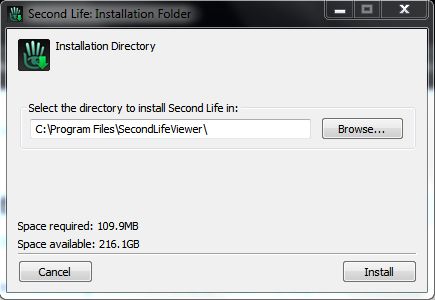
The Installation EXE for Windows is 33.5Mb in size and currently is still a WinRar executable, rather than a full installer – so still no desktop shortcuts, but NiranV notes that this might change in the future. Logging-in reveals the first major change: gone is the blue UI, which several have commented on. As Niran puts it, the blue skin, “Has been stashed into the corner of the room and now Darkness is my default skin, which is aimed at giving a whole new era of Second Life skins.”
The skin certainly is dark, and the blue Azure skin is still available through Preferences for those that like it. The move makes the Viewer look more V3-like, although it is noticeably darker than the default V3 UI skin, and the yellow / gold elements and an additional depth that is lacking in the V3 skin. Sadly, Darkness does lose the ability to set a level of transparency on the menu bars by stripping away texture layers. There is also a further skin – Ashen Blood (no preview within PREFERENCES->SKINS, but you can activate it OK); this adds something of a red tint to NiranV’s Darkness skin.
Beyond this, the initial appearance on logging-in remains unchanged, with the same default button options displayed to the left, right and top of the screen, with the bottom of the screen remaining clear.
I have to admit, I’m actually less a fan of the top button area than some; and my first act on using this Viewer is always to move the top buttons to the bottom of the screen. Doing so not only puts the buttons in a more familiar location – if the top button bar is empty, it is possible to align items such as the camera controls directly against the bottom edge of the Navigation Bar, rather than having something of a gap between the two. However, in terms of giving people wider choice in button placement, it’s a good addition. Prior to the release, NiranV and I discussed the Viewer, and I asked about making the buttons so they could be aligned to the left/right (for the top & bottom bars), or top / bottom (for the left & right bars), and while NiranV said this could be done, no commitment was given to including it.
Graphics Preferences Changes
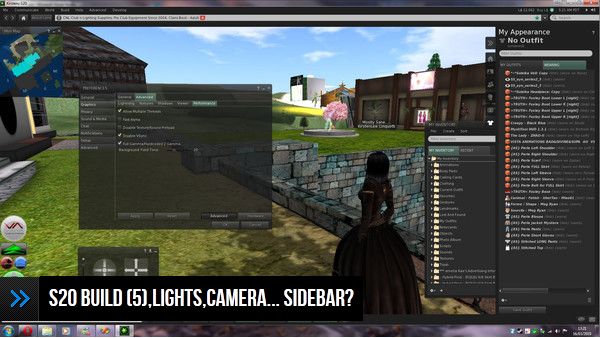
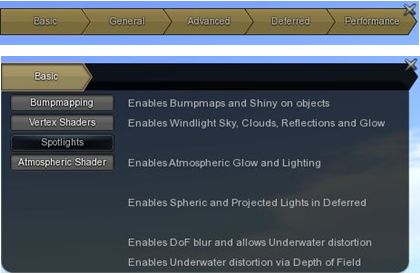
One of the key changes between this release and the Beta previously reviewed is with Graphics Preferences. In the Beta, there were two Graphics tabs, which presented the same information in different formats. The GRAPHICS 2 tab has now gone, to be replaced by ADVANCED GRAPHICS, the latter having previously been in a snazzy “slider” within the original GRAPHICS tab.
In my original piece I commented on the use of drop-downs that use terms such as “none”, “less”, “medium”, “more” and “many” when selecting options, commenting that I’m not sure it entirely works. However, NiranV took time out to explain the reasoning behind this move: “The whole new Layout was born when so many people asked in Kirsten´s Group, what does ‘Object Quality 10.0 mean? What happens when I set X Quality to X.X?’ People couldn’t really understand those values. So I came with a better idea, changing the layout to something a lot of games use: simple drop-downs which give you easier to understand options. I mean, everyone can think of what Low, Med , High mean, and that High is obviously higher/better than Medium.” Which is a fair point.
Within GRAPHICS, there is a new button – OPEN OPTIMIZER.This opens a very snazzy and dynamic panel, that NiranV described to me as, “A small Graphics floater that has all really important features packed into a small, fast and nice looking window allowing easier on-screen changes to graphics without FPS loss due to [having] Preferences open.” It’s a nicely executed idea.
The Optimiser has five button displayed on it, clicking on any one of which will cause a range of options to slide out below the Optimiser bar, while also blanking the remaining buttons to avoid confusion as to which is being used.
Clicking on the option again will close it, and display all the buttons on the panel once more. This is actually a very neat approach to settings people tend to tweak a lot – and the design of the floater means that it can be left “on” by default without taking up too much screen display.
Among the options within the Optimiser lay a comprehensive set of controls relating to Depth of Field and Shadow rendering that should bring joy to th hearts of those who have previously used Kirsten’s Viewer for their photography and machinima.
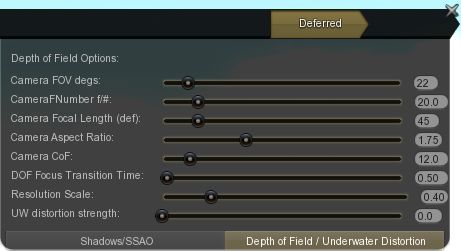
All-in-all, it’s a great approach to fast and easy access to core features, and one I’m sure many would like to see replicated in some degree in other Viewers. Again, if you don’t use the top button bar, the Optimiser can be pushed up neatly to the top of the screen, close to the Navigation Bar, where to doesn’t really hinder the in-world view and provides ready access to core graphics functions.
As NiranV explains in the blog post accompanying the release, a huge amount of work has gone into the graphics side of the Viewer, and those on suitable graphics cards should notice the difference between this and the previous versions. Sadly for me and my Ge9800 GT, little discernible improvement was had; shadows render fine, but the overall performance falls through the floor into the living room in terms of FPS, so I cannot give an accurate testimony as to the overall improvements.
FPS issues aside, rendering on the Viewer remains blisteringly fast – I still can’t get over arriving in my garden to find the sculpted trees rezzing fully formed as rapidly as just about everything else, rather than having to look at a series of blobs and vaned spheres while the Viewer works out what to do with them…
Animated Trees
A while ago, Linden Lab started turning off “classic” elements of Second Life from the newer Viewer code. Two items so affected are the old “classic” clouds at around 300m altitude, which no longer render, and “animated” trees and plants (those tree and plants that would sway in an apparent breeze. I assume both were deactivated to help with performance (although both can still be seen with V1-based Viewers).
I find the removal of both no great loss to SL as a whole, but for those that do like to see the tree animation, then NiranV has included an on/off toggle within the GRAPHICS tab of Preferences, which will re-enable the animated function for Linden trees.
IM Panel Revisions
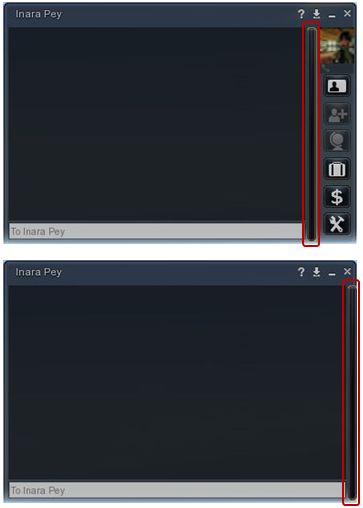
Niran has given the IM panel a substantial overhaul, and come up with a panel that is quite possibly the best in its class. By default, IMs appear in separate windows, but as with other Viewers, they can be nested into the same floater.
Some of the changes to the new IM window are immediately apparent: the range of very clear, easy-to understand icons down the right side. However, if you’d like more space to display IM conversations without spending the window, and don’t want to use the buttons – click the vertical bar between the text display and the buttons – the buttons will slide neatly away to the right. It’s a very slick and tidy approach, which NiranV describes thus, “My goal is to bring a completely new experience in Second Life Viewers, different from everything you’ve seen; take good things and make them even better or completely redo them. The overhauled IM Panel is only one of those things.”
Map Updates
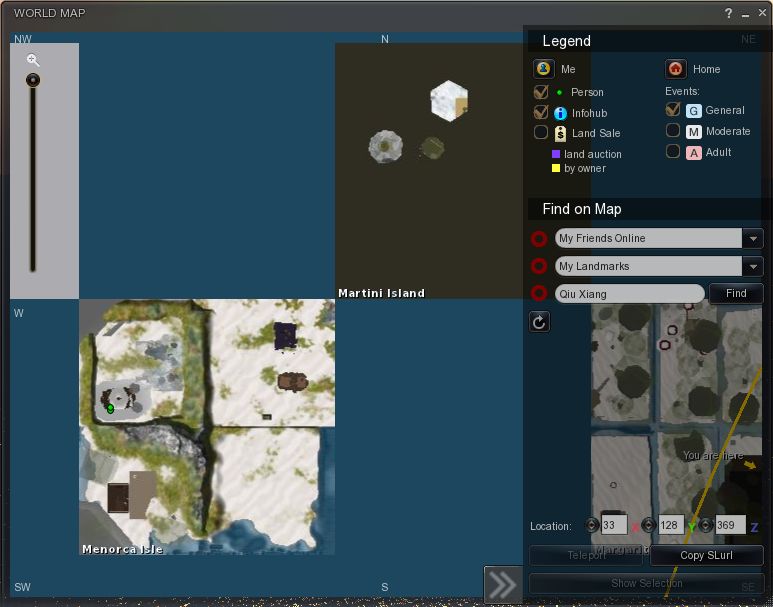
Another of “those things” that have been improved is the World Map. A slide function has been included that allows the Legend / Find section of the map to be hidden, providing a larger display area when Legend / Find aren’t required. Additionally, Legend / Find are semi-transparent, again allowing for more of the map to be visible even when both are open. Finally, and in a wise move, the Zoom function has been moved to the left of the map itself, so it is still possible to zoom in / out while keeping Legend / Find closed.
Patch Updates
The 1.01 patch includes a fix for floaters that might open wider than intended on some screen resolutions – I didn’t have this issue myself with the 1.0 release, but if you find some of the floaters looking somewhat on the large size on your screen, you might want to download and install the patch files, which also add some additional touches to the Darkness skin.
Opinion
In discussing the Viewer, NiranV had this to say to me recently, “I strive to create the most advanced graphics/UI Viewer giving the User full control over nearly everything … I like to say ‘SL is only as good as YOU make it’, [and the] same goes for Graphics. I guess its pretty obvious that there is enough stuff to play with for a long time if you look into Preferences and explore the UI.” That this aim has been achieved is evident from seeing the results on-screen – as the following video from NiranV demonstrates:
Certainly, there are some issues with the Viewer that can be experienced, simply because it is so cutting-edge. NiranV has been aware that people have had a few problems, and passed comment to me prior to this release that, “In final release I will also add option to turn graphics back to normal, as I used the new Shiny and SSAO for a long time now, and people already were complaining about up to extreme performance decreases when enabling SSAO. [So] people will be able to set the LL default SSAO again which will increase FPS drastically again but also decrease visual Quality dramatically.” So if you do have performance issues, try flicking back to the LL defaults.
The key thing about this Viewer is the amount of effort that is going into it to present an exceptionally high quality user experience that capitalizes on things like the FUI and some creative thinking on the part of the creator. Had I a system capable of utilising this Viewer to maximum impact, I’ve little doubt it could become my primary Viewer.
With radar (without those functions people might find to be invasive), the option of Pie Menus, the inclusion of Lance Corrimal’s maths functions within the Build menu, RLV/a and a host of other popular TPV features, Niran’s Viewer brings together a lot in a flexible and effective Viewer that pretty much stands in a league of its own.
Recommended.
Links
- NiranV Dean at Blogspot
- Niran’s Viewer sourceforge link (Windows)
- Niran’s Viewer sourceforge link (Linux)
Important: Please note that the LINUX version of the Viewer is maintained by Miguael Liamano, and not NiranV Dean. As such, all support issues / requests should be addressed to Miguael not NiranV Dean.