This is turning in to the week I catch up on Viewers!
Lance Corrimal has released Dolphin 3.2 (3.2.0.22166), which sees his Viewer move to the new Flexible User Interface (FUI), and gain a few choice goodies as well.
Installation
Installation was smooth with the Windows installer, although it was interesting to see the a copy progress pop-up appear as files were extracted and copied to my install directory.
FUI and Updates
At first glance after installation, this would appear to be a simple adoption of the FUI with various other TPV updates. But if you think that – best look again. There may not be mesh upload in this release, but there’s more going on than meets the eye here.
Like Niran’s Viewer, Dolphin 3.2 tweaks the FUI a little – only rather than providing an area at the top of the screen where buttons can be added, Lance has incorporated additional buttons into the Button Toolbar:
AO ON/OFF and AO SETUP – for quick access to the Viewer’s animation override functions
AREA SEARCH – accesses the Area Search for Objects floater (WORLD->AREA SEARCH or CTRL-SHIFT-A)
ENVIRONMENT, provides quick access to the Environment Settings panel floater, otherwise accessed by WORLD->ENVIRONMENT EDITOR->ENVIRONMENT SETTINGS.
New button options in Dolphin 3.2
Note that by default, all four buttons are active when you launch Dolphin 3.2 from a fresh installation (all on the left side of the Viewer window), I’ve shown them in the toolbar floater out of convenience.
Providing buttons for the Viewer-side AO makes perfect sense, as does including Area Search (something not everyone is aware exists in and keyboard shortcut notwithstanding) and quick access to environment settings, which itself is an option people twiddle with a lot.
Dolphin 3.2 also gets the new snapshots floater, complete with the option to upload to your web profile feed. According to Lance’s notes, he’s also working on porting the option to upload snapshots to Flickr to the new floater, but will probably be a while before it appears in the Viewer.
This release also gains
The ability to turn your avatar around when walking backwards, again a popular viewer-side feature among TPVs
Firestorm’s texture refresh, which forces a re-fetch of the textures for an avatar or object which remains stubbornly grey on your screen (right-click & select from the context menu)
Firestorm’s object particle editor, which may yet be the subject of a separate blog post here
The latest RLV updates from Marine Kelley
The STORM-1713 fix, which corrects the issue of the mouse pointer flickering over UI elements that has been seen in V3.x.
Performance
Overall, performance on my system is comparable to the official SL V3.2 averaging in the mid-20s when I’m in a sim on my own, and dropping to around the mid-teens when sharing a sim with 5-6 others. All comfortable enough. With shadows enabled, this falls to an average of 6-8 fps, again pretty much in line with official V3 performance on my PC.
Opinion
Frankly, another robust Viewer from Lance that again builds on V3 to present a nice, tidy alternative with a good crop of additional features and options. The fact that it doesn’t have mesh upload shouldn’t be any hindrance to most – mesh rendering in the Viewer is fine. And one cannot blame Lance for wanting more time to consider what is the best fit for his Viewer when it comes to incorporating an uploader, rather than rushing to add the first that comes along.
If you’re looking for something that offers the V3.2 FUI, together with a good, solid selection of popular items from TPVs – radar, area search, Viewer-side AO, together with Lance’s own mods to the Viewer (including these excellent 3.2 FUI tweaks), then Dolphin 3.2.0.22166 is very much worth a look.
Note Dec 24th: The release version of this Viewer is now available. As such I have an update / continuation of this review, and have closed comments on this article (comments on the second are open).
Niran’s Viewer is an intriguing hybrid; forked from Kirsten’s Viewer, it includes everything that made Kirsten’s unique, as well as adding some very individual flavours from NiranV Dean and, in the most recent builds, the V3.2 FUI. The result is a Viewer that steps out of the box somewhat from what we’ve seen to date, offering some amazing capabilities – although you may find you need a high-end system to get the most out of it.
In Brief
Currently Windows only
Forked from Kirsten’s Viewer
Lots of graphics updates (including completely revamped graphics preferences)
New and unique menu layout
Viewer 3.2 Flexible User Interface (FUI)
Fast rendering on suitable machines
Additional ATi support
RLV/a
Mesh rendering and uploads
Lots more (did I mention fast rendering?)
Installer with default location
Installation and Logging-in
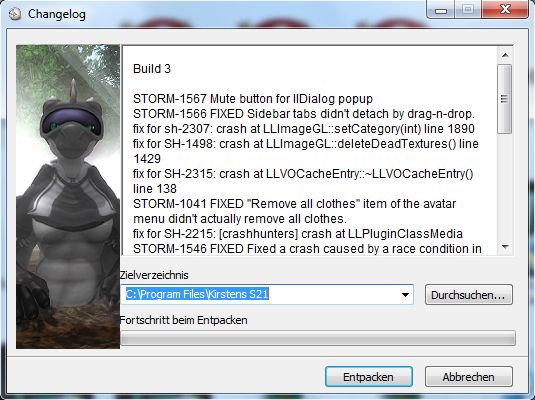
The installation is straightforward – and other than the installer being partially in German, offered no surprises per se
Like Marine’s RLV standalone installation, no desktop shortcut or icon is produced, so once installed, you’ll have to go play hunt the EXE in C:\Windows\Program Files\Nirans Viewer (assuming you use the default installer path).
This is no biggie, but I hope (as I’m a lazy cow) that NiranV will provide a defacto desktop icon in the future – that way my VistaMenu utilities for Win7 can grab what’s needed and I can keep my desktop nice and tidy with the minimum of fuss on my part :).
On start-up the Viewer pulls no punches letting you know you’re entering new territory, as the log-in splash screen demonstrates.
Log-in screen
Top left of the screen are the familiar Me and Help menu options – the former providing access to the Viewer’s Preferences. Over to the right of the screen is the log-in area, neatly laid-out and with three options in bold white text sitting under it:
Select Other Grids: the Viewer appears primarily aimed at SL, so this option provides access to the Beta grid
Settings: open the Preferences floater
Help: opens a set of additional options:
Sign-up: takes you to the official SL sign-up pages via your web browser
Forgot password…: opens the official password reset page in your web browser
Grid Status: opens the Grid Status page
About Niran’s Viewer: opens the HELP ->About Viewer pop-up.
It’s a nice arrangement, although my personal preference would be to see some take on the official V3 log-in screen – the Destination Guide, etc. – make an appearance. Perhaps that’s scheduled for a future build…
To actually log-in, you need to click on the LOGIN option after entering your username and password – tapping Enter doesn’t appear to work on this release.
The UI
Once logged-in, you’re again immediately aware that you’re in a Viewer that dares to break all the established rules.
Wot’s that? Buttons on the TOP? No menus?! (click to enlarge)
The Viewer clearly uses the V3.2 FUI, but NiranV has added the option to place buttons at the top of the screen as well as the sides / bottom – thus being the first to respond to requests for this capability. I’d still like to see VWR-27455 implemented for the FUI by someone, but just having the additional top area for use might make it easier for people to group buttons.
By default, the following buttons are available on first starting the Viewer:
Buttons can be removed, added or relabeled simply by right-clicking on an existing button and selecting the required menu from the displayed menu – CHOOSE BUTTONS opening the Toolbar Button floater. In a further step away from V3.2, CTRL-ALT-B will also open the floater, rather than CTRL-T, the use of which in V3.2 has caused some consternation amongst users, given that key combination has had a previous use.
The top of the screen is also conspicuous as it apparently doesn’t have a menu bar – no Me, Comm, World, etc. Instead we have the Navigation / Favourites Bar.
The Navigation Bar contains a wealth of information, looking at it from left-to-right: the familiar (to V2/V3 users) FORWARD / BACK buttons; then a panel of five buttons: HOME, WINDLIGHT FLOATER, SKY SETTINGS, WATER SETTINGS, and ABOUT LAND; the address bar area (as with V2/V3, right-clickable for additional options); Draw distance slider; Search option; account balance & BUY L$ button, and, at the right end, the media options with the time under them.
As with V3, you can switch between Navigation & Favourites or the Mini-location bars by right-clicking on the blank area of the Navigation / Favourites Bar and selecting your preference, but NiranV has extended this drop down menu to include the ability to configure which options are visible on the Navigation Bar, complete with additional options not displayed by default. In addition, the entire Navigation Bar / Favourites Bar has further configuration options within Preferences – something I’ll return to shortly.
But Wait! No Menus, You Say?!
Well, not exactly; I fibbed a bit :).
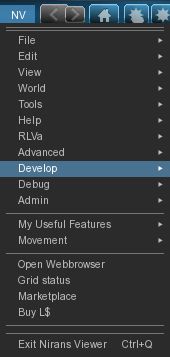
The menus are there, but are tucked away as Niran’s takes another innovative approach to the Viewer UI presentation. At the left-hand end of the Navigation Bar (or Mini-location Bar, if you display that), is the label “NV”. Clicking on this opens a vertical menu system which V1.x users should find somewhat familiar, despite the orientation, but those already familiar with V2/V3 might initially find a tad confusing, given the options listed are predominantly V1 menu labels.
Niran’s Menus
Having the menus displayed in this manner brings with it certain advantages; for one thing, the impact on your in-world view is minimised to the left side of the screen. There is also something more intuitive about this approach that makes using the menus somewhat faster and more intuitive: the action to select just about any option is a simple down-and-right action, making moving from menu to menu faster and easily than across-down, across-down, across-down…
NiranV has done a sterling job trying to align options with the first few menu headings (File, Edit, View) to reflect V1, which should help some with transitioning from V1 to the world of V3. However, the approach does have its own risk: V1 and V2/V3 are radically different in their menu offerings, so using similar menu titles could lure people into thinking they’ll find all the familiar options in the same sub-menus and locations – which isn’t quite the case. Similarly, as an established V2/V3 TPV user, I have to say I was initially thrown by the menu system when I first encountered it – although I quickly adapted to it and have to admit to preferring it.
A very nice touch in the menu system is the inclusion of an option to call-up the Grid Status page. This is particularly handy if you find you’re having problems, as it saves playing hunt-the-page through the SL website – and if you use the Viewer’s internal browser, the info is there without having to switch windows.
There is also a menu option called MY USEFUL FEATURES, which includes the STOP ALL ANIMATIONS option and REBAKE TEXTURES (for those unfamiliar with the keyboard shortcuts.
Preferences
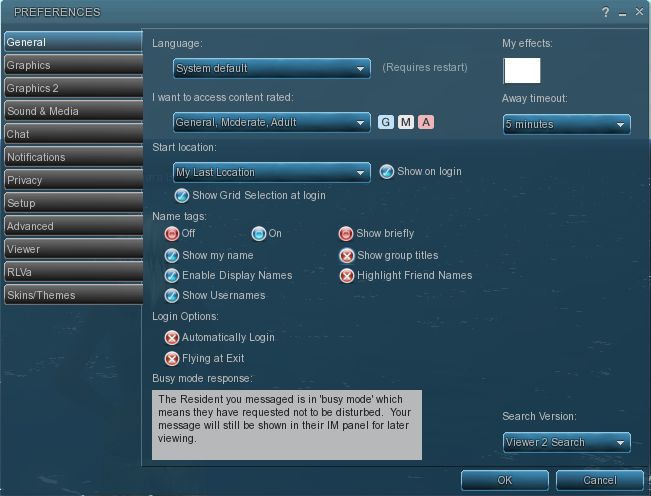
This is another element of the Viewer that has been extensively revised, and nicely so. For a start, buttons are given a 3D polish and are clearly coloured: blue / tick = on; red / cross = off; grey = inactive / unavailable. Where buttons represent either/or options (e.g. name tags on/off), clicking one will turn it on and the other off.
Preferences – 3D buttons and a full revamp
Most of the main tabs also dispense with additional horizontal tabs. Instead, a “slider” action is used. Take chat as an example: open it, and you have the primary chat options, with a bar at the bottom labelled IM OPTIONS – click on that, and the IM options duly slide up into view. To swap back, simply click on the CHAT OPTIONS bar. It’s neat and tidy – although you need to keep your eye on things, as it’s easy to overlook a slider when looking for a specific option you’re used to seeing in a dedicated tab.
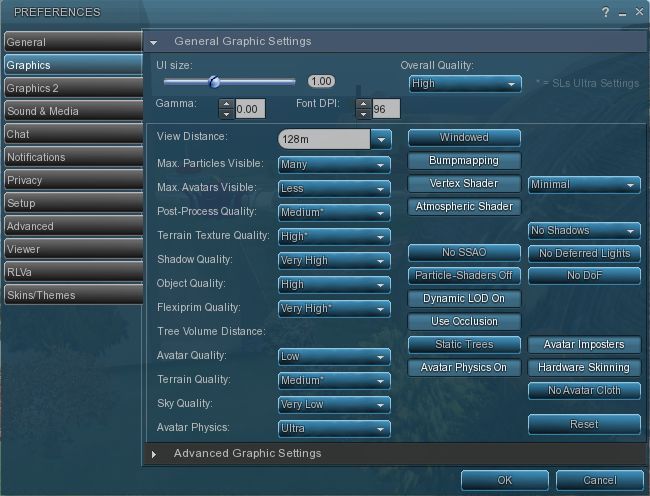
However, it is in the graphics tabs that the biggest changes are most readily apparent. There are two tabs – GRAPHICS and GRAPHICS 2, but they actually toggle between different presentations of the same settings.
Preferences -> Graphics
To the uninitiated, both can be something of a shock – the combination of options builds on Kirsten’s rendering pipe and offer enormous flexibility for setting the Viewer’s graphics capabilities. If you want, there are enough options here to take your world view right back to the earliest days of Second Life as well as bringing you cutting-edge in-world rendering – just take a look at NiranV’s blog post on the subject to see some of the results.
However, I’m not entirely sure that replacing the traditional sliders for some options with a button that toggles between “none”, “less”, “medium”, “more” and “many” entirely works; what is the scale of reference? How many is “many”? How few is “less”? There’s also the fact that the sheer number of options could be somewhat bewildering to many, and may, as a result, be ignored. But, for those into photography, etc., it’s worth taking a good look at what’s on offer.
Obviously, the two tabs are supposed to be used independently of one another, rather than together, and it is intended for people to use the one they find more intuitive. In this I was initially drawn to GRAPHICS, which is closer to what I’ve been used to seeing in other Viewers, but then I quickly swapped over the GRAPHICS 2.
Graphics 2
Shadow rendering appears to be linked to “glow” in this Viewer. This means that with shadows enabled, you can end up with a very bright sky, with the Windlight clouds glowing oddly.
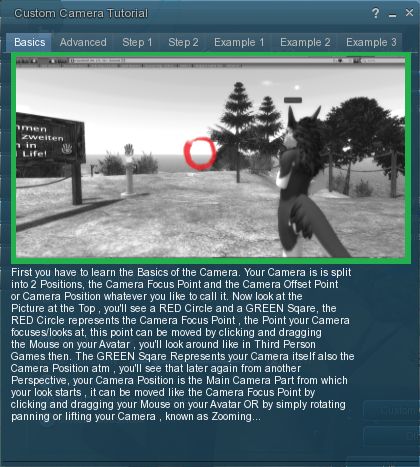
Camera tutorial
Away from this, it’s worth going through the Preferences tabs and sliders carefully – there are other cool bits and pieces. For example, for those unfamiliar with the degree with which the camera position can be customised to give a much improved world view, NiranV has included a tutorial on the subject with some practical examples of options. This is something that other Viewers should have, as whether you’re tall or short, the default camera position for SL is far from ideal, yet most people live with it, simply because they’re not aware of how to modify things beyond fiddling with the default Preferences sliders. Huge kudos from me for this (friends know I’m a constant nag on the subject…!).
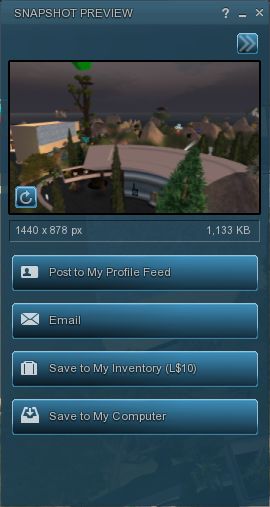
New snapshot floater (click to enlarge)
On the subject of cameras as well, NiranV has made a very subtle alteration to the camera smoothing, setting it to a default of 10 – and the difference in camera movement is stunning (allowing for differences in graphics capabilities on individual systems); panning is wonderfully smooth, as is zooming, with both exhibiting a gentle inertial effect as you stop the movement: rather than coming to an abrupt stop, the camera glides to a halt. Wonderful!
The snapshot option also includes the updated floater with the option to post snapshots directly to your web profile feed.
Nor does it end there: those that like their pie (menu) can have it (on by default), while those who like things in context (menus) and have their way as well.
Within PREFERENCES->VIEWER-> UI SETTINGS are a host of goodies, including:
The ability to increase / decrease the transparency of the Navigation / Favourites bars by disabling layers
Turn off the Favourites Bar independently of Navigation
Select which of the buttons Windlight Settings, etc.) should be display in the right-click drop-down menu
One-click teleport to SLurls displayed in chat
An ATi tweak
A collection of useful debug features that can be toggled on or off.
There is even an ability to enable / disable the new Direct Delivery “inbox” and “outbox” in your Inventory (although these can currently only be used with ease on the Beta grid) – but it gives you an idea of what it coming.
Performance
This Viewer is a fork of Kirsten’s Viewer, so one expects it to be resource demanding – and it is that, as soon as you start turning on the more advanced graphics features.
But to dismiss Niran’s as a KV clone with a tweaked front end would be a grossly unfair oversimplification. There has been a lot of under-the-bonnet work carried out, and I gather that NiranV went so far as to re-write OpenGL elements while waiting for LL’s fixes – and used an OpenGL release that is a lot more recent than that used by LL for their fix. This means that while the Viewer is resource-hungry, it is also blisteringly fast. Rendering is some of the fastest I’ve witnessed on my PC; I’m simply not used to arriving home and having sculptie items immediately pop out at me (no waiting several seconds), fully formed, as if going “Boo!” It’s really impressive.
Frame rates are equally stunning on my PC. At home, (370m above ground), with draw up at 360m, five others on-sm, and with settings comparable to those I use on Firestorm and Exodus, Niran’s screams past them at a rocketing 57-60 fps. At ground level, this drops to some 45-48 fps, which is still very credible.
Unfortunately for me, enabling shadows does slaughter my system: frame rates collapse to the low-end of single figures, and the Viewer demonstrates a notable stutter in camera movement. However, I got much the same with the last of Kirsten’s builds as well, so this is likely to be as much down to my graphics system and CPU getting a little long in the tooth as anything else.
Opinion
This is still very much a Beta Viewer, but even so, if you’re not into running shadows (or have a very high-end system), it tends to blow most others out of the water performance-wise. Obviously, as a Beta, there are rough edges; I’ve been running the Viewer on both the Main and Beta grids for a total of about 6 hours over the last few days, and crashes haven’t been infrequent; therefore, you should use it with caution. Also, as it is a Beta, don’t expect absolutely everything to be implemented – there is still a number of items listed as “to do” on NiranV’s website, and some options in Preferences are greyed-out.
That said, this Viewer is a serious contender in the usability stakes. For those who do want to try something that offers a different and flexible approach to the V3.2 UI, Niran’s Viewer is definitely one to watch. For those into photography and machinima and who have used Kirsten’s Viewer in the past, will find just about everything here they need. As it is, and even though there are a number of elements I’d like to see included in it, this Viewer has already moved comfortably into my top 3 “Viewers of choice”.
So, if you are looking around for a Viewer and feel like you can dare to be different, why not give Niran’s Viewer a try?
Yesterday, the much-anticipated release of Phoenix was made. Version 1.6.0 1591 brings with it the ability to render mesh objects.
This means that the majority of users in SL are able to see mesh objects rendered correctly in-world, if not import them. However, the release announcement from Jessica Lyon is liable to make difficult reading for some:
“We stated some time ago our active development commitment is now focused on the Firestorm viewer and that continues today. We still feel strongly that the end of V1 functionality is an inevitability, so it is more important to develop an alternative viewer for our users they will enjoy for when that time comes than to spend our efforts on a dying viewer and then leave our users with no alternative once it’s gone. However, we also promised we would try to keep the phoenix viewer alive for you until it is no longer feasible to do so. As you can see, we are not walking away from that promise, but it is important to understand that Phoenix is no longer our top priority. When necessary we will continue to keep it up to date with advances/fixes from other third-party viewers and provide them the credit they deserve for that work. But ‘we’ are no longer actively developing Phoenix on our own steam.
“Any future releases of Phoenix will be sparse and only if needed. I will not commit to saying this is the last Phoenix Viewer Release, but I will also not commit to saying it isn’t the last either. I will say… this is one of our last. As time passes we will determine if another release is absolutely necessary and/or sensible and make a decision then on whether another update is mandatory in order to keep our promise to you.”
While it may not be a popular move, one can hardly blame Jessica and the team for taking this position: maintaining an aging code base which itself is built on something LL no longer maintain (Snowglobe) is liable to become harder and harder as time goes on, and for a Viewer to remain functional and relevant, it needs to keep pace with the evolution of the grid and as the Phoenix / Firestorm project has made the step of producing a V2/V3 hybrid, it makes sense for them to focus on that work in order to do so, rather than splitting efforts (and doubling the workload) to try and maintain two sets of code.
As well as mesh rendering, this release also brings with it:
A signficant element not updated was that of RLVa – it was decided that Kitty’s time and focus is better spent on the numerous projects with which she is already fully engaged: her own Viewer (Catznip, reviewed here), working on bringing the spell checker to Viewer 3.x, her continuing support of RLVa for other V2/V3 TPVs, and so on). In the release blog, Jessica suggest that those wishing to update to the latest RLVa implementations should give either Firestorm or Catznip a try.
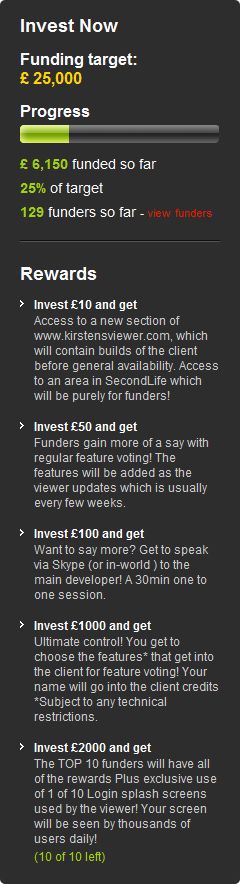
So far, some £6,150 ($9663) has been put into the project, representing 25% of the required total of £25,000 ($39279). Whichever way one looks at this, it is a remarkable achievement. However, the fact remains that in order for Kirsten’s Viewer to survive, it’s not enough.
Kirsten, and her rl “avatar” Lee Quick, together with partner Dawny Daviau have been caught-up in moving from Europe back to the UK, and so haven’t been able to maintain full internet access. Nevertheless, I did manage to catch up with Dawny this evening, and asked her if there were any chances of the fundraising effort being rolled forward another 60 days (assuming Crowdfunder allows this – it is something sites like Indiegogo support). Her reply was very clear and very understandable:
Hey Inara, No we won’t. If the target isn’t met the viewer will not return.
So if the Viewer is to be saved, there’s a lot to be done.
Participating in the project can bring with it certain benefits, as defined on the right, making it even more worthwhile for people to get involved.
Over the years, Kirsten’s Viewer has been leading-edge in terms of capabilities and usability, renowned for its ground-breaking support for photographers and machinema makers throughout SL. Many of the innovations found in the official Viewer(s) owe their heritage to Kirsten’s Viewer.
In its more recent developments, the Viewer was the first TPV to offer full mesh upload capability within Second Life (and other grids) and also introduced 3D Viewing to the grid.
For KirstenLee, the Viewer has been a labour of love for more than three years of his life, and only recent and unavoidable changes to his and Dawny’s personal circumstances forced them into shelving the Viewer – while a huge response to the news that development work on the viewer would be indefinitely suspended, coupled with the response to an idea put to the community by Hamlet Au, encouraged them to try the crowdsourcing route.
We’re entering the season of miracles and giving, so if you are a Kirsten’s Viewer user, and you’ve not contributed to the project and are in a position to do so – why not visit the project page (click the image above right, or click here). £18,000 sounds a lot to raise in just 10 days, but if people do pull together, who knows what might be achieved.
And if there is anyone out there with especially deep pockets, a love for virtual environments and who enjoys technology – KirstenLee and Dawny would love to hear from you as well!
Note: thie version reviewed here is 3.2.2.24336 with the openGL fixes. If you continue to have issues with Firestorm, try 3.2.1.24179.
It’s here, and it has the OpenGL fixes. And it is quite simply superb.
Firestorm 3 is everything a Second Life Viewer should be – and so much more. So much, in fact, that putting together a review has been something of a headache for me – where do I start, how do I order things?
One thing I will say right off the bat – and that is to give a very personal thank you to Jessica Lyon in particular for giving me the means to get started on this review ahead of the official release.
The Log-in Screen
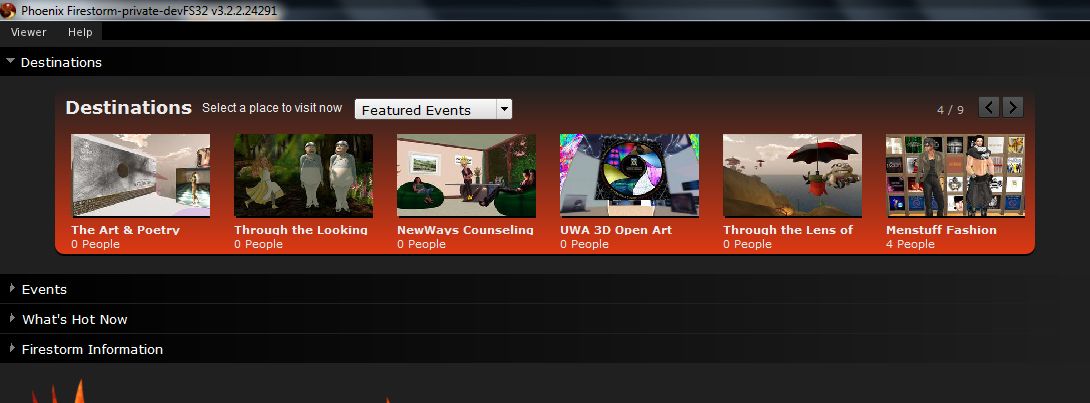
The first of the big changes hit you right from the start: the log-in / splash screen has been significantly revised, incorporating much of the Viewer 3 log-in screen capabilities and, in some areas, extending them.
Making a Splash: the Firestorm log-in screen
At the top of the screen are four headers. The first three of these, Destinations, Events and What’s Hot Now, pull information directly from the Viewer 3 log-in screen I reviewed back in August 2011. For those who have not encountered this up until now:
Clicking on any of the drop-downs will display a sliding panel of Destinations, Upcoming Events, and “hot” places to visit (the latter determined by the number of people currently visiting it)
Finding a place to go has never been so easy
Opening any one of those drop-down will, very tidily, close the previously-open drop-down
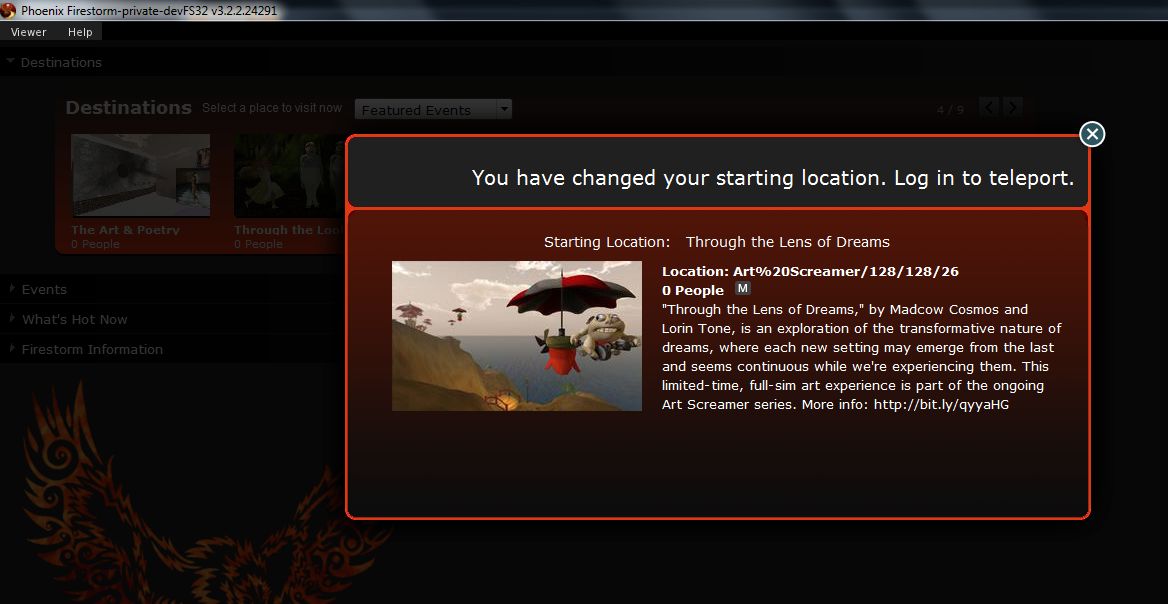
Hovering the mouse over the middle of any of the images in a panel will display a SELECT button; clicking on this will open a pop-up of further information, together with a notice that your start location on logging-in has been set to the selected location
You can still switch back to your Home or Last Location via the START AT option at the bottom of the log-in screen.
The last option is that of Firestorm Information, which is open by default. This provides links to the Firestorm download page, the wiki pages and the JIRA; the Firestorm Blog; and information on the Viewer version currently under development. most significantly of all, it includes links to the SL Grid Status Page, allowing users to immediately see if there are any known problems of which they need to be aware.
I am an unabashed fan of the Viewer 3 log-in screen; that Firestorm has adopted it is a major plus in my book. That they are further willing to go where Linden Lab apparently refuse, despite repeated cajoling through the likes of Twitter by a lot of people, gains it another huge tick in the Pey Book of Viewer Satisfaction. Would that LL understood the need to put this information front-and-centre, especially given that with the best will in the world, the grid dows tend to go Swedish Chef every so often and bork, bork, bork. But then, the Firestorm developers are all regular users of the platform…
At the bottom of the log-in screen are the familiar log-in credentials boxes. As is common for TPVs (and previous versions of Firestorm), the Viewer can store log-in information for different accounts, making logging-in with an Alt, etc, a matter of simply selecting a name (or indeed, name / grid combination) from a drop-down list. A DELETE THIS ENTRY button allows for the removal of any selected account from the Viewer’s records.
Default Settings (Viewer Modes)
Choose your desired mode
The log-in area also includes a DEFAULT SETTINGS drop-down. This allows you to chose from one of three operating modes for the Viewer. These are: Phoenix, Hybrid, and V3.
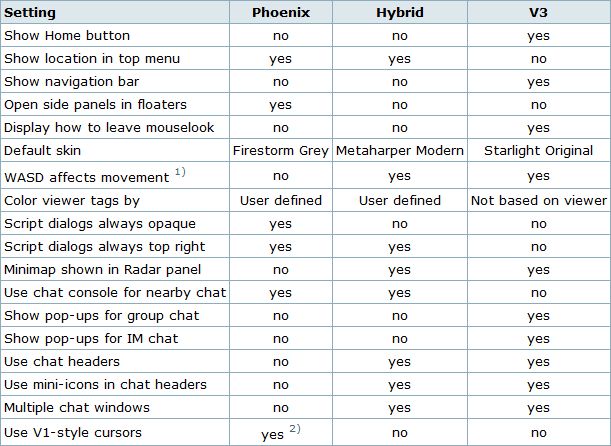
I’ve already outlined the three UI looks, and this version doesn’t change them that much, so I won’t spend time on them here per se; however, for the curious of mind, the default settings for each mode can be found in the table below (from the Firestorm wiki).
Defaults for the three Viewer modes
Note: Phoenix does not mean the Viewer will present a Phoenix / Viewer 1.x-style interface.
Preferences
Firestorm’s preferences have had a major overhaul, with many options being more pragmatically grouped and thus hopefully easier to find. I’ve tried out outline the key changes below. You can also find a quick reference table to the changes in the Firestorm wiki.
General
Move or type: you choose
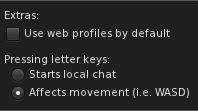
The general tab now includes and EXTRAS panel that allows you to:
Select whether the Viewer display your own or other people’s in-world profile or your / their web profile
Whether the WASD keys will move your avatar or focus the cursor on the chat bar (also found in the Chat tab).
Note: By default, Pressing Letter Keys is set to START LOCAL CHAT for the Phoenix mode, but set to AFFECTS MOVEMENT for the Hybrid / V3 modes.
Chat
The Chat tab rationalises the majority of options associated with setting chat preferences. As well as presenting the expected Chat options, the tabs originally located in Preferences->Firestorm->Chat (General (renamed “Firestorm”), Radar and Keyword Alerts). This tab also includes:
Popular chat log options also found in Preferences->Privacy
A Notifications tab, allowing you to define how IM and Group Chat notifications are handled using either the Viewer 3 pop-ups an/or in the chat console (i.e. lower left-hand corner of your screen, as per Phoenix / Viewer 1.x)
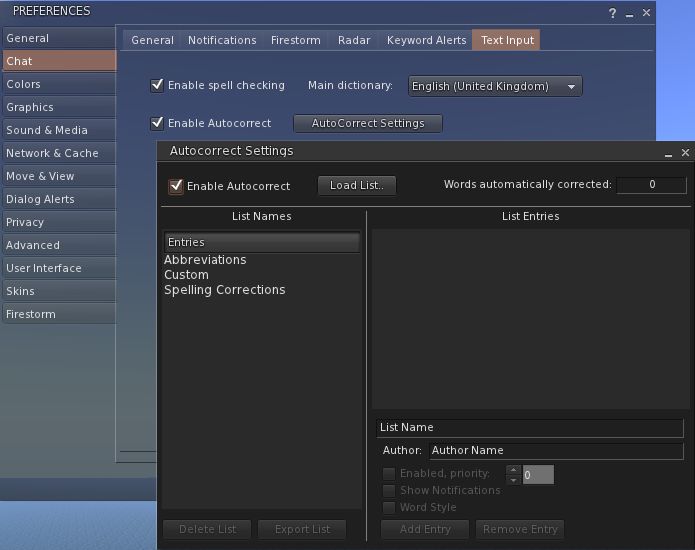
A Text Input tab comprising the Spell Check and AutoCorrect functions
AutoCorrect and Spell Check – together under Preferences->Chat
Graphics
The graphics tab see the arrival of a FULLSCREEN mode for Firestorm. The option requires a restart to take effect, but renders the Viewer beautifully on screen without the usual application window.
Sound & Media
The Sound & Media tab has been refreshed, splitting media and Voice functions into two sub-tabs: General and Voice Settings. The General tab now includes the Media Audio Rolloff Distance settings originally located in Preferences->Advanced.
Sound & Media: new Voice tab and the Media Audio Rolloff sliders
Move & View
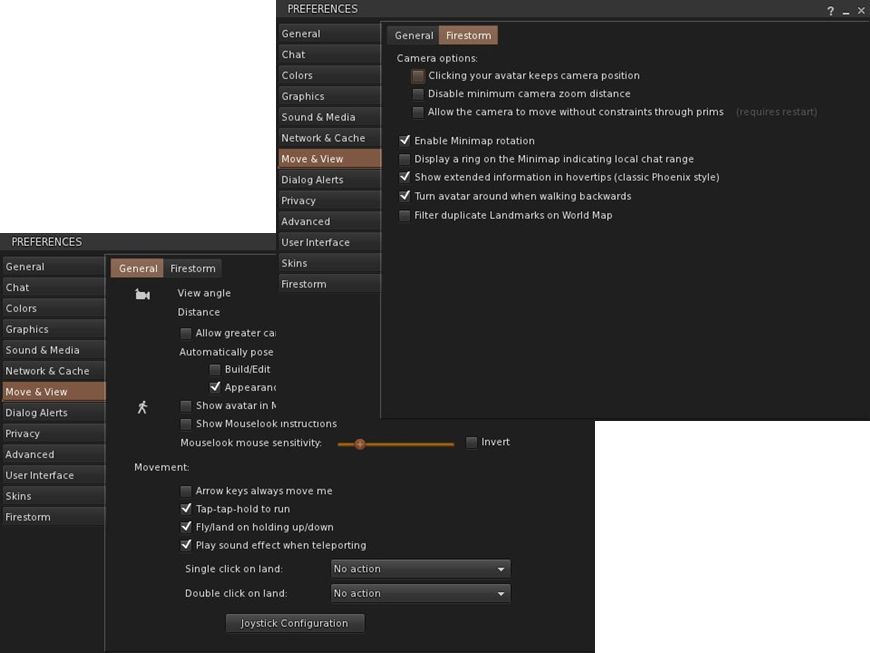
The Move & View tab includes the Viewer 3.2 “click-to-move” functionality (which will reverse avatar mouse steering if you use it!), and moves the Firestorm Camera options originally found under PREFERENCES->FIRSTORM->VIEW to a new sub-tab called Firestorm.
Move & View: incorporate click-to-move and Firestorm’s camera options
Privacy and Advanced
The Privacy tab is rationalised so that LookAt options are now located on their own sub-tab, including the LookAt Target option originally found in Preferences->Firestorm-General.
The Advanced tab has been reduced to the Viewer / grid / Advance / Developer Menu options.
User Interface
Originally called UI Extras, this tab now:
Includes the UI Scaling slider (originally in Preferences->Advanced)
Includes the lag meter check box (originally in Preferences->Firestorm->General)
Includes the Avatar Head movement options ( originally in Preferences->Firestorm–>Avatar)
Allows both script dialogue and Group notices to be displayed in the top right of the screen a-la Phoenix / Viewer 1.x.
The Font tab has been expanded to include options to adjust chat line spacing and folder item height.
Firestorm
The Firestorm tab has undergone significant changes
The General sub-tab has been rationalised as a result of options being either moved elsewhere or dropped
The Protection tab now include the Phoenix Spam Protection options
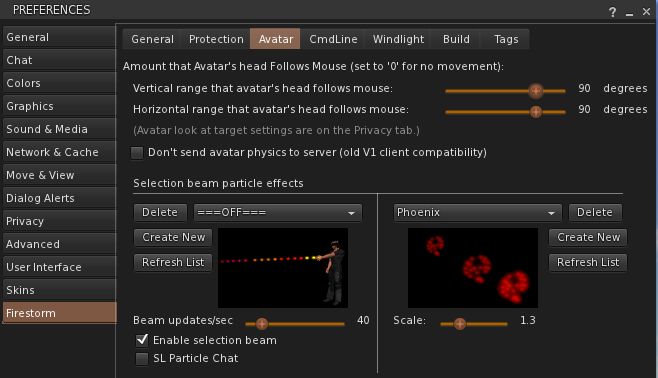
The Avatar tab replaces the View tab and combines the Avatar Head movement options with Selection Beam Particle options
Preferences->Firestorm->Avatar
The Windlight tab includes additional options for accepting region settings and cross-fading changes.
Chat Bar and Chat
The Chat Bar now includes two buttons: the first opens / closes the Nearby Chat floater, while the second opens the Conversations floater. However:
If the Nearby Chat floater is docked with Conversations (as it is by default), then both will appear to perform the same function.
With Nearby Chat undocked, Conversations opens to display your Contacts.
New Feature: Hiding the Chat Bar
Like Phoenix, the Firestorm Chat Bar can now be hidden:
Go to Avatar->Preferences->Chat->Firestorm and check AUTOHIDE MAIN CHAT BAR
The Chat Bar is now hidden.
To access it, tap ENTER – the Chat Bar will open at full window width
Type your text and press ENTER – the text is sent and displayed in the chat console or Nearby Chat (if open)
If you open the Chat in error, simply tap ENTER or ESC to close it without typing anything.
If you prefer, you can set the Chat Bar to open as soon as you start typing:
Go to Preferences->General->Extras or Preferences->Chat->General and make sure PRESSING LETTER KEYS is set to STARTS LOCAL CHAT
Pressing any letter, number or character key will now open the Chat Bar and capture your typing
As above, pressing ENTER will both display the test and close the Chat Bar
Note: setting this behaviour will disable the WASD keys as avatar movement keys.
To disable Chat Bar hide, the feature, go to Go to Avatar->Preferences->Chat->Firestorm and uncheck AUTOHIDE MAIN CHAT BAR. Remember to reset your the WASD functions, if required.
Additional New Chat Features
There are two further new chat options in this release:
Visible hint for when someone is typing: go to Preferences->Chat-> and check SHOW TYPING INDICATOR IN BUBBLES… tags will update to show if someone is typing, even if they have the typing animation turned off
You can display an optional channel selection box in Nearby Chat. Go to: Preferences->Chat-> and check SHOW CHANNEL SELECTION IN CHAT BAR
Channel display in chat
Chat Echo Fix
In previous versions of Firestorm, both the chat bar and Nearby Chat would echo whatever was typed into the other. This has been fixed so that text can be typed separately into each.
Camera Floater
The Camera floater used within the Phoenix /Hybrid modes has been refined, with the view buttons (rear, front, 3/4s, zoom & Mouselook) now along the top of the floater. This makes the floater more compact, by some may find it harder to reposition once undocked from the toolbar as a result.
Quick Preferences
The Quick Preferences button now includes options to turn name tags over avatars off / on, and a time-of day slider for altering the region daylight in your own Viewer.
Mesh Uploads
One of the most eagerly-awaited capabilities within both Firestorm and Phoenix is that of mesh object uploads.
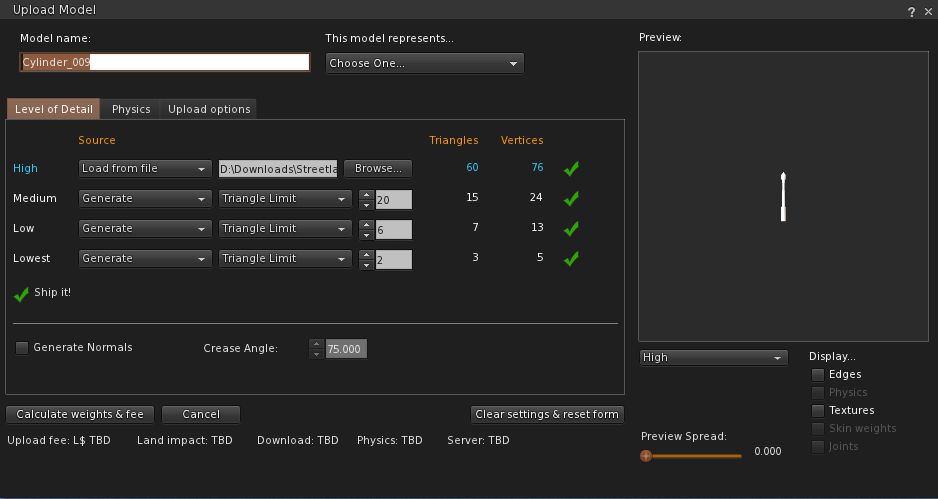
This release sees Firestorm gain the capability, thanks to Nicky Dasmijn. The upload process uses the latest Viewer 3 upload window, and while I am no mesh expert, it appears to match the official Viewer in terms of smoothness of operation.
Note that the upload feature includes the fix for CTS-627 (Mesh upload crashes Linux).
Spelling checkers are something TPV users tend to take for granted; or if you’re a Guardian reader, quite possibly for grunted (sorry, a little English humour….). We’ve been able to bask in the glory of having our misspellings highlighted ready for us to correct (or in some instances, had them auto-corrected, depending on the sophistication of the checker code itself). Those using the official Viewer, however, haven’t been so lucky.
But that is about to change. Enter Storm 83. A year plus old, barely watched or voted upon, and now a coming soon feature. So as Oz comments on the JIRA, “Everyone thank Kitty for volunteering to contribute this feature!” Kitty being Kitty Barnett, who is the assignee for the project, and who has been a prolific contributor to TPV code, including RLV/a.
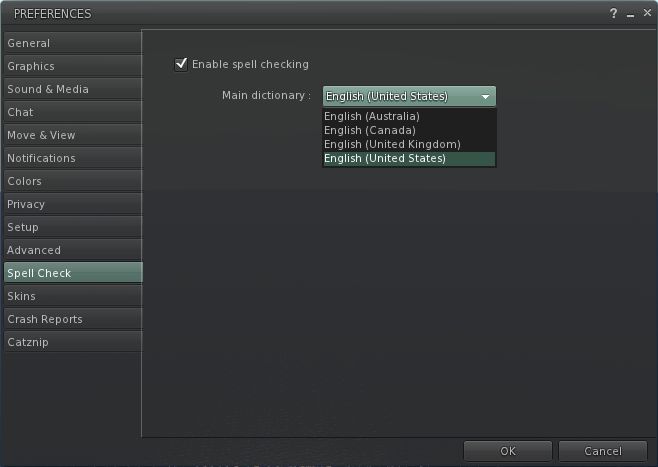
It’s not clear exactly how the feature will be integrated – different TPVs have added it in various tabs within Preferences. However, if we take Kitty’s own Catznip Viewer as a lead (given it is based on Viewer 3), one might hazard a guess and say that rather than being hidden away inside Preferences, as is the case with come TPVs, the Spell Check option will get a tab of its own.
With Catznip the spelling checker is very straightforward: simply tick the check box to enable. American English is the default, but other options are available from a drop-down menu. Spelling errors are then underlined in red in chat, and right-clicking on them will display a nice little menu listing alternatives as well as an option to add the word to a custom dictionary, should you prefer. One suspects the Viewer 3 functionality will be similar.
I’ve no idea whether the dictionary will include the ability to download other language dictionaries, a-la the likes of Phoenix and (shortly) Firestorm. I’ll hopefully take a closer look once the code reaches a Development Viewer or enters the Beta code base.
 This is turning in to the week I catch up on Viewers!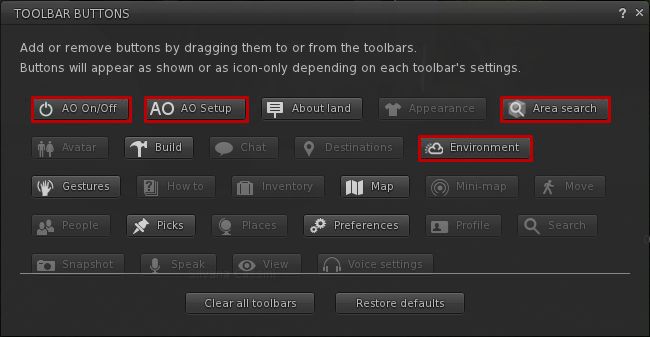





 Today, the attempt to get