Pathfinding: playing inside buildings

Over the last couple of days, I’ve been experimenting with setting pathfinding characters roaming within buildings. What follows is not intended to be definitive, but more a case of what I’ve found so far. Until there is more up-to-date documentation from LL on setting-up pathfinding, this was very much thumb-in-the-air stuff, and as ever, YMMV. I’m still fiddling with things, and may add a further article later.

Characters with Impact

For the test, I used a basic pathfinding script to animate a cube (which I called “Charlie”). It was simple and was enough for the basic task. One thing to bear in mind with pathfinding characters is that they’ll have a land impact of 15. This is related to the character’s physics weight, and will not change as a result of adding / removing prims (a 1-prim character will still have a land impact of 15 as will a 30-prim character), although other factors (such as streaming cost) may raise the LI.

People may find the idea of a 15 LI character “harsh” (esp. if the prim count is lower). For my part, I don’t think it is that bad; it still allows for a fair few NPCs in a role-play region without significantly impacting prim counts.

Setting Attributes

Setting-up a building in which pathfinding characters can roam requires setting the correct pathfinding attributes. During my tests, I wasn’t trying for anything sophisticated like setting-up paths; rather, I wanted to see how a simple character (like a pet or animal) would roam and interact with its surroundings.

Pathfinding attributes, as outlined in my pathfinding overview, are set via the Linkset floater. There are a few points that need to be noted prior to doing this:

  • Only one attribute can be set for a linkset, so if your structure includes walls and floors within the same linkset, you cannot set one attribute for the floor, another for the walls, and so on
  • It is possible to set pathfinding attributes against NO MOD builds, as pathfinding attributes are not the same as object permissions. However, there are caveats to this – such as whether or not the build includes things like scripted doors (see the following bullet point)
  • Attributes which affect navmesh calculations (e.g. Walkable, Static Obstacle, Exclusion Volume, Material Volume), should not be set against linksets with scripted moving objects (such as doors). Doing so will prevent the scripts in the objects working as intended
    • If you have a structure which includes things like doors, these must be unlinked first and their attribute left as moveable obstacle
    • Obviously, in the case of NO MOD builds, this potentially limits your choices as to how you enable pathfinding within a building and in ensuring pathfinding is suitably optimised.
Pathfinding attributes for buildings require setting with care to avoid possible “breakages”

To set an object’s pathfinding attribute:

  • Right-click on the linkset for the object  and select Show in Linksets
  • Select the required attribute from the drop-down list
  • Apply the attribute to the linkset
  • Use the Rebake Region button which will appear at the bottom of your screen to update the region navmesh.
Setting an object’s pathfinding attributes

Walkable Areas

Broadly speaking, the following options are available when creating walkable areas in a building:

  • Set the entire structure to Walkable. This works reasonably well, however:
    • For modifiable builds, all scripted moveable elements must be configured as linksets separate to the main structure, as noted above
    • This option should not be used for NO MOD buildings with scripted moveable elements integral to the structure
  • If the building’s floor areas are already an independent linkset, set that linkset to Walkable
  • If the building is modifiable, unlink the floor areas and then re-link them as an individual linkset which can be set to Walkable
  • Create your own floor “overlays” from prims, position them over the existing floors and then set their attribute to Walkable (useful in NO MOD builds which include scripted moving elements).

Which of these options you use is down to the building you have and personal choice. I found that setting an entire building to Walkable (after taking care of the door linksets) worked perfectly well for the most part.

Placing a Walkable floor into a build. Left: the floor prim and house; right: as seen in navmesh view with house selected (wireframe) and the floor in green to indicate it is walkable. Note the floor equates to one room of the house

Note you can set the Walkable attribute for the floor prims prior to positioning them, but you’ll have to run a region rebake once you’ve done so. You can “hide” the floor prims by making them transparent.

I should also note that in terms of furnishings, I left anything set with the Movable Phantom attribute alone, and anything set to Movable Obstacle to Static Obstacle (this did not “break” any scripts for sitting, etc.).

Optimising

To give better control over characters roaming inside a building you might wish to set additional attributes against individual elements in a building. For example, in setting an entire building to Walkable and with Charlie moving at the default character speed, I found he would periodically “pass through” a wall or window and continue roaming around outside. I stopped this by setting the walls of the building to Static Obstacle. As well as potentially helping with character behaviour, setting additional attributes for linksets and objects helps optimise pathfinding for the entire region in which it is being used.

Use the page numbers below left to continue reading

Linden Lab announces normal and specular maps coming to SL

Today, Linden Lab has announced a major new open source initiative to improve graphics rendering performance within the viewer. The announcement reads in full:

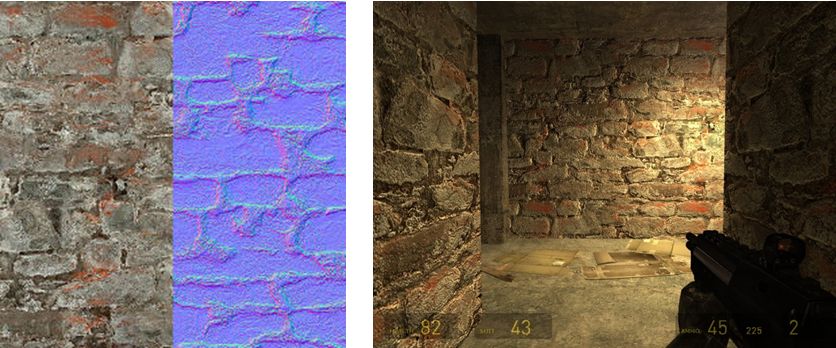
One of the challenges that virtual world creators face is the trade-off between rich visual detail and geometric complexity. Ideally, by adding more and smaller faces to an object, a designer can model different surface textures and create realistic variations in the interplay of light and shadow. However, adding faces also quickly increases the size of the model and its rendering cost. Normal and Specular Maps are ways to address this by allowing for the appearance of a complex surface without actually modelling fine scale geometry. 

A Normal Map is an image where the color codes indicate how the renderer should reflect light from each pixel on a surface by modifying the direction that the pixel “faces” (imagine that each pixel could be turned on tiny pivots). This means that pixels on a simple surface can be rendered so that they appear to have much more detail than the actual geometry and at much lower rendering cost. Light and shadow are rendered as though the surface had depth and physical texture, simulating roughness, bumps, and even edges and additional faces.

Similarly, a Specular Map allows each pixel to have its own degree of reflectivity, so that some parts of a single face reflect sharply, while adjacent pixels can be dull.

The open source developers of the Exodus Viewer are contributing Viewer support for Normal and Specular Maps, as well as some additional controls for how light reflects from faces. Linden Lab is developing the server side support so that this powerful tool will be available in Second Life.

Design and development are under way. Watch this blog and the Snowstorm Viewers page for information on when test Viewers with these new capabilities become available.

For additional information, or to learn more about how you can participate in the open source program, please contact Oz@lindenlab.com.

A video has also been released, demonstrating the capabilities.

With thanks to Pete Linden for the heads-up

The skills divide: investigating a better build floater

As I reported a while back, the Content Creation Improvement Informal User Group has started looking into the matter of the Build floater.

Like many things in the viewer, the Build floater has to cover many tasks, some of them quite basic (moving a lounge chair across a room) through to very complex building and texturing activities required by content creators. Over the years, this has led to the Build floater becoming considerably more cramped and complex as options, capabilities and tools have been added to it.

Even redesigns of the UI – as with Viewer 2.x and Viewer 3.x have brought with them issues of their own. Some of these are code-related, some of them are very much impact the usability of the floater, e.g. localisation problems wherein languages other than English don’t readily fit the floater size and layout, etc.

Some TPVs have sought to tackle the issue over the years, but efforts have tended to revolve around working with the constraints defined by the current Build floater, rather than looking what needs to be done in order to make the use of tools traditionally grouped together as “build tools” more task-oriented.

Firestorm and Phoenix, for example, have retained the old V1 capability of being able to show a minimal toolbar (remember the MORE and LESS options on the old, old Build floater?) which can be used to perform basic object movement and rotation tasks without having a plethora of additional information thrown at the novice user.

The V1-inspired “minimal Build floater” as exemplified by Firestorm

Niran’s Viewer has also sought to address how information within the Build floater is presented: offering it in a left-to-read format which is potentially more readable for many people as it is easier to visually scan.

However, such approaches suffer their own drawbacks. Niran’s Viewer may present the information in a more logical left-to-right flow, but this is really a cosmetic change rather than a fundamental shift in emphasis in how the tools are presented in terms of user needs as opposed to content creator needs. Similarly, the Firestorm / Phoenix approach retains the minimal information approach from Viewer 1.x, but again, even this potentially contains too much information for, say, someone merely wishing to pull out a sofa and position it in their lounge or who wants to adjust the location of a bracelet attachment on their wrist.

Niran’s Viewer: attempting to make the Build floater a little more logic

The CCIIUG is therefore looking not so much to redesign the Build floater itself, but what needs to be done to present options and tools more logically, such as through one or more floaters that could eventually replace the Build floater as we know it. As such, the Group has been discussing requirements in terms of use rather than function:

  • What tools does the lay user, with no interest in content creation, need to be able to see and access in order to complete the simplest of tasks such as the aforementioned positioning of an in-world object or to resize an object (in-world or attached) to suit their needs?
  • How can these be presented in a user-friendly manner that doesn’t swamp the “consumer user” with information superfluous to their needs
  • Where does the cut-off come between “basic” tools (as described above) and the more advanced tools generally the preserve of the content creator?
  • How should the more advanced tools be presented?

These are actually tough questions to answer as they cover very specialist areas, code design, UI design, etc., as well as a need to clearly understand what “consumer” or “novice” users actually require (itself a tough question for anyone who has been engaged in Second Life for any reasonable length of time, as views naturally become more subjective as time passes). However, the work is potentially pertinent for a number of reasons:

  • The Build floater is seeing more and more being pushed into it as functionality within Second Life continues to be enhanced with new tools and features – mesh saw the additional link and pop-up panel; pathfinding has seen the addition of new information panels, etc.
  • It is thought that there may well be a further change pushed into the Build floater as a result of “something new” (no specifics available) coming down the line
  • Even if any new approach coming out of the CCIIUG isn’t adopted by LL, as it amounts to UI improvements, as so long as it does not impact how the in-world experience is shared between viewers, it does not fall foul of the TPV Policy, and so TPVs will be free to adopt whatever improvements may arise from discussions if they so wish.

A working party within the CCIIUG is being formed to look more closely at the matter, and with a view to putting together mock-ups of ideas as to what a new Build tool UI might look like. As such, input is being welcomed from both TPV developers and from users in general on the matter, with the aim of eventually presenting ideas to Linden Lab at some point in the near future.

If you’d like to be a part of the working party, you can join by attending the weekly CCIIUG meetings, held every Tuesday at 15:00 SLT at the Hippotropolis Auditorium. Information on the Build tools discussions to date, please see the links below.

Related Links

Viewer release summary 2012: week 32

The following is summary of changes to SL viewers / clients (official and TPV) which have taken place in the past week. It is based on my Viewer Round-up Page, which provides a list of  all Second Life viewers and clients that are in popular use (and of which I am aware) and which are recognised as being in adherence with the TPV Policy.

This summary is published every Monday, and by its nature will always be in arrears. Therefore, for the most up-to-date information on viewers and clients, please see my Viewer Round-up Page, which is updated as soon as I’m aware of any changes, and which includes comprehensive links to download pages, blog notes, release notes, etc., for Viewers and clients as well as links to any / all reviews of specific viewers / clients made within this blog.  

Updates for the week ending: 12 August, 2012

  • SL Viewer updates:
  • Dolphin rolled to 3.3.18.24749  on August 10th – core updates: Asset Blacklist redcord region name when object added; Media Filter list now shared between all avatar accounts on same OS; slider add the Graphics Prefs for improving mesh rez times in areas with a lot of mesh; added improved avatar vertex weights from STORM-1800 for better avatar bending / stretching; Improved handling of SLurls between webpages and running Dolphin viewer (release notes)
  • Exodus release version 12.08.09.1 on Aug 9, (release notes) – which I review here
  • Niran’s Viewer rolled to 1.48 on Aug 6 – core changes: Alterations to the log-in splash screen; addition of core pathfinding tools to menus; merge with Exodus rendering pipe; assorted fixes (release notes)
  • Cool Viewer: Stable branch rolled to 1.26.4.24  and Experimental to 1.26.5.3, both on Aug 11th – core updates in both: initial pathfinding support; various SLV 3.3. code back ports (release notes for both)
  • Lumiya release version 2.2.0 on Aug 8th and then 2.2.1 on Aug 11 – core updates: completely revised and enhanced UI; split-screen functionality; options to add / remove friends, offer teleports, set and auto response message (release notes) – read my review here

Related Links

Lumiya 2.2.0: out with the old, in with the new

lumiya-logoWednesday August 8th saw the launch of Lumiya 2.2.0, followed on Saturday August 11th by 2.2.1. With them came a host of goodies, including:

  • A new user interface
  • Split-screen layouts for tablets
  • The ability to:
    • Add and remove friends
    • Set an auto-response for incoming IMs
    • Send teleport offers to others
  • Support for legacy user names (rather than only using Display Names)
  • Avination added to grid list.

As we shall see, this is really quite a modest representation of what amounts to a huge amount of work to completely overhaul what was already a very usable and increasingly intuitive application and turn it into a highly polished product.

This review was written using a Samsung Galaxy S2 smartphone running ICS 4.0.4. Note that as I do not have a tablet device, I’m unable to do any direct screen comparisons, therefore some details might differ on a larger display.

Sign-In Screen

The changes are apparent from the moment you launch Lumiya, as a slick new log-in page appears, complete with new widgets.

The older (l) and newer (r) log-in screens – note the widgets, top right, in the latter

The widgets are at the top right of the screen and comprise (in left-to-right order):

  • Account Manager: easily access all of the accounts you’ve used Lumiya to log-in to SL. Tapping on this will display a list of accounts, including the name of the grid the account is used to access. Tapping an account name will return you to the sign-in screen, with the user name and password fields auto-completed with the required credentials, and the client pointing towards the required grid
  • Settings: tap on this to access and set / amend your preferred settings for Lumiya.

Settings Options

Before getting into the various changes within Lumiya itself, it is worth covering the Settings options, as these include some important updates. Chief among them is the new Light skin option. Until now, Lumiya has presented itself on a dark background. On smaller screen, than can be hard on the eyes and lead to discomfort. The Light skin option displays Lumiya’s screens on a white background which on smaller screens especially can be easier on the eye.

The two visualisation options for Lumiya

Also within Settings are the new options to: use legacy names rather than Display Names; enable the split-screen display and when it will be activated (see Screen Orientation, below); and display local chat in the 3D world view (see Conversing in the 3D World View, on the next page).

Grid Access

The grid access list can now be displayed in one of two ways:

  • By tapping the name of the currently selected grid. This will display a pop-up list of grids
  • By tapping the Menu button on your device and selecting Grids from the menu which is displayed. This will switch to a full-screen list of defined grids

Tapping on the name of a grid in either list will automatically return you to the sign-in page, with the grid selected. Both lists also include the option to add further grids, as I’ve documented in my last review of Lumiya.

Menu Options and Icons

Tapping the Menu button on your device in earlier versions of Lumiya would pop-up a set of on-screen buttons. This has now been replaced by what I’ve dubbed here the “Lumiya menu”. This is a set of context-sensitive menus which will display options in accordance with the screen you are using / function you are performing and which take into consideration screen orientation (see below). These make working with Lumiya even smoother and more intuitive.

Greater use is also made of on-screen buttons as well. These are also context-sensitive  and present a far slicker and faster means of performing activities within Lumiya than with previous versions. As the buttons rely on icons extensively when in portrait mode (at least on smaller devices), a PDF-format guide to the icons and their functions can be found here. A long touch on an icon will also show an on-screen tool tip.

Screen Orientation

Lumiya now includes much better screen orientation options when rotating between portrait and landscape modes, and adds a split-screen capability.

When rotating between portrait and landscape views the screen layout will automatically adjust itself. This will generally result in better screen utilisation in either orientation. However, when in landscape mode, it may appear as if buttons are vanishing from the screen due to the use of icons & labels – not so! Any buttons that are not displayed as icons are moved to the Lumiya menu, accessed via the Menu button on your device.

Where the icons go: rotating the Lumiya display to landscape may seem to cause buttons to vanish from the layout. Tap the Menu button on your device to display them within the Lumiya’s menu

The a split-screen option is primarily intended for tablet devices, but can still be useful when used with suitable screens on mobile phones. It is enabled via Settings (tap the Menu button on your device to display the Lumiya menu and then tap Settings), and can be set to one of the following:

  • Automatic: Tablets will automatically switch to split-screen when in landscape orientation, devices with smaller screens may not
  • Always in Landscape: the split-screen will activate whenever the device is rotated to a landscape orientation, regardless of screen size
  • Always: the split-screen mode will be active in both landscape and portrait modes, again regardless of screen size
  • Never: split-screen never activates.
Contacts screen in split-screen view

Continue reading “Lumiya 2.2.0: out with the old, in with the new”

Exodus updates: version 12.08.09.1

exodus-4It’s been a while, but the Exodus team released a new version of the viewer on Thursday August 9th. Version 12.08.09.1 is liable to be the first of two updates to Exodus this month (the second being aimed at incorporating the pathfinding tools for those keen to get to grips with pathfinding in Second Life). This release is the first to be made since Katharine Berry recently joined the Exodus team, and she’s been engaged in a number of the features presented with this release.

The 12.08.09.1 release (also referred to as Beta 8), brings with it a range of updates, including:

  • Ability to upload images from the snapshot floater to Flickr
  • New linear, Renhard and filmic tone mapping
  • New avatar troubleshooting menu
  • Ability to mute group chat
  • Inclusion of floating point “Normalized Blinn-Phong” shading LUT for deferred rendering
  • Latest RLVa support
  • Various UI updates including:
    • Vertical chat tabs (from Catznip)
    • Web browser toolbar button
    • Additional slider in the Quick Preferences floater for adjusting your own sound locally
    •  Request teleport button added to IM windows
  • Merge with the SL Viewer 3.3.3 codebase, bringing with it:
    • Merchant Outbox support
    • Local Textures (by Vaalith Jinn)
    • Graded shadow support
    • Various fixes to the mesh queue

This article has been written using the Windows release of 12.08.09.1, and is intended to be an overview of the core updates rather than an in-depth review of the Exodus viewer (see articles list at the end of this items for further information on Exodus).

Download and Install

The Windows downloader weighs-in at a modest 28.4Mb. Installation on my system was fast and smooth (as per usual, this was a clean install for me). Start-up revealed the familiar Exodus blue sky screen with core information (particularly updates from the Grid Status Page) along the bottom. No implementation of the official splash screen here. However, if you do have issues trying to run Exodus following installation – and in particular get error messages relating to .dll problems, you might try visiting the Exodus FAQ page and following the link therein.

Logging-in revealed the familiar Exodus default screen layout, with buttons to the left and button of the screen, which can still be repositioned to the left or right, top or bottom of the screen.

Avatar Troubleshooting

Avatar Troubleshooting takes a leaf from the Firestorm book and offers three options for dealing with avatar issues. These can be found in a menu under Me->Troubleshooting and comprise:

  • Reload My Avatar Data: sends a request to the SL servers to download your avatar data once more. Useful where you’re seeing outfit changes but other’s aren’t (often indicative that something is going wrong within your computer, rather than anything at the server end)
  • Rebake my avatar textures: performs a normal local rebake, with the data sent to the server for distribution
  • Reset my avatar: Ruths your avatar to default shape and clothing, allowing you to rebuild it in the event of a drastic error.

Toolbar Buttons

This release of Exodus includes two additional buttons, Web, which opens the viewer’s built-in web browser, and Panic. The latter is a hang-over from testing nightly builds and debugging. As such, it is not intended for general use and may be removed or re-purposed in the next release. It is  not recommended you employ the button, as it is intended to crash the viewer and generate a crash log.

Snapshots to Flickr

Flickr is a popular medium for SL photographers, so having an option to save pictures directly to it is likely to be a benefit to many. With this release, Firestorm obtains Katharine Berry’s code (Katharine also recently joined the Exodus team) to enable snapshots to be uploaded directly from the viewer to a Flickr account.

The option is presented as an additional button on the snapshot floater. The first time you click on this, it will cause a pop-up to be displayed:

Setting-up Flickr to accept snapshots from Exodus

Clicking on YES will take you to the Flickr authorisation page, which will outline the possible risks of connecting Exodus to Flickr (a standard alert page, common when using inter-application authorisation). Read the warning carefully, and if happy, confirm yo wish to proceed (refusing cancels the link and denies Exodus the ability to upload to Flickr).

Confirming that you’re happy to proceed will display a code number on the Flickr web-page. Type this into the authorisation pop-up displayed in Exodus. This will activate the link and allow you to take your snapshot and send it to Flickr. Again, note the authorisation process only has to be completed the first time you attempt to upload a snapshot directly to Flickr, thereafter snaps will be sent to your Flickr account without hindrance.

Continue reading “Exodus updates: version 12.08.09.1”