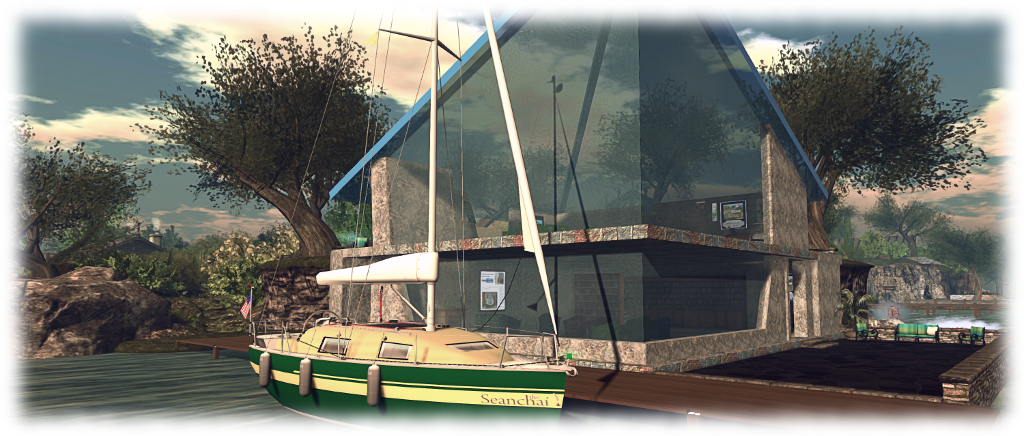
It’s time to highlight another week of storytelling in Voice by the staff and volunteers at the Seanchai Library. As always, all times SLT, and events are held at the Library’s home unless otherwise indicated. Note that the schedule below may be subject to change during the week, please refer to the Seanchai Library website for the latest information through the week.
Monday, January 6th 19:00 The Integral Trees
Dispatched on a mission of exploration, the Earth ship Discipline, operated by the the all-powerful State, encountered a strange phenomenon: a torus-like ring of gas and dust surrounding a neutron star. Within the torus, the crew discover a thriving ecosystem of plant and animal lifeforms that have evolved to living continually in a state of free-fall.
Despite being overseen by the ship’s AI system, Sharls Davis Kendy, from which they received advice and information, the crew abandoned the Discipline in favour of living among the plants and trees of the torus, which they call the Smoke Ring.
Now, 500 years later, the descends of the original crew have formed a tribal society focused around some of the trees of the system. Adapted to free-fall life, their societal structures are sharply divided, with “wars” common among them, as well as stronger tribes raiding or enslaving weaker tribes, whilst in all of them, artefacts from the original mission are sought-after and venerated.
In the midst of a round of aggression between various tribal factions, one group find themselves aboard an original craft from the Discipline and caught in space beyond the Smoke Ring, where the Discipline and Kendy are still waiting – and Kendy is willing to provide assistance.
Join Gyro Muggins for more.
Tuesday, January 7th 19:00 A Glorious Freedom: Older Women Leading Extraordinary Lives
Selections from Lisa Congdon’s book celebrating extraordinary lives and redefines what it means to gain wisdom and maturity. From the book’s back cover blurb:
In this richly illustrated volume, best-selling author and artist Lisa Congdon explores the power of women over the age of forty who are thriving and living life on their own terms. Profiles, interviews, and essays from women—including Vera Wang, Laura Ingalls Wilder, Julia Child, Cheryl Strayed, and many more—who’ve found creative fulfilment and accomplished great things in the second half of their lives.
Wednesday, January 8th, 19:00:The Starless Sea
Caledonia Skytower reads selections from Erin Morgensterns novel.
Deep beneath the surface of the Earth and upon the shores of the Starless Sea, lies a network of tunnels and rooms filled with stories and tales. The ways into this secret place are many, but hidden, and perhaps set for just one individual to find. They exist where least expected: on the floors of forests, behind doors inside private homes or around alleyway corners or within mountain caves – almost anywhere in which they cannot be anticipated.
Zachary Ezra Rawlins is searching for his door, though he does not know it. He follows a silent siren song, an inexplicable knowledge that he is meant for another place.
When he discovers a mysterious book in the stacks of his campus library he begins to read, entranced by tales of lovelorn prisoners, lost cities, and nameless acolytes. Suddenly a turn of the page brings Zachary to a story from his own childhood impossibly written in this book that is older than he is…
Thursday, January 9th 19:00 Ancient Fires
Shandon Loring delves into the case files of Jules de Grandin, occult detective, as created by Seabury Grandin Quinn for the pulp magazine Weird Tales. He starts with Ancient Fires. Also in Kitely – grid.kitely.com:8002:SEANCHAI).
Substance abuse – be it “hard” or “soft” drugs, misuse of prescription drugs or over-indulgence in alcohol, to name but some of its forms – can be a difficult subject to represent. It can come about due to a variety of means and reasons, often with the person or persons caught in the cycle either trying to hide their dependency or deny it. Circumstance often plays a role in misuse, and that circumstance can vary widely.
With her latest installation, Carla, Walk in the Darkness, Terrygold attempts to weave a story of how substance abuse can grow out of the simplest of situations: peer pressure coupled with parental pressure.
Terrygold – Carla: Walk in the Darkness
Though a series of written chapters presented in text, interlinked by a series of 3D vignettes and photographs, the installation traces the story of Carla, a young teenage girl who is apparently content with her lot: school and studying to be a dancer – until she runs into some of her peers into smoking some cannabis.
From this seemingly innocent start, Carla’s life spirals – kicking back and just enjoying the heightened mood associated with cannabis, then skipping dance lessons and rebelling against her family’s concern / pressure that gives her a need to seek “freedom”, which itself is a further opening of the Pandora’s box of needing to recapture the comfort and escape of that first high through every more damaging ways – damaging to both herself and members of her family.
The story is set out in a series of descending rooms, starting from the uppermost, where a general introduction to the installation can be found, together with information on how best to view the installation. Spiralling downwards, each room offers a piece of the story, the physical descent from room to room clearly a metaphor for the descent into the darkness of substance abuse / dependency. Following the path down can be a little difficult in places, – so just cam around if you feel your are stuck; there are clues in places – green triangles on the floor or roses spread across them.
It is ultimately a dark tale that does not end happily – as one might expect – and the ending is made that much starker because after it, we get to see what might have happened if, instead of succumbing to a need to be accepted by peers, Carla had uttered a simple word.
Overall, the story is well told; the words of the story have in places obviously been carefully chosen to have maximum impact, and the individual vignettes (some of which may have interactive elements, so be sure to mouse around them rather than simply passing through) emphasise the key points of the tale. That said, there is a risk some might find the story a little too artificial in structure (long has been the debate around whether medicinal use of some drugs can lead to a need / dependency on them or carry a person into the realm “hard” drug abuse). However, as I’ve noted, this isn’t a subject that is easy to represent or broach; as such some license in the structure and outcome should be allowed.
Terrygold – Carla: Walk in the Darkness
Carla: Walk in the Darkness officially opens at 13:00 SLT on Saturday, January 4th, 2020.
Aradia’s Winter, January 2020 – click any image for full size
Update, January 12th: Aradia has now been re-dressed for spring.
Aradia is a Homestead region designed by LadyOnia that offers a mix of public spaces and rentals for those seeking a home. We first visited in November 2019, not long after the the region had opened, and when it was dressed for autumn. I jumped back with the start of the new year to take a look at it under winter’s blanket.
The landing point sits to the west of the region, above a broad spread of beach – although given the snow and the winds, it might take a very brave soul to take a dip in the waters or attempt any sunbathing on the sands! The rest of this predominantly low-lying region spreads out eastwards, cut by channels of water that serve to break it up such that exploration is a case of findings ways across the water (and even then, once or twice a little wading might be required!).
Aradia’s Winter, January 2020
I say “predominantly low-lying”, because the north-eastern corner of the region is raised slightly above the rest to form a circular table of land on which the rental properties are located. This looks across the region to where the land unmistakable bulks up in a rocky hill to the south-west.
The rentals are clearly separated from the “public” parts of the region, with just a single point of access by foot to their round plateau. Five cottages and a lighthouse form a ring around the outer extent of their rocky table, the centre of which forms an open space marked by ancient stonework built around a water feature.
Aradia’s Winter, January 2020
Rental information on the properties is available at the information board located on the steps that form the access point for the rentals, spaning the channel separating them from the rest of the region. However, I understand from LadyOnia that she is currently using two of the properties, leaving just four with rental options. Wildlife is very much a feature of the region: herons and egrets keep an eye on the waterways, doubtless watching for unwary fish, although they may face some competition for fishy meals from the otters floating on the water or playing nearby.
Away from the waters, peacocks strut around the territories they’ve claimed for themselves, while rabbits and deer take a more relaxed view of things, content to hop through the snow or graze on the grasses poking up through its blanket. Weasels are also to be found as they scurry through the snow, while sheep and goats can be found at various points, with the sheep laying claim to the ring of standing stones to the north-west.
Aradia’s Winter, January 2020
For those fancying a bit of a climb, the south-eastern hill can be reached via log bridges and a rocky arch, the climb made easier by the stone steps winding up its flanks. The hill’s lower shoulder is broad enough to be home to a large frozen pond, a little café raised to one side of it. The latter offers a place to sit and rest and perhaps enjoy a hot cocoa before carrying on up to the peak, while a sign at the edge of the pond will deliver skates for anyone wanting to make use of the ice as a rink.
The central and eastern lowlands offer open spaces and various features of their own – some of which may be changing a the next few weeks as they are decidedly Christmas oriented, and LadyOnia noted to me that she’s looking to introduce a spring setting to the region in the not-too-distant future. Much of these lower areas are marked by trees with trunks bent so they stand as if crouched against an unrelenting wind. Places to sit and cuddle can be found under some of them, with more places of to to be found scattered around, from simple benches to a giant stone-carved hand to winter’s crescent Moon swing.
Aradia’s Winter, January 2020
One of the pleasing aspects of this region – for me, at least – is that the volume of snow didn’t impact my system’s performance as much as it has elsewhere. However, it does combine well with the region’s windlight to add a natural softening to the landscape as one looks across the region, just as now does in the natural world.
This tutorial has been written as a guide to filing SL bug reports and feature requests using the Second Life Jira. It comprises two parts:
Bug Reports:
What is / is not a bug report.
Filing a bug report.
What a Security Exploit is.
Filing a Security Exploit report.
What happens to a report once filed.
Feature Requests (this section):
What a feature request should be.
Filing a feature request.
Using a proposal.
What happens to a feature request once filed.
Both sections are self-contained and can be bookmarked / referenced independently of one another for ease of use. However, to further assist in finding information, the table of contents on the right can be found in both part of the tutorial, and can be used to reference specific sections of either one.
I would like to express my thanks to the following people for their input into this tutorial and for sanity checking the contents: Alexa Linden, Grumpity Linden, Kyle Linden, Soft Linden and Whirly Fizzle.
What is the Jira For?
As noted above, the Jira is primarily for:
Filing reports on bugs that impact Second Life (covering the viewer, the simulator and the web), and which in doing so adversely impact the user experience.
Putting forward suggestions on features and capabilities that might enhance Second Life for users.
The Jira can also be used by third-party viewer (TPV) developers to have their viewer added to the TPV Directory, or for reporting TPVs that may be violating the TPV Policy / Second Life Terms of Service. Both of these options fall outside the scope of either part of this tutorial.
When using the Jira, please keep in mind:
It should not be used to report problems which are specific to you or for general enquiries about things like log-in issues; tier payments; running Second Life on a specific hardware configuration, land issues, and so on.
If you believe the bug presents a security risk (such as allowing griefing or exposing sensitive information), you should use the SEC bug report, details of which can be found in Security Exploits.
When adding comments to a report / feature request (see Commenting on filed requests), these should focus on technical feedback / input pertinent to the issue/ request being made. Personal opinion or general discussions on a bug / feature request can be held through the Second Life forums.
Feature Request Overview
Feature requests are ideas for the technical improvement of Second Life that are submitted to Linden Lab by users. While not all are accepted / actioned, many enhancements have come about as a direct result of submitted feature requests. However, when considering filing a feature request, some basic points need to be considered:
The chances of how and when a feature request being adopted depends on a number of factors, including:
How well the case is written up: the more informed a feature request is, the more likely it is to be considered by Linden Lab. Think of a feature request as a mini project proposal.
Scope: requests that are focused on achieving a single, clearly defined goal are more likely to be viewed positively than requests that call for sweeping (and potentially vague) changes to SL.
It is better to file multiple feature requests on ideas / suggestions than to try to cram multiple ideas into a single request.
Remember, the Lab need to be able to digest your idea(s) and be able to see how they might fit with current work being carried out, or might fit with future work being planned. Keeping to one idea per feature request helps with this.
How the idea fits with the current roadmap of improvements: the Lab is constantly working to improve Second Life, and look at feature requests in terms of what is on their current roadmap of improvements. Requests that match what is planned many be implemented sooner than others.
How well it benefits the entire Second Life community: LL is especially interested in ideas that improve everybody’s experience. It is rare that resources are available for very special case needs.
Offer of code (viewer feature requests only): if a request for a new viewer feature includes code supplied under a contribution agreement, the feature might be adopted ahead of others / alongside of the Lab’s own work in enhancing the viewer, again allowing for the above points.
Use images and attachments.
Providing a mock-up image of how you’d like a new panel in the viewer to appear, or a diagram showing the flow of how a new feature would be used, etc., can be a lot clearer than a wall of text.
If the idea warrants it, don’t be afraid to provide an outline in the Feature Request form and then provide a more comprehensive project proposal as an attachment (see Using a Proposal, below).
Before You File a Feature Request
It is possible that the idea you have may already be the focus of a feature request, so please consider using the Jira search capability to look for similar ideas before submitting a request.
If you find that a feature request already exists for the idea, you can opt to click the Watch option (top tight of a feature request, under People) to receive updates to the Jira via e-mail (you can uncheck Watch should you no longer wish to receive these updates).
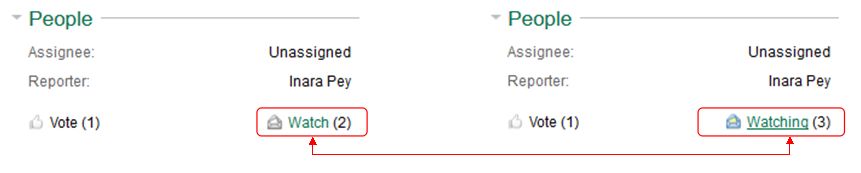
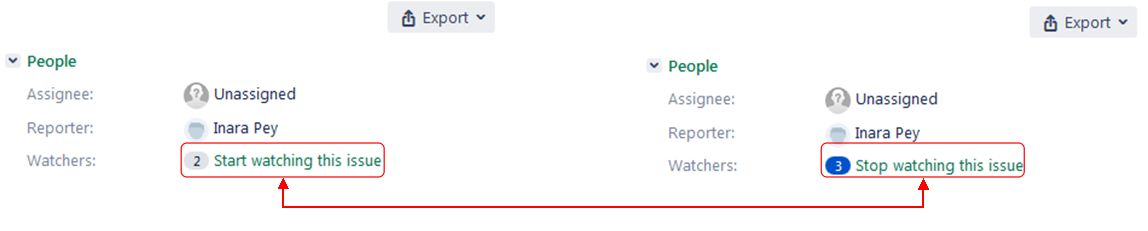
You can receive e-mail updates on a Jira by clicking the Start Watching… (l) option (under People in the top right of a displayed Jira). The option will update to Stop Watching… (r), indicating you’re receiving updates. Click the option again to stop receiving updates; the option will revert to Start Watching.
Filing A Feature Request
Setting the Project and Issue Type
Log-in to the Second Life Jira using your Second Life log-in credentials.
Click on the blue Create button in the top menu bar.
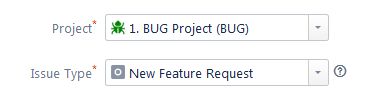
Check the top of the form and make sure:
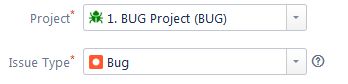
Project is set to 1. BUG Project (BUG).
Issue Type is set to New Feature Request.
Use the drop-downs to set either, if required.
When filing a feature request, make sure Project is set to 1. BUG Project (BUG), and Issue Type to New Feature Request.
Completing the Form
Summary (required field): provide a concise summary of the feature request (also forms the request title).
If the request is related to a specific project (e.g. EEP), please include the project name at the start of the summary in square braces (e.g. [EEP]).
How Would You Like This Feature To Work (required field): provide an outline of how your proposed feature should work.
Be as clear and concise as possible.
Try to provide a step-by-step guide to how the feature would work.
If the feature is viewer-related and requires a new or updated UI panel, offer image mock-ups of how it should look using the Attachments option, and reference them here.
Why Is This Feature Important To You? How Would It Benefit The Community? (required field): describe why the feature would be useful to you / to Second Life users in general.
Be as clear as possible.
If the request is intended to overcome a specific shortfall in SL, outline what that shortfall is.
If there are a number of potential benefits, list them in turn.
If possible, include a use case on how the featured would be used, if implemented.
Include any relevant images that may help explain things, and reference them here.
Attachment: use this option to add any suitable attachments to the request (e.g. mock-ups of new / updated viewer panels).
Multiple images can be submitted, but ensure each is clearly labelled / annotated and properly referenced in the relevant text fields in the first part of the feature request form.
Keep in mind that individual images can be no larger than 10 Mb in size.
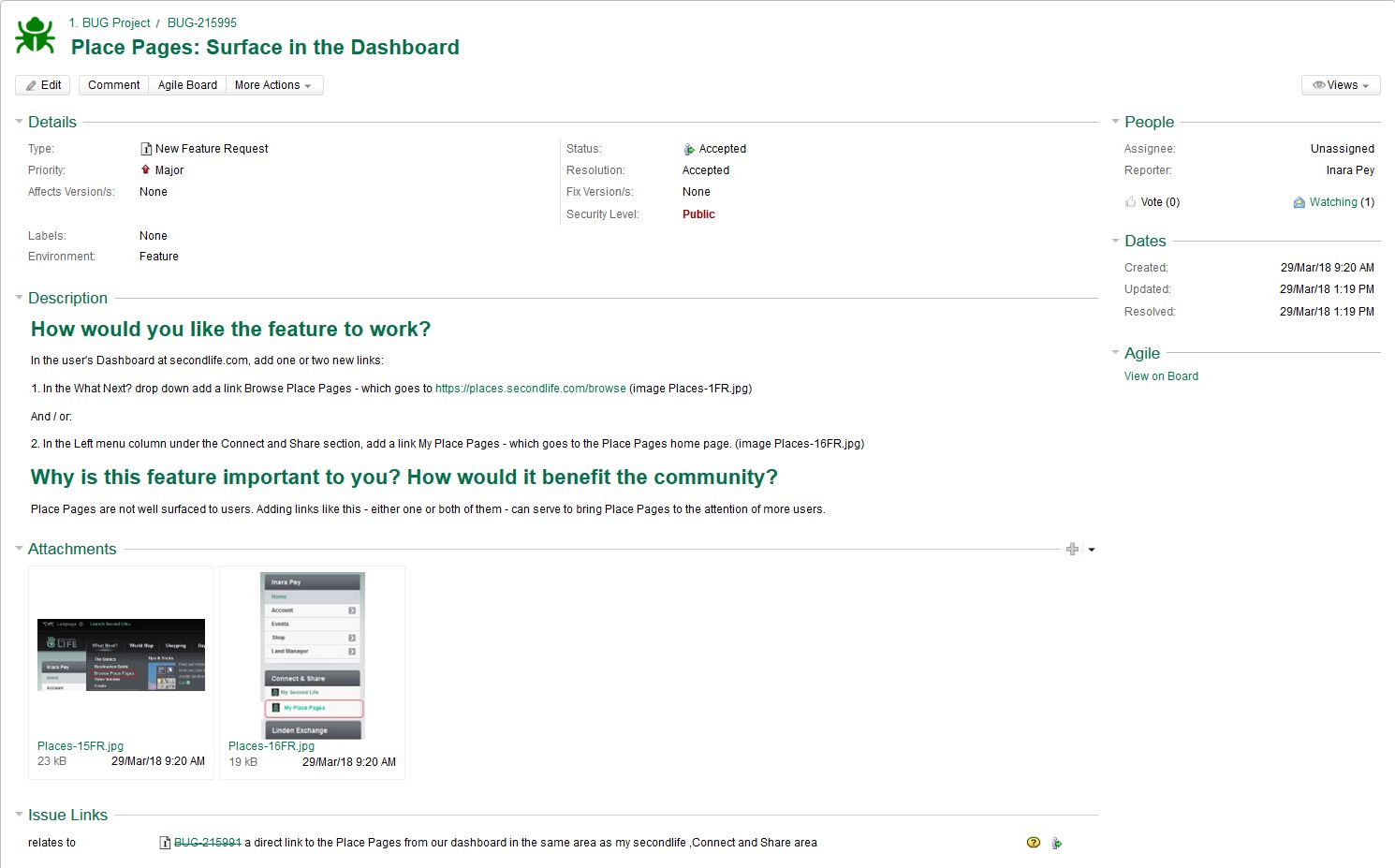
Note that feature requests do not have to be long or complicated. The image below illustrates a simple, straightforward request that has been accepted by the Lab.
Sample feature request, showing that they need not necessarily all be long and complex – click to enlarge, if required
Using a Proposal
If you are offering a significant feature request – such as a new user interface option for users, a new viewer or simulator capability, etc., – consider offering a complete proposal to the Lab, submitted as an attachment to a feature request.
A proposal can:
Let you summarise your idea in the Feature Request form, and then go into greater detail in your proposal.
Allow you to structure your idea clearly, and present it logically and together with related images (UI mock-ups, etc.).
Keep your proposal to a single idea, and don’t forget to explain how it should work and why it would be of benefit. It doesn’t have to be a treatise, just so long as it explains the idea, why you believe it is important and how it would benefit the SL community.
A proposal can be attached to a feature request as a .PDF file or included as a link to a publicly viewable Google Docs file.
When you have confirmed the information is correct and as clear as possible, and any images / files you wish to include are attached, click the Create button at the bottom right of the form to file your bug report.
Refer to What Happens Next?, below, for information on what happens to a filed bug report.
Commenting on Filed Requests
Sometimes after filing a feature request, there may be additional information you wish to add. You can generally do this via the Comment button at the bottom of a feature request page.
Who can comment on a feature request depends on a variety of factors, including general permissions, the security level for the report (Public or Triagers and Reporters), together with the current status of the report (Open, Needs More info, Accepted).
If the Comment button is unavailable, you will need to request permission to make Jira comments. Send an e-mail to letmein-at-lindenlab.com, giving your avatar name and a clear reason for requesting access.
Note that you do not need comment rights in order to file bug reports or feature requests.
What Happens Next?
The Jira Workflow
A submitted feature request follows a set workflow, as shown in the diagram below.
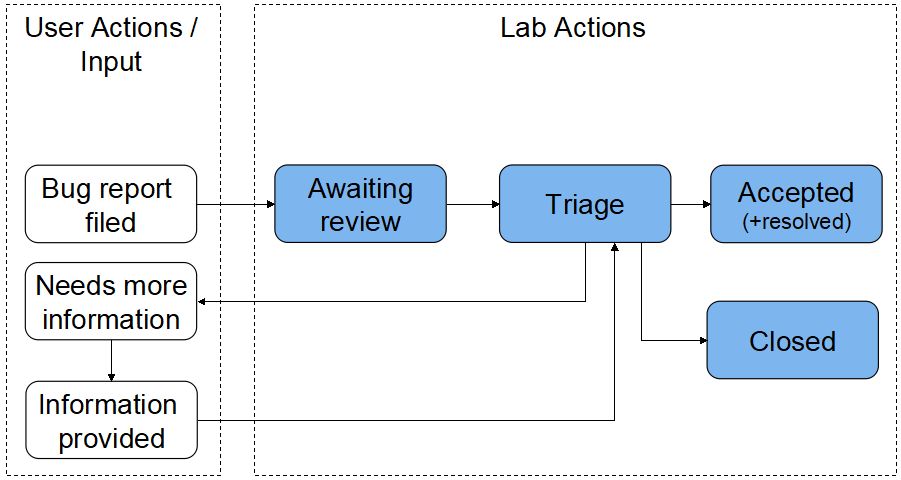
The Jira workflow – simplified
Awaiting Review: when you submit a feature request, it enters a queue for review (triage) by the Lab’s QA and Product teams.
Triage: incoming requests are triaged on a weekly basis. The outcome is generally one of the following, as indicated in the status area of the report:
Needs More Information: if the report is vague or not easy to understand or doesn’t contain sufficient information needed to understand the request, it will be flagged by the Lab as requiring more information from the reporter.
This sets the Needs More Info flag on the feature request, and in addition a comment is generally provided by the Lab as to what is required.
The reporter should review the request and any comment(s) recorded by the Lab and attempt to provide the missing information.
Information Provided: when additional information has been added to a request, it is essential the Info Provided button is clicked. This will update the bug report to inform the Lab that the information has been supplied. Note that a failure to click the button could result in a delay in a request being further actioned.
The Needs More Info flag (arrowed) and the Info Provided button
Accepted: the feature request is accepted by the Lab and cloned into their internal JIRA system for tracking.
However, Accepted does not mean a feature request will acted upon immediately. Rather, it may mean the Lab are sufficiently interested in the idea to keep track of it, but implementation may be held until such time as it fits / can be slotted into the SL development road map.
Sometimes, on further reviewing a bug report / feature request, Linden Lab may request even more additional information, and will re-open the original (see Needs More Information, above).
Once an accepted report / feature request has been implemented, the originating Jira will be Closed with a status of Resolved.
Closed: the request is not to be taken any further. Typically, a feature request will be closed and annotated with one of the following reasons:
Duplicate: there’s another feature request covering the same idea.
Unactionable: the described feature has been declined by the Linden Lab feature request review team.
Not Applicable: the reporter has decided to close the issue.
This tutorial has been written as a guide to filing SL bug reports and feature requests using the Second Life Jira. It comprises two parts:
Bug Reports (this section):
What is / is not a bug report.
Filing a bug report.
What a Security Exploit is.
Filing a Security Exploit report.
What happens to a report once filed.
Feature Requests:
What a feature request should be.
Filing a feature request.
Using a proposal.
What happens to a feature request once filed.
Both sections are self-contained and can be bookmarked / referenced independently of one another for ease of use. However, to further assist in finding information, the table of contents on the right can be found in both part of the tutorial, and can be used to reference specific sections of either one.
I would like to express my thanks to the following people for their input into this tutorial and for sanity checking the contents: Alexa Linden, Grumpity Linden, Kyle Linden, Soft Linden and Whirly Fizzle.
What is the Jira For?
As noted above, the Jira is primarily for:
Filing reports on bugs that impact Second Life (covering the viewer, the simulator and the web), and which in doing so adversely impact the user experience.
Putting forward suggestions on features and capabilities that might enhance Second Life for users.
The Jira can also be used by third-party viewer (TPV) developers to have their viewer added to the TPV Directory, or for reporting TPVs that may be violating the TPV Policy / Second Life Terms of Service. Both of these options fall outside the scope of either part of this tutorial.
When using the Jira, please keep in mind:
It should not be used to report problems which are specific to you or for general enquiries about things like log-in issues; tier payments; running Second Life on a specific hardware configuration, land issues, and so on.
If you believe the bug presents a security risk (such as allowing griefing or exposing sensitive information), you should use the SEC bug report, details of which can be found in Security Exploits.
When adding comments to a report / feature request (see Commenting on filed reports), these should focus on technical feedback / input pertinent to the issue/ request being made. Personal opinion or general discussions on a bug / feature request can be held through the Second Life forums.
What Makes a Good Bug Report?
Ideally, a good bug report should:
Focus on a single issue.
Even if problems appear to be related, resist the urge to incorporate multiple issues on a single report, as this can confuse matters when trying to triage a report.
Instead, file multiple bug reports and cross-reference them. Those with authority to do so can then formally cross-link the reports as related issues.
Be a set of directions, providing:
A summary of the issue encountered that can form the title of the bug report.
A clear description of what happened when the issue occurred.
A set of step-by-step instructions on what you were doing when the issue occurred that allow someone else to follow them and (hopefully) encounter your issue, helping them understand it.
A description of what you were expecting to happen had you not encountered the issue.
Information on the viewer you were using, your location in Second Life at the time the problem was encountered, etc., all of which can easily be obtained from the viewer, as described in the instructions, below.
Relevant supporting information. This might comprise one or more of: any error message which may have been displayed; a screen shot of the problem; the inclusion of relevant log files, if appropriate.
As a reminder: when filing a bug report please keep in mind that if the problem you’ve encountered doesn’t require Linden Lab to make a change that can affect all users, then it probably isn’t appropriate to file a bug report against it.
Before You File a Bug Report
Known Bugs
It is possible the issue you are encountering is already known, or the subject of an existing bug report. So before you file a new bug report please consider:
Checking the viewer release notes to see if the bug is listed as a Known Issue. This can be done in one of two ways:
From within the viewer you’re using via Help → About, and then clicking on the Release Notes link at the top of the panel.
By checking the release notes for viewers listed on the Alternative Viewers pages to see if the issue is recorded among them.
Using the Jira Search option to see if the issue has already been reported.
If you find that a bug report already exists for the issue, you can opt to click the Watch option (top right of a bug report, under People) to receive e-mail updates on the Jira (you can also uncheck Watch at any time to stop receiving updates).
You can receive e-mail updates on a Jira by clicking the Start Watching This Issue (l) option (under People in the top right of a displayed Jira). The option will update to Stop Watching This Issue (r), indicating you’re receiving updates. Click the option again to stop receiving updates; the option will revert to Start Watching This Issue
A Note to Users of Third-Party Viewers
Third-party viewers (TPVs) surface options / include capabilities that may not be visible / available in the official viewer. Because of this:
If you encounter a problem with a TPV that you think might affect users on other viewers, please check to see if it can be reproduced on the official SL viewer.
If you can reproduce the bug on the official viewer, please file a bug report through the Second Life Jira using / referencing the official viewer, not your preferred TPV.
If the bug only occurs with the TPV you are using, please file a bug report with the developers of the TPV through whatever means they provide. Bug reports filed on the Second Life Jira that only reference a TPV are subject to being closed without action.
Official SL Bug Report Information
Official information on the SL bug reporting is available at :
Log-in to the Second Life Jira using your Second Life log-in credentials.
Click on the blue Create button in the top menu bar.
Check the top of the form and make sure:
Project is set to 1. BUG Project (BUG).
Issue Type is set to Bug.
Use the drop-downs to set either, if required.
When filing a bug report, make sure Project is set to 1. BUG Project (BUG), and Issue Type to Bug.
Providing Details of the Bug
Required Fields
The following fields of a bug report are mandatory:
Summary: provide a concise summary of the issue (also forms the report title).
If the bug is related to a specific project (e.g. Animesh), please include the project name at the start of the summary in square braces (e.g. [Animesh]).
What Just Happened?: provide a description of the actual behaviour you saw as a result of the bug.
Be as clear and concise as possible – the more information of a clear nature you can give, the better the issue can be understood and the bug investigated.
If you received an error message as a result of the bug, you can type or copy/paste it here.
What Were You Doing When It Happened?: give step-by-step instructions on how to reproduce the problem.
Treat this section of the form as if you are explaining the bug to someone who has never encountered it and / or has never used the function / capability being used when the issued occurred.
Make sure you list all the necessary steps that are needed to reproduce the issue as you encountered it, no matter how obvious these steps might appear to be.
Use the Attachment button (see below) to include any images of the issue as you saw it and which help to explain things. Make sure they are clearly annotated and cross-referenced in this section.
What Were You Expecting To Happen Instead?: give a clear and concise description of what you were expecting to happen instead of the bug.
If it helps, use step-by-step instructions here as well.
Use the Attachment button (see below) to include any images of what you expected to happen, if required / possible. Make sure they are clearly annotated and cross-referenced in this section.
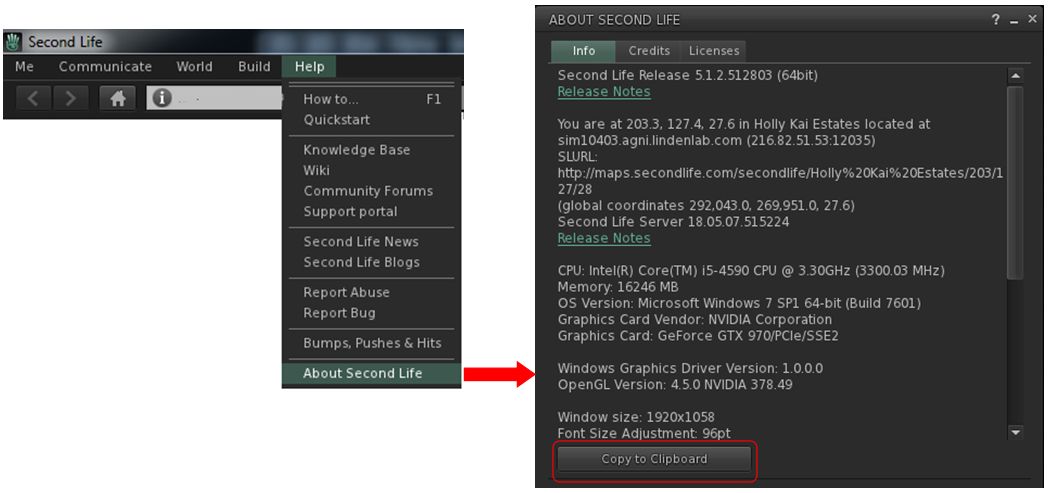
Environment: use this section to provide information on the environment – viewer and simulator – in which you encountered the problem. This information can be obtained directly from the viewer as follows:
Make sure you are in the region were you encountered the issue (this must be done when reporting possible simulator bugs).
In the viewer, go to Help → About Second Life → Info tab.
Click on the Copy to Clipboard button at the bottom of the tab.
Paste the information into this field of your bug report.
Obtaining environment information through your viewer
Optional Fields
The following fields are optional, and can be used to provide any additional information you may feel is useful is helping to understand / reproduce / resolve a bug.
Is There Anything You’d Like To Add? use this section to add any further information you think might be of value in assessing the bug – or leave blank if not required.
Where: an additional field for entering the SLurl for the region where the issue was encountered (a Map link can also be used).
System: two fields to help refine the nature of the issue.
The first allows you to select the affected area of Second Life: viewer, simulator, SL website, Linden-made content in SL.
The second offers a series of further options based on the first section.
Attachment: use this option to add any suitable attachments to the report, such as images of the issue and / or of error messages or your viewer’s log files (see Log Files for more).
Multiple images can be submitted, but ensure each is clearly labelled / annotated and properly referenced in the relevant text fields in the first part of the bug report form.
Note that individual attachments can be no larger than 10 Mb.
Security Level: a drop-down to select the security level to be assigned to the report. These are:
Public – viewable to anyone logged-in to the Second Life Jira.
Triagers and Reporter: only viewable by those with specific Jira access and the person raising the report – anyone else trying to view it once filed will receive a “permission violation” message.
If you are unsure of which to set, leave this option as Public.
Log Files
One of the most useful aids for helping to deal with bug reports are Second Life log files. All viewer log files can generally be found in the following locations:
Windows log files location: C:\Users\[user name]\AppData\Roaming\SecondLife\logs.
Mac OS log files location: /Users/[user name]/Library/Application Support/SecondLife/logs.
The relevant log files you should include with your bug report are:
SecondLife.log: stores status and debugging output from the Viewer during the current logged-in session.
This file grows while the viewer is active. If it gets too large, it is trimmed by the crash logging application.
SecondLife.old: when the viewer re-starts, it renames the existing SecondLife.log to SecondLife.old. SecondLife.old is used when the Viewer reports a freeze in the previous execution.
SL_Launcher.log: stores status and debugging output of the launch and update processes that start the viewer or update it. This file is appended to, not overwritten, but will be trimmed over time.
SL_Launcher.old: back up copy of SL_launcher.log created from the prior launch.
SecondLife.start_marker: a marker file that should only live as long as the Viewer is running.
You can combine these log files into a compressed (ZIP) file for easier attachment to your bug report.
Submitting Your Bug Report
When you have confirmed the information is correct and as clear as possible, and any images / files you wish to include are attached, click the Create button at the bottom right of the form to file your bug report.
Refer to What Happens Next?, below, for information on what happens to a filed bug report.
Security Exploits (SEC)
A Security Exploit report is a special kind of bug report designed to deal with threats to Second Life, its Residents or content. Examples of Security Exploits include:
Exposure of real life Resident identity without consent.
Risk of destruction of content.
Permitting unauthorised access to Second Life/Linden Lab resources.
Compromising a client or server host, subjecting it to remote control, potential griefing vectors, etc.
There are two ways to file security exploits:
Via a Second Life Security Exploit report, as described here. This is the preferred method of raising such issues.
Via email to security-at-lindenlab.com.
Notes:
By their very nature, SEC bug reports are not available for public viewing.
SEC issues should be reported as soon as they are identified, together with all relevant viewer / simulator environment information.
The SEC project (and security mailing list) is only for reporting security exploits that might compromise a Residents identity or the Second Life Grid. All other requests including account issues and account security will not be addressed – these should be reported directly via the Second Life Support Portal.
SEC Bounties
Linden Lab offer a L$10,000 (approx US $40) bounty for each previously unknown exploit that can be verified. These bounties are generally awarded after the reporter helps confirm that an issue has been fixed, and are contingent on not disclosing the issue prior to Linden Lab resolving the issue.
Filing A Security Exploit Report (SEC)
Log-in to the Second Life Jira using your Second Life log-in credentials.
Click on the blue Create button in the top menu bar.
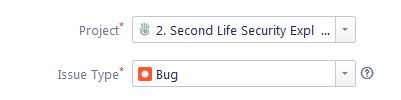
Check the top of the form an make sure Project is set to 2. Second Life Security Exploit (SEC). Use the drop-down to set it, if required.
Note that Issue Type will automatically default to Bug.
When filing a SEC report, make sure the Project drop-down is set to 2. Second Life Security Exploit
Basic Tab
Summary (required field): provide a concise summary of the exploit (also forms the report title).
Environment (required field): use this section to provide information on the environment – viewer and simulator – in which you encountered the problem. This information can be obtained directly from the viewer as follows:
Make sure you are in the region were you encountered the issue (this must be done when reporting possible simulator exploits).
In the viewer, go to Help → About Second Life → Info tab.
Click on the Copy to Clipboard button at the bottom of the tab.
Paste this information into this report.
Description (required field): provide a clear and unambiguous description of the exploit.
Provide step-by-step instructions on how the exploit can be revealed / leveraged and to ensure a “solid reproduction” of the issue.
Include information on all notable uses, events, indicators, outcomes, information exposed, etc., related to the exploit (and as relevant to the exploit).
If the exploit is specific to a location in Second Life, supply a SLurl or map reference to that location.
Attachment (optional): use this option to add any suitable attachments to the report, such as images showing how the exploit works and / or its outcome.
Multiple images can be submitted, but ensure each is clearly labelled / annotated and properly referenced in the relevant sections described above.
Note that individual attachments can be no larger than 10 Mb.
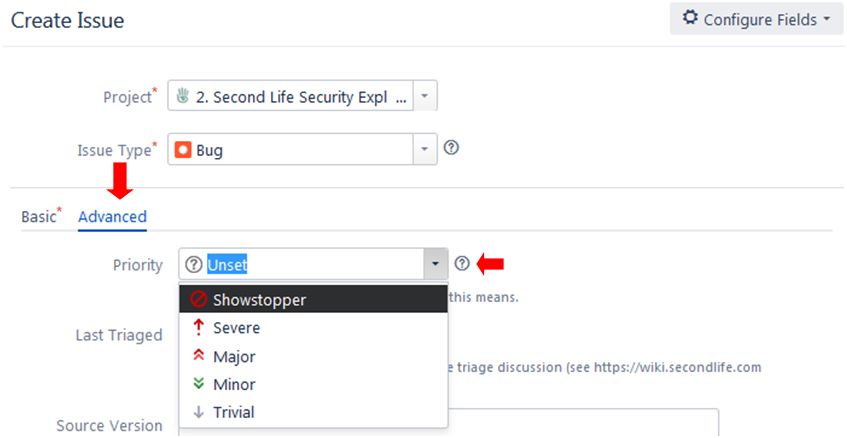
Advanced Tab
Priority (optional): set your considered priority for the issue. Note that this may be adjusted when the SEC report is triaged.
You can use the Advanced tab to set the severity of the exploit (This can also be done by the Lab when the issue is triaged)
Please do not complete any other parts of the Advanced tab of the form.
Submitting Your SEC Report
When you have confirmed the information is correct and as clear as possible, and any images / files are attached, click the Create button at the bottom right of the form to submit your bug report.
Refer to What Happens Next?, below, for information on what happens to a filed SEC report.
Commenting on Filed Reports
Sometimes after filing a bug report, there may be additional information you wish to add. You can generally do this via the Comment button at the bottom of a bug report page.
Who can comment on a bug report depends on a variety of factors, including general permissions, the security level for the report (Public or Triagers and Reporters), together with the current status of the report (Open, Needs More info, Accepted).
If the Comment button is unavailable, you will need to request permission to make JIRA comments. Send an e-mail to letmein-at-lindenlab.com, giving your avatar name and a clear reason for requesting access.
Note that you do not need comment rights in order to file bug reports or feature requests.
What Happens Next?
The Jira Workflow
A submitted bug report follows a set workflow, as shown in the diagram below.
The Jira workflow – simplified
Awaiting Review: when you submit a bug report, it enters a queue for review (triage) by the Lab’s QA and Product teams.
Triage: incoming bug reports are triaged on a daily weekday basis. The outcome is generally one of the following, as indicated in the status area of the report:
Needs More Information: if the report is vague or not easy to understand or doesn’t contain sufficient information needed to reproduce a bug, it will be flagged by the Lab as Needs More Information from the reporter.
This sets the Needs More Info flag on the report. In addition, a comment is generally provided by the Lab as to what is required.
The reporter should review the report and any comment(s) recorded by the Lab, and attempt to provide the missing information.
Information provided: when additional information has been added to a report, it is essential the Info Provided button is clicked. This will update the bug report to inform the Lab that the information has been supplied. Note that a failure to click the button could result in a delay in the report being further actioned.
The Needs More Info flag (arrowed) and the Info Provided button (highlighted in red)
Accepted: the report is accepted by the Lab and cloned into their internal Jira system for tracking. However:
Accepted does not mean a bug report will acted upon immediately. There are a number of factors which may influence if / when it may be actioned, including things like the severity of a bug and work in progress which may help resolve a bug. As such, a bug report can remain as Accepted for an extended period of time. before any action is taken.
Sometimes, on further reviewing a bug report internally, Linden Lab may request even more additional information, and will re-open the original report to comment / update to allow users to do so. Therefore, you should always maintain a watch on the bug reports you have filed.
Once an accepted bug report has been actioned and the issue resolved, the originating report will be Closed with a status of Resolved.
Closed: typically, a bug report will be closed and annotated with one of the following reasons:
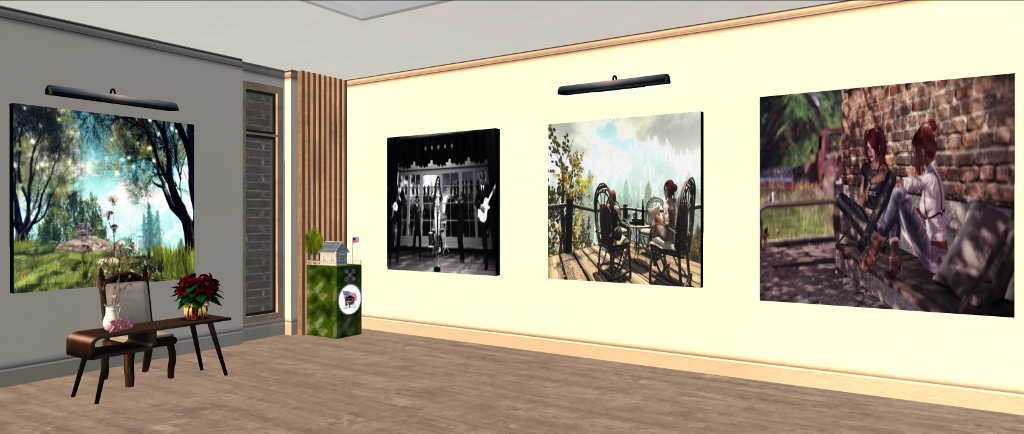
Currently open – for a while longer at least, given it commenced at the end of October 2019! – at La Galerie D’angle, curated by Mary Zimmer, is an exhibition by JanitaEduarda Arado.
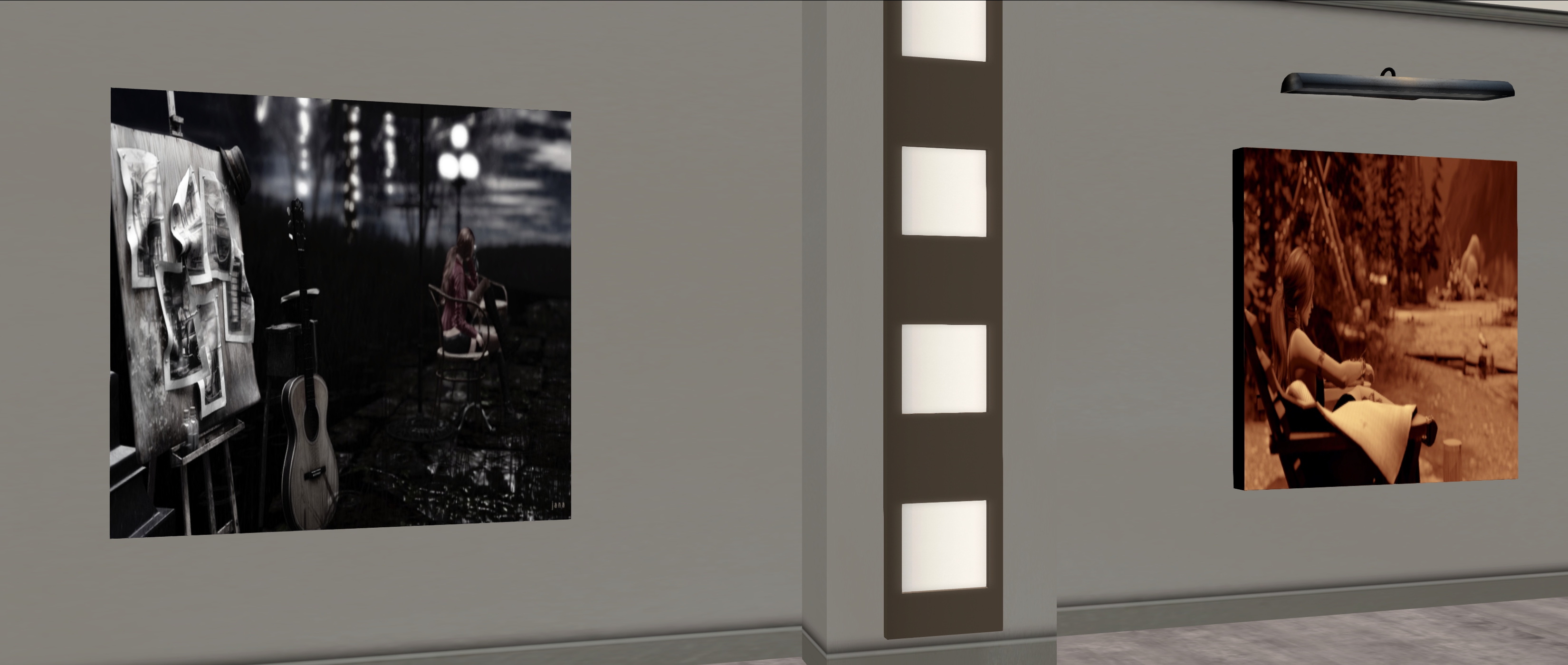
I confess that I’m not aware of being that familiar with JanitaEduarda’s work, but will say that this exhibition is a superb introduction. Comprising some 40 images, the pieces presented in it cover landscape, avatar and self-studies that are diverse and eye-catching. Throughout all of them as a rich understanding of colour, tone, depth of field / focus and – as is always important for me – narrative.
La Galerie D’angle: JanitaEduarda Arado
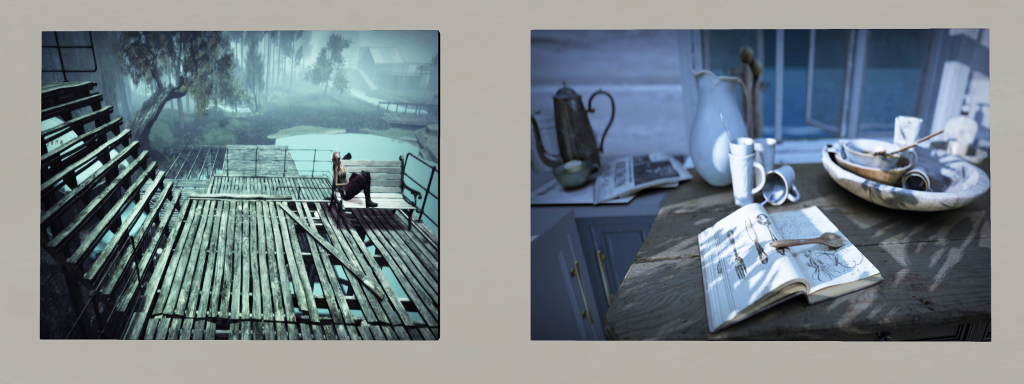
The latter are particularly strong in the self-studies spaced throughout the exhibition, where the suggestion of a broader story – or a layering of stories is offered. Take When the Last Sound has Faded, for example. This predominantly monochrome piece has several tales to tell, from a suggestion of a love of music, through the emotional power of music to the tale of a love now past and the loneliness / regret that follows – or, conversely, in the peace and solitude that a release from a relationship brings.
Sometimes the stories are more indirect. Take Stillness of the Mind. Here the idea of piece may initially be suggested through the use of soft focus that rendered the figure in the background as blurred, suggestive of someone lost in thought. However, the same depth of field brings the milk urn on the kitchen table into sharp focus, and with it the idea of liquid at rest, undisturbed, still – and so we have a metaphor for a mind at rest.
La Galerie D’angle: JanitaEduarda Arado
Once again, this is a superb exhibition for this gallery, featuring an artist whose pieces invite the imagination to take flight. Not to be missed before it closes.
 Dispatched on a mission of exploration, the Earth ship Discipline, operated by the the all-powerful State, encountered a strange phenomenon: a torus-like ring of gas and dust surrounding a neutron star. Within the torus, the crew discover a thriving ecosystem of plant and animal lifeforms that have evolved to living continually in a state of free-fall.
 Caledonia Skytower reads selections from Erin Morgensterns novel.



 Inara Pey: Living in a Modemworld