Lab posts about latest Premium offer and Mainland LI increase

secondlifeUpdate, November 3rd: the changes in prim allowances in full are now available in this post.

On Thursday, November 3rd, the Lab blogged about their latest Premium subscription offer for Second Life, and in doing so gave confirmation of the Mainland LI / prim allowances people had been noticing following the weekly deployments on Monday, November 1st and Tuesday November 2nd – and gave a tease for more news to come:

In regards to the latter, the blog post  – Go Premium for 50% Off* & Enjoy Our Newest Perks Plus an Exclusive Gift – noted:

Premium members are entitled to a Linden Home and can own parcels on the Mainland. Now, we’re raising the limit on the number of prims you can use in those spaces. This means you will have more prims and creative flexibility to decorate and customize your own space.  Land impact (object) capacity on Mainland Regions will go from 15,000 to 22,500 – that’s a lot more building capacity!

In addition to this, we will further carry the prim limit increases to the private estate regions shortly.  Keep your eye on our blogs for more information!

An episode of Designing Worlds comes out later this afternoon which talks more in-depth about this new perk. We’ll update this blog once it’s available.

(My emphasis on the last part of the statement). All things being equal, I’ll also have more to come around 14:00 SLT see the link at the top of this article.
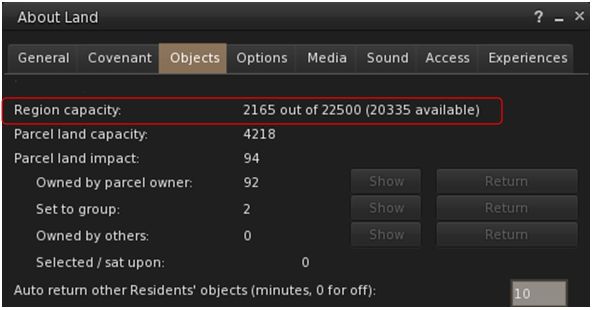
The blog post from the Lab confirms that Mainland full regions now have a standard Land Capacity / prim allowance of 22,500.

The rest of the post concerns itself with the Premium subscription offer, which started on Wednesday, November 3rd, 2016 at 08:00 SLT and will expire on November 10th, 2016 at 08:00 SLT. It offers the usual 50% discount – which for this offer is applied to the first month of the monthly subscription plan, as the small print explains:

TERMS & CONDITIONS This offer begins on November 3, 2016 at 8AM Pacific Time (PT) and expires on November 10, 2016 at 8AM PT. To qualify for this promotion, you must 1) have an existing Second Life (“SL”) basic account or create a new account, and 2) select monthly (every one month) billing for your SL account. The fifty percent (50%) discount will be applied to your first month’s bill and future months will be billed at the standard Premium Membership price (currently US$9.50 per month). For new accounts or accounts not previously upgraded to Premium Membership, after initial login through the Second Life viewer following upgrade to Premium Membership and: 1) following your first full week, the L$300 weekly stipend will be deposited to your account every Tuesday for the duration of your Premium Membership; and 2) after your account has been active for forty-five (45) consecutive days, the L$ sign-up bonus will be deposited to your account.

As well as the discount, Premium members are also offered a new gift in the form of a laser-shooting Alpha Robot Avatar.
 

Second Life Mainland LI / prim allowance increase

The change in land impact (/ prim allowance) was noted in Mainland Full regions on the SLS channel as they started coming back on-line following the November 1st deployment restarts

Update, November 3rd: following the complete announcement on the prim changes and the timeline, full details on the changes for Mainland, and those to be applied to private regions are now available in this post.

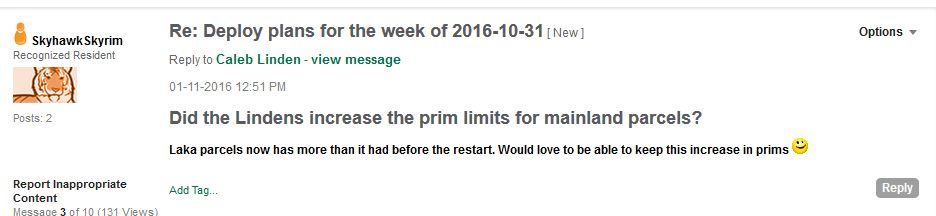
The forums  in Second Life and elsewhere were agog on Tuesday, November 1st when Mainland users started noticing something amiss following the weekly Main (SLS) channel deployment and restart.

Region Land Impact / prim allowances for Mainland regions on the SLS channel had all increased!

Was it an error? Or if not a mistake, what was going on?

People started asking after the change almost as soon as Mainland regions on the RC channels were restarted

People started calling support to find out more, while speculation spread from the official forums to places such as SL Universe. The speculation prompted Patch Linden to issue a short statement:

Hi!  Over the next couple of days there will be some changes coming. The deploy will happen in stages. So as you see these changes rest assured it is normal and is happening as intended.

On November 3, we will post an official blog along with a video where I will have all of the information and details regarding these changes.

Keep an eye on the Official Blog, on Thursday for more info.  

So does this mean that Mainland LI / prim allowances have increased?  It does.

Does it mean that other increases are liable to follow? That is something you’ll have to wait until Thursday, November 3rd, to find out. I’ll have more at that time as well, including a chat with Patch, once the official announcement has been made.

With thanks to Patch and Pete Linden.

Hands-on: Second Life 360-degree snapshot viewer

Credit: Linden Lab
Credit: Linden Lab

On Wednesday October 26th Linden Lab announced the release of the 360o snapshot viewer, which I’ve had the good fortune to be able to play with for the last week.

The viewer is still very much under development, and has been released as project viewer with a number of caveats against it as development continues. Essentially, it allows you to take a set of images (6 in total) of the location around your camera, and then produce these as a scrollable 360o view – you can see the results in action on this sample page. Just click drag on an image to manually scroll around it.

The viewer is available via the Alternative Viewers wiki page as project viewer, with documentation on the wiki. As noted there are some caveats concerning it, which need to be kept in mind:

  • The 360o capture operates all around your field of view simultaneously. This can lead to conflicts with the viewer’s Interest List, so that objects which may be “behind” your camera position may not be properly rendered, etc. To avoid this, always pan your camera around  (or turn your avatar around if you are taking a picture from your avatar’s position) to completely view the scene and allow things to initially load, before taking a shot.
  • The current viewer saves the resulting image to your local disk as a zip file. You’ll need to set-up your own local web host in order to view them (or if you have your own website, you could set one up there). Again, this will be changing as the project develops
  • However, even in this format, once you are viewing an image, you can download it in a 2:1 aspect ratio suitable for upload to Flickr for sharing with friends and viewing in 360o.

As I’ve covered three of the 360o camera HUDs available in Second Life, I’m offering the rest of this article as a walk-through in using the new viewer and viewing your photos.

Note – these instructions apply to Windows, I don’t have access to a Mac to provide guidelines for that platform.

Setting Your Viewing Environment

Before taking your photos, you’ll need – for the time being at least – to set-up a simply local web server. Callum Linden has made this relatively easy.

  • Download Python from the Python website. You can select to install either Python 3.5.x (latest) or Python 2.7.x (the Lab uses Python 2.7 as a point of reference).
  • When installing Python, make sure you add the installation to your Windows path.
    • If you are installing Python 3.5.x, simply check the box in the installer
    • If you are installing Python 2.7, click the Advanced button in the installer, scroll down the list of customisable options and set Add Python .EXE to Path to Will be installed on local hard drive.
Adding the Python 2.7 EXE to the Windows path
  • Download the Lab’s 360 snapshot web viewer ZIP file from the Lab’s 360 snapshot wiki page.
    • If you are familiar with Mercurial, you can clone the existing web framework via the link given in the wiki page. I found going the ZIP file route easier.
  • Unzip the web viewer files to a location on your hard drive.
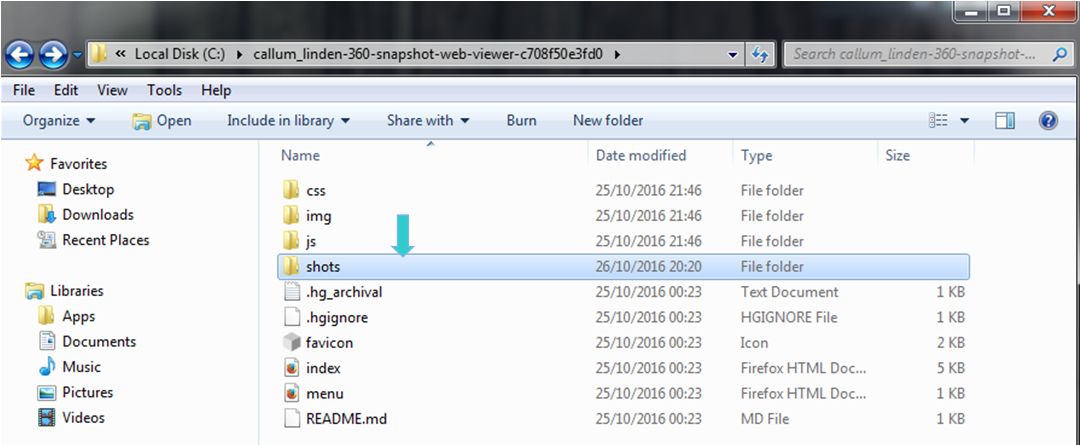
Web you have unzipped the web viewer package, you should have a folder looking like this - note the SHOTS folder, this is where you'll be wanting to save your snapshot sets
When you have unzipped the web viewer package, you should have a folder looking like this – note the SHOTS folder, this is where you’ll be wanting to save your snapshot sets (Windows environment)

Using the Viewer

When you have downloaded and installed the 360o snapshot viewer, proceed as follows:

  • Position your avatar  / camera at the centre of the area you wish to photograph. If you are using your avatar, not that you should “hide” it via removing all attachments and alpha-masking, or by using something like a “vanish” gesture.
    • Note that you can positioning your camera for a 360o snapshot simply by positioning your camera (e.g. using ALT-zoom or by flycamming).
  • Make sure you freeze the clouds in order to assist the image “stitching” process, and to avoid visual discontinuities in the finished image. Use Menu > World > Environment Editor >Sky Presets > Edit Presets. You should also avoid using Depth of Field.
  • Set your preferred windlight / time of day setting.
  • Turn your camera / avatar slowly around in a circle to view everything in the field of view around it, and allow everything to render.
  • Open the Snapshot floater and click on the 360 option – not that although this displays the filter options for snapshot, the filter effects are not currently captured when taking  360o shots.
  • When you are ready, Click Save to save the image set – you will be prompted to save a ZIP file to your hard drive.
    • Navigate to the location where you unzipped the web viewer files (above) and then save the ZIP file (with a suitable file name) in the SHOTS folder.

Continue reading “Hands-on: Second Life 360-degree snapshot viewer”

Lab blogs on recent updates in Second Life

The Haunted Halloween Tour is once again back for 2016, and accessible through the revamped portal parks
The Haunted Halloween Tour is once again back for 2016, and accessible through the revamped Portal Parks

On Monday, October 24th, Linden Lab blogged about some recent updates in Second Life, some of which I’ve previously covered in these pages. These comprise:

  • Four new Premium members’ sandboxes arranged in a 2×2 grid, with each region running an individual simulator channel (Main Channel Sandbox A, Magnum Sandbox A, LeTigre Sandbox A, and BlueSteel Sandbox A). These are intended to allow creators to test differences and potential issues with region crossings between different simulator channels as they are deployed.
  • A new Premium members’ Weapons Testing sandbox intended to provide an improved means for testing weapons systems without relying on public sandboxes.
  • The new scripted llSit feature for use with Second Life experiences.

Also included in the post is a note about the revamped Portal Parks. Now comprising two regions apiece, these provide access to all of the Lab-present experience and games available in Second life: Linden Realms (still apparently the most popular), PaleoQuest, The Cornfield and the Grid Hunt, together with the seasonal locations of Winter Wonderland, Isle of View, Halloween, and some new “social” areas which join the Gnome Village.

The overall layout of individual regions remains the same: a central landing point hub surrounded by signposted paths leading to the portals for each of the experiences, or to the social areas. In addition, a path now winds its way through the landscape of each pair of portal park regions, passing a further hub which looks almost like it is intended to be a central landing point, half-way between each of the  hubs.

In particular, the new design allows for further experiences to be added to the hubs over time, the most recent accessible one being the port to the Gaming Islands, which I covered back in August 2016. As the Lab’s blog post notes, there’s also a couple of hints of new experiences yet to come.

A hint of things to come? One of the unnamed areas in the revamped Portal Parks

Given the nature of some of the experiences, not all are open all year round; hence why a visit today will reveal the Winter Wonderland and Isle of View (Valentines), for example, closed by barred gates. However, one that is again open is the Haunted Halloween Tour, which returns for its third season.

Initially opened in 2014, the Haunted Halloween Tour was the Lab’s first public trial of an experience which encompassed the Oculus Rift. It returned in 2015, this time sans Oculus support, but offering new twists and turns to keep people entertained. It’s back again, complete with the heavy nod towards a certain 80s film franchise (“they’re heeeere!”) and what I thought were a couple of new wrinkles compared to 2015 (but given a year has passed, I could be wrong on this). At 12-ish minutes long, I still find it a tad drawn out, but for those who like their spooks, it’s worth a visit.

If you want to tour the revised Portal Parks, grab the SLurls below:

Lab: 360 panoramic image capture coming to the viewer – soon!

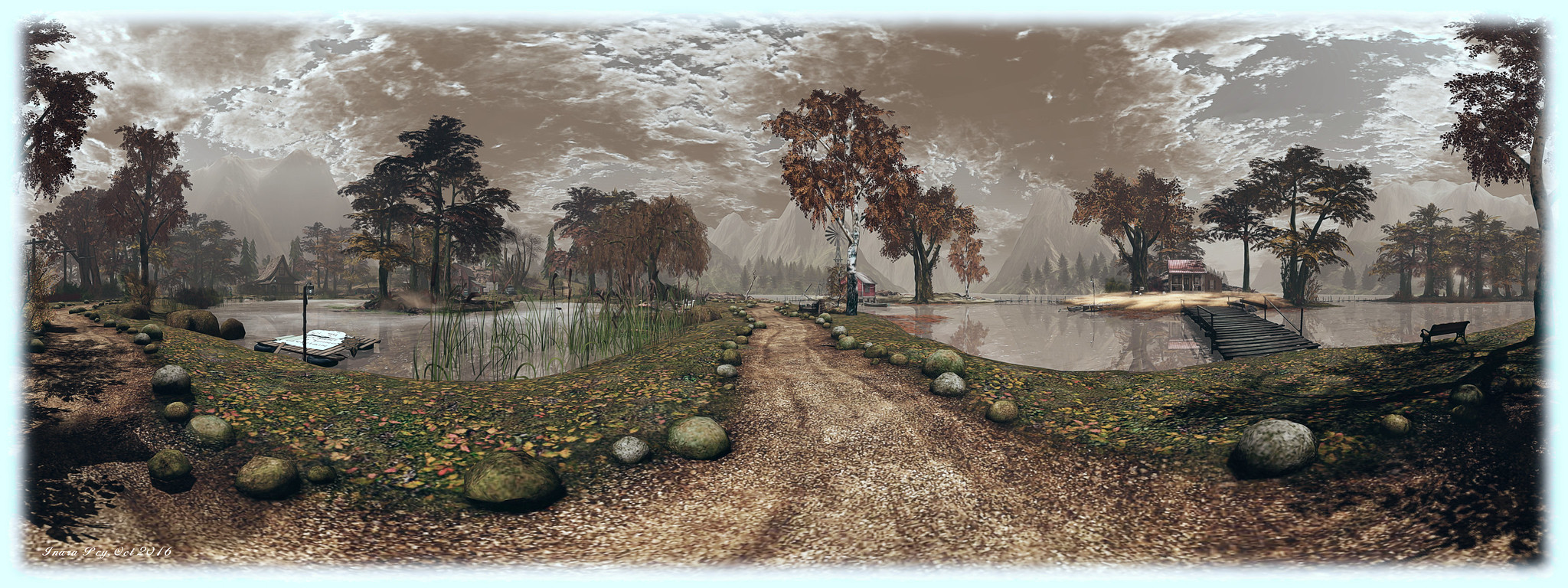
It All Starts With a Smile; Inara Pey, October 2016, on Flickr The ability to take 360-degree panoramic shots is to be integrated into the viewer, with access via the snapshot floater (Image location: It All Starts With A Smile  – blog post – static image produced with the Illiastra Panoramic Camera HUD) – click the image to see it in 360-degree format

Just as I was working on an article about  the Illiastra Panoramic Camera and producing static / interactive 360-degree images of Second Life, I attended the Third Party Viewer Development meeting on Friday, October 7th. During that meeting, Troy Linden announced that the Lab are working on incorporating the capability to generate 360-degree snapshots directly into the viewer.

The new capability is to be called 360 Snapshot, and will be integrated into the snapshot floater (alongside of additional snapshot improvements contributed by TPV developer NiranV Dean – although these sit outside of the 360-degree feature).

In essence, the snapshot floater will act as a 360-degree camera rig, allowing you to position your avatar almost anywhere in-world and capture a full 360-degree image, stitched together by back-end processing by the Lab. The image will then be shareable via the SL Share feature, and should be available for download to your local drive.

The work is far enough advanced such that a test viewer (not a project viewer) will be appearing sometime quite soon, with the Lab being keen to get it capability out into the hands of users to try. However, the important thing to note is that it will be a test version – it will not be a final, polished solution right out of the gate. The idea is to give users an indication of things like picture quality, approach taken, etc., and allow the Lab to examine exactly how much additional functionality they need to consider / include in the capability.

Initially, the stitching element will be absent; users will have to take care of that themselves after saving the image set to their local drive. There are also some potentially significant issues the Lab want to look at in detail through the use of the test viewer.

In particular there is the question of how the capability will interact with the simulator Interest List: will items effectively behind your avatar’s field of view update correctly in order to be properly imaged by the system? If not, the Lab will need to look in to how things might be adjusted. The idea here is that by carrying out such tests publicly, the Lab can work with interested users and photographers to identify potential limitations and problem areas in the approach, and so hopefully address them.

In commenting on the project, Oz acknowledged that there are HUD systems available which have been inspirational, and much of the driver behind this capability is the desire to give users a simple “point and shoot” interface.

There is no indication yet on limitations which might be placed on the system, such as image resolution, etc. Hence again why the capability will be appearing in a test viewer when it emerges, rather than a project viewer. The Lab also isn’t committing to any kind of time scales for this work, other than the test viewer is liable to appear reasonably soon; or how long the project will take to reach a release status once a test viewer does appear. The focus is on a step-by-step development of the capability.

Note: the audio clips here are extracts of salient points from the discussion on the 360 Snapshot capability. To hear the full discussion of the capability, please listen to the video of the Third Party Viewer Meeting video, starting at the 08:49 point.

AMD & Nvidia drivers resolve Win 10 OpenGL issues in Second Life, et al

win10-logoIn September I blogged about the OpenGL issue affecting many Windows 10 users, including some using Second Life. An intermittent problem, not encountered by every Windows 10 user, the issue results in exceptionally low FPS rates (on the order of 1 or 2 fps) when experienced.

The root cause appears to be the Cumulative Update for Windows 10 (KB3176938) released at the end of August 2016, intended to fix a lot of issues encountered with the Windows 10 Anniversary update, However, since its release on August 31st, 2016, KB3176938 has given rise to renewed Windows 10 / OpenGL issues  which have been impacting a number of games – and also affecting Second Life.

However, it now appears as if the problem has been resolved. As indicated by reader Lee McKay, both Nvidia and AMD have released new drivers which should address the problems Windows 10 users have been experiencing as a result of this issue.

The two drivers are:

As I’m not a win 10 user, I cannot verify if these drivers (or at least the Nvidia driver, as I’m a GTX 970 user) do fix the problems, but Lee indicates they have been tested and verified as correcting the problems.

So, if you are a Windows 10 user with an AMD or Nvidia GPU, and you’ve been experiencing fps issues of late, you might want to try downloading the relevant driver and giving it a try.

With thanks to Lee McKay for the updates on this situation.