SL project updates week 35 (2): parcel access controls & particle system

Server Deployments Week 35

As always, please refer to the week’s forum deployment thread for news, updates and feedback.

  • On Tuesday August 27th, the Main channel received the update package which includes the “grey box” attachment fix (issue details here), together with an update to for “llListen in linked objects is listening at root instead of linked object local position”; the new code to stop avatars entering a region / objects being rezzed in a region during the last 60 seconds before a restart, and additional fixes for simulator crash modes  (release notes)
  • On Wednesday August 28th, all three RCs received the same update package, which has a fix for a simulator crash mode, a fix for a physics-related griefing mode, and which has a new capability so that region restarts initiated by region owners occur as soon as the last avatar has left the region. This package also includes server-side support for new parcel access controls (see below) – release notes: Magnum, LeTigre, BlueSteel.

Region Shutdown / Restart

In reference to the new capability rolled to the RC channels whereby region restarts initiated by a region owner occur as soon as the last avatar leaves the region (rather than waiting for the time delay to expire), Maestro Linden indicated that the capability will eventually be extended to automated rolling restarts as well.

New Parcel Access Controls

Maestro Linden likes to work-out during meetings

The original post for the RC server package made reference to “estate and parcel access controls”. However, this was an error on Maestro’s part, and he sought to clarify things in a couple of follow-up posts, in which he first made it clear the new controls only apply to parcels, not regions (hence the emphasis above), and then went on to say:

The new feature is to allow a parcel to be configured to allow users to enter a parcel if they are members of the parcel’s group *or* have payment info on file.  This is meant to be a big help toward keeping griefers out, as they often will not add Payment information to their account and group limitations are often managed by the land manager.

This access configuration, which is already available at the estate level, involves enabling 3 options in ‘About Land’->’Access’:

  • Allow public access
  • Allow access only to Residents who: Have payment information on file
  • Allow Group Access: <group>

With the current release viewer (3.6.4 (280048)), this combination of settings is not possible to set in ‘About Land’; enabling ‘Allow public access’ causes ‘Allow group access’ to become disabled.  The upcoming viewer change will make these two settings independent in the UI.

He further explained:

The change is to allow group-based white listing which can parcel restriction based on payment info.  Here’s how the logic plays out:

  1. “Allow public access” means that avatars/groups do not need to be explicitly white listed to visit your parcel.
  2. The “Allow access only to Residents who: Have payment info on file” option is only available when (1) is set (this is also the classic behaviour). 
  3. The “Allow group access: <group name>” setting additionally allows group members to access your parcel, except for those on the ban list.

With only (1) and (2) set, only those with payment info on file can visit your parcel; there is no way to allow your friend/alt who doesn’t have payment info on file to access the parcel.

With (1), (2), and (3) set, you allow two sets of people in:

  • ‘trusted’ accounts, who belong to the parcel’s group
  • any account with ‘payment info on file’ (these users probably aren’t zero-day griefer accounts)

The viewer-side updates required to use these options are currently a work-in-progress. There is an internal viewer available within the Lab which is being used for testing purposes, and it is hoped that the necessary updates will be appearing in a beta or release candidate viewer in the near future.

Continue reading “SL project updates week 35 (2): parcel access controls & particle system”
Second Life viewer arrives on Desura

Update: Linden Lab sold Desura to Bad Juju Games on November 5th, 2014.

Alongside other quiet moves on the Lab’s part, such as Patterns appearing on Desura, then Versu getting some new titles, it seems Second Life has now also appeared on the Lab’s recently acquired digital distribution service.

Given the move to add Patterns to Desura, the arrival of Second Life isn’t that surprising. It’s more than likely been anticipated by most SL users since Desura was acquired in July.

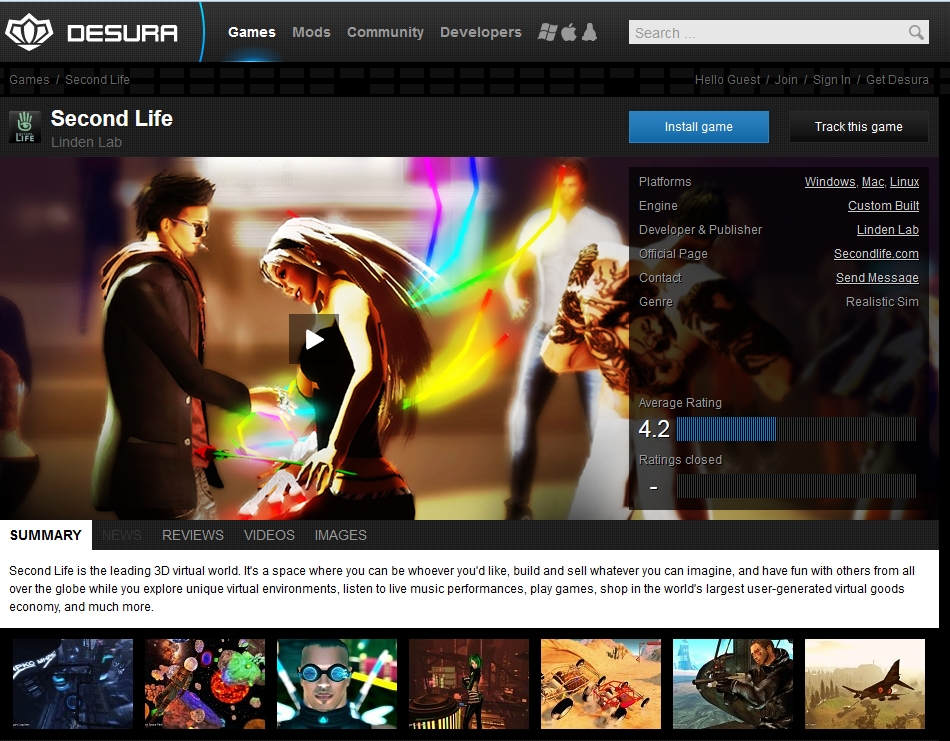
Second Life on Desura

The SL Desura page features the last promo video to have been produced / commissioned by the Lab (September 2012), which focuses strongly on the gameplay elements within the platform while touching on other aspects such as socialising and building. It’s not the strongest way to promote SL in some respects, given some of the images tend to play into stereotypes (the long zooms into bustlines, for example, suggestive of teenage oogling), but hey, SL is supposed to have seen a shift in demographics…

What is interesting about SL’s arrival on Desura is that it appears to have caused more people who use the service to wake up to the fact that it has been acquired by the Lab (announcements of the acquisition were somewhat muted elsewhere on the website at the time). Reactions to both the arrival of Second Life and the acquisition, visible in the comments on the SL page, have been mixed but swaying towards the negative.

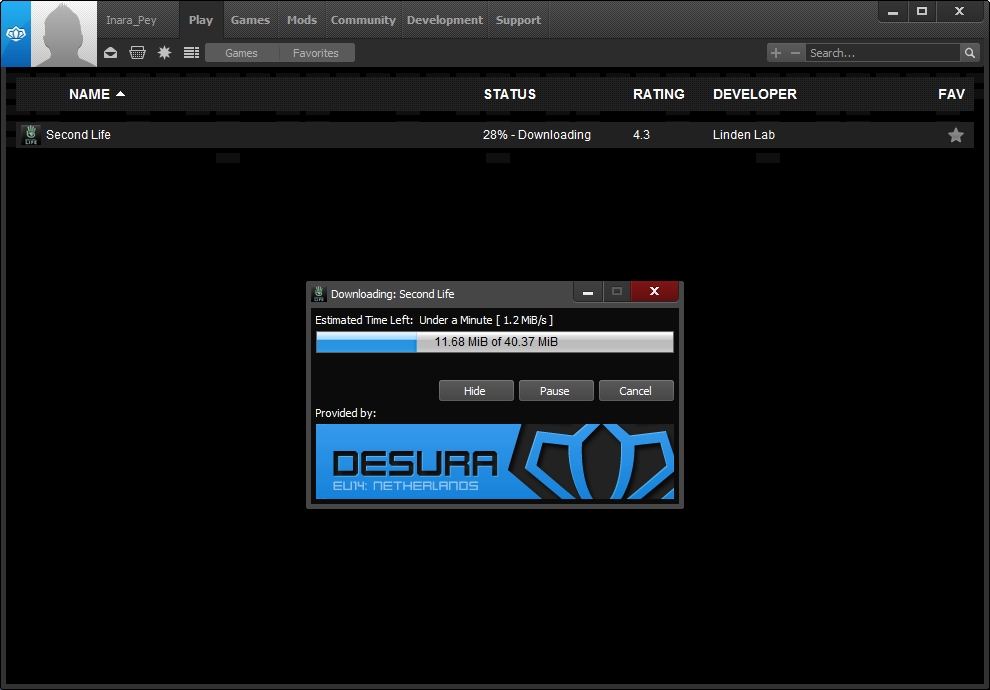
Out of interest, I tried the download / install process using the Desura desktop service. It was fast, using a “local” mirrored site in the Netherlands, and handled both the download and initial installation of the viewer in a single pass.

SL-desura
Installing the SL viewer via Desura

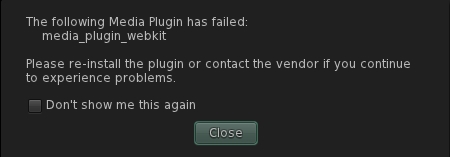
The release version of the viewer is called Second Life Release Desura, and installs into a folder (under Windows at least) by that name. Interestingly, the viewer is built of a 3.6.5 code base, not the current 3.6.4. Once installed, the viewer fired-up – and had an oopsie with the media webkit failing.

webkitGiven SL has only recently arrived on Desura, I was a little surprised when clearing the error message left the screen displaying a mandatory update warning; perhaps this was to fix the webkit issue. I let the update complete, and the viewer restart … and was again confronted with the webkit failure message. As this doesn’t occur with any version of the viewer obtained directly from LL, I can only assume it is a problem within the Desura offering. Closing-down the viewer and restarting clears the message but even so, assuming others get the same warning, I can’t help but think it’s not the most confidence-building thing to see after a first-time install. Similarly, it’s a shame that the link on the update pop-up which supposedly offers more information (i.e. release notes) goes to a blank wiki page.

Once I had shut down and restarted, the viewer ran through the usual CREATE ACCOUNT / CONTINUE options. Out of curiosity, I created a throwaway account and logged-in to the new “Social Island” arrival points which are being tested, and landed on a stack of people’s heads – so it would appear a fair few are trying SL out (although not necessarily via Desura, admittedly). I didn’t go further than this, as I intend to take another look at the “new” new user islands in the future and perhaps update on my original report.

All-in-all, not a surprising move, although equally, one not without some rough edges which might cause irritation if seen by many. Whether this move is the final nail in the coffin of the Steam link-up (prematurely) announced almost a year ago remains to be seen.

Related Links

Lumiya 2.5.0: advanced rendering

Update August 29th: There have been two additional updates with Lumiya since this review was published. Versions 2.5.2 and 2.5.3 both offer the same additional functionality as reviewed here, but include further fixes for devices using Adreno GPUs.

lumiya-logoAlina has released versions 2.5.0 / 2.5.1 of Lumiya. The two versions, released on August 26th and August 27th respectively, comprises the same updates features-wise, but the 2.5.1 release includes an additional fix to correct a crash issue users encountered with devices using Adreno GPUs (such as the HTC One).

The focus for this release has been on rendering capabilities, with the 2.5.0 release notes summarising the updates as:

  • An advanced rendering mode for better visual quality
  • Limited windlight support (sky, clouds, stars, time of the day)
  • Drag-to-select pointer for easy selection of small objects in 3D mode
  • Ability to purchase objects
  • Fixed an issue with terrain not being rendered when 3D view is opened too early.

Advanced Rendering and Windlight

The number of rendering options already included in Lumiya is impressive. Advanced Rendering brings with it the ability to render in-world light and other visual effects, windlight support for clouds, night-time stars, setting the time-of-day in the world view, and anti-aliasing.

Advanced Rendering options. note that Advanced Rednering must be enabled via a separate option in the Settings menu in order to access the options
Advanced Rendering options: note that the capability must be enabled via a separate option in the Settings menu in order to access these options

The additional capabilities are added to the 3D View section of Lumiya’s Settings menu (device Menu button > Settings), although they are on by default. While they do offer some enticing options, they do make Lumiya very much more device dependent than perhaps has been the case with the client in the past.

For example, I found that with the Advanced Rendering options active, my Galaxy S2 struggled mightily to render an in-world scene, even with high quality textures disabled, max avatars dialled back to 1 and draw distance down to a minimal 48 metres. More particularly, it got very hot in my hand; something I’ve not encountered previously. Once rendered, the scene also lacked clouds (although I’d chosen a region with a cloudscape overhead on purpose), but stars were visible when switching the time to night. Because of this, I’ve not included images from my phone, but rather demo images Alina captured on a tablet device with more oomph than my S2 can manage, as they give a fairer indication of what can be seen when using the right hardware.

Lumiya has clouds - if your Android device has the power
Lumiya has clouds – if your Android device has the power

That my S2 struggled isn’t surprising. There’s an awful lot of work for a small hand-held device to manage, even with just some of the bells and whistles turned on. Just as it is unrealistic to expect older computer hardware with limited graphics performance, memory, etc., to be able to handle all the latest shiny in Second Life, it’s also unfair to expect devices which necessarily have limited capacity to present everyone with the same level of detail with all the options ticked.

Starry, starry night / Paint your palette the Lumiya way ...
Starry, starry night / Paint your palette the Lumiya way …

Drag-to-Select

Another major new addition to Lumiya in this release is Drag to Select. This comprises a small hand icon in the top left of the world view, with the label Drag to Select. Following the instruction allows you to drag the icon (which changes to an arrow) and point to objects in-world, enabling you to interact with them more easily. Releasing the icon when pointing at an object will bring up the initial interaction menu, allowing you to touch, sit, etc., depending on the object.

Use Drag to Select to interact with in-world objects which may be too small to otherwise use long touch on

This is especially useful when using a small screen, where the finger can easily cover multiple items, resulting in some frustration when trying to long touch something for its menu. Do note, however that as the option removes your avatar from the in-world view, you can’t use it to touch your own attachments; nor does it appear to work on other avatars’ attachments.

Making Purchases

You can now shop ’til you drop with Lumiya. Simply find a vendor or object set for sale, long-touch it, and the pop-up menu includes a Buy Object item. Tap this for a final confirmation before buying.

You can now purchase things with lumiya
You can now purchase things with Lumiya (account balance blanked on purpose)

Feedback

Another interesting update, albeit it one which may well tax some devices, prompting users to disable some of the options. Seeing windlight start to arrive in Lumiya is good, and helps the client to become more of a mobile alternative to a full-blown viewer for those on the move requiring their SL fix. Similarly, having the ability to make in-world purchases adds to Lumiya’s attractiveness. I also like the new Drag to select function, although its addition is starting to make the in-world view on small screens rather crowded. Even so, I’d rather have it than not.

I understand that in-world building is on the cards for a future release of Lumiya; now that will be interesting. I presume it’ll be a capability best suited to tablet devices rather than small-screened handhelds, but that’s no reason for seeing it excluded. It just means I’ll have to go buy myself a tablet! :D.

Related Links

CtrlAltStudio: Stereo 3D and first pass at Oculus Rift Support

CAS-logoCtrlAltStudio is a relatively new viewer to appear for use with both Second Life and OpenSim. The work of David Rowe, it is based on Firestorm, and the project is revisiting the use of stereoscopic 3D in the viewer, building on the release of the NVIDIA 314.07 video driver.  More recently, David has also been working at a first pass at Oculus Rift integration ahead of LL’s own work with the headset.

Version 1.0.0.34218: Stereoscopic 3D View

A proof of concept image with CtrlAltStudio (image: David Rowe)

After various proof-of-concept and beta iterations, the 3D-capable version of CtrlAltStudio appeared on July 27th, 2013.

Version 1.0.0.34218 of the viewer (release notes) uses OpenGL quad-buffered stereoscopic 3D, and requires NVIDIA graphics drivers with 3D Vision support (314.07 or later). It also requires monitors set to 120Hz, and for the viewer to be running in full screen mode. It should work with GeForce GTS250 or better, NVIDIA Quadro cards, AMD Radeon HD 6000 or better and FireGL V7600 or better with recent drivers.

To control the 3D capabilities, David has added an additional Display Output tab Preferences > Graphics, and an additional toolbar button, labelled 3D, which toggles the stereo view on / off.

Sadly, I don’t have the glasses to test the viewer itself, so will have to leave that to others to report on how things look.

Version 1.1.0.34244: Initial Oculus Rift Support

Second Life in Oculus Rift via CtrlAltStudio (image; David Rowe) – click to enlarge

On August 25th, David release version 1.1.0.34244 Alpha with initial Oculus Rift support (release notes). This is well ahead of the Lab’s own implementation of support for the headset, and people shouldn’t expect it to be in any way a complete integration of Rift support. As David comments on the blog post announcing the release:

If you want to stick your Rift-kitted head into Second Life or OpenSim and have a look around, well now you can. I’ve added some basic Oculus Rift support to CtrlAltStudio Viewer 1.1.0.34244 Alpha: you can look around and move about but there is no UI. Full Rift support including UI will come when Linden Lab release their viewer with Rift support in the not too distant future. But in the meantime you can now at least enjoy the sights of your favourite virtual world locations.

Options for Oculus Rift have been added to the Display Output tab in Preferences > Graphics, directly below those for the 3D stereo controls.

The Display Output tab of Preferences > Graphics, showing the 3d vision and Oculus Rift options
The Display Output tab of Preferences > Graphics, showing the stereoscopic and Oculus Rift options

To use the headset with the viewer, David recommends that you first sit down, then get to where you want to be before you don the headset. Once there, wear the headset and toggle “Riftlook” (using the 3D toolbar button or CTRL-ALT-3) to look around and use the arrow / WASD keys to move, remembering that “forward” is in the direction in which the Rift is pointing when “Rfitlook” is enabled.

So if you have the Oculus Rift SDK, why not download CtrlAltStudio and give it a go. Just do remember, the viewer is still Alpha, and subject to limitations, possible odd behaviour.

Related Links

Liquid Mesh: looking from all sides

I’m prefacing this article by saying I’m not a fashion blogger, nor am I particularly fashion-oriented SL purchaser. So this piece isn’t an examination of “Liquid Mesh” clothing from a fashion / fit standpoint. Nor is it intended to be an in-depth technical examination of the technique and how it deforms, its pros and cons, creation issues, etc. It is simply intended to offer up general information on what the technique is, what the concerns are, and how people might best determine whether it is an option for them.

A Little Bit o’ History

When the capability to support mesh within SL was first being developed, that it could be used to create clothing etc., didn’t appear to factor into the Lab’s thinking, and so how such items might be made to fit avatar shapes properly wasn’t of major concern to them. However, during the Mesh Closed Beta, a method was proposed whereby wearables could be weighed to the avatar’s collision volumes, a technique which, if used, would allow them to deform somewhat to the avatar’s shape.

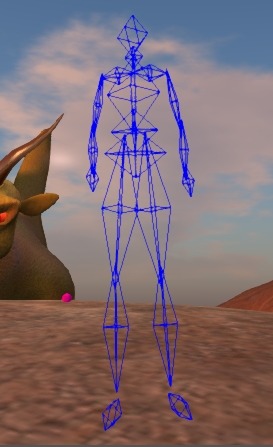
Avatar Collision volumes (image courtesy of Gaia Clary)
Avatar Collision volumes (Gaia Clary)

AshaSekayi Ra notes that at the time, Prep Linden requested clothing samples weighted using the technique be passed on to him so that the Lab could take a look at the idea. However, she didn’t hear anything further on the subject, despite supplying samples herself. Asha also thinks that Prep may have heard of the technique as a result of a conversation with RedPoly Inventor.

Collision volumes are essentially a simplified version of the avatar form primarily used to between your avatar and other avatars / objects. As Gaia Clary recently explained, they give a rough approximation of an avatar’s shape and they can be adjusted via the Edit Shape sliders. So, clothing items weighted to them can be adjusted somewhat in line with the avatar’s shape.

That said, there are limitations. For one thing, there are only 19 collision volumes; and this limits how and where they can be weighted by default, and how well clothing using them can deform with changes to the avatar’s shape. For example, there is no collision volume for breasts, so clothing using the technique won’t deform to breasts or breast size changes.

In June 2012, RedPoly Inventor again drew attention to the idea during a Content Creator’s meeting, releasing a video of the technique, as well as a demonstrator dress.

By his own admission, the solution was not perfect due to the lack of suitable weighting points in the collision volumes, as noted above. To overcome this, he suggested the development of addition “bones” (weighting points), which he called “cbones”. However, given there is generally little appetite within the Lab to tinker around with the avatar to any great extent, it was unlikely this latter idea was going to be taken-up, and after a while the use of collision volumes for mesh weighting / deformation seemed to quietly slip away.

Moving Forward

Since then we’ve had yet more delays with the development and release of the mesh deformer for a wide variety of reasons. That no official deformer has appeared has seen a number of content creators producing mesh wearables which use collision volumes for weightings / deformation in a manner similar to that demonstrated by RedPoly Inventor.  Perhaps the first on the scene was Redgrave, back in late 2012, with their Liquid Mesh range (the name which is now synonymous with the technique), with others such as Egoisme and Bax also producing their own items as well. As such, the debate around the approach has been ebbing and flowing for a while, and has recently seen renewed discussion.

The system isn’t perfect, as noted above; the need for alpha layers isn’t necessarily eliminated for example, and because collision volumes are only a rough approximation to the avatar shape, problems can still be encountered when making shape changes even where the two do align. But even with the potential shortfalls, the fact remains that in many cases, this method can result in clothing items which do fit an avatar’s shape more reasonably than by purely relying on a set of “standard sizes”, as Strawberry Singh demonstrated in a recent video which accompanied a blog post on the subject.


Continue reading “Liquid Mesh: looking from all sides”

From Niran’s to Black Dragon

Blackdragon logoOn Wednesday August 21st, NiranV Dean officially confirmed that Niran’s Viewer is now depreciated (or as he put it, “Dead”).

He first announced plans to end the viewer’s life in May 2013, when he also announced its successor, Black Dragon. Since that time, he has been working on the replacement viewer, producing a number of beta releases along the way, the latest being version 2.3.1, which appeared on August 23rd.

As I’ve not covered Black Dragon to date, I decided to take a quick look and provide a mini-overview – not a full review, just and overview of the viewer and some of the work Niran has been carrying out.

Download and Installation

The download weighs-in around the same file-size as the official viewer. As with Niran’s Viewer, this isn’t an installer per se, but rather a self-extracting archive which will install the viewer files in the required folder, but which will not generate a Start menu entry, desktop shortcut, etc. You’ll need to do that yourself (not that it’s particularly taxing).

Splash Screen and Logging-in

Black Dragon’s splash / login screen is very similar to that used with Niran’s Viewer. Instead of the usual Destination Guide, etc., options found with the official viewer and a number of V3-style TPVs. Instead, users are treated to one of Niran’s music videos.

Black Dragon Splash / Log-in screen

If the viewer has been installed for the first time, or is a completely clean install, the Create Account / Continue pop-up options will be displayed as per most V3-style viewers.

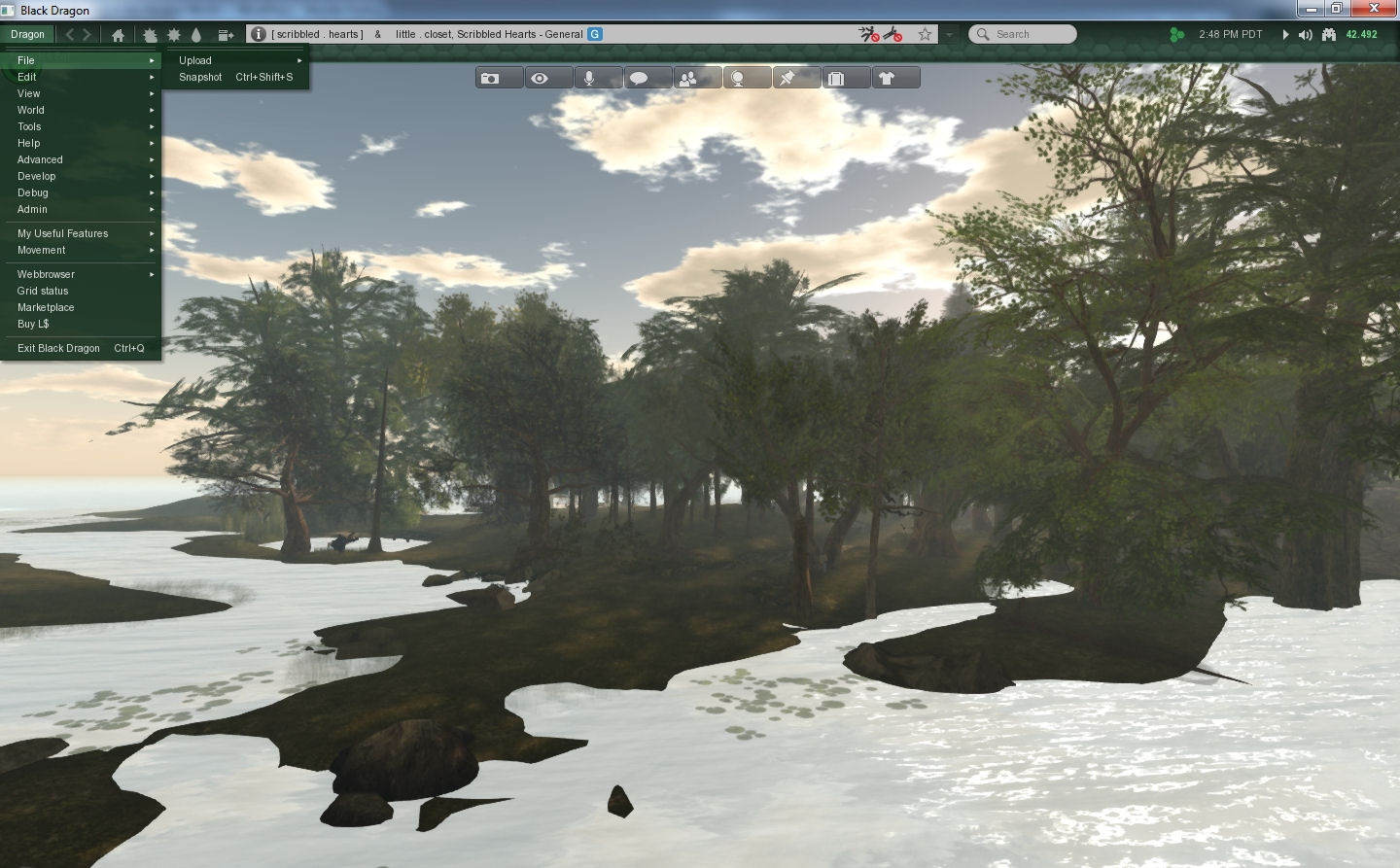
On logging-in, anyone who has used Niran’s Viewer will get a further feeling of familiarity – by default, Black Dragon has its toolbar buttons ranged at the top of the screen, and has a number of other Niran’s-like UI elements, including the vertical menu list, now called Dragon.

I confess, I’ve always liked this approach to the menus. Training the hand to use it doesn’t take long, and it offers a relatively tidy and compact means of having the menus available.

Black Dragon retain's Niran's approach to menus
Black Dragon retains Niran’s approach to menus

Preferences, Floaters and Panels

One thing that has always bugged Niran (and myself to a certain degree) is the amount of “white space” (or “wasted space”, as Niran calls it!)  some of the viewer’s floaters and panels have. While there is an understandable need to consider all levels of eyesight and readability, some of the viewer 3 panels do seem to have an over-abundance of blank space in them which could perhaps be better utilised. Black Dragon goes some way to reversing this; several of the floaters have been tided-up such that they do take-up less screen real estate, offering a more compact display.

However, Niran hasn’t (perhaps wisely) gone to some of the extremes seen in his older viewer, at least for the time being. Frankly, I hope he doesn’t. While a degree of tidy-up in floaters is welcome, I did feel that some of the large-scale redesign of evidenced in various floaters in Niran’s Viewer actually left a lot to be desired. A reduction in “wasted space” didn’t always correspond to an improvement in usability.

Materials and Build Floater

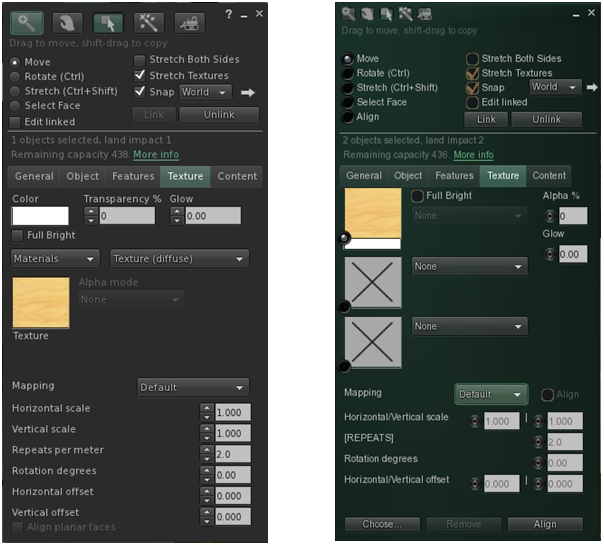
One of the new Lindeny shiny bits to appear in Black Dragon is materials processing, and it is an area where Niran has taken a slightly different direction to the official viewer, offering-up a completely re-worked Texture tab for the application of maps.

The revised Texture tab in Black Dragon's Build floater
The V3 build floater’s Texture tab (l), and Niran’s re-working in Black Dragon (r)

Continue reading “From Niran’s to Black Dragon”