Kokua: Admin changes and the 6.2.4 release

The Kokua team released Kokua 6.2.4 on Friday, August 16th, 2019, and with it come some changes to general administration of the viewer’s website and management tools.

In terms of the latter, and for ease on management going forward, a number of changes are in the works including:

  • The use of the Atlassian Confluence platform to provide:
    • A blog capability.
    • Release notes support.
    • A master download pages.
    • RSS feeds.
  • The use of Atlassian Jira (as used by Linden Lab and the likes of Firestorm) for bug reporting and tracking.

The switch-over is still a work-in-progress, so the existing blog, wiki and bug tracker remain in operation for the time being, however, relevant links for the new environment are given as:

While the switch-over is in progress, users are advised against linking to individual sub-pages within these sections, as pages may change as things are bedded-in. For this purposes of this blog, the new Kokua home page is referenced in the sidebar links (right, under Maintained Viewers) and within my Current Viewers Release Page and the weekly release summaries drawn from that.

Kokua 6.2.4

Kokua 6.2.4 brings the viewer to parity with the most recently Linden Lab viewer release (version 6.2.4.529638, formerly the Love Me Render RC viewer dated August 5th, promoted August 12th). In addition, it updates the RLV version to Marine Kelley’s RLV 2.9.26.2.

As has been customary with Kokua releases of late, the viewer is provided in three versions for each of the supported operating systems (Windows, Mac OS X and Linux, all 64-bit):

  • Non-RLV – version 6.2.4.45881.
  • “Standard” RLV (can be enabled and disabled via a viewer restart) – version 6.2.4.45882.
  • “Full Time” RLV (RLV is active all the time) – also version 6.2.4.45882.

In addition to these updates, Kokua 6.2.4 includes a number of third-party additions, most notably from Firestorm, as noted in the sections below, and with due credit to the originators of the code updates.

Settings Backup

Sometimes when installing a new version of a viewer, there can be a recommendation to perform a “clean install” – removing all cached and settings files. This can make any viewer installation labour-intensive, as settings all need to be restored after the installation is complete.

The Settings Backup (Preferences > Backup) eases some of the pain by allowing users to back-up many of their global and account settings to a local hard drive. Once done, the back-up can then be restored to an updated version of Kokua (e.g. if a clean install has been required, or if some settings have become corrupted). Settings can also be backed-up at any time as changes are made.

The Kokua Settings Back-up option, courtesy of Firestorm

Settings can be backed-up to any location on a local drive, and users can select those settings they wish to back-up by unchecking / checking the available options. It is also possible to save settings on a per account basis. So if you have several accounts, each with different settings, you can back-up each of them separately – just make sure each back-up has a unique location.

Restoring previously backed-up files requires the viewer is restarted after the restore – and again, this is conveniently taken care of by the viewer allowing you to quickly log-out following a successful restore – although you’ll have to manually re-start the viewer once you’ve been logged out.

Sounds Output Device Selection

Preferences >Sound and Media includes a new drop-down allowing users to select their preferred output device for playing in-world sounds.

Sound output device selection, courtesy of Firestorm

When using it, note that:

  • Selecting Default will always select the first output device in the list.
  • If Default is selected but the previous device is no longer available, the viewer will automatically switch to the next available “default” device as defined by your operating system.
  • Manually selecting an output device from the drop-down  prevents the viewer from automatically switching to another device if the selected device is no longer available. Instead, the field will show “Unavailable Device” until such time as the nominated device is again available, or the drop-down is changed to Default or an alternate is manually selected.

Updated Debug Floater

Finally from Firestorm, Kokua 6.2.4 includes an improved debug settings floater with search and sanity checking of key values.

The improved Debug floater, courtesy of Firestorm

Other Updates of Note

Finally there are a number of fixes/improvements on the Kokua code base itself, notably fixing the pie menus so that the Hover Height command appears (i.e. was there but a mistake in the file concerned prevented it being shown). For details, please refer to the Kokua 6.2.4 release notes.

Feedback

Kokua 6.2.4 continues to maintain parity with the official viewer whilst also importing some additional updates from Firestorm that Kokua users will doubtless find useful and which are likely to help enhance Kokua as the go-to viewer for those who have used Firestorm , but who are looking for an alternative that offers reasonable familiarity.

Additional Links

Firestorm 6.2.4: EAM and paving the way

On Monday, July 15th, 2019, Firestorm released version 6.2.4.57588 of their viewer.

However please note that this release is for Second Life only.

Essentially a  maintenance update, Firestorm 6.2.4.57588 brings the viewer up to parity with the official viewer, adding a range of fixes, improvements and updates from both Linden Lab and via the Firestorm team. The major new feature for this update is the Estate Access Management options.

As such, this release paves the way for Firestorm to be able to adopt the Lab’s Bakes On Mesh and Environment Enhancement Project, once these have in turn been released by Linden Lab.

Table of Contents

As per usual, this article provides an overview of the more visible updates in the release. Please refer to the release notes for a full list of updates and all associated credits. Also, note that this update means that version 5.0.11.53634 will be blocked from logging in to the Second Life grid in about three weeks.

A small personal note: my apologies to Firestorm users who may have been directed to this post by the Firestorm team’s release announcement or the Firestorm 6.2.457588 release notes and were unable to find it. My ISP suffered a major (8+ hour) outage some 90 minutes before the release was made, preventing me from uploading and posting this overview. 

Why A Second Life Only Release?

As noted above, Firestorm 6.2.4.57588 is for Second Life only. This is because Firestorm are changing how they support Second Life and OpenSim grids. You can read the full details in the official Firestorm blog post Second Life and OpenSim are No Longer Joined  at the  Hip, but in short, and in the future:

  • The Firestorm code is forked into two repositories: Second Life and OpenSim.
  • The Second Life dedicated viewer’s grid manager will only offer Agni and Aditi (SL main and beta grids).
  • The OpenSim dedicated viewer’s grid manager will NOT offer Second Life grids.
  • If you wish to access both OpenSim and Second Life, you will have to install both versions of Firestorm
  • the two versions will install entirely independently to one another and will not share settings or cache, so they will not conflict with each other.

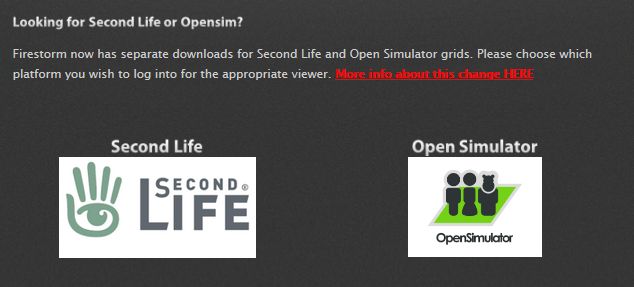
To assist is identifying the two differernt grid versions, the Firestorm downalod pages has been changes to clearly differentiate between Second Life and OpenSim.

The revised Firestorm grid download selections

Note that at the time of writing, the OpenSim download page points to Firestorm 6.0.2.56680, which still works on both SL and OpenSim, and will use the same settings folders as 6.2.4. This will change with the next Firestorm update.

The Usual Before We Begin

As per my usual preamble:

  • There is no need to perform a clean install with this release if you do not wish to.
  • Do, however, make sure you back-up all your settings safely so you can restore them after installing 6.2.4.
  • Please refer to the official release notes for a full breakdown and changes, updates and credits associated with this release.

Lab Derived Updates

Firestorm 6.2.4.57588 brings the Firestorm viewer up to the current (at the time of writing) Linden Lab release viewer, version 6.2.3.527758, formerly the Rainbow RC viewer promoted on June 18th, 2019.In addition, this release includes some upstream fixes from current LL RC viewers, such as the HiDPI retina display support on Mac systems (Love Me Render RC).

Please refer to the Firestorm 6.2.4 release notes for details of specific Lab-derived fixes for this release.

Estate Access Management (EAM)

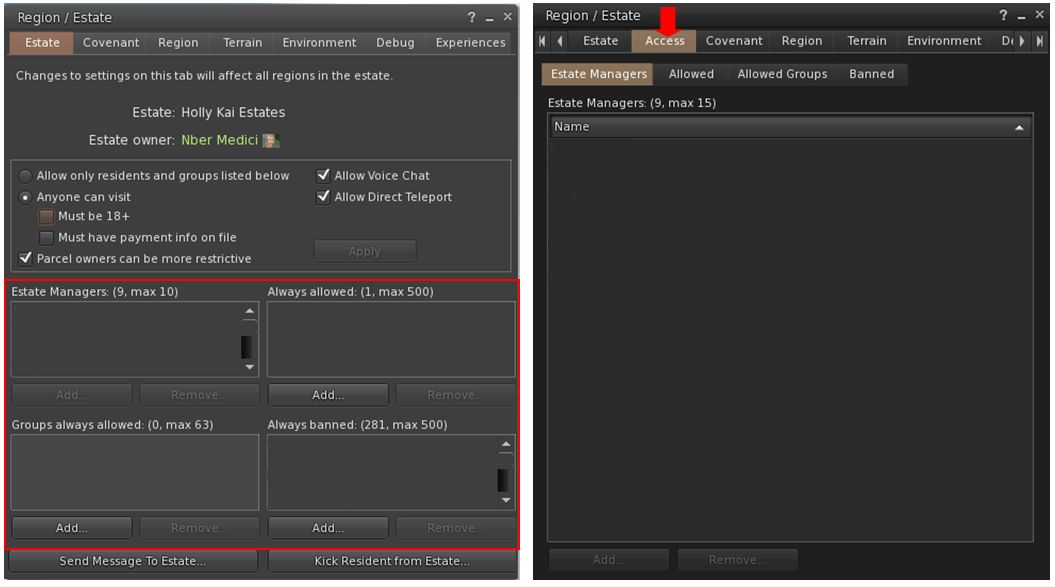
It has long been the case that the lists for managing access to a region / estate have been crammed into the General tab of the Region / Estate floater (World > Region / Estate or ALT-R). This has made the management of these lists – particularly the Banned list – difficult when reaching large numbers.

The Estate Access Management (EAM) project was introduced by Linden Lab to address the various shortfalls with the presentation of these list, through both back-end changes and a refactoring of the Region / Estate floater. Firestorm release 6.2.4.57588 includes the updated viewer UI, allowing estate owners and officers to make use of the improved tools.

In particular, the EAM moves the access control elements of the Region  / Estate viewer away from the General tab and into their own dedicated tab (show below).

Estate Access Management: as they have previously appeared (left) and as they are under EAM (right) – note: user names have been redacted from this lists shown

In terms of adding or removing names and groups, the new Access sub-tabs work in much the same way as the list boxes in previous releases. However, with the new design, additional functionality is added to some of the lists:

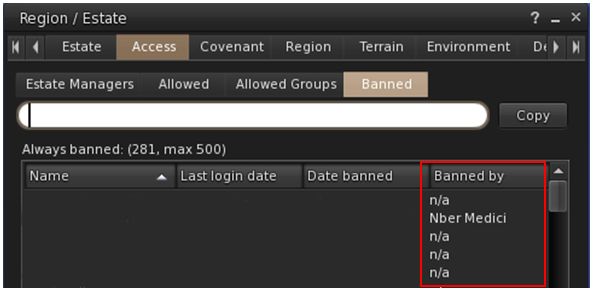
  • The Banned list additionally records:
    • The last date on which a banned individual logged-in to Second Life (to assist with housekeeping the list – if an account hasn’t been used in X months or years, why keep it on the list?).
    • The date on which an individual was banned.
    • The name of the estate officer / region holder who implemented the ban.
  • The Banned tab can be sorted into ascending / descending order by banned name, date last logged in, date banned, or by person banning them. Click on the column title to sort.
The Banned list provides more functionality: search, re-ordering, date banned, who did the banning (only applicable for banned implemented after the EAM back-end was deployed by Linden Lab earlier in 2019, pre-existing bans will have “n/a” in the new columns, as indicated by the Banned By column in this image. Note that names have been redacted from this list
  • The Estate Managers, Allowed and Allowed Groups tabs can be sorted into ascending / descending order by name. Click on the column title to sort.
  • The Allowed Groups, Allowed and Banned tabs all include a search option.
  • The number of allowed Estate Managers is increased from 10 EMs to 15 EMs – again in response to many requests from region holders.

Continue reading “Firestorm 6.2.4: EAM and paving the way”

Catznip R12.2: a little extra quality of life

Saturday, July 5th, 2019 saw the release of Catznip R12.2.

With two major releases on the horizon from Linden Lab – Bakes On Mesh (BOM) and the Environment Enhancement Project (EEP) – R12.2 is intended to be primarily a maintenance and “quality of life” release.

Table of Contents

In this, Kitty notes that starting with R12.2, she hopes to de-couple these smaller “maintenance” style of release from those containing major new features and capabilities, and to be able to make this style of release on a more regular basis as a result.

The following notes cover the key improvements seen with R12.2. For a full breakdown of the release including all improvements and bug fixes can be found in the Release Notes.

Maintenance Releases Transition Times

Kitty also notes that with these maintenance releases, there will be a shorter transition period before they become mandatory for all users. For R12.2, this means that it will become the default download from around July 19th. Therefore, if you experience any problems with R12.2, the request is that you contact the Catznip team sooner rather than later, or offer feedback via the viewer.

Linden Lab Updates

Catznip R12.2 brings the viewer up to parity with the (at the time of writing) current Linden Lab viewer – version 6.2.3.527758, formerly the Rainbow RC viewer dated June 5th and promoted on June 18th. This version specifically contains a Windows 10 fix for some Nvidia users, where on exiting Second Life, the system video is distorted. It was this update in particular that encouraged Kitty to release Catznip 12.2.

Quick Preferences Updates

Worn Items

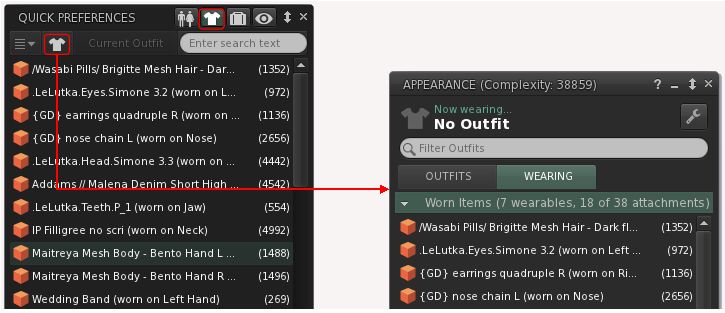
With R12.2, Quick Preferences adds a further button to the Worn Items display. This uses the same shirt icon as the top-level buttons on the Quick Preferences panel, and when clicked, will open the Wearing tab of the Appearance floater.

The new Worn Items button in Quick Preferences that opens the Wearing tab of the Appearance floater

See: CATZ-475: Add button to open wearing panel to the ‘Worn Items’ QuickPrefs panel.

Inventory Folder Button

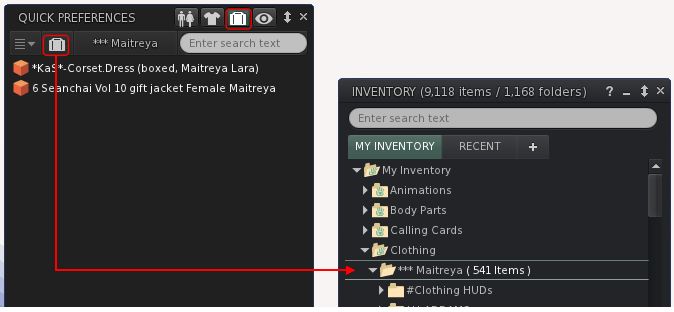
Similarly, if you have a folder set for the Quick Access inventory button, there is a new button (again using the same suitcase icon) that will open the corresponding folder in your inventory.

The new inventory option to open the inventory folder you’ve set for quick access display in Quick Preferences

See: CATZ-476: Add button to open the selected folder to the ‘Quick Access’ QuickPrefs panel.

Inventory Improvements

Catznip R12.2 includes a number of improvements to inventory.

Show In Inventory

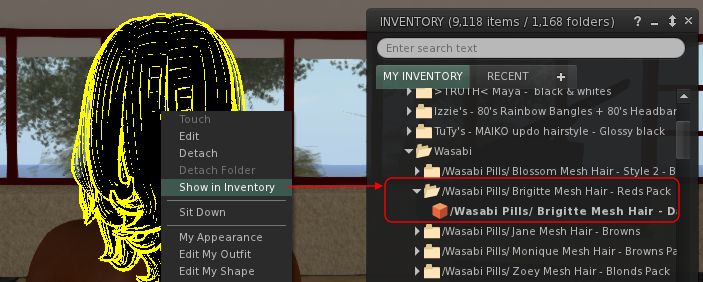
Ever wanted a quick way to locate a worn attachment in your inventory – particularly if you have multiple links to it scattered through your Outfits? Well, Catznip has the answer: Just right-click the worn item and then select Show In Inventory from the Context Menu.

With Catznip R12.2 allows you to quickly locate, in inventory, an item your avatar is wearing

See: CATZ-501: Add ‘Show in Inventory’ to the worn attachment context menu.

Clear Inventory Filter on Close

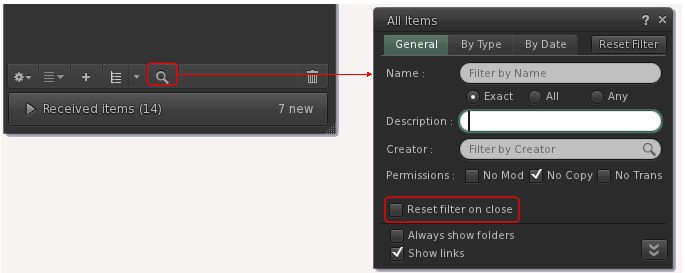
Inventory filter are useful – but can be annoying if you forget to clear them; if you do, you can re-open inventory and be confused as the last filter is still active. Catznip 12.2 solves this problem by adding an option to the filters selection panel that, when checked, will ensure any set filter is reset when you close inventory.

The Reset Filter on Close upon will automatically reset any inventory filter that has been set, when you close the inventory floater

See: CATZ-494: Option to reset the inventory filter when closing the filter floater.

Continue reading “Catznip R12.2: a little extra quality of life”

SL Legacy Profiles project viewer

In February 2019, it was indicated in a Third-Party Viewer Developer (TPVD) meeting that an upgrade to the system powering user profiles seen in the viewer, on the web, together with the  feeds, etc., was in the pipeline (see 2019 SL User Groups 7/3: TPV Developer Meeting).

At the time of the announcement, it was indicated that the overall impact of the update on the feeds has a whole had yet to be determined. However, it was also made clear that the current web-based profile floater seen in the Lab’s viewer would in the coming months be replaced by a “legacy” style profile floater (e.g. the type seen within the Firestorm and Cool VL viewers).

On Wednesday, June 5th, the Lab took the first public step towards this by issuing the Second Life Legacy Profiles project viewer, version 6.2.3.527749. This viewer offers a first pass at the re-introduction of the “old” style profile floater to the official viewer, utilising code originally contributed by Kadah Coba of the Firestorm team.

The new Legacy Profiles project viewer replaces the current web-based profile panel (left), with an “old-style” profile floater panel (right)

With this viewer, it is important to note a couple of things:

  • This is an initial release of the viewer with the profile floater. As such, it may be refined / altered / fine tuned as the viewer progresses towards release.
  • There are a number of known issues with this initial release – see the release notes for a list of these.

As TPV user – notably (but not exclusively) Firestorm – I’ve always tended to find the legacy style of profile floater to be preferable: it tends to be faster loading, and (to me) has a more user-friendly means of navigation. As seen within the project viewer, the “new” floater is perhaps a little large in its default size, but adjusting it is easy enough – although having it a little smaller by default perhaps wouldn’t go amiss.

Those interested in trying this project viewer can do so via the Alternate Viewer page.

New SL viewer release notes pages: an overview

Update, May 21st: The Alternate Viewers wiki page has been retired and replaced by a new Alternate Viewer page, which follows the same broad format as the Release Notes page (making the two slightly confusing, as they both reference recent RC viewers. However, this new page also draws a distinction between RC and project viewers, thus overcoming some of the concerns voiced in the second half of this article.

As noted in my week #20 SL Content Creation summary, Linden Lab have unveiled their new viewer release notes pages.

At the time of writing, the new pages are focused on the release candidate (RC) viewers that are in development and currently available as download cohorts in place of the de facto release viewer. It is not currently clear if project viewers will be included in the new format or not.

As Steven Linden from the viewer team notes in a Tools and Technology blog post on the subject, these new pages are part of a new website for viewer release information. This website comprises a dedicated home page with an introduction to viewer release notes. together with links on the left side to:

  • “Recent viewer releases”: a clickable list of the most recent RC viewer updates, provided as viewer version numbers. These are provided in release date order, with the most recent updates at the top.
  • Additional links to viewer-related support information:
The new Release Notes home page – access specific viewer release notes via the version numbers outlined in red on the left

Individual viewer release notes can be accessed by clicking one of the the listed version numbers, which will open a page specific to that viewer. These pages comprise:

  • Icon links to the available OS versions (Windows 32/64-bit, Mac OS).
  • The general release notes (description, etc.).
  • A list of resolved issues.

A significant change in these pages is that, where relevant, Jira links in the Resolved Issues section now, wherever possible, reference “public” bug reports (e.g. BUG-XXXXXX), rather than the Lab’s internally cloned versions of such bugs (e.g. MAIT-XXXXXX).

Currently, the new pages can also be accessed from the existing Alternate Viewers wiki page, (click the Release Notes link for an RC viewer on that page). However, whether this page will remain relevant if the release notes for project viewers are also converted to the new format, remains to be seen.

An example of the revised release notes for a viewer (in this case the Teranino Maintenance RC) – note the use of “public” Jira numbers where relevant, in the known issues list

The new pages are a lot easier on the eye, although I have a number of reservations at this time.

  • While I understand understand why version numbers are used to reference individual viewers (they are URLs and so can be dropped into the pages without necessarily requiring human intervention), they are less user friendly to those wishing to quickly look-up the specifics on a viewer.
  • The “recent Viewer Releases” lists can include links to multiple versions of a given viewer (at the time of writing, two versions of the EEP and Teranino RC viewers are listed, for example). This might cause a degree of confusion for some users, who may mist he “most recent at the top” arrangement of the list.
  • If project viewers are to be added to these pages, I would hope there will be some form of clearer distinction between them and any listed RC viewers, other than just a top-down list of version numbers, again for ease of user reference.

Related Links

Catznip R12.1: Animesh and more

Tuesday, February 19th, 2019 saw the long-awaited release of Catznip R12.1 – the release coming a little over a year since the last update.

The key feature with this update is support for Animesh, although it also sees Catznip come up to parity with the Lab’s viewer cove (release 6.0.1.522263 at the time of writing), which means there are a lot of bug fixes and other tweaks within the viewer.

Table of Contents


Catznip R12.1 also introduces a number of features and enhancements directly from the Catznip team.

These notes are designed to cover the most visible changes with the release. For details on specific bug fixes, please refer to the R12.1 release notes.

Log-In Splash Screen

The first major change with Catznip R12.1 can be seen within the viewer splash screen. This includes a revised destination panel and revised information tabs.

Web Links

The splash screen now includes five buttons located to the left of the large Catznip logo. These are links to:

  • The Catznip Patreon page.
  • The Catznip Flickr pool (empty at the time of writing).
  • Clearer buttons to Catznip on Google+ (although Google+ will be closing on April 2nd, 2019), Facebook and Twitter.

Destination Guide Panel

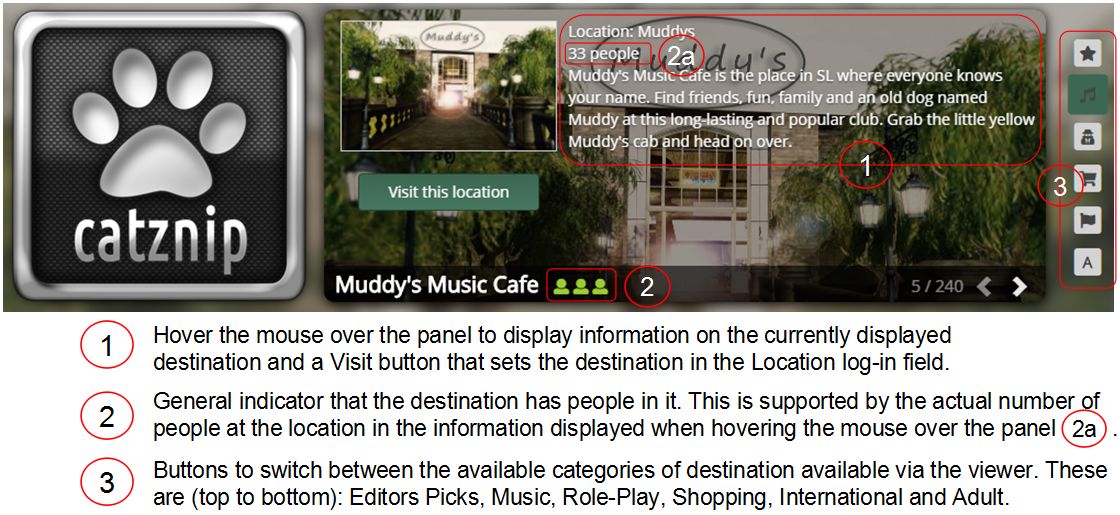
The Destination Guide panel has been overhauled for better access to destinations by selected category and to display information, as outlines in the image below.

The updated Destination Panel of the Catznip log-in screen

Revised Information Tabs

The log-in screen information tabs located below the destination panel have also been revised, so it contains the following tabs:

  • What’s New: primarily useful during Catznip beta releases, when it lists all the JIRAs that were fixed or added for that particular beta.
  • Grid Status: displays information from the Second Life Grid Status RSS fed.
  • Modem World: displays posts recorded by this blog’s RSS feed.
  • Reddit : displays recent threads from the Second Life Reddit community.
  • Seraphim: lists blog posts recorded in the Seraphim blog RSS feed. Clicking the location column will set your login location to that specific event.
The log-in screen information tabs

Note that the tabs are considered experimental, and feedback on their inclusion from Catznip users is requested.

Lab Derived Updates

This version brings Catznip up to parity with Linden Lab release viewers through to release version 6.0.1.522263 (formerly the Spotykach RC viewer, promoted on December 13th, 2019. Major updates in that release include:

  • Voice Server:
    • Second Life: Vivox version 4.9.0002.30313.
  • Chromium Embedded Framework (CEF) Dullahan:
    • Dullahan: 1.1.1080
    • CEF: 3.3325.1750.gaabe4c4.513446.
    • Chrome: 65.0.3325.146.

Animesh

Animesh allows the avatar skeleton to be applied to any suitable rigged mesh object, which can then in turn be animated using suitable scripts and animations contained within the object’s Contents. This opens up a whole range of opportunities for content creators and animators to provide things like independently moveable pets / creatures, and animated scenery features.

While Animesh is likely to primarily be used by content creators, it has been designed so that any suitable rigged mesh can be converted to Animesh directly from the Build / Edit floater. Do be aware, however that simply converting an object will not cause it to start animating – you’ll need suitable animations and a script to run them. Like any other object utilising animation, this is done by adding the animations and scripts via the Edit > Contents tab for your converted object.

A razzle of raptors? Animesh used to animate rigged mesh raptors from Linden Lab

The best way to get started with Animesh is to use the available resources. These include:

Continue reading “Catznip R12.1: Animesh and more”