New Firestorm Beta

firestorm-logoFirestorm today released a second public beta version of the viewer. The 2.5.2.16922 release came somewhat unexpectedly and added a slew of new features and bug fixes which do much to move the viewer very much closer to a prime-time release status.

Note: the following comments apply to the Windows version of Firestorm. Other OS versions may differ.

Build Tools

Chief among the new features is a full port of the Phoenix build tools, so that Firestorm now includes:

  • Clickable group name on build floater
  • Object highlight toggle on build floater
  • Pivot point controls
  • Default size and material controls
  • Link number of build floater (with same bugs as Phoenix)
  • Build options pref panel Prefs> Firestorm> Build
  • Copy/paste object position, size, rotation, parameters and textures
  • Alt, control and shift keys modify increment on spinners (Alt: x10. Control: x1/10. Shift: x1/100)
  • Higher precision on position, size and rotation (4 decimal places)
  • Phoenix’s additional path profiles and transforms types
  • Added button for copy keys (UUID) to clipboard
  • Added requirement to confirm before setting object for sale (prevents sale sniping)
  • Expand/Collapse button
  • Added always show last owner.

Other notable changes include:

Quick Preferences Button
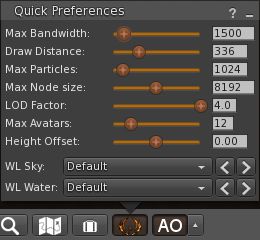
Quick Preferences options

The inclusion of “Quick Preferences button” in the bottom tool bar that provides quick and convenient access to a host of options that can often require frequent adjustment (see right), including the ability to rapidly step through windlight sky and water defaults or select them from a drop-down menu in much the same way as can be found within Phoenix via the arrow option at the extreme right-hand end of the tool bar.

Group Pop-up Window
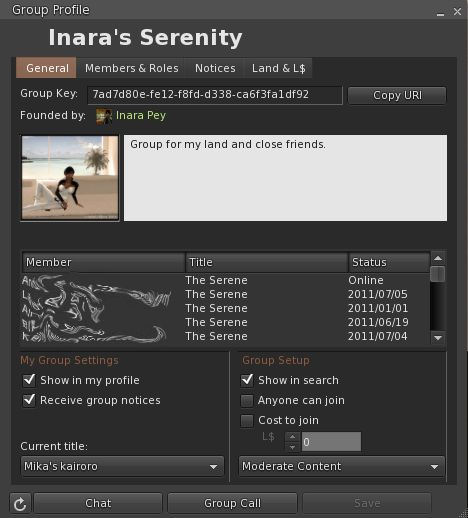
New Group pop-up window

It’s pretty well known that I’m not a fan of the Sidebar, which tends to be little more than a disruptive waste of space where I’m concerned – so anything that Firestorm adds that prevents me having to be tossed around the Viewer and into the Sidebar is going to get a big thumbs up from me.

So it’ll come as no surprise that the new Group pop-up window is a big hit with me. As with Viewer 1.x, it allows you to pull-up information on a Group and peruse it quickly and conveniently in a simply pop-up.

It even includes a couple of new buttons – although one of them could perhaps do with a clearer title. CHAT opens up a Group Chat window – very handy when you want to make an announcement; GROUP CALL also opens up a Group Chat window, although the function of the button is actually to initiate a VOICE call between group members. As such, the latter button might be better off labelled “Voice Call”.

Movement Controls
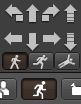
I’ve rarely used them, but many do like Viewer 1’s movement controls. Until now, these haven’t been offered within Firestorm as a discrete option.

This latest Beta changes that by presenting them with a toolbar button of their own, and the palette fully repositionable. This will doubtless be seen as a very welcome addition by those who prefer to use the palette.

Land Details

Another small, but to me significant, improvement is that with this release, the land name displayed at the very top of the Viewer window is once again clickable and will bring up the ABOUT LAND window. This has been one of my hang-ups with Viewer 2.x; despite having the LAND button sitting in the navigation bar (which I rarely turn off), I must admit that I’ve been unable to break the habit of pointing to the land name and clicking on it, a-la Viewer 1.x, in order to bring up ABOUT LAND. Kudos to the Firestorm team for rescuing me from the need to consciously break myself out of this habit!

Bits of the rest

Other changes I particularly like with this release are:

  • “Restore to last position” added to inventory right click menu
  • Contacts tab in Conversations is now closable
  • World map search results are now alphabetical
  • Copy outfit your wearing to text option in the worn tab on appearance panel. From gear menu, copy to clipboard.

Performance-wise, this represents, on my hardware at least, the best results to date with Firestorm. When on a sim with one or two others and draw set to 360m, I can achieve 60-65fps, easily putting Firestorm on a par with Viewer 2.6. On more crowded sims, this falls to between 45-50fps, which is still superior to the last release. What really stuns me however, is that on a sim with 5 other people and with shadows enabled, Firestom can manage 20-25fps on my machine, making it easily the best when it comes to rendering shadows for me.

Opinion

Firestom simply goes from strength to strength and this release potentially marks it as ready to move to a “final” release status.

If you’ve held-off downloading Firestorm or making the move to a Viewer 2.x-based TPV, now is really the time to start re-thinking your position, especially with Viewer 1.x search about to lose effectiveness in some areas and mesh due to be rolled out over the next 6-7 weeks. And if you’re not impressed with Viewer 2 either from direct experience or through the reports of others, Firestorm is liable to suit you right down to the ground.
Livin’ the 3D Sec’ Life

Klee 3D

Kirstenlee’s Viewer has always been bleeding edge; it is the Viewer for the serious SL photographer and Machinimaist.

At the end of May, the Viewer took another leap forward as it went…3D!

I hadn’t been able to test it myself, due to a lack of any appropriate glasses. However, a trip to the local cinema solved that problem, so this afternoon I got to have a paddle with it.

The first thing I will say is that my PC is not top-of-the-line, nor is my graphics system. That said, it handles shadows reasonably OK, if with something of a performance hit, so I was pretty sure 3D would work – and it did! I’ll be honest, there was a performance hit (GeForce 9800 card with 1 Gb, btw, running with a Q6600 2.63 Mhz processor & Win 7 32), but it was nowhere near as massive as when enabling shadows. My normal 40-50fps tumbled to around 25-28. The glasses I have from the cinema perhaps weren’t the greatest (after all, your supposed to be sitting tens of feet from a big screen when wearing them, not sitting a dozen nose lengths away from a table-top screen), but with some jiggling of the sliders, I got a reasonably impressive result and spent 20 minutes bimbling around my sky platform.

Given my GPU / CPU, I didn’t hold out too much hope of running shadows and 3D effects – and I was right. While both enabled, I was left with a frame rate of 1 fps. Erp, as the spokesperson once said, but not surprising.

The only real problem I had lay with the fact that while the in-world view was 3D, my HUDs weren’t – and the colour separation on them was appreciable to the point of making text illegible.

The 3D controllers can be found in the PREFERENCES -> VIEWER -> MISC tab, and comprise a check box to enable and a couple of slider controls – adjust with care. If you try it, be aware that the Build 8 Viewer is experimental and may do Unpredictable Things.

As photos don’t really do the 3D justice, here’s a video made by Chantal Harvey showing off the results:

S21 Build 8 is currently only available in for Windows; Mac and Penguin versions to follow.

Test drive: Firestorm Beta

Yesterday I gave a rapid overview of Firestorm Beta. I’ve now had more of a chance to take it for a spin, so here’s a more detailed look.

Installation

First off, make sure you completely remove any previous versions of Firestorm prior to install – in the case of Windows, probably best to restart your PC after doing so and prior to installing the Beta. The Widows installer comes in at around the same size as the official Viewer 2 installer (25 Mb) and runs a seamless install, and places 151 Mb of data onto your hard drive.

The first thing you may notice on logging in – assuming you do not rez directly – is that Firestorm has borrowed from Imprudence  / Kokua, and while a cloud you are now an orange cloud, rather than the default grey mist.

Pie Anyone?

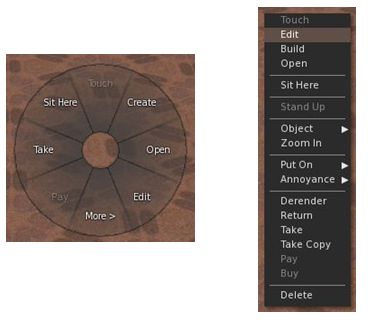
Pie or Context – you decide

The next two things you’re liable to notice is that there is now an AO button on the bottom toolbar, and if you click on anything, you get…a pie menu! Viewer 1 lovers, your prayers are answered.

I’m going to commit sacrilege here and say that, after using Firestorm and Viewer 2 and S20 / S21 for a while – and despite Phoenix still being my primary Viewer – I actually think the pie menu is vastly overrated (particularly given it varies so widely as to where anything is, depending upon which Viewer you use; one person’s Detach is another’s More, so to speak). I’ve found the Viewer 2 context menus to be far more consistent in options faster to learn and easier to use.

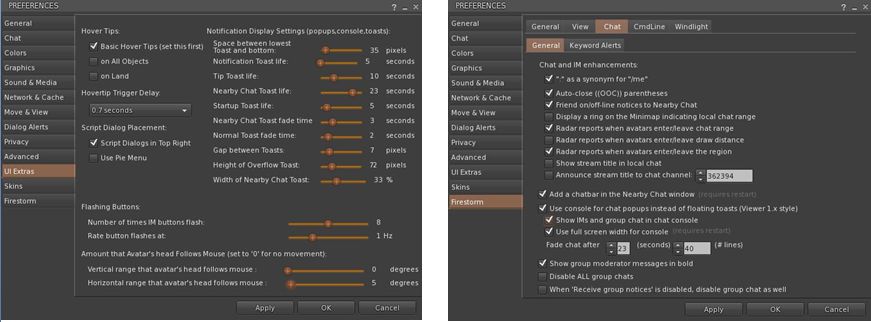
This being the case, I went straight to AVATAR -> PREFERENCES and pulled up the UI Extras. Much work has been done here to bring together some great UI customisation options on the Viewer – including a check option to toggle between the pie and context menus. I’m not going to run through the options – they are all pretty self-explanatory, and to be honest, most have been available in the earlier Preview options.

Updated Preferences tabs – new options

Other tabs within Preferences have also been massively improved. The Firestorm tab now includes pretty much everything those familiar with Phoenix would expect to see – with a lot of rationalisation and simplification of tabs and options. A nice touch here is that under FIRSTORM -> GENERAL you now get a greater choice in how names and display names are seen, and you can toggle between the Viewer 2 search and the “improved Viewer 2 beta” search (currently on the Search Project Viewer) – those who wish to compare and contrast and identify improvements can now have a field day playing with both! Within this sub-tab is one of my personal favourite new additions: TURN AVATAR AROUND WHEN WALKING BACKWARDS. This is something HUDdles has long had and I’ve really missed it when relying on built-in AOs.

A new element to the FIRESTORM tab is the VIEW sub-tab, which brings together several camera-related functions previously scattered around the place, if available at all. Along side it, the CHAT sub-tab has been massively expanded over earlier releases – and now includes a set of options related to … radar!

I See You!

Radar tabbed

Radar is one of the biggest bones of contention in Second Life. People either love it or loathe it – with those loathing it frequently loudly and persistently screaming here, there and everywhere about it being an “invasion of privacy” and a “tool for drama” (and in the latter case, totally missing the irony in the fact that they tend to be the ones creating the drama).

If I’m honest here, almost any tool in the Viewer can be used properly or to create mischief and the radar is no exception – it is how you choose to use it, and I think it fair to say that most people use it responsibly. Those screaming on…and on…and on… about it representing an invasion of privacy would do well to remember that privacy can be invaded simply by removing camera constraints, pushing up draw distance and camming-in remotely (all possible on the “official” Viewer).

As far as I’m concerned, radar is a HUGE boon. As a former estate manager, it enabled me to identify problem people / areas quickly, get directly to them and deal with matters / provide assistance. Combined with other tools, it enabled me to deal with trouble remotely and confirm the required action had been taken. Even today I find it very useful at times – and it is one of the reasons I’ve stuck it out with Phoenix for so long. Well, no more. I’m in love with the improved Firestorm radar.

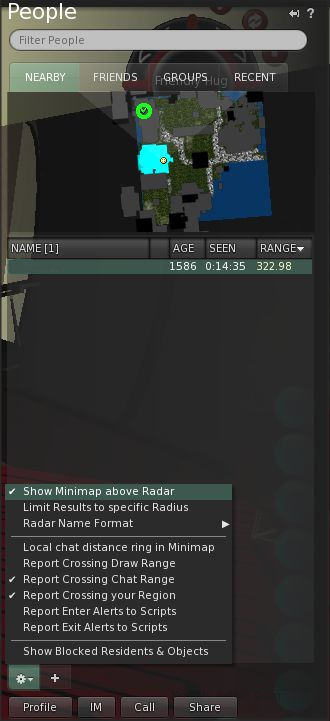
Aswith the Preview, Radar forms a part of the PEOPLE tab on the Sidebar – but is much improved. For a start there is an optional minimap display; you can also adjust the scan range for the radar and alter the way avatar and adisplay names are displayed.

If you want a more Phoenix-like radar display, simply go to the tab PREFERENCES (shown in the image), uncheck the show minimap option, and then undock the PEOPLE tab from the sidebar and resize accordingly; however, be aware that doing so can make scrolling through your friend list a tad more tiresome. As with Phoenix, the radar also includes a right-click option when highlighting specific names, allowing you to IM people, etc.

Continue reading “Test drive: Firestorm Beta”

Firestorm Beta

firestorm-logoSecond Life Viewers are making the news this week. As Linden Lab roll-out the Windlight Project Viewer and Viewer 2.7.1 with “real time” shadows, Jessica and the team over at Phoenix Firestorm roll out a Beta version of their offering.

Firestorm has been around in a couple of pre-release versions for a while, both of which I’ve looked at here in the past. I have to say that overall, it’s been a magnificent addition to TPVs even while still a work-in-progress; currently my only complaint is that it isn’t as faster, fps-wise as either Kirstenlee’s S21 and LL’s own viewer 2.

The Beta release moves Firestorm closer to prime time, and includes many features users have been requesting, making it something of a true hybrid – Viewer 2 functionality with the capability to use Viewer 1 facilities such as pie menus. Here’s a bullet-point outline of some of what to expect with it:

  • The option to switch between Viewer 1 pie menus (default) and Viewer 2 context menus
  • A resizable chat bar in the bottom toolbar area
  • Radar (still embedded in the People tab of the Sidebar by default) gets:
    • A minimap option
    • Most of the features of the Phoenix radar
    • Additional options
    • The ability to undock it from the People tab and have in displayed in its own window
  • Client-side AO with improved functionality
  • Massively-improved Bridge capabilities and security
  • Keyword alerts
  • Shared Windlight settings
  • Everything currently in the pre-releases.

You can download the Beta from here.

A video has also been produced, featuring Jessica herself, to support the release:

Viewer 2 Gets “Real-Time” Lighting

Linden Lab are certainly ramping-up Viewer 2. On top of yesterday’s announcement about the inclusion of Windlight settings for sim owners, comes the release of Viewer 2.7.1 with – among other things, “real time” shadows.

Users of many TPVs will already be familiar with the use of Dynamic Shadows, but until now, these haven’t been available in the “official” Viewer 2. This new release changes all that – and what’s more, it does so with less of a performance compromise for many GPUs.

I don’t have a top-end PC or graphics system – I have a 3-year-old Q6600 quad core and a 1Gb nVidia Ge9800. It can render shadows, but the performance hit means that the Viewer is pretty much crippled as far as doing anything else is concerned (although Kirstenlee’s marginally less so that the like of Phoenix).

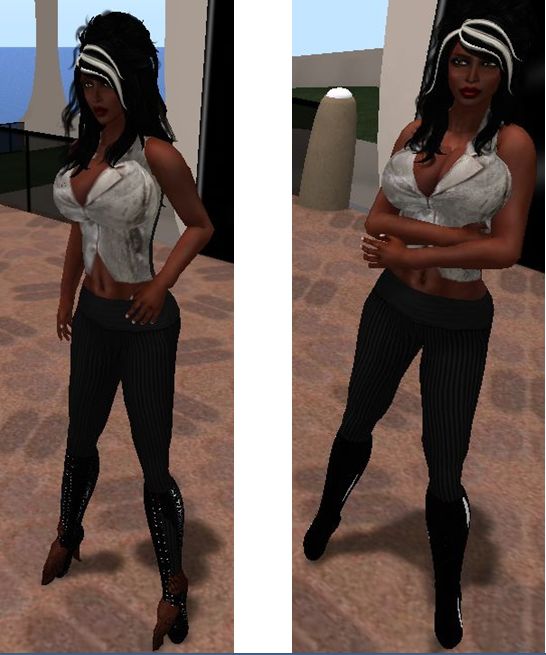
With Viewer 2.7.1, however, I find the “hit” to be a lot less: fps tumbles to around 18, but that is massively better than the 5-8 fps I get elsewhere. I can actually walk around and do things! Viewer 2 also renders shadows far more crisply than I can get with other Viewers.

Me and my shadows: Phoenix (left) and Viewer 2.7.1 (right). Note how in Phoenix the Alpha Mask fails to hide my feet & the blobby shadow I cast. no such issues in Viewer 2..7.1

Another problem I get with Phoenix and the like when dynamic shadows are enabled is that items of prim clothing can flicker on avatars around me and alpha masks frequently fail (so that people’s feet are visible through there shoes). This is probably an artefact of my graphics card…but Viewer 2 eliminates it completely!

Combine shadows with the depth-of-field option (which creates a natural blurring of objects in accord with distance) and set the occulsion option, and you can get some stunning shadow effects, day and night.

The new release isn’t limited to the shadows option, either. Further improvements have been made to Search – although I’ve not actually tested that, to be honest.

Driving 2.7.1 with shadows enabled left me feeling very happy. My system may not render as well as more recent machines, but the fact that I can finally move around and interact and have smooth camera movement with shadows enabled is a massive plus.

I just hope that whatever LL have done with the code finds its way into Firestorm – while it has the same lighting options – doesn’t appear to have them implemented as yet (at least, they make no difference on my machine). When that happens, I’ll be one very happy little bunny: a much improved user interface and shadows! Bliss!

Find out more on lighting and shadows in Viewer 2.

Windlight project viewer released

Linden Lab has released the Windlight Project Viewer for Viewer 2. This is a much-anticipated Viewer that puts Windlight environmental controls directly into the hands of sim owners.

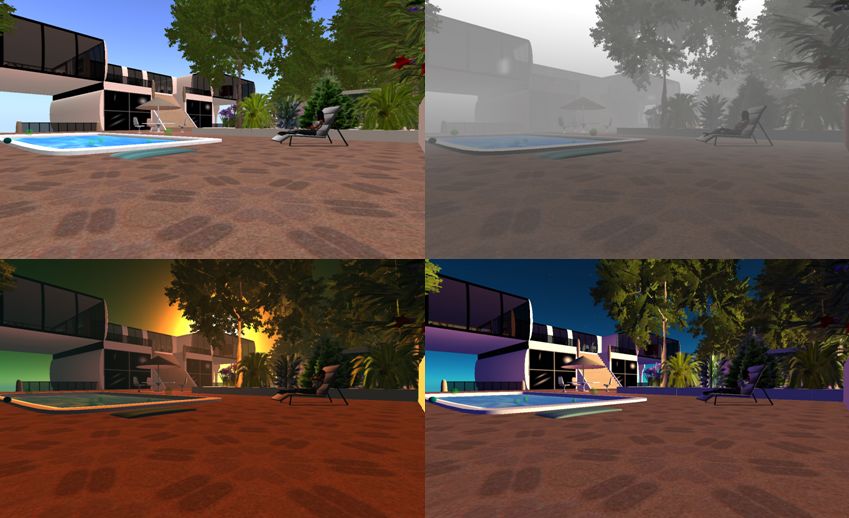
Most of us are familiar with Windlight presets – they allow us to alter the day / night settings and general ambience of the sim we’re in – so you can make it foggy or give it a psychedelic sunrise – but until now, these effects have been restricted to your Viewer – everyone else will see things howsoever they’ve set the time of day  / whatever Windlight settings they like.

With the new Windlight Project Viewer all this changes: howsoever the sim owner sets the sim’s Windlight defaults will automatically be reflected in the Viewers of visiting avatars. So, if you have a role-play sim that is set in London of the 1880s, you’ll be able to set the sim’s environment to reflect this: nighttime, foggy, etc., – any everyone entering the sim will see precisely that by default – unless and until you opt to change it for your own personal view.

As the Linden Lab announcement warns, any effects set server-side will initially only be seen by those people using the Windlight Project Viewer – but as the code is incorporated in the main viewer 2 code base, so defaults and settings will be seen by everyone.

This is pretty cool stuff, especially for those with themed sims and role-play sims, and kudos to LL for getting the controls into the server code!

Windlight and me: four views of my home, three using Windlight presets. The ability to set a sim’s environment through Windlight is now available in the Windlight Project Viewer

You can find the Viewer on the Windlight Project Viewer wiki page.