Update April 1st: Dolphin Viewer has been updated to 3.3.1.23706. Percipal updates comprise the Kokua mesh uploader (Nicky Perian), Firestorm’s ability to attach a short message to avatar-to-avatar payments, and some fixes to the gstreamer audio playback and client-side AO.
This week sees the Restrained Life Viewer and Dolphin Viewer gain Merchant Outbox functionality for Direct Delivery.
Restrained Love 2.8.3.1
The V3.2-based standalone version of Marine Kelley’s Restrained Love Viewer is built on the standard V3.2 code, with a number of UI improvements. Marine develops the Windows version, with Kitten Ninetails maintaining the Mac and Linux versions.
As well as the arrival of the Merchant Outbox, this version sees a number of updates and fixes to the Restrained Love capabilities within the Viewer, all of which can be found listed on Marine’s blog. In testing the Merchant Outbox on the Windows version, I found it worked without any problems, while the revision to the position of the draw distance slider helps make this more usable.
Dolphin 3.3.0.27000
This release brings with it support for the Merchant Outbox for Windows, Mac and Linux. In addition, as an added and welcome tweak, Lance has doubled the length timeout on the Outbox so disconnects should be less frequent than may be experienced in other Viewers.
The remaining updates comprise:
The “RLV Height offset” slider is now wide enough to be properly functional, and has a reset button.
A checkbox to disable rendering of attached light sources has been added in Preferences->Dolphin Viewer 3->Graphics.
A fix for scripted sounds from FireStorm has been imported that makes scripted sounds play correctly the first time.
Codebase has been updated to official 3.3.1 source from SnowStorm.
RLV has been updated to 2.08.03.01.
Performance
Both of these Viewers are using the latest 3.3.1 code release from LL, which has yielded some stunning results on my “regular” system. Together with the latest SL Viewer (3.3.0 (251182)), I experienced the following frame rates on my home sim with 4 others present on the same region:
Average fps, no-deferred / no shadows, @ 390m: 45fps
Average fps, no-deferred / no shadows, @ ground level: 36fps
Average fps, deferred / shadows active, @ 390m: 20fps
Average fps, deferred / shadows active, @ ground level: 18fps
While visiting a popular store (Graves main store), with seven other avatars present, my frames rates were: 32 fps with deferred rendering / shadows off, and 14fps with deferred rendering and shadows on. Taken together and in terms of running with lighting / shadows enabled, these figure represent the best results I’ve had for any Viewer running on my PC, and leave me hoping that similar improvements will be seen in other Viewers as they cut over to the 3.3.1 code.
Firestorm 4.0.1.27000 has rolled-out alongside Phoenix 1.6.1.1691, and brings with it a whole host of changes – including the implementation of the team’s take on the Flexible User Interface (FUI).
As is common for Firestorm, it is recommended that you perform a completely clean install with this release.
The changes to the Viewer are apparent from right off the bat: on logging-in for the very first time, a pop-up is displayed asking you if you wish to have which Viewer you are using displayed in the Phoenix / Firestorm support group chat windows – a requirement resulting from the recent TPV Policy changes. Clicking Yes will append “(FS)” after your name when using Phoenix / Firestorm support group chat sessions, clicking No will not display your Viewer choice in the group chat. This is a one-time only pop-up, and only occurs the very first time you use Firestorm (just check the box above the options). Should you wish to change your mind later, you can enable / disable the option directly through a Phoenix / Firestorm support group chat window.
The FUI
The biggest single change to this release of Firestorm is the adoption of LL’s 3.2 FUI – although with the exception of a single button on the left side of the screen, you’d actually be hard-pressed to know Firestorm is now using the FUI. Quiet and full of cunning is the Firestorm team…!
The new UI: only a single button reveals the truth…
If you do need further proof that this is FUI, simply right-click on the buttons at the bottom of the screen and select TOOLBAR BUTTONS; the familiar button picker toolbox will be displayed – and is filled with a tidy range of additional buttons beyond those offered by LL.
Buttons: we haz them
As is common with V3.2-based Viewers, buttons can be placed to the left and/or right of the screen and/or along the bottom of the screen, and can be displayed as text or icons or both. However, in a welcome departure from the norm, buttons on the bottom of the screen can be left / right aligned and those on the left or right aligned to the top or bottom, rather than simply sitting in the middle. Hoorah!
Button alignment and size options
Additionally, and allowing for your screen resolution / size, you can set the buttons along the bottom so that they:
Fill the available space (as shown above, where they fill the entire space between the chat bar and the right side of the screen), and will dynamically resize according to how the chat bar is sized
Will auto-size themselves to the smallest possible size (depending on whether you opt to use icons, labels or icons and labels & the number of buttons on the bar, this may cause the buttons to wrap over two or more lines
Will fix the buttons to a given size (again, depending on the amount of space available, this may wrap the buttons over two or more lines)
Auto-sized buttons
In another move away from a weakness in the FUI, the chat bar in Firestorm is, by default, anchored to the lower left corner of the screen – again: hoorah!
Gimme Some Skin(s)!
Firestorm has, for a goodly while, had an appearance option in the log-in splash screen offering a set of default UI skin effects. These were called Phoenix, V3 and Hybrid. The Firestorm team caught a lot of flak over the use of “Phoenix”, because the UI didn’t look like Phoenix when used.
With 4.0.1.27000, the appearance option button is still there – but it now has four buttons, and does a whole lot more. For a start there are now four options:
Firestorm: which displays the default skinning and look seen so far in the screen shots in this article
V3: displays a more V3.2-like feel to the viewer (the chat window includes chat headers, etc.) and uses Hitomi Tipomi’s Starlight skins
Hitomi’s Starlight CUI option is also available from PREFERENCES->SKINS, which allows you to set custom button colours, etc.
Hybrid: uses the MetaHarper skin and utilises a degree of transparency around various elements of the UI (such as the buttons)
However, it is the final option – currently still called “Phoenix”, but potentially to be re-named “V1” – that should silence critics over the use of the “Phoenix” label. Here’s why:
Firestorm goes V1
Obviously, the UI isn’t totally V1 – “Radar” is called “People”, the menus are still the V3.x menus, pop-ups may not appear as expected – but various additional options (such as IM notifications appearing in the chat console, bottom left) can be set through Preferences. Given the layout has been built from scratch by Zi Ree, herself a V1-style Viewer user, this should satisfy the requirements of most who prefer that look and feel, offering a more than acceptable compromise.
Snapshot Floater Update
Snapshot floater updated
Firestorm 4.0.1.27000 sees the snapshot floater overhauled, with the “slider” effect used on the Build floater being used to open / close the additional snapshot options. PLUS – in a move that will have many cheering – you can now send snapshots to your web profile feed!
Direct Delivery and Other Bits
With Direct Delivery due for roll-out on Wednesday 21st March, this release incorporates the required support for Received Items.
This release also gets the Destination Guide floater (re-worked by Leyla Farazha) and the Avatar Picker floater common to Viewer 3.2 (and their associated buttons).
There are a host of other fixes, tweaks and revisions all of which can be found in the release change log (complete with originator attributions), and which include:
Growl support for Windows (still a work-in-progress)
Optional viewer tag colors based on distance (chat, shout, beyond shout range)
Option to include distance to other avatars in their name tag
Toolbar buttons for area search, statistics, web browser, debug settings
“Eject from Group” on the group participant context menu
RLVa updates
Ability to hide empty system folders in a dynamic way
The AO button is now a single button for configuration with an inset button for turning AO functions on / off.
Feedback
Possibly one of the most anticipated Firestorm updates since the Viewer was first launched, this release packs a lot into it, and it is clear the entire team has worked hard to incorporate a lot of features and people’s feedback, and rise to the challenge of producing a Viewer that can meet the needs of a very diverse audience.
And I think they’ve succeeded.
There is much here to please those who still feel frustrated with the V3.2 in terms of buttons and alignment, those who like the existing Firestorm layout and those who prefer a V1-style approach to their Viewer. Equally, there are probably a couple of things that are going to be missed for those who liked them, such as the Sidebar-like sliding of floater from the right side of the screen (although obviously, panels can be moved there and will persist on opening between log-ins). But we should all try and move with the times…
Performance-wise, this release is on a part with other Viewer releases of late, with fps rates around the mid-30s on reasonably busy sims, dropping to mid-teens with shadows enabled. I’ve not run the Viewer fast or hard enough as yet to really consider stability, but in logging between appearance settings I didn’t have any of the “locking up” on log-out I’ve experienced of late with 3.3.0.24880 (in particular) and .24882.
While it may be my eyesight and the lateness of the hour, shadows appear to render somewhat more sharply with this release, and I’m finding myself wishing Firestorm has a gamma correction capability for photography – but we can’t have everything!
I’m particularly enamoured of the button alignment / autosize functions. These have allowed me to retain the look-feel from 3.3.0.24882 and be able to position my custom “multi-HUD” where it is both within reach and nicely tucked out of the way. Coupled with the anchoring of the chat bar, this alone makes this release of Firestorm a winner in my book.
Just as I pushed out the weekly Viewer round-up, Kitty and the gang slipped out Catznip R6, which nicely compliments (and perhaps complements!) R5. My timing sucketh.
R6, based on LL 3.2.7 code, is a maintenance release that fixes a range of bugs and gives Group management some love and attention and well as adding other nibbles to enjoy.
Changes to Group Notices
If you’re constantly pushing out Group Notices, you’re liable to like this. You can now create a Group Notice without having to open Group information first. Simply display your Group list (COMMUNICATE->GROUPS or CTRL-SHIFT-G), right-click on the name of the Group for which you wish to create a notice and select CREATE NOTICE. You can still create Notices in the usual way as well – via the Group information floater itself, but the menu option is liable to be a timesaver.
Nor does it end there. Rather than being confined to the Group floater, the Create Notice option now gets a floater of its own, meaning that when used with the new menu short cut, less screen real estate is used-up. All the functionality associated with raising a Group Notice is retained, and the floater can be resized to suit your needs while writing.
New Group Notice floater (shown here being opened the “conventional” way)
Viewing a Group’s archive of Notices is now also easier, thanks to another addition to the contact menu: simply right-click on a Group in your list and select VIEW NOTICES to immediately display the history of recent Notices for the Group in the Group floater.
Staying the Groups, the Group toast has been reworked for greater clarity with:
The details of the notice sender and Group are now displayed on separate lines and are clickable – clicking the Group name will open the Group’s profile; clicking the sender’s name will open their personal profile
The number of visible lines in the Notice has been increased from 7 to 10 for better readability
The date is displayed in a smaller font to provide better separation between it and the notice title and the main body of text.
Finally, Groups get a handful of bug fixes, as detailed in the release notes.
Windlight Updates
R6 brings with it additional Windlight options and a nicely cleaned-up list (WORD->ENVIRONMENT SETTINGS->CUSTOMIZE MY ENVIRONMENT->FIXED SKY) which includes creators’ attributions wherever possible, which is a nice acknowledgement to see. TBH, I can’t specify which of the list are new – as I’ve never actually looked at what was there to start with in Catznip (shame on me, I know), but the release notes refers to them as a “huge stack”, so there should be a lot for regulars to enjoy.
Elsewhere there are nips and tucks – the delay that may be experienced when right-clicking and . or editing an object has gone, so menus, etc. immediately respond, issues around the multi-line chat freezing the word view have been corrected, etc.
Chat also sees any character opening the chat bar or focusing on Nearby Chat when WASD is set to start typing. All I can say on that is “Three cheers!” As someone who has her WASD set for typing rather than movement, the tendency for some Viewers to ignore various keys has been a source of considerable teeth-grinding…
As updates go, this may well appear to be a small one, but it again demonstrates that Catznip remains highly innovative in examining how people actually use the Viewer and its UI on a daily basis and in seeking ways and means to make common tasks easier to access and get on with.
Those familiar with Direct Delivery testing will already be somewhat familiar with Received Items – it is a section of the Inventory floater wherein anything purchased from the Marketplace will show up. However, the overall functionality has now been extended so that anything you obtain or receive by way of a “new” inventory item will pop-up within it.
To test the new functionality, you’ll need to run one of the following versions of the official Viewer: the Beta (3.2.9.249510 or later), Development (3.3.0.248913 or later) or the Direct Delivery Project Viewer (3.3.0.249395 or later). For testing, I used the latest Beta, 3.2.9.249510, which has been available since before the Received Items Beta was announced, but which has the Received Items capability available within it.
You’ll need to be on the Beta grid (Aditi) to carry out the tests, and will need to visit one or more test regions, as detailed in the Received Items Beta wiki page and my original blog post on the subject.
Where to Find the Panel
I’ve read reports of people having problems finding Received Items. It should appear as a “button” at the bottom of your Inventory floater. Clicking the “button” will open-out the panel.
Opening Received Items
If, for any reason, the button is not apparent within your inventory floater, try this (with thanks to Innula Zenovka):
Go to the Fast Return test region on Aditi (this is the LIGHTER GREEN area within the GC Test 9 region)
Rez a prim and wait for the auto-return to send it back to you – it’ll take around a minute
Open your inventory floater and the Receive Items “button” should now be visible – click on it to open it as described above, and your prim should be sitting inside it
I spent an hour or so playing in the test regions to see what Received Items does / does do, and here’s a summary of my findings, together with some broader observations and feedback.
Situations where there is no change to current behaviour
Rezzing an item from inventory – the item will still return to its originating folder when you TAKE it back
Taking a copy of a rezzed object you own will still return it to your Objects system folder
Trying to rez / build in a no rez area will generate the usual warning without anything being rezzed / returned
Trying to move an in-world object into a parcel with NO OBJECT ENTRY set: item will be blocked and the usual pop-up displayed
Situations where Received Items IS used
Creating a new object or linkset and taking it to inventory
Taking a copy of an object belonging to someone else (permissions allowing
Purchasing / taking anything from an in-world object (prims set to give / sell, Vendor systems, etc.)
Anything returned to you manually by someone else, or via parcel auto-return
Anything someone else gives you in-world
Items sent to you while off-line
Multiple items in a single delivery (e.g. items from a suitably scripted giver or passed to you via folder)
Anything you purchase via SLM or which is brought for you as a gift.
Other points of note
When receiving items via a transfer when on-line, you will still receive a pop-up notification – but without the ACCEPT button, which has been replaced by SHOW – clicking this will open your inventory floater and the Received Items panel. The remaining options, DISCARD and BLOCK remain unchanged
If you are offline when an item is sent, you’ll still get a notification sent (which will appear when you log-in and get sent to your e-mail, if you have IM forwarding set-up) as per current behaviour
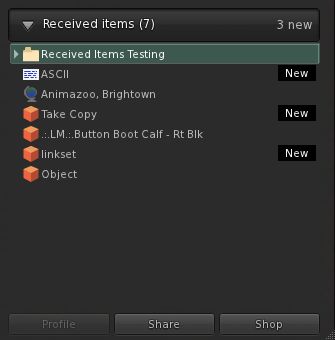
Recently received items tagged as “New” (click to enlarge)
Recently received items will be tagged as “New” in Received Items, helping with identification (right)
Received Items provides almost the same degree of functionality for items it contains as the rest of your inventory. However:
You cannot directly rename items (i.e. right-click and select RENAME from the menu), although you can select the item’s Properties and rename it from there, if permitted
You cannot paste a copy of an object into Received Items (but you can obviously paste it into your main inventory panel wherever you like)
If you delete items from Received Items and they will go to your Trash, as usual. However, if you subsequently restore an item from Trash that was in Received Items – it will go to the most appropriate folder in your inventory (so a notecard will be restored to Notecards, a landmark to Landmarks, etc.)
Received Items as a Folder
Received Items seen as a folder in the RECENT tab (click to enlarge)
For those that like to use the RECENT tab in inventory, it is worthwhile pointing out that Received Items also appears here as a folder (although there is no corresponding folder in the main inventory view). The folder view has the same functionality as the panel, but offers an alternative way of viewing incoming items. The major difference between the two is, when viewed as a folder in the RECENT tab, Received Items does not display “New” against recently received items.
However, this will only last during your current SL session – as soon as you log-out from SL, the “Received Items” folder will vanish from RECENT, just like everything else, leaving you with just the Received Items panel to peruse the next time you log-in.
On the good side
Providing a single “point-of-entry” for new items coming into inventory may well ease the process of understanding how works inventory and getting newcomers started on good inventory husbandry and may encourage those who don’t engage in inventory housekeeping to do so… Which is not to say this new approach is without issues or necessarily preferable. Right now, it has to be said the negatives outweigh the positives.
On the poor side
There is no hierarchy to Received Items: Outside of items that are received into folders via their delivery mechanism (e.g. SLM or a scripted object), Received Items presents a “flat” view of incoming goods. This is liable to create a headache for some.
For example, many in the rental business put-out “for rent / sale” signs on their vacant parcel, and may add trees and other bits and pieces – up to and including houses and sim extenders on the parcel as well. Some or all of these get returned by the new tenant when the parcel is rented – and until now have gone to the Lost and Found folder, where they can be easily identified and disposed of.
But under the new system, all this now gets lumped-in with everything else the Estate Owner / Manager is receiving as well. This could get very onerous in terms of sorting through stuff and separating the wheat from the chaff.
There is no capability to sort / order / filter items: Obviously, the intention is for Received Items to be routinely cleared-down by users on receipt of incoming goods, no matter what the source. However, there are going to be times when – even with the best intent in the world, the Received Items panel is going to run the risk of getting choked – such as in the case of estate management as mentioned above, or where information is specifically requested via notecard (such as requests for product help) and so on. Even someone being away from SL on vacation for a week or to could come back to find their Received Items brimming. As such, it would be nice to offer people the ability to sort / order / filter contents.
Creates an artificial divide in inventory: The Received Items panel does tend to split inventory into two, and unless it is clearly and properly explained to the likes of new users, it could end up creating as main problems as it is intended to solve, particularly if new users are no encouraged to use it as intended, but simply allow incoming items to reside in the panel. Communication is the key here – and that’s not really LL’s strongest suit.
(Currently) does not appear to solve the capped IM problem: I have read from feedback elsewhere, but have been unable to verify myself, that this new approach doesn’t presently overcome the problem of goods failing to be delivered if IMs are capped. Whether this is because the code itself doesn’t contain a “fix” for doing so, or whether it’s actually not working as hoped, I can’t say. However, this is causing concern, and may still need to be addressed.
Opinion
There has been a lot of negative feedback from users on this new approach. Whereas Received Items was accepted for the forthcoming Direct Delivery system, people are questioning why everything now has to go into Received Items, rather than the more intuitive approach we currently have.
I personally can see both sides of the coin: as an established user, I’m very familiar and comfortable with the current behaviour – notecards coming in go to Notecards, landmarks to Landmarks, and so on. As such, I can only see this approach as being something of a step backwards – and I’m someone who is pretty obsessive about keeping my inventory sorted.
However, for new users, then the system – again with the caveat of “as long as it is properly explained” – offers a much easier-to-understand approach to the receipt of goods and items. At least initially. There is also the fact that it does present (or should eventually present) one consistent mode of behaviour for new items entering inventory – and consistent can be often be good.
The problem really is that this approach is one in which – yet again – established users appear are being faced with something that is definitely less intuitive and potentially useful than the current system in order to “improve” matters for the ever-elusive new user. Even for those (like me) who are obsessive about keeping inventory sorted, this approach adds an irritating additional level of management, simply because we do now have to faff around moving various received items around that once pretty much took care of themselves in the first instance.
As such, Received Items does run the risk of leaving people with the impression that the existing user community simply doesn’t figure in LL’s thinking, and how we use SL on a daily basis simply isn’t really understood. I could say more on that topic, but Saffia Widdershins already has, and very eloquently.
It’s been a little over two weeks since the Imprudence/Kokua team announced they’d be moving towards focusing on Kokua for future development, but work is progressing. On the 16th, ZATZAI (sean Greyhound) from the team put out a “small update” on progress, which reads in part:
Work continues on the new Kokua viewer. We’re moving forward using the v3.2 Linden viewer as a base, we feel this version of the viewer is stable enough and has solved enough of the UI problems from v2 that our users will be happy with it. It’s also what many of you recommended in previous blog comments and at our meetings. We’re currently focusing on releasing a stable viewer on at least three platforms, Linux 32bit, Linux 64bit and Windows 32bit. You can follow our progress by trying our experimental viewers if you’d like, but buyer beware, these are alpha viewers and you should read the warning label carefully before use. You’ll find the link to our experimental viewers page on our wiki below…
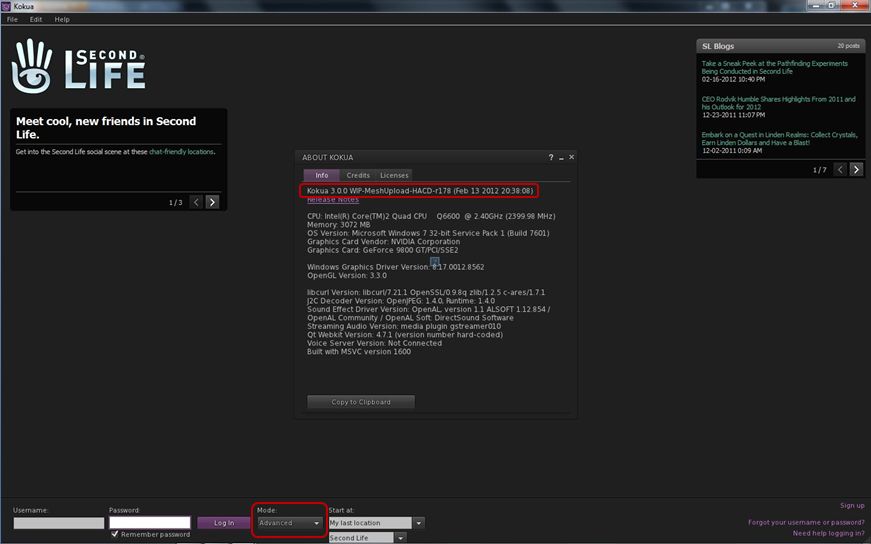
There follows a link to the Kokua wiki and links to the Windows and Linux release 3.0.0 downloads. However, before you get too excited, it should be pointed out that while the blog post refers to V3.2, the release available on the wiki, and the one immediately prior to it (0.1.1) are not based on the current V3.2 code, but rather on V3.0 code. Those installing and running either experimental will notice, for example, that the log-in splash screen still has the BASIC / ADVANCED mode toggle button.
Kokua *will* be moving to V3.2, but for now it is still based on V3.
I raised this point with ZATZAI, who was able to confirm after checking that, “The current Experimentals are indeed based on v3 … future ones (I don’t know how soon) will be based on 3.2+.” A clarification on the releases has since been posted on the blog entry itself.
So for those wishing to see a release of Kokua based on V3.2 code will have to wait just a little longer – and should keep an eye on both the blog and the wiki page!
How to Get Involved
For those who are further interested in the Viewer’s development, the team hold a weekly meeting every Wednesday at 20:00GMT on the Hoagie Sim in the 3rd Rock Grid. The meetings are for Dev and Project Contributor discussion and open to the public – although the meetings are not intended to deal with support issues. Transcripts of recent and past meetings cane be found on the wiki.
People can also join the Developer Mailing List (again: please note that this is not intended to deal with support issues).
Catznip R5 (3.2.1), available for Windows and Linux is released today with some rather smart features.This was apparently intended to be a maintenance release, but things grew as work progressed to the point where it became a release in it own right. It’s based on the V3.2.7 code base (“ish”, as the Catznip blog puts it), and so should include some of the latest Shining fixes from LL to reach the Viewer code repositories.
Installation
The Windows installer weighs-in at just a touch over 26Mb – par for the course for most V3.2-based Viewers nowadays, and installation is pretty much as expected as well. no unpleasant surprises, just accept the licence and away you go. As usual, I opted for a completely clean install, including the manual deletion of all user-related folders, although this isn’t listed as an explicit requirement for the release.
Mini (Location Bar) Moves
On start-up, everything appears pretty much as usual: the familiar V3.2 FUI, buttons ranged to the left and along the bottom of the screen, the mini-Destination Guide open by default. Nothing special here, it would seem. However, as we all know, looks can be deceptive.
That the Navigation Bar can be switched with the Mini-location Bar is common knowledge among V3 users. Usually when this is done, the Mini-Location bar replaces the Navigation Bar, occupying the same space beneath the Menu Bar, but shunted to the left of the screen, hence earning the name “mini”. However, Catznip offers-up more screen real-estate to users by placing the Mini-location Bar within the Menu bar and the top of the screen. Additionally, users have the options to hide either or both of the BUY L$ and the Marketplace SHOP buttons.
Navigation & Mini-location Bars in V3.2 and most V3 TPVs (top) and the Catznip approach (bottom), using the Menu Bar and with the Marketplace button hidden
Both the move of the Mini-location Bar (which will dynamically resize as the Viewer Window is resized) and the ability to hide the buttons are well-considered. The former gives a modest increase in screen real estate while the latter are likely to be appreciated by those who either don’t buy their Linden Dollars through the Viewer, or who prefer to access the Marketplace directly through a Browser bookmark. Moving the maturity rating to a clearly visible icon within the Mini-location Bar is also a smart move.
Chat and Spell
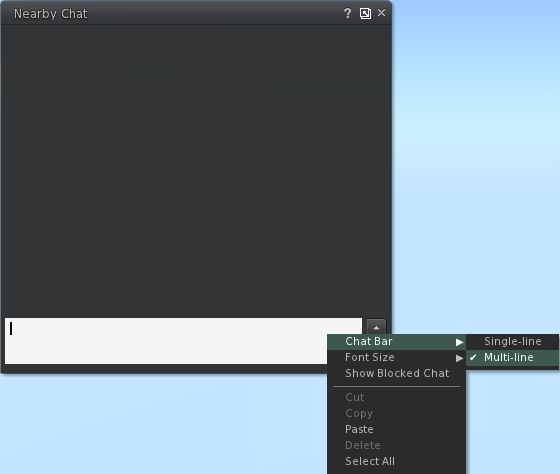
This release brings some nice additional options to Nearby Chat. Right-clicking on the Chat Bar itself reveals new menu items: the ability to switch between a single-line and multi-line chat bar and to change the displayed font size in Nearby Chat on-the-fly, together with the ability to reveal blocked chat (from muted avatars). Both the single/multi-line Chat Bar and the font size options will update the options in the relevant Preferences tabs (Catznip->Chat and Chat respectively).
New Nearby Chat options.
Alongside of these, although it is not at all obvious from using the Viewer, is a completely re-written in-line Spell Check. For those that aren’t aware, Kitty volunteered her services in order to bring the Spell Check to the official Viewer, and the re-write present in this release of Catznip represents part of this ongoing work. The core changes to the in-line checker comprise:
added : ‘Second Life glossary’ dictionary (enabled by default)
fixed : overwriting existing text won’t trigger a new spell check
fixed : opening an existing modifiable notecard doesn’t always show existing misspellings
fixed : scrolling through a notecard can hide all misspellings
fixed : squiggly lines aren’t centered on the misspelled word (fixed for LLTextEditor)
(from the Catznip blog)
Preferences Updates
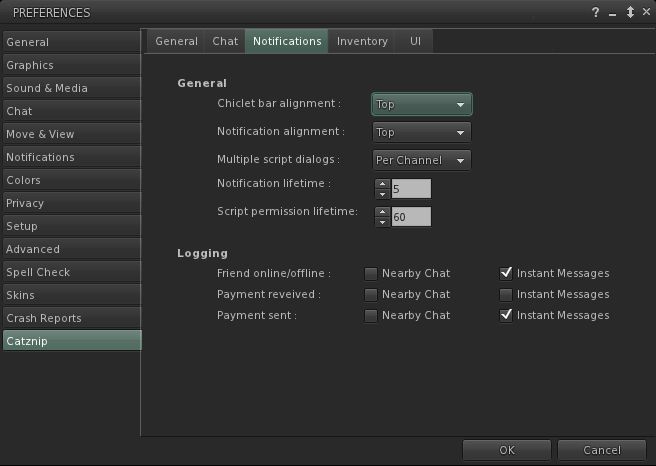
This release brings with it a tidy-up of the General settings tab in Preferences, and sees the Notifications options moved to their own sub-tab under Catznip, together with additional items, but little in the way of other major changes in layout.
New Notifications sub-tab
A lack of widespread updates to Preferences shouldn’t be seen as a sign that Viewer isn’t still growing a developing – as the next section shows, Catznip is being constantly enhanced. A stable Preferences floater is more a sign that the Viewer is maturing in a stable, smooth manner.
Script Recovery
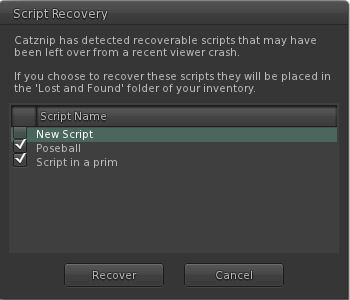
The major new addition to Catznip is the Script Recovery feature. To quote from the Catznip blog:
“Ever crash or get logged out while editing a script and then lose all your work?
“Following a crash or forced disconnect you’re now presented with a dialog offering to recover the scripts you had open.
“This works for all scripts, everywhere, and as we found out while trying to take the screenshot for this release, is very robust and persistent. It won’t go away till you either recover or dismiss it .. even if you crash.”
Catznip Script Recovery floater (with thanks to the Catznip team)
Script Recovery works by locally auto-saving open scripts every 60 seconds. Should the Viewer crash, scripts are presented to the user via the floater shown above, and optionally recovered to lost & found folder. Further:
The backup copy is only saved when the editor isn’t pristine
The backup copy is removed when the script has been successfully uploaded, or when the floater is closed.
Once would anticipate this finding favour among scripters, and is liable to be picked up by other TPVs down the line. However, full kudos and credit to Kitty and the Catznip team from bringing it into being.
Other Nips and Tucks
RLVa is overhauled with this release, with a number of FUI-induced bugs being eliminated. Specific updates include:
changed : flipped “RLVaEnableSharedWear” on by default
fixed : disabling a toolbar button doesn’t block the button’s commit signal
fixed : LLFloaterReg::toggleInstanceOrBringToFront() bypasses the blocked folder list and the validation signal
fixed : region “alerts” aren’t show location or show names filtered
fixed : various issues and enhancements relating to @showloc
fixed : the RLV API renames “Avatar Center” to “Root”
(from the Catznip blog)
Group Moderation gets a Catznip boost – with this release it is possible to directly remove someone from a Group by opening the Group Participants list and right-clicking against an individual name – the eject option will appear in the context menu.
There are a number of other nips and tucks to the Viewer which can be seen listed in the official blog post on the release.
Performance and Opinion
Based on 3.2.7 (or thereabouts), this release of Catznip runs extremely well on my standard PC; in fact, Catznip, as with Exodus, has tended to run somewhat better than other TPVs as a rule anyway; I’ve no idea why – it simply seems to like my PC. This release tends to continue the trend, and puts Catznip, tested against the current 3.2.6.248086 V3.2 release on the same sim with the same avatar load (albeit with different screen layouts, yadda, yadda), gave a pretty good run for itself in default mode – averaging some 32-33fps on the ground with 5 other avatars on the same sim while about 8-10fps faster at 390m. Enabling deferred and shadows easily halved these figures – with ground rates only just managing to stay in double figures.
Overall, another release that solidly builds on Catznip’s reputation, and which includes another series of smartly convenient extras that make the UI even more convenient to use in terms of direct access to functions and options. Not being a hard-core scripter, I have no idea how often crashes feature in terms of lost work, but as stated above, those that script from directly within the Viewer are liable to appreciate the Script Recovery function should they find their Viewer vanishing on them unexpectedly.








 Inara Pey: Living in a Modemworld