Catznip R5 helps claw back your lost work

catznip logoCatznip R5 (3.2.1), available for Windows and Linux is released today with some rather smart features.This was apparently intended to be a maintenance release, but things grew as work progressed to the point where it became a release in it own right. It’s based on the V3.2.7 code base (“ish”, as the Catznip blog puts it), and so should include some of the latest Shining fixes from LL to reach the Viewer code repositories.

Installation

The Windows installer weighs-in at just a touch over 26Mb – par for the course for most V3.2-based Viewers nowadays, and installation is pretty much as expected as well. no unpleasant surprises, just accept the licence and away you go. As usual, I opted for a completely clean install, including the manual deletion of all user-related folders, although this isn’t listed as an explicit requirement for the release.

Mini (Location Bar) Moves

On start-up, everything appears pretty much as usual: the familiar V3.2 FUI, buttons ranged to the left and along the bottom of the screen, the mini-Destination Guide open by default. Nothing special here, it would seem. However, as we all know, looks can be deceptive.

That the Navigation Bar can be switched with the Mini-location Bar is common knowledge among V3 users. Usually when this is done, the Mini-Location bar replaces the Navigation Bar, occupying the same space beneath the Menu Bar, but shunted to the left of the screen, hence earning the name “mini”. However, Catznip offers-up more screen real-estate to users by placing the Mini-location Bar within the Menu bar and the top of the screen. Additionally, users have the options to hide either or both of the BUY L$ and the Marketplace SHOP buttons.

Navigation & Mini-location Bars in V3.2 and most V3 TPVs (top) and the Catznip approach (bottom), using the Menu Bar and with the Marketplace button hidden

Both the move of the Mini-location Bar (which will dynamically resize as the Viewer Window is resized) and the ability to hide the buttons are well-considered. The former gives a modest increase in screen real estate while the latter are likely to be appreciated by those who either don’t buy their Linden Dollars through the Viewer, or who prefer to access the Marketplace directly through a Browser bookmark. Moving the maturity rating to a clearly visible icon within the Mini-location Bar is also a smart move.

Chat and Spell

This release brings some nice additional options to Nearby Chat. Right-clicking on the Chat Bar itself reveals new menu items: the ability to switch between a single-line and multi-line chat bar and to change the displayed font size in Nearby Chat on-the-fly, together with the ability to reveal blocked chat (from muted avatars). Both the single/multi-line Chat Bar and the font size options will update the options in the relevant Preferences tabs (Catznip->Chat and Chat respectively).
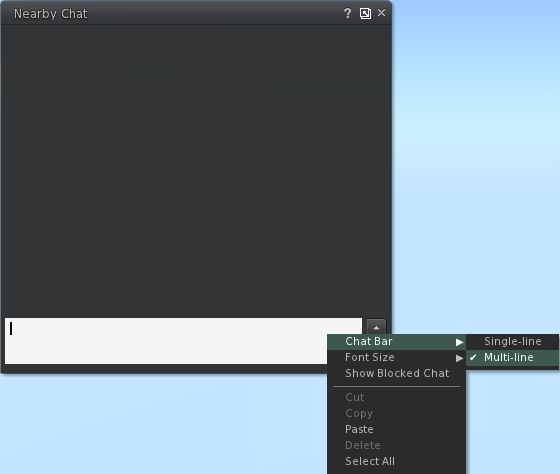
New Nearby Chat options.

Alongside of these, although it is not at all obvious from using the Viewer, is a completely re-written in-line Spell Check. For those that aren’t aware, Kitty volunteered her services in order to bring the Spell Check to the official Viewer, and the re-write present in this release of Catznip represents part of this ongoing work. The core changes to the in-line checker comprise:

  • added : ‘Second Life glossary’ dictionary (enabled by default)
  • fixed : overwriting existing text won’t trigger a new spell check
  • fixed : opening an existing modifiable notecard doesn’t always show existing misspellings
  • fixed : scrolling through a notecard can hide all misspellings
  • fixed : squiggly lines aren’t centered on the misspelled word (fixed for LLTextEditor)

(from the Catznip blog)

Preferences Updates

This release brings with it a tidy-up of the General settings tab in Preferences, and sees the Notifications options moved to their own sub-tab under Catznip, together with additional items, but little in the way of other major changes in layout.
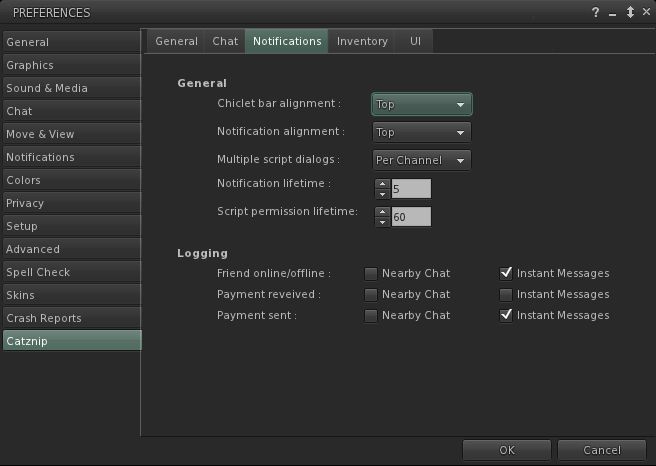
New Notifications sub-tab

A lack of widespread updates to Preferences shouldn’t be seen as a sign that Viewer isn’t still growing a developing – as the next section shows, Catznip is being constantly enhanced. A stable Preferences floater is more a sign that the Viewer is maturing in a stable, smooth manner.

Script Recovery

The major new addition to Catznip is the Script Recovery feature. To quote from the Catznip blog:

“Ever crash or get logged out while editing a script and then lose all your work?

“Following a crash or forced disconnect you’re now presented with a dialog offering to recover the scripts you had open.

“This works for all scripts, everywhere, and as we found out while trying to take the screenshot for this release, is very robust and persistent. It won’t go away till you either recover or dismiss it .. even if you crash.”
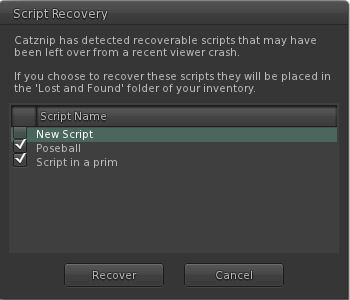
Catznip Script Recovery floater (with thanks to the Catznip team)

Script Recovery works by locally auto-saving open scripts every 60 seconds. Should the Viewer crash, scripts are presented to the user via the floater shown above, and optionally recovered to lost & found folder. Further:

  • The backup copy is only saved when the editor isn’t pristine
  • The backup copy is removed when the script has been successfully uploaded, or when the floater is closed.

Once would anticipate this finding favour among scripters, and is liable to be picked up by other TPVs down the line. However, full kudos and credit to Kitty and the Catznip team from bringing it into being.

Other Nips and Tucks

RLVa is overhauled with this release, with a number of FUI-induced bugs being eliminated. Specific updates include:

  • changed : flipped “RLVaEnableSharedWear” on by default
  • fixed : disabling a toolbar button doesn’t block the button’s commit signal
  • fixed : LLFloaterReg::toggleInstanceOrBringToFront() bypasses the blocked folder list and the validation signal
  • fixed : region “alerts” aren’t show location or show names filtered
  • fixed : various issues and enhancements relating to @showloc
  • fixed : the RLV API renames “Avatar Center” to “Root”
(from the Catznip blog)
Group Moderation gets a Catznip boost – with this release it is possible to directly remove someone from a Group by opening the Group Participants list and right-clicking  against an individual name – the eject option will appear in the context menu.
There are a number of other nips and tucks to the Viewer which can be seen listed in the official blog post on the release.

Performance and Opinion

Based on 3.2.7 (or thereabouts), this release of Catznip runs extremely well on my standard PC; in fact, Catznip, as with Exodus, has tended to run somewhat better than other TPVs as a rule anyway; I’ve no idea why – it simply seems to like my PC. This release tends to continue the trend, and puts Catznip, tested against the current 3.2.6.248086 V3.2 release on the same sim with the same avatar load (albeit with different screen layouts, yadda, yadda), gave a pretty good run for itself in default mode – averaging some 32-33fps on the ground with 5 other avatars on the same sim while about 8-10fps faster at 390m. Enabling deferred and shadows easily halved these figures – with ground rates only just managing to stay in double figures.

Overall, another release that solidly builds on Catznip’s reputation, and which includes another series of smartly convenient extras that make the UI even more convenient to use in terms of direct access to functions and options. Not being a hard-core scripter, I have no idea how often crashes feature in terms of lost work, but as stated above, those that script from directly within the Viewer are liable to appreciate the Script Recovery function should they find their Viewer vanishing on them unexpectedly.

Links

Firestorm Maintenance Release 3.3.0

firestorm-logoTuesday February 7th saw the resumption of The Phoenix Hour broadcasts via Metamix TV. Given the sim was full and the stream hit a capacity limit, I’m guessing the show was somewhat eagerly awaited. As I couldn’t get either into the sim or onto the stream, feedback on the show will have to wait until it is available on the Metamix channel and I’ve had a chance to watch it.

In the meantime, and coinciding with the show, a Maintenance Release of Firestorm was made – 3.3.0.24880. Here’s a quick overview of the elements that caught my attention.

Points of Note

  • There is an impressive list of additions, changes and fixes for the release, as well as a number of known issues. You are advised to read-up on the latter prior to installing
  • It is recommended that you do a completely clean install of the release
  • This release does not include the V3.2 FUI from LL – that’s coming down the road (see below) so far as I can tell, the parametric deformer also isn’t a part of the release.

Particle Editor and Other Highlights

While I’m not going to launch into a full review – I’m saving that for when the FUI version of Firestorm arrives – this release includes a number of cool bits worth mentioning. Most notably among them is Zi Ree’s client-side particle editor, which has been the cause of some angst having been released ahead of Firestorm (for which it was specifically being developed) within the Zen Viewer.

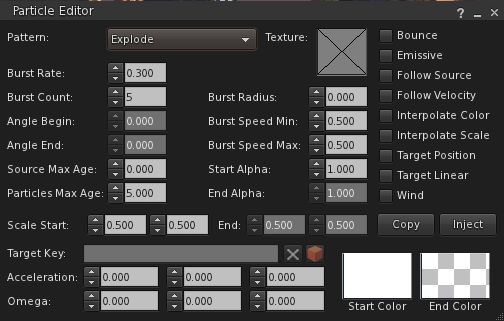
There is a comprehensive guide to using the particle editor on the Firestorm wiki, so I’m not going to delve massively deeply into it here. All I will say is, full kudos to Zi for making it so ridiculously easy, even I can understand it and play with particles…

New particle editor

Another nifty addition from Zi that builders are likely to find handy is the BUILD->DUPLICATE option (CTRL-D). This allows builders to immediately duplicate any prim or linkset they’ve created – hand on repetitive builds.

Inventory gains the ability to search by creator, UUID, description and ALL and filter options to display Links, hide Links or hide everything else but Links to the inventory gear menu.

Estate owners / managers also get some useful updates with this release by way of Ansariel Hiller:

  • ALT-R will now open the Region / Estate floater
  • The TOP OBJECTS floater (from the DEBUG tab of the Region / Estate floater) now includes a button allowing Estate owners / managers to teleport to offending objects

Camera smoothing is also now in the Move / View tab of Preferences, as is the ability to adjust the transition time for shifting focus, while the camera View Angle is updated to allow the entry of numerical values – all options machinimatographers should find useful. The transition time option is something I first encountered in Niran’s Viewer, and really like, especially when exploring SL and appreciating the sights I find – so it’s good to see it in Firestorm.  I also particularly like the options to disable some of the more annoying notifications thrown out by the Viewer during routine operations.

There are even a couple of new skin options: Firestorm High Contrast and also Vintage  – the latter of which harks back to V1 in terms of button colours and presentation.

And all this just scratches the surface of a lot of effort by many within the team to add features and enhance the Viewer’s overall capabilities – kudos to all.

Performance

Given this is a maintenance release, I wasn’t expecting to see the kind of dramatic improvements I’ve been fortunate to experience with other Viewers, Shining Fixes notwithstanding – and that’s pretty much the case. Overall, through nigh-on three hours of playing with the Viewer and leaping around the place, banging prims together and generally poking my nose in and seeing what happens, performance has been pretty much on a par with the 3.2.2 release, with the occasional boost in fps when shadows are enabled. Shadows themselves also seem to render more crisply with this release, although that could simply be a trick of my eyes.

Crash-wise, outside of the issues listed by the team, I did initially have some problems running with shadows active in that clicking the PEOPLE button with deferred & shadows active initially caused me to crash several times. As the problem later went away, I’m assuming it may have been either issues within my PC, or possible issues with the sim I was on at the time.

Overall, this is a worthwhile update to Firestorm – although a read-through of the known issues is well advised.

You can get your copy via the Firestorm wiki.

And for those awaiting the arrival of the V3.2 FUI in Firestorm, here’s a teaser from the team:


Kokua to move ahead

kokua-logoThe development of the Kokua and Imprudence Viewers has been somewhat stalled for several months for a wide range of reasons, all of which are understandable given the voluntary nature of Viewer development in general.

At the end of January 2012, the Kokua / Imprudence team held an open meeting at which the future of both viewers was discussed, and following this, a blog update was put out summarising the conclusions reached, and which reads in part:

We’re going to continue to develop Third Party viewers with a focus on cross supporting Second Life and OpenSim/Aurora. However we’re going to focus on Kokua in the future, the ultimate fate of Imprudence is still undecided though as we may push for a final 1.4 release but nothing that takes up too much of our time. Kokua will use Second Life v3.2 as a base, we feel the LL code for v3.2 has matured greatly beyond v2 and v3 and we’ll of course make our own modifications to it to make it more “purple” in flavor. It is also our intent to finalize the name change from Imprudence to Kokua, Imprudence and Kokua are separate viewers and the project has historically been called the Imprudence project. The intent was to switch from Imprudence to Kokua as the next generation client was released but it has been dragged out for quite a while now and caused confusion, so we’re going to finish the change over to Kokua.

This is excellent news for the SL TPV / OpenSim worlds, as Imprudence has long had an outstanding reputation for usability and has been popular across the wider metaverse (may of us who bounce between SL and other grids find it to be our Viewer of choice when outside of SL). That the expertise that has made Imprudence so popular and so capable a Viewer is now being brought to bear on the V3.2 FUI and capabilities is good news and means that both OS and SL stand to gain given wider choice in Viewer options.

Of course, many will lament what amounts to the eventual passing of Imprudence – but again, all Viewer development is only voluntary, and teams / devs must move in the direction that they feel is most appropriate for them in terms of building and maintaining a viable Viewer and it would be unfair to chastise the Kokua  / Imprudence team for their decision.

Work will, for the forseeable future, focus on Windows (32-bit) and Linux 32-bit & 64-bit), although it is hoped both Windows and Mac 64-bit options will be available “down the road” – with the further caveat that Mac development is dependent upon the team gaining a Mac developer. Sounds reasons are given for not focusing on a Windows 64-bit version from the off, although the 32-bit version will have SSE optimisation.

Alongside the core work on the Viewer, the Kokua / Imprudence blog & forums are liable to see an overhaul in the near future as well.

As well as the blog post on the subject, you can also read the full transcript of the meeting, if you were unable to attend.

Visual Auto-mute: a farewell to ARC/ADW upsets?

A new set of functions has been released by LL as a changeset, and is starting to find its way into SL Viewers.

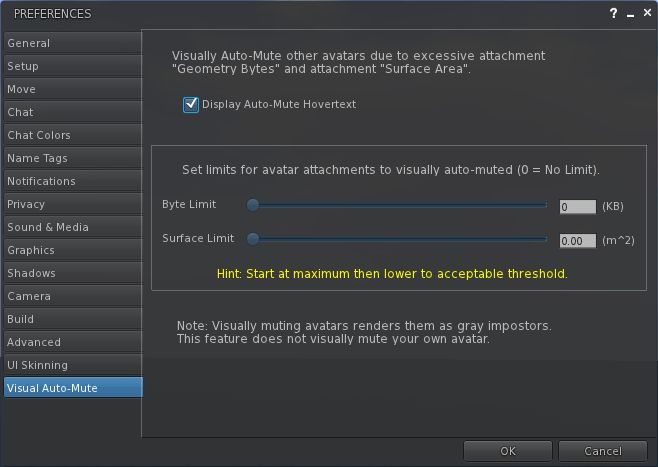
Essentially, this functionality allows you to set thresholds above which avatars with a very heavy load (high-res textures, complex attachments (multiple prims, flexi prims, sculpts, and what have you), etc., – but not scripts, which are a completely different kettle of fish) will not be rendered by your Viewer. Instead, such avatars will appear as “grey ghosts”, similar to when they’ve been muted; however, IMs and chat can still be exchanged. This should theoretically reduce the load placed on the Viewer and a your system in terms of rendering, and lead to an improved SL experience.

It’s important to note that the functions only affect how such avatars are rendered in your world-view; they will still render normally in their own view, and for anyone who hasn’t set thresholds / has higher thresholds than you. Also, your avatar will remain visible in your view, no matter how you set the limits.

The thresholds are governed by two functions, initially released by LL as a set of debug settings:

  • RenderAutoMuteByteLimit – Maximum bytes of attachments before an avatar is automatically visually muted (0 for no limit)
  • RenderAutoMuteSurfaceAreaLimit – Maximum surface area of attachments before an avatar is automatically visually muted (0 for no limit)

These currently require numerical values to be entered. However, it is possible that they’ll find their way into at least some Viewers as Preferences options, possibly using sliders. Zena Juran has already opted for this approach with the latest release of the Zen Viewer (below).

Visual Auto-mute as presented in the Zen Viewer

The functions are supported by a new addition to the Develop menu: Render MetaData->Attachment Bytes. When active, This displays a set of figures over / near avatars, which can be used to help you to determine the byte and area thresholds you should set.

Rendering Metadata->Attachment Bytes display enabled

The approach has already come in for considerable discussion on the SLU forum, where opinion seems to be weighted towards the favourable.

Certainly, it can’t be denied that avatars can impact Viewer performance enormously, so any moves that enable the user to have a greater degree of control over what is hurting their SL experience is potentially a good thing. But lag is a very sensitive subject – as anyone who has encountered upsets in the past due to people using ARC as a Big Stick can testify.

This approach would appear to be a lot more beneficial than something like ARC and its successor, Avatar Draw Weight (or ADW) are concerned, as it should hopefully reduce the amount of finger-pointing and hostility that goes on when people have arbitrary figures in red floating over their heads like a glaring accusation of wrong-doing.

It’s also somewhat friendlier than the other alternative to “blocking” “overloaded” avatars: that of audio mute, which denies any communications capabilities where some might be preferred and which can, if done on a group basis, leave a poor soul ostracised in silence with no idea why.

There are, however, some drawbacks. On the minor side, it is possible that setting the options when entering a popular venue may well result in you finding one or more friends around you turn into grey ghosts  – or that you end-up greyed-out in their view. This might in turn result in strained relations, but shouldn’t really be anything reasonable people can get past – and even joke about privately.

This isn’t necessarily a “one size fits all” solution as well; it is possible that, depending on the type of venues a person visits (in terms of popularity popularity, nature of the activities carried out, etc.), the thresholds may need adjusting from time-to-time in order to gain the best benefits / compromise in terms of performance benefits and visual appeal. This may limit the scope to which the new functions are used, as people are not always willing to fiddle around with sliders as they teleport around SL.

It also needs to be remembered that avatars aren’t the only load placed on the Viewer, and using functions like these might not help tremendously when moving around an environment that has dozens upon dozens of high-resolution textures all over the place (such as a store or mall). In this regard, the effectiveness of the system needs to be balanced against alternative approaches (such as the use of avatar imposters, or by simply turning-down your draw distance and turning down / off various options within the Viewer Preferences) in order to improve one’s in-world experience.

The biggest question-mark over the new controls, however, is that of effectiveness. If the results of playing with the new options is an improvement of a couple of fps in overall performance and/or a very slight improvement in rendering time, then it is unlikely that they are going to gain a lot of traction. But if people see a demonstrable improvement in their overall experience, then it is liable that the functions are going to prove more popular.

That said, anything tha moves us further away from the finger-pointing extremism that has been the plague of ARC /ADW, has to be a step in the right direction, doesn’t it? One possible benefit from this approach is a greater awareness and consideration of just how one’s own avatar might be impacting other people’s experience within SL, simply by seeing that it exceeds the thresholds one is setting against other avatars.

Well, one can hope, can’t one?

Taking stock of Inventory: LL ask for feedback

ProductTeam Linden (who he/she? is it Rhett in disguise?) has posted to the Technology Forum about a new option for presenting Inventory within the Viewer. Apparently, when the Viewer was split between the Basic and Advanced modes, moves were made to try to improve / simplify inventory presentation, but they never made it to a final cut of the Viewer.

Now they have, and Linden Lab is asking for feedback. The announcement reads in part:

For new users, managing and understanding inventory is often challenging. Drag and drop over large inventories can be problematic and daunting. New users are often confused about the meaning of certain system folders.

Today we have released a Project Viewer beta that includes this simplified presentation of inventory as an option. Before we consider any widespread changes to inventory, we want to know what you think about the Simple Inventory UI, noting that the target user is someone just starting out.  

The Simple Inventory UI offers new users:

  • A simple display presenting only one folder at a time
  • Improved wayfinding and findability
  • Faster load of inventory items

The article then invites users to download a Project Viewer which includes the new Inventory presentation, and to provide feedback (via the SL forum), with any bugs that are found logged in the SINV Project JIRA. In doing to, the article notes:

It’s important to note that Simple Inventory was intended for Basic mode before Basic and Advanced modes were merged. It is still experimental and so it is unclear how it will function with extremely large Inventories, so if you have a large Inventory we don’t recommend using Simple Inventory as your only view. 

There are also some incomplete features and some known issues, again as LL note.

So, what is it like? As I have a fairly extensive inventory that (if I say so myself) is well-managed and ordered that I’m in no mood to mess with, I tapped my CTA (Crash Test Alt) on the shoulder and took the Project Viewer for a spin.

Quick Tour

The Viewer has an initial release number of 3.2.8 (248008), and installs into is own folder but shares the standard cache and user folder locations as all other SL installations. Once started, the Viewer has the same funky blue/teal UI as the DD Project Viewer – so I assume this is to provide a simple means of recognising that you’re running a Project Viewer. Otherwise, the Viewer looks and behaves like a “normal” release.

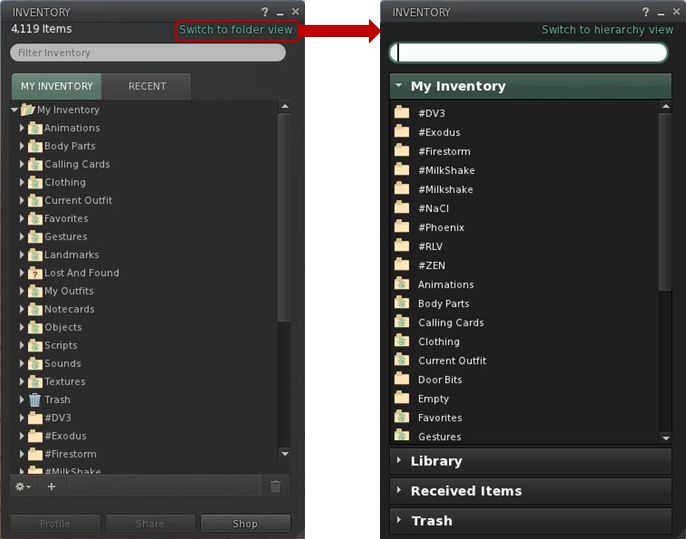
Opening Inventory initially reveals a familiar panel (for those that use the official Viewer), but one with a new SWITCH TO FOLDER VIEW link in the top right corner (below left). Clicking this brings-up the revised layout (below, right).

Inventory: from hierarchical view to folder view

Key points of the new layout:

  • Inventory is divided into clear sections: MY INVENTORY, LIBRARY, RECEIVED ITEMS (for the forthcoming Direct Delivery) and TRASH
  • You can have more than one section open at a time
  • Sections can be resized by hovering the mouse at the bottom of an open section so the cursor changes to a double-headed arrow. Click and hold the left mouse button to drag the sections beneath the open section up/down
  • Within a section, folders and contents are listed alphabetically (so system folders do not appear at the top of MY INVENTORY by default, and folders are not sorted to the top when mixed with objects)

As the view is not intended to be hierarchical, there are no arrowheads to the left of folders or any ability to open them within the displayed panel. Instead, opening a folder is now achieved in one of two ways:

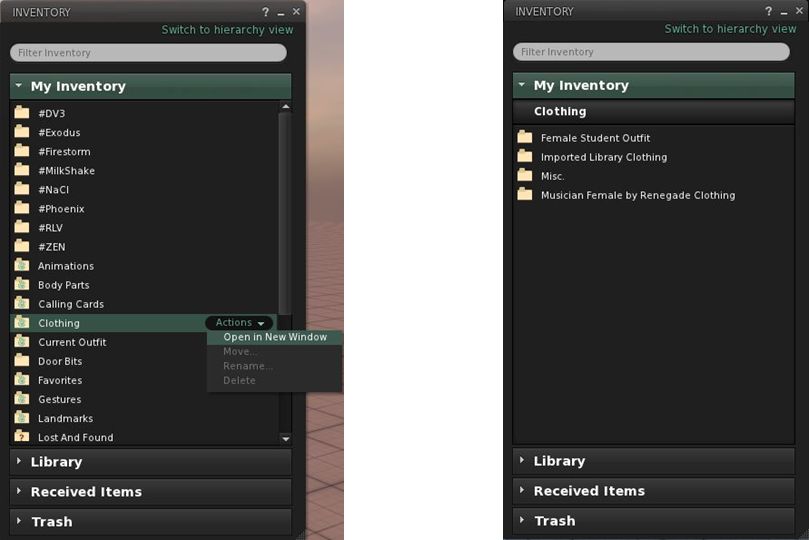
  • You can hover the mouse over a folder to highlight it with an ACTIONS option. Clicking this will displays context menu from which you can select OPEN IN NEW WINDOW (below, left)
  • You can double-click on the folder and have a new view of the contents slide neatly into the existing panel, replacing what was already there.

Note that to prevent accidents, system folders automatically have the options to move, rename or delete them disabled.

Whether you opt to open folders in a new window, or display them in the existing panel, the end result is the same in terms of what you see (below, right).

Opening folders: either hover the mouse over the folder and Click ACTIONS for a menu (l) or double-click a folder. The contacts will be displayed (r)
Inventory breadcrumbs

If you opt to drill down through your folders by opening each in a new window, then navigating back and forth is a relatively simple matter of swapping between windows and closing those you’ve finished with.

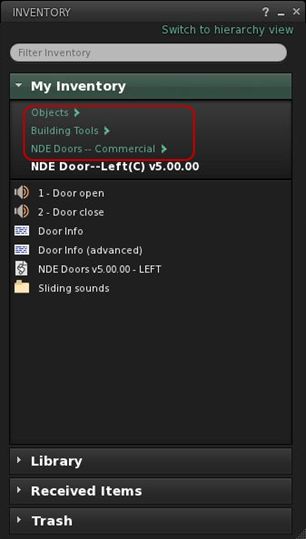
However, the system also makes it possible you to navigate up / down a set of nested folders within a single panel by adding breadcrumbs to the top of the panel (right) as you open each successive folder, allowing you to navigate back up the tree. At the same time, hovering the mouse over MY INVENTORY will reveal another ACTIONS option from which you can elect to go BACK TO TOP FOLDER.

Once in a folder, items can be highlighted and the ACTIONS menu used to manipulate them (e.g. wear, move, rename, delete) – again displayed options are context-sensitive (so if you are wearing an item, that option is not displayed, for example).

You can move items around your inventory in several ways:

  • Use the ACTION menu to select MOVE for an item / folder. This opens an additional window in which you can navigate to your desired destination (double-click through the required folders), before clicking MOVE TO SELECTED FOLDER to finish the task
  • You can also simply drag-and-drop items / folders within a panel
  • You can drag-and-drop between inventory windows
  • You can drag-and-drop between sections (between RECEIVED ITEMS and MY INVENTORY, for example) – the destination section does not have to be expanded in order to do so.

A couple of things I did notice during testing were that a) worn items are not highlighted / indicated in any way and b) there is no option to remove / detach a worn item. There also appears to be a bug, as selecting WEAR appears to ADD the selected item to your avatar, rather than replacing anything already worn – my CTA ended up clumping around in two pairs of boots….

Feedback and Thoughts

I don’t really have any issues with the functionality presented here per se. It works OK, the overall layout within a panel is fine, and (known issues and bugs notwithstanding), it all works pretty much as expected. There do appear to be some issues that do need addressing, however, and as LL asked for feedback on the system as presented (and allowing for the fact it is only an initial iteration, here’s mine:

  • Add the ability to see what is actually being worn or is attached to the avatar within the Folder View
  • As most people are likely to be moving folders from RECEIVED ITEMS to MY INVENTORY, it would make sense to move RECEIVED ITEMS above LIBRARY, to reduce the chances of a mis-click dropping items into the Library section
  • As currently supplied, the functionality is perhaps a little too limited – no ability to create sub-folders, for example, so the ability to organise one’s inventory is  restricted to drag-and-drop into whatever is already there
  • Don’t be afraid of using menu options at the top of the inventory panel (File, Create, Sort, etc.) – they are lot more intuitive for users new or established than having options buried behind obscure “+” symbols and cog-wheel icons.

Also, if it is intended provide both views (Hierarchy and Folder) within the inventory panel of the a release Viewer at some point in the future, then I’d also suggesting ensuring that the top-level folder presentation is consistent between them (i.e. scrap the “system folders to top” default in favour of an alphabetical listing for the Hierarchy View), as this will assist familiarity in switching between views.

Thoughts

Candidly speaking, this alternative presentation comes across as yet another Linden curate’s egg. On the one hand, it cannot be denied that there are issues around how the inventory panel functions (the “high-speed scrolling” that can occur when trying to move an item from one folder to another, for example), and that things could be improved in terms of presentation. On the other, this approach is perhaps a little too simplistic to make a valid judgement at this point; too much functionality has been stripped away. Looking at it in the form presented, it’s hard to see the direction in which it’s liable to grow (if any) – which I think may be the issue LL are having, hence the low-key call for assistance.

I also cannot help but think LL “misunderestimate” new users here. While people are new to SL, it’s doubtful they are new to computers and things such as file management tools like Windows Explorer and the Mac Finder. After all, they’ve managed to find their way online, navigated the web to the SL website, found the Viewer download link, downloaded the Viewer, found the installer on their computer and installed it… As such, is understanding the nuances of inventory management that big an issue for them? I’m not convinced.

That said, there are undoubted benefits in some aspects of what is presented here: a “flat file” view may well be more to some people’s liking (providing it is better integrated with a hierarchical view as well), and the use of a pop-up “move” window could be preferable to some than relying on drag-and-drop – and it’s good to provide alternatives. I just can’t escape the feeling the perhaps LL are missing an opportunity. Given most people are liable to be familiar with the likes of Explorer and Finder, why not grab the bull by the horns and make inventory more approachable by presenting it in a similar manner to those tools – perhaps a two-panel display, with scrollable hierarchical view to the left, open folder view to the right with the associated drag-and-drop capabilities?

I’m not saying it would be easy to do (or even necessarily a short-term development). but were it possible to achieve, I’d venture to suggest it would meet with significant approach from established and new users alike.

I’ll certainly be keeping my eye on this to see how things develop. In the meantime, and given feedback is being sought, if you’ve not already taken a look at the Project Viewer, I’d encourage you to do so & pass your thoughts / suggests to LL via the forum.

Restrained Love, Dolphin 3 and Niran’s updated

This week has seen a number of TPVs updated. Rather than dwell interminably on each of them, here’s a rapid rundown, based on the individual blog entries for the three Viewers.

Restrained Love Viewer

Release 2.8.3 brings with it many bug fixes and:

Added

  • New keyboard shortcuts for builders (they are also added to the Build > Options sub-menu):
    • – Alt+W to edit linked parts
    • – Alt+T to set to stretch textures
    • – Alt+B to set to stretch both sides
    • – Alt+R to set to set grid mode to World
    • – Alt+F to set to set grid mode to Local
    • – Alt+V to set to set grid mode to Reference
    • – Alt+G to set to set current selected object as Reference and set grid mode to Reference
  • Debug setting “RenderMeshDeformed” to switch Qarl’s parametric alpha mesh deformer on and off (it is off by default
  • LL’s patch for the new inventory features (i.e. no accidental nudity)
  • Allow to click in-world while in Mouselook mode, even when your controls are taken, but only while pressing Alt

Fixed

  • Inventory offers were unreadable (the Show button used to overwrite the URL), same for teleport offers
  • Shift+Right-click on an object in world failed to open it
  • In Mouselook mode, we could only click on something or fire with a gun once
  • RLV_50: Fix to the alignment tool in the Build floater is broken (thanks given to Lance Corrimal and Jonathan Yap)
  • RLV_52: another avatar sitting down while in ML resets my camera (with thanks to Lance Corrimal)

Changed

  • Unable to be force TPed when in Busy mode.

Links

Dolphin Viewer

Version 3.2.4.22939 brings with it:

  • The main inventory tab can now show or hide links, or show only links (the recent and worn tabs always hide links). Switch it on via the Inventory gear icon
  • The use of private memory pools has been switched off. If you notice more crashes than before, switch it back on with the Debug setting “MemoryPrivatePoolEnabled” and let Lance know (via a post on the forum)
  • This version of the Dolphin Viewer 3 does not send “LookAt” data anymore, if you switch on “Do not point at objects” (Preferences->Dolphin Viewer 3->Miscellaneous). Lance notes that, “The options to have the LookAt / PointAt crosshairs on-screen will be gone in the next release, unless someone points out good use cases for having them that are not based on drama or paranoia.”
  • The inventory patch recommended by Oz Linden has been implemented – no “accidental nudity” for Dolphin Viewer 3 users
  • Updated to RLV 2.8.2.1
  • When you take a Snapshot to disk using the keyboard shortcut CTRL-SHIFT-D, it uses the file format that you selected for your last “snapshot to disk” from the snapshot floater
  • The check boxes for switching AutoCloseOOC and AllowMUpose are back in Preferences->Dolphin Viewer 3->Miscellaneous
  • The linux version of the Dolphin Viewer 3 now uses dbus calls in the secondlife: handler script to send SLurl to whichever viewer is running at the time. Lance comments, “This is not available on 64-bit Windows, so please vote for VWR-28073 and VWR-28074. Thanks.”
  • The Windows installer should not use the term “Second Life” anymore anywhere in any language. It should read “The Dolphin Viewer 3″
  • Some Windows build issues have been addressed.
  • Fixes:
    • The tips of the handles of the Align tool in the Build toolbox point in the right directions
    • Sharing inventory items with more than one inventory window is open is now working correctly
    • The hovertip on the local chat bar mentions whispering as well
    • Previews of textures show the checkerboard pattern again under transparent areas. Lance notes: “This version still does this with the old deprecated OpenGL calls. The next version of Dolphin Viewer 3 will do it “right”, thanks to Shyotl from Singularity”
    • Fixed: the “Preview As” dropdown in the texture upload preview is not covered by the texture anymore.

Links

Niran’s Viewer

Release 1.12 brings with it:

  • New Build floater
  • Ability to select the use of your right arm when selecting / pointing / building
  • Revised pie menu
  • Ability to see UI when in Mouselook
  •  Shining updates.
Niran’s: UI visible in Mouselook (note ML crosshairs in the centre of the image)

The UI-in-Mouselook is interesting – NiranV mentions it as coming via Dolphin, but I’ve failed to notice it in that Viewer (or any other V3-based TPV) – not that I’m a major user of ML at the best of times and so may well have missed it if it is a debug setting (or I managed to skip the option in Preferences). It’s an interesting addition to direct 1st person use of the Viewer, especially given UI options can be accessed using the Alt key. For those who prefer a more traditional Mouselook view, the UI can currently be hidden using a debug command: AllowUIHidingInML.

As a semi-regular user of Niran’s Viewer, I have to say, I’m not totally convinced with the build floater changes (which need a small amount of tidying-up) on two counts. Firstly, because Niran’s is one of three Viewers I routinely use, and so the layout cuts against the other two – this is admittedly more *my* problem than the Viewer’s.

Secondly – and more importantly – while the “traditional” builder floater is getting increasingly crowded (and one could argue it does need a bit of a re-think), it does have a certain logical flow in the way information is presented – and scanned by the user. This is something that appears to have been lost in this initial presentation within Niran’s Viewer.

Links