Alchemy 3.7.23: hear, see, examine

Alchemy-logoAlchemy viewer made a Christmas Day release of their latest Beta, version 3.7.23.34447, on December 25th.

Described as being something of an interim release pending the next full release, the update sees the viewer maintain parity with the Lab’s code base (3.7.23). This means it should have recent Lab-driven updates such as the latest maintenance fixes. There’s also a number of tidy updates and tweaks as well.

The headline update on the Alchemy blog is the inclusion of FMOD Studio, which “provides the latest in 3D audio in gaming”. I didn’t in all honesty noticed that much of a difference switching between the same music stream while swapping between this release of Alchemy and the official SL viewer; but doubtless there is additional work under the hood to eliminate bugs and issues, and I believe the update may be offered as a contribution to the Lab.

The viewer also sees the following new additions:

  • A WORN tab in inventory – always useful to have
  • A nicely reworked Object Profile floater
  • A new Transaction Log (Me > Transaction Log), described as “useful for keeping short term track of tips, donations, and sales”)
  • The ability to “pop-out” profile pictures, as seen with some other TPVs, by clicking on them
  • A new status bar icon for Flycam use with the likes of Space Navigator
  • Inclusion of Qarl Fizz’s  Tree and Grass picker from the Inworldz Viewer.
The SL viewer Object profile floater and the Alchemy updated layout and additional information.

The Transaction Log is likely to be handy for those receiving regular indirect payments. Transactions are recorded across the current log-in session, and when I pulled an old tip jar script from inventory and dropped it into a prim cube, the log immediately recorded payments from my Alt just fine. Received payments are recorded in terms of time, name of payer and amount, and each can be ordered in ascending / descending order.

The new Flycam icon
The new Flycam icon – visible when Flycam mode is active

I’m not entirely convinced of the new Flycam icon, mainly because the “usual” button found at the bottom of the screen worked just fine, so this seems to be a change for change sake, rather than for any definable improvement. However, this is purely a personal observation, and the new icon appears in the top right corner of the status bar when the Flycam capability is in use with a Space Navigator.

Alongside of these changes, the release notes for the update offers bullet points on the remaining updates in the release, and the bugs which have been addressed. Rather than repeat things here, I’ll leave it to those interested in the viewer to take a poke at them.

One thing very worth the mention is that Linux users get a special treat with this release, as with it, Alchemy supports 64-bit Linux distributions.

And interesting, lightweight release (no bad thing given all the Christmas excesses people have been enjoying!), which probably hides a lot more work under the hood than is at first apparent. I’m curious to see what is in store with future releases for machinima makers and photographers, as it certainly sounds as if the Alchemy devs are cooking something up there. But in the meantime, this update should help keep Alchemy users happy.

Related Links

Firestorm meeting: SL Go explored

firestorm-logoOn Sunday, December 21st, The Firestorm Team held a short-notice meeting which focused on Firestorm and SL Go. The special guest for the event was Dennis Harper, OnLive’s Product Manager for SL Go, who provided commentary on the background to SL Go and OnLive, and addressed audience questions.

Chakat Northspring was on-hand to record proceedings. As usual, the video is embedded here, and a transcript of the Q&A session is provided. However, in the interests of brevity, the first part of the meeting is provided a summary format, rather than a full transcript. Time stamps are provided for key topic areas, and for the Q&A session, for those who would like to listen to any point of interest within the video. Note that dates mentioned in the initial conversation reference 2012 and 2013, in actual fact, these should be 2013 and 2014, as reflected in the text.

A Summary of the initial Conversation

This initial conversation on SL Go, OnLive and the relationship with Firestorm lasted some 35 minutes, and is summarised here. Some questions were asked during the discussion on topics such as privacy and payment options. For ease of reference these have been moved to the Q&A section and placed with other questions on the same topic. Time stamps are provided to the relevant part of the video (below).

How Firestorm Got Involved with OnLive SL Go

  • Gary Lauder, OnLive's Lead Investor (and company chairman at the time), approached LL's former CEO, Rod Humble, about OnLive providing SL to users through their service (Image courtesy of LinkedIn)
    Gary Lauder, OnLive’s Lead Investor (and company chairman at the time), approached LL’s former CEO, Rod Humble, about OnLive providing SL to users through their service (Image courtesy of LinkedIn)

    [0: 03:57] The OnLive / Linden Lab partnership came about as a result of OnLive’s Lead Investor (and at the time, Chairman), Gary Lauder, indicating he believed SL would be a good match for OnLive and then initiating contact with Rod Humble at the Lab in May 2013 (see my article on the launch of SL Go)

  • [0:0515] Initial closed beta testing commenced in October 2013, while Dennis Harper joined in November 2013, charged with getting the product published and launched. The occurred in March 2014, using the SL viewer, offering to Mac and PC systems and Android tablets
  • [0:05:25] The initial metered pricing plan wasn’t popular with users. However, OnLive launched with it as they really didn’t know what to expect. Their service costs money to provide (servers, data centres, network, support), and SL users are a very different type of user compared to games users, spending up to 10 times longer active on the platform compared to someone playing a game. Metered payments were seen as a means of balancing use against cost
  • [0:06:48] As the reaction to metered payments was bad, OnLive revisited things and in April changed the pricing model to one of unlimited use of the service for US $9.95 (UK £6.95) a month – and the service started gaining traction, Then in October, the service launched on the iPad
  • [0:07:25] OnLive had always been aware of Firestorm and its large market share of the SL user base, and it was felt that offering Firestorm through SL Go would be a good way to bring the OnLive experience to a wider audience
  • [0: 08:24] Jessica Lyon was initially unsure of the, but was convinced when Dennis pointed-out that a large take-up of SL Go was among users on low-end computer systems, who were finding the service gave them renewed access to the platform, complete with a rich graphical experience. As many Firestorm users on such low-end systems complain that each new update of the viewer is pushing them further and further out of SL, she felt that having Firestorm on SL Go could include them once more

SL Go is a Service

[0:12:59] The launch of Firestorm on SL Go drew some negative feedback from Firestorm users (and from elsewhere). However, it is important for people to remember:

  • SL Go isn’t intended to be another viewer offering like a TPV. It is a service intended to meet very specific goals:
    • To provide people who are on older, lower-specification systems with a rich, immersive Second Life experience comparable to that enjoyed by someone using a much more capable computer
    • To provide those who wish to have the same rich, graphic SL experience as supplied by the viewer when accessing SL from their Android Tablet or iPad
  • [0: 12:25] Dennis Harper is the first to admit that the service isn’t for everyone, but for those who might have a need for it, it is available on a 7-day free trial basis, so people have nothing to lose in giving it a go.

SL Go and the Firestorm Take-up

[0:13:40] Dennis describes the take-up of SL Go following the addition of Firestorm as “scary” and being like “the hockey stick term” in the way that there was gradual take-up up until the Firestorm launch, which saw a large substantial increase in initial adoption, as Firestorm users gave SL Go a try under the 7-day free trial offer. He also notes that there is an affiliate programme available for those wishing to refer people to the service via blogs, websites, etc., and earn money via referrals to the service.

[0: 15:32] There was an initial issue with the system as a result of the way the texture cache was being handled.

  • The SL viewer uses a default 512 Mb cache, which users rarely adjust. Originally, on exiting the SL Go service, an entire user’s cache, together with their settings would be copied to a secure, encrypted store. Then, the next time the user logged-in to SL Go, the cache and their settings would be copied to the server they were assigned for their SL session, a process that didn’t take long
  • Firestorm, by default uses a 2Gb cache, and users often set it larger. This made the copy process a lot more protracted, with the result that if a Firestorm user opted to restart the viewer by logging out (which ends their SL Go session), on immediately relogging, they’d get an error
  • To avoid this, users now get a 2 Gb cache, which is automatically flushed at the end of each session, leaving only their inventory files and settings to be copied back to and from the secure store.

Continue reading “Firestorm meeting: SL Go explored”

Lab issues Experience Keys release candidate viewer

The cornfield (game play area iuses a much darker and more atmospheric windlight)
The Cornfield: the Lab’s Experience Keys demonstrator (game play area uses a much darker and more atmospheric windlight)

On Wednesday, December 17th, the Lab issued a release candidate version of the Experience Keys viewer. Alongside  the promotion comes a new blog post promoting the availability of the viewer and the Experience Keys / Tools beta programme.

For those not previously aware of Experience Keys, the blog post provides some explanation:

Experience Keys are a powerful feature that allows creators to build more seamless and immersive experiences in Second Life. Without this feature, you need to grant individual permissions to every single scripted object included in an inworld experience, and that can mean a lot of dialog boxes interrupting the fun! Experience Keys make it possible for creators to build experiences that ask your permission just once. In other words, you can opt-in to the entire experience, rather than having to grant individual permissions to every single scripted object included in it.

I provided an overview of Experiences, Experience Keys and the the viewer-side updates when the Experience Keys viewer first appeared as a project viewer. While there have been some updates since then, the core of that article should still be valid where the viewer is concerned, and finding actual Experiences is now a lot easier given they are now listed in the Destination Guide. You can also try-out the Lab’s own Experience Tools activity, the Cornfield via the LR Portal Park1 (and it looks like another one might be opening soon!).

As to the viewer, this essentially gives you all the tools you need in order to track and manage those activities you opt to participate in or those you opt to turn down – again, the key thing with Experiences is that you retain overall control; if you don’t want to participate in something, you can decide not to opt-in. So, for example, is a region has an Experience associated with it, but you’d rather just explore, you can decide not to join the Experience when prompted, but do so at a later time. There’s also a Search option (with its own Maturity setting) that allows you to locate Experiences from within the viewer.

The Search tab on the new Experience floater - part of the Experience Keys project viewer
The Experience Keys RC viewer provides you with the tools you need to manage the Experiences you decide to participate in, or decide not to join. (the Allowed / Blocked tabs, above right), while the Search tab makes it easy to locate in-world Experiences (click for full-size)

As well as the tools for those wishing to find and participate in Experiences in SL, the viewer also includes tools and options which allow those wanting to build their own experiences – but you’ll need to refer to my preview article for more information on that.

You can, of course, still participate in those Experiences which are already available in-world with any viewer – you just won’t get the same richness of information and options that the Experience Keys RC viewer provides.

An Experience dialogue box. On the left, as it appears in an Experience Keys enabled viewer, with options to display the Experience Profile (by clicking the Experience name link) and to accept / refuse the Experience and to block the Experience (so you'll never see a prompts anywhere for it again) or to block just the current inviter. On the right, how the same dialogue appears in a viewer that is non Experience Keys enabled - you can only opt to accpt or refuse the invitation
You can use a “regular” viewer to join Experiences in-world, but you don’t get the same richness of information and options as presented by the Experience Keys RC viewer. Information displayed by the latter is shown above left, compared to a “non-Experience Keys” updated viewer on the right. While the “non” viewer still gives you basic information on the Experience you might be about to enter, the RC viewer provides a lot more – including a link you can use to display additional information on the Experience, which may additionally help you decide if you want to join in or not

Also, when you leave a region in which an experience is running, you needn’t worry about anything untoward happening to you – all permissions, etc., associated with the Experience are revoked when you leave.

As the official blog post notes, Experience Keys are, from a creation standpoint, still in beta, but the signs are the first set of capabilities will be rolled out in the very near future, hopefully not too long after the Christmas / New Year break. After that, and depending on uptake / feedback, etc., it is likely the system will be enhanced and extended.

One thing to note with Experience Keys and Tools, is that while the emphasis is primarily on game-base activities, they offer a lot of potential in other areas as well – guided tours, store demos, and more. All of which will potentially make the capability a very flexible addition to Second Life.

There will be more to come on Experience Keys and Tools, but in the meantime, and like the official blog, I’ll leave you with Torley’s explanatory video.

Related Links

Firestorm is (SL) Go – and across multiple grids!

SL go logoImportant note: The SL Go service is to be shut down on April 30th, 2015. For more information, please read this report.

On Tuesday, December 16th, 2014, OnLive, the providers of the Second Life streaming service, SL Go, announced a new addition to the SL Go service: The Firestorm Viewer.

The announcement follows several months of collaboration between the Firestorm Team, lead by Jessica Lyon, and the folk at OnLive, lead by Dennis Harper, the results of which now mean that with immediate effect, SL Go now provides a choice of TWO viewers to subscribers and users:

  • The existing SL viewer – which OnLive are referring to as “SLV” – can be used from any Mac computer, PC, and from Android devices and iPads to access Second Life
  • AND The Firestorm viewer, initially available for Mac computers and PCs, which can be used to access Second Life and OpenSim grids.

SL Go’s pricing options remain the same whichever viewer you opt to use, and you can swap between them at any time you like, should you wish. Simply make your choice from the SL Go selection screen.

SL Go users access the service via PC or Mac now have a choice of viewer: the SL Viewer (SLV, as OnLive refer to it) or Firestorm
SL Go users accessing the service via PC or Mac now have a choice of viewer: the SL Viewer (SLV, as OnLive refer to it) or Firestorm (image via OnLive)

Since its launch in March 2014, which I covered in-depth at the time, the SL Go service has proven to be very popular with people who are using low-end systems which traditionally have problems when trying to run the viewer locally. Because the viewer is streamed from OnLive’s dedicated servers,  it’s the servers that do all the heavy processing, delivering a fast, smooth service to users, thus helping to give a new lease of life to older hardware.

Of course, because SL Go is streamed, it means that – like the SL viewer offered by OnLive – certain functionality within the Firestorm offering has either been removed for security reasons (such as the Develop menu, and no access to debug settings and content cannot be uploaded), or has been disabled (such as the option to save snapshots to a hard drive – as that would effectively mean saving them to the OnLive server).

Firestorm viewer on SL Go from OnLive - click for full-size
Firestorm viewer on SL Go from OnLive (click for full-size)

The big benefit in using Firestorm through SL Go is that – with the noted exceptions due to security issues, etc., – it brings the richness of Second Life’s most popular third-party viewer to those on older systems who have perhaps felt themselves to be increasingly edged out of Second Life, something Firestorm Project Manager Jessica Lyon commented on when discussing the release with me.

“I’m really happy about this,” Jessica said. “For years folk on lower-end systems have seen significant improvements to Second Life, particularly with how the world looks, pass them by because their systems are unable to run them. We’ve even heard from many that they simply cannot use Firestorm or any other viewer and as being pushed out of SL completely.

“This release of Firestorm through OnLive, together with the existing SL viewer, hopefully gives those people a new way to enjoy Second Life. I really hope this works for them!”

I can personally attest to that. In 2010, I purchased an Asus PC EEE 1201N notebook, which has found running a viewer like Firestorm increasingly heavy going. With Firestorm through SL, with all the bells and whistles turned-up, I’m averaging around 60 fps!

Firestorm on SL Go from OnLive: almost 60 fps on a Asus PC EEE 1201N notebook with all the bells and whistles active! (this image replaces an earlier version, after I realised I'd uploaded the wrong screen cap - one with shadows disabled)
Firestorm on SL Go from OnLive: almost 60 fps on a Asus PC EEE 1201N notebook with all the bells and whistles active! (this image replaces an earlier version, after I realised I’d uploaded the wrong screen cap – one with shadows disabled)

That SL Go does bring a new lease of life to older hardware can be seen in the fact that since the launch of the service in March, 2014, the largest take-up among users has been by those using the service through the OnLive PC and Mac clients. But those who want Firestorm on their mobile devices need not fear – it will be coming in 2015.  This is something Jessica is also looking forward to.

“A could of years ago we fooled a great many people with our April Fool’s joke of a Firestorm Mobile client,” Jessica said. “The excitement over the announcement, and the outcry when it turned out to be just and April Fool’s joke, was overwhelming. The great news is – and no joke this time! – that OnLive will be making this capability real very soon!”

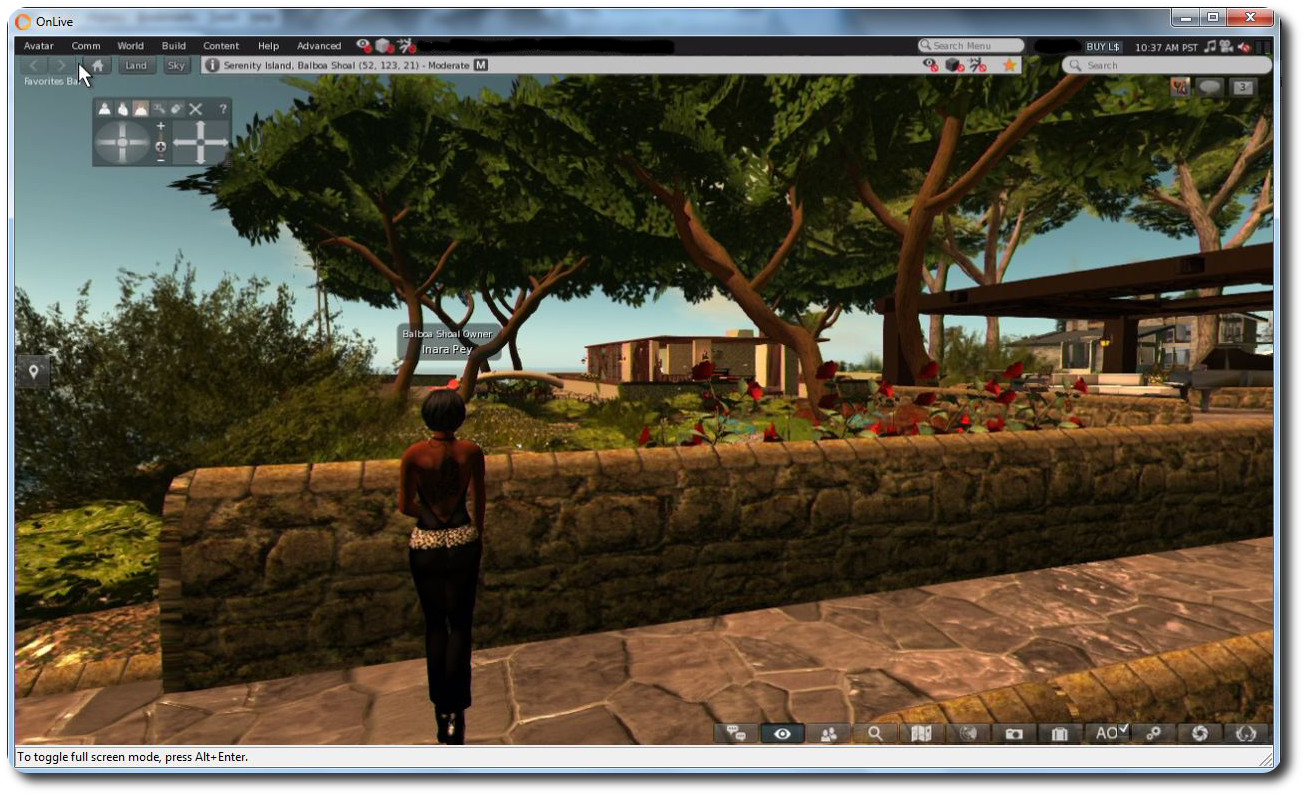
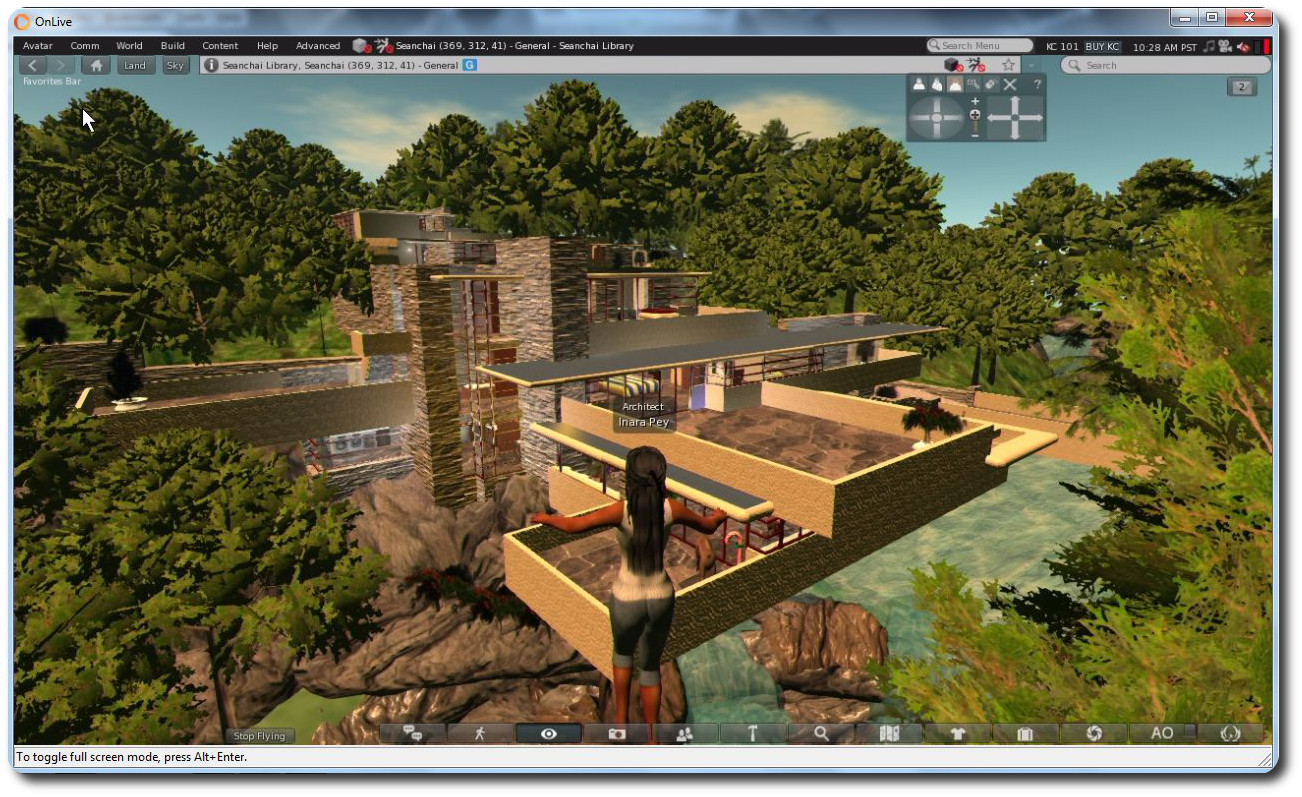
And it doesn’t end there. One capability that Firestorm brings to OnLive and SL Go  users is the ability to log into other grids as well as Second Life. The version of the viewer supplied to OnLive is the OpenSim version, which means it is complete with the grid manager and start-up grid selection drop-down, allowing you to log into all your favourite grids – as I did, logging-in to Kitely and Fallingwater at the Seanchai Library.

Use Firestorm on SL Go and any PC / Mac / laptop to access your favourite OpenSim grids (click to enlarge)

Thus, with a single subscription to OnLive, you gain access to the entire metaverse from any low-end PC or Mac in your home.

“We’re happy to be able to empower SL Go users with more choice. They’ve told us they want a choice of viewers, so offering the popular Firestorm viewer was a natural next step.” said Rick Sanchez, VP of Product and Marketing at OnLive, at the launch of the new offering.

I’ll have a more in-depth look at Firestorm on SL Go available shortly.

Firestorm 4.6.9.42974 hotfix released

firestorm-logoAs indicated in my update to the Firestorm 4.6.9.42969 release review in this blog, a couple of issues have been found within that release, which may affect some Firestorm users.

As a result, the Firestorm team have released a hotfix update to the viewer, which includes fixes for those issues and offers three more the team has also implemented.

The blog post on the fixes reads in full:

After releasing 4.6.9.42969 we discovered a few bugs that affect just enough users to warrant a hotfix update. However, if none of the issues addressed in this hotfix affect you personally there is no need for you to update to it.

The issues are listed below.

We have replaced the 42969 links with the new version 42974 on our download pages.

As per the blog post, unless one of the issues addressed by the fixes above affect you, there is no need to update your version of Firestorm. None of the fixes should directly impact on the elements of the viewer included in my 4.6.9.42969 review.

Firestorm 4.6.9: a Christmas feast of features and fixes!

firestorm-logoUpdate Thursday, December 11th: There will be a hotfix update for Firestorm, which will likely be made available on Friday, December 12th. This is to correct a couple of issues related to voice and RLV/a discovered with the 4.6.9.42969 release, and will likely add some additional fixes as well. I’ll have a further report available once the update is available.

On Wednesday, December 10th, the Firestorm team announced the release Firestorm 4.6.9.42969.

This is a hefty update which brings with it a lot of new functionality, together with bugs fixes and assorted improvements and updates.

As always, the complete list of changes, together with all attributions,  can be found in the release notes / change log, and I refer readers to that document for specifics on all contributors, FIRE JIRA links, etc. The following is intended as an overview of some of the more major / interesting changes, updates and  fixes to be found in the release.

The Before We Begin Notes

For best results when installing this release:

Firestorm Blocking

Note that as a result of the Firestorm team’s policy to keep only 3 versions running, version 4.6.1 will be blocked, most likely early in the new year. The advice from the team is that If you are on 4.6.1, to please update now. Version 4.4.2 will continue to remain for Mac users until all the major Cocoa Mac bugs have been resolved. However, if you are not a Mac user, then there really isn’t any reason for you not to have updated, and the team again ask that you update as well

Lab Updates

This release sees Firestorm remain on a parity with the Lab’s 3.7.8 code-base. However, a number of updates and fixes have been cherry-picked from upstream (such as the group ban functionality – see below), particularly bug fixes and stability improvements – please refer to the change log for details.

Building and Scripting Updates

The new buttons for cycling through objects in a linkset

Some additional updates and tweaks have been made to assist builders and scripters:

  • There are two new buttons located in close proximity to the Edit Linked check box.
    These buttons cycle forward or backward through a selected linkset, in the same way as the existing keyboard short cuts. note the buttons will only be active when Edit Linked is checked
  • The issue of the script editor failing to open scripts in copied objects (see VWR-27512), which has affected v2 and v3 viewers, is corrected with this release of Firestorm, and the fix has been contributed to Linden Lab for inclusion in the official viewer code
  • The build toolbar button should no longer be disabled when it shouldn’t be.

Communications Updates

Firestorm 4.6.9 brings with it a large number of features, updates and improvements to communications. These include, but are not limited to, the following.

Audio / Voice

  • Parcel media and audio now have a separate auto-play option (Preferences > Sound & Media > General > Allow audio to auto-play/Allow media to auto-play). Parcel audio should now auto-play correctly on logging-in
  • A reset voice button has been added to Preferences to help with fixing voice issues (Preferences > Sound & Media > Voice Settings)
The new voice reset button to help fix voice issues
  • You can now “zoom in” on a speaker using voice to hear them more clearly (Comm > Nearby Voice > Right click a name >Zoom in)
  • Voice level icons in the radar are now independent from other voice level icons
  • Sounds used for opening scrip dialogues can now be customised (Preferences > Sound & Media > UI Sounds 2 > Script Dialog)
  • The viewer now automatically adds http:/ to the music URL in the parcel audio panel.

Auto-response Updates

With Firestorm 4.6.9, auto-response messages are now localised. There is also a new option for an item of inventory to be automatically sent with your auto-response messages, when set. The selected item must be COPY / TRANSFER in order for this capability to work, and will be sent when one of the following is set:

  • Busy / do not disturb
  • Away
  • Autorespond
  • Autorespond to non-friends.

To set an item of inventory to be sent with auto-response messages, drag and drop a suitable item from your inventory and into Preferences > Privacy > Autoresponse > Autoresponse Item.

Firestorm 4.6.9 allows you to send an inventory item when auto-responding into incoming IMs. The item must be COPY / TRANSFER in order for this to work

In addition, this release fixes getting an IM from yourself to yourself saying “Autoresponse sent” if somebody answers from an off-line IM via email. Also, having both “Autorespond to non friends” and “Only friends and group can call me or IM me” set no longer results in you getting two new IM sound alerts for every non-friend IM plus the non-friend receives your auto-response twice for each IM sent.

Contacts List

The Contacts List floater has been revamped to match the look of the nearby chat and IM session floater, for a smoother and unique appearance. In addition, an option to pay someone directly from your Contacts List has been added to the right-click context menu (Comm > Contacts > Right click a name > Pay).

New to Firestorm 4.6.9 as well is the ability to choose which name columns should be displayed in the Contacts List. You can now choose between choose between user name, display name, full name, or a combination of these, and you can now display full names in your Contacts List as “Username (Display name)“. Finally, a option has also been added to hide the permissions columns (whether those in your Contacts List can see when you’re on-line, map you, etc.). 

All of these options can be found under Preferences > Firestorm > General.

The Contact List display options in Preferences

Continue reading “Firestorm 4.6.9: a Christmas feast of features and fixes!”