The recent switch by Linden Lab to an updated set of tools for building the viewer (which are also being adopted by active TPVs) has meant that as viewers built using these new tools will no longer install on either Windows XP or versions of OS X below 10.7.
Given that neither Windows XP or version of OS X below 10.7 are regarded as supported products by either Microsoft or Apple, the most preferable thing for users on them to do is to upgrade. However, in some cases, this might be easier said than done. To help users who might, for whatever reason, be unable to upgrade to a later version of their OS in the short term, the Lab has issued an “obsolete platform viewer” into the viewer release channel, which will be provided for as long as is reasonable – but not indefinitely.
Version 3.7.28.300847 of the viewer (dated May 8th although it only appeared in the release channel this past week), is a “static” viewer, meaning:
It will not receive new features or bug fixes
It will not be promoted to release status
It does not change the Lab’s support policy on Windows XP or versions of OS X below 10.7, and is purely – as noted – an interim offering to help people.
The viewer is based on the April 2015 maintenance viewer release (version 3.7.27.300636), and so includes things like the unified snapshot floater.
Given it is offered only for as long as is reasonable, it should not be relied upon for long-term use, but rather as a means for those who prefer the official viewer and who use Windows XP and older versions of OS X to continue to access SL until such time as they are in a position to update their systems (or the viewer has to be withdrawn from use).
As per all the alternate viewers offered by the Lab, the viewer is listed on the Alternate Viewers page of the SL wiki, or you can use the direct link given above to view the official release notes and download options.
Black Dragon 2.4.2.6 was released on Saturday, May 30th 2015, followed by a rapid-fire bug fix update with the release of 2.4.2.7 on Monday, June 1st.
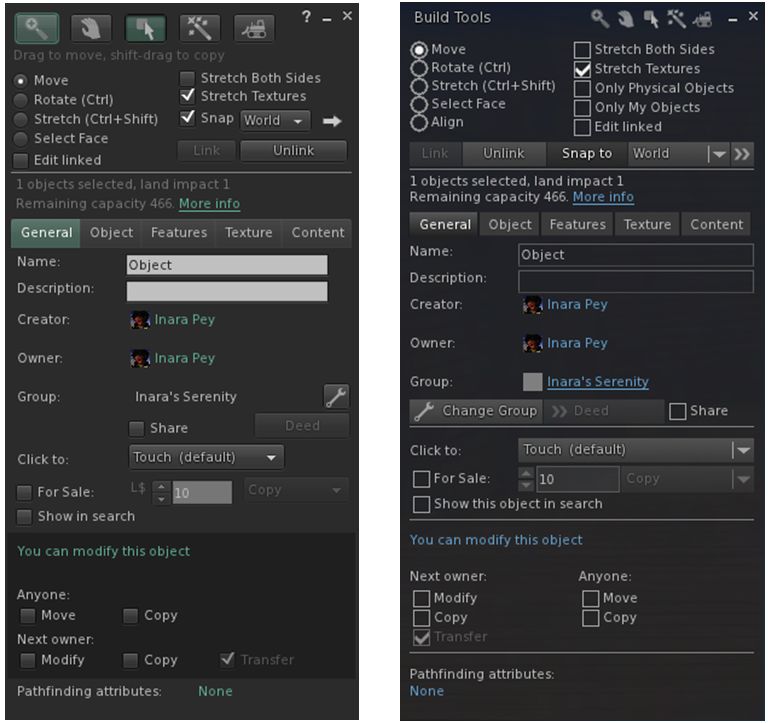
Both updates focus on the Build tools floater and its associated tabs, which Niran has completely overhauled and realigned in an attempt to make it a lot less cluttered-looking and easier to read, as well as adding a degree of consistency of presentation between the tabs in the floater and the types of tool options (spinners and sliders) seen in the Build floater when compared to other tool floaters in the viewer.
My personal opinion on the changes is that is that he’s largely succeeded. There is a linear tidiness to the tabs in his revised Build floater that works naturally for those used to scanning left-to-right, and top down. everything is pretty much orderly placed, and the flow through the various tabs is logical and easy to follow.
The official viewer’s Build floater Object tab (l) and Niran’s revised layout in black Dragon (r) – click any image for full size
Buttons with the Black Dragon floater are more obvious / clearer – radio buttons, for example are better defined when selected, what might be slightly confusing buttons (such as the spanner for changing the group attributes) are now clearly labelled, and buttons for pop-out options like the Grid Options are also more in keeping with the style used elsewhere in the viewer.
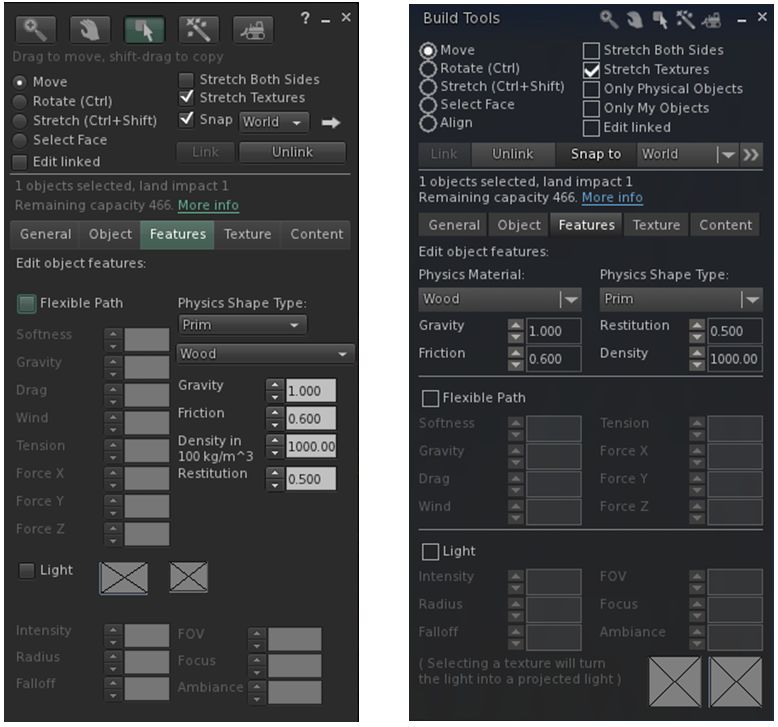
The official viewer’s Build floater Features tab (l) and Niran’s revised layout in black Dragon (r)
Some of the changes are a lot more noticeable in this regard than others – as with the General and Features tabs – both of which are compared to their official viewer equivalents in the images above – and the Texture tab. The changes to the Content and Object tabs are more subtle in nature – but given they were relatively straightforward to understand, then this is in keeping with making balanced changes.
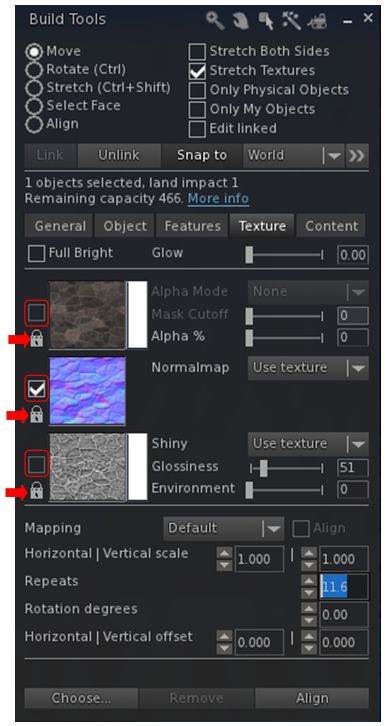
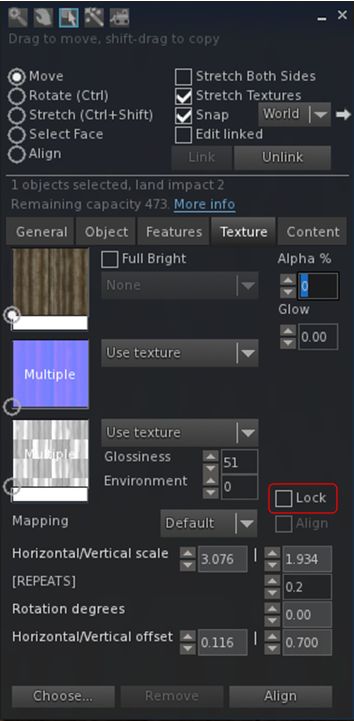
The Texture tab now has clearer map selection check boxes (outlined) and individual lock options for applying rotations, offsets, etc., via the spinners (arrowed)
In terms of the Texture tab, Niran has also revised the map selection indicator from a radio button to a check box – again adding consistency to the use of check boxes in the floater – and has also added an individual lock option to each of the three map types.
The check boxes actually do make it easier to see which of the three maps (diffuse, normal or specular) has been selected, while the three individual locks now allow greater flexibility in how changes to repeats, offsets and rotations are applied.
For example, if you want to have them applied across all three maps, regardless of which one you have selected, just click on the icons to lock them – any change make to the offsets, etc., on one map will automatically be applied to all three, regardless of which one you are working on. If you want to change the offsets to each map independently of the others, simply unlock them (the default) – any changes made the offset, etc., spinners will only apply to the selected map. And you can also obviously have one set of rotations applied to two out of the three maps and level the third to be independently set.
The Textures tab also now makes use of sliders as well as spinners for applying Glow, Transparency (Alpha %), Glossiness and Environment to faces / objects, making it easy to apply quick changes before fine-tuning them with the spinners. It was actually two of these sliders that prompted the 2.4.2.7 release. While testing the 2.4.2.6 release for this review, I noted the Glow and Alpha % sliders were not working as expected. A quick IM to Niran, and he dived in and fixed the issue. The updates to these two sliders mark the only changes between 2.4.2.6 and 2.4.2.7.
Snapshot Floater Preview Update
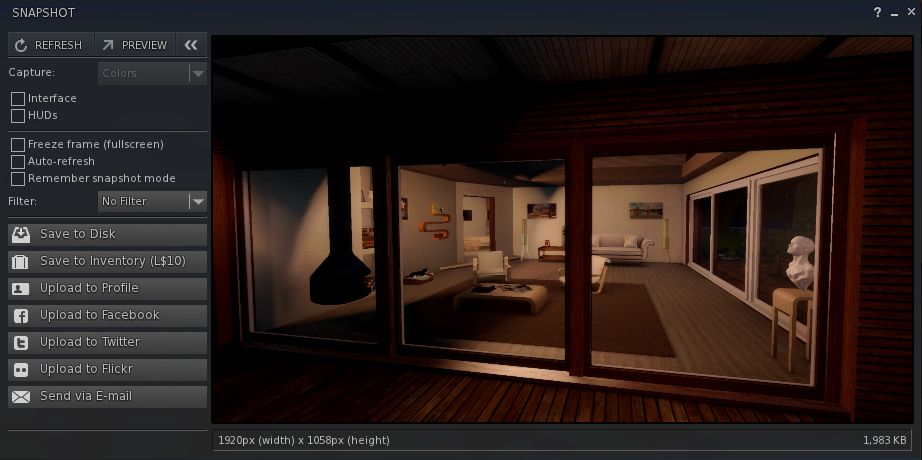
The other significant update in the 2.4.2.6/7 release lies with the Unified Snapshot floater. In the 2.4.2.5 updates (which I reviewed here), Niran introduced a separate, resizeable preview panel as an alternative to the preview pane built-in to the floater. He’s now further revised the snapshot floater so that the built-in preview pane displays a high-resolution preview image, as with the alternative preview panel.
The preview pane for the snapshot floater now displays high-resolution preview images
The new preview panel offers a much improved image, and further enhances an option a lot of people would like to see adopted by other viewers in some way.
Feedback
Overall, the core Build tools updates in these releases – to me – do much to enhance the Build floater. As noted, some of the changes are a little more subtle than others, but overall they all work to present a far tidier set of tabs within the floater, and offer a more-or-less consistent set of control options in terms of the use of spinners, sliders, etc. One might have a small niggle with the colour swatch panels for the diffuse and specular maps perhaps not being obvious, but it’s really hard to see how else they could be presented without losing the order and layout Niran has achieved within the Texture tab.
Towards the top of this post, I pointed to these releases marking the beginning of the end of Niran’s active development of the Black Dragon viewer He’s aiming to slow things down from release 2.4.5). Since releasing the 2.4.2.7 update he has explained some of his reasons for this.
The important point to note here are the word “active” – hence my emphasis above. He’s not given up on everything within the viewer; he’s allowing himself space to refocus on other things than need attention (like that irritating thing we call “real life”) and to refresh himself. He’ll still be poking and tweaking things in the viewer in the future; it just won’t be his primary focus. And after the amount of time and effort he has poured into his viewers, frankly, he should be respected for his decision, and offered kudos for all he has offered the community.
In the meantime, I’ll continue to look forward to seeing what future updates to Black Dragon bring.
On Saturday, May 23rd, NiranV Dean released version 2.4.2.5 of his Black Dragon viewer, which brings with it three core updates:
Revisions to the Unified Snapshot floater
An experimental cinematic camera
A “lock” feature to synchronise map changes (diffuse, normal and specular) across all three channels simultaneously.
Unified Snapshot Floater Updates
The snapshot floater updates include:
An option to save the snapshot upload type
Automatic file format changes when switching to profile/inventory upload and back
Fixes for auto-refresh
Improved world freeze – the entire world is now frozen, and allows proper camming around.
However, what is likely to find favour with a lot of users (assuming it is adopted by other viewers, including LL’s) is the ability to now preview snapshots in a separate, resizeable texture panel.
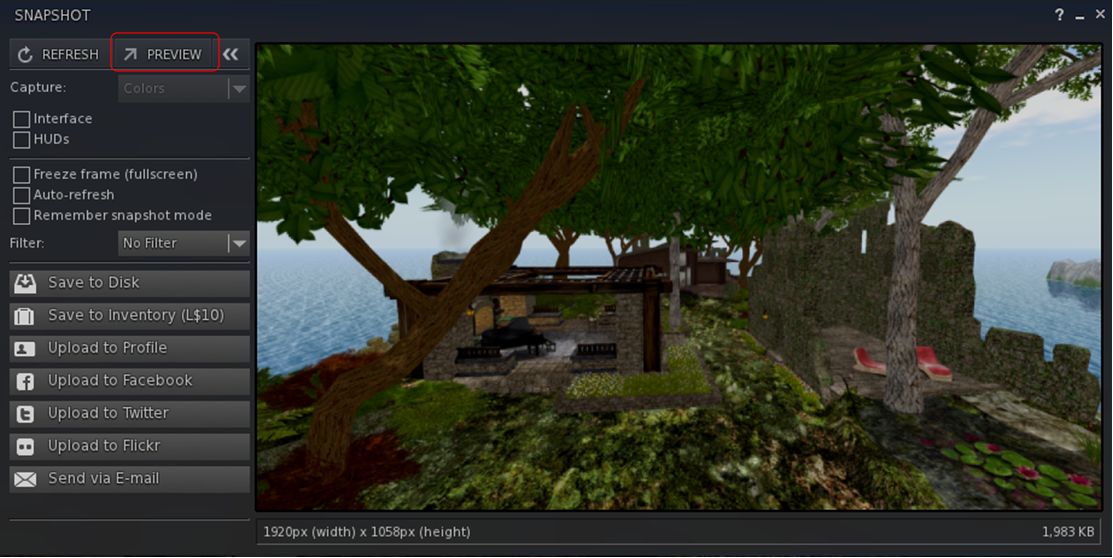
The alternative snapshot preview panel can be accessed via the Preview button in the Unified Snapshot Floater
This is enabled by a new Preview button in the snapshot floater, as shown above. However, do note that this does not “tear off” the existing preview pane, but actually opens a separate panel, linked to the floater – the original preview pane will remain open as well, until such time as it is closed using the << button at the top of the snapshot floater. Also, as it is a separate panel, the resizeable preview panel must also be closed separately to the snapshot floater.
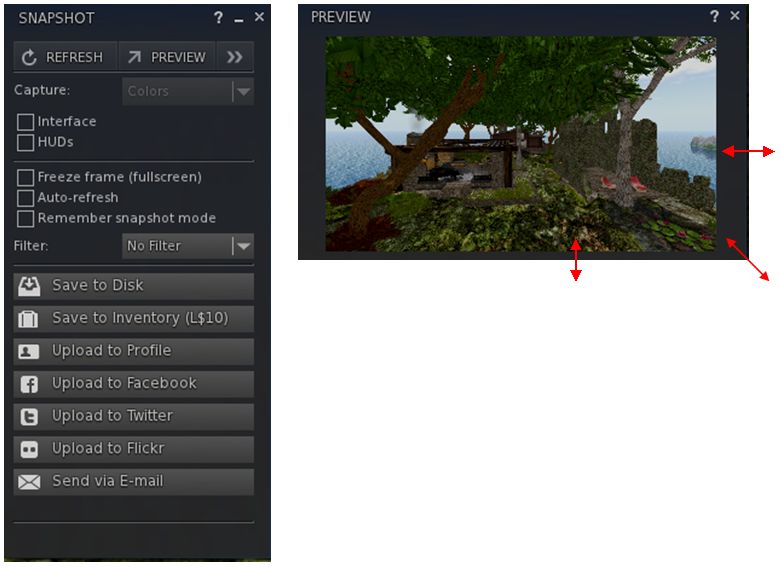
Once opened, the alternate preview panel can be resized by dragging from the sides, the top or bottom edge or from the corners to more readily suit your requirements. note also that in doing so, the image will retain the correct aspect ratio.
The additional preview panel can be resized via dragging from the top / bottom / sides / corners
I did encounter a slight problem with the updated snapshot floater – not with the new preview panel, but in the fact that the floater appears to be locked into saving images to disk in PNG format without my having changed any install defaults. On selecting either JPEG or BMP, the floater defaulted back to PNG.
Cinematic Camera
The Cinematic Camera is an experimental option, enabled through a debug setting, UseCinematicCamera. The camera will track head movements as you move – and is most effective if you’re using one of the Black Dragon over-the-shoulder third-person views. You’ll need to ensure your avatar’s head movement is free to follow the mouse as well.
If I’m honest, I didn’t have too much success playing with it – but that could easily be down to me doin’ it wrong. However, Niran has provided a video which may help to demonstrate things:
Texture Sync Lock
The “Lock” option on the Texture tab of the Build floater operates in a similar manner to the Synchronise option found in the official viewer. When set, it ensures that changes made to the spinners for repeats, offsets and rotation on a texture are applied across all three materials maps.
This allows the viewer to use a single set of spinners for adjusting offsets, etc., against a set of maps applied to a surface / object and ensures they are applied across all three maps correctly.
Niran also provides some advice when using the Lock capability:
Note that this might cause the spinners and/or faces to revert sometimes, this is NORMAL behaviour, it’s due to lag which was already present long before this change (sadly). Usually happens if you use the spinners via mouse repeatedly, to prevent it most of the time you should type in your desired values directly and press enter ONCE then wait a bit.
Feedback
An interesting set of updates, and the ability to use a resizeable preview panel for snapshots could fine some popular support given some people have found the default preview panel size in the Unified Snapshot floater to be overwhelming. As such, it’ll be interesting to see how the Lab and other TPVs option to implement this particular change or not (I understand Niran will be contributing the updates to LL, if he has not already done so, as he did with the original Unified Snapshot floater code).
Note also that as well as the features outlined above, this release includes a number of fixes, updates and changes – please refer to the release notes for details of these.
Sunday, May 3rd saw the release of Firestorm 4.7.1.45325 Beta. This is another big update which brings Firestorm pretty close to being up-to-date with the Lab’s viewer.
However, it has been given a beta status as there are further important updates coming out of the Lab, such as fixes for AIS v3 attachment issues, the new Viewer-Managed Marketplace functionality, etc. As such, the Firestorm team will be working on a further release, which will be made available once the Lab has made these updates and new functionality generally available through their viewer release channel, and this will count as a “full” release of Firestorm.
Given the sheer number of updates in the release, I do not intend to cover everything here, but rather an overview of some of the more major / interesting changes, updates and fixes to be found in the release. for full details of all changes, and all due credits to contributors, etc., please refer to the official release notes.
As this is a beta release, there will be no blocking of any older releases of Firestorm until after the next “full” release is made.
Lab Updates
The 4.7.1.45325 release brings Firestorm up to parity with the Linden 3.7.26 code base (with some updates from the 3.7.27 and 3.7.28 releases). Given the last release (4.6.9) brought Firestorm to parity with the Lab’s 3.7.8 code base, this means this release includes a significant number of updates direct from the lab, which include, but are not limited to, the following.
Avatar Hover Height
The Lab’s Avatar Hover Height option is included in this release, allowing users to make on-the-fly adjustments to their Avatar’s relative position above the ground / the floor / an object it is sat upon, via a slider or spinner, with a range of +/- 2 metres. The option is accessible via the avatar right-click context menu / the pie menu, which displays the slider / spinner.
Avatar Hover Height allows for on-the-fly adjustments to your avatar’s relative position above the ground, etc.
Avatar Hover Height can be used whether you are standing, sitting, using a poseball, etc. However, note that it is a change to the graphical representation of your avatar – the option does not make any associated change the avatar’s height in terms of platform physics.
Default Permissions
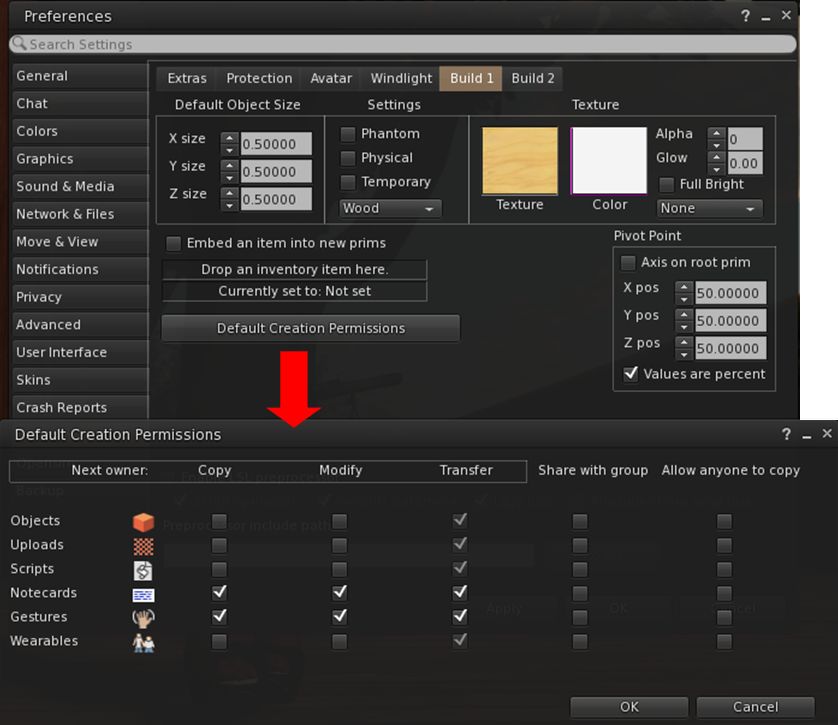
Firestorm 4.7.1 includes the new default permissions panel for setting the initial permissions on created items – objects, uploads, scripts, notecards, gestures and wearables. contributed to the official viewer by Jonathan Yap under STORM-68, the new panel can be opened via Preferences > Firestorm > Build 1 > Default Creation Permissions.
The STORM-68 default creation permissions are now integrated into Firestorm
Other Lab Updates of Note
GPU Benchmarking Feature: in common with the Lab’s viewer, Firestorm no longer uses the GPU table to define your GPU and initially set the viewer’s graphics. Instead, a test is carried out when the viewer is first installed to determine the GPU type and graphics settings are initially set as a result of this test. You can, of course set alter your graphics settings to suit your needs / load your settings for any saved presets you have
Server-side Appearance (SSA) polish / Advanced Inventory System (AIS v3): stability and performance improvements for SSA, including retry logic, removing redundant requests, detecting various appearance stuck conditions; the removal of code related to the old client-side baking framework; appearance bug fixes
HTTP Pipelining and faster inventory fetching: significantly improves the download of data (currently avatar baking information, texture data, and mesh data) to the viewer and improves inventory fetching and loading on logging-in
As HTTP fetching using HTTP is now used exclusively by SL (support for UDP fetching has been removed from the simulators), the option to disable HTTP Inventory has been removed from the Developer menu
Joint offsets in rigged mesh attachment fixes: removes the unpredictability from attaching multiple meshes with joint offsets which meant you could see yourself with different joint positions at different times, and the way you saw yourself might not match up to what others saw. Instead, wearing the same set of meshes should always produce the same joint positions, and the way you see yourself should consistently match the way others will see you. The process for removing attached meshes is also more robust, so you should be able to reliably get your old joint positions back after meshes are removed.
Obtain LSL syntax table from the simulator so that it is always up to date: see STORM-1831
Added glossy reflections for projectors: This feature makes use of the glossiness parameter to calculate the “gloss” of projector reflections – see STORM-2067
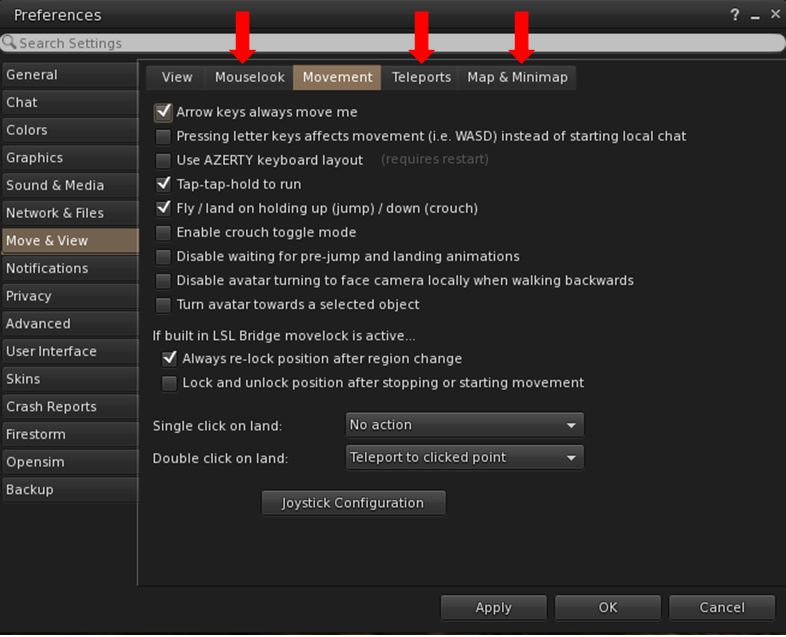
Perhaps the most noticeable update in this release is the complete overhaul of the Preferences panel, tabs and sub-tab. Every major tab in Preference has been revised and rationalised, and most of the sub-tabs have been revised / added-to, along with a number of new sub-tabs being added to various tabs.
Firestorm 4.7.1 sees the Preferences panel extensively overhauled, with revised tabs and updated / new sub-tabs, such as the new Mouselook, Teleports and Map & Mini-map tabs under Move & View
The result, while possibly confusing when first discovering a particular option has been moved, is actually a better, more logical set of Preferences tabs and sub-tabs.
Documenting all of them is beyond the scope of a review such as this, and the recommended means for finding options and to gain familiarity with the new layout is to use the Preferences search bar.
On April 23rd, 2015, the Lab updated the de facto official viewer to version 3.7.28.300918, formerly the Tools update Release Candidate viewer.
As regular readers of this blog know from my regular SL project updates, this release is primarily focuses on a change to the tools used to build the viewer (to Visual Studio 2013, Xcode 6.1, and some other tools improvements).
Two important aspects of this update are that:
The Windows version of this viewer will not install on Windows XP systems, regardless of the Service Packs also installed (previous versions of the release viewer would install on Windows XP system which had Service Pack 3 installed)
The Mac version of the viewer will not install on any version of OS X below 10.7.
Note that this is not a deliberate attempt to block XP users or those on older versions of OS X from Second Life; it is purely the result of the Lab using up-to-date tools for building the viewer (and which will yield positive benefits elsewhere. for example, during its time as an RC viewer, the new build version has had a crash rate some 2% lower than than of the official viewer built using the “old” tool chain. There have, however, been some reported issues of Linux users experiencing problems using this version of the viewer.
A further benefit of the tools project is that it offers the Lab and TPVs the opportunity to work with a more common set of viewer building tools due to the removal of some licensing issues. It is therefore more than likely that at least some TPVs will move over to using the new tool chain as well.
This viewer also introduces the updated log-in options at the top of the viewer’s splash screen. The three button approach seen by most users has been replaced with a log-in area with a single button (note that users logging-in to SL for the first time or after a clean install will still see the “first time user” log-in splash screen).
LL viewer log-in updates: as they first appeared after an initial log-in following the 2014 revisions to the log-in / splash screen (top); and as the log-in options are displayed in the updated release viewer (bottom) – click for full size, if required.
UKanDo, Kokua and the Restrained Love Viewer (RLV) have all seen recent updates in April 2015, bringing them up-to-par with the Lab’s 3.7.27 code base, which features the most recent maintenance updates from the Lab. In the case of UKanDo and Kokua, this means that Avatar Hover Height (AHH) is now available in the viewers, while RLV sees a couple of tweaks to AHH.
Core updates to the three viewers are summarised below.
UKanDo Viewer
UKanDo updated to version 3.7.27.28099 on April 16th. As well as incorporating AHH and the maintenance updates from the Lab, this release also brought with it:
Develop > HTTP Inventory now permanently enabled in UKanDo viewer, in line with recent LL server-side updates
An update to RLV release 2.9.8
Complete disabling of the Develop menu option allowing people to turn off HTTP Inventory loading. This is to ensure people do not encounter issues with avatar and / or inventory loading as a result of the Lab removing UDP inventory messaging support for the simulator code – see my notes on this for further information
The addition of a new debug setting, EnvironmentPersistAcrossLogin. When set to True, will to counter MAINT-2477 Feature Request – Sun position override should not persist across logins
The ability to toggle the Paste As Link option in the Inventory right-click context menu on or off, according to your personal preference (Preferences > General > Inventory Show ‘Paste As Link’ Option
A change to allow copy of worm items – So links for worn items can be created
Don’t show inventory item links or folder links in Recent Tab.
Kokua Viewer
Kokua updated to version 3.7.27.35441 on April 23rd. As well as incorporating AHH and the maintenance updates from the Lab, this release also brought with it:
AHH in Kokua’s pie menu can be found under the Appearance … option in the main pie menu
The most recent RLV 2.9.9 updates
Fixes for:
In-world Flash playback issues on Linux – Ticket #333
Fix to top bar Draw Distance slider showing distance – Ticket #338
Upload fee not reflected on menus for OpenSim – Ticket #340
“compile as mono” option does not work – Ticket #342
File -> Upload -> Set Default Upload Permissions does nothing – Ticket #344
Changing the grid-selection option in preferences crashes viewer – Ticket #346
Determine correct webkit libraries that need delivered with the Linux version of the viewer – Ticket #347
Kokua 3.7.26.36845.x86_64 Linux Fails to start – Ticket #348
Chat history compact mode does not convert the Avatar Name in OpenSim – Ticket #351
Issues and feature requests can also be found in the release notes.
RLV Updates
RLV updated to version 2.9.8 on April 8th and then to version 2.9.9 on April 21st. The 2.9.8 release saw the existing avatar height slider in the RLV top bar tied to the Lab’s new Avatar Hover Height functionality, so that using either the top slider or Avatar Hover Height from the Avatar right-context menu will use the same code and result in the same adjustments.
The RLV avatar height slider (top bar) is now tied to the Avatar Hover Height functionality. Notice the top bar operates to 2 decimal places and AHH to 3, so small rounding differences are to be expected when comparing the two
In addition, the 2.9.8 update saw a tweak the viewer so that HTTP Inventory is enabled by default in the viewer, again in line with the Lab’s recent move to deprecate the UDP messaging for inventory loading server-side. As RLV previously had HTTP Inventory disabled by default, this meant RLV users were no longer seeing their own avatars render in-world, and could lead them to experiencing inventory load issues as well (see my nots, linked-to in the UKanDo section above for further information). The release also saw some nips and tucks to RLV functionality.
Version 2.9.9 added a small fix to the linked AHH functionality and incorporates the Lab’s 3.7.27 maintenance release updates, as noted at the top of this article.
 The recent switch by Linden Lab to an updated set of tools for building the viewer (which are also being adopted by active TPVs) has meant that as viewers built using these new tools will no longer install on either Windows XP or versions of OS X below 10.7.




 Inara Pey: Living in a Modemworld