Second Life Maintenance RC: Avatar Rendering updates and more

On Thursday, March 23rd, 2017, Linden Lab issued a new Maintenance release candidate viewer – 5.0.4.324882 – featuring a number of bug fixes and improvements.The viewer was actually a replacement for an earlier Maintenance RC, version 5.0.4.324646, which was withdrawn after it was noted it lacked some of the expected improved functionality.

In particular, this RC viewer brings some additional options for managing Avatar Complexity (aka Jelly Dolls), gives us a new option for checking the Grid Status page and offers a number of other nice nips-and-tucks to the viewer, as well as resolving a series of bugs.

As is my usual approach the following is not intended as an in-depth review of the RC, but is intended to highlight the core changes.

Avatar Complexity Rendering Updates

The re-named avatar complexity rendering options in their new sub-menu

There are several improvements to avatar complexity, which are outlined below.

The Options for how you render an avatar have been updated to Default (i.e. in accordance with your avatar complexity threshold setting); Always (i.e. always render the selected avatar) or Never (i.e. permanently render them as a grey imposter). These options have also been moved to a sub-menu on the right-click Avatar context menu (shown on the right).

Also, and following Firestorm’s lead, whatever setting you select for an avatar will now persist across all log-ins for the viewer, until either reset or your settings are cleared by a clean install or similar.

Finally, the viewer gets two new options for Avatar Complexity, located on the Preferences > Graphics tab. The first is a check box, Always Render Friends, which is pretty much self-explanatory: when checked your friends will always fully render, regardless of your Avatar Complexity threshold.

Graphics > Preferences: the new Avatar Complexity options

The second is an Exceptions button, which adds a further level of complexity control for how other avatars – including your Friends – are rendered in your view.

Using Avatar Rendering Exceptions

Clicking the Exceptions button opens a new floater, Avatar Render Settings, shown below left. This comprises a people filter for the list of names recorded on the floater (which is obviously blank when first opened), together with a + (add) button.

The Avatar Complexity Exceptions floaters

Clicking + will display a pop-up with two options:

  • Always Render A Resident
  • Never Render a Resident

Clicking on either of these will open the Choose Resident floater, shown above right. You can then use the Search, or Friends or Near Me tabs to select an avatar or avatars, adding them to the list on the floater. Clicking OK will add them to the Avatar Render Settings panel. The avatars will also be rendered in accordance with whichever option you used to launch the selection process (Always render or Never render).

Changing the Avatar Complexity setting for an avatar listed in your Exceptions floater – not Default will remove them from the list, as they will be rendered as per your Avatar Complexity setting

You can also update how any avatar in your Exceptions list is displayed.

To do this, simply open the list floater via Preferences > Graphics > Exceptions, locate the name of the avatar in question (use the filter if you have a lot of avatars in your exceptions), and right-click on the avatar’s name.

This displays a sub-menu of rendering options, with the currently selected option indicated by a tick. Click on either of the other two options to change it. Note that “Default” will remove the avatar’s name for your exceptions list and display them in-world in accordance with your overall Avatar Rendering Complexity setting.

Grid Status Display Toolbar Button

Maintenance RC 5.0.4.324882 adds a new Grid Status toolbar button to the viewer. This can be accessed via Me -> Toolbar or by right-clicking your toolbar to select Toolbar Buttons. Either of these routes will open your Toolbox floater. You can then drag the Grid Status button to the toolbar location of your choice (left, right or bottom of your screen) where it will be displayed.

The new Grid Status button

Clicking on the button will open the Grid Status page in the viewer’s built-in browser, regardless of your Preferences setting for how web content is to be displayed.

Other Improvements

In addition to the above, this RC viewer also includes the following improvements:

  • Inventory Offer messages now display the name of the object being offered to another avatar
  • Library items can now be worn via a right-click context menu, and not just drag & drop
  • The Snapshot floater will now remember what you did last, and open with that mode next time (until you next relog)
  • You can now see and change the type of block (Voice / Text / Particles) from within the block list in People floater
  • LLTextBox message lines will extend along with the length of the message now.

Bug Fixes

The release notes provides the following list of bug fixes with this release:

  • Some builds wouldn’t link to release notes. Now they do.
  • Other minor UI tweaks and adjustments
  • Removed several instances of legacy People API usage, thanks to Ansariel Hiller.
  • Inventory floater was missing UI for spawning new Inventory floaters. So now you can do it even if you don’t know the Ctrl+*Shift*+*I* shortcut.
  • Build floater used to hide behind other floaters due to wrong Z-priority. Not no more!
  • Appearance editor didn’t “Save as” as well as it should have, but now does.
  • Avatar animations wouldn’t play after several operations with editing and wearing objects, but do now.
  • Closing inventory window used to leave an orphaned context menu.
  • Active listings folder stayed active after everything was cut from it. We don’t need that confusion.
  • Teleport offers and Eject messages will show complete name when that’s what you’ve chose to see.
  • You can now remove friends even when you’re in a Groups floater looking at Members list.

Feedback

I’ve not driven this viewer for more than an hour thus far, so cannot give any feedback on performance / stability. In terms of the improved features, making Avatar Complexity settings persist between log-ins is a welcome addition to the viewer. Both the Always Render Friends check box and the Exceptions options are also nice additions. .

The Grid Status button is also a handy addition, and should provide help for those of us wanting to know what is going on with the grid (when suspecting something might be wrong), but who get a little annoyed at having to manually visit the grid status page in order to do so.

Second Life Maintenance RC viewer 5.0.2.323359

secondlifeOn Friday, February 3rd, Linden Lab released the latest Maintenance RC viewer – version 5.0.2.323359 – which brings with it another round of updates and fixes, together with a couple of new features requested by users, one of which could prove popular for creators and builders: the ability to select default folders for saving uploads.

Also for builders, the RC includes some long-awaited fixes to the build floater / objects when building. Several other niggles people have had with the viewer are also fixed with this update, making it a handy set of improvements to have.

The following is not intended as an in-depth review of the RC, but is intended to highlight the core changes.

Custom Folders for Uploads

With Maintenance RC 5.0.2.323359 users can now select their own preferred inventory folders into which uploads – images / textures, sounds, animations and mesh models are saved by default (rather than having all textures + images go to Textures for example).

You can select your own preferred folders for image, animation, sound and mesh uploads, rather than using the normal default folders

To set a custom folder for an upload type:

  • Go to Inventory and right-click on the desired folder.
  • Select Use As Default For. This opens a sub-menu of upload types (shown on the right).
  • Click on the type of upload you wish to always save to that folder.

Note that this only applies to uploads: images / textures, mesh models, etc., received via transfer will still go to the their “default” folders.

So, for example, an animation passed to you in-world by someone else will still go to your Animations folder, regardless of any custom destination you have set for animation uploads.

You can also review which custom folders you have set at any time via Preferences > Uploads, a new tab in the preferences floater. This list updates dynamically as you select / change custom locations for your uploads.

The new Uploads tab in Preferences
The new Uploads tab in Preferences, with a custom location set for mesh uploads

Other Requested Fixes / Updates

There are several other oft-requested updates are also included in the RC:

New Block list tally
  • A long-term and understandable annoyance among role-players / combat players is that a change made by the Lab some time ago meant that the Damage icon would not show in parcels that were damage-enabled. This has now been reverted.
  • The issue of the Sun sometimes appearing to jump around rather than moving incrementally has been fixed.
  • The Block list has been updated so that the last name on the list once again displays correctly, and a tally has been added to show number of avatars / objects blocked, and total limit (see right).
  • Avatars should now correctly display after a fresh inventory fetch.
  • Changes in wearables should now properly save.

Build  / Edit Improvements

The following build / edit fixes and improvements have also been made to the viewer:

  • Repeats per meter value is now correctly saved.
  • An object created when a linkset is open is now shown in the linkset list.
  • Select Face will now show selection for all faces until such time as an individual face is selected.
  • The contents of any object worn from the ground should now correctly update.
  • The Script Debug Floater should now be useful once more.

Other Updates and Improvements

The release notes for the viewer also draw attention to the following updates:

  • Hanging texture downloads have been cleaned-up for better performance (via contribution from Ansariel Hiller).
  • Viewer Login will no longer save password when it is not supposed to.
  • Beacons will once more show when in Mouselook.
  • Teleport location selected from World Map no longer omits Z value.
  • Grid selection short cut at login is fixed.
  • Crash Fixes in LLPanelEditWearable::isDirty(), LLFloaterIMContainer::visibleContextMenuItem(), opening many scripts.
  • /displayname and /completename no longer change when toggling “View Display Names”.
  • Link added to Events in World menu.

Full details on the viewer updates, included a list of resolved MAINT JIRAs can be found in the viewer release notes and download page. Note that as they are MAINT (LL internal), not all of the JIRAs may be open to public view.

Alchemy 5.0.0: Bento beta

Alchemy-logoOn Sunday, January 8th, the Alchemy team released a beta version of Alchemy 5.0.0, the first update to the viewer to include support for Project Bento and Avatar Complexity (although no Graphics Presets).

As well as Bento support, version 5.0.0.40120 includes several updates specifically aimed at those with estate management responsibilities, plus a range of bug fixes and improvements from both Linden Lab and the Alchemy Team. In addition, this release includes work that is ongoing to reorganise the UI.

The following is intended to be a general overview of the more visible updates to Alchemy 5.0.0, and a summary of some of the bug fixes.

Project Bento

As almost everyone in SL must be by now aware, Project Bento introduces an enhanced avatar skeleton offering greatly improved support for mesh avatars and rigged mesh attachments. It also includes a set of new attachment points to work with the new joints, although the overall limit of the number of attachments you can wear at any one time remains 38 (including HUDs).

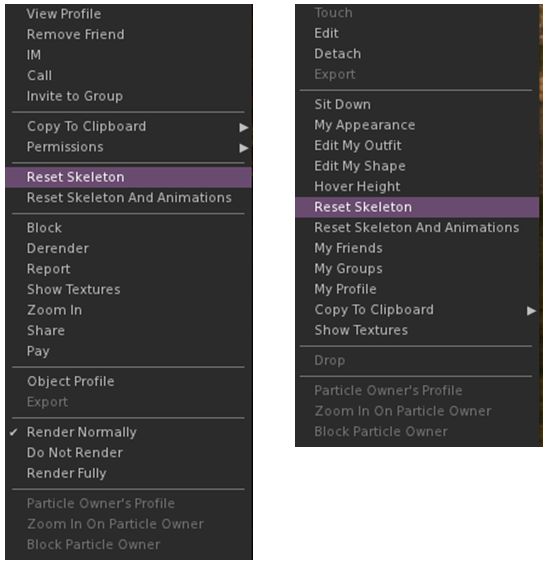
Most of all of this work is entirely under-the-hood. However, there are two additions to the avatar right-click context menu for both your own and other avatars: Reset Skeleton and Reset Skeleton And Animations which should be noted. In Alchemy 5.0.0, they can be found in the Appearance sub-menu of the right-click avatar context menu.

They have been added because sometimes, when changing between one mesh avatar and another, the basic SL avatar can become deformed, resulting in it looking squished, stretched, caught between two looks, or something else.

The reset skeleton options should “fix” your own or other avatars which appear distorted in your view after changing looks / shape – note both options only affect your view of the avatar in question, it does not affect how others may see the same avatar

The problem is generally the result of race conditions when the avatar’s appearance is being updated, and both of these buttons are intended to correct the problem  – the option to reset animations as well is intended to fix deformations which may be due to animations also kicking-in incorrectly / at the wrong time.

Further information on Bento (if needed) can be found via the following links:

Avatar Complexity

To be honest, I thought this had been part of Alchemy already, but looking through my past reviews and Alchemy’s release notes, I can’t find evidence of it being mentioned, and the 4.0.0.37571 release doesn’t include the Avatar Complexity options. Anyway, assuming I’m not going bonkers and thus repeating myself, here’s a rapid breakdown – please refer to my Avatar Complexity release article for in-depth info, if required.

, Avatar Complexity (aka Jelly Dolls), is in short a means to reduce the rendering load placed on your computer in having to render all the avatars around you in detail. Instead, you can set a rendering limit (aka Maximum Complexity) in the viewer. Any avatar exceeding this limit won’t be rendered in full – unless you opt otherwise – but will instead be rendered as a solid colour (aka Jelly Doll).

The revised Preferences > Graphics tab, including the Maximum Complexity slider. Setting this to high values will render avatars which may place additional rendering load on your computer, slowing your SL experience, to be fully rendered. Lowering it will cause such avatars to be rendered as solid colours, reducing their render load
The revised Preferences > Graphics tab, including the Maximum Complexity slider. Setting this to high values will render avatars which may place additional rendering load on your computer, slowing your SL experience, to be fully rendered. Lowering it will cause such avatars to be rendered as solid colours, reducing their render load on your system

With Alchemy, this means that The Preferences > Graphics tab adopts the official viewer’s approach, displaying frequently used options within it, and moving the more advanced options to a separate Advanced Graphics Preferences floater.

The newer Advanced Graphics Settings floater (accessed via the Advanced Settings.... button in the Preferences > Graphics tab
The newer Advanced Graphics Settings floater (accessed via the Advanced Settings…. button in the Preferences > Graphics tab

Avatar Complexity includes some additional capabilities / options

  • Every time you change your appearance, and thus your avatar complexity, your current complexity value will be briefly displayed in the top right corner of the viewer window
  • You can display information on your own and other avatar’s complexity by going to the Advanced menu (CTRL-ALT-D to display it, if required) and selecting Performance Tools > Show Avatar Complexity Information
  • Your own avatar will always be fully rendered in your own view
  • Maximum Complexity has a No Limit setting. It is not recommended you use this. If you wish to avoid seeing the vast majority of avatars around you as Jelly Dolls, set the slider to a high value. Setting it to No Limit can leave you vulnerable to graphics crashers.
Use the avatar right-click context menu and the Visibility options to select how another avatar is rendered during your current log-in session

You can also alter how you see other avatars around you without altering your Maximum complexity setting. To this, right-click on an avatar to display the context menu. Go to Visibility to display the sub-menu. This has three options:

  • Render Normally – will render the avatar in accordance with your Maximum Complexity setting
  • Render Fully – will render them fully, no matter what your complexity setting
  • Do Not Render – will render them as a grey 3D imposter, no matter what your complexity setting.

Not that Render Fully and Do not Render only apply to your current session. If you re-log the avatar in question will once again be rendered in accordance with your Maximum Complexity settings.

Continue reading “Alchemy 5.0.0: Bento beta”

Kokua and Restrained Love go Bento in Second Life

Project Bento - now a part of the Kokua Second Life viewer and the Restrained love Viewer
Project Bento – now a part of the Kokua Second Life viewer and the Restrained Love Viewer

Kokua and Restrained Life have become the latest viewers to update to v5.x status, with release of versions support the Project Bento code.

Kokua 5.0.0

Kokua 5.0.0..40327 for Second Life (release notes) appeared on Saturday, December 17th, bringing with it Bento rendering support, plus additional fixes and improvements:

  • FMOD Ex audio streaming libraries updated to version 4.44.64.
  • Avatar texture display now works.
  • Pie menu updates.
  • Pie menu “Sit here” response no longer ignores llSetSitText(string), and should now display the defined scripted target prompt (e.g. “Ride” or “Fly”, etc., rather than “Sit Here”).

Just in case there is anyone who missed it, Project Bento adds numerous new bones to the avatar skeleton to improve and enhance support mesh avatars (Bento does not work with the Second Life system avatar). This makes it easier to create and animate things like additional wings and limbs, and offers the opportunity for greater facial animations with mesh heads and faces, and even finger manipulation on mesh hands.

As with all Bento viewers, the visible viewer update is to the avatar menus (both right-click context and pie menu in the case of Kokua), where the Reset Skeleton and Reset Skeleton with animation options can be found.

Reset Skeleton options on Kokua 5.0.0 on the right-click context menus for other avatars (l) and your own avatar (r). With the pie menus they can be found under More > More > Reset (other avatars) and Appearance > Reset on your own avatar

These options have been added because sometimes, when changing between one mesh avatar and another, the basic SL avatar can become deformed, resulting in it looking squished, stretched, caught between two looks, or something else. This problem is generally the result of race conditions when the avatar’s appearance is being updated, and both of these buttons are intended to correct the problem  – the option to reset animations being intended to fix deformations which may be due to animations also kicking-in incorrectly / at the wrong time as well, which may cause an avatar to deform.

Restrained Love Viewer

Restrained Love Viewer 2.9.21 (release notes), released on Friday December 16th,  brings Bento support to that viewer as well. As with Kokua and other Bento capable viewers, this also sees the Reset Skeleton and Reset Skeleton with Animations options added to the right-click avatar context menus as the most visible sign of Bento support (outside of Bento meshes rendering correctly!).

In addition the update includes a minor change to RLV, with the “?” symbol no longer being used to identify a cheat inside emotes, as some emotes may end with genuine questions.

Additional Links

Firestorm 5.0.1: mirror sites now available

firestorm-logoFurther to my recent report, the Firestorm mirror download sites are now available, and Firestorm’s primary server has been stabilised.

With the assistance of Linden Lab, through the work of Second Life Technical Director Oz Linden and his team, one of these sites is hosted via Linden Lab, the other is a service established by the Firestorm team. All links are provided below.

Commenting on the Lab’s offer of support with the issue, Jessica Lyon, the Firestorm project lead said, “Ever since Ebbe Linden came into power we have seen huge advancements in not just features, functionality and improvements in Second Life, but also in customer relations and collaboration with their user-base.”

She continued, “Yesterday we found ourselves in a real crunch with this Bento release due to demand, and staff at Linden Lab really stepped up to help us out. They very quickly offered to set-up a mirror host, and provide downloads on their server. Even the Grid Status page was updated to point to the links!

“We thought the demand for this Firestorm update was unprecedented, but Linden jumping to help out a third-party viewer in this big of a way has absolutely been more so. If this doesn’t demonstrate to everyone just how dedicated Linden Lab is to its customers, then perhaps nothing will.

“Thank you Oz, Grumpity, April, Steven, Landon, Derrick, Alexa and all the other Lindens who were involved in this effort. You guys really came through for us and your customers!”

With the provisioning of the mirror sites and with the main Firestorm server now stabilised, hopefully the worst of the crisis is over, and Firestorm users will be able to access the new release through either the main download link, or through the mirror site links, given below. However, Jessica and the team still ask that people not all rush at once and tempt fate!

I’d also like to add my thanks to Oz, Grumpity and the team at the Lab for stepping in and providing this support.

Mirror Download Links

Please ensure you download Firestorm 5.0.1 only from the Firestorm main download page, or via the links given below.  No guarantee of security can be made if using any other download location when obtaining the viewer.

Linden Lab Hosted

Firestorm Mirrors

Firestorm 5.0.1 demand: “please be patient”

firestorm-logoUpdate, 11:23 SLT, Wednesday, December 14th: The mirror sites are now available – the links are available here.

On Tuesday, December 13th, Firestorm released the much-anticipated Bento update, Firestorm 5.0.1 – which you can read about here.

HOWEVER, such has been the demand for the update, the Firestorm servers have been overloaded, a situation which has left Firestorm without the ability to  provide their download and web services.

“This is an unprecedented situation for us,” Jessica Lyon, the Firestorm project lead informed me. “While we have had download problems in the past, we’ve never seen demand on this scale before. It’s repeatedly taken all our servers off-line with the load.”

Because of the demand is preventing people from even accessing the Firestorm web services – the blog, JIRA, etc., – the Firestorm team is asking that people hold-off if they cannot obtain a download or access the Firestorm website, and not to keep repeatedly trying.

Jessica added, “Please, just be patient. Our servers need the breathing space. We are working on adding additional capacity to meet the demand trough mirror sites, but this does take time.  When we have these up and running, we’ll let people know through the in-world Firestorm support groups and social media.”

In the meantime, and in an attempt to alleviate the lack of downloads, some people have placed the Firestorm 5.0.1 installers on cloud servers, dropboxes, and other network file sources. While the effort to help meet the download demand is appreciated, the Firestorm team ask that people do not do this, but to wait until Firestorm’s own mirrors are up and running.

“With the best will in the world, not all networked download sites are secure, and there is a chance that by going to some, users could inadvertently expose themselves to the risk of viruses or Trojans,” Jessica said. “At the end of the day, we can only guarantee our download service and its mirrors are secure, and we’d prefer that people wait a little while, rather than expose themselves to any such risk.

“Again, we will notify people via the in-world support groups as the situation improves, and also via Twitter and any other medium we can use.”