SL Go on the Nexus 7 2013 HD

SL go logoImportant note: The SL Go service is to be shut down on April 30th, 2015. For more information, please read this report.

When OnLive launched their SL Go service, a comment following my preview article on the service asked if I’d report back about any ongoing experiences I have with it.

At the time, I indicated it would be unlikely that I’d do so, as I rarely have need to access Second Life when away from my main computer, and when such occasions do occur, I have Lumiya at my disposal which tends to meet all the needs I have for mobile SL access.

However, I decided that in the interests of testing / reporting, I’d take some time to drive SL Go on my Nexus 7 2013 HD.

For those unfamiliar with Asus’ 2013 offering on behalf of Google, the Nexus 7 HD features a 7-inch screen with a 1920×1200 resolution at a whooping 323 ppi, a Qualcomm Snapdragon S4 Pro CPU paired with an Adreno 320, 400 MHz GPU and 2 GB RAM and, in the case of the model I have, 16 GB internal storage. As such, it runs Lumiya beautifully. But what of SL Go?

Wandering trhough LennonParkOnTheRock using SL Go on the Nexus 7 HD (overlay closed)
Wandering trhough LennonParkOnTheRock using SL Go on the Nexus 7 HD (overlay closed) – click for full size

Well, frankly and unsurprisingly, it runs SL Go pretty fabulously. As with the Samsung Galaxy Tab 3 OnLive loaned me for the SL Go preview, SL Go is slick and fast on the Nexus and beautifully clear – most of the time (a caveat I’ll return to in a moment).

Rather than a quick on / off with the service, I spent time wandering around LennonParkOnTheRock, which I’ve reviewed in these pages (using Firestorm for the photos, simply so I can access all the windlights I tend to use). I explored the trails and paths, had a chat with one of my blog subscribers (/me waves to Ringo), and tried a few snaps both via screen capture (1920×1200) and via the viewer’s snapshot floater & e-mail (allowing me snaps at 4096×2497).

Overall, and allowing for the fact my Internet connection was a tad bit ropy at the time due to an intermittent line fault, my experience on the Nexus was easily equitable to that gained on the Galaxy Tab 3. However, the additional real estate offered by the latter’s 10-inch screen did make it perhaps a preferable choice for me when using SL Go, even with the higher and crisper resolution on the Nexus.

LeonnParkOnTheRock captured on the Nexus at 4096x2304
LennonParkOnTheRock captured on the Nexus at 4096×2497 using the snapshot floater & forwarded to my e-mail account – click for full size

In my original preview of SL Go I made mention of the fact that there is obviously a lower limit in terms of screen size where using the service is liable to become impractical, even with the overlay and the ability to zoom-in on the UI. This is something OnLive acknowledged in our chats about the service prior to launch as well. However, quite where this limit is comes down to a number of factors – with eyesight perhaps topping the list, alongside (maybe) screen resolution.

For me and my eyes, which aren’t quite what they used to be (although in difference to Spike Milligan / Eccles, they never used to be my ears….) my Nexus 7 is probably that lower limit. Yes, it was great having SL displayed in all its glory on the screen – graphics at Ultra, shadows, ambient occlusion and all the rest, but after 30 minutes, I started finding it hard to focus and found things getting a little blurry due to eyestrain (hence my little caveat earlier). This is not a fault of OnLive’s; I think there is simply too much detail on the Nexus’ screen for my eyes to comfortably process without me feeling some strain.

Of course, I could partly mitigate this by zooming-in on specific areas of the screen, reducing my overall field of view. But this raised its own issues; if I wanted to use a tool bar button or menu option, for example while zoomed-in, I had to first zoom back out and then zoom back in again to ease the amount of strain I was feeling behind my eyes – and this did start to get a little tedious in its own right. It also wasn’t something I noticed so much when using the bigger 10-inch screen of the Galaxy Tab (or at least, I wasn’t so conscious of it when using the Tab).

SL Go on my Nexus 7 HD + keyboard

But leaving this aside, SL Go did run exceptionally well for me. The overlay, as with the Samsung Galaxy Tab 3, performed flawlessly, and the Bluetooth keyboard I use with my Nexus allowed me to chat a lot more easily than using the on-screen keyboard, and was obviously completely non-invasive on the screen, which was a big plus when compared to having just an on-screen keypad for text use.

So, would I be tempted to use SL Go over Lumiya?

That’s a tough one for me to answer and not necessarily because of the current SL Go pricing plan. The fact is that  I rarely need to access SL when away from may home computer, and when I do, Lumiya actually more than meets most of my needs, as noted at the top of this article. However, and more to the point, I’ve been a firm supporter of Lumiya and Alina’s work ever since Oz Linden gave me a nudge towards it back in early 2012,  and so have a certain loyalty in that direction which I’m unwilling to set aside purely on the basis of new shiny.

But that said, were there an occasion when I wanted to be in-world which benefited from having all the graphical richness of the viewer when away from my PC, then yes, I’d opt for SLGo, even with the current pricing plan. In fact, given my “mobile SL” needs are so rare, the fact that the service currently does have a metered payment system actually makes it more attractive to me than were it to have been introduced purely on a subscription basis.

This should not be taken to mean I’m against the service having a subscription payment option – I’ve already expressed an opinion that OnLive should offer both. It’s purely that even $25.00 for 10 hours of SL access via my Nexus is most likely going to last me a good several months based on past habits, thus making it potentially a lot lighter on my purse than a straightforward subscription service.

As it is, and putting questions of payment plans and what OnLive might or might not do in the future (and they are monitoring things closely, believe me) aside, I do now have two options for using SL from my Nexus should the need arise. And, eyesight allowing, choice is always a good thing, right?

SL Go: of pricing and models and some thoughts from OnLive

SL go logoImportant note: The SL Go service is to be shut down on April 30th, 2015. For more information, please read this report.

Update: On April 3rd, 2014, OnLive announced a revised pricing structure for SL Go.

While only launched on Wednesday March 5th, OnLive’s new SL Go offering for accessing Second Life from Android devices, low-end computers and TVs (additional hardware required) has already received a lot of kick-back due to its initial pricing model.

As it stands, OnLive, in something of a departure from their normal pricing models, are initially presenting the service on a pay-as-you-go offering starting at $3.00 for an hour in SL (with an initial 20-minute free trial period for new sign-ups), through $8.00 for up to three hours access, to $25.00 for up to ten hours. This is being seen as prohibitively expensive for using Second Life.

But is that really the case? Ultimately, the answer to this is both yes and no.

SL Go by OnLive: streaming Second Life to your tablet - but the pricing model is upsetting to many
SL Go by OnLive: streaming Second Life to your tablet – but the pricing model is upsetting to many

On the one hand, SL Go is being presented as an adjunct – not a replacement – to people’s “normal” means of accessing Second Life; something to be used to get in-world when access via home computer and local viewer isn’t an option. This was very much underlined by Nate Barsetti,  the Senior Manager of Customer Relations at OnLive, and Don Laabs, Linden Lab’s Senior Director of Product with overall responsibility for Second Life, emphasised when both appeared on a Designing Worlds special presentation shown a few hours after the launch of the service.

In such instances, a pay-as-you-go option is actually valid, as it potentially offers a better means of managing costs than something like a subscription payment system, such as OnLive’s new $14.99-a-month CloudLift subscription service, which was also launched on March 5th alongside their new OnLive Go service (of which SL Go is actually a part)..

For example, someone who find they need to access SL for, say, 4 hours a month when they are away from their home PC and viewer would have to pay a maximum of $31.00 a quarter in order to do so. But if SL Go were pitched at the same price as CloudLift, then their cost for the same 3-month period would be $44.97.

Of course, how far the pay-as-you-go payment plan remains attractive is on something of a sliding scale, and a tipping-point can easily be reached. There’s also the fact that were SL to be “rolled into” something like CloudLift, then it becomes more attractive on a subscription service as users gain access to it and other titles provided by CloudLift should they wish to make use of them. But that doesn’t negate the fact that there are genuine use-cases where pay-as-you go is potentially far more cost-effective, and therefore attractive, than a flat subscription rate.

On the other hand, however, SL Go has been presented as a means of accessing the full richness of SL on computers otherwise incapable of doing so. This suggests that SL Go could be used as a more general means of using SL than those on such low-end machines can currently enjoy – and as such, it is where the pay-as-you-go option falls flat on its face, and an alternative means of paying for the service to be used in this way is required, such as a subscription model. And OnLive aren’t actually blind to this fact.

Continue reading “SL Go: of pricing and models and some thoughts from OnLive”

SL Go: Second Life on a tablet, on the move and more

SL go logoImportant note: The SL Go service is to be shut down on April 30th, 2015. For more information, please read this report.

Update: On April 3rd, 2014, OnLive announced a revised pricing structure for SL Go, and on June 3rd, 2014, they  announced the extension of the free trial period to 7 days.

On Wednesday March 5th, Linden Lab and OnLive, the streaming / cloud gaming company announced the launch of the SL Go by OnLive (SL Go) public beta (available to UK, US and Canadian residents at the moment).

SL Go is a service which streams the SL viewer and  SL content directly to the user’s computer or tablet device (during the beta period, only Android is supported for tablets). As a streamed service, it allows, subject to network connectivity, the full richness and depth of Second Life to be displayed and used on tablets and low-end computer systems and laptops. The public beta is intended to broaden the use of the service, and to obtain further feedback in order to further enhance and refine it.

As a part of the preparations for the launch, I was one of a number of journalists and bloggers given preview access to the new service in order to try it out and provide initial reviews for readers. However, if you’re rather just skip ahead to the review part of this article, you can follow this link – but if you do, be warned, you’ll be missing out! 🙂 .

News that Linden Lab were involved in developing a mobile means of accessing Second Life first surfaced in October 2013, when selected users received an e-mail inviting them to sign-up for a closed beta for a new mobile service. Shortly after that, rumours began circulating that the work was linked with OnLive. Given the viewer’s complexity and  the dynamic nature of SL content, using a streaming service is perhaps the only way in which to bring the full richness and depth of the SL experience provided by the viewer to devices such as tablets.  Interestingly, however, the idea for using OnLive didn’t actually come from the Lab.

Gary Lauder, OnLive Chairman, approached LL's former CEO, Rod Humble, about OnLive providing SL to users through their service (Image courtesy of LinkedIn)
Gary Lauder, OnLive’s Chairman, approached LL’s former CEO, Rod Humble, about OnLive providing SL to users through their service (Image courtesy of LinkedIn)

Instead, it actually came from Gary Lauder, OnLive’s Chairman and owner. His company, Lauder Partners, invested in the original OnLive Inc in 2009, and when that entity got into difficulties in 2012, then stepped-in and acquired OnLive in August 2012 and formed the current company using the name. Lauder has a working relationship with the Lab’s former CEO, Rod Humble, and being aware of Second Life, he approached Humble in early 2013 with the idea of forming a synergy between the two companies.

Lauder made his approach because third-person adventure games have been particularly successful for OnLive. As such, Second Life was seen as a logical choice for extending OnLive’s reach into more immersive environments  while at the same time potentially offering Linden Lab with a solution for providing SL to tablet devices and to low-end desktop and laptop systems.

The task of initially investigating whether SL could be successfully run through OnLive servers was passed to Nick Barsetti, the Senior Manager of Customer Relations at OnLive. “One of my staff members and I were able to get it up and running on the service … and my jaw just absolutely dropped,” he says while discussing the service with Draxtor Despres ahead of the launch. “I said, ‘I’ve never seen it run this fast!’ It was prior to the server-side rending release [server-side appearance, July / August 2013]. And as we know, that has speeded-up local viewers quite a bit … even with that, it was running 150+ fps, and we’ve even seen it run as high as 200 fps on a private island.”

With the proof-of-concept a success, OnLive started into the core development work, with Barsetti playing a key role, being both a former Linden Lab employee (Scout Linden) and a long-time Second Life resident who has been actively engaged in the platform for seven years, notably as a community leader in a Star Wars role-play group. As such, he is intimately aware of how the viewer and platform can be used and very familiar with users’ expectations and requirements when running Second Life, and this is very apparent in his conversation with Drax, which you’ll be able to hear in The Drax Files Radio Hour on Friday March 7th.

The SL Go website
The SL Go website (courtesy of OnLive)

SL Go is a service provided entirely by OnLive, which sits between the Lab’s servers and the user (and is, most likely, one of the contributing factors behind the August 2013 ToS changes). As such, it requires those wishing to use the service (including users with an existing OnLive account) to register at the SL Go website.  Those who don’t have an account with OnLive will obtain one as a part of their SL Go registration. People with existing OnLive accounts will need to register with the SL Go website prior to being able to see SL Go through their OnLive client (computer or tablet).

Once registered, users can then purchase time credits for the service, download the SL Go app for Android via Google Play or the OnLive client for PCs or Macs in order to access SL Go.

SL Go by OnLive: streaming Second Life to your tablet

New SL Go accounts receive a free trial period of 20 minutes 7 days (see the update at the top of this article,  so that they can try the service to see if it suits their needs and assess how well it runs on their home or mobile network. Once this initial 20-minute period has been used, additional time credits can be purchased at the following rates:

  • $3.00 for one hour
  • $8.00 for three hours (representing a 10% saving on the base cost)
  • $25.00 for ten hours (representing a 15% saving on the base cost).

As noted at the top of this article in the updates, OnLive now charge a flat monthly subscription of US 9.95 (UK £6.95) per month for unlimited access to Second Life. 

It is possible that some may balk at having to additionally pay for accessing Second Life. However, as Nate Barsetti explains, there is an underlying reason for charging for the service. “OnLive is another layer placed between you and the Linden Lab network. So in order to fund this and keep it going, there is a payment model associated with SL Go.” He also believes that the potential benefits in using SL Go will sufficiently offset reservations people have about paying for the service. Time will tell on this.

As well as using SL Go on either an Android tablet or a computer system, it is also possible to use SL Go with the OnLive Games System (OGS)  to connect to a television and play games using a suitable USB or wireless keyboard and mouse and / or the included games controller (which can also be purchased separately).

The Online Games System with mini-console (left) and wireless game controller (right) can also be used to access SL using a television (keyboard also required)

As part of the preview, reviewers were supplied with a Samsung Galaxy Tab 3 10.1 with the SL Go app pre-installed, together with the OGS and a wireless keyboard for trying SL Go on a television, and a pre-assigned OnLive account. Unfortunately, I have been unable to test using SL Go with a television as a result of not being able to connect the OGS with my home network. As such, what follows is an overview of SL Go running on a tablet and on a low-end computer system (in this case, a 2010 PC EEE 1201N with 4 GB RAM and windows 7 home Edition, 32-bit).

Continue reading “SL Go: Second Life on a tablet, on the move and more”

UKanDo 3.7.2: More nips and tucks

logoConnor Monaron issued a further updated to the UKanDo viewer on Thursday February 27th.

Version 2.7.2.27938 brings the viewer up to parity with the Lab’s 3.7.2 code base and with RLV 2.8.5.10 and offers a series of inventory-related TPV updates, some rebranding and fixes, and the ability to re-skin the viewer with the default LL viewer skin. Release notes for the update are available here.

Inventory Updates

Version 3.7.2.27938 now incorporates three additions to the inventory floater which are popular among several other TPVs:

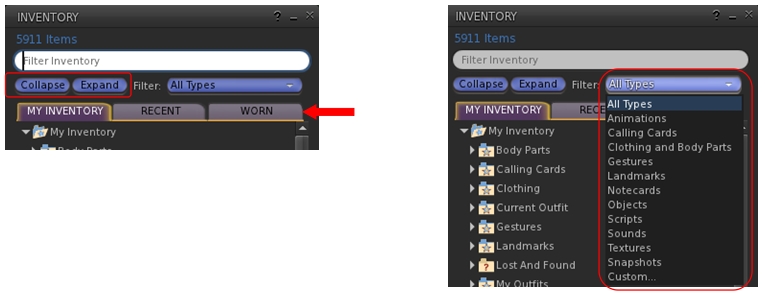
  • A pair of Collapse and Expand buttons: the first of these will close all folders and sub-folders in your inventory floater; the second will open all folders and sub-folders in your inventory floater, displaying the full tree
  • An inventory search filter drop-down list: allows inventory searches to be filtered by criteria on the drop down (e.g. only search for Landmarks matching the search term)
  • An inventory Worn Items tab: displays everything your avatar is wearing, by folder.
The new (to UKanDo) inventory floater options: the Collapse and Expabnd buttons and the Worn items tab (l): the inventory search filters drop-down (r)
The new (to UKanDo) inventory floater options: the Collapse and Expand buttons and the Worn items tab (l): the inventory search filters drop-down (r)

UKanDo Preferences Tab Updates

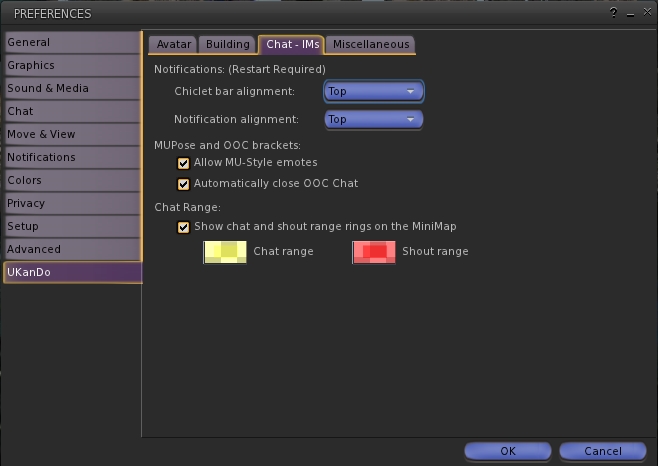
The UKanDo tab in Preferences has also been overhauled, with the options rationalised. A new sub-tab is added: Chat – IMs, which pulls together the chat / IMs related options previously found in the Miscellaneous sub-tab into a tab of their own (chat range indicators for the mini-map, notifications alignments, MUpose* and OOC options). Similarly, the Group Land Rez option is moved from Miscellaneous to Avatar (under the new Inventory heading) and also appears in the Build sub-tab as well.

UKanDo 3.7.2 sees the UKanDo tab in Preferences re-worked to make finding options easier.
UKanDo 3.7.2 sees the UKanDo tab in Preferences re-worked to make finding options easier, including a new Chat – IM sub-tab

LL Default Skin

UKanDo users can now opt to re-skin their viewer with the default Lab viewer skin. This is reported as being a part of the UKanDo 3.7.2.27938 update, but appears to work with earlier releases as well (tested with 3.7.0). Be warned, the process does require some fiddling on the user’s part:

  • UKanDo must be shut down
  • The skin folder  must be downloaded from the UKanDo website download page as a ZIP archive
  • The user needs to locate the viewer  install location (e.g. for 64-bit Windows: C:\Program Files (x86)\UKanDoViewer) and then rename it (e.g. “skins_old”)
  • The downloaded skins folder then needs to be dragged from the ZIP archive and dropped into the viewer’s install location (e.g. for 64-bit Windows: C:\Program Files (x86)\UKanDoViewer)
  • UKcanDo can then be restarted, and will use the LL default skin.

The original UKanDo skin can be restored by following the steps above, making sure the original skin folder is renamed “skins”.

Feedback

Another small-ish update, aimed at keeping the UKanDo viewer on a par with LL code updates whilst also incorporating a few nips and tucks.

The option to change the viewer skin is a somewhat convoluted process, especially compared to those TPVs which allow you to select a skin style from within them (e.g. through a Preferences tab) and then applies the selected style with a simple re-start. Whether UKanDo will also move in that direction, remains to be seen; as it is the copying / renaming of folders following each update to the viewer could get a little tiresome for some users.

That niggle aside, a compact and useful update for UKanDo users.

Related Links

Metabolt set to live on

Metabolt-logoThere have been concerns and rumours circulating about Metabolt, the text-based client for Second Life and OpenSim. The last update occurred in August 2013; the long delay coupled with the recent unavailability of the Metabolt website, fuelled rumours that the client was being discontinued.

However, this is not the case; CasperTech are stepping-in to take over curating the project, as an announcement on the Metabolt website reveals:

Same Viewer. New Opportunities

It was recently announced that the METAbolt project was being discontinued. We are very happy to announce that this has not happened, and instead CasperTech have stepped in to curate and maintain the project.

CasperTech is a leading provider of solutions for content creators within Second Life. We believe that METAbolt will benefit from our strong legacy and foundations.

It is not our intention to commercialise the project, and we will maintain it in the same spirit of open source community collaboration. We do intend, however, to rejuvenate the METAbolt community with active development, support and new innovation. We are very excited by this opportunity, and we hope you are, too!

Please bear with us while we complete the transitional period – we’re working on a new website and will be making our first release of METAbolt soon.

– Casper Warden, CasperTech Ltd.

While the new Metabolt site is being set-up, a link to the download page / source code for the current release of the client is included below the message.

Metabolt: set to continue thanks to CasperTech

Metabolt is popular text-based client for users of various types of bot in SL (such as the Pandora Bot), which can be used for a variety of role, such as greeters, automated assistants, etc. As such, the news that the client looks set to continue should be warmly received.

Related Links

CtrlAltStudio Oculus Rift alpha: nips and tucks

CAS-logoFollowing-on from his work to add the ability to let users wearing the Oculus Rift headset to turn their avatar with a turn of their head when seated (see my update here), Dave Rowe (Strachan Ofarrell in SL) has added some more tweaks to the Alpha version of his viewer with the release of version  1.1.8.34412.

One of these updates is directly related to the Oculus Rift and another is for using stereoscopic glasses with the viewer. Both of these can be found under Preferences > Graphics > Display Output.

The two new additions to Preferences > Graphics > Display Output

The first option, Set Output to 120Hz is the stereoscopic update. As the name implies, it sets  the display output to 120Hz, which is useful if you have shutter glasses and want to only display at 120Hz when you use the viewer.

The second option, Turn Speed, is a slider to control speed at which turning your head in Riftlook turns your avatar. Note that it will only work if Head Turns Avatar After is checked.

In addition to these updates, version 1.1.8.34412 addsvariable avatar walk / fly speed for SpaceNavigator proportional to pressure applied to knob (i.e., similar to SpaceNavigator flycam control), up to maximum of configured walk speed. Adjusted SpaceNavigator default values to suit. There’s also an update to the GPU table as well.

Details of the release can be found on the CtrlAltStudio blog.

Related Links