Update:version 1.11 with an out-of-memory crash fix is now available. If you have downloaded 1.10 and are experiencing crash issues (memory use exceeding 1.25Gb), you might want to download this version.
Niran’s Viewer is one of the two most capable graphics Viewers in current development – easily standing shoulder-to-shoulder with Exodus (which has in some respects gained far more attention of late).
Niran’s hasn’t been without problems – simply because it is so advanced (possibly too advanced for some people’s tastes). While NiranV Dean has worked hard to present a range of graphics controls that are more intuitive (using settings such as “low”, “medium” and “high”, rather than numeric sliders, etc.), it is possible that people have been so used to the slider mechanisms may find his newer approach a little more confusing.
I’ve tried to follow Niran’s development from Beta onwards because, well, I like it. Rather a lot. Things for me went a bit squiffy with release 1.02, which simply refused to work with my PC (or my PC with it, not sure which way around it was), and some of those issues carried over into 1.03.
Release 1.10 redresses all of that with a nice set of nips, tucks and updates that have so far given me a very pleasant ride and which again point to why those with a bent for photography, etc., in SL should take Niran’s Viewer for a spin. It is based on the very latest LL 3.2.7 (Project) code base, and includes all the latest Shining fixes to boot!
Graphics and Rendering
On the graphics / rendering front, Niran has re-worked the original sky glow defaults from V3 into the Windlight preset for the Viewer for those that find the Niran’s Viewer glow defaults a little too bright. You can find them under the Sky settings, with names such as “Realistic” should you wish to swap over to them in preference to the Viewer’s own glow defaults.
Niran’s Viewer glow default……and using the “Realistic” preset (V3 sky default)
Within the Graphics panel itself, NiranV has been fixing various bits and pieces – adding tooltips, etc., and also, God bless him, adding default (*) indicators alongside options so that it’s relatively easy to get back to a starting point when making adjustments. This I’ll treasure him for, as I’m no graphics expert, and have confused myself once or twice playing with settings on a number of Viewers.
UI
Clean UI
The most obvious difference in the UI for those who are familiar with Niran’s Viewer & who do a clean install), is that there are only 7 buttons on-screen by default, and these are both icons-only and moved to the left / right sides, potentially maximising the in-world view.
Visiting PREFERENCES->VIEWER->UI reveals the alpha / beta options have been expanded, with the ability to enable / disable the mesh parametric deformer alpha being added to the other options.
Alpha Beta options expanded
On the parametric deformer, NiranV notes, “For all you that wanted to disable it, you will now find the option to do so … untick it and re-wear any mesh or the whole mesh AV to make it update and look normal, the reason why it doesn’t auto update like in Exodus is easy, Qarl’s code adds an update to mesh nearly every second or less , this results in flickering mesh shadows and totally freaking Meshes on other people , i took that one out , contra is that you have to “refresh” it then , but it definitely works better :)”
Received Items and Merchant’s Outbox both in Inventory
I took a quick plunge into the Beta grid to give the Direct Delivery options a go, now that the public Beta is underway.
Enabling the Received Items and the Merchant’s Outbox will add both to your Inventory panel (in difference to the official Project Viewer, which has the Merchant’s Outbox as a separate panel).
In testing the options, I found the Received Items side of things worked as expected. However, I was unable to test uploading goods, as the Merchant Outbox section refused to let me drop anything into it, which I’ve reported to NiranV.
This issue aside, I find NiranV’s approach to Direct Delivery more intuitive than LL’s – having the Merchant Outbox included in the Inventory panel means one doesn’t need to have yet another panel open and floating around, and dragging-and-dropping will be much easier. Other TPV developers, take note.
As a slight aside, don’t be confused if you see “Niran’s Viewer” popping up in place of “Second Life” (such as in the Merchant’s Outbox, which refers to “Niran’s Viewer Marketplace” rather than “Second Life Marketplace”) – this is the result of an accidental global replace of “Second Life” with “Niran’s Viewer” by one of NiranV’s colleagues on the project…
Opinion
Small, from an end-user perspective, but very welcome and tidy changes to the Viewer that do much to encourage its more widespread use. Performance-wise on my usual machine, and on my usual sims (the usual caveats in place), it ran well – better than 1.02, giving me performance on a par with Exodus with or without shadows enabled, and a very smooth run. There are still some things I feel are missing from the Viewer – but these are personal choices, and they won’t stop me from using this Viewer alongside Exodus in my fledgling attempts at SL photography.
If you’re into photography and / or machinima, then Niran’s is definitely a Viewer to take a look at.
When reviewing the Beta 6 release of Exodus, I missed an issue with Alpha textures. This was reported to the team, who immediately set to work on fixing the problem and taking care of a few other issues. The result is that there is now a new release 12.01.03.1 – Beta 7) available for download.
Specific fixes comprise:
Water no longer renders black (white under AMD hardware) under certain circumstances
Alpha blended fullbright objects no longer render white under certain circumstances
Eyelashe rendering correct so they no longer show as white under certain circumstances
Fullbright on rigged meshes now gamma correct in Gamma Correction
Fixed alphas on fullbright requiring gamma correction
Fixed projected textures not being gamma corrected
Fixed rigged meshes not being gamma corrected properly under most circumstances
Fixed cases when using forward slash in chat played typing animation.
Further, the team have made the following changes / additions:
Changed default inventory icon style to the original icons
Modifications in attempt to clean up the preferences window and remove old UI preferences
Changed maximum shadow quality to 4.0, as requested
Sun/Moon light color is now gamma corrected when gamma correction is enabled
Added “refresh texture” feature from Firestorm Viewer
Added option to see threat indicators in third person
Added more adjustable settings related to glow, ambient occlusion and shadows to the visuals window.
Exodus runs extremely well on my PC, and as there is a new release that fixes a few things, I gave it a quick spin photo-wise at Black Spot. I think you’ll agree, the results are impressive.
Shaders active, no deferred rendering or other effectsWith deferred rendering active – note the local lights from the ships and the quays reflected in the waterWith deferred rendering active, plus high precision options of gamma correction and tone mappingDeferred rendering, high precision actrive and vigette set to .870
Beta 7 ran at 38fps on High at Black Spot, dropping to 11 with deferred active; turning on the high precision options did not further impact performance. I’ll attempt to run my “comparison test” on the release tomorrow.
Update 4th January 2012: Due to some issues with gamma correction, etc., the Exodus team have issues Beta 7. Core changes are listed here.
The New Year brings with it a new release of the Exodus Viewer. Version 12.01.02.1 (Exodus run a release number system based on the day/month/year of the release, so in this case the release is the first release made on the 2nd January 2012), also known as Beta 6, brings with it a host of new features. Among them:
New graphics functionality
The parametric deformer Alpha
Mesh upload
New FUI options and improved chat bar
V1-style chat console
Ability to save or load position and rotation information of a object into it’s description (something I’ve been wanting for years – so YAY, EXODUS!)
AZERTY keyboard support
The new V3.2 snapshot floater
A range of options imported from other TPVs
RLV/a
Bug fixes.
Exodus is available in Windows, Mac and Linux flavours – this review is based on the Windows release.
Installation
The installer weighs-in at 28Mb – the same size as the official V3.2.6 Viewer. Installation offered no surprises, with the installed Viewer taking-up around 108Mb of disk space – again, the same as the official 3.2.6 Viewer.
On start-up, the Viewer bucks the recent trend in using all, or part of the V3 log-in/splash screen, and instead opts for a clean design with links to the Grid at War Blog, the Exodus Twitter feed and the SL Grid Status page. I’d personally prefer more from the V3 log-in screen, but that’s purely a personal view.
Cool blue splash screen
Once logged-in the Viewer displays the familiar V3.2 Flexible User Interface (FUI), and as Cilla Black might say, there are a lorra, lorra buttons, particularly on the left side of the screen – which we’ll get to in a moment.
Other than the buttons, the UI offers little in the way of major surprises on first looks, presenting pretty much the standard Menu bar, Navigation / Favourites bars layout. Your region co-ordinates are included in the Navigation Bars – which is not to say things haven’t changed. Unlike recent Viewers using the 3.2 code, the Destination Guide isn’t opened by default in Exodus.
Menus
Popular menu options in yellow
The menus offer some nice nips-and-tucks: those options that are Exodus-specific / rated to combat use / are popular options are coloured yellow, immediately drawing the eye to them. Where these options are toggle on/off, toggling them on will cause both the familiar tick to appear alongside them and the item colour to revert to white, a nice touch to prevent visual distractions with items you don’t want to reset.
There are a couple of nice additional touches in the Advanced menu – double-click teleport is included as an option, and camera constraints are disabled by default.
The Me menu includes an additional option to access Exodus’ dedicated Preferences. In earlier releases, these could be found in a Sidebar panel (Exodus having been released just before Rodvik gave word of the coming new FUI), and are now displayed in a dedicated floater panel, accessed wither through Me or via CTRL-SHIFT-P.
The Build menu has a nice addition: you can select an object or linkset and use the BUILD->SCRIPTS->REMOVE SCRIPTS option to remove all scripts from the object / root prim of the object.
Buttons Galore
Exodus, being feature-rich even before the FUI appeared, has a lot of buttons in order to cater for the wide range of options / dedicated functions it contains. With this release, it becomes the Viewer with the most buttons displayed by default on starting-up. These are:
The Customise Toolbar floater reveals further options, including Exodus’ Mini-radar, Mini-statistics, Statistics, and Visuals buttons.
Button options
This is a very comprehensive set of buttons; however, some might find the similarity between some of the icons – the Map and Raid Advisor or the AO and Move, for example (when only using icons) to be initially a tad confusing, leaving them reliant on tool tips until familiarity kicks-in.
Button Placement and Labels
Exodus draws on Niran’s Viewer, in that buttons can be located to the left, right, bottom and top of the screen, and introduces additional display options (left). The FUI has been critique by people who don’t like icons, it’s been critique be people who like icons; it’s been critiqued by those that don’t like icons and text….
So Exodus now gives you the best of all worlds – display your buttons as icons only; reduce the size of the buttons if you find them too big; display your buttons with text and icons or with text labels only. However, note that with standard V3.2 FUI functionality, buttons placed on the left and right sides of the screen automatically default to icons only (regardless of setting), and so text options are limited to the buttons placed at the top / bottom of the screen.
AO Button
Among the buttons there are a couple worthy of additional mention. The first of these is the AO button. Initial solutions for including the AO in the FUI have been to provide two buttons – one for AO settings, one for turning them on / off. Exodus has a single button, with a smaller integral button in the top right corner. Click the main part of the button to access AO settings, click on the inset button to turn your AO on (inset button turns blue, as per the screen capture here), click it again to turn the AO off. Quite simply the most elegant solution to client-side AO integration into the FUI I’ve yet seen.
Redraw
Exodus does not have a texture refresh option, as is starting to appear in other TPVs, but it does have a Redraw button, which will temporarily drop your draw distance to zero, before resetting it to your default, forcing the Viewer to re-draw everything and re-render all that is in line-of-slight. This can actually be alarming when it first happens, as your in-world view can clear of all detail (see below) for a few seconds before everything re-renders.
Where did everything go? Redrawing your view
If this happens to you, don’t panic, everything will reappear. I can’t say how effective this is for sorting out unloaded / rendered textures, as Exodus has rendered everything so fast for me fast and perfectly.
NiranV has released two further updates to Niran’s Viewer for the New Year.
Version 1.02
Version 1.02 brings with it enhancements to shadow rendering – what NiranV calls multi-level shadowing, which sees alpha objects casting shadows (something I’ve actually recently noticed in V3.2.6 and specifically Milkshake, wherein the decorative glass panels I used a a house build now render shadows…).
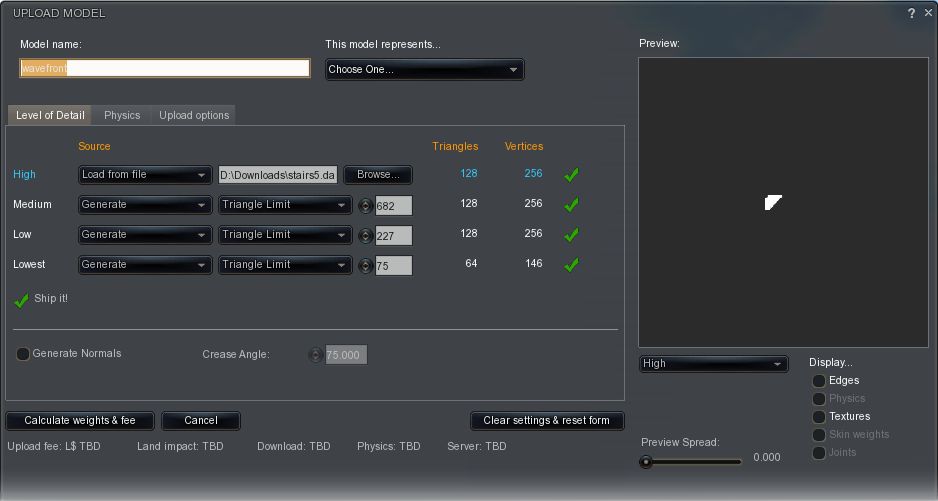
The version also incorporates Nicky Dasmijn’s mesh uploader code, making Niran’s the second TPV to adopt her code.There are also a number of bugfixes and tweaks that address minor issues withing the Viewer.
Mesh uploads using Nicky Dasmijn’s code
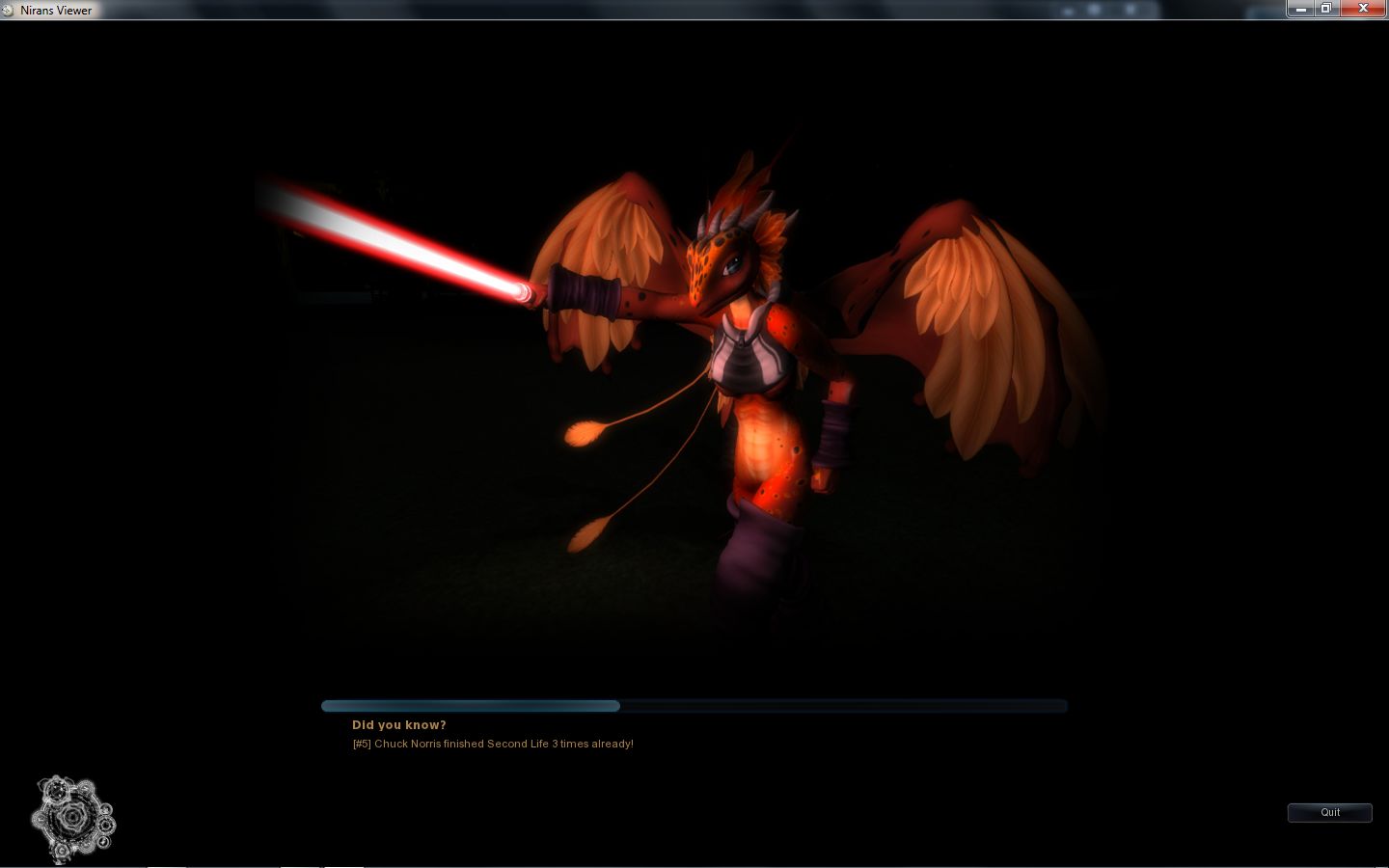
Another noticable change is with the loading screens – gone is a snapshot of your last in-world view together with the MotD and progress bar. Instead, there’s a mandelbrot-esque design in the lower left corner, images from NiranV’s in-world explorations and assorted hints and tip displayed with the load progress bar. All-in-all a refreshing change.
Niran’s: new loading screens
Version 1.03
An experimental release, version 1.03 brings with it the parametric deformer alpha release, so those who wish to try-out the deformer (particularly clothing designers) can do so. Note that it might not work in all instances; a lot depends on how the mesh is weighted.
Given it is experimental, NiranV informaed me that the code would likely be removed from the next release of the Viewer (which currently does not have a time frame).
Note: Sometimes running in-depth reviews of Beta Viewers is a risky business, as you can get hoist by your own petard. Niran’s is a good example of this: while I was plunging into the Beta, NiranV was hard at work getting the Viewer ready as release version 1.0 as a Christmas present to SL. So here’s an update drawing on my original Beta review.
In discussing this Viewer, one of the things NiranV asked me to emphasise is that it shouldn’t be regarded as a fork from Kirstens – not so much because the latter has been discontinued, but because so much work has gone into this Viewer which NiranV has worked on from scratch that it stands as a Viewer in its own right.
Note also that this review is based on the 1.01 patch release.
Installation and Appearance
The Installation EXE for Windows is 33.5Mb in size and currently is still a WinRar executable, rather than a full installer – so still no desktop shortcuts, but NiranV notes that this might change in the future. Logging-in reveals the first major change: gone is the blue UI, which several have commented on. As Niran puts it, the blue skin, “Has been stashed into the corner of the room and now Darkness is my default skin, which is aimed at giving a whole new era of Second Life skins.”
The skin certainly is dark, and the blue Azure skin is still available through Preferences for those that like it. The move makes the Viewer look more V3-like, although it is noticeably darker than the default V3 UI skin, and the yellow / gold elements and an additional depth that is lacking in the V3 skin. Sadly, Darkness does lose the ability to set a level of transparency on the menu bars by stripping away texture layers. There is also a further skin – Ashen Blood (no preview within PREFERENCES->SKINS, but you can activate it OK); this adds something of a red tint to NiranV’s Darkness skin.
Beyond this, the initial appearance on logging-in remains unchanged, with the same default button options displayed to the left, right and top of the screen, with the bottom of the screen remaining clear.
I have to admit, I’m actually less a fan of the top button area than some; and my first act on using this Viewer is always to move the top buttons to the bottom of the screen. Doing so not only puts the buttons in a more familiar location – if the top button bar is empty, it is possible to align items such as the camera controls directly against the bottom edge of the Navigation Bar, rather than having something of a gap between the two. However, in terms of giving people wider choice in button placement, it’s a good addition. Prior to the release, NiranV and I discussed the Viewer, and I asked about making the buttons so they could be aligned to the left/right (for the top & bottom bars), or top / bottom (for the left & right bars), and while NiranV said this could be done, no commitment was given to including it.
Graphics Preferences Changes
One of the key changes between this release and the Beta previously reviewed is with Graphics Preferences. In the Beta, there were two Graphics tabs, which presented the same information in different formats. The GRAPHICS 2 tab has now gone, to be replaced by ADVANCED GRAPHICS, the latter having previously been in a snazzy “slider” within the original GRAPHICS tab.
In my original piece I commented on the use of drop-downs that use terms such as “none”, “less”, “medium”, “more” and “many” when selecting options, commenting that I’m not sure it entirely works. However, NiranV took time out to explain the reasoning behind this move: “The whole new Layout was born when so many people asked in Kirsten´s Group, what does ‘Object Quality 10.0 mean? What happens when I set X Quality to X.X?’ People couldn’t really understand those values. So I came with a better idea, changing the layout to something a lot of games use: simple drop-downs which give you easier to understand options. I mean, everyone can think of what Low, Med , High mean, and that High is obviously higher/better than Medium.” Which is a fair point.
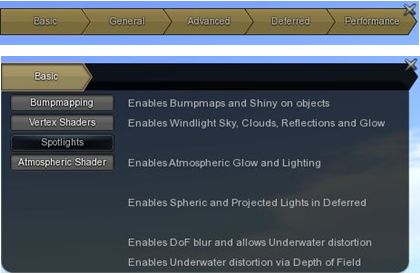
Within GRAPHICS, there is a new button – OPEN OPTIMIZER.This opens a very snazzy and dynamic panel, that NiranV described to me as, “A small Graphics floater that has all really important features packed into a small, fast and nice looking window allowing easier on-screen changes to graphics without FPS loss due to [having] Preferences open.” It’s a nicely executed idea.
The Optimiser has five button displayed on it, clicking on any one of which will cause a range of options to slide out below the Optimiser bar, while also blanking the remaining buttons to avoid confusion as to which is being used.
Graphics Optimiser
Clicking on the option again will close it, and display all the buttons on the panel once more. This is actually a very neat approach to settings people tend to tweak a lot – and the design of the floater means that it can be left “on” by default without taking up too much screen display.
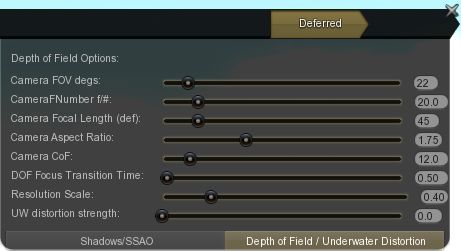
Among the options within the Optimiser lay a comprehensive set of controls relating to Depth of Field and Shadow rendering that should bring joy to th hearts of those who have previously used Kirsten’s Viewer for their photography and machinima.
Shadow and DoF settings, all now easily accessed via the Optimiser
All-in-all, it’s a great approach to fast and easy access to core features, and one I’m sure many would like to see replicated in some degree in other Viewers. Again, if you don’t use the top button bar, the Optimiser can be pushed up neatly to the top of the screen, close to the Navigation Bar, where to doesn’t really hinder the in-world view and provides ready access to core graphics functions.
As NiranV explains in the blog post accompanying the release, a huge amount of work has gone into the graphics side of the Viewer, and those on suitable graphics cards should notice the difference between this and the previous versions. Sadly for me and my Ge9800 GT, little discernible improvement was had; shadows render fine, but the overall performance falls through the floor into the living room in terms of FPS, so I cannot give an accurate testimony as to the overall improvements.
FPS issues aside, rendering on the Viewer remains blisteringly fast – I still can’t get over arriving in my garden to find the sculpted trees rezzing fully formed as rapidly as just about everything else, rather than having to look at a series of blobs and vaned spheres while the Viewer works out what to do with them…
Animated Trees
A while ago, Linden Lab started turning off “classic” elements of Second Life from the newer Viewer code. Two items so affected are the old “classic” clouds at around 300m altitude, which no longer render, and “animated” trees and plants (those tree and plants that would sway in an apparent breeze. I assume both were deactivated to help with performance (although both can still be seen with V1-based Viewers).
I find the removal of both no great loss to SL as a whole, but for those that do like to see the tree animation, then NiranV has included an on/off toggle within the GRAPHICS tab of Preferences, which will re-enable the animated function for Linden trees.
IM Panel Revisions
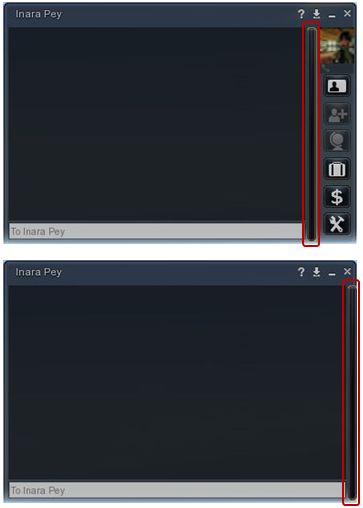
Niran has given the IM panel a substantial overhaul, and come up with a panel that is quite possibly the best in its class. By default, IMs appear in separate windows, but as with other Viewers, they can be nested into the same floater.
Some of the changes to the new IM window are immediately apparent: the range of very clear, easy-to understand icons down the right side. However, if you’d like more space to display IM conversations without spending the window, and don’t want to use the buttons – click the vertical bar between the text display and the buttons – the buttons will slide neatly away to the right. It’s a very slick and tidy approach, which NiranV describes thus, “My goal is to bring a completely new experience in Second Life Viewers, different from everything you’ve seen; take good things and make them even better or completely redo them. The overhauled IM Panel is only one of those things.”
Now you seen them, now you don’t – IM panel buttons
Map Updates
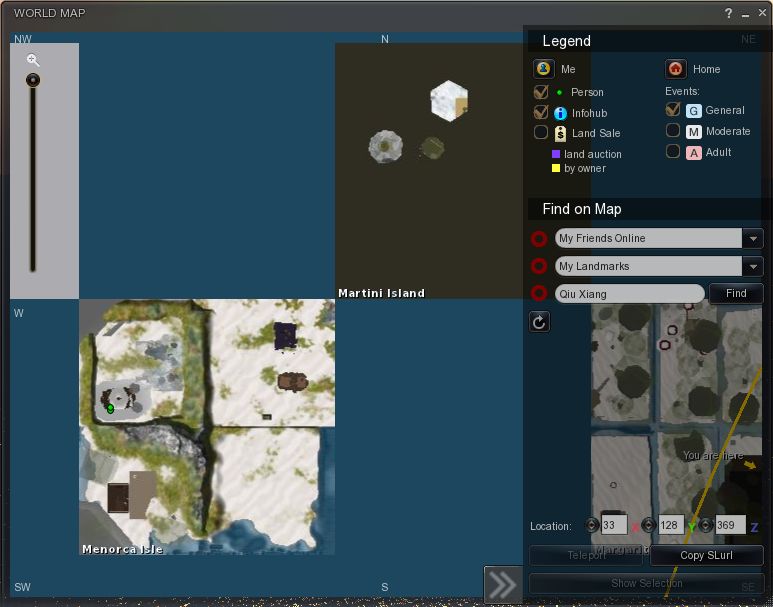
Another of “those things” that have been improved is the World Map. A slide function has been included that allows the Legend / Find section of the map to be hidden, providing a larger display area when Legend / Find aren’t required. Additionally, Legend / Find are semi-transparent, again allowing for more of the map to be visible even when both are open. Finally, and in a wise move, the Zoom function has been moved to the left of the map itself, so it is still possible to zoom in / out while keeping Legend / Find closed.
Map: transparent Legend / Find, which can be hidden (click >>), and the re-positioned zoom option (left) – the grey area behind it is actually a region, not the background to the zoom slider
Patch Updates
The 1.01 patch includes a fix for floaters that might open wider than intended on some screen resolutions – I didn’t have this issue myself with the 1.0 release, but if you find some of the floaters looking somewhat on the large size on your screen, you might want to download and install the patch files, which also add some additional touches to the Darkness skin.
Opinion
In discussing the Viewer, NiranV had this to say to me recently, “I strive to create the most advanced graphics/UI Viewer giving the User full control over nearly everything … I like to say ‘SL is only as good as YOU make it’, [and the] same goes for Graphics. I guess its pretty obvious that there is enough stuff to play with for a long time if you look into Preferences and explore the UI.” That this aim has been achieved is evident from seeing the results on-screen – as the following video from NiranV demonstrates:
Certainly, there are some issues with the Viewer that can be experienced, simply because it is so cutting-edge. NiranV has been aware that people have had a few problems, and passed comment to me prior to this release that, “In final release I will also add option to turn graphics back to normal, as I used the new Shiny and SSAO for a long time now, and people already were complaining about up to extreme performance decreases when enabling SSAO. [So] people will be able to set the LL default SSAO again which will increase FPS drastically again but also decrease visual Quality dramatically.” So if you do have performance issues, try flicking back to the LL defaults.
The key thing about this Viewer is the amount of effort that is going into it to present an exceptionally high quality user experience that capitalizes on things like the FUI and some creative thinking on the part of the creator. Had I a system capable of utilising this Viewer to maximum impact, I’ve little doubt it could become my primary Viewer.
With radar (without those functions people might find to be invasive), the option of Pie Menus, the inclusion of Lance Corrimal’s maths functions within the Build menu, RLV/a and a host of other popular TPV features, Niran’s Viewer brings together a lot in a flexible and effective Viewer that pretty much stands in a league of its own.
Important: Please note that the LINUX version of the Viewer is maintained by Miguael Liamano, and not NiranV Dean. As such, all support issues / requests should be addressed to Miguael not NiranV Dean.
On Saturday December 17th, a Phoenix / Firestorm Q&A was held at the Rockcliffe University regions, where Jessica took questions on both Viewers from the audience and which had been posted beforehand either to her directly, or via the Phoenix blog.
Jessica and host Nigma Sterling at the Q & A session
The event, hosted by Nigma Sterling, was recorded for those who could not attend, and the video has now been released on YouTube. The video is some 2hrs 30 mins long, and covers a lot of ground.
This is an honest and open response to the many criticisms the team have faced from their user community, and for those that have concerns about Phoenix and / or Firestorm it is a worthwhile spending time watching it.
I’ve not been privy to much of the situation that is alluded to in the video – the heated discussions regarding Phoenix and the perceptions that the team are somehow “abandoning” their users in “forcing” them into the V3 world through Firestorm – and i’m not about to embroil myself in it.
However, I do emphasise very much with Jessica and the team – indeed with all TPV developers in that they all face a difficult hill to climb, whether they are attempting to stay current and work within the constraints of the new Viewer code base or whether they are trying to work within the constraints of a code base (Viewer 1) that has been effectively frozen by LL for a year now, and which LL have themselves indicated is only going to get more and more broken as time goes on.
It’s a thankless task, however you look at it, and one that is never going to please everyone, be it for genuine technical issues or simply because of people’s unwillingness to take the time to work with a new UI. This being the case, I’m going to take a moment and lift a metaphorical glass of mulled wine to all TPV developers and say “thank you” for all of your efforts over the years.
Sadly, I cannot embed the Phoenix / Firestorm Q&A, as it is locked from doing so. However, you can see it here.
 Update: version 1.11 with an out-of-memory crash fix is now available. If you have downloaded 1.10 and are experiencing crash issues (memory use exceeding 1.25Gb), you might want to download this version.


 Inara Pey: Living in a Modemworld