The grid divide: TPVs and OpenSim support

At the start of the month, Hypergrid Business reported on Linden Lab’s removal of support for the –loginURI parameter from versions of the SL Viewer.

This command is most commonly used to modify the command path used to launch the viewer, allowing it to connect to grids other than Second Life. It has already been removed from the latest development ad beta versions of the viewer, and as such will find its way to the release version in the near future.

For the majority of people who use the official viewer and only access Second Life, the announcement passed largely unnoticed. Even among those who do routinely bounce between Second Life and other grids using TPVs, the impact of the change was minimal – most viewers openly supporting access to both Second Life and OpenSim grids tend to do so through the use of a grid selector / grid manager option – which remained unaffected by the change.

The Shape of Things to Come

However, the removal of support for –loginURI was the tip of the iceberg.

In April of this year, Linden Lab announced a sub-licencing arrangement involving the Havok physics engine. While there is already some Havok functionality evident in the viewer as it is (used in conjunction with mesh uploads and pathfinding), the licence arrangement enables Linden Lab to develop a library of Havok functions for the viewer. In time, this may prove to have significant benefits for Second Life; however, there is a catch.

Once the new Havok libraries are in place and available for use, the terms of the sub-licence require that any viewer accessing them only connects to Second Life. Period. Ergo, no grid selector, no grid manager and no support of –loginURI or any other means of provisioning OpenSim log-in support for such viewers.

In other words, once the arrangement is up and running, those TPVs that currently support both Second Life and OpenSim access, and which are eligible to make use of the new LL Havok libraries, have to make a choice as to their future direction:

  • Do they sign-up to the new sub-licence agreement to gain access to the new libraries and completely forgo any OpenSim support they may have provided?
  • Do they fork their development to provide two flavours of their viewer – one configured to access SL only and make use of the new Havok libraries, the other specifically aimed at OpenSim and unable to access the Havok functions?
  • Do they abandon SL altogether and instead focus solely on OpenSim?
  • Do they perhaps opt to forgo the use of the new library functions and continue “as is”, ignoring any new capabilities provisioned via the Havok libraries?

The option to fork development between SL and OpenSim probably comes down to matters of bandwidth, maintenance and audience. Does a TPV have the bandwidth to develop two flavours of viewer? Does it enjoy a sufficiently largely audience in both SL and OpenSim to warrant the time and effort needed to do so?

Firestorm

The Firestorm team announced in June that they would continue to support both Second Life and OpenSim by forking the development of the Firestom viewer between the two in the near future (if this has not in fact already happened in the intervening time).

While one version of Firestorm will remain focused on Second Life, the second branch will be geared towards general support of the OpenSim platform and not incorporate code from Linden Lab that is ring-fenced by the new sub-licence arrangement.

Niran’s

In July, NiranV Dean confirmed Niran’s Viewer would not be supporting OpenSim – although the decision was possibly as much based on a personal preference as having anything to do with the upcoming Havok sub-licence situation.

Dolphin

dolphin-logoNow, with the new sub-licence arrangement looming, Dolphin Viewer developer Lance Corrimal formally announced on August 18th that future versions of Dolphin will be solely focused on Second Life as he doesn’t have the bandwidth to maintain three flavours of his viewer across two environments (Second Life and OpenSim). He will, however, be providing a clone of the original repository should anyone wish to fork it and make an OpenSim specific version.

It remains to be seen if other TPVs will make formal announcements and which route they will opt to take.

Looking to the Future

Some commentators, on hearing the news regarding –loginURI, reacted negatively, with some citing the move as a further indication of the demise of SL. These reactions would appear unwarranted. It is unlikely that any split in how either Second Life and OpenSim are accessed is going to have a major impact on either the use of SL or its longevity.

Similarly, while some may be personally inconvenienced (having to move between two viewers depending on whether they are logging-in to SL or an OpenSim grid),  it is hard not to see this situation as anything but beneficial for OpenSim. If nothing else, it frees those viewer developers who wish to focus on OpenSim to develop functionality and capabilities  within the viewer that are specifically geared to the platform (e.g. much improved OSSL support) and unfettered from any constraints or worries about maintaining compatibility with SL (such as the 4,096-region teleport limit).

Related Links

Exodus updates: version 12.08.09.1

exodus-4It’s been a while, but the Exodus team released a new version of the viewer on Thursday August 9th. Version 12.08.09.1 is liable to be the first of two updates to Exodus this month (the second being aimed at incorporating the pathfinding tools for those keen to get to grips with pathfinding in Second Life). This release is the first to be made since Katharine Berry recently joined the Exodus team, and she’s been engaged in a number of the features presented with this release.

The 12.08.09.1 release (also referred to as Beta 8), brings with it a range of updates, including:

  • Ability to upload images from the snapshot floater to Flickr
  • New linear, Renhard and filmic tone mapping
  • New avatar troubleshooting menu
  • Ability to mute group chat
  • Inclusion of floating point “Normalized Blinn-Phong” shading LUT for deferred rendering
  • Latest RLVa support
  • Various UI updates including:
    • Vertical chat tabs (from Catznip)
    • Web browser toolbar button
    • Additional slider in the Quick Preferences floater for adjusting your own sound locally
    •  Request teleport button added to IM windows
  • Merge with the SL Viewer 3.3.3 codebase, bringing with it:
    • Merchant Outbox support
    • Local Textures (by Vaalith Jinn)
    • Graded shadow support
    • Various fixes to the mesh queue

This article has been written using the Windows release of 12.08.09.1, and is intended to be an overview of the core updates rather than an in-depth review of the Exodus viewer (see articles list at the end of this items for further information on Exodus).

Download and Install

The Windows downloader weighs-in at a modest 28.4Mb. Installation on my system was fast and smooth (as per usual, this was a clean install for me). Start-up revealed the familiar Exodus blue sky screen with core information (particularly updates from the Grid Status Page) along the bottom. No implementation of the official splash screen here. However, if you do have issues trying to run Exodus following installation – and in particular get error messages relating to .dll problems, you might try visiting the Exodus FAQ page and following the link therein.

Logging-in revealed the familiar Exodus default screen layout, with buttons to the left and button of the screen, which can still be repositioned to the left or right, top or bottom of the screen.

Avatar Troubleshooting

Avatar Troubleshooting takes a leaf from the Firestorm book and offers three options for dealing with avatar issues. These can be found in a menu under Me->Troubleshooting and comprise:

  • Reload My Avatar Data: sends a request to the SL servers to download your avatar data once more. Useful where you’re seeing outfit changes but other’s aren’t (often indicative that something is going wrong within your computer, rather than anything at the server end)
  • Rebake my avatar textures: performs a normal local rebake, with the data sent to the server for distribution
  • Reset my avatar: Ruths your avatar to default shape and clothing, allowing you to rebuild it in the event of a drastic error.

Toolbar Buttons

This release of Exodus includes two additional buttons, Web, which opens the viewer’s built-in web browser, and Panic. The latter is a hang-over from testing nightly builds and debugging. As such, it is not intended for general use and may be removed or re-purposed in the next release. It is  not recommended you employ the button, as it is intended to crash the viewer and generate a crash log.

Snapshots to Flickr

Flickr is a popular medium for SL photographers, so having an option to save pictures directly to it is likely to be a benefit to many. With this release, Firestorm obtains Katharine Berry’s code (Katharine also recently joined the Exodus team) to enable snapshots to be uploaded directly from the viewer to a Flickr account.

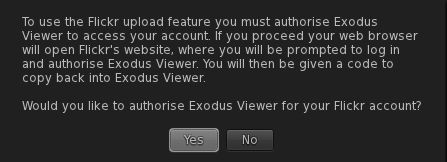
The option is presented as an additional button on the snapshot floater. The first time you click on this, it will cause a pop-up to be displayed:

Setting-up Flickr to accept snapshots from Exodus

Clicking on YES will take you to the Flickr authorisation page, which will outline the possible risks of connecting Exodus to Flickr (a standard alert page, common when using inter-application authorisation). Read the warning carefully, and if happy, confirm yo wish to proceed (refusing cancels the link and denies Exodus the ability to upload to Flickr).

Confirming that you’re happy to proceed will display a code number on the Flickr web-page. Type this into the authorisation pop-up displayed in Exodus. This will activate the link and allow you to take your snapshot and send it to Flickr. Again, note the authorisation process only has to be completed the first time you attempt to upload a snapshot directly to Flickr, thereafter snaps will be sent to your Flickr account without hindrance.

Continue reading “Exodus updates: version 12.08.09.1”

Teapot: brewing-up a viewer

Teapot is a Kokua-inspired, SL 3.x-based, viewer for Second Life and OpenSim grids, compiled by Armin Weatherwax (on OS Grid, or ArminWeatherHax Resident in SL). It includes numerous TPV derived functions and capabilities (please refer to the About Teapot pop-up in the viewer itself for additional credits), but is not top-heavy in terms of additional functionality.

The version reviewed here is 0.2.5, released on July 20th.

Download and Installation

Teapot is available in three flavours: Linux 32 and 64-bit, and Windows. The Windows installer is 42.3Mb in size, and downloaded and installed on my PC without any issues.

On start-up, the viewer displays the familiar splash screen, but with a slightly different approach to grid support.

Grid list pull-down and New Grids button

Clicking the arrow next to the grid name field will display a default list of popular grids, as per most other viewers that support OpenSim. However, if the grid you wish to log-in to is not displayed in the list, you can click NEW GRIDS. This will display a more complete list of grids (some 168 with this release of the viewer) in a pop-up window, which also contains a warning that “some of these grids, especially smaller ones, might be not online all day, or at all”. Clicking on the name of a grid in the list will initiate an attempt to log-in to it.

If the grid you wish to access is not displayed in either list, you can type the uri for it directly into the grid name field. When you click the refresh button next to the field, the grid name (if found) will be added to the drop-down list and an attempt to log-in to the grid will be initiated.

User Interface

Once logged-in to a grid, Teapot reveals itself to be something of a hybrid. The overall layout is very much Viewer 3.x, but the menus combine elements of both viewer 3.x and viewer 1.x, including as they do File, Edit and View from the latter and combining them with World, Build and Help from the former (with Advanced and Develop also available).

The File, Edit and View menus (click to enlarge, if required)

Default buttons are all arranged at the bottom of the screen, and are displayed with icons only visible. They comprise (in left-to-right order): Chat, Speak, Voice Settings, Preferences, Snapshot, People, Build, Camera, Map, Mini-map, AO and Inventory.

The AO (Animation Overrider) is by Zi Ree, and is as found in Firestorm – including using the #Firestorm folder (so if you have run Firestorm with the AO set-up, Teapot will use the same settings).

Preferences

Teapot more-or-less uses the default SL viewer Preferences floater and tabs, with the addition of an OpenSim Grid Manager  tab, and the inclusion of options to enable the pie menu for those that prefer it over the V3.x context menus (enable / disable the pie menu in the Advanced tab of Preferences, set background colour and opacity via the Colors tab).

Other Functionality of Note

  • Teapot uses V1-style profiles by default (using older code from Firestorm) and includes Nicky Dasmijn’s open-source mesh upload floater
  • Objects can be temporarily derendered from your world view, however:
    • They will only be derendered while they remain in your world view, and will be rendered once more should you re-log or teleport away and back
    • The derender option is only available when using the pie menu – it is not displayed in the context menus
  • There is no RLVa support included in the viewer at present.

Performance and Feedback

Performance-wise, using my standard set-up with the viewer and on my home sim, Teapot produced the following frame-rates: ground level: 16-18fps; 370m: 29-32fps; 2875m: 40-43fps. With lighting and shadows enabled, these became 7-9fps, 14-16fps and  20-21fps respectively. These figures put Teapot roughly between my recent “tests” of Niran’s 1.46 and Firestorm 4.4.1.28744.

Overall, the viewer performed well during a 4-hour test run on Second Life, which was crash-free. There are some nips and tucks required in places – such as ensuring options included in the pie menu are also available in the context menus (inspection option, derenderer) – but overall, Teapot presents itself as workable and pleasant viewer. It may not be as feature-heavy as other viewers that are out there, but this shouldn’t be held against it. Indeed, if you’re an OpenSim user looking for a reliable, fast and well-presented V3.x-style viewer that offers core functionality and things like Media On A Prim, mesh uploads, etc, then Teapot might well be … just your cup of tea!

Some Things to Remember

  • Teapot should not be confused with the Teapot-Viewer, used for viewing OpenGL models
  • The viewer is very much a personal project Armin has put together, and his time / ability to provide support or add specific functionality is limited
  • Efforts have been made to ensure Teapot is compliant with the TPV Policy, but it is not currently listed in the TPV Directory
  • While inspired by Kokua, Teapot stands as an independent viewer, and should not be confused with the Kokua project.

Related Links

Niran’s Viewer 1.46: the Skyrim influence

Niran’s Viewer continues to be updated on a weekly basis, with various new ideas being tried out. Version 1.46 sees an interesting take on the viewer Preferences, and as such, I thought it worth a look, as well as providing an update on some of the changes occurring in recent releases.

Download and Installation – 1.46

The x64 download weighed-in at just over 41Mb

On starting the viewer the first time, I received a virus threat warning for SLPlugin.exe. This tends to be a frequent false positive for the likes of Nortons, but rarer with AVG; this is one of the few times I have had the warning flagged.

New Preferences Layout

The most significant change within this release is to Preferences. As well as including the main Preferences floater (NV->FILE->PREFERENCES or CTRL-P), NiranV has included an experimental Preferences overlay, which can be accessed via the F2 key (you will have to re-assign any gesture using F2 to another key in order for this to work).

“Skyrim”-style approach to Preferences

NiranV describes this as his “Skyrim inspired” approach to Preferences – and I have to say that, overall, I like the concept.

Right now, the option is clearly experimental and offers access to a limited set of Preferences options, so it is a little hard to judge as to how well it will scale and whether it will provide improved access to all Preferences options. However, the potential would appear to be there – and the ability to use the entire screen rather than a defined floater area would appear to offer significant advantages in terms of information presentation. As it stands, my only potential critiques of the approach is that:

  • Some of the text within the Preferences is poorly defined against the background (this has been something of a problem in general with Preferences in the viewer)
  • Some people might not like the fact that in using an overlay in this manner they cannot access other on-screen floaters (such as being able to IM others with Preferences open). A way around this might be to offer a toggle switch allowing users to display Preferences either as an overlay or as a “traditional” floater
Readability issues exacerbated?

I’m personally not so bothered by the second issue as I am by the first; elements of Preferences in Niran’s Viewer have always been hard to read at times, although swapping skins has tended to alleviate the problem. However, everything in the overlay Preferences is displayed on a relatively dark background which tends to mask some text in the displays very well (see the image above), exacerbating the problem of legibility.

Nevertheless, I’ll be watching to see how this idea develops over time, and how NiranV translates-over the use of multiple sub-tabs within a panel (e.g. incorporates the RLVa and  Setup sub-tabs into Viewer, for example).

Server-side Avatar Baking

This release of Niran’s viewer includes a debug setting to “enable” server-side avatar baking. As this service is not actually available at present – and is unlikely to be rolled-out for least another 4-to-6 months – it is probably worthwhile pointing out that enabling the debug setting will not alter the way in which your avatar is baked.

Other Recent Updates

The following is a summary of the significant changes made to Niran’s Viewer since I last blogged on it:

  • 1.40: saw the machinima sidebar (released in 1.39) modified so it slides over the Ui, rather than shunting things to one side (a-la the original Viewer 2 Sidebar); the Picks and Places floaters were added to NV->EDIT
  • 1.41: primarily saw the update / addition of Windlight presets
  • 1.42: local chat fixes to show the speaking indicator correctly; toggle check box added to the Machinima Sidebar for easy switching between Region default and Custom Windlight
  • 1.43:  ability to sat the time after which the Navigation bar will auto-hide; new World Map layout; ability to right-click/zoom to People floater for avatars within draw distance; alignment with LL’s code releases
Niran’s updated World Map
  • 1.44: replaced rendering engine with the current Linden Lab rendering code; addition of spell checking.

Performance (1.46)

Performance has been a mixed bag for me with this viewer – and NiranV Dean has some comments in the release notes for 1.46 on the subject. Overall, performance on my usual system & with the usual settings (see the panel on the right of the home page of this blog), I had the following results, based on my home sim with 4 other avatars present. With deferred / shadows and lighting disabled: ground level: 14-17fps; 370m: 35-39fps; 2875m: 48-50fps. With shadows and lighting enabled: ground level: 7-9fps; 370m: 11-12fps; 2875m 13-14fps. All of this was remarkably consistent, and only slightly lower in all cases than I’ve experienced of late with other viewers.

Related Links

Exodus Viewer team seek photographers and machinimists

As well as working on the next release of Exodus and rolling out a series of nightly builds, the Exodus team are also staging an exhibit at this year’s SL9B celebrations – and they need help from their users!

In asking for my help in putting out the call for assistance, Geenz Spad explained the situation thus, “Basically, we’re setting up a  Made in Exodus exhibit for photographers and machinimists where they’ll have a chance to show people what they’ve got.”

Exodus at SL9B

The team is looking for three things from photographers:

  • Samples of their work, preferably taken using Exodus’ HDR features
  • A statement on why they use Exodus and how its features benefit them in their work
  • A logo for their establishment (if appropriate).

For machinimatographers, the team needs:

  • A URL to the video (shot using Exodus) they’d like showcased
  • A statement on why they use Exodus for their work, and how its features benefit them when filming
  • A logo for their establishment (if appropriate).

Submissions containing the required information should be made to Geenz Spad, either in-world via IM or notecard, or via e-mail to: geenz-at-exodusviewer.com.

Niran’s Viewer: return of the sidebar

Today sees Niran’s Viewer release 1.39 hit the grid, the latest in NiranV Dean’s weekly roll-outs which started shortly after the latest time I ran a major review of the Viewer (version 1.33). Given the Viewer is now on a weekly release cycle that sees smaller, more incremental changes made to it that may not easily lend themselves to in-depth reviews, I thought I’d provide a summary of the major features that have been rolling-out with the last few releases (1.34 through 1.39).

Start-up Options

Version 1.35 introduced a new start-up splash screen, displayed automatically when running the Viewer for the first time. This screen builds on the “classic” and “shooter/RPG” keyboard layout options introduced in Version 1.33.

Keyboard layout options introduced in ver 1.33

With Version 1.35, those using Niran’s Viewer for the first time are offered the choice of keyboard layouts via an initial splash screen. Note that as Shooter / RPG is the default layout, selecting Classic requires the Viewer is restarted before logging-in.

New initial splash screen displayed on starting Niran’s Viewer (Version 1.35+) for the first time

Once selected, the splash screen changes to display the usual login-in screen with background movie. Once logged-in, the keyboard layout can still be changed via Preferences->User Options ->Advanced once the Viewer was started, although a Viewer restart is required to completed the swap.

Version 1.37 further enhanced this capability by adding a LAYOUT SELECTION option to display the log-in splash screen choices, making it easier to switch between layouts prior to logging-in to SL (Viewer restart still required).

Version 1.39 also adds audio to the log-in screen, so that the video, called “Sad World”, displayed on the log-in splash screen now has an audible soundtrack. If you’ve not watched the video with sound before, it’s really worth stopping on your way into Niran’s Viewer and doing so – the soundtrack adds significant depth to the video.

Return of the Sidebar!

Machinima Sidebar

When Viewer 2 came out, the Sidebar was – frankly – a royal mess. The intent was good, but given it came from a company that self-proclaims itself to be “interface design specialists” (80/20.com), the actual implementation was potentially the biggest pile of fetid dingo’s kidneys ever to obliterate people’s in-world experience of Second Life.

It may have provided an “unforgettable experience” (again an 80/20.com boast) – but one that could hardly be more negative in terms of user reactions to it. Whoever at Linden Lab was responsible for accepting it should have been taken outside – and never allowed back in to the Lab’s offices.

However, over time (and largely thanks to TPVs showing the way), the Sidebar evolved and actually became something pretty usable – and it is fair to say that since it’s demise, it has been sorely missed by a lot of people. I freely admit that there are elements of it I miss…

Now, Version 1.39 of Niran’s Viewer sees the Sidebar make something of a return, in the form of the Machinima Options.

Activated using the F1 key, the new Sidebar takes the form of a full-height panel that gracefully slides out from the right side of the screen. With this release, it gently moves chiclets and buttons to the left as well, but Niran plans to make the panel an overlay with the next release, so it will slide OVER chiclets and button, rather than moving them.

The panel is admittedly a bit of a monster, but for those into photography and machinima, provides a fast way of accessing and adjusting options on-the-fly. Looking at it, I’d personally like to see the capability extended to include other options – perhaps via tabbed access built-in to the panel at the top, or down the side, a-la Viewer 2 (but with the tabs themselves completely hidden as a part of the panel, rather than sitting on the right of the of your in-world view, a-la Viewer 2).

NiranV has provided a video demonstrating how the panel will look when it is working as an overlay:

Achievements

Version 1.36 introduced “Achievements” to the Viewer. This is a light-hearted means of emulating RPG-type “achievements” gained through the use of the Viewer. As you perform certain tasks, etc., so they are highlighted in a list you can view via NV->View->Earned Achievements, and colour awards are given.

The system isn’t intended to offer anything substantial – just some light-hearted fun.

Other Nips and Tucks

  • Version 1.34: corrected a double-click to teleport on the minimap so that double-click does teleport you to the point on the map you click, rather than opening the world map
  • Version 1.35: introduced split-line titles on notifiers, etc., to enable easier reading (continued in some of the later releases as well)
  • Version 1.36:
    • Tweaked the UI so that when the Navigation Bar, etc., at the top of the screen is set to auto-hide, any UI buttons located at the top of the screen will automatically re-align against the upper limit of the window, and then drop back down below the Navigation Bar when that latter is displayed
    • Introduced a dynamically re-sizing Group Notice panel within the Group floater, making the composition of longer Notices easier
    • Re-added the Restore to Last Position option to the menu when right-clicking on items in inventory.
  • Version 1.37: stabilised mesh rendering
  • Version 1.38:
    • Added spinners to Windlight floater settings
    • Re-working of the Picks and Classified floaters
  • Version 1.39: revised teleport progress to render the UI while teleporting – further updates coming on this.

In addition, each release has seen a range of additional small updates and bug fixes, and I recommend those that haven’t kept pace with updates take a look at Niran’s blog and the change logs provided there.

Performance

I did not update to versions 1.34 through 1.36. However, versions 1.37 through 1.39 continue to run well on my older-spec PC (see the home page on this blog for details & for my usual test parameters). Frame rates easily matched version 1.33, so it is now only my personal preferences vis-a-vis UI and layout that keep me from using Niran’s Viewer full-time.

The fact that the Viewer is now on a weekly release cycle means the changes being made are now more incremental than radical, but this is no bad thing, NiranV is clearly enhancing and refining what works and focusing on those areas his users are giving solid feedback on. This doesn’t mean that new features aren’t being developed – the Sidebar approach shows that – but it does mean that the Viewer’s development path is liable to be more of a gentle curve, again as one would expect from any maturing product.

Of all the recent updates, 1.35-1.39 inclusive, it is the Sidebar that fascinates me the most. This offers significant opportunities in providing access to a lot of Viewer functionality and of addressing the wants and needs of those who lament the passing of the later iterations of the Sidebar (oddly enough, and while I hated the Sidebar initially, I’m one of the latter, having come to find it exceptionally handy as implemented in TPVs such at Kirsten’s and Firestorm). My only complaint with recent releases is that the version numbering is somewhat out-of-sequence between the blog and the Viewer itself; for example: the latest release outlined here is referred to as release “1.39 (1277)” in the blog, however, HELP in the Viewer refers to it as release 3.3.5 (1277). The last two or three releases have been the same. While this is a minor niggle, it would be nice to see consistency in version numbering.

Related Links