Refresh your Viewer experience: have a Milkshake!

milk-1Milkshake is the new Viewer from Cinder Roxley, who originally provided the Frontier Viewer. Unlike Frontier, which was a V1 TPV, Milkshake is a V3.2-based Viewer, and offers some very interesting options and additions.

Commenting on the switch, Cinder informed me, “[The] Snowstorm codebases allow much more flexibility to a developer. So it’s a lot more fun to hack on than antique snowglobe.”

The Viewer is currently only available for Windows, and this review covers release 3.2.6(2).

Installation

The installer is pretty compact compared to some Viewers: just 26Mb in size (although the latest 3.2. Development Viewer installer is only 28Mb), and the Viewer requires just 99Mb of disk space, once installed.

Logging-in reveals a little of Cinder’s sense of humour: forget the MotD, it’s the by-lines as the Viewer loads and connects to the servers that raise a smile. It’s certainly the first time I’ve been told to buckle my seatbelt when connecting to SL – although there have been times in the past when I’ve metaphorically done so!
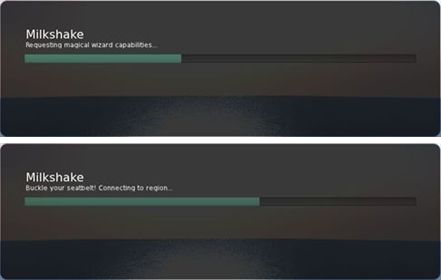
Milkshake: raising a smile on logging-in

There’s also a little message related to “dressing your avatar” – is this a slight pause in the log-in process to ensure avatar textures get to download before the in-world view loads? If so, nice touch!

Once running, the UI resembles the standard V3.2 layout; the skin is roughly the same dark tone, but the buttons have a nice green tint to them that makes them look a little less “flat” than those of the official Viewer. The Navigation Bar also includes your location’s co-ordinates by default and incorporates an ABOUT LAND button alongside the HOME button. The menu bar includes an Avatar Offset slider (to adjust your avatar’s position relative to the ground(or prim)) as well as the Draw Distance slider now found in most V3-based TPVs.
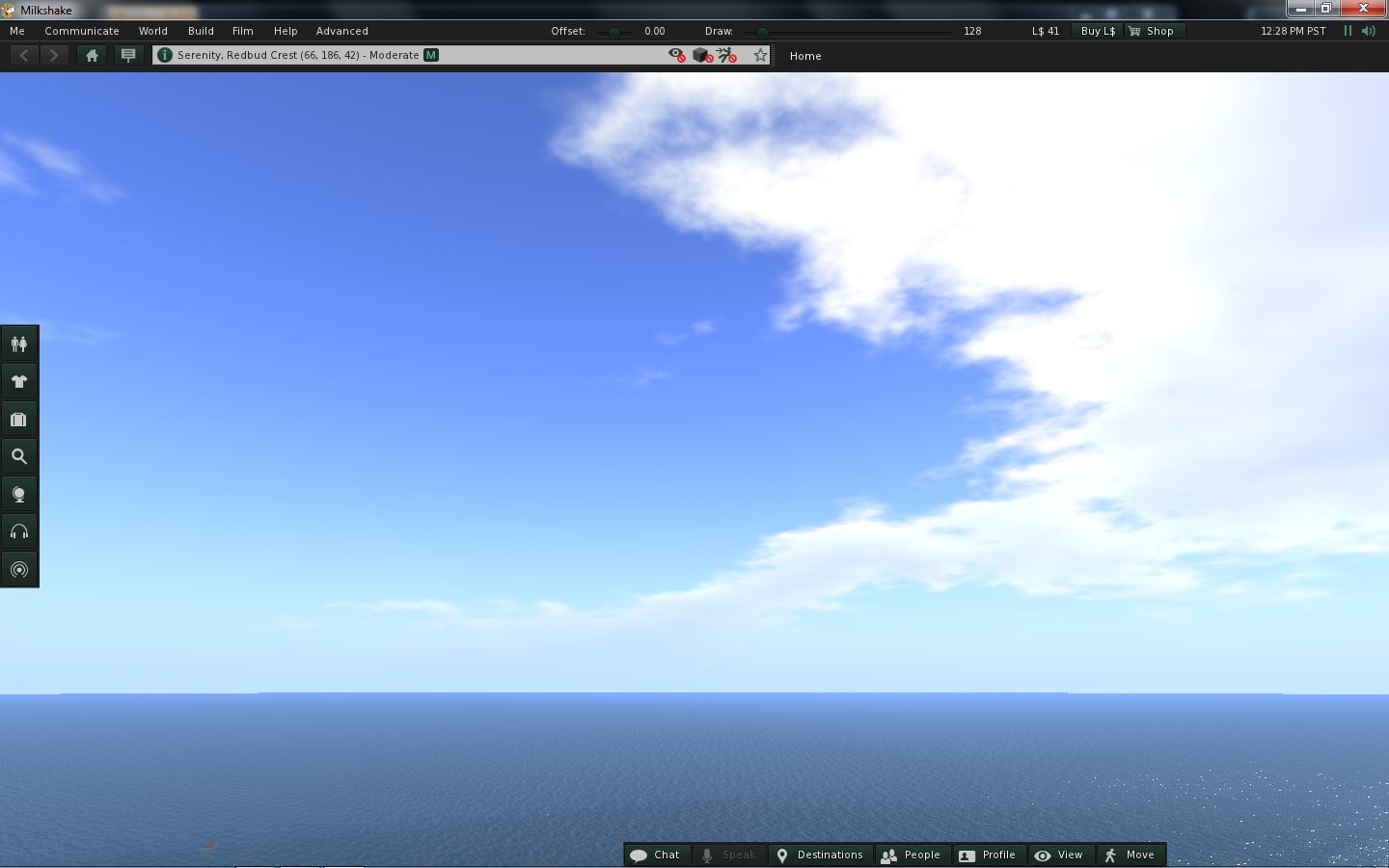
Milkshake UI, default appearance

Button-wise, the default load for Milkshake keeps to the V3.2 standard – buttons to the left and bottom of the screen, with only the HOW TO button absent. Most interestingly, the buttons at the bottom of the screen are slightly offset to the right, providing space where the chat bar can be located, for those accustomed to having it V1-like in the lower left side of the screen. It’s still not ideal as the chat bar placement is a little off – but that’s a fault with the V3.2 code, not Milkshake.

Also, if you like to have labels and icons displayed on your buttons and keep all your buttons at the bottom of the screen and have a lot of buttons available, Milkshake will neatly wrap your buttons over two or more lines in the panel without compromising the space “reserved” for the chat bar. This does compromise the chiclet bar, if displayed at the bottom of your screen, but it is a nice touch.

Multiple buttons and the chat bar

Menus

Useful Tools

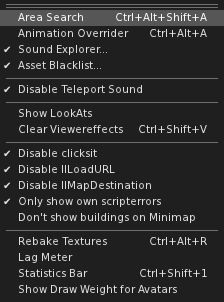
Milkshake offers a slightly revised Me menu, which includes an additional Useful Tools option. This provides quick access to a range of popular functions and options (right).

The Communicate, World and Build menus are as presented in V3.2, although World includes the option to revert back to Estate Time on the Sun menu, again in keeping with several other TPVs and providing greater convenience to users.

As Milkshake is based on V3.2, it includes the mesh upload option on the Build menu, which works as expected.

Film
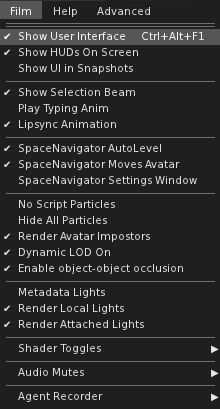
Film menu

An interesting addition to the Viewer is the Film menu, which brings together a range of options that should be of assistance to machinima makers. These include avatar and graphics options, so avoiding the need to jump back and forth around Preferences. Changes made to options in this menu are reflected back in their Preferences, where appropriate.

The Advanced menu includes an option to enable RLV for those that use it (on by default); with Help and Develop showing pretty much the same options as V3.2 (with a couple of Admin options absent from Develop).

Buttons, Buttons, Buttons

Milkshake provides, to date, the most comprehensive set of buttons yet found in a V3.2-based TPV. Some of these appear to have been pulled-in from other TPVs, most appear to be Cinder’s own work.
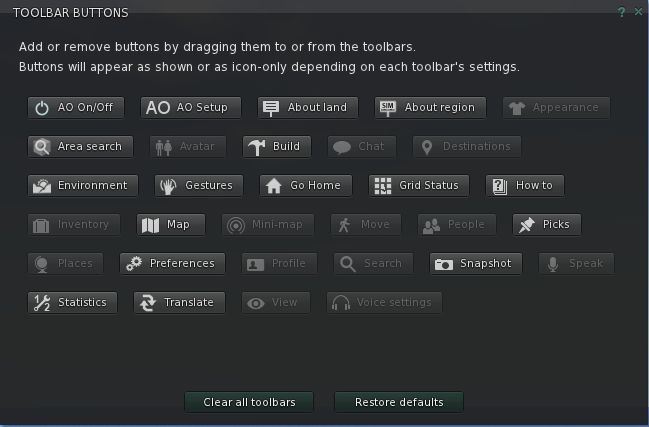
Buttons galore!

Joining the LL-supplied buttons, we have: the AO buttons and Area Search button, which I assume have been pulled across from Dolphin; About Region (shortcut to Region/Estate floater – handy for Estate Managers / Sim owners); Go Home (teleport to your home location – useful if you don’t use the Navigation Bar), Grid Status (opens the Grid status page in your designated browser); Statistics (opens the Statistics floater), and Translate (opens the Google Translate web page in your designated browser).

It’s a good selection, although I wonder at the effectiveness of the Translated button. I can understand why it is included; I’m just not sure people are going to want to either cut & paste back & forth between a browser page and the Viewer, or have the built-in Viewer open on their in-world view when chatting.

Preferences

Milkshake sees some changes to Preferences; some of which are long overdue with various options now “built-in” to the Viewer and “on” by default). These include:

  • Flight limit disabled – fly high without the need for either a flight assist system or a bridge mechanism
  • Mu* poses (use “:” instead of “/me” at the start of emotes) on by default
  • Region / Chat range radar notifications are on by default
  • LookAt privacy is enabled by default

Elsewhere in Preferences, Cinder has been hard at work with some interesting tweaks and changes.

General

Has been tidied-up to present just the general settings for the Viewer – items that are tag-specific have been moved as have the typing / WASD options, while the option to run multiple copies of the Viewer has been added (good move; this is all too often buried in other Viewers). Somewhat interestingly, the default language option has been removed.

Graphics

Includes the sub-tabs for Hardware, Rendering, DoF, etc., that can be found in other popular TPVs, but includes some rationalisation of options.

Sound and Media

Presents the V3.2 options with the addition of a checkbox to Display Music Information in Chat. The media filter system currently isn’t implemented, but Cinder informed me that it is very much on her to-do list.

Chat
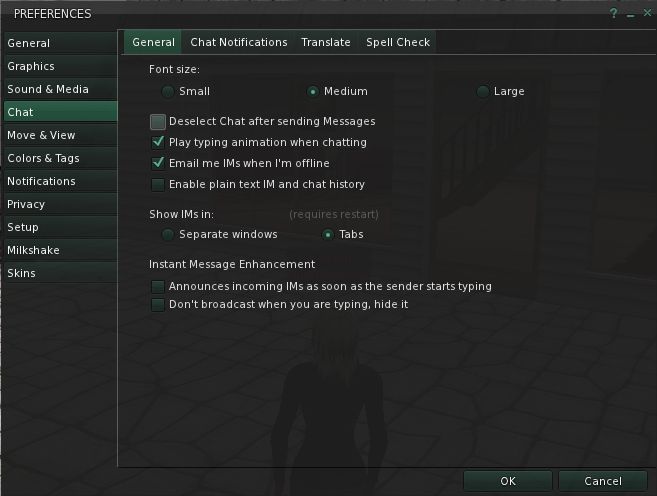
Chat options

The Chat tab includes the following sub-tabs:

  • General: include the majority of the “standard” V3 chat options, although the bubble chat option has been removed (does anyone use that?), and two “IM Enhancement” options added: the first will display “is typing” alongside their name in the IM window, the second will prevent your Viewer broadcasting the fact that you are typing to any Viewer
  • Chat Notifications: presents the chat pop-up check box, together with sliders for setting toast duration times and button flashes
  • Translate: presents the V3.2 translate options
  • Spell Check: presents the spell check options

Move and View

Has been overhauled to comprise two sub-tabs, as shown below.
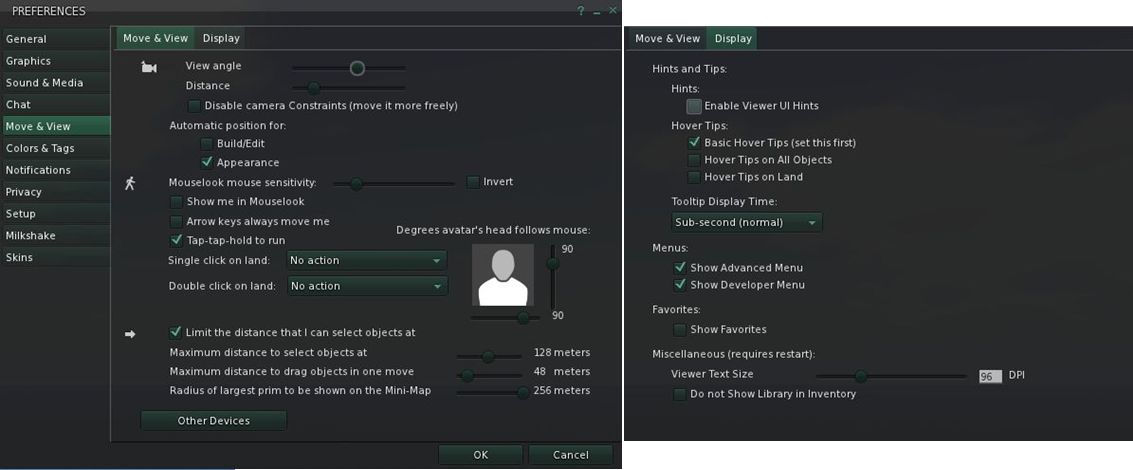
Move / View & Display options

Colours and Tags

This tab combines (and extends) the colour options for the Viewer and includes sub-tabs for name tags (from the General tab) and their colours, and client tag colours.

The Custom UI Colours in the General sub-tab are an adjunct to the use of skins, drawn from the Starlight FUI. Rather than just applying a pre-defined skin, options are included which allow you to re-colour elements of the UI as well (see the screen capture below, and note the button / tab text colours compared to other screen captures in this article).
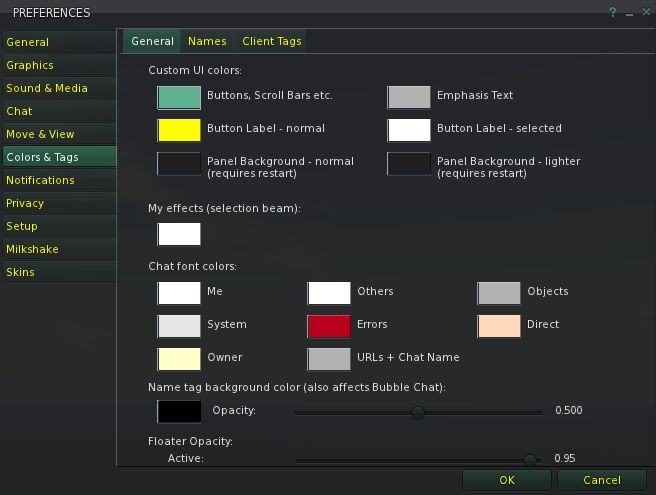
Colour tab: note the UI colour options (top)

The system isn’t perfect – button labels can be coloured, but not button icons; floater panels can be recoloured, but not the menu bar, Navigation & Favourites bars, etc. However, the approach does allow for an additional degree of customisation.

Privacy & Setup

Provide access to the V3 options found under Privacy, Setup and Advanced, and adds a number of TPV options as well (options to select history logs, etc., to be cleared under Privacy, for example).

Milkshake

As with many TPVs, Milkshake has its own Preferences tab. This comprises four sub-tabs, all of which contain some nice touches:
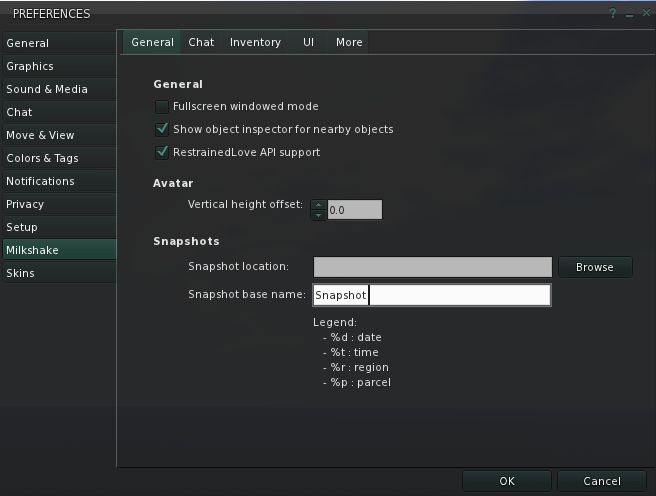
Milkshake Preferences tabs
  • The general tab includes fields to set the default SAVE location for snapshots and the ability to pre-define the name of each picture you take (the default being the standard “snapshot”). You can also use a series of short code to add further information to the name: %r will add the region name and %p the parcel, for example
  • Chat includes a range of useful options (multi-line chat bar, dock the chat bar in the Conversations panel (so it is displayed tabbed alongside IM conversations); arrange tabs in the Conversations panel vertically or horizontally; allow IM tabs in the Conversations panel to be rearranged by dragging them; turn the profile icon displayed in IM tabs on/off (will only affect new IM conversations; conversations already open will be unchanged)
  • Inventory: includes options to set what a double-click on an attachment or wearable in your inventory will do (either ADD it to anything already worn at the same point / layer or REPLACE what is already being worn at the same point / layer) and other goodies
  • UI: allows you to set where and how various elements are displayed (e.g. chiclet location, whether profiles are displayed as a floater or as a web profile in Viewer’s browser, etc)
  • More: a range of other options (show muted avatars as a cloud, Mu* poses (for those who would prefer them off), OOC etc.) – together with a warning they may well be moved elsewhere in future releases.

Debug Options

Milkshake includes a range of debug options, all commencing with “Milkshake”, which allow you to toggle a range of features. These include items that are not currently found within Preferences, such as radar notifications (“MilkshakeRadarMessages”). Note that some of these are global actions (so setting MilkshakeRadarMessages to FALSE will disable all radar notifications, for example).

Other Options

Milkshake includes a lot of recent additions to the TPV world, including:

  • The ability to right-click on an object / avatar and REFRESH TEXTURES
  • Right-click on LMs in Notecards to teleport directly to them (no need to open the LM in PLACES and use the TELEPORT button)
  • Mouselook Zoom is included (go to Mouselook, press and hold the right mouse button and use the mouse wheel to zoom in / out on an object / avatar)
  • The Map includes the ability to “hide” the Legend
  • Radar is included, as mentioned above, but is range-limited to 512m, and excludes some of what might be regarded as the more “invasive” options  – such as the ability to teleport directly to someone within range
  • Also as mentioned above, LookAt privacy is enabled by default – your LookAt crosshairs will appear to move no further than a metre or two from in front of your avatar when viewed in any Viewer.
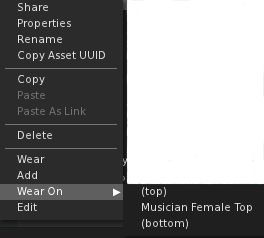
The Inventory panel also grabs a few noteworthy revisions from Catznip:

  • Right-clicking on an item of clothing in Inventory that is to be worn on the same layer as another item of clothing already being worn, will display an additional WEAR ON option in the menu. This allows you to select whether the additional items is to be worn “under” or “over” the existing layer
    • For example,suppose you have a jumper and a blouse that are both shirt layers – you can wear the blouse, then right-click on the jumper and use WEAR ON to wear the jumper “over” the blouse
  • Worn clothing items toggle the WEAR button at the bottom of the panel to TAKE OFF
  • Similarly, worn attachments toggle the ATTACH button (displayed in place of WEAR)  to DETACH.

Performance

On my usual test system, Milkshake produced some surprising results compared to other 3.2-based TPVs I’ve run of late – probably a reflection of it appearing to be built on the latest V3.2 development release (3.2.6). When on my own on a sim, I can comfortably hit an average of 50fps; when at home (at 360-ish metres), this climbs to just over 60fps. Even on a sim with several others, frame rates hold at 38-40fps. With shadows enabled this drops to around an average of 22fps – again faster than I’ve achieved with other TPVs of late.

Opinion

I’ve encountered zero crashes in running the Viewer over that past few releases up to this one. In fact, Milkshake is one of the smoothest-running V3 Viewers I’ve used, and is fast on its way to becoming my Viewer of choice.

There are still elements to be refined  / added to the Viewer, and a few more bits and bobs I’d like to see. Autocorrect is, I believe, coming (it was in earlier releases, but has been removed from this one, presumably awaiting a small bug I encountered in testing). The media filters are also on the “TBD” listas mentioned, and I assume additional skins are coming, given there is a Skins tab in Preferences. I’d personally like a couple of Quick Prefs buttons / floaters for things like avatar physics & objects LOD, Windlight settings, etc., and for sound settings (a-la Firestorm), but these aren’t showstoppers for me.

I still find the chat bar within the 3.2 UI cumbersome in terms of its look and how well it can be “fitted” into the bottom of the Viewer window. While not a fault with Milkshake per se, it does put me off 3.2-based Viewers, even with the ability to hide the chat bar when not in use, simply because it is so bloody clunky-looking. It comes across as V3.2’s equivalent of the original Sidebar in Viewer 2.

These niggles aside, Milkshake is, as I said, really growing on me – and is potentially the first Viewer to seriously challenge Firestorm as my Viewer of choice. In fact, it’s very possible that another release or two could very well see me swapping over completely….

Links

Milkshake download page

Dolphin 3.2 gains the FUI – and more

dolphin-logoThis is turning in to the week I catch up on Viewers!

Lance Corrimal has released Dolphin 3.2 (3.2.0.22166), which sees his Viewer move to the new Flexible User Interface (FUI), and gain a few choice goodies as well.

Installation

Installation was smooth with the Windows installer, although it was interesting to see the a copy progress pop-up appear as files were extracted and copied to my install directory.

FUI and Updates

At first glance after installation, this would appear to be a simple adoption of the FUI with various other TPV updates. But if you think that – best look again. There may not be mesh upload in this release, but there’s more going on than meets the eye here.

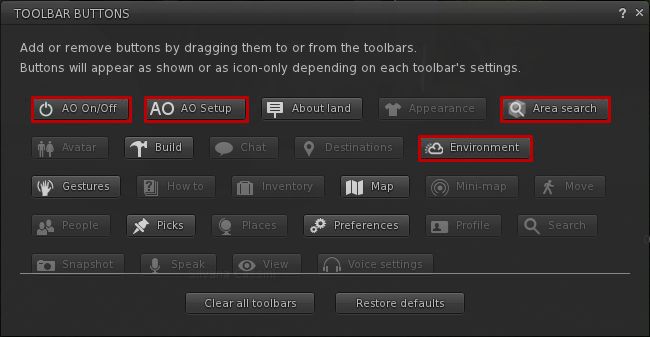
Like Niran’s Viewer, Dolphin 3.2 tweaks the FUI a little – only rather than providing an area at the top of the screen where buttons can be added, Lance has incorporated additional buttons into the Button Toolbar:

  • AO ON/OFF and AO SETUP – for quick access to the Viewer’s animation override functions
  • AREA SEARCH – accesses the Area Search for Objects floater (WORLD->AREA SEARCH or CTRL-SHIFT-A)
  • ENVIRONMENT, provides quick access to the Environment Settings panel floater, otherwise accessed by WORLD->ENVIRONMENT EDITOR->ENVIRONMENT SETTINGS.
New button options in Dolphin 3.2

Note that by default, all four buttons are active when you launch Dolphin 3.2 from a fresh installation (all on the left side of the Viewer window), I’ve shown them in the toolbar floater out of convenience.

Providing buttons for the Viewer-side AO makes perfect sense, as does including Area Search (something not everyone is aware exists in  and keyboard shortcut notwithstanding) and quick access to environment settings, which itself is an option people twiddle with a lot.

Dolphin 3.2 also gets the new snapshots floater, complete with the option to upload to your web profile feed. According to Lance’s notes, he’s also working on porting the option to upload snapshots to Flickr to the new floater, but will probably be a while before it appears in the Viewer.

This release also gains

  • The ability to turn your avatar around when walking backwards, again a popular viewer-side feature among TPVs
  • Firestorm’s texture refresh, which forces a re-fetch of the textures for an avatar or object which remains stubbornly grey on your screen (right-click & select from the context menu)
  • Firestorm’s object particle editor, which may yet be the subject of a separate blog post here
  • The latest RLV updates from Marine Kelley
  • The STORM-1713 fix, which corrects the issue of the mouse pointer flickering over UI elements that has been seen in V3.x.

Performance

Overall, performance on my system is comparable to the official SL V3.2 averaging in the mid-20s when I’m in a sim on my own, and dropping to around the mid-teens when sharing a sim with 5-6 others. All comfortable enough. With shadows enabled, this falls to an average of 6-8 fps, again pretty much in line with official V3 performance on my PC.

Opinion

Frankly, another robust Viewer from Lance that again builds on V3 to present a nice, tidy alternative with a good crop of additional features and options. The fact that it doesn’t have mesh upload shouldn’t be any hindrance to most – mesh rendering in the Viewer is fine. And one cannot blame Lance for wanting more time to consider what is the best fit for his Viewer when it comes to incorporating an uploader, rather than rushing to add the first that comes along.

If you’re looking for something that offers the V3.2 FUI, together with a good, solid selection of popular items from TPVs – radar, area search, Viewer-side AO, together with Lance’s own mods to the Viewer (including these excellent 3.2 FUI tweaks), then Dolphin 3.2.0.22166 is very much worth a look.

Related Links

Frontier Viewer: Singularity with mesh rendering

Update 30th December: Work on Frontier has been abandoned in favour of Milkshake, which I’ve reviewed here. Because of this, download links for Frontier have been removed from this piece.

Frontier is another Viewer 1.x TPV that incorporates mesh object rendering. Based on the popular Singularity Viewer code base (itself a branch of the (now defunct?) Ascent Viewer), and is managed by Cinder Roxley. The Viewer isn’t currently self-certified against Linden Lab’s Third-party Viewer Policy, although I understand the paperwork is in-hand.

So what is it like?

Installation and First Looks

Installation is standalone – no requirement for Snowglobe to be installed first – as with most Viewer 1.x TPVs. The installer I used had a slight problem in that a .dll file from Microsoft Visual C++ Redistributable Set-up was missing, which caused the Viewer to fail on start-up.This has been reported to Cinder, who will be updating the installer. In the meantime, those wishing to use the Viewer right away can download the Redistributable Package direct from Microsoft. Once installed, it’ll resolve the issue.

On start-up, Frontier displays the familiar black / dark slate look of Singularity, complete with the pop-up that the Advanced menu is active by default – no need for CTRL-ALT-D.

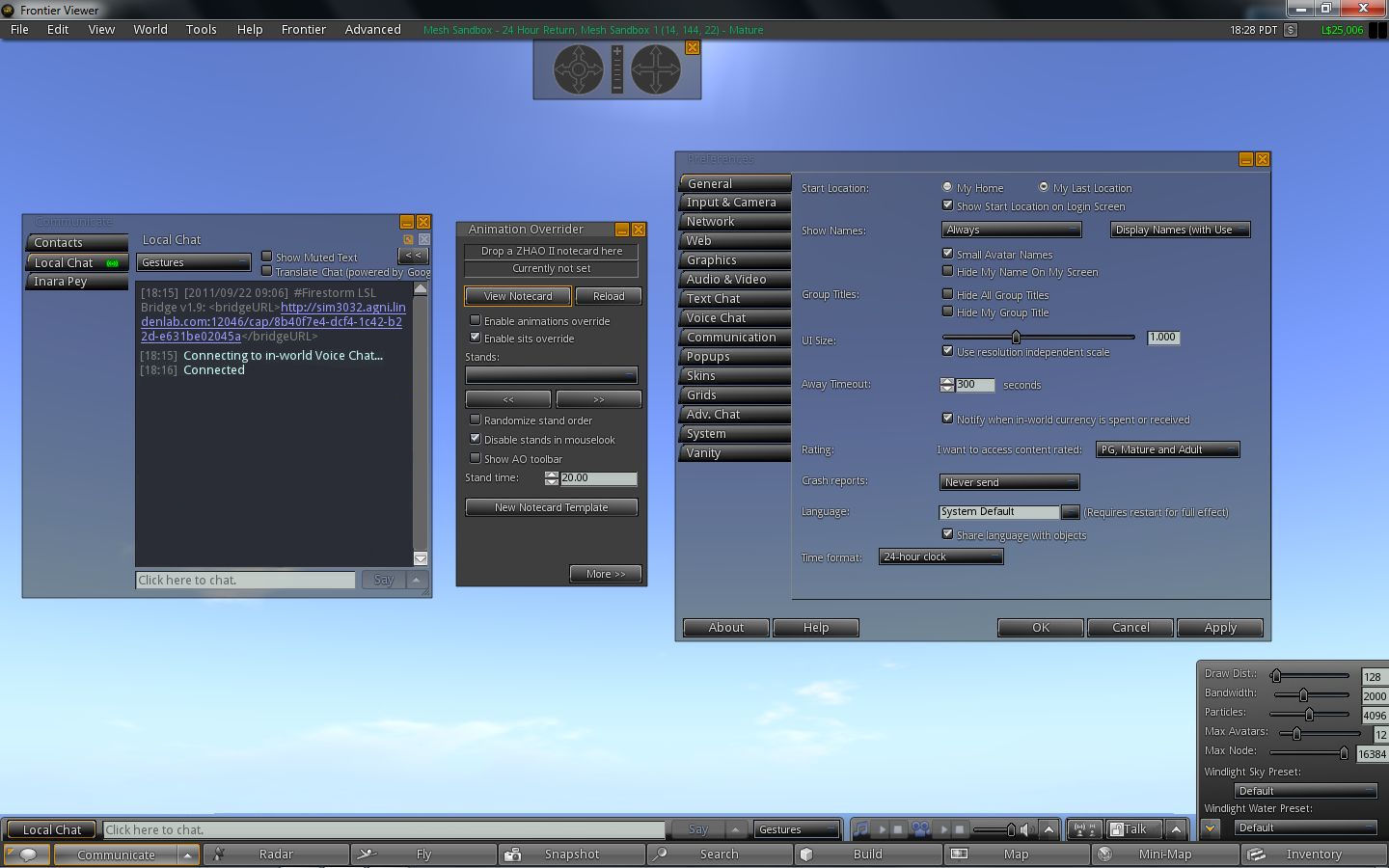
Preferences-wise, Frontier offer the same options and presets as Singularity – including RLVa being on by default. Other features familiar to, and popular with TPV users include:

Singularity / Frontier: familiar options
  • The official multi-attach for prim, etc., attachments
  • Alpha and tattoo layer support
  • A built-in AO option, following the Phoenix approach
  • A Quick Preference pop-up for draw distance, bandwidth, max avatars, environment settings, etc., again a-la Phoenix
  • Vertical tabs display for IMs a the chat window in the COMMUNICATE floater – the vertical tabs are on by default, unlike most other 1.x TPVs
  • Phoenix Command Line shortcuts (e.d. “dd” to set the required draw distance, etc.)
  • Radar
  • Object area search
  • Display Name support
  • Asset blacklist
  • Media Filter (Preferences -> AUDIO & VIDEO -> ASK FOR PERMISSION to enable, View Menu to access Media Filter lists)
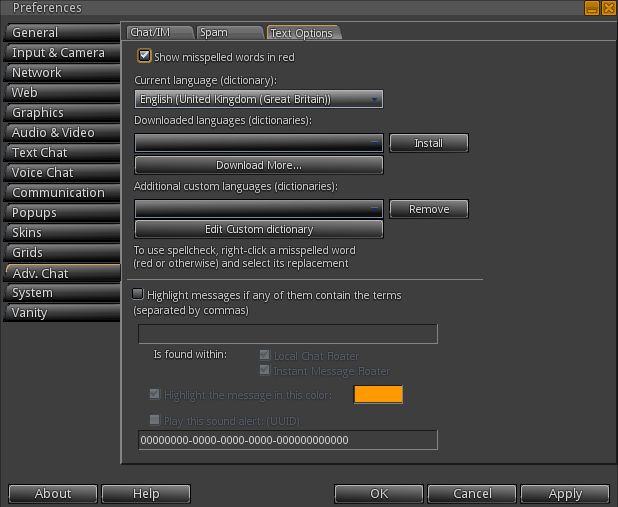
  • Spell checker – with a full range of languages – found under the ADV. CHAT tab of Preferences, and (a little confusingly) called TEXT OPTIONS
A popular TPV tool: the Spell Checker
  • Security options (turn off SHOW LOOKAT, etc.)
  • etc.

A rather interesting element in both Singularity and Frontier is the support of both the worn layer of Avatar Physics and the legacy “Phoenix” Avatar Physics. This may be due to the fact that using the “official” Avatar Physics results in a large yellow system message being displayed warning about possible compatibility issues.

The UI presentation for Singularity / Frontier is very neat, and has something of the Viewer 2.x look to it with the black / slate approach. A lot of the buttons and drop-down list have a nice 3D effect, which is aesthetically engaging. As an alternative, the legacy SL blue skin can be selected via Preferences -> SKINS, and requires the usual Viewer re-start.

When it comes to clothing, Singularity and Frontier suffer the same problem as all V1.x TPVs: only one item of each layer of clothing can be worn at any one time (one shirt layer, one pants layer, one tattoo layer, etc). I have to admit, after using V2.x TPVs, I find this one of the biggest drawbacks of 1.x TPVs, particularly when it comes to wearing multiple alpha layers.

Shadow Rendering

Shadow rendering is the “experimental” option familiar to most V1.x TPVs, and I did encounter a couple of issues with it enabled on Frontier.

Shadows 1: rendered  at midday on Singularity

While Singularity provided crisp, clear shadows with the options enabled – shadows actually rendered a lot better than I’ve experienced with Phoenix on the same PC – Frontier had problems. Shadows failed to render as well as with Singularity, and no matter what time of day was set, the viewer would render with a mist-like greying effect (see images above and blow for comparisons).

Shadows 2: Same location, same time of day, rendered on Frontier

I checked this against Astra 1.5.10 as well, also forked from Singularity, and didn’t encounter the same issue.

Mesh Rendering

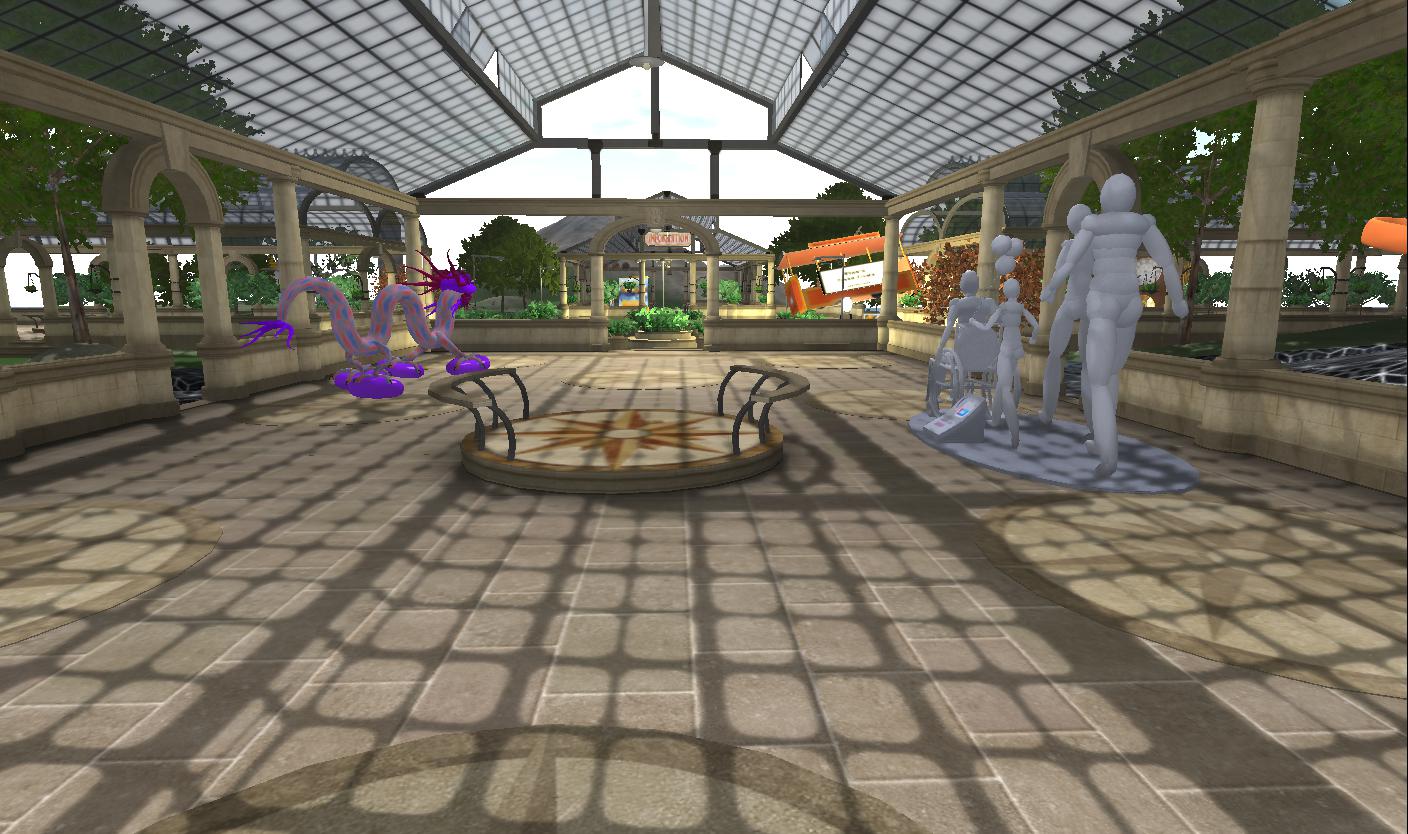
Mesh rendering: crisp

Frontier appears to use the same code as Astra experimental 1.5.10 (2) release for mesh rendering, using the same prim / count measure found in the Astra experimental.  Frontier had no problem rendering mesh objects individually or in multiples, and handled me bouncing across a mesh sandbox on the Beta grid without any issues or problems. Indeed, when visiting locations on the Main grid where mesh has been mixed with sculpts and prims (such as is the case with Mesh Mellows), I found the mesh elements rendering a good deal faster than their sculpt / prim cousins, a trend I found with Astra 1.5.10 (2) experimental, but not so much with Firestorm or the official Viewer.

I particularly like the approach to the prim / PE count taken with the Astra experimental / Frontier Viewer. It is concise and goes a small way to avoiding issues around prim count and prim equivalency (while they remain so), although having two numbers relating to objects will most likely still cause confusion for some unaware of mesh objects and their impact.

There is no upload option for mesh objects, unsurprisingly, given the usual reasons. However, as with other TPVs, this isn’t a major drawback at the moment – most people are more interested in seeing mesh objects than they potentially are in uploading them.

Performance

Frontier performed well on my usual PC (Intel quad-core Q6600 2.4Ghz, 3Gb memory, nVidia GE9800 GT with 1Gb memory). On a sim on my own it averaged around 28-30fps, and would drop to around 15-18fps with up to five avatars on-sim.

Enabling shadow rendering tended to (unsurprisingly) cause a performance drop to around 8-9fps – but this was still somewhat better than some V2.x TPVs (albeit they use the “official” code for shadows), and when on my own on a sim, the lag was more than manageable.

A rather interesting element with Frontier is that with Viewer reporting enabled on avatar tags, it displayed both to itself and other Viewers as “Milkshake”, rather than “Frontier” (or even “Singularity”). An earlier working title for the Viewer, perhaps?

Frontier and Other Grids

Frontier works well with other grids, having the familiar V1.x Grid Manager. I used it to pay a visit to InWorldz, and encountered no major issues in terms of moving around, teleporting, etc. Frame rates were significantly down over the likes of Imprudence and the InWorldz Viewer, however. I averaged 12-16fps for Frontier (and Singularity), as opposed to around 26-28fps for both the Imprudence 1.4 experimental and the InWorldz Viewers. I also encountered a crash issue repeatedly on logging-out – something I’ve experienced when trying Phoenix elsewhere as well.

Opinion

Frontier incorporates minimal changes to the look and feel of Singularity, and as such, is a good, solid performer offering all that Singularity has to offer together with the added benefit of mesh object rendering. It’s hard to say whether the release incorporates and additional bug fixes from the last major release of Singularity itself (July 2011), as there are currently no detailed accompanying notes.

Dolphin Viewer 3: updates and issues

dolphin-logoLance has issued a couple of blog updates on Dolphin 3.

The first is that there is now an update available – 3.0.5 (20427) which sees:

  • Dolphin Viewer 3 now defaults to its own separate cache folder (users of previous versions need to reset the cache location once this version is installed, unless you already set it to its own location)
  • Restrained Love check box in preferences renamed to RLV to make it more consistent with all other RLV options
  • Chat bar hovertip now properly mentions whispering by using shift-enter
  • Linux build works for users of older Linux distributions

The update is available from his download page.

Additionally, he reports three known issues relating to the Viewer:

  • The performance on Windows can be slow, (lance suggests are one-third of previous performance)
  • Replacing a saved outfit that contains more than one of any one wearable type (two or more tattoo layers) does not take off all of those layers (e.g. one tattoo stays behind but does not show in “Current Outfit”)
  • Sending teleport offers to more than one person through selecting them on your friends list makes the viewer crash

Lance indicates that both of the second points reproduce on the original RLV 2.7, and that they are being worked upon. The first issue – Windows performance – is an issue with the original Linden code, and so is in their hands for a fix.

Obviously, as these are known issues, please don’t burden Lance by reporting them to him again.

Related Links

A look at Dolphin 3

dolphin-logoDolphin 3  (official 3.3.0.3 (20418) is the latest V2/V3-based Viewer for Second Life to gain support for mesh object rendering. With it comes a raft of other features. So how does it look and behave?

As with all V2/V3-based TPVs, Dolphin installs directly, without the need to install any “official” Viewer. The installation is fast and smooth, and leaves you with the customary option of launching the Viewer directly upon the installation completing.

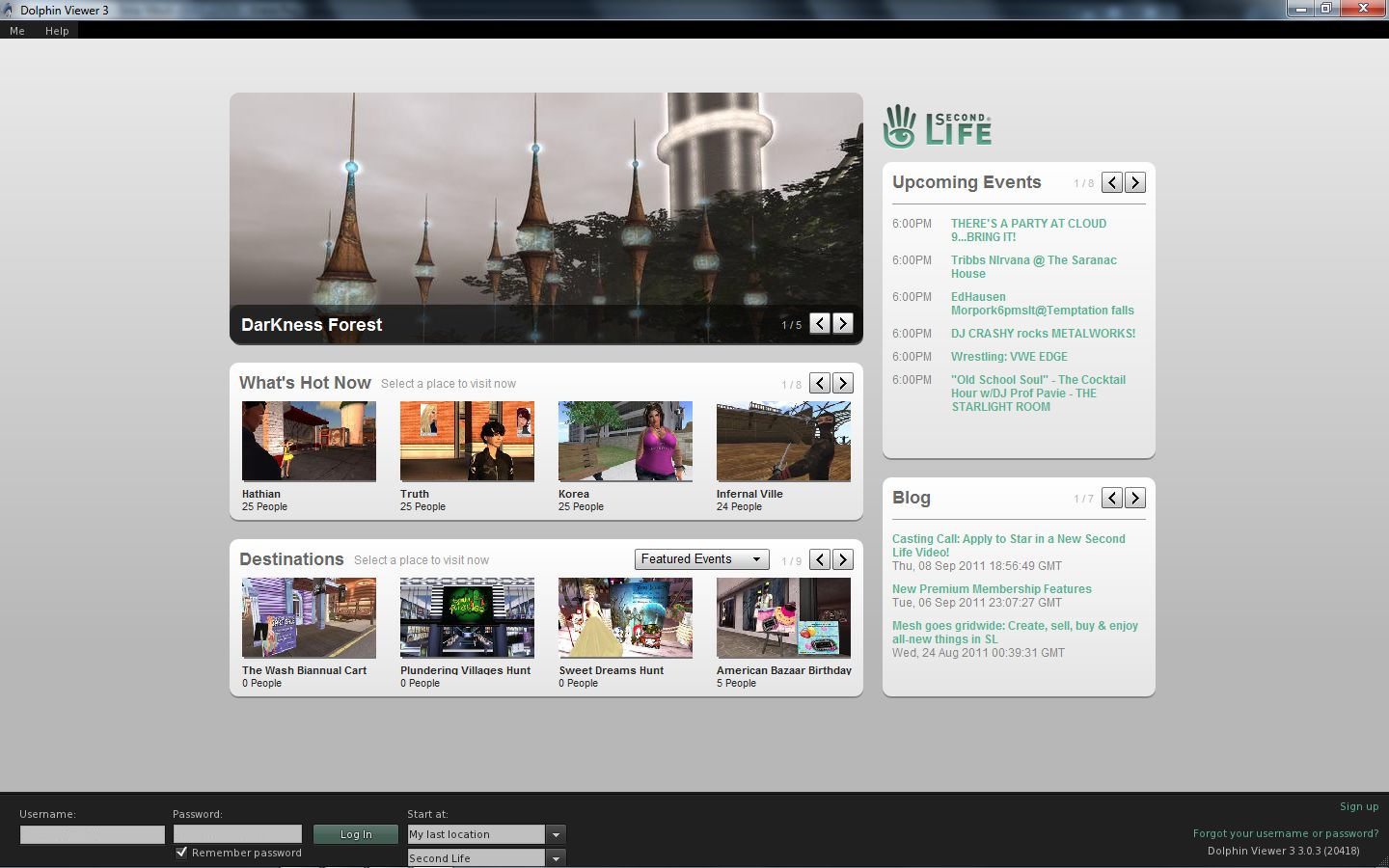
Given it is based on one of the latest code releases from Linden Lab, Dolphin 3 is the first to incorporate the new Second Life log-in screen – and kudos to Lance and the team for including it.

For those who have been using TPVs exclusively, the new SL Viewer log-in screen allows users to search SL for activities, events, destinations, etc., and log-in to them directly, without having to log-in to home / their last location, then run a search and then teleport. It’s a nice, tidy feature, and one I’ve reviewed previously. Not everyone will find it useful – but it would be nice to see it more widely available for those who do.

Dolphin 3: Features the SL Viewer log-in screen

Logging-in

Once logged-in, Dolphin 3 presents a very V3-like UI, with some subtle differences. The Navigation Bar gains a new button – ENVIRONMENT – while retaining LAND, while the toolbar and the bottom of the window retains the INVENTORY button from Dolphin 2.

Dolphin 3 UI: familiar with a little difference

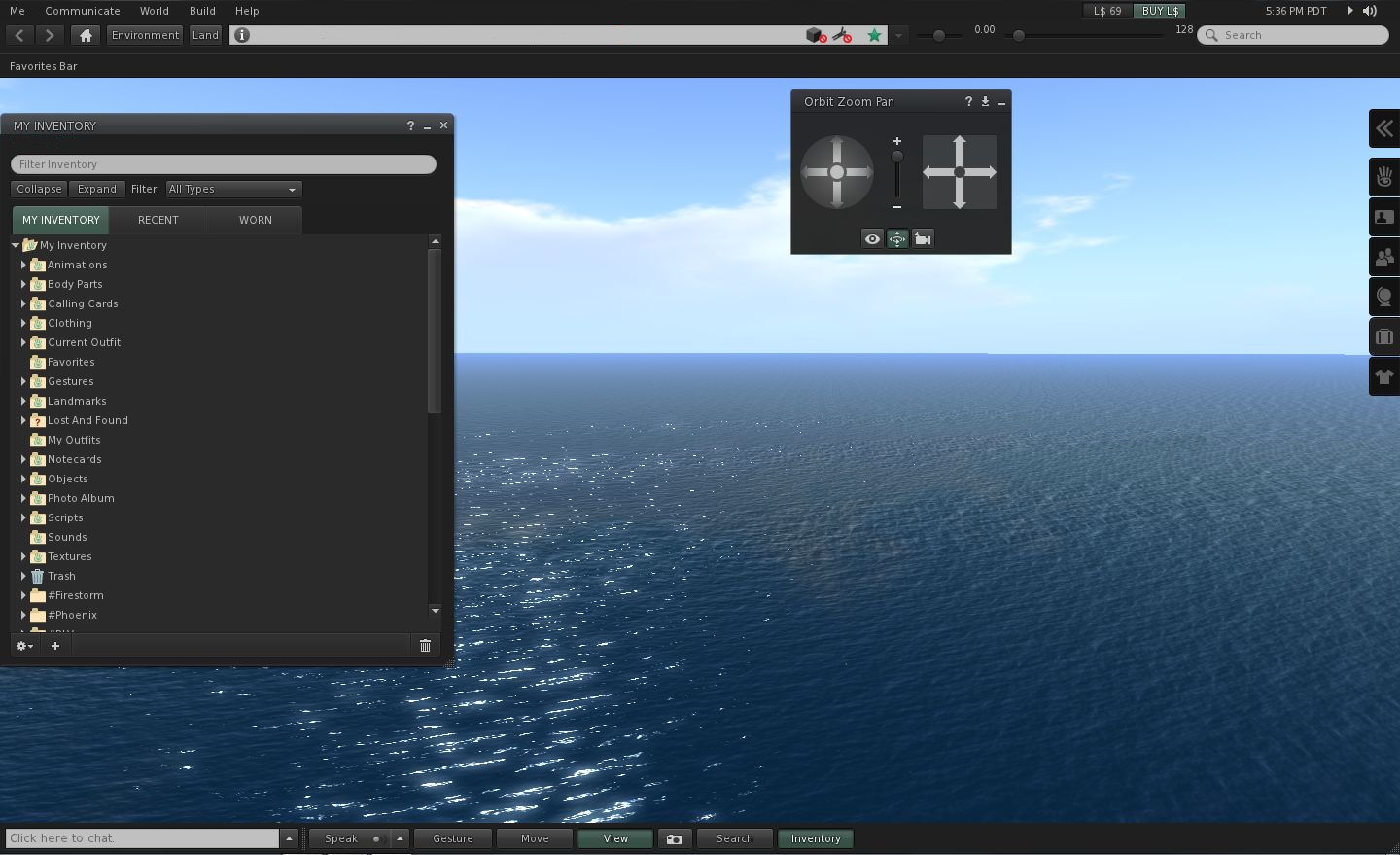
The inventory button is something that has been seen elsewhere in V2/V3 TPVs, providing a means of quickly accessing the Inventory slider of the Sidebar. Dolphin 2 has always approached things a little differently, and in a way that could appeal to those who have no great fondness for the Sidebar – it opens a dedicated Inventory window floater.

Inventory floater: directly from the Inventory button

What’s more, clicking on the Inventory Sidebar tab doesn’t close the floater – it still opens and closes the Inventory slider, as per “normal” Viewer 2 behaviour. Working together, both the button and the tab thus allow for two Inventory windows to be opened with the minimum of effort, thus overcoming one of the major complaints concerning V2/V3. I’ve always felt this to be a smart move, and it is good to see it being retained in Dolphin 3.

The Environment button provides quick access to an updated set of Windlight settings, etc.,for the sky.

New Features Overview

Mesh object rendering is perhaps the major reason for Viewer 3, and by extension, the changes we’re seeing to Viewers in general at the moment. Dolphin 3 renders mesh objects as well as V3 or any other Viewer; I used my familiar examples from the Beta grid, and they rendered without issue.

Mesh rendering

Like all Viewers that can render mesh objects, Dolphin 3 includes the new prim count / PE counts in the edit menu.

Prim Counts and PE

Also as with the majority of  TPVs at present, Dolphin 3 does not have any upload feature for mesh objects.Hopefully, this will change in the future for all TPVs that currently do not have the capability; but as I’ve mentioned ein the past, for most people the capability to see mesh objects is what matters, rather thean the ability to upload it.

Alongside mesh object rendering, Dolphin 3 supports the new native 64m maximum size  – which it again, unsurprisingly, handles without fault.

Continue reading “A look at Dolphin 3”

Dolphin 3 launches with mesh rendering

dolphin-logoLance Corrimal has launched Dolphin 3, the latest in the Dolphin range of Third-Party Viewers, and another alternative to Viewer 2.x/3.x.

The new release follows hard on the heels of the Firestorm “Mesh Beta”  brings with it a wealth of new features – including mesh object rendering. The full list of new features reads:

  • All new goodies from Linden Labs up to their internal version 3.0.3:
    • Mesh object rendering
    • Camera depth-of-field
    • Avatar physics
    • Native 64m prim support
    • Build tool improvements (see below)
    • Increased maximum cache size (up to 9984 Mb)
    • Increased maximum setting for LOD (up to 8 )
    • Mini-map back in the People sidebars with options to turn off & re-size
    • Enhanced parcel privacy, a check box in About Land/Options
  • Marine Kelley’s Restrained Love v2.07.03.03
  • All of Lance’s own additions to Dolphin 2, with the exception of Qarl Fizz’ “select Linden plants” patch, which does not work with the mesh engine

The improved build tools include:

  • Ability to perform simple mathematics in the spinner controls in the Build tool’s Object tab (numeric fields in Position, Size, Rotation). For example, to double the length of a prim along the y axis you enter sy*2 in the y-size field. The other “variables” are px/py/pz for position, sx,sy,sz for size, rx,ry,rz for rotation.
  • A new button in the Build tool is present, so that creators can create a sculpted prim directly instead of first creating a box and then changing it to a sculpt.
  • The maximum number of repeats for textures has been set to 256
  • The maximum size for hollow has been increased to 99.99% from 95%
  • More precision (4 decimals) in the spinner controls in the Build tool, together with a way to increase and decrease the single digits with your keyboard

This release does not include mesh object uploads, for the same reason a Firestorm 3, and may also have inherited the Linden-generated nVidia 400-series+ crash bug – so caution may be required in using Basic Shaders.

I’ll hopefully have a features review of Dolphin 3 out within the next 24 hours.

Related Links